User interface settings
Graphical interface
By default, when you navigate between pages in the GUI, the platform preserves your configured table filters and sorting, search box input, and page size settings.
On the User settings page, you can configure GUI behavior and appearance. To open the page, click the dropdown next to your account name at the top of the screen and select User settings.
Screenshot
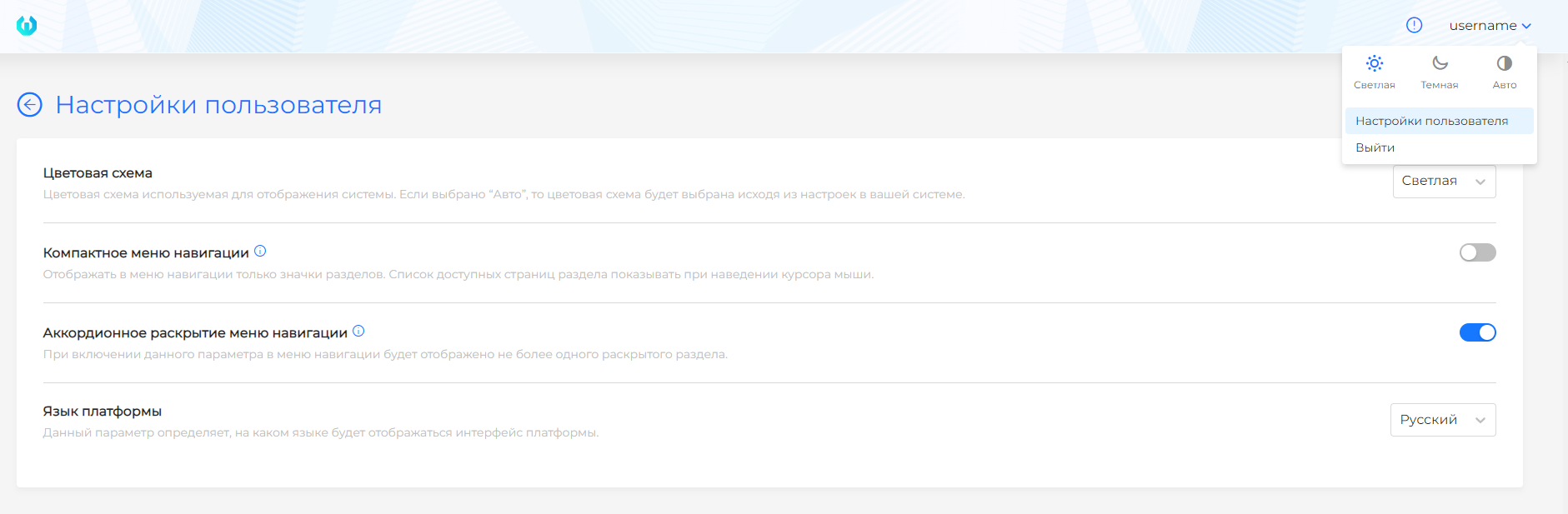
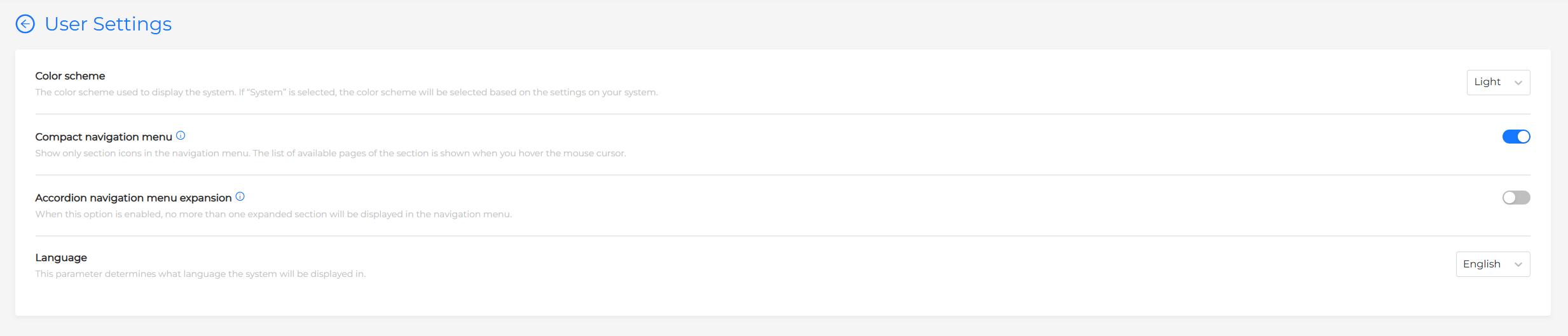
Available user settings:
- Color scheme. Select Light or Dark. By default, the platform GUI uses the light color scheme.
- Side navigation menu display mode:
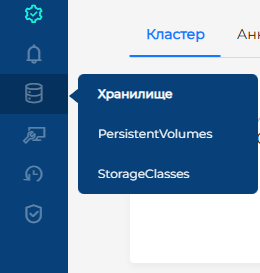
- Compact navigation menu. When enabled, the side navigation menu is collapsed and expands the section page list when you hover over a section icon. Disable this option to keep the navigation menu expanded with section names visible.
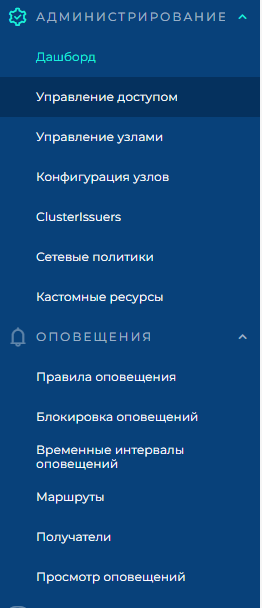
- Accordion navigation menu. When enabled, only one section page list in the navigation menu is expanded at a time.
Compact menu example
Accordion disabled example
- UI language. Select Russian, English, or Kazakh for the platform GUI.
Screenshot
Tables
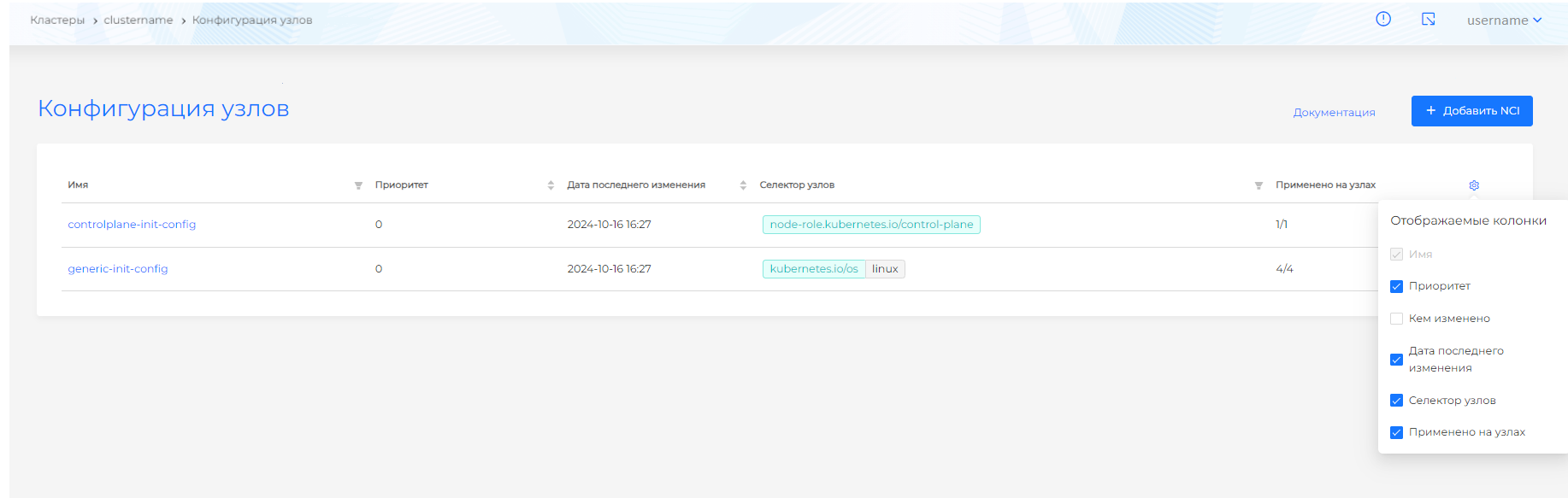
On Shturval platform pages, you can control which columns appear in object list tables. Click the gear icon in the upper-right corner of the table and choose which columns to hide or show. The column with object names cannot be hidden. By default, the Labels column is hidden in namespace resource tables.
Screenshot
Modal windows
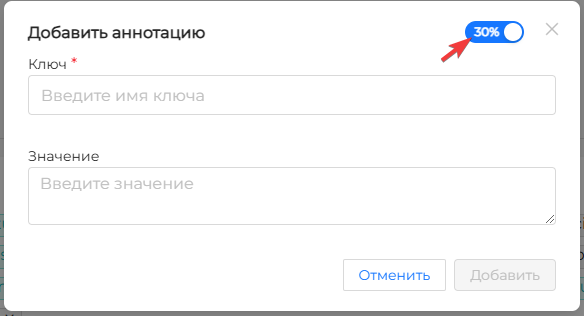
On Shturval platform pages, modal windows support two display modes:
- collapsed: the modal window occupies 30% of the screen (default);
- expanded: the modal window occupies 80% of the screen.
To switch modes, click the toggle in the upper corner.
Screenshot
Manifest editor
On object manifest pages, you can configure manifest editor display and behavior. Click the gear icon in the upper-right corner of the manifest input area and set the options you need. Available manifest editor settings:
Screenshot
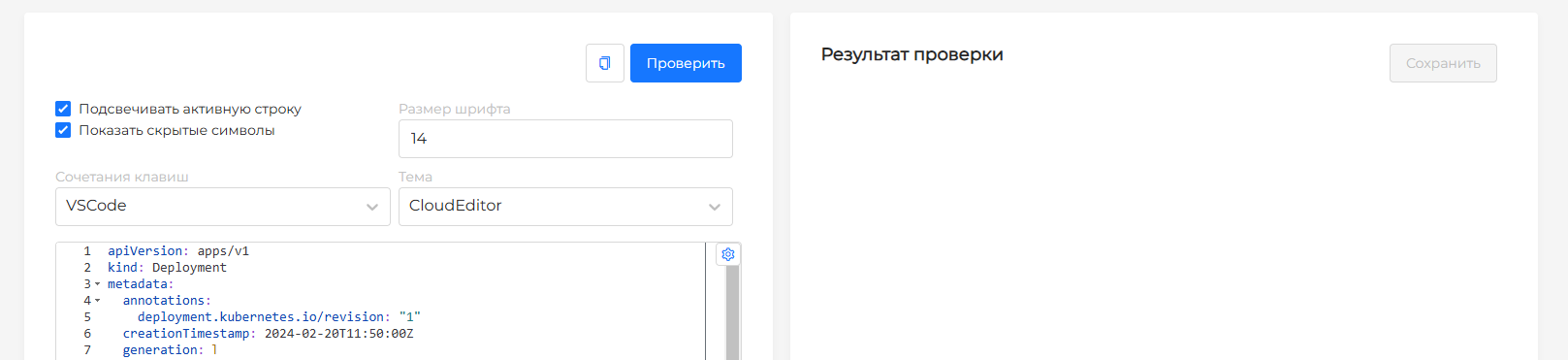
- Theme. By default, the Light interface scheme uses the Cloud Editor theme; the Dark scheme uses Nord Dark.
- Font size. The default is 14.
- Highlight (or disable highlighting for) the active line. The active line is highlighted by default.
- Show hidden characters. Hidden characters are shown by default.
- Keybinding. Available options: Ace, VIM, Emacs, Sublime, VSCode. VSCode is the default.
You can collapse or expand manifest parameter blocks. To do this, click the arrow next to the line number on the left.
Note! Changing the interface color scheme in user settings resets custom manifest editor settings to the default configuration.