Depending on your email provider, you will need to fill out information to set up an email alert. For example, Gmail requires authorization data.
- Authorization ID: required for SMTP authorization using PLAIN.
- Username: required for SMTP authorization using CRAM-MD5, LOGIN or PLAIN. If authorization is not used, leave the field blank.
- Password: required for SMTP authorization using CRAM-MD5, LOGIN or PLAIN. If authorization is not used, leave the field blank.
- Authorization secret: required for SMTP authorization using CRAM-MD5. If authorization with CRAM-MD5 is not used, leave the field blank.
- Recipient email: target email address to receive alerts.
- Service headers, consisting of the header name and header body;
- Hostname to identify the SMTP server (Optional);
- Notification template in HTML format
- Send resolved: triggers the sending of a message indicating that the alert is no longer relevant. Default: yes;
- SMTP server (required field).
Please note! To receive alerts by e-mail:
- on the server side, ports 25 and/or 587 for SMTP, 465 for SMTPS must be open;
- when alerting in the cluster (client, management) of the Shturval platform, there are no restrictions on output on the listed ports.
Example of setting up sending a notification to devmail
- Prepare the maildev configuration file:
maildev configuration file manifest
Parameter | Description | Data type | Default ---------- | ---------- | -------- | ---------`cert-manager.io/cluster-issuer`| Cluster management cluster name Clusterissuer | string | corp-acme`host`| Future maildev host. It is formed according to the principle maildev.cluster-management-name.- Install devmail with the resulting configuration file in namespace
monitoringmanagement cluster.
Command to install devmail
Don’t forget at the end of the command, instead of CONFIGURATION-FILE-NAME, enter the name with which you saved the configuration file!
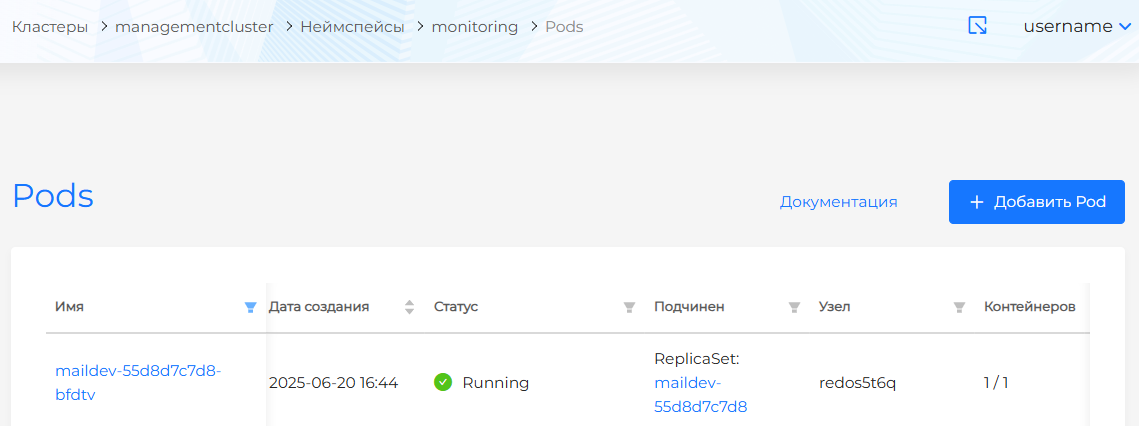
If the setting is correct, in the namespacemonitoringPod with the prefix maildev will appear in the management cluster.
Screenshot
- In the cluster for which you want to configure sending notifications by email, in the Cluster/Alerts/Recipients section, create a recipient with the “email” type.
Fill in the sender, recipient. Register the SMTP server:maildev-smtp.monitoring.svc:1025.
If the setting is correct, then maildev will be available at the address specified as the host in the configuration file (https://maildev.management-cluster-name.<base_domain>/#/).
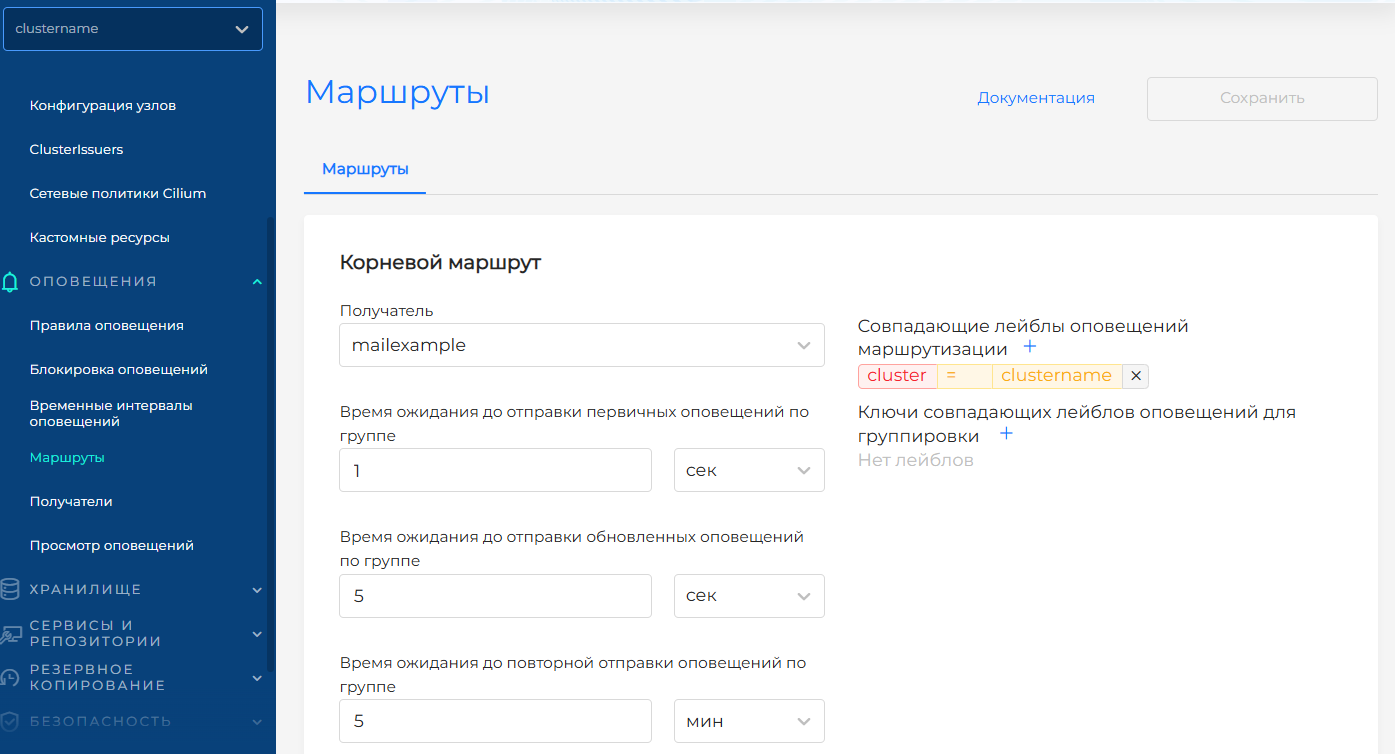
- In the Cluster/Alerts/Routes section, configure sending alerts via this channel. If necessary, select notification labels that will serve as a filter for sending through a given channel.
Screenshot
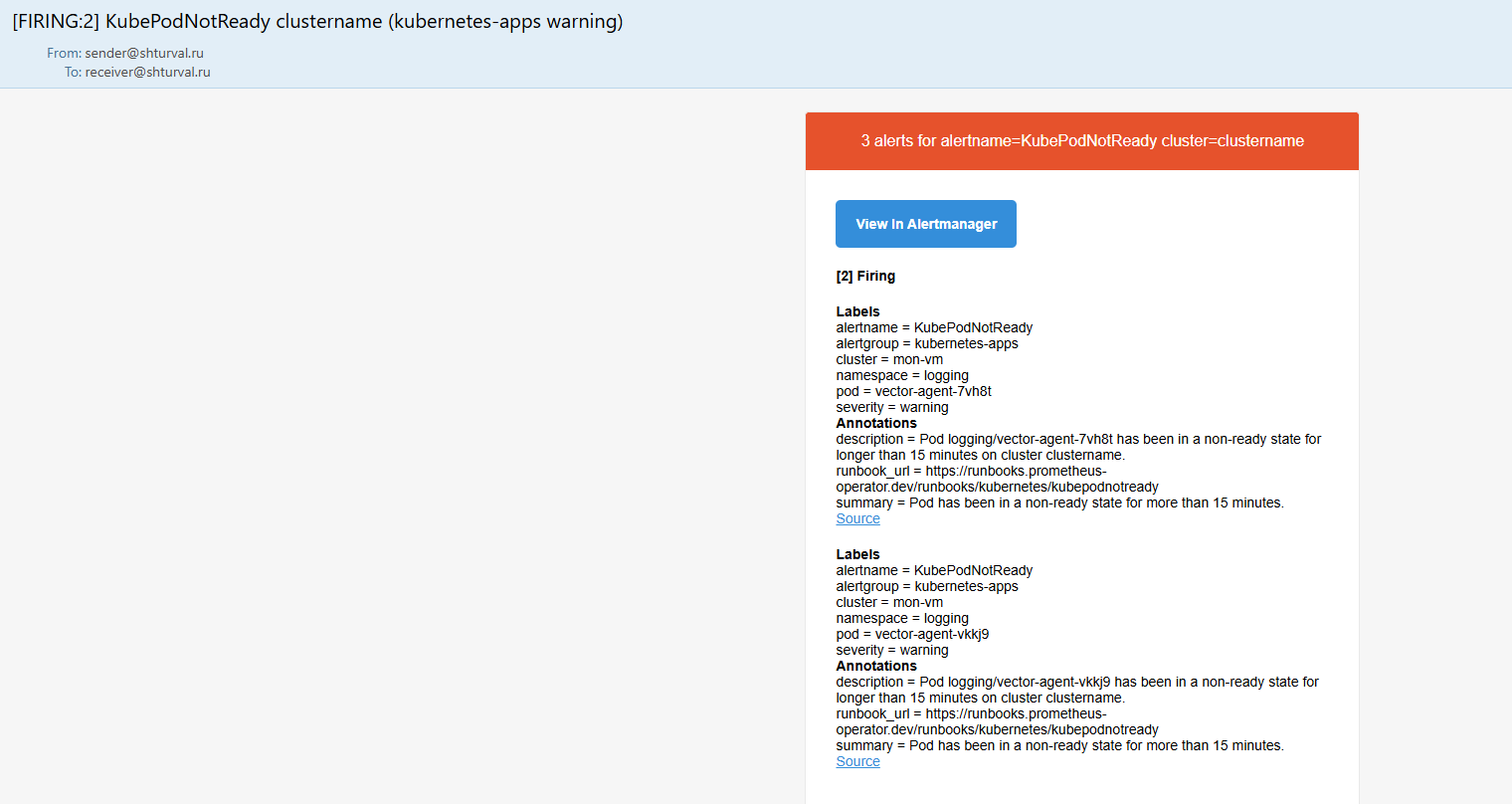
If the setting turned out to be correct, then you will see a notification like this on devmail
Screenshot