Webhook
Webhook is used to send messages to notification aggregation services, service-desk, task-manager.
- Username (optional field. Used for authorization paired with a password. Not required when using a Bearer token.);
- Password (optional field. Used for authorization paired with the username. Not required when using a Bearer token.);
- Bearer token (optional field. Used for authorization. Not required when using username and password);
- URL proxy;
- Send resolved: triggers the sending of a message indicating that the alert is no longer relevant. Default: yes;
- Maximum number of alerts sent per webhook message: Maximum number of alerts sent per webhook message. If the value is 0, all alerts are turned on;
- URL (required field): endpoint for sending HTTP requests;
- Use TLS: yes/no (default no); If you need to set up a secure connection, you must additionally enter:
- Server name (required field);
- CA certificate file (required field) CAFile Certification authority certificate file in base64 format;
- Client certificate file (required field) Client certificate file in base64 format;
- Client key file (required field) Client key file in base64 format;
- Whether to disable certificate verification (no by default);
Please note! The certificate file must contain:
Once you’ve completed setting up a recipient, you need to configure what alerts will be sent on that channel. To do this, in the Cluster/Alerts/Routes section, configure the sending of alerts via this channel. If necessary, select notification labels that will serve as a filter for sending through a given channel.
Webhook configuration example
- Upload object manifests to the management cluster
Deployment,Service,VMRuleby importing manifests.
Deployment
Service
VMRule
In the cluster for which you want to configure alerting, go to the Cluster/Alerts/Recipients section and create a recipient with the webhook type. In the field
URLenter value:http://demo-webhook.monitoring.svc/webhook. Enter the recipient’s name asdemo-webhook. Leave the remaining fields blank. Save your changes.In the Cluster/Alerts/Routes section, configure sending alerts via this channel. If necessary, select notification labels that will serve as a filter for sending through a given channel.
In namespace
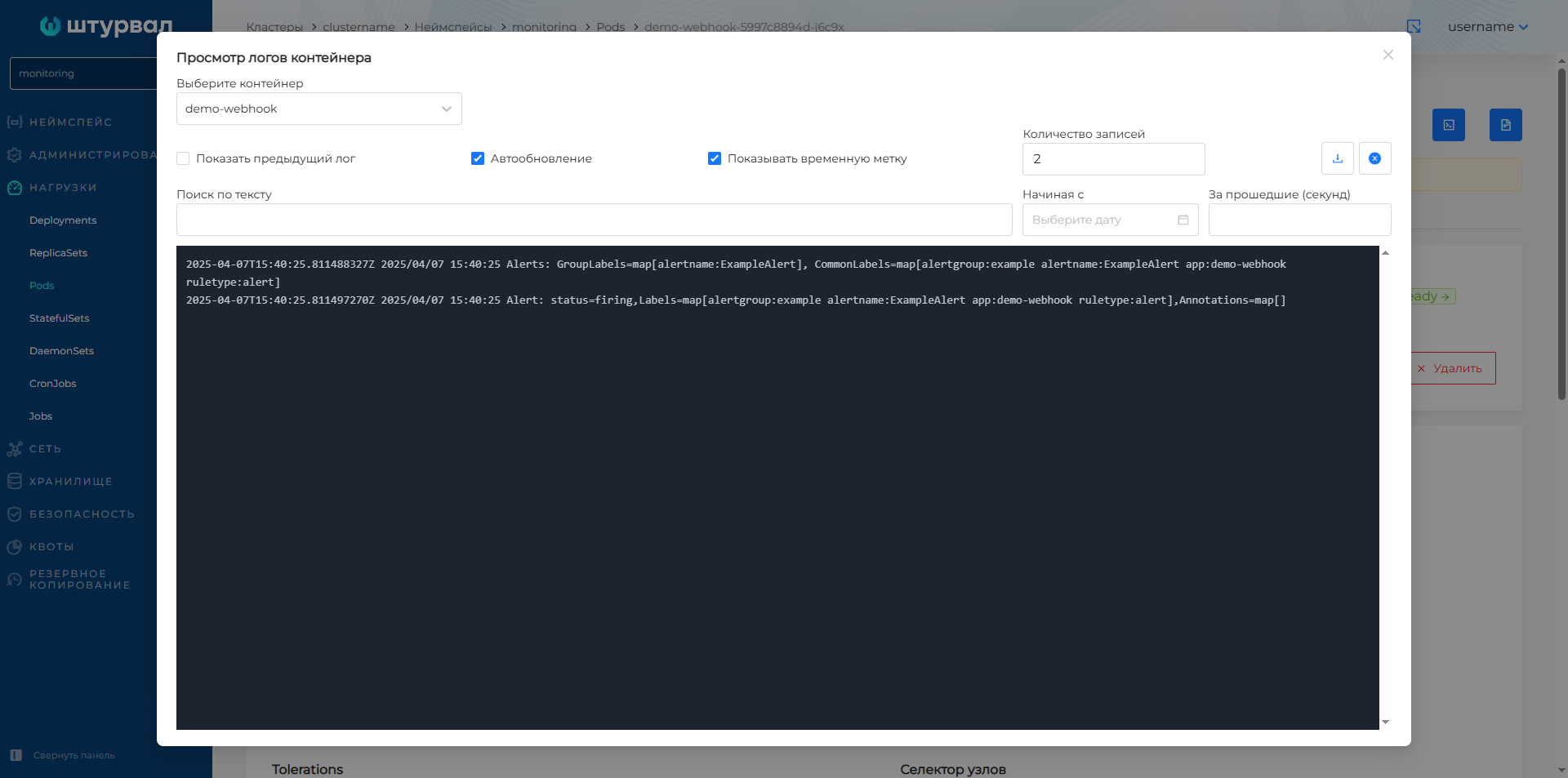
monitoringmanagement cluster go to view pod nameddemo-webhook. Open the container log viewer. If configured correctly, the logs will contain messages from triggered alerts in the cluster.
Screenshot