Group rules
When alert rule group, on the group view page it is possible to manage rules. At the bottom of the page on the left is a list of added rules. You can create a rule by clicking on + in the list of rules. The addition of the rule will be displayed on the right side of the screen. A preview of the created rule will also be displayed on the right side of the bottom of the screen.
Rules can be of the “alert” or “record” type.
- Alert rules allow you to define alert conditions based on Prometheus/Graphite expression language expressions and send notifications when the expression is triggered.
- Aggregation rules allow you to pre-compute often necessary or computationally expensive expressions and store their result as a new set of time series. Querying a precomputed result will often be much faster than executing the original expression every time it is needed. This is especially useful for dashboards that need to repeatedly request the same expression every time it is updated.
Alert Rules
Screenshot
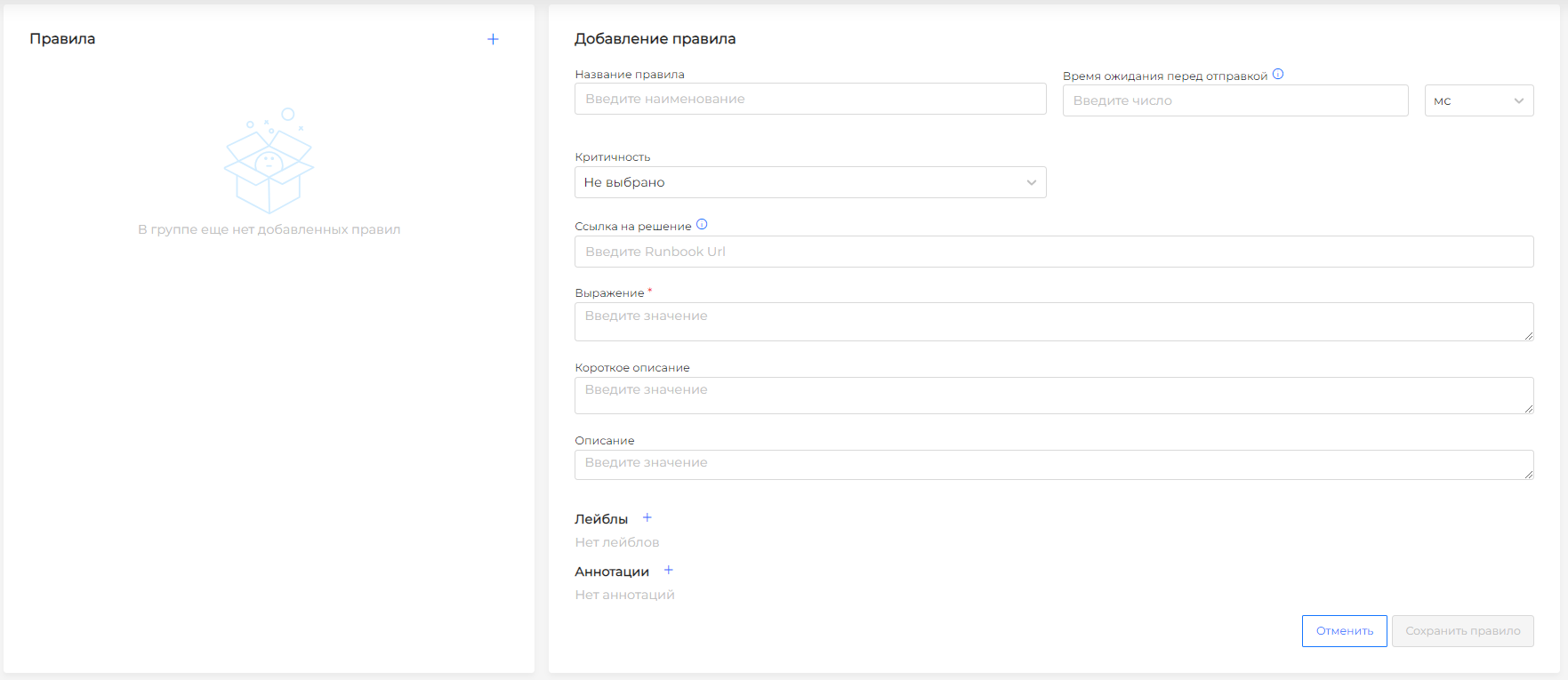
The rule configuration includes:
- Rule name (required)
- Waiting time before sending. This is the time lag during which the system waits to see if the state corresponding to the expression will persist. If the condition persists, an alert will be sent;
- Criticality (will be written to the value of the label with the severity key. If there is no suitable severity level, leave the value “Not selected” in the field and set the severity using the label)
- Link to the solution (will be written to the annotation value with the runbook_url key)
- Short description (will be written to the annotation value with the summary key)
- Description (will be written to the annotation value with the description key)
- Expression (required)
- Labels
- Annotations
Severity levels:
- Not selected (default. Can be used in conjunction with a manually selected label, does not overwrite the label)
- Emergency: the system cannot be used;
- Alert: immediate response required;
- Critical (Critical): critical condition;
- Error (Error): error status;
- Warning (Warning): the condition may cause damage;
- Notice (Notice): within normal limits, but worth paying attention to;
- Info (Info): information message;
- Debug (Debug): message for debugging the system.
Please note! If you create an annotation with a duplicate key: description, summary or runbook_url, then such an annotation will be overwritten by the value entered in the body of the rule.
Once created, the name cannot be changed. The created rule has buttons: “Save”, “Delete rule”.
Please note! By default, alerts are routed to the VictoriaMetrics monitoring cluster located in the management cluster. You can see triggered alerts in the client cluster interface in the Alerts/View Alerts section.
To configure additional routing, you must create recipients and routes. If you need to add time intervals during which notifications will not be received, set time intervals and indicate them in routes.
Alert rule example
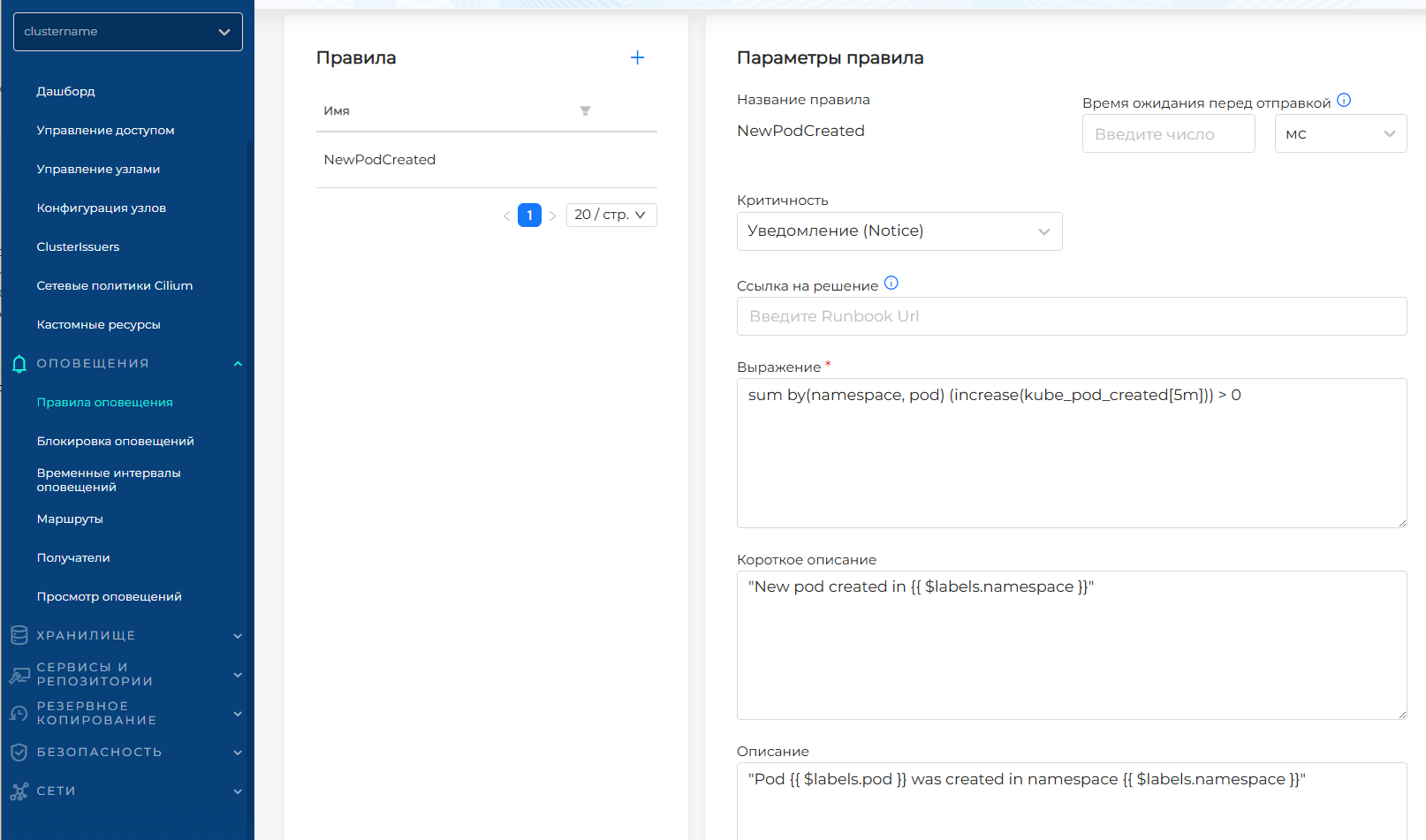
To test the functionality, create, for example, a rule that will be triggered when a new Pod is created in the Kubernetes cluster. To do this, in the Cluster/Notification/Group of rules section, create a new group of rules with the “Notification” type. Add a rule:
sum by(namespace, pod) (increase(kube_pod_created[5m])) > 0
```This expression works like this:
-`kube_pod_created`- a metric that shows the creation time of each Pod (in Unix timestamp format)
-`increase(...[5m])`- calculates the number of new values in the last 5 minutes
-`sum by(namespace, pod)`- groups results by namespace and Pod name
-`> 0`- a condition that means that at least one new Pod has been created
For ease of reference, add:
- Short description:`"New pod created in {{ $labels.namespace }}"`
- Description: `"Pod {{ $labels.pod }} was created in namespace {{ $labels.namespace }}"`The rule will look like:
</details>
### Posting Rules
<details>
<summary>Screenshot</summary>
</details>
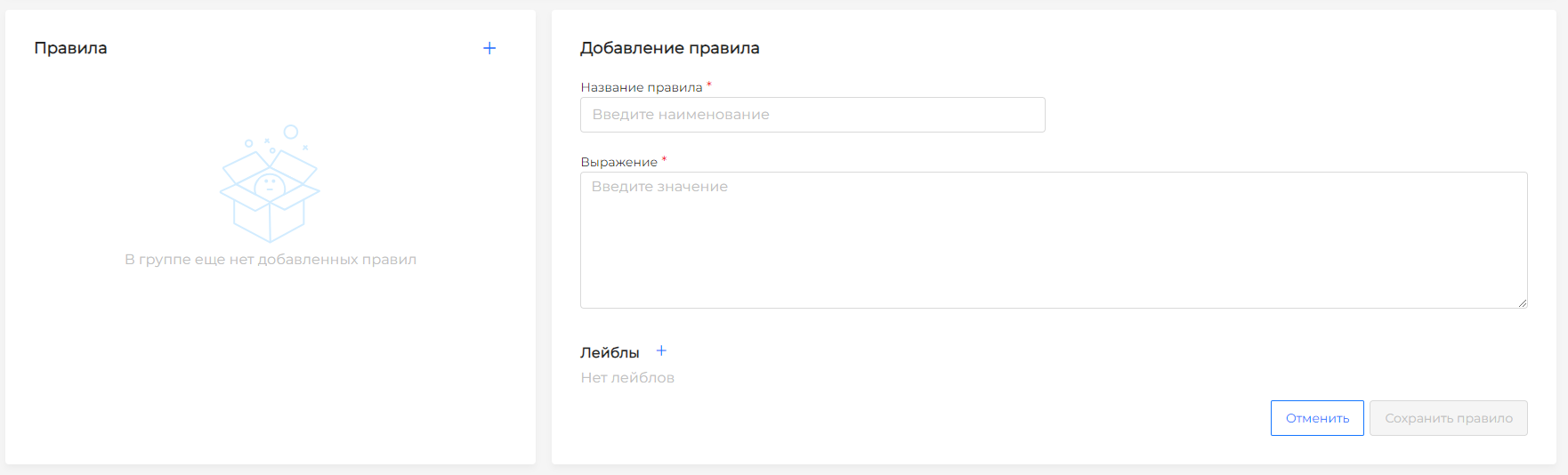
The rule configuration includes:
- Rule name (required);
- Expression (required);
- Labels.
Once created, the name cannot be changed. The created rule has buttons: “Save”, “Delete rule”.