Access Control
Assigning access rights to users/user groups for a management cluster or client cluster can be done from the Access Management page in the cluster, as well as from the Role Management page in the platform if you have the appropriate permissions. Assigning access rights at the “Platform” level is only available in the platform from the Role Management page.
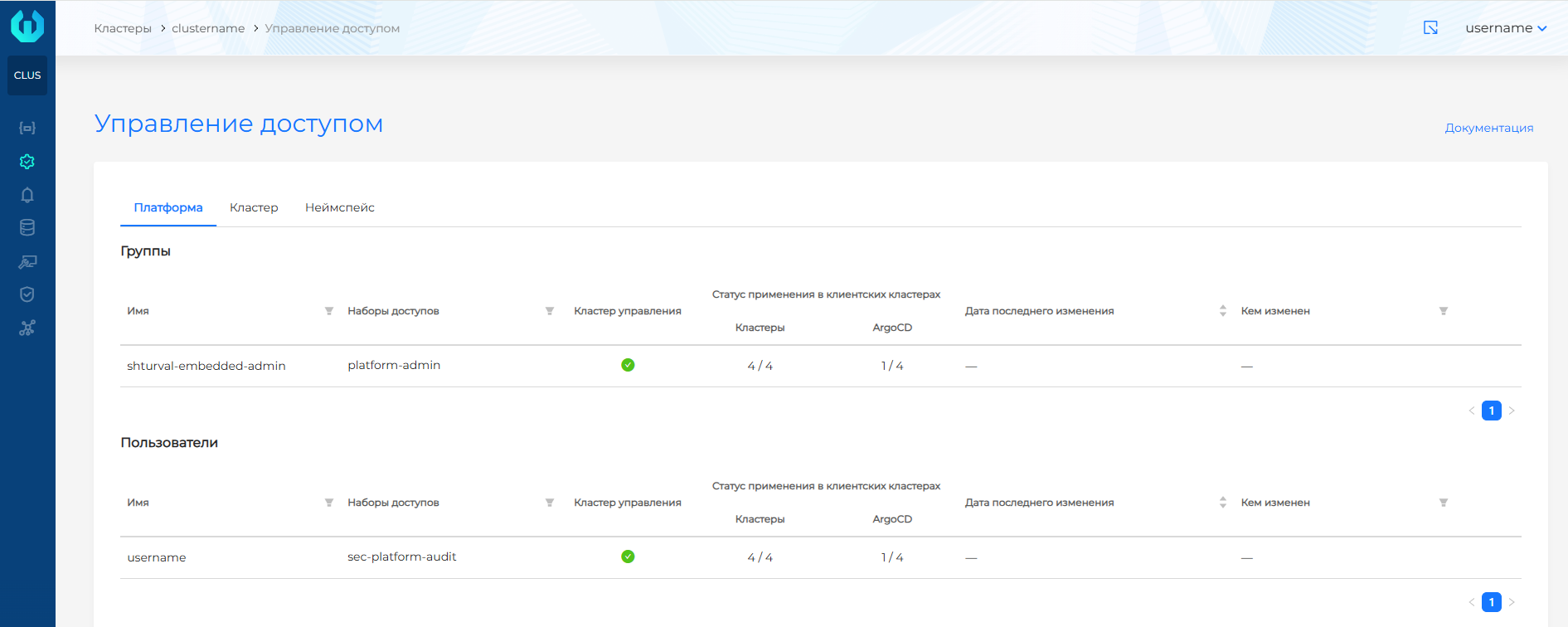
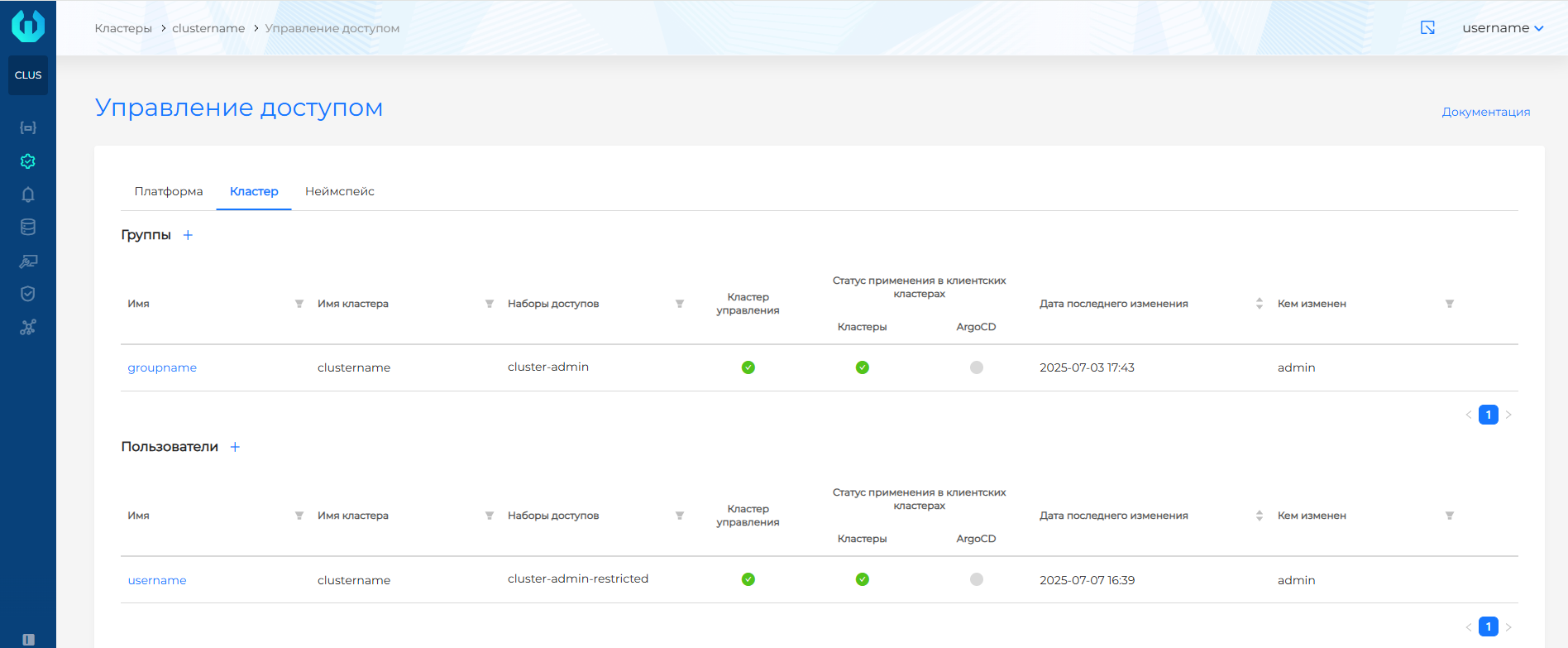
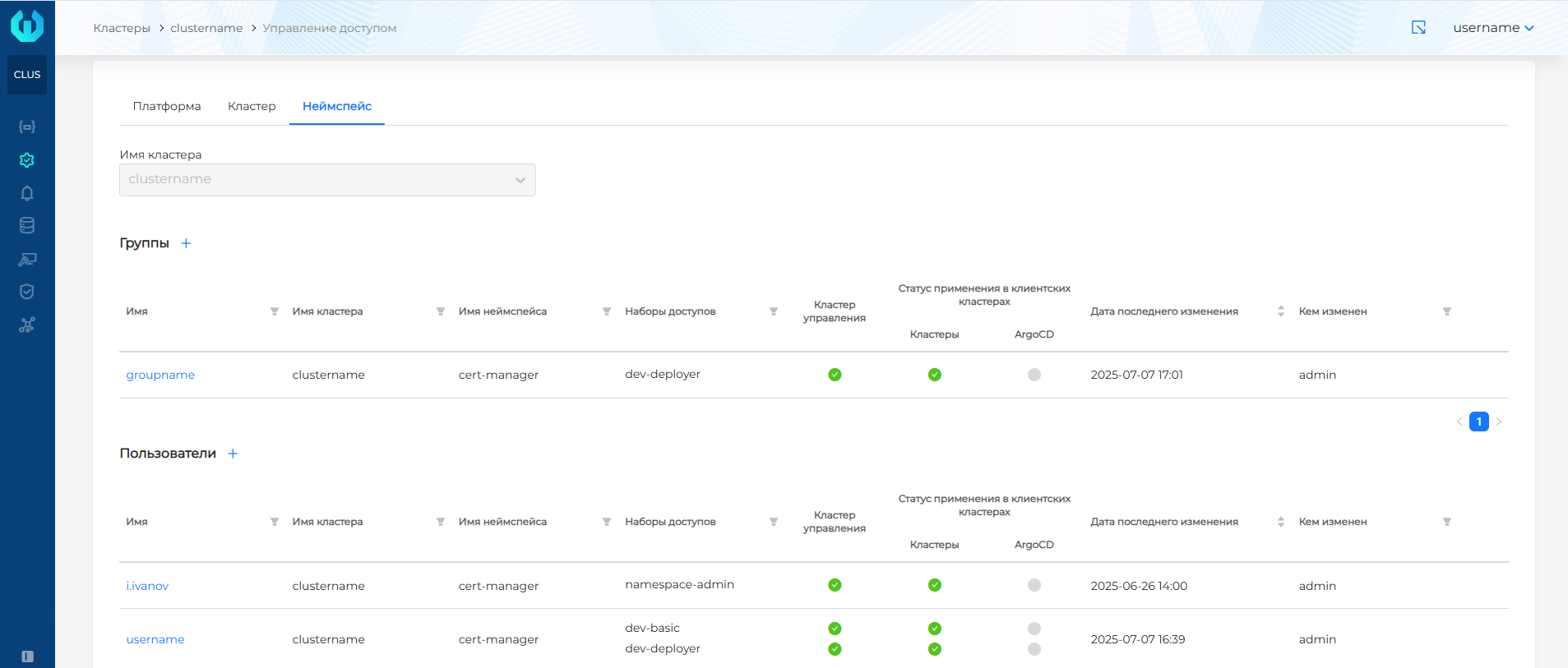
There are 3 tabs available on the Access Control page of the Administration section:
Platform
Cluster
Namespace
From the Access Control page of the cluster, if you have the appropriate permissions, you can:
- Create, change and delete assignments of user/group access rights to the cluster and all namespaces of the cluster in which the user is located;
- View a list of platform permission assignments for users and groups that have access to this cluster. View-only posts are not clickable.
The status model for assigning access rights in a cluster reflects the application statuses of assignments of users/user groups with access to the cluster:
- In the block Status of application in the management cluster the results of applying assignments in the management cluster itself* are grouped.
- The Application status in client clusters block reflects the success of applying access rights in the cluster and applying roles in ArgoCD. For the “Platform” level, a quantitative indicator is provided that reflects the ratio of clusters in which the assignment was successfully applied to the total number of clusters. For other levels, a color indication of the successful application of assignments is provided.
According to color indication:
- green: successfully applied;
- red: there are errors as a result of applying access rights;
- grey: no application required. This may be the case if no permission allocation was requested in the access set, for example in ArgoCD.
*The management cluster is responsible for some client cluster objects, for example, API group objects: cluster.x-k8s.io, bootstrap.cluster.x-k8s.io, infrastructure.cluster.x-k8s.io, permissions.shturval.tech. Therefore, at each access level in the access set, platform permissions are required to retrieve such objects. That is why in the access rights assignment statuses you can see the application of the assignment to the management cluster, even if the assigned permissions relate to the cluster or namespace.### Assigning rights to a user group
To assign access rights to a group of users, go to the tab of the scope to which you want to grant access (Cluster or Namespace tab), click +. On the screen that opens:
The Assign Permissions to Group form appears
- You can set the group name in one of the following ways:
1 Method
Select from a directory connected when integrated with LDAP (for example, AD or openLDAP). Selecting from the catalog is only available if LDAP integration is configured in the platform.
In the Group Name field, start typing the group name. From the second character entered, the group will be searched in the directory.
The search will result in a list of group names.
Screenshot
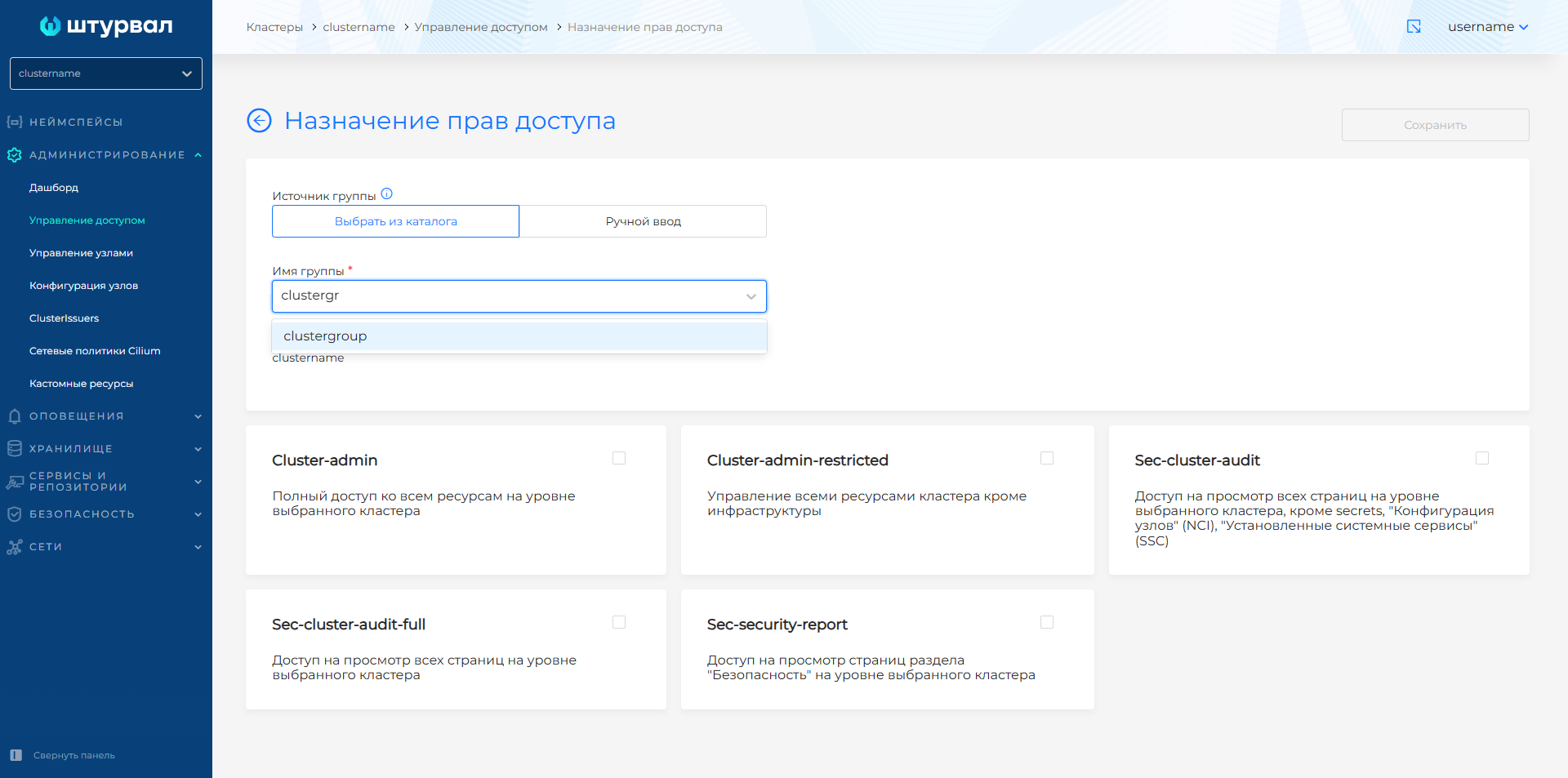
- Select the required group from the list (catalog search is case insensitive). If the directory is not connected, you can specify the group name manually.
2 Method
Enter the group name manually. To do this, select Manual input and in the Group name field, specify the name of the user group. This method may be necessary when an external authentication provider is connected to the platform (for example, Keycloak or Blitz). If you enter a group name manually, the LDAP directory search for the group will not be performed.
Screenshot
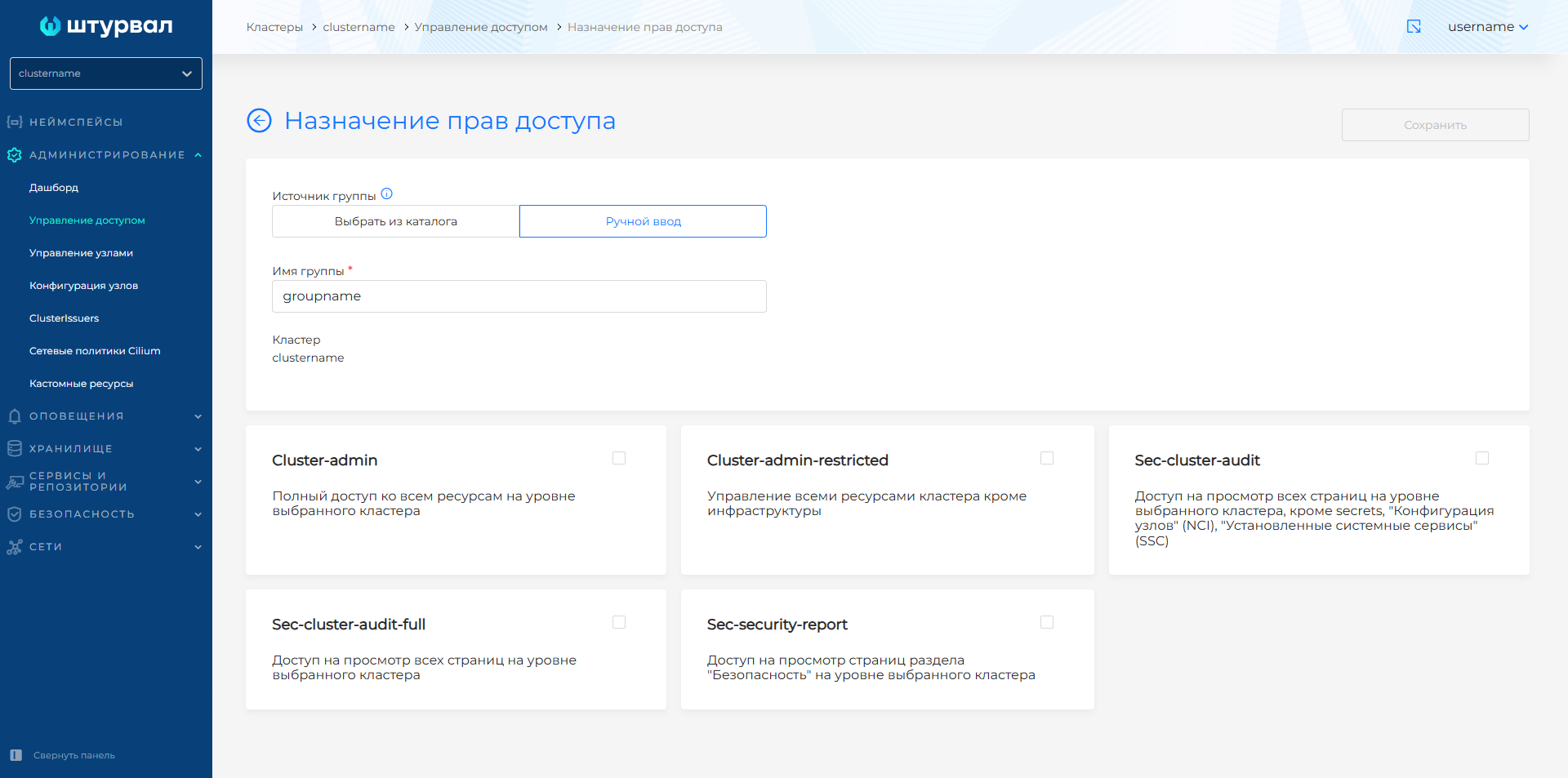
- When the group name is specified, select the list of access sets that you want to assign to the group and click the Save button.
All users in the group will receive assigned permissions.
The group name will not be available for editing after creating a post. If you need to change the group name, delete the entry and create a new one.
Assigning rights to a user
To assign access rights to a user, go to the tab of the scope to which you want to grant access (Cluster or Namespace tab), click +. On the screen that opens:
The Assignment of access rights form will be displayed
1 Method
According to the directory connected when integrating with LDAP (for example, AD or openLDAP). Selecting from the catalog is only available if LDAP integration is configured in the platform.
- In the Unique Username field, start typing your username. From the second character entered, a search for users in the directory will be performed. The search results in a list of users whose names contain the specified characters.
Screenshot
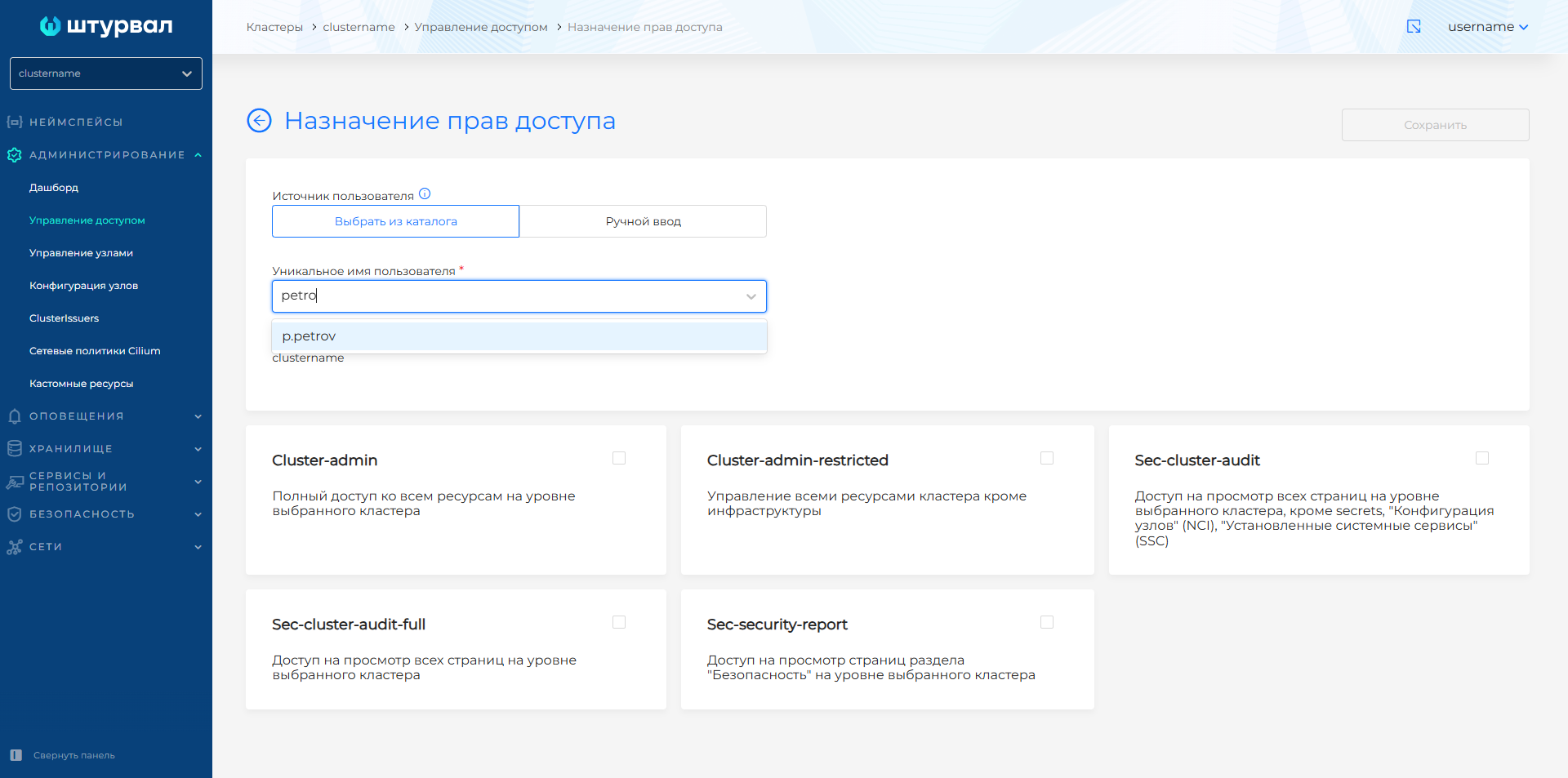
- Select a user name from the list (catalog search is case insensitive). If the directory is not connected, you will be able to specify the username manually.
2 Method
Enter your username manually. To do this, select Manual entry and enter the user name in the Unique username field. This method may be necessary when an external authentication provider is connected to the platform (for example, Keycloak or Blitz). If a username is entered manually, the LDAP directory search for the user will not be performed.
Screenshot
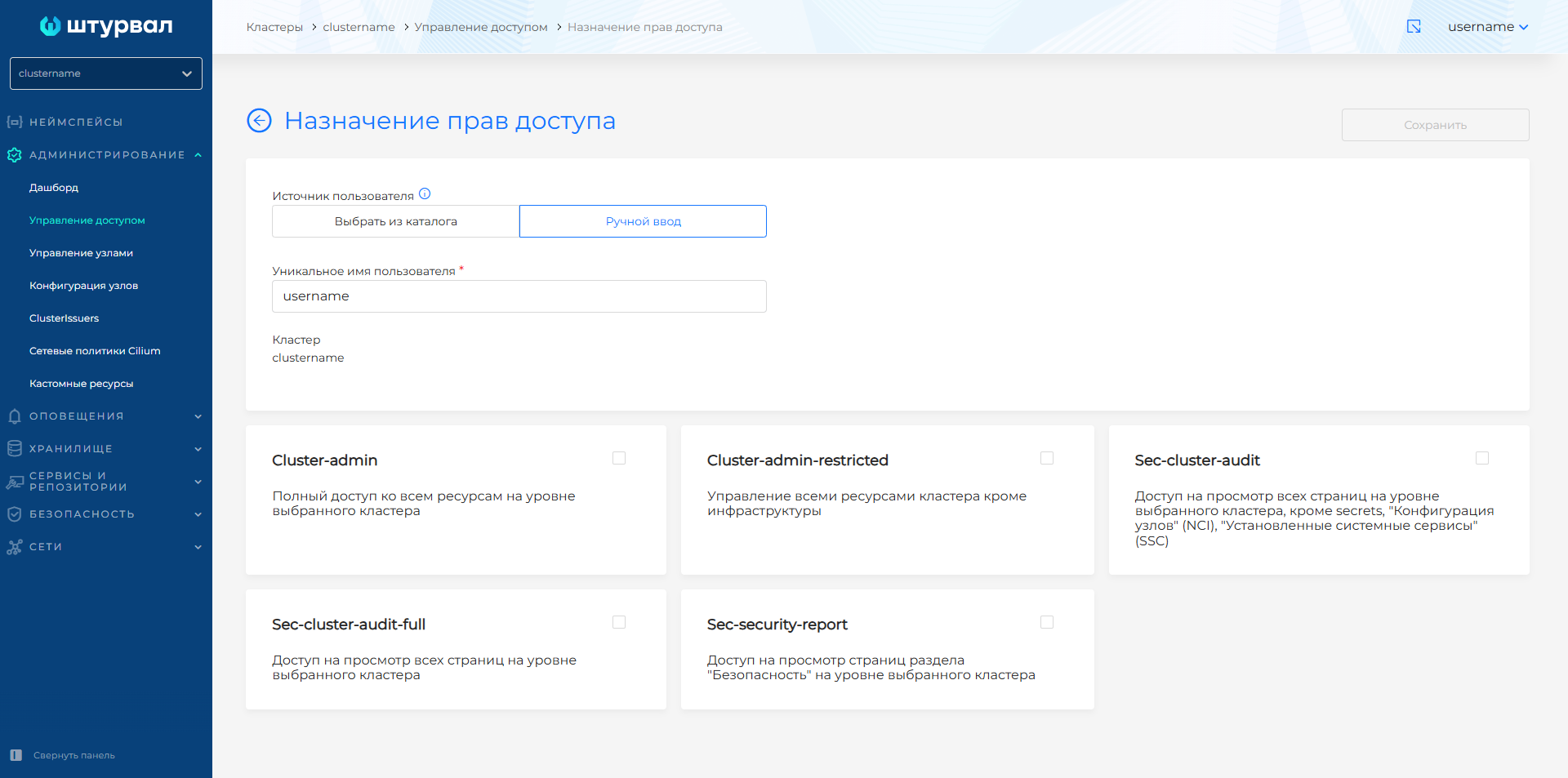
When Unique Username is complete:
- Select the access sets you want to assign to the user, then click the Save button. The username will not be available for editing once the entry is created. If you need to change your username, delete the entry and create a new one.
More details about access sets available for appointment.
Pay attention!
If the access set includes a role in ArgoCD:
- when assigning a set of access at the cluster level, a group/user will have access to all ArgoCD projects of this cluster.
- when assigning a set of accesses at the namespace level, a group/user will have access to the ArgoCD project of only one namespace.