ClusterIssuers
ClusterIssuers are Kubernetes resources representing certificate authorities in the cluster that can generate valid certificates by performing certificate signing requests.
The ClusterIssuers page allows you to create, edit, delete, or view previously created certificate managers (ClusterIssuers).
Creating ClusterIssuers
To add a Certificate Manager, click on the + Add ClusterIssuers button.
Screenshot
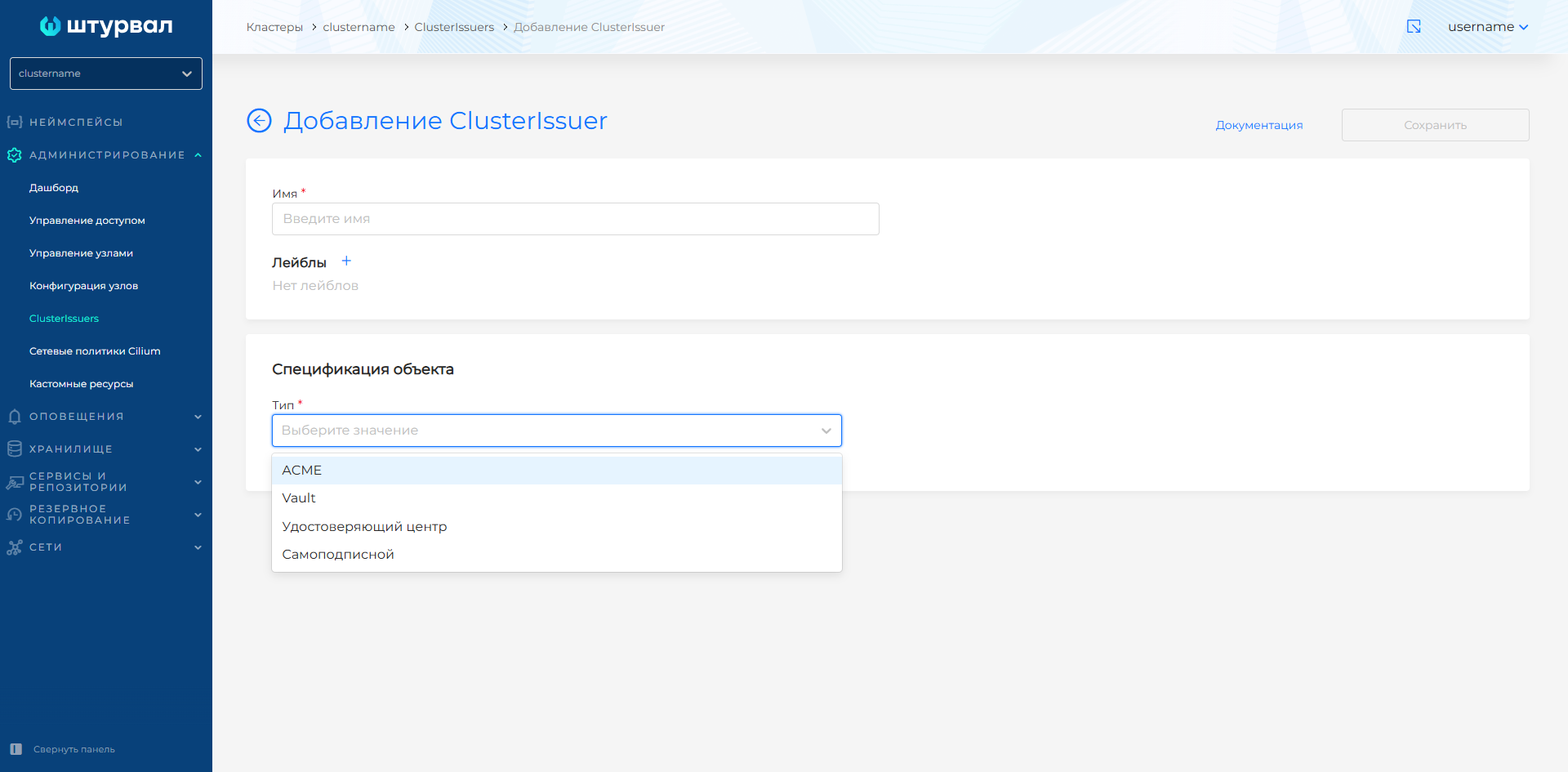
In the window that opens, you must fill in:
- Name
- Specification of the object. Select a type from the drop-down list:
- ACME;
- Vault;
- Corporate certification authority (CA);
- Self-signed (SelfSigned).
Set labels if necessary.
Setting up ACME
To configure, you must have an account in ACME (Automated Certificate Management Environment).
Screenshot
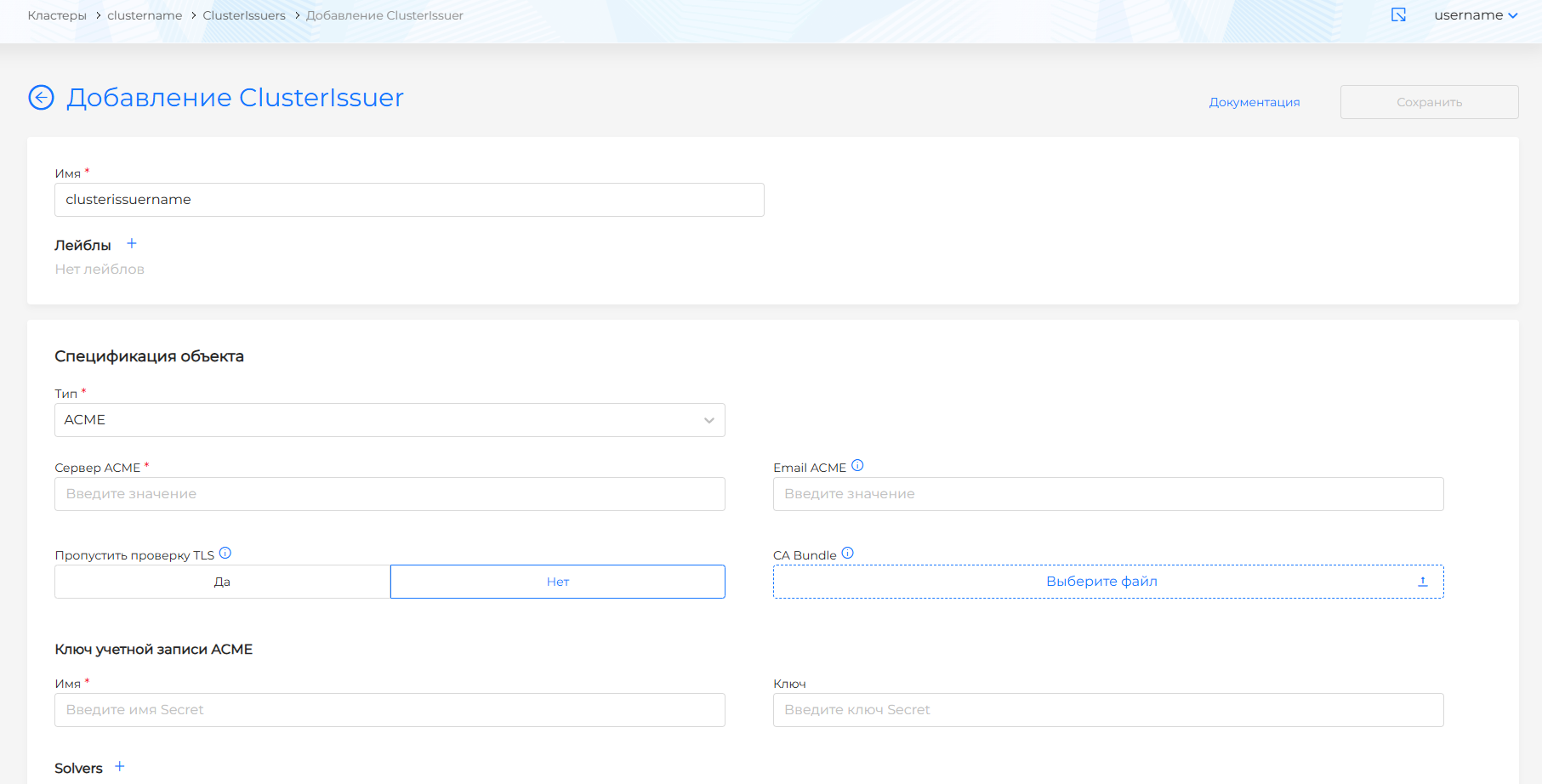
- Fill in the ACME server information. For example:.
- Enter the email associated with your ACME account.
- Determine whether to skip TLS check (default is No).
If you skip the TLS check, requests to the ACME server will not be validated with a TLS certificate (i.e., insecure connections will be allowed). Enable this setting only in development environments.
Please note! If an ACME certificate is added to the cluster, you need to monitor the operation of the ACME server. In the event of a server failure, clusters with ACME certificates will be unavailable.
- When establishing a secure TLS connection, you can add a certificate authority package to the CA Bundle field. The CA Bundle contains a root certificate and an intermediate certificate in PEM format to authenticate and trust the ACME server certificate.
Please note! CA Bundle file data must contain -----BEGIN CERTIFICATE----- and -----END CERTIFICATE-----.
If CABundle is not specified, but TLS connection verification is established, then the system certificate bundle inside the container is used to verify the connection.
In the ACME Account Key block you must:
- Enter the name and Secret key.
- Add solvers. To do this, Click on + next to Solvers and select the type: HTTP01 or DNS01.
- For HTTP01, fill in the ClassIngress field and click the Add button.
Screenshot
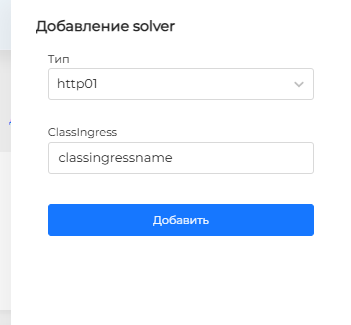
Can be used if:
Your ISP does not block port 80;
Ingress controller is accessible from the Internet via port 80;
You do not use wildcard certificates.
Enter the Ingress class (ClassIngress) that should be used to solve the Let’s Encrypt Challenge.
See which ClassIngress are in the cluster
If you do not specify ClassIngress, the default class will be used.
- For DNS01/acmeDNS, fill in the host value. In AccountSecretRef, enter the name and key, then click the Add button.
Screenshot
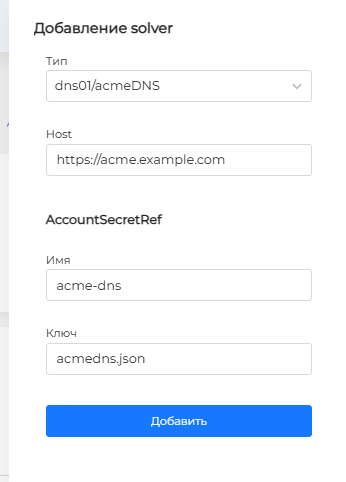
- You use wildcard certificates;
- There are several web servers.
Example
- For DNS01/rfc2136, fill in the Nameserver and TsigAlgorithm values. In TsigSecretSecretRef, enter the name and key, then click the Add button.
Screenshot
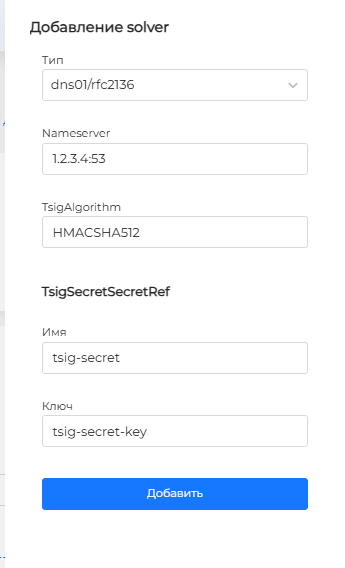
Example
- tsigKeyName - the name of your TSIG authentication key (for example,`example-key`). - tsigAlgorithm - the algorithm used to create the TSIG key (for example,`hmac-md5`). - tsigSecretSecretRef.name - secret containing the secret key for TSIG authentication.- For DNS01/webhook, fill in the Cert-Manager data, substituting GroupName, SolverName and Config into the fields, then click the Add button.
Screenshot
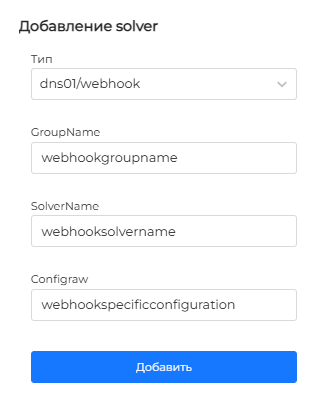
Example
Setting up Vault
To configure, you must have an account in vault. According to official documentation of Cert Manager the recommended integration method for the current version is ServiceAccountRef. Therefore, for integration, select ServiceAccount from the drop-down list.
Screenshot
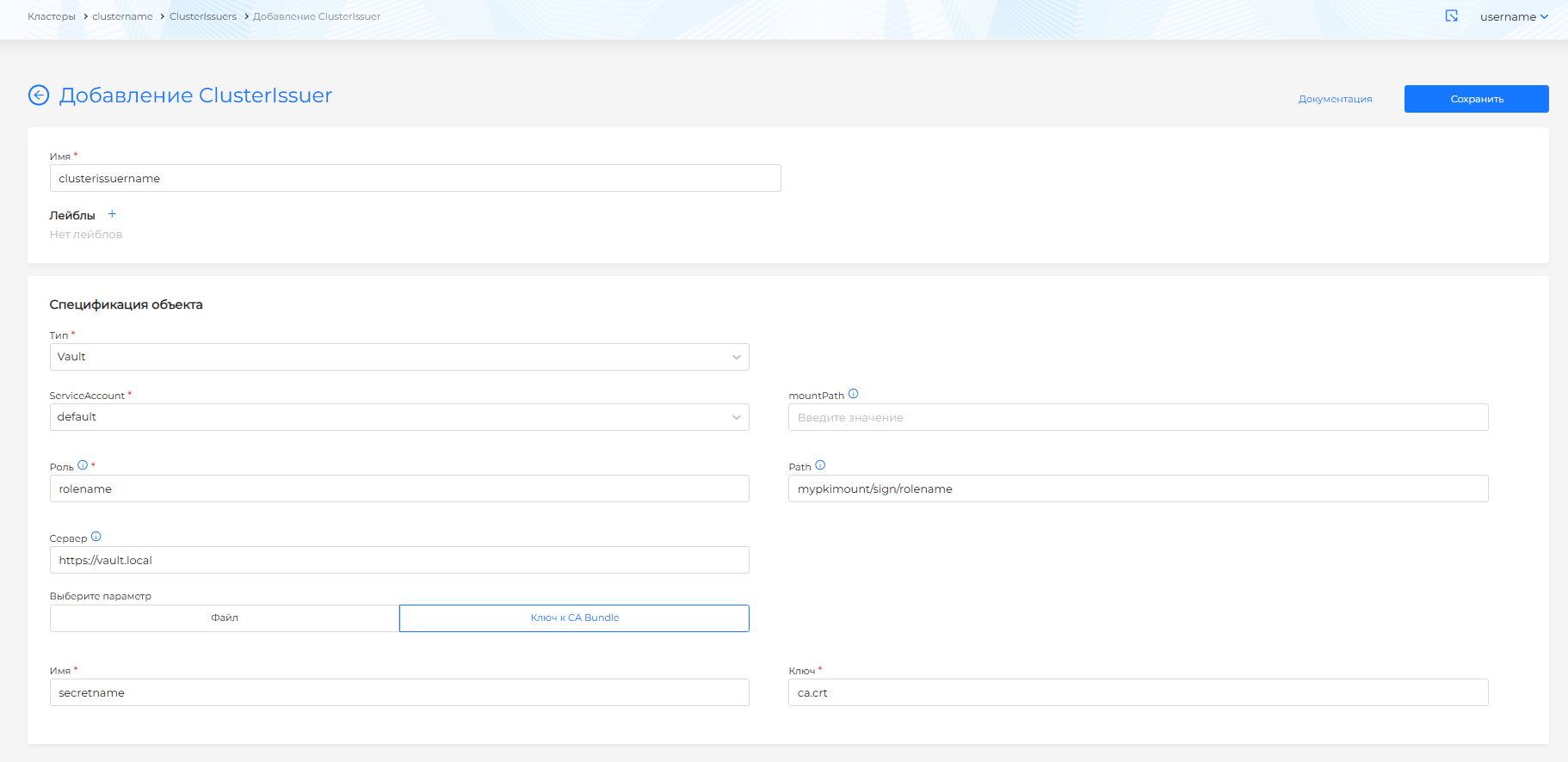
ServiceAccount must be created in the cert-manager namespace and have the vault-issuer role in the cert-manager namespace.
Permissions for the vault-issuer role
- After selecting ServiceAccount in the mountPath field, fill in the Vault mount path to use for Vault authentication. Example:.
- In the Role field, enter the user’s role on the Vault side, for example:.
- In the Path field, enter the path to the mounted path of the PKI-backend Vault signing endpoint, for example:.
- In the Server field, enter the address for connecting to the Vault server, for example:.
- For the purpose of authenticating and trusting Vault server certificates, you can specify a CA Bundle containing the root and intermediate certificates in PEM format.
There are two ways to enable CA Bundle in ClusterIssuers:
- Select File in the CA Bundle block to enter the CA Bundle file information. Please note! CA Bundle file data must contain
----BEGIN CERTIFICATE---- and ----END CERTIFICATE----. - Select CA Bundle Key in the CA Bundle block to download the CA Bundle with a link to the Secret in your cluster. Select the Secret that contains the CA Bundle and provide its access key.
If CABundle is not specified in ClusterIssuer, the cert-manager certificate bundle is used to verify the TLS connection.
After completing the configuration of the certificate manager, click the Save button.
Corporate Certificate Authority (CA)
CA (Certificate Authority) ClusterIssuers must be configured with the certificate authority’s certificate and private key stored in Secret. Before adding CA ClusterIssuer to namespace, create Secret containing the certificate and key.
Please note!
- Secret must be located in namespace
cert-manager. - In Secret, the names of the fields for the certificate and key must be strictly: tls.crt and tls.key. Using these names, cert-manager will receive the certificate and key data of the certification authority.
- Data in tls.crt and tls.key must be encoded in base64.
Secret Example
Screenshot Secret
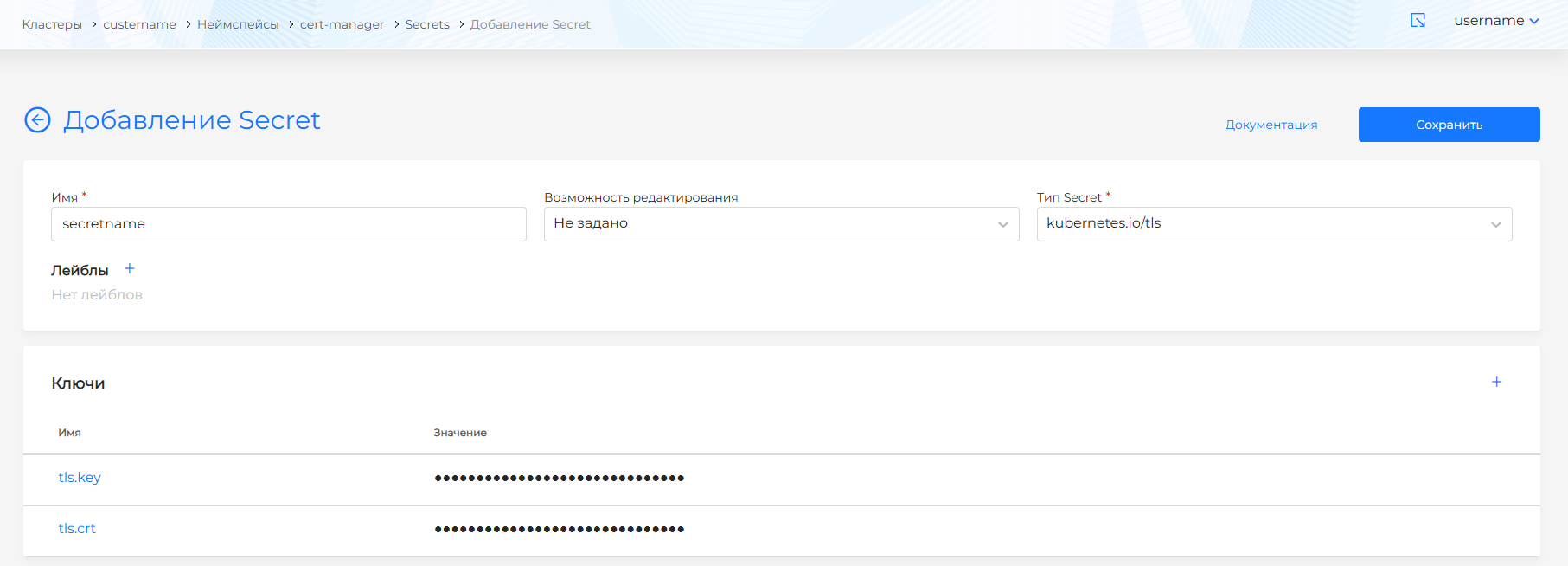
For ClusterIssuer with type Corporate Certificate Authority:
Screenshot
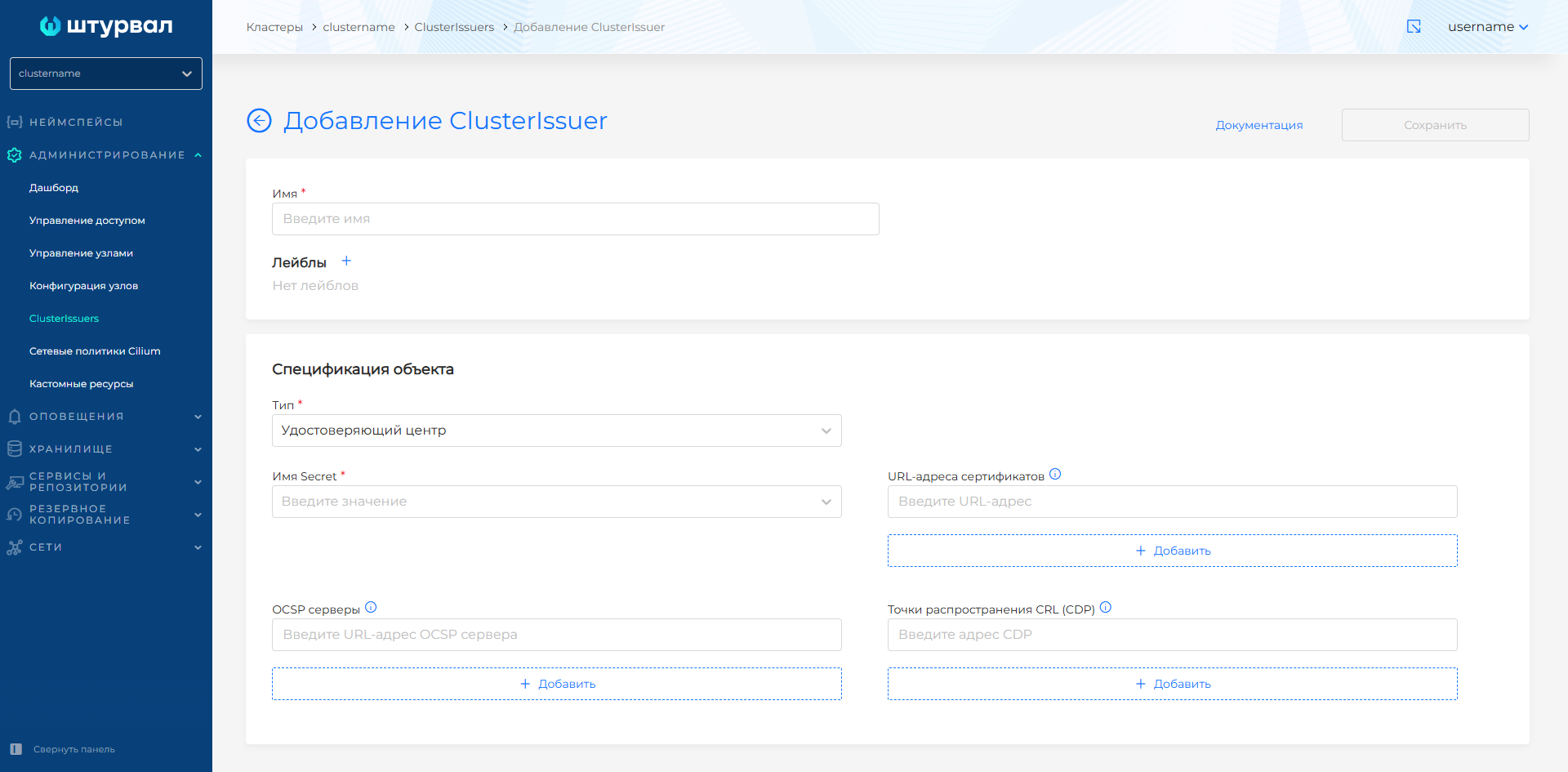
- select Name Secret containing the certificate and key of the certification authority.
- add OCSP server URLs (ocspServers) if you need to check the validity (status) of the certificate. If no address is specified, the certificate will be issued without specifying the OCSP server. Example server URL: http://ocsp.int-x3.example.org.
- add certificate URLs (issuingCertificateURLs) to be included in issued certificates. The URL should use the HTTP protocol to avoid domain validation issues, for example http://ca.domain.com/ca.crt.
- if necessary, add CRL Distribution Points (crlDistributionPoints): addresses with Certificate Revocation Lists (CRLs). At the specified addresses (for example, http://example.com) you can check the revocation status of issued certificates.
###SelfSigned
Self-Signed ClusterIssuers are used to establish fast and secure connections when authentication by certificate authorities is not required.
When the Self-Subscribed type is selected for a ClusterIssuer, you can optionally add CRL Distribution Points (CDPs) (crlDistributionPoints). Each dot (url, such as http://example.com) identifies the location of a Certificate Revocation List (CRL) in which the validity of issued certificates can be verified.
Screenshot
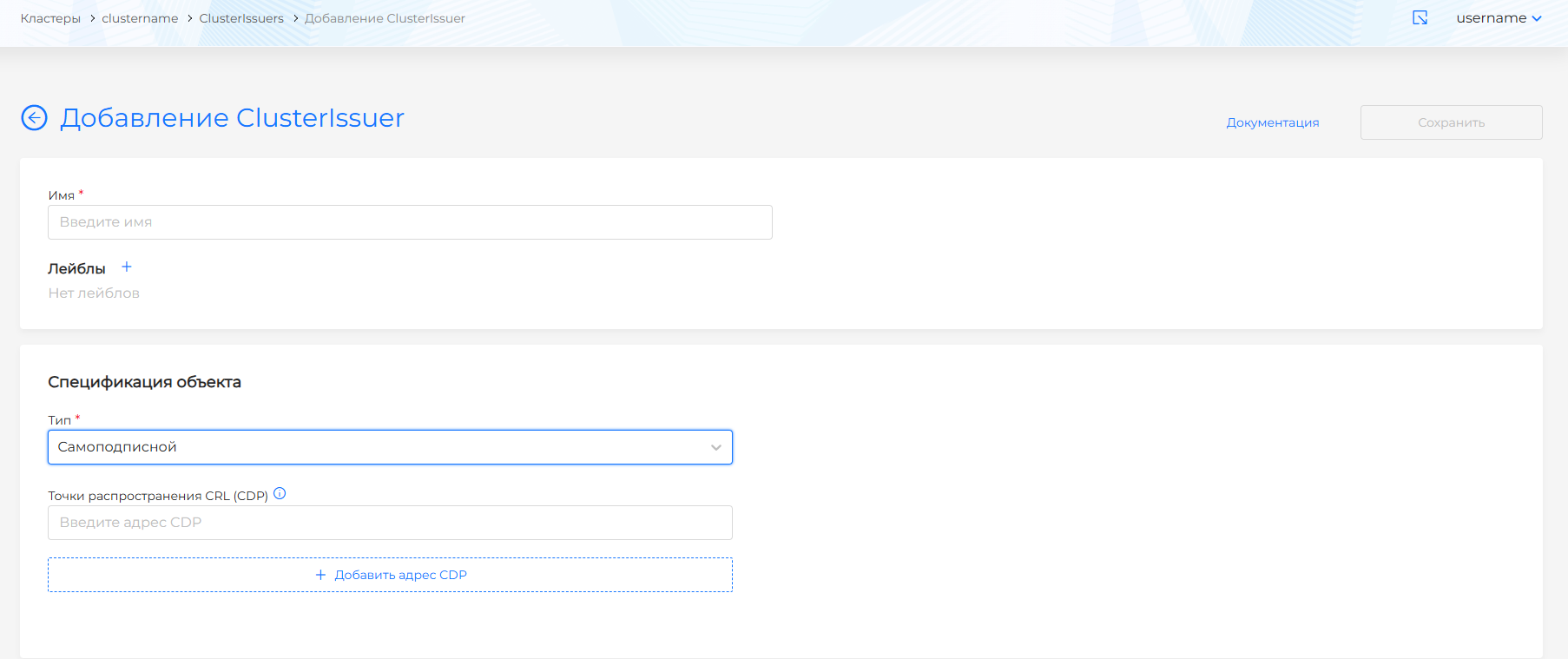
After completing the ClusterIssuer configuration, click the Save button.
View and change ClusterIssuers
The created ClusterIssuers are displayed as a list on the ClusterIssuers page in the Administration section of the cluster.
To view, click on the ClusterIssuer name in the list.
If you need to change the ClusterIssuer, update the object specification information and click Save.
ClusterIssuer can also be modified using the YAML manifest. Go to the Manifest tab. After modifying the manifest, perform verification. The test result will be available on the right side of the screen. Expand the verification result block to see the full manifest. If ClusterIssuer manifest format validation fails, manifest validation is not available.
Save the changes you made to the manifest. Unsaved data will not be applied.
You can remove ClusterIssuer in one of the following ways:
- on the ClusterIssuers page clickin object string;
- on the ClusterIssuer viewing page, on the ClusterIssuer tab, click the Delete button;
- on the ClusterIssuer viewing page, go to the Manifest tab and click.