Actions in the cluster
Importing manifests
If the user has permission to create at least one object type, then he will be able to import manifests on any page of the cluster. The icon for opening the manifest import page is located to the left of the user name.
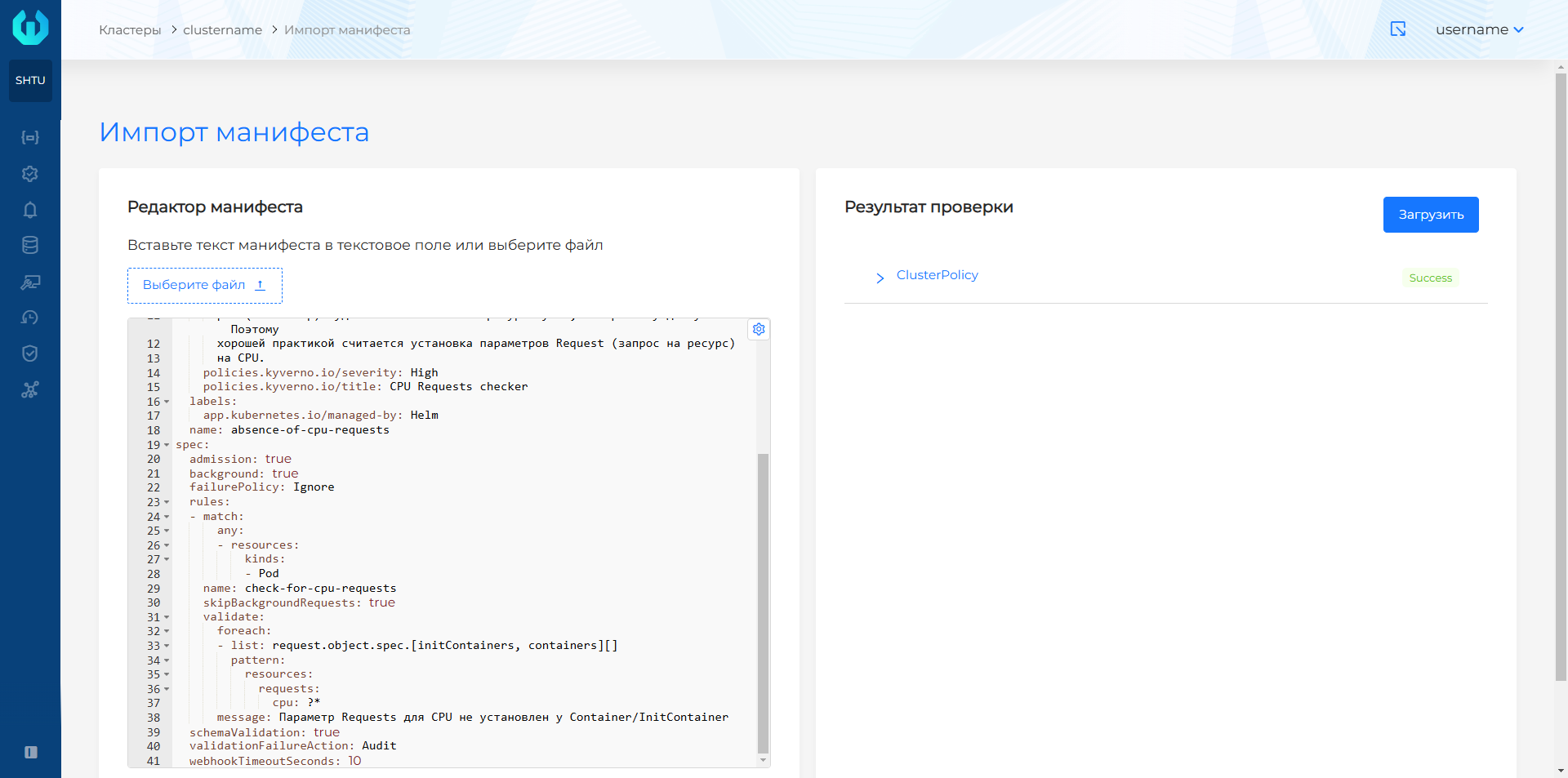
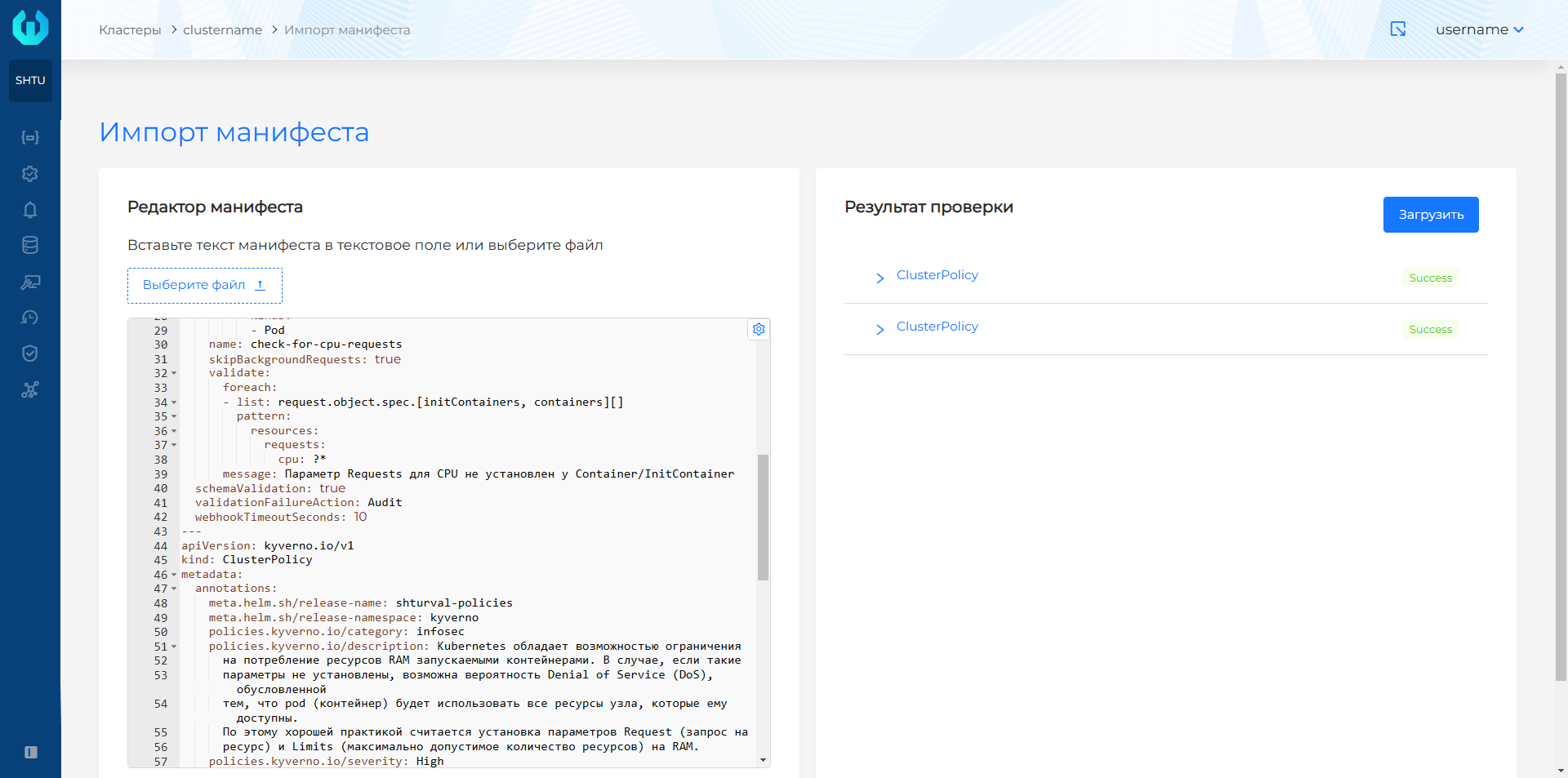
On the page that opens, enter, select from a computer file, or drag and drop the object manifest to import. To import multiple manifests at the same time, you need to place them in one file with a delimiter---and then select this file to download. Uploaded manifests are checked for YAML syntax automatically. A file dragged or selected from a device is recognized and displayed in the data entry window. Only valid YAML can be recognized.
Screenshot of loading a file with one manifest
Screenshot of loading a file with two manifests
Running the check causes DRY RUN (server) to apply the manifest in K8s.
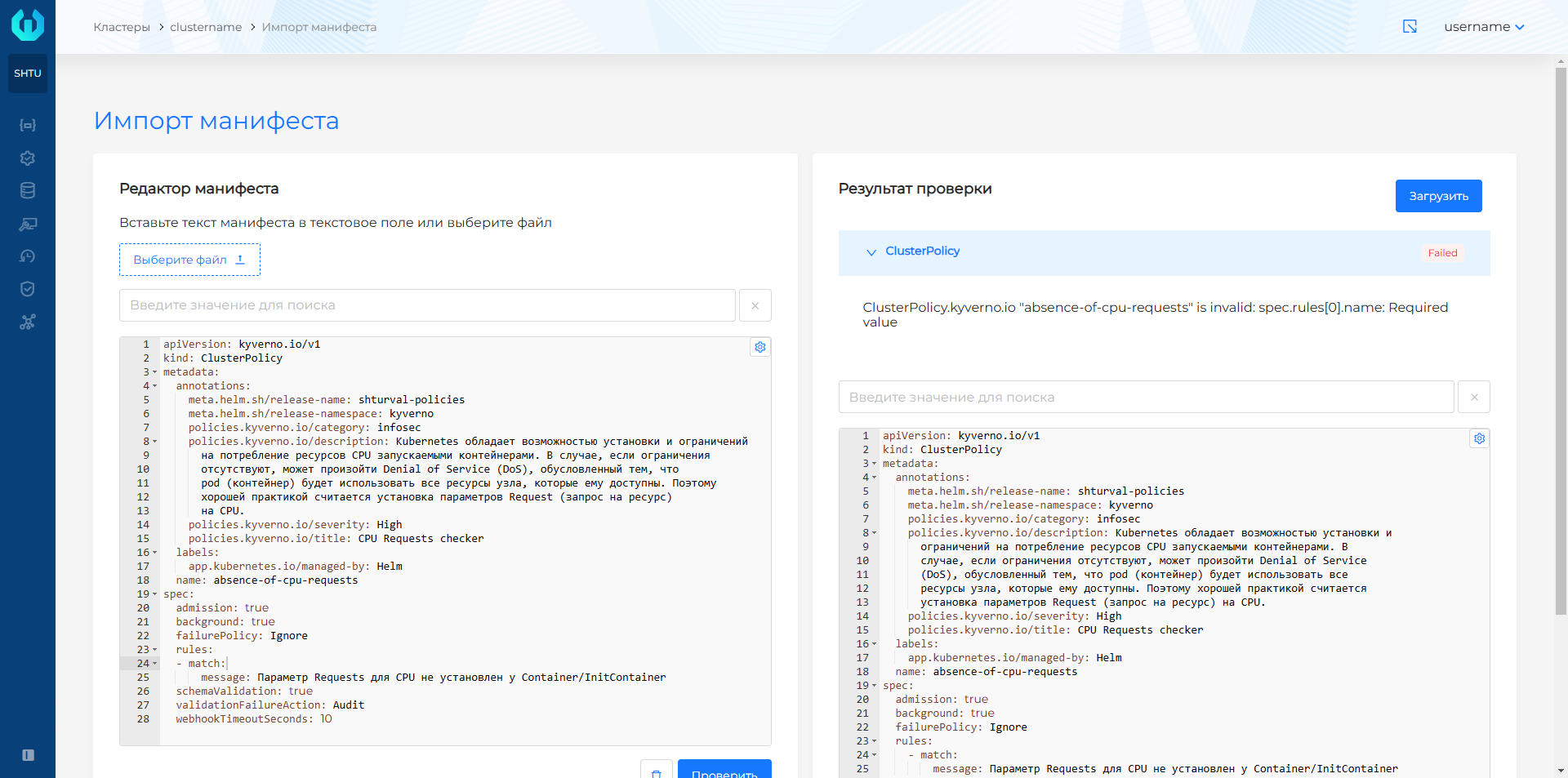
The verification result for each uploaded manifest will be shown on the right side of the screen. For ease of use, the “Download” button is available at the top and bottom of the screen. Loading manifests is only available after checking them in DRY RUN mode. The status of the check result is displayed in the object line. To view the full manifest and description of the verification result, expand the line with the object.
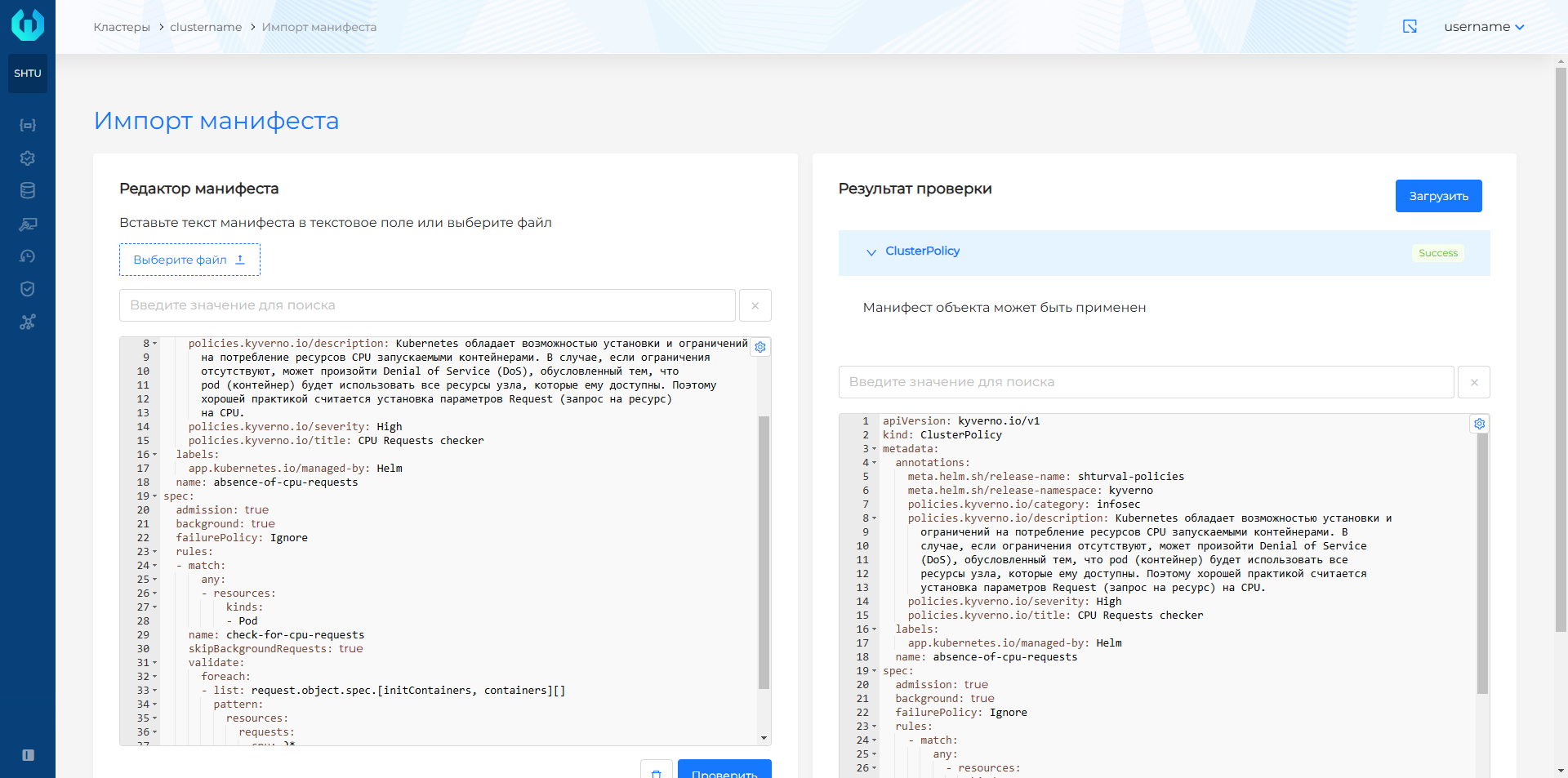
If the DRY RUN check results in no errors, a message will be displayed stating that The object manifest can be applied.
Screenshot of successful result of manifest verification
Screenshot of the manifest verification result with an error, available for download
You can change or delete objects in the form of manifests on the object pages on the “Manifest” tab.
Getting kubeconfig
The user will be able to download the cluster configuration with access corresponding to the rights of his cluster permissions. To download kubeconfig from the GUI, click the arrow to the right of the user name. Select “Download Kubeconfig” from the drop-down list. The download will start automatically.
Screenshot
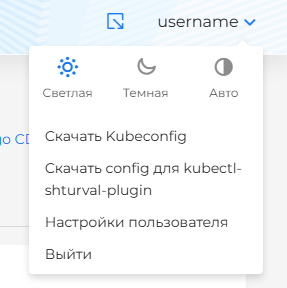
To ensure connection security, by default the token is valid for 24 hours, i.e. kubeconfig will be valid for use for no more than 24 hours.
If you need to change the lifetime of a token, you can follow the instructions on the page How to change the lifetime of a token or specify the value of the expired parameter when requesting to create a kubeconfig. The token’s validity period can be specified in minutes (m) and hours (h). For example, if you need a token issued for 4 days, specify the expired=168 parameter.
To get kubeconfig from the command line interface, use the kubectl-shturval-plugin or use Client URL.
Using Client URL
- Export variables for authorization and downloading kubeconfig.
Variables
export CLUSTERNAME=my-cluster
export SH_USERNAME="admin"
export SH_PASS="my-password"
export INGRESS="$CLUSTERNAME.ip-x-x-x-x.shturval.link"

export AUTHENDPOINT="https://shturval.$INGRESS/authn"
export BACKENDPOINT="https://shturval.$INGRESS"
export KUBECONFIG_PATH=/tmp/$CLUSTERNAME.conf
# Set CLIENT_SECRET to the client_secret value from the secret named backend-<auto-generated characters> in the shturval-backend namespace.
# If you do not have access to the secret, request the value from the platform administrator.
export CLIENT_SECRET=clientsecret
export COOKIE_PATH=/tmp/cookie
- Log in, and in the authorization path specify the expired= token lifetime parameter. In the example below, the token validity period is set to 48 hours (expired=48h):
Command
# Authenticate to AUTHENDPOINT
curl -k -v -s $AUTHENDPOINT/login -c $COOKIE_PATH --data-urlencode "username=$SH_USERNAME" \
--data-urlencode "password=$SH_PASS" &>/dev/null

echo "Got cookie"

# Obtain the authorization code
code=$(curl -k -b $COOKIE_PATH -v "$AUTHENDPOINT/oauth/authorize?response_type=code&client_id=backend&expired=48h&redirect_uri=localhost/cb" 2>&1 | grep -E -o "\<code=[A-Z0-9]+")

echo "Got code"

# Obtain the access token after receiving the authorization code
token=$(curl -k -s "$AUTHENDPOINT/oauth/token" \
--header 'Content-Type: application/x-www-form-urlencoded' \
-b $COOKIE_PATH \
--data-urlencode 'client_id=backend' \
--data-urlencode "client_secret=$CLIENT_SECRET" \
--data-urlencode 'grant_type=authorization_code' \
--data-urlencode "$code" \
--data-urlencode "redirect_uri=localhost/cb" | jq -r '.access_token')

echo "Got token"
- Send a request to receive kubeconfig:
Command
curl -k --silent "$BACKENDPOINT/api/v1/clusters/$CLUSTERNAME/kubeconfig" -H "Authorization: Bearer $token" -H 'accept: application/json, text/plain, */*' > $KUBECONFIG_PATH

echo "Kubeconfig is ready"
echo "export KUBECONFIG=$KUBECONFIG_PATH"
Loading the configuration file for kubectl-shturval-plugin
When authorizing using the module kubectl-shturval-plugin you will need to specify a set of parameters to connect to the platform. You can request parameters directly from the command line interface or download a configuration file (shturval-login-plugin.yaml) with parameters from the GUI.
Download available:
- a configuration file configured to load all kubeconfigs of client clusters available to the user. On the main page of the Shturval platform, click the arrow to the right of the user name and select Download config kubectl-shturval-plugin for all clusters.
Screenshot


- a configuration file configured to load kubeconfig available to the user of one client cluster. To do this, go to the cluster and click the arrow to the right of the user name. Select Download config for kubectl-shturval-plugin.
Screenshot

