Cluster dashboard
The cluster dashboard changes dynamically. After you start cluster creation and until deployment completes, the dashboard shows the first version. After deployment completes, it shows the second. Below is a description of each version.
Cluster dashboard before cluster deployment is completed
The name of the cluster is displayed at the top.
Only the “Cluster” tab is available.
In the upper left part of the “Cluster” tab, the “Cluster deployment status” block is displayed, where, as the cluster is deployed, you can track the readiness of the infrastructure, the conditions of the Control Plane nodes and Worker nodes, the installation of services and the application of NCI to the cluster nodes. For general information about the cluster deployment status model, see Cluster deployment status.
Data is updated automatically as the cluster is deployed.
Dashboard of a deployed cluster
The name of the cluster is displayed at the top. Under the name are the date and time of cluster creation, status, conditions.
Available tabs:
- Cluster;
- Annotations;
- Events;
- Logs;
- Certificates;
- Metering.
Screenshot
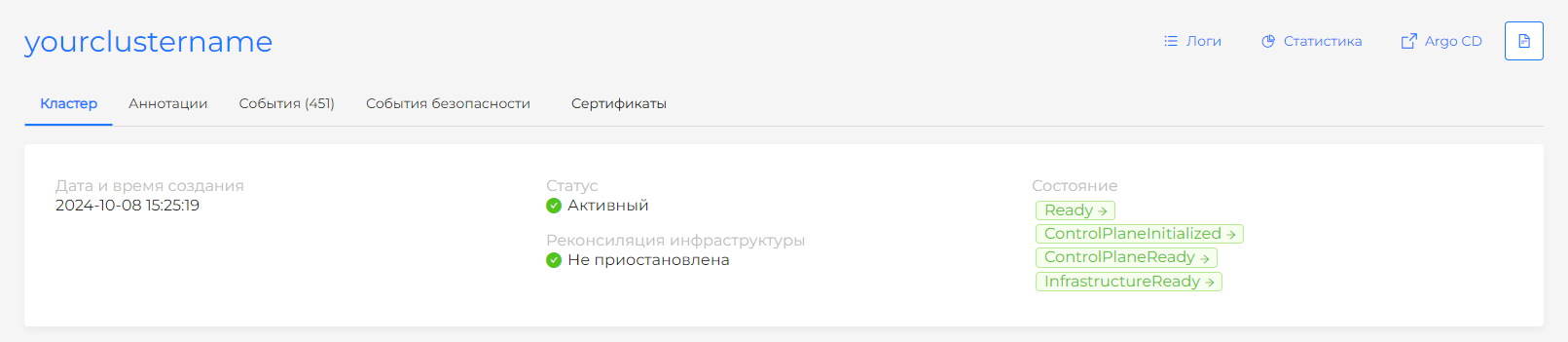
All dashboard tabs are automatically updated to provide up-to-date information about the main cluster objects as quickly as possible.
Buttons for viewing statistics, logs, and going to Argo CD are available:
The Statistics button opens the interface of the external monitoring module (Grafana). SSO authorization occurs.
The Argo CD button opens the interface of the continuous application delivery module (Argo CD). SSO authorization occurs.
Please note! Buttons will only be displayed if the corresponding modules are installed and running, and the user has access rights to make the transition.
- The Statistics button is displayed if the services are installed and enabled:
- in your cluster Monitoring module management component (Victoria Metrics Agent) (
shturval-metrics-collector); - in the management cluster Graphical display module for metrics (Grafana) (
shturval-dashboards) and Monitoring module. Centralized collection of metrics (Victoria Metrics) (shturval-monitoring).
- The Argo CD button is displayed if Application Continuous Delivery (Argo CD) (
shturval-cd) is installed and enabled in your cluster.
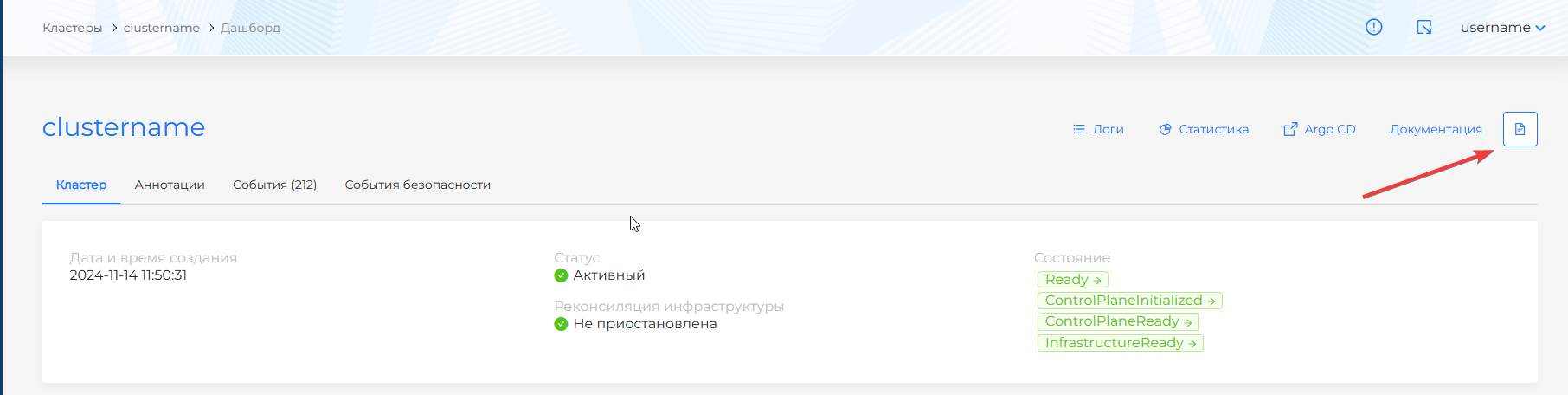
You can create an information message (banner) that will be displayed to all users when working with the cluster in the graphical interface. The icon for posting an information message is available in the upper right corner of the Dashboard page of the cluster.
Screenshot. Adding an information message (banner)
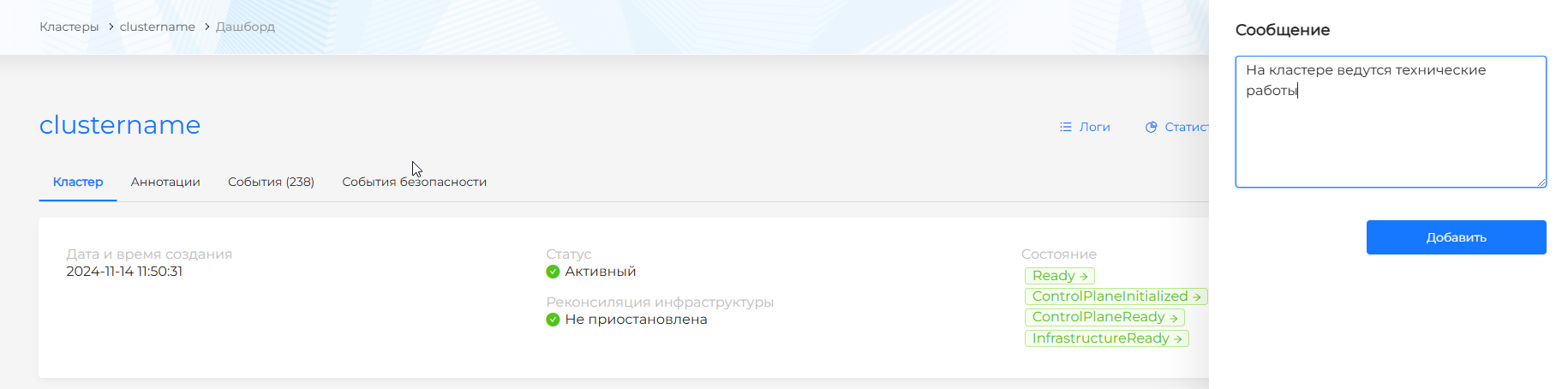
Screenshot. Displaying an information message (banner) for users

Cluster tab
The “Cluster node groups” block contains information about node groups. Clicking on the block name takes you to the Node Management page.
Screenshot
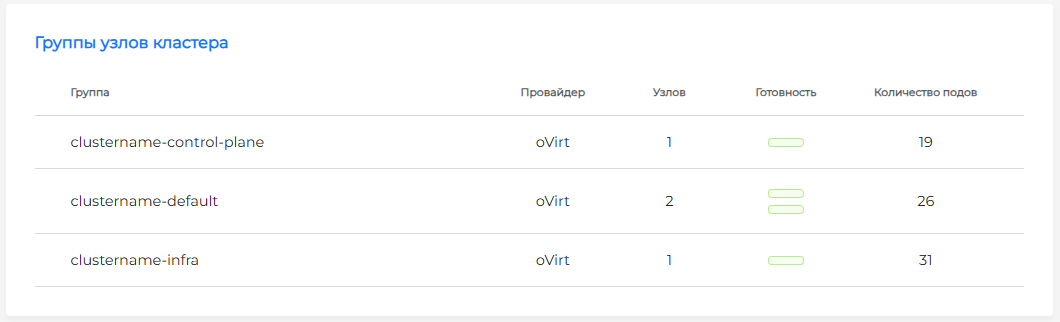
Information available in the block:
- name of the group;
- provider;
- number of nodes in the group;
- readiness of nodes in graphical form.
- number of pods in the group.
Each green element represents information about a node in the “Ready” status, each red element represents information about a node in the “NotReady” status. If there are more than six nodes in a group, the numerical ratio of healthy nodes to the requested number will be displayed instead of graphic elements.
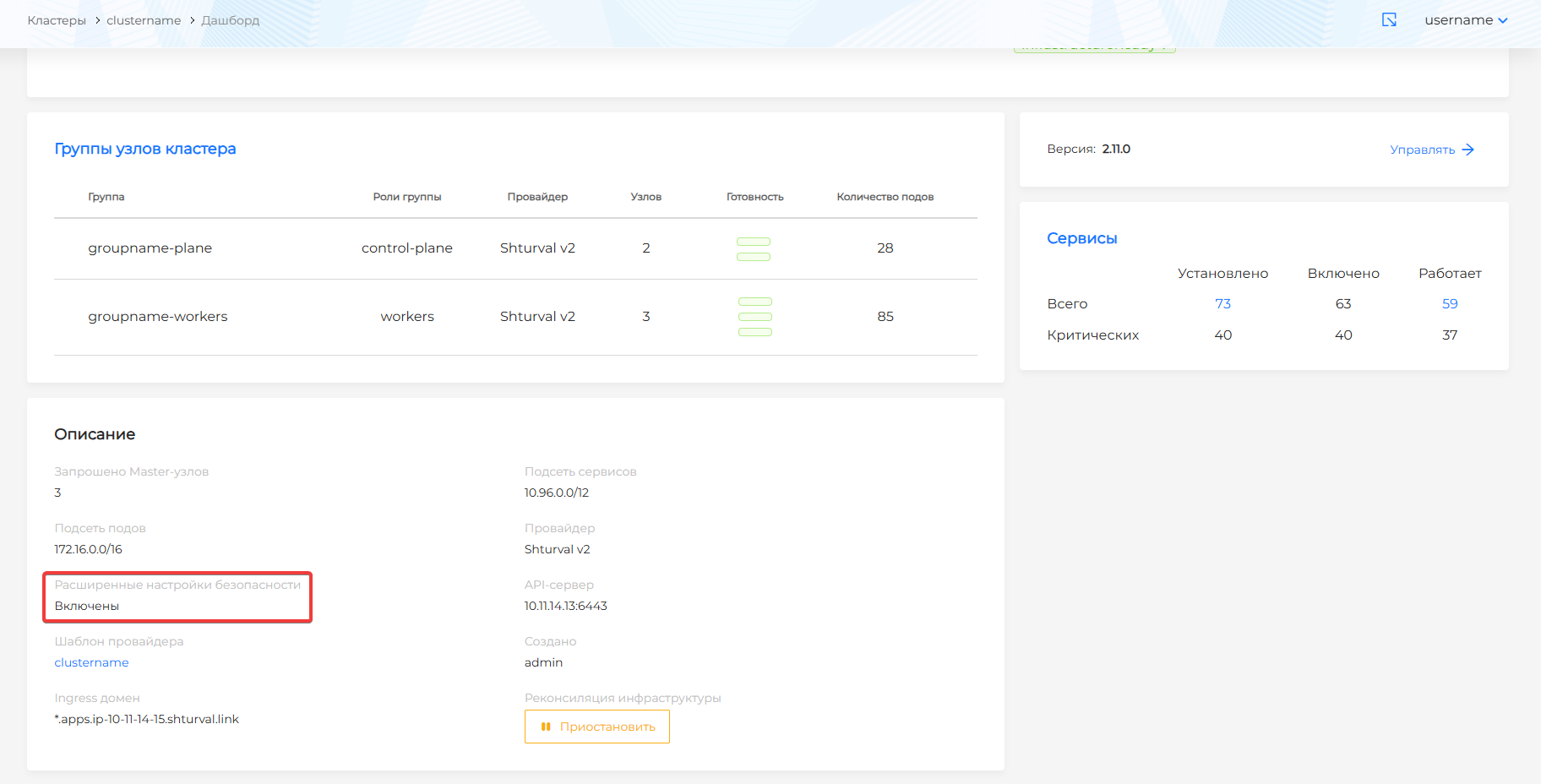
The “Description” block contains information about the cluster specified during the cluster creation process, as well as information about the user who created the cluster.
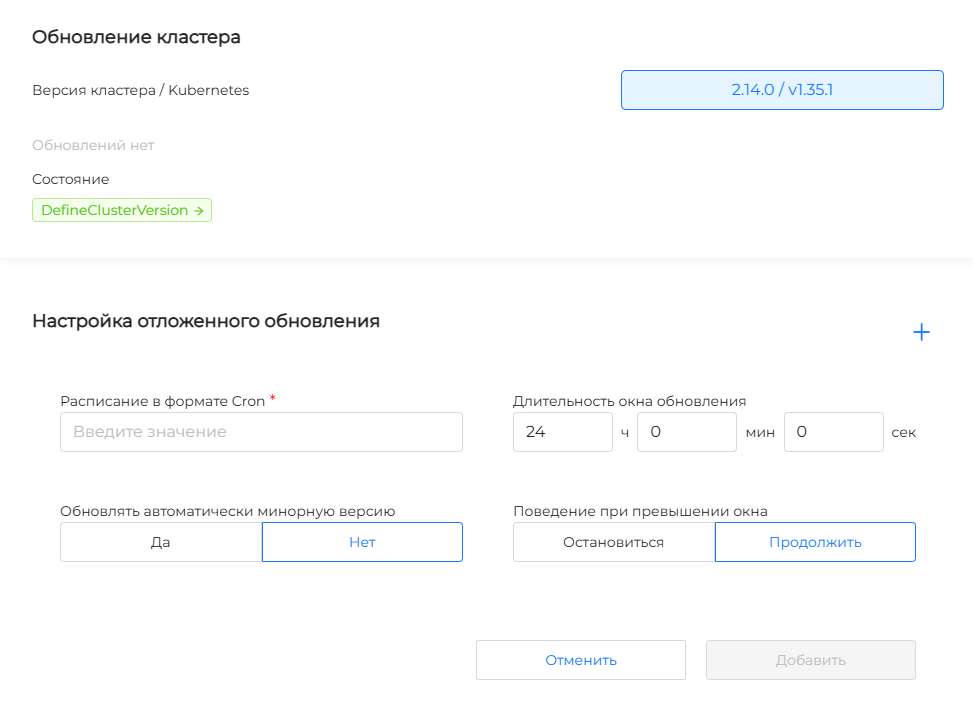
The “Cluster update” block contains information about the installed cluster version. Manual and automated cluster updates are available.
Screenshot
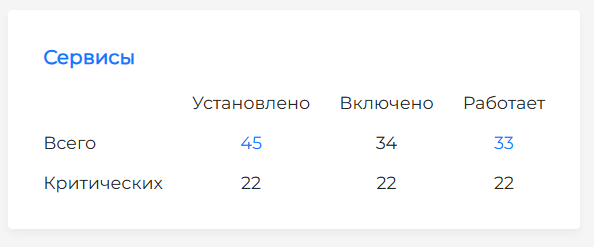
The “Services” block contains counters of installed, enabled and running services, divided into the total number and the number of critical services.
The top row of the counter is clickable. When you click the block name or counter value, you go to the cluster Installed services page.
Screenshot
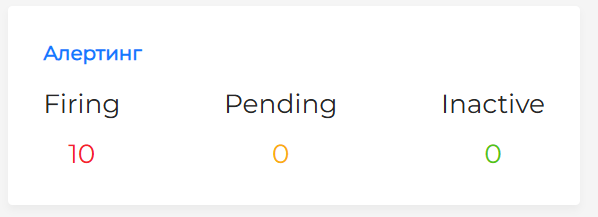
The “Alert” block contains information about triggered alerts broken down by severity level alerts.
When you click the block name or counter value, you go to the cluster View Alerts page. The section is not displayed if the local metrics collection module is not installed or is disabled in the cluster, or if the centralized metrics storage module is not installed or is disabled in the management cluster.
Screenshot
Pausing infrastructure reconciliation (Paused)
Pausing cluster infrastructure reconciliation temporarily stops the application of changes and checks to cluster machines/nodes. All requested changes are written to a queue and will be applied when reconciliation resumes.
Screenshot
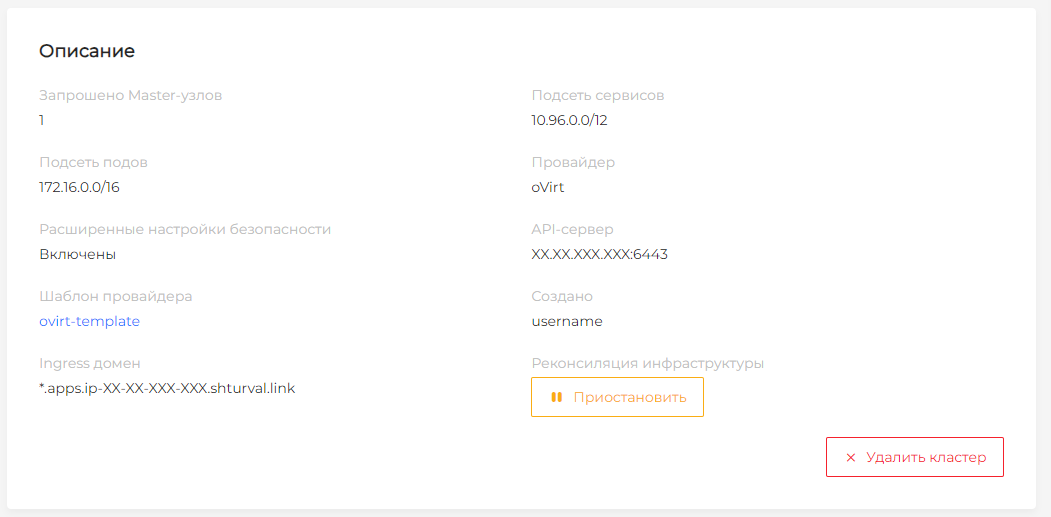
Pausing infrastructure reconciliation is available to the cluster administrator and platform administrator. To manage, go to the cluster dashboard.
Suspension may be necessary in different situations.
Example
If you have MachineHealthCheck installed for a group of nodes in your cluster and you need to change the machine sizing without removing the node from the group, you can pause infrastructure reconciliation, change the machine sizing, and resume reconciliation. MachineHealthCheck will not respond to temporary node unavailability.
How to pause and resume
- On the cluster dashboard, in the Description block, next to Infrastructure reconciliation, click Pause.
- To resume, click Resume Infrastructure Reconciliation.
Changes that accumulated while reconciliation was paused are applied after it resumes.
Run the commands in the management cluster. The namespace matches the cluster name. In the Cluster manifest, pause is the spec.paused field.
# Pause reconciliation for the cluster
kubectl -n <cluster-name> patch cluster <cluster-name> --type=merge -p '{"spec":{"paused":true}}'

# Resume reconciliation
kubectl -n <cluster-name> patch cluster <cluster-name> --type=merge -p '{"spec":{"paused":false}}'
Obtain a token as described in Platform authorization.
Send a POST request to
/api/v1/clusters/<cluster-name>/paused.
| Parameter | Description |
|---|---|
$BACKENDPOINT | API base URL, for example https://shturval.<management-cluster-ingress> |
paused | true pauses reconciliation, false resumes it |
# Pause reconciliation for the cluster
curl -k -s -L --request POST "$BACKENDPOINT/api/v1/clusters/<cluster-name>/paused" \
  --header "Authorization: Bearer $token" \
  --header "Content-Type: application/json" \
  --data-raw '{"paused":true}'

# Resume reconciliation
curl -k -s -L --request POST "$BACKENDPOINT/api/v1/clusters/<cluster-name>/paused" \
  --header "Authorization: Bearer $token" \
  --header "Content-Type: application/json" \
  --data-raw '{"paused":false}'
Annotations Tab
In the list of clusters on the “Clusters” tab, sorting by attribute is available. To assign a feature to a cluster, add an annotation with a keytag.
To do this, go to the cluster’s “Dashboard” page. On the Annotations tab, which contains a list of all cluster annotations, click + to add an annotation. In the modal window that appears, entertagin the “Key” field and the required attribute in the “Value” field.
Save your data, click “Save” and the sign will be added to the cluster.
Screenshot
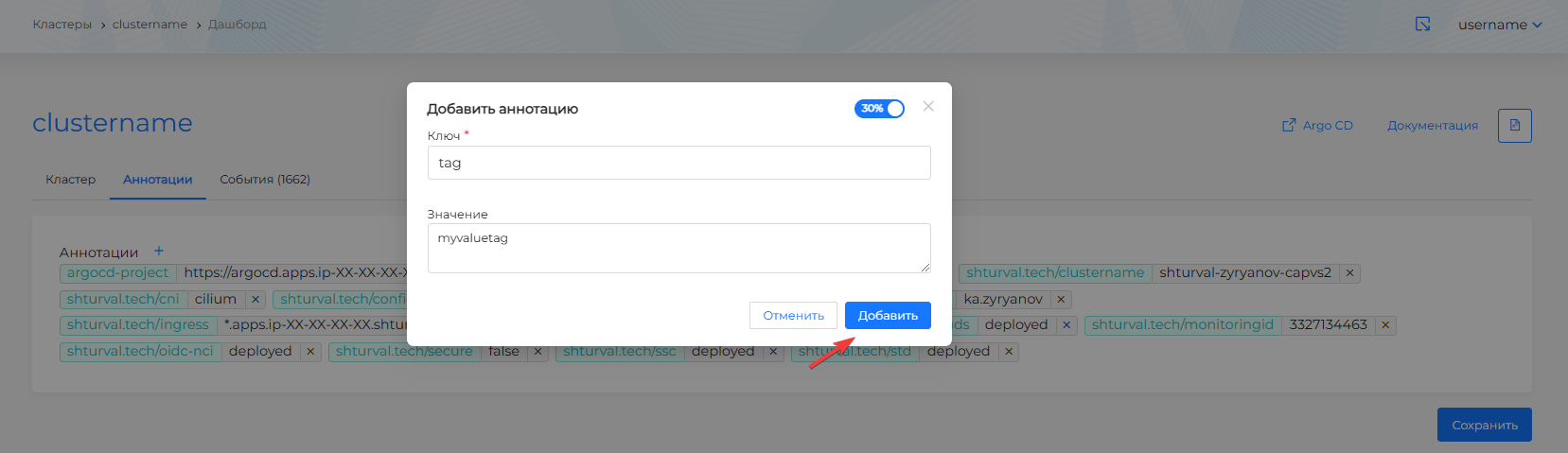
To delete an annotation, click on the cross of the selected annotation and confirm the action.
After making changes to the list of annotations, click “Save”.
Example
You want to sort clusters by environment with values prod or test. When adding a cluster annotation, specify tag in the Key field and prod in the Value field. For the next cluster, add an annotation with key tag and value test. If necessary, create annotations for all your clusters.
Screenshot
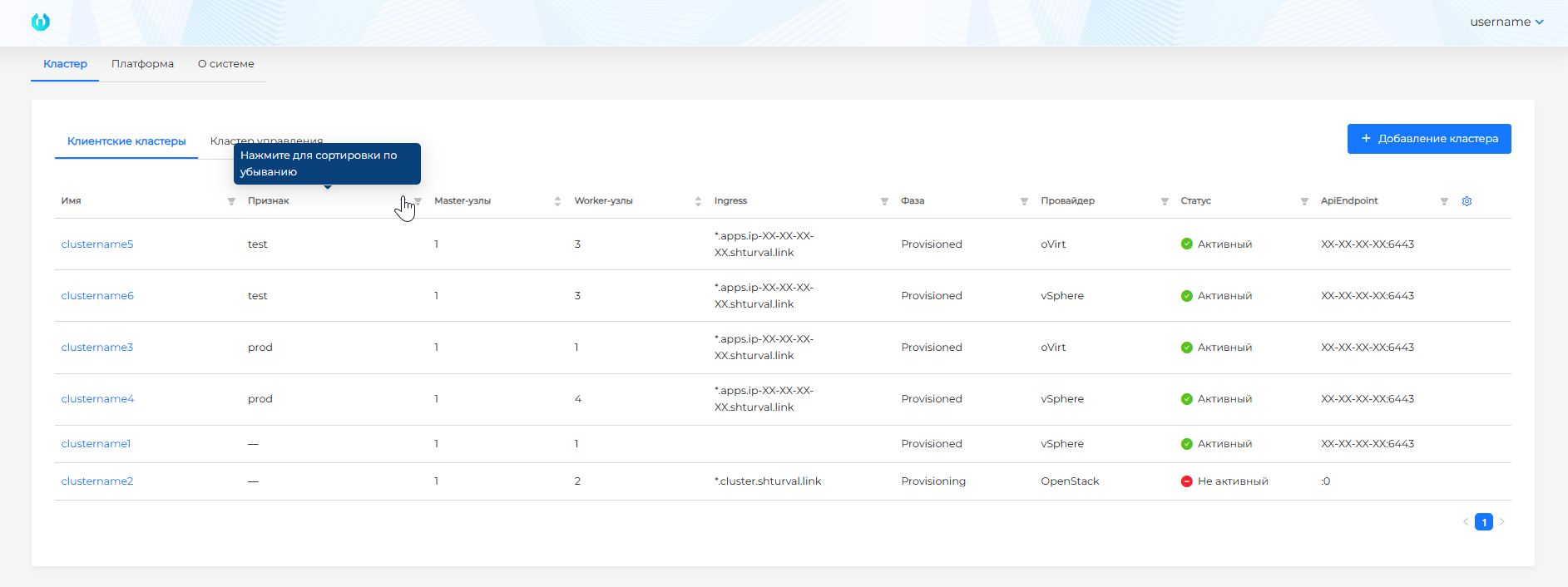
Annotations in Russian and English are supported. In the list of clusters, sorting and filtering by assigned characteristic is available (annotations with the keytag).
Events Tab
The “Events” tab contains information about events of all cluster objects (date and time, event source, object, event type indicator, event text).
Logs tab
If the local log collection service is enabled in the cluster Vector (shturval-log-collector) and the management cluster runs Monitoring module management component (Victoria Metrics Agent) (shturval-metrics-collector), then the collected logs are displayed on the “Logs” tab.
Screenshot
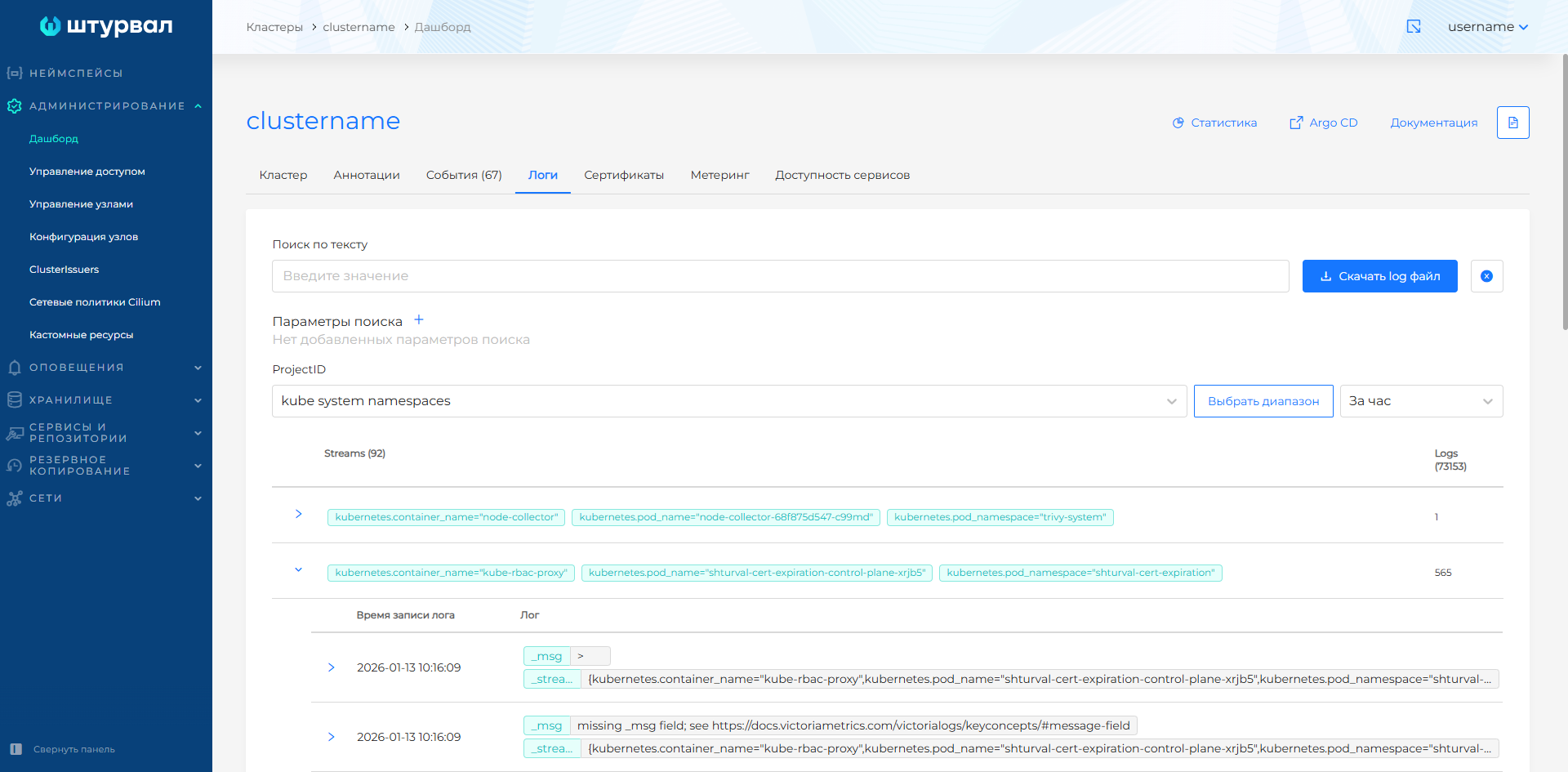
In VLogs corresponding projects (ProjectID) are created for the logs. Filtering by ProjectID is available in the platform interface:
- kube system namespaces: system logs /var/log/containers/*.log;
- cluster namespace: load logs of the cluster namespace in the management cluster;
- kube events: event logs of all cluster objects;
- kube audit: cluster security event logs;
- journald: shturvald logs (containerd);
- auditd: system audit logs.
Logs in projects are grouped by streams, which are a list of logs with a unique set of parameters. The parameter consists of"field": "value"log. The name of the stream corresponds to the value of the _stream field. The interface contains counters for the number of logs and streams in the project.
Please note! Authentication, authorization, access rights assignment logs, as well as infrastructure-related logs are located in the management cluster.
On the “Logs” tab you can:
get information from the logs:
- in the last 15 minutes;
- in the last 30 minutes;
- for the last hour. Selected by default;
- for the whole day;
- for the selected time range.
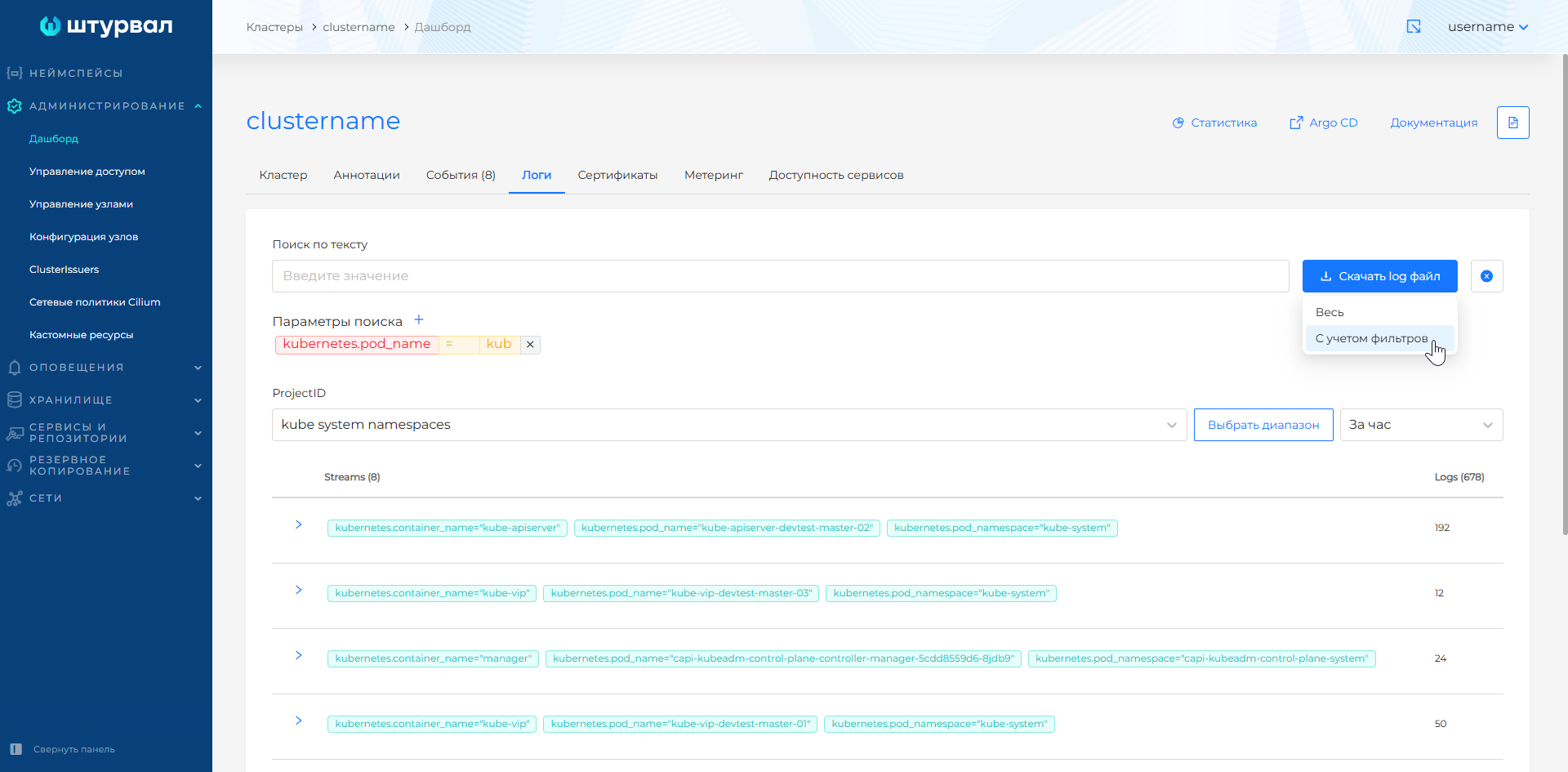
Download the full log file or taking into account the configured filters. The download occurs to a file with the extension .log, the name of which is pre-filled and formed according to: prefix Logs, download date and number of records.
Screenshot of log file loading
Search for logs in several ways:
- Search by text of logs
Use the template to searchparameter:parameter_valueseparated by a colon and without spaces. For example:kubernetes.pod_name:shturval-local-csi-node-6g6nhorkubernetes.pod_name:shturval-local-csi-node. The ability to search by multiple keys is supported, use a separator for this|, For example,message.level:warning | message.id:1. The search occurs within the selected ProjectID in the selection corresponding to the time range.
- Search using log parameters
To filter by parameters, click on + next to the Search Options heading. In the window that opens, select from the drop-down list the field by which you want to filter the logs, the operator and specify the value.
Available operators for filtering field values:
- AND - the selection will include logs that have a specified field that includes all the listed values. When only one value is specified, the operator works as =.
- OR (OR) - the selection will include logs that have a specified field that includes at least one of the listed values. When only one value is specified, the operator works as =.
- NOT (NO) - excludes logs with a specified field containing the listed values.
- = (Equal) - the selection will include logs with the specified field and the corresponding value. When multiple values are listed, the operator operates on the logical AND principle.
Pay attention!
- When searching by parameters:
- the specified filtering parameters are combined with each other using the logical AND operator. For example, if the parameters are
message.level=warningandmessage.id=1, logs that match both conditions are displayed; - the list for setting parameters will include log fields, pre-filtered by project, time range and text search. If you do not find the required field in the list, change the pre-configured filters;
- search by parameters can be carried out based on partial matches in field values, with the exception of special parameters. For example, if the parameter is given
kubernetes.pod_name=kub, the selection will include logs whose field kubernetes.pod_name contains the combination kub.
- the specified filtering parameters are combined with each other using the logical AND operator. For example, if the parameters are
Special parameters
When searching according to special parameters, the user’s choice of operator is ignored. The search is performed on an exact match, a complete match, and only one (specified first) value.
| Field | Value entry requirement | Example |
|---|---|---|
_stream_id | Must be specified in full without additional characters | 000000e2f41194 |
_stream | Must be specified within curly braces {}. One stream parameter can be specified in full or several parameters can be listed separated by commas. For ease of searching, it is not recommended to use the field_stream, add a filter to the search separately for each parameter | {kubernetes.container_name=“config-reloader”} or {kubernetes.container_name=“config-reloader”, kubernetes.pod_name=“vmagent-client-cluster-6c698bd8c7-rv29k”} |
_time | Must be specified in full without additional characters. To sample logs by time, use the time range setting | 2026-01-13T10:02:09.393429156Z |
- Simultaneous search by parameters and text works according to the logical AND operator.
If advanced security settings are installed in the cluster, then security events are written to the cluster and a corresponding project with ProjectID: kube audit is created in VLogs. Event information matches the rules of the configured event audit policy in the Kubernetes cluster AuditPolicy.
Advanced security settings are available for selection when adding a cluster. You can find out whether your cluster has advanced security settings on the “Cluster” tab of the cluster dashboard.
Screenshot
Certificates Tab
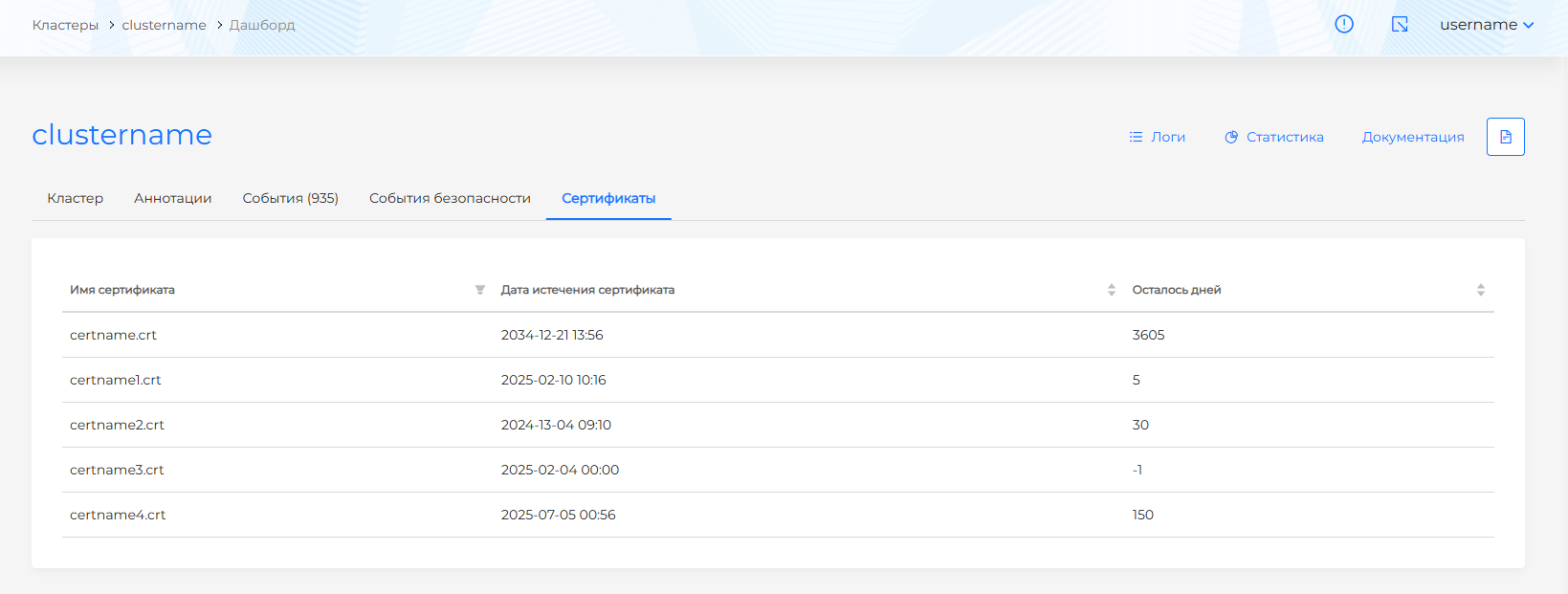
The “Certificates” tab contains information about all cluster certificates, which are generated based on data from the Kubernetes API Certificate Validator Module. For each certificate you can view:
- expiration date;
- the number of remaining days of validity of the certificate.
Screenshot
Metering Tab
Metering in a cluster is a simplified representation of billing in the context of namespaces. The Shturval platform implements long-term storage of metrics (up to a year) of namespaces for clusters in a separate VictoriaMetrics instance. For each namespace, CPU/hour and RAM/hour consumption is recorded.
Screenshot
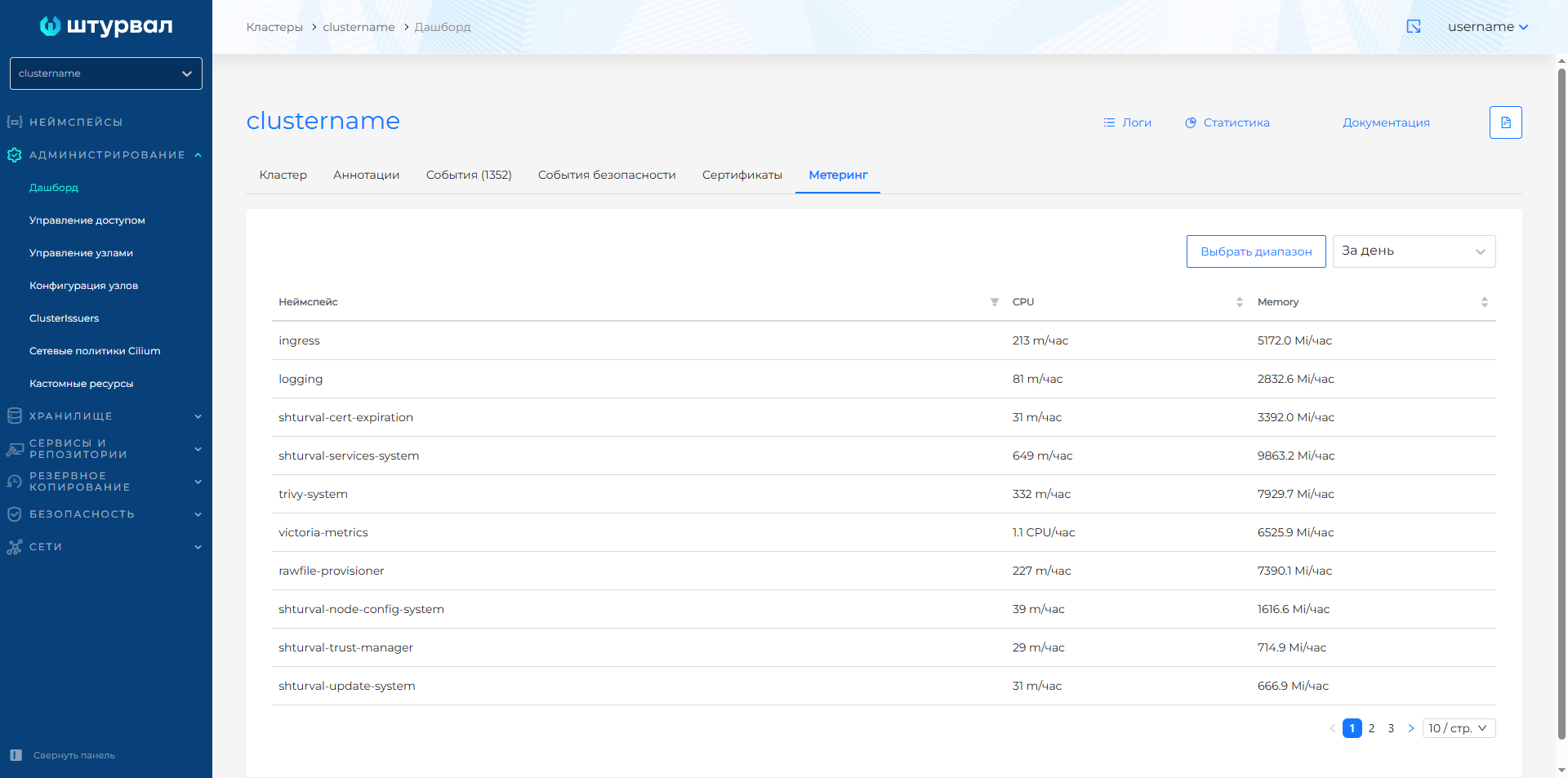
On the “Metering” tab, it is possible to obtain information about the resources spent on the namespace:
- for the last hour;
- for the last week;
- for the last month;
- for the last year;
- for the selected time range.
Tab Service Availability
The “Service Availability” tab displays cards of key system components (services) of the cluster.
Screenshot
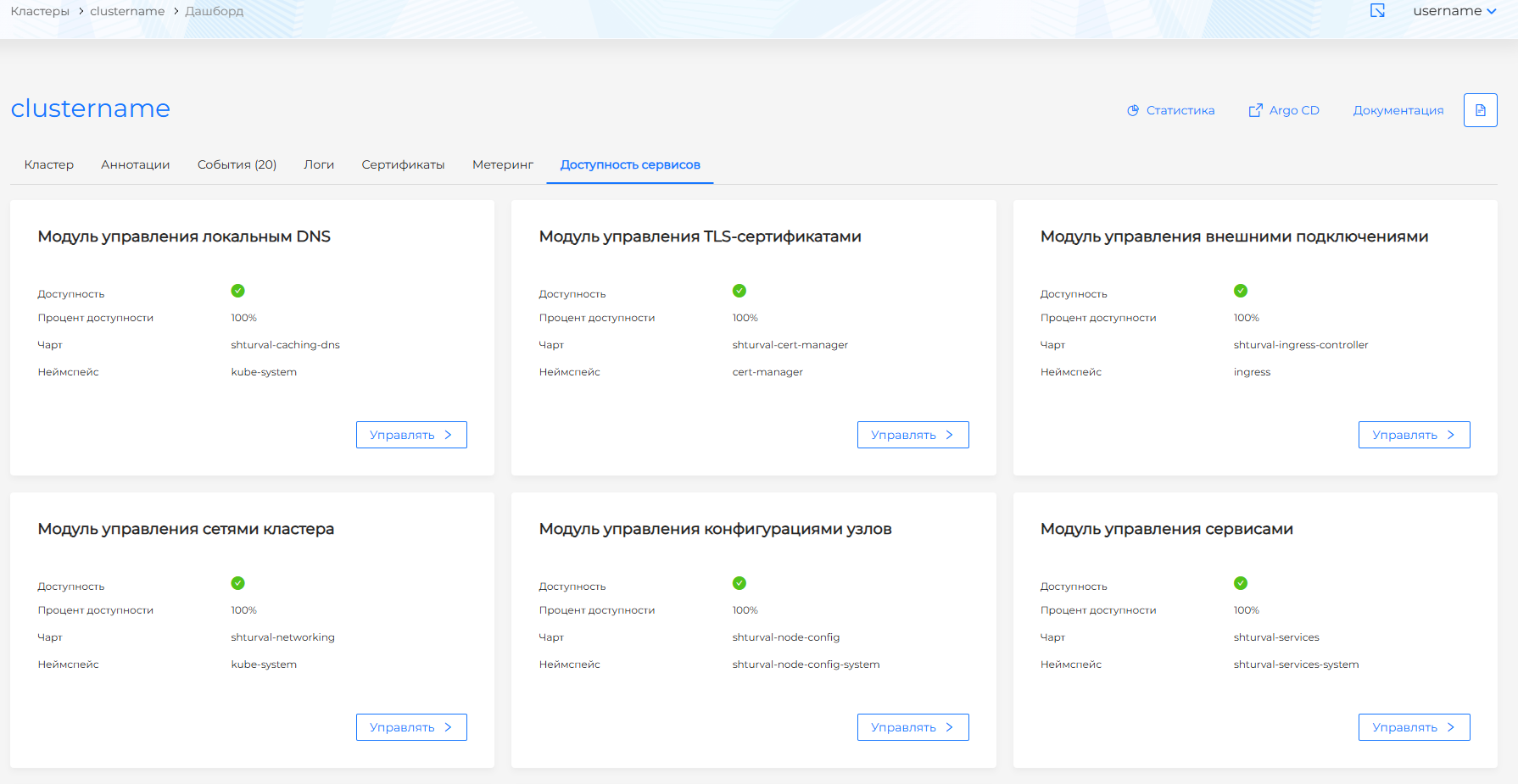
For each service you can get data:
- service availability status at the current time (color indication);
- percentage of service availability: average availability over the last hour, expressed as a percentage;
- name of the Helm chart of the service;
- namespace in which the service instance is installed.
When you click the Manage button, you go to the page for viewing and editing the service.
The composition of services is different for client clusters and the management cluster. The tab is available if local metrics collection is enabled in the cluster (client, management cluster) Monitoring module. Monitoring module control component (VM Agent) (shturval-metrics-collector) and in the management cluster Monitoring module. Centralized collection of metrics (Victoria Metrics) (shturval-monitoring).
You can also track the current availability status of services in the Administration section on the Installed services page.