Node Configuration (NCI)
Each cluster has a node configuration module installed - this is an operator that allows you to place node configuration objects (NCIs) on selected nodes without the need to manually configure each node. Some configuration objects are created automatically when a cluster is created - this way the operator prepares nodes to join the cluster, for example:
- controlplane-init-config: creates directories and files, as well as Linux users for system components (for example, etcd) on Control Plane nodes;
- controlplane-oidc-nci: configures the KubeAPI server on Control Plane nodes;
- generic-init-config: creates directories and files, configures Container Runtime parameters, Sysctl parameters, Systemd units, cube certificate rotation period, trusted certificates, and also installs packages for shturvald (containerd) on all nodes.
If you have permissions, the user can create configuration objects and place them on nodes, and the created configuration object will indicate who created or modified them and when. Please note! Deleting a configuration object does not delete the configured settings. If you need to change parameters, you must create a new NCI object with the required values and set a higher priority.
The Cluster Node Configuration page displays a list of Node Config Item (NCI) objects of the client cluster.
Screenshot
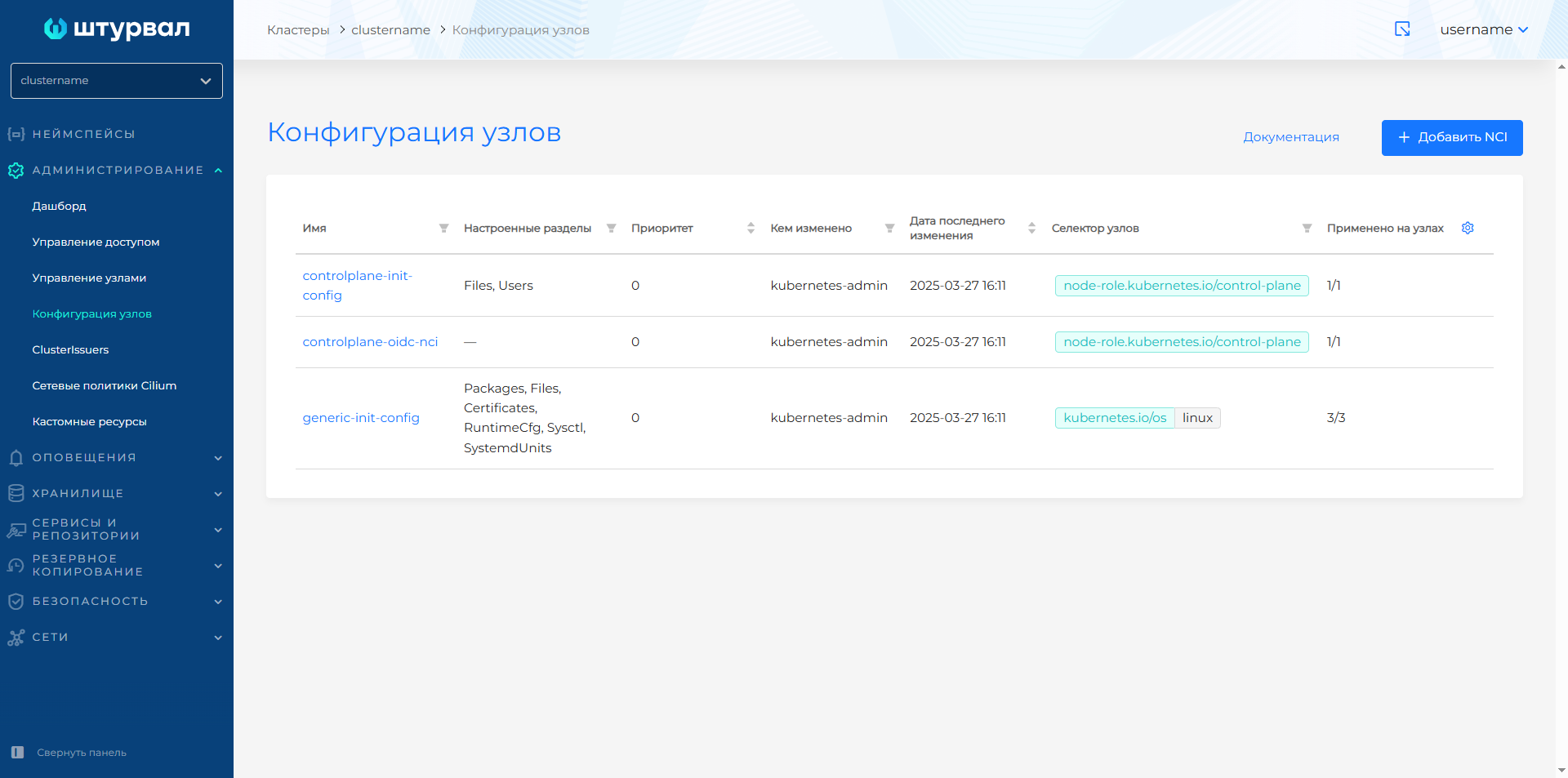
For each Node Config Item (NCI) the following is displayed:
- list of configured sections in NCI.
- priority;
- modified/created by whom;
- date of last change;
- node selector;
- the ratio of the number of nodes on which the configuration is applied to the number of planned nodes for application.
Creation of NCI
Screenshot
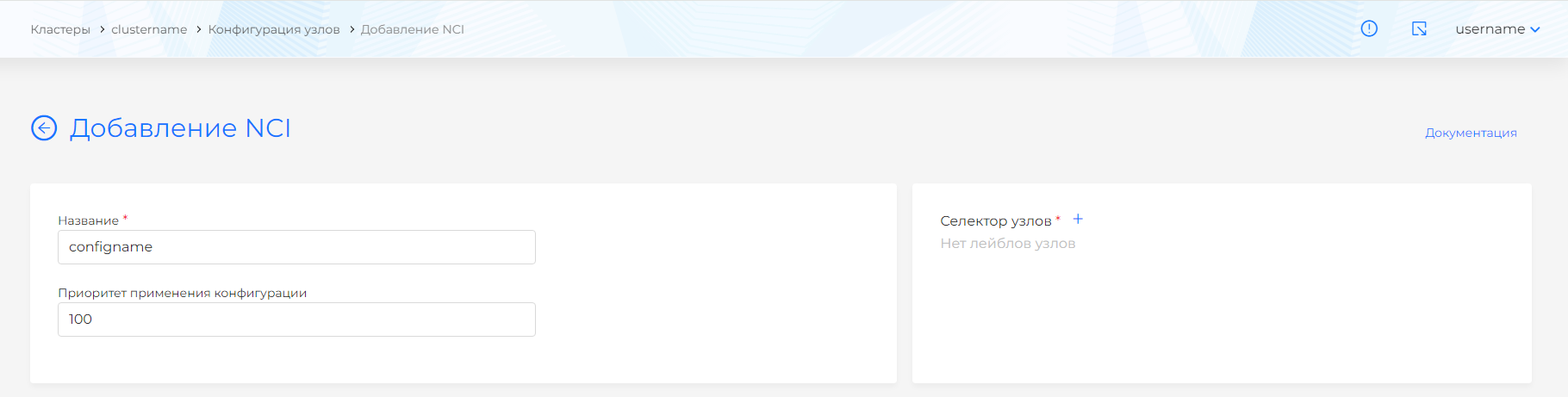
Set the NCI name and priority. The priority increases with increasing numerical value.
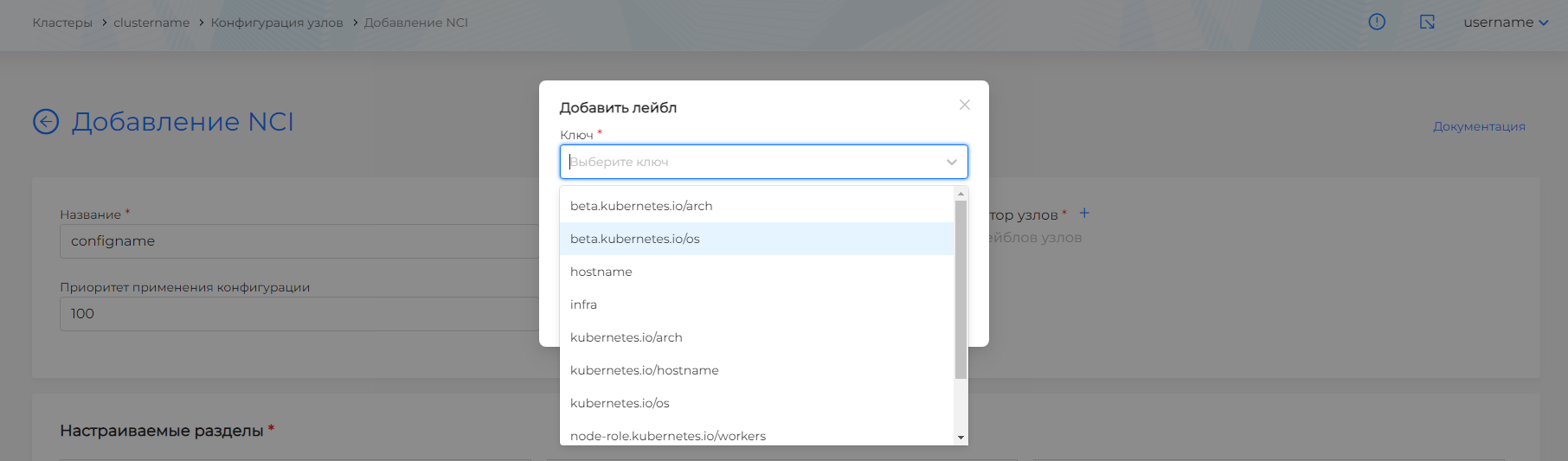
To apply NCI to all Control Plane nodes, add a label with the key in the node selectornode-role.kubernetes.io/control-plane. Leave the “Value” field blank.
Please note! The label selector works on the principle of union. The selected object must have all of the specified labels.
Screenshot
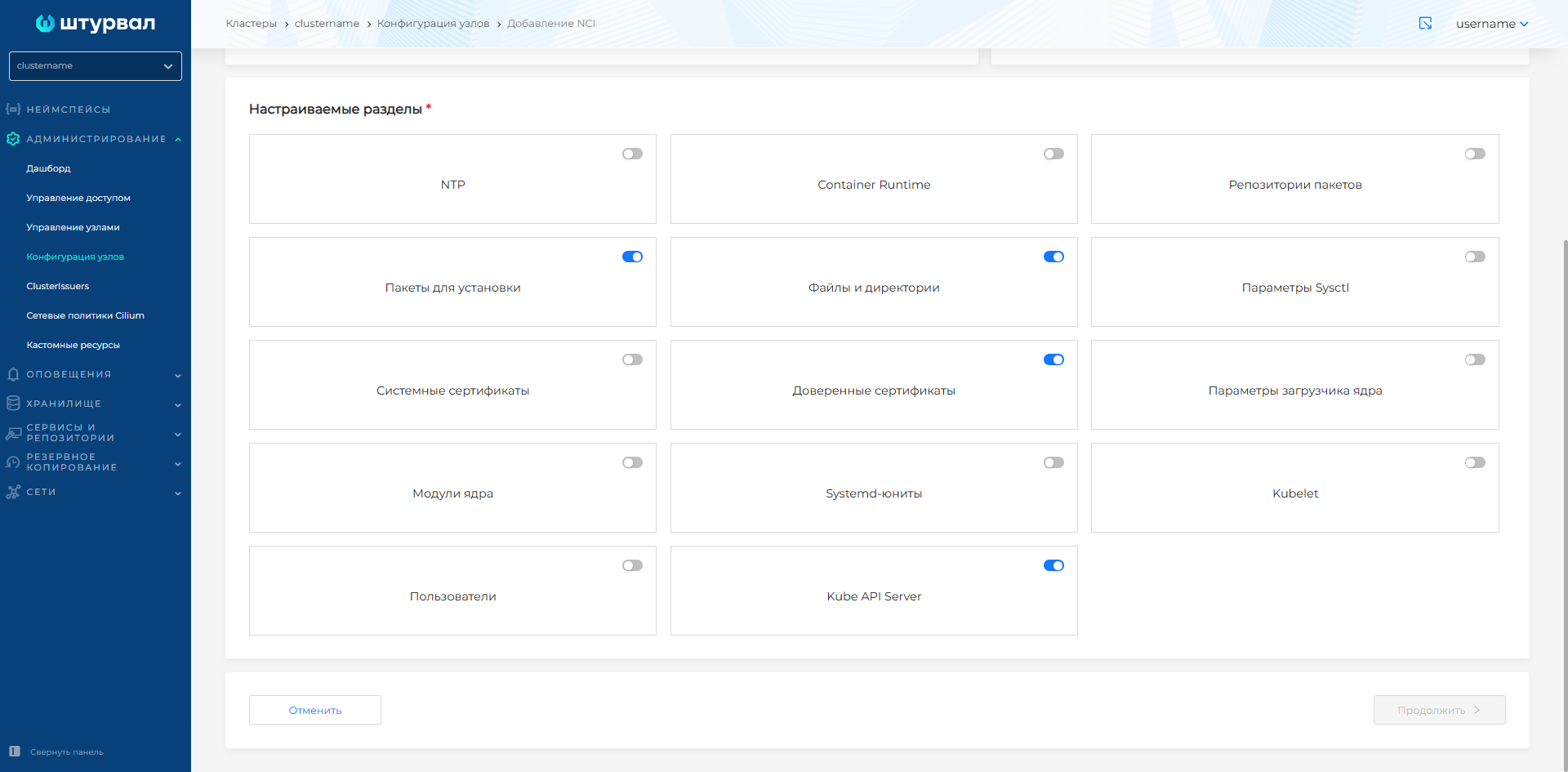
A Node Config Item (NCI) contains one or more configuration items. Visually, elements are presented in the form of custom blocks. The following blocks are available:
- NTP;
- Container Runtime;
- sysctl parameters;
- Package repositories;
- Installation packages;
- Files and directories;
- System certificates (setting up the rotation period for Kubecerts system certificates);
- Trusted certificates;
- Kernel loader parameters (grub);
- Kernel modules;
- Systemd units;
- Kubelet;
- Users;
- Kube API Server.
Some of these elements can be in only one instance (for example, NTP), and some can be in multiple instances (for example, directories or files).
Screenshot
Once created, you can edit the created NCI, add or remove configuration items, and change label and priority values.
Adding NCI
Follow these steps:
- On the Cluster Nodes tab, click the Add NCI button. The configuration form will open.
- Enter a title.
- Specify a list of node labels to which the configuration will be applied.
For Control Plane nodes, write in the keynode-role.kubernetes.io/control-plane. If you need to create an NCI for Worker nodes, assign a label to the required Worker nodes, then add this label as a key in the Node Configuration CI (NCI) node selector. This can be done from the client cluster interface on the Node Configuration page in the Administration section or using the command interface.
Command to install the label:kubectl label node node-role.kubernetes.io/worker=""Command to view node labels:kubectl get nodes --show-labels4. Enter the NCI configuration priority. The default value is 100.
Precedence is necessary to resolve conflicting values of elements of different NCIs.
5. Select the partitions you want to configure from the list.
6. Click Continue to proceed to filling out the data for each of the selected sections.
If you have finished changing the data on the page of the configured section, click Continue. This action will pre-save the changes you made. To save the entire object, click Finish. This button will be available in the last section step among those selected for modification.
To change the list of changeable objects, go to the “Basic data” step and select/deselect additional sections by clicking on the corresponding section names.
NCI partition configuration
NTP
Pay attention!
To configure NTP using NCI, the ntpd or chronyd service must be installed on the OS of the cluster nodes. Make sure one of them is enabled (active) and added to startup (enabled). Otherwise, install the package (under Node Configuration/Packages to Install) and start the required service (Systemd-units custom section) using NCI.
NTP settings on cluster nodes are not available during installation. By default, Timezone is set to Europe/Moscow.
Example NCI manifest for installing chrony. Install the package and enable the service.
``` apiVersion: node.shturval.tech/v1beta2 kind: NodeConfigItem metadata: name: chrony spec: nodeconfigselector: kubernetes.io/os: linux packages: - name: chrony state: present systemdunits: - active: true enabled: true name: chronyd ```Example NCI manifest for installing ntp. Install the package and enable the service.
``` apiVersion: node.shturval.tech/v1beta2 kind: NodeConfigItem metadata: name: ntp spec: nodeconfigselector: kubernetes.io/os: linux packages: - name: ntp state: present systemdunits: - active: true enabled: true name: ntpd ```Example NCI manifest for installing chrony and configuring NTP servers and timezone.
``` apiVersion: node.shturval.tech/v1beta2 kind: NodeConfigItem metadata: name: chrony spec: nodeconfigselector: kubernetes.io/os: linux packages: - name: chrony state: present systemdunits: - active: true enabled: true name: chronyd ntp: servers: - 0.ru.pool.ntp.org - 1.ru.pool.ntp.org timezone: "Europe/Moscow" ```Example NCI manifest for installing ntp and configuring NTP servers and time zones.
``` apiVersion: node.shturval.tech/v1beta2 kind: NodeConfigItem metadata: name: ntp spec: nodeconfigselector: kubernetes.io/os: linux packages: - name: ntp state: present systemdunits: - active: true enabled: true name: ntpd ntp: servers: - 0.ru.pool.ntp.org - 1.ru.pool.ntp.org timezone: "Europe/Moscow" ```Configuring NTP servers if the chronyd or ntpd service is installed and enabled
Screenshot
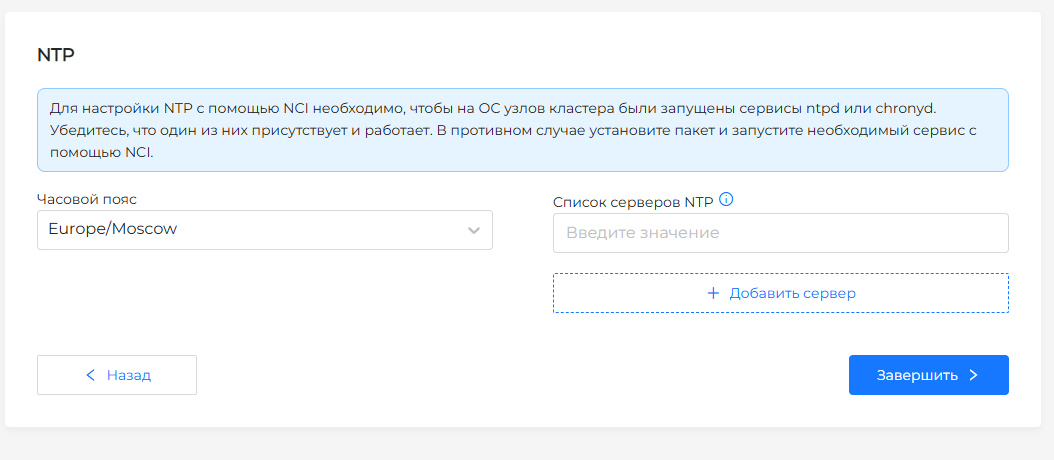
In the NTP block, in the “List of NTP servers” field, you must add the addresses of corporate servers: at least one NTP server. To do this, enter the IP address or FDQN of the server in the field. Change the default time zone if necessary.
Set the NTP service name.
In addition to NTP, chrony can also be used to automatically determine which service is running.
Example
```YAML apiVersion: node.shturval.tech/v1beta2 kind: NodeConfigItem metadata: finalizers: - node.shturval.tech/finalizer name: ntp-example spec: ntp: servers: - 0.ru.pool.ntp.org - 1.ru.pool.ntp.org timezone: "Europe/Moscow" nodeconfigselector: kubernetes.io/os: linux ```To continue filling out the sections, click “Continue”. If you are finished filling out the sections, click Finish.
Container Runtime
Container Runtime must be installed on every node in the cluster to enable kubelets to run pods and containers within them. Follow these steps:
- Configure container registries by clicking on +.
The container registry allows you to store and manage images:
- add new (push);
- extract (pull);
- convert the image name in the repository into its digital (digest) representation (resolve).
- For the local repository address, enter the FQDN of the repository used as a mirror for the external repository.
- Enter the authorization key in the local repository.
- Enter the address of the external repository.
- Click the Add button.
Example
```YAML apiVersion: node.shturval.tech/v1beta2 kind: NodeConfigItem metadata: name: runtime spec: nodeconfigselector: kubernetes.io/os: linux runtimecfg: registries: - capabilities: - resolve - pull host: https://yourhostname:443 name: r.shturval.tech priority: 100 ```NCI example with Nvidia Runtime configuration
```yaml apiVersion: node.shturval.tech/v1beta2 kind: NodeConfigItem metadata: name: nvidia-runtime spec: nodeconfigselector: node-role.kubernetes.io/gpu: "" priority: 100 runtimecfg: configSections: - exist: true params: - exist: true key: default_runtime_name value: nvidia path: plugins."io.containerd.grpc.v1.cri".containerd - exist: true params: - exist: true key: base_runtime_spec value: "" - exist: true key: cni_conf_dir value: "" - exist: true key: cni_max_conf_num value: 0 - exist: true key: container_annotations value: [] - exist: true key: pod_annotations value: [] - exist: true key: privileged_without_host_devices value: false - exist: true key: runtime_engine value: "" - exist: true key: runtime_path value: "" - exist: true key: runtime_root value: "" - exist: true key: runtime_type value: io.containerd.runc.v2 path: plugins."io.containerd.grpc.v1.cri".containerd.runtimes.nvidia - exist: true params: - exist: true key: BinaryName value: /usr/bin/nvidia-container-runtime - exist: true key: CriuImagePath value: "" - exist: true key: CriuPath value: "" - exist: true key: CriuWorkPath value: "" - exist: true key: IoGid value: 0 - exist: true key: IoUid value: 0 - exist: true key: NoNewKeyring value: false - exist: true key: NoPivotRoot value: false - exist: true key: Root value: "" - exist: true key: ShimCgroup value: "" - exist: true key: SystemdCgroup value: true path: plugins."io.containerd.grpc.v1.cri".containerd.runtimes.nvidia.options ```To continue filling out the sections, click “Continue”. If you are finished filling out the sections, click Finish.
sysctl parameters
Follow these steps:
- Expand the sysctl parameters block.
- Provide a list of sysctl values in key-value format.
Example
```YAML apiVersion: node.shturval.tech/v1beta2 kind: NodeConfigItem metadata: name: sysctl spec: nodeconfigselector: kubernetes.io/os: linux sysctl: param: kernel.panic: "10" kernel.panic_on_oops: "1" net.bridge.bridge-nf-call-iptables: "1" net.ipv4.ip_forward: "1" vm.max_map_count: "262144" vm.overcommit_memory: "1" priority: 100 ```To continue filling out the sections, click “Continue”. If you are finished filling out the sections, click Finish.
Package repositories
Screenshot
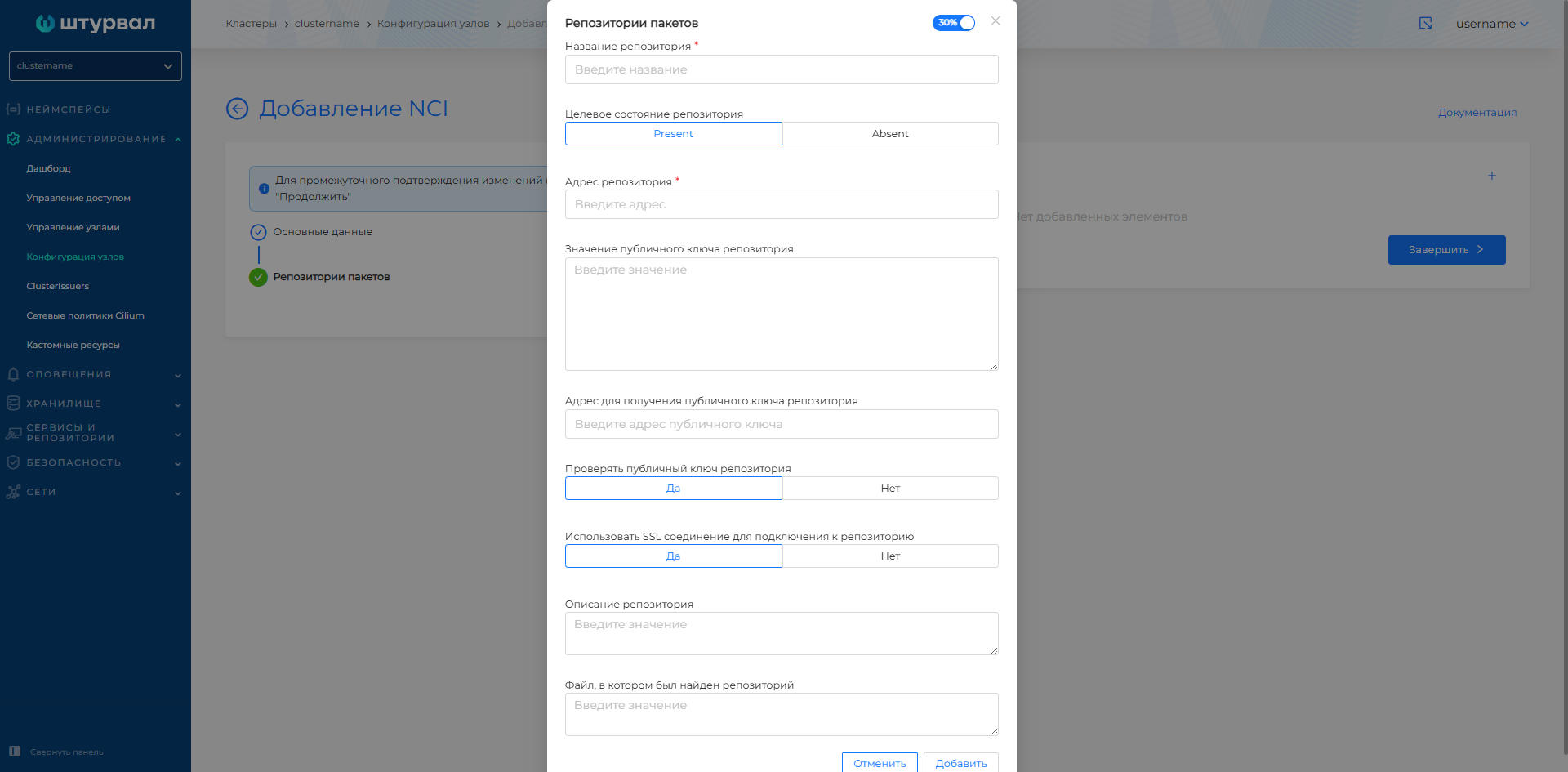
Follow these steps:
- Expand the Package Repositories modal window by clicking on +. This section configures the connection of network repositories that operate using the HTTP, HTTPS, and FTP protocols.
- Select the target repository state: Present or Absent.
- Enter the repository URL.
- Enter the repository public key value.
- Enter the package repository key URL to obtain the public key.
- Enable checking the repository public key and using an SSL connection to connect to the repository - click the Yes button.
- Enter a description for the repository.
- Specify the file in which the repository was found.
Example
```YAML apiVersion: node.shturval.tech/v1beta2 kind: NodeConfigItem metadata: finalizers: - node.shturval.tech/finalizer name: repositories-example spec: repositories: - name: corp-repo description: "Corp Linux repo" address: "https://repo.corp.domain.tld/repository/rpm" state: present nodeconfigselector: kubernetes.io/os: linux ```To continue filling out the sections, click “Continue”. If you are finished filling out the sections, click Finish.
Packages to install
Screenshot
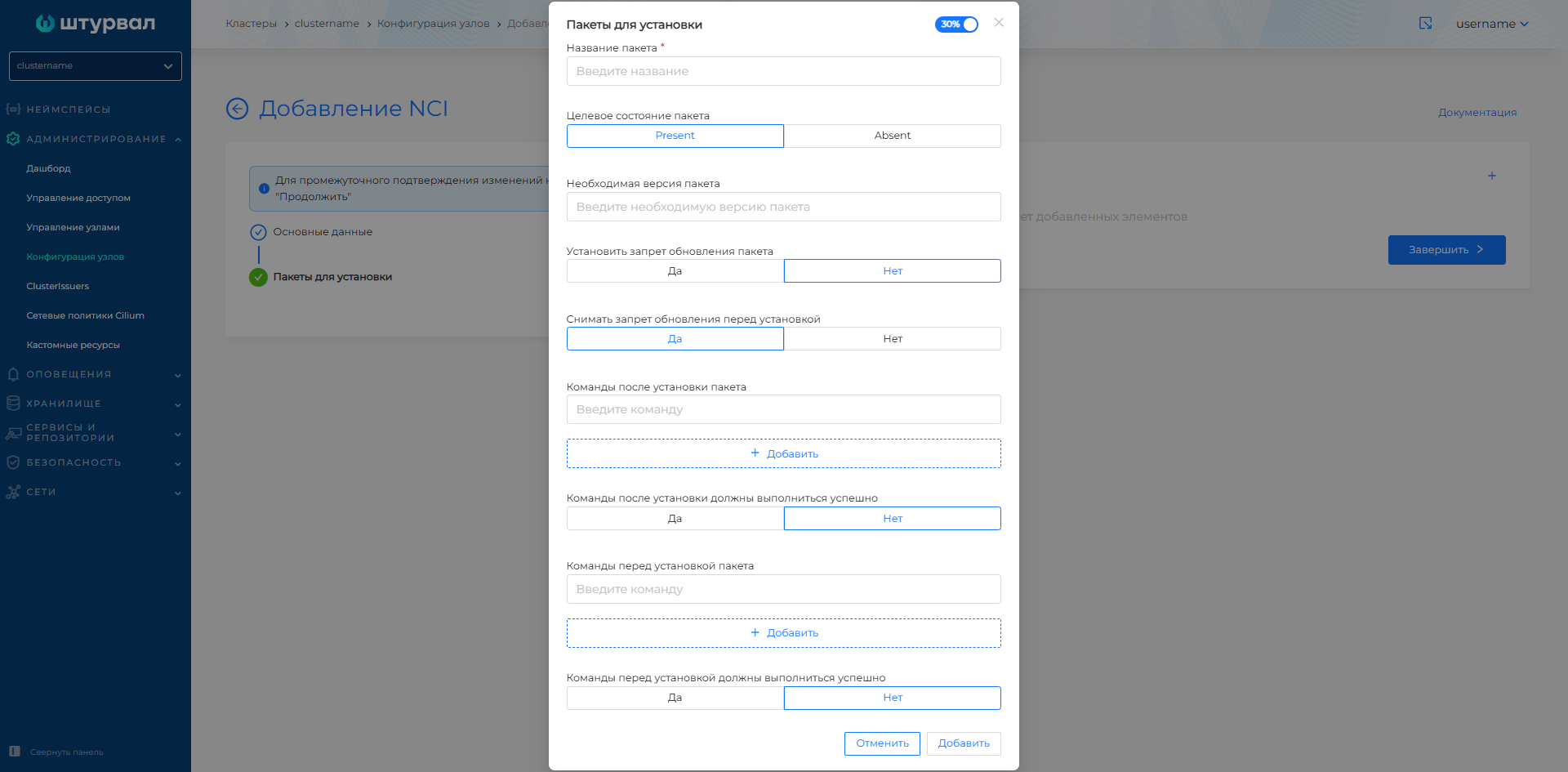
To add packages for installation, follow these steps:
- Expand the Packages for installation modal window by clicking on +.
- Enter a name for the package.
- Select the target package state: Present or Absent.
- Enter the required package version.
- Enable blocking package updates or unblocking updates before installation.
- Enter the commands that will be run after the package is installed. When you click on +, a command line will appear.
- Determine whether there is a requirement that commands run after the package is installed must succeed.
- Enter the commands that will need to be run before the package can be installed. When you click on +, a command line will appear.
- Determine whether there is a requirement that commands run after the package is installed must succeed.
Example
```YAML apiVersion: node.shturval.tech/v1beta2 kind: NodeConfigItem metadata: finalizers: - node.shturval.tech/finalizer name: packages-example spec: packages: - name: jq state: present - name: mc state: absent nodeconfigselector: kubernetes.io/os: linux ```To continue filling out the sections, click “Continue”. If you are finished filling out the sections, click Finish.
Files and directories
Screenshot
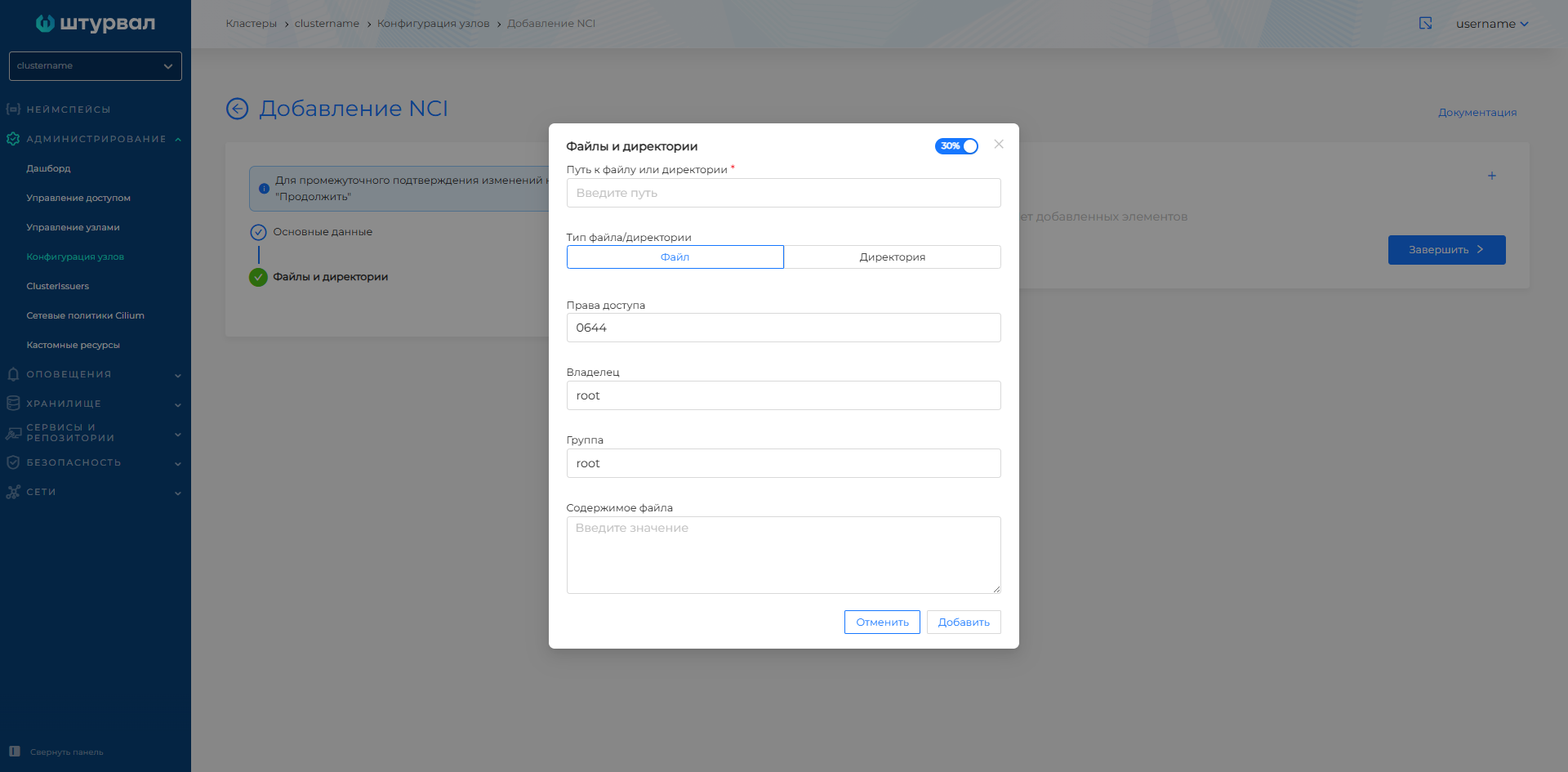
To add a file or directory, follow these steps:
- Open the Files and directories modal window by clicking on +.
- Enter the path to the file or directory.
- Select the type: File or Directory.
- Enter permission values.
- Specify the owner and group.
- Enter the contents of the file if the file type is selected.
- Enter the required package version.
Example
```YAML apiVersion: node.shturval.tech/v1beta2 kind: NodeConfigItem metadata: name: directory spec: files: - group: root mode: "0600" owner: root path: /etc/kubernetes type: directory nodeconfigselector: kubernetes.io/os: linux ```Please note! When you change the directory name, a new directory with the changed name is created. The directory with the previous name will not be deleted.
To complete other sections, click “Continue”. If you are finished filling out the sections, click Finish.
Please note! When placing AuditPolicy, the KubeAPI server will be restarted automatically. Before posting, check the validity of the YAML manifest.
To configure the seccomp profile, use instructions.
System certificates
Screenshot
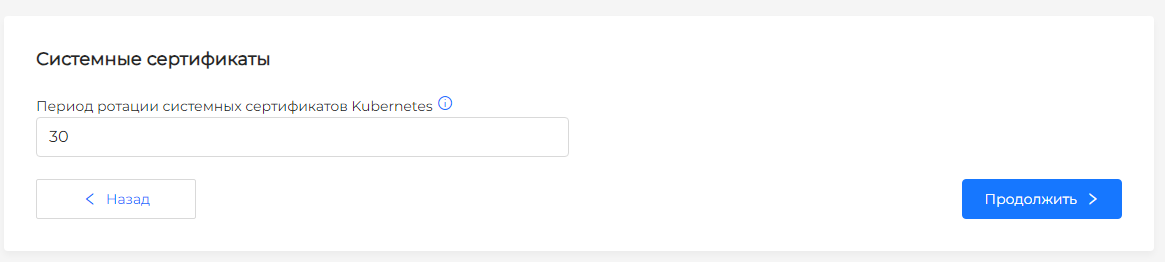
Determine the rotation period for Kubernetes system certificates. This must be an integer value ranging from 7 to 365, the default rotation period is 30 days.
Example
```YAML apiVersion: node.shturval.tech/v1beta2 kind: NodeConfigItem metadata: name: kubecerts spec: kubecerts: rotationperiod: 30 nodeconfigselector: kubernetes.io/os: linux priority: 100 ```Trusted certificates
Screenshot
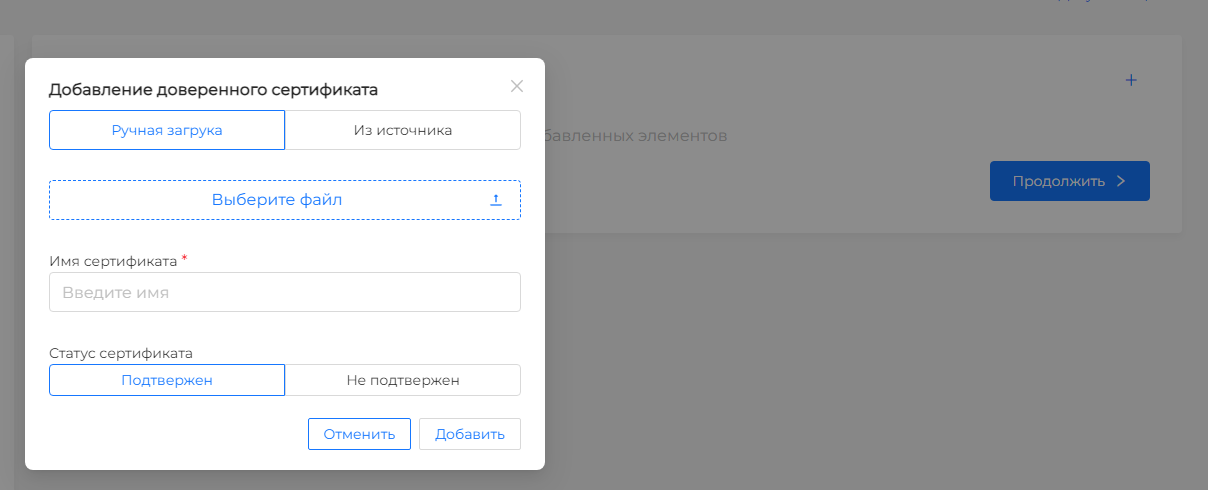
To add a trusted certificate, follow these steps:
- Click Add Trusted Certificate.
- Select one of the methods for adding a certificate: From Source or Manual Upload.
- If From Source is selected, you must upload a certificate file and provide a name.
- If Manual Upload is selected, provide the URL and name of the certificate. You can specify a URL with a protocol (https is available) or without a direct protocol. If the protocol is not specified, specify the port. If the protocol and port are not specified, port 443 will be automatically added.
- Select the certificate status: Confirmed or Not Confirmed.
- Enter a name for the certificate.
It will be possible for CAs to use the root certificate if the certificate status is Verified. Certificate Authorities will not be able to use the root certificate to sign SSL certificates if the root certificate status is Unverified.
Example
```YAML apiVersion: node.shturval.tech/v1beta2 kind: NodeConfigItem metadata: name: certs spec: certificates: - exist: true name: cert.crt url: https://example.com nodeconfigselector: kubernetes.io/os: linux ```To continue filling out the sections, click “Continue”. If you are finished filling out the sections, click Finish.
Kernel bootloader options
This configuration modifies (adding or removing options) the /etc/default/grub file, generates a grub configuration, and restarts the node to apply the settings.
Screenshot
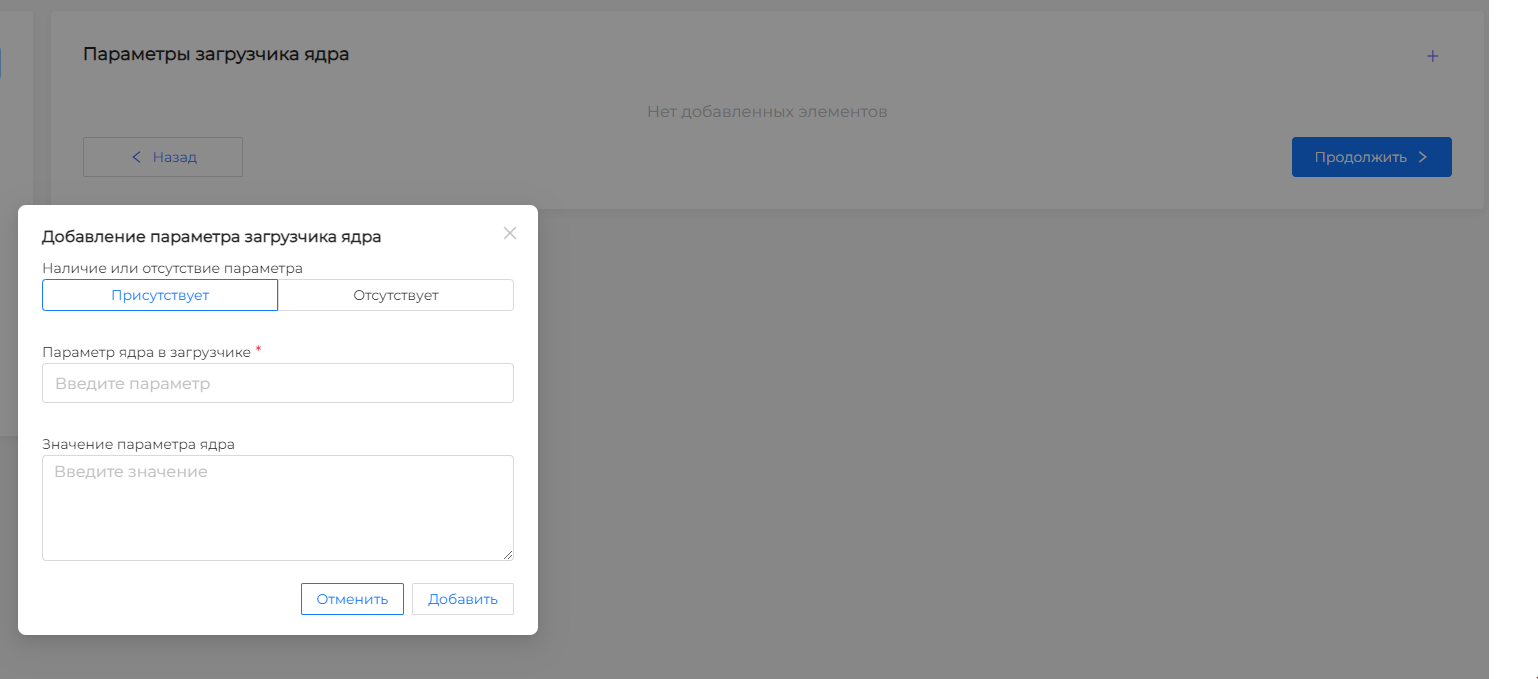
To add kernel boot options, follow these steps:
- Click Add Kernel Argument.
- Select the presence or absence of kernel parameters in the bootloader.
- Enter the name and value of the kernel parameter.
Example
```YAML apiVersion: node.shturval.tech/v1beta2 kind: NodeConfigItem metadata: finalizers: - node.shturval.tech/finalizer name: kernelarg-example spec: kernelarguments: - param: "GRUB_TIMEOUT" value: "1" exist: true nodeconfigselector: kubernetes.io/os: linux ```Kernel modules
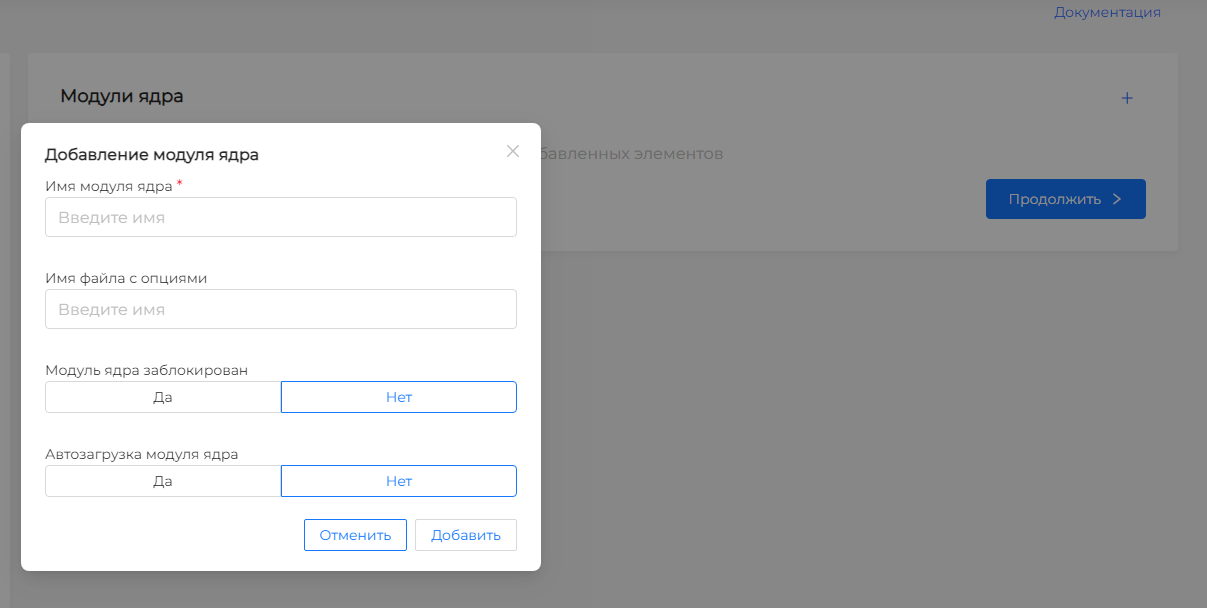
- Click Add Kernel Module.
- Specify the name of the kernel module. This field is required.
- Specify the name of the options file.
- Determine whether the kernel module is locked. If you block a kernel module, you cannot enable kernel module autoloading.
- Determine whether kernel module autoloading is enabled. It is not possible to enable autoloading of a kernel module if it is locked.
Screenshot
Example of a kernel parameter in the bootloaderGRUB_DISABLE_RECOVERY
To continue filling out the sections, click “Continue”. If you are finished filling out the sections, click Finish.
Systemd units
To add a systemd unit configuration, follow these steps:
- Open the Systemd-units modal window by clicking on +.
- Enable the service to start, including when the OS starts.
- Enter the name of the systemd unit.
- Click the Add button
Screenshot
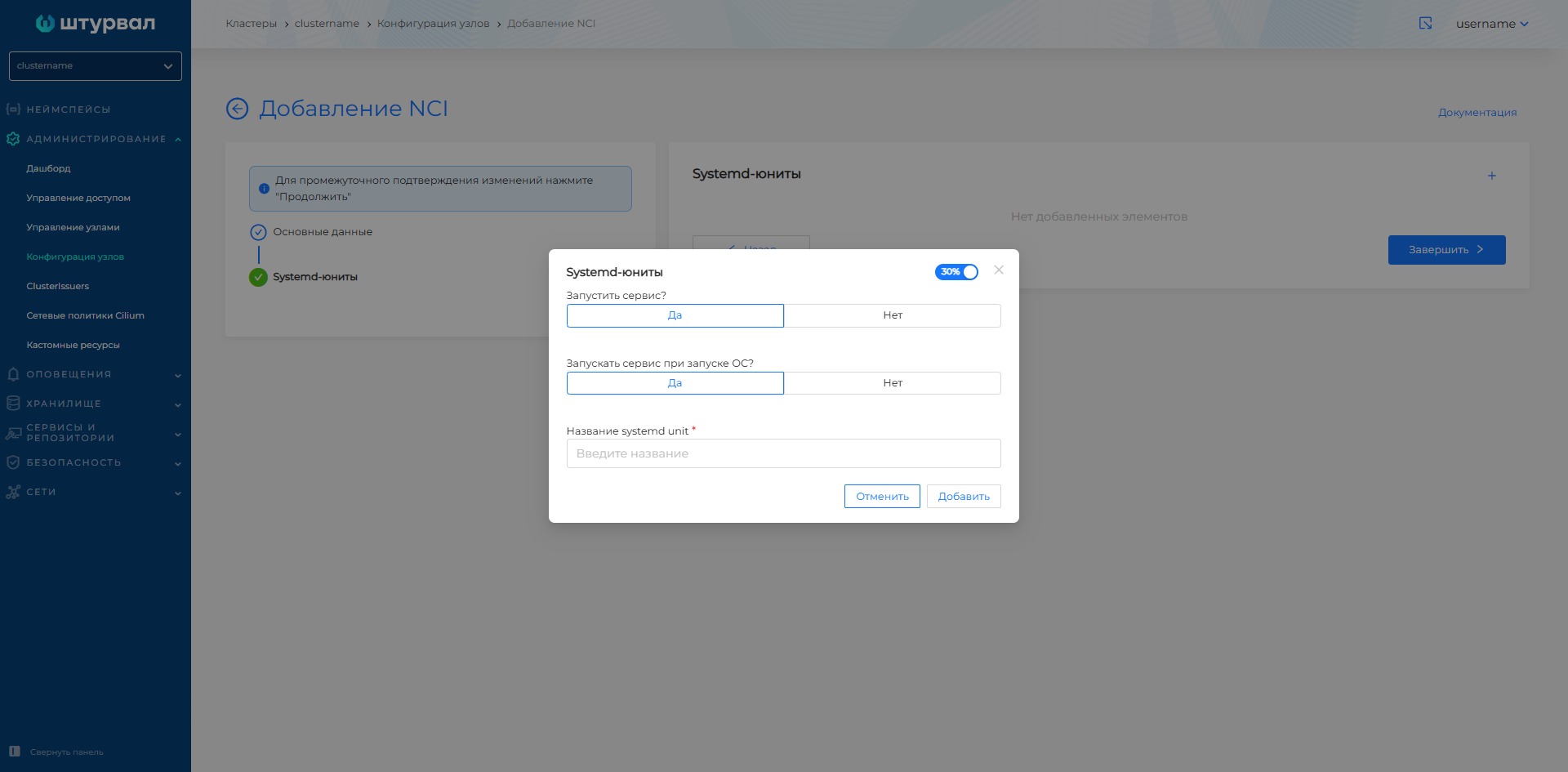
Example
```YAML apiVersion: node.shturval.tech/v1beta2 kind: NodeConfigItem metadata: name: systemd-units spec: nodeconfigselector: kubernetes.io/os: linux systemdunits: - active: true enabled: true name: containerd - active: true enabled: true name: kubelet ```To continue filling out the sections, click “Continue”. If you are finished filling out the sections, click Finish.
Kubelet
Screenshot
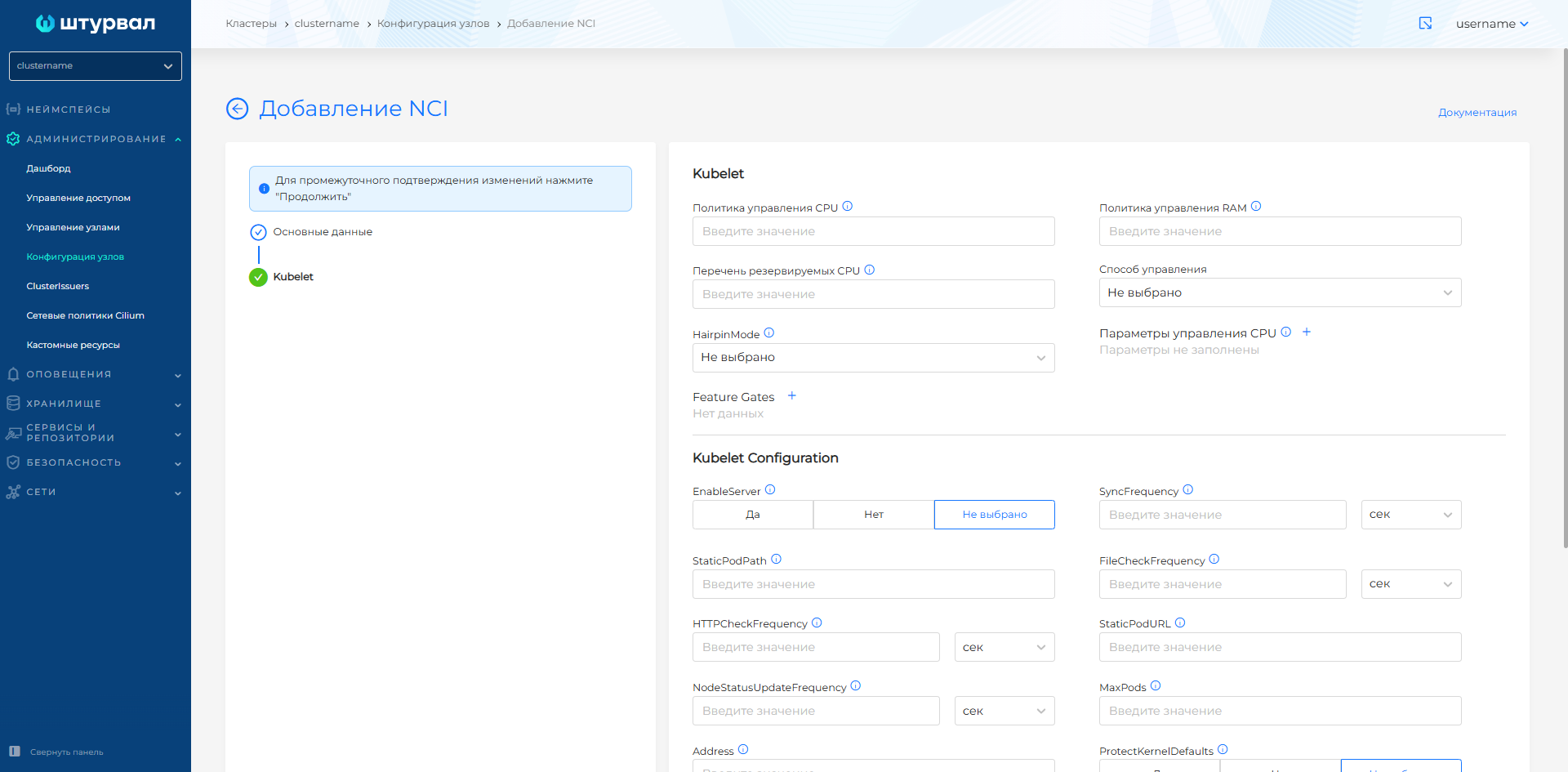
In the Kubelet section, the following fields are available for filling:
- CPU control policy. This field represents the strategy used by the kubelet to manage the allocation of CPU resources to containers running on the node.
For example:
- none - must allocate CPU on a sharing basis, CPU can be used by pods according to their limitations, without any guarantee of CPU affinity.
- static - provide unique CPU cores for pods.
- RAM management policy. This field represents the strategy used by kubelet to manage the allocation of memory resources for containers running on the node.
For example:
- none - general memory management method.
- static - guarantees strict compliance of the memory address space.
- CPU control parameters. This field allows you to set additional parameters to control the processor, such as using certain cores.
For example:
- “cpu_hard_limit” : “2” - sets a hard limit on CPU usage to 2.
- “cpu_soft_limit” : “1” - sets the soft limit on CPU usage to 1. Here the left part is entered as a key, the right part as a value. No quotation marks are required.
- HairpinMode. This field determines how Kubelet will configure the container bridge to handle hairpin packets that go between two pods on the same node.
Available values:
- HairpinVeth - hairpin channel mod is enabled;
- HairpinNone - hairpin channel mod is disabled;
- PromiscuousBridge - all internal device traffic is placed in promiscuous mode (Enabled by default).
- MaxPods. This field specifies the maximum number of pods that can be launched with this Kubelet setup.
For example:
- 150 - The maximum number of pods is 150.
- 200 - The maximum number of pods is 200.
- nodeStatusUpdateFrequency. This field determines the frequency with which the kubelet calculates and updates the state of the node.
For example:
- 10 s - node status update every 10 seconds;
- 1 m - node status update every minute;
- HTTPCheckFrequency. This field specifies the period between http checks to receive new data.
For example:
- 30 s - The period between http checks to receive new data is 30 seconds.
- 1 m - The period between http checks to receive new data is 1 minute.
StaticPodURL. URL for accessing static pod settings. For example:
http://example.com/static_pods.ProtectKernelDefaults. If this option is enabled, Kubelet will throw an error if the kernel flags do not match expectations.
Available values:
- yes - Kubelet error if kernel flags do not match expectations;
- no - no checking of kernel flags.
- ServerTLSBootstrap. When this setting is enabled, kubelet will automatically run server certificates. Enabling this setting will enable the RotateCertificates setting.
Available values:
- yes - enables autorun of the server certificate.
- no - disables autorun of the server certificate.
- Control method. This field defines the strategy the Kubelet should use when making resource binding decisions.
Available values:
- restricted: Non-standard pods will be rejected that cannot satisfy the correct execution of the topology calculation map, if any.
- best-effort: Non-standard pods will be launched in best-effort mode. They will be resource limited if there are not enough of them to satisfy the distribution across the kubelet nodes.
- none: Resource topology will not be taken into account when launching pods.
- single-numa-node: Pods will be placed so that their resources are distributed within a single NUMA node.
- Resource change detection strategy. This field defines the strategy for tracking changes to ConfigMaps and Secrets.
Available values:
- Get: The setting reads resources on every update event.
- Cache: Resources are cached when the resource is updated for later use.
- Watch: The APIServer Kubernetes server sends notifications about available updates.
- EnableServer. When enabled, Kubelet will run in secure server mode.
Available values:
- Yes: Includes a secure Kubelet server.
- No: Disables the secure Kubelet server.
- StaticPodPath. This field specifies the path to a static pod or a repository with a static pod.
For example:
- /my/path/to/static/pod: Defines the path to the directory where static pod manifests are located.
- /home/user/my_static_pods: Specifies the directory where static pod manifests are stored.
- SyncFrequency. This field defines the maximum time between syncing containers and configurations.
For example:
- 30 s: The time between synchronization of containers and configurations is 30 seconds.
- 2 m: The time between synchronization of containers and configurations is 2 minutes.
- FileCheckFrequency. This field specifies the time between checking configuration files for changes.
For example:
- 10 s: The time between checking configuration files for changes is 10 seconds.
- 1 m: The time between checking configuration files for changes is 1 minute.
- StaticPodURLHeader. This field allows you to configure the HTTP headers used to access the static pod URL.
For example:
- {“X-Api-Key”: “123xyz” }: HTTP headers for accessing the static pod URL contain the API key.
- {“Authorization”: “Basic QWxhZGRpbjpPcGVuU2VzYW1l”}: HTTP headers for accessing the static pod URL contain basic authorization.
18.Address. This field specifies the IP address on which the Kubelet should run.
For example:
- 192.168.1.1: Kubelet will run on IP address 192.168.1.1.
- 10.0.0.1: Kubelet will run on IP address 10.0.0.1.
- CgroupDriver. This field specifies which CGroups driver Kubelet should use.
systemd: Kubelet uses the systemd system to manage groups.
cgroupfs: Kubelet uses the cgroupfs file system to manage groups.
RotateCertificates. Enabling this setting enables automatic certificate rotation for Kubelet.
Available values:
- Yes: Enables certificate rotation for Kubelet.
- No: Disables certificate rotation for Kubelet.
- EnableProfilingHandler. When this parameter is enabled, profiling through the host host:port/debug/pprof/ becomes available.
Available values:
- Yes: Enables profiling via host:port/debug/pprof/
- No: Disables profiling.
- TLSMinVersion. This field specifies the minimum supported version of the TLS protocol.
Example
apiVersion: node.shturval.tech/v1beta2
kind: NodeConfigItem
metadata:
name: cpu-pinning
spec:
kubelet:
cpuManagerPolicy: static
featureGates:
CPUManagerPolicyOptions: true
CPUManagerPolicyAlphaOptions: true
CPUManagerPolicyBetaOptions: true
cpuManagerPolicyOptions:
align-by-socket: "true"
distribute-cpus-across-numa: "true"
full-pcpus-only: "true"
reservedSystemCPUs: 0-1
nodeconfigselector:
node-role.kubernetes.io/control-plane: ""
priority: 100
```</details>
To configure CPU Pinning, use [instructions](/2.13/en/cluster-admin/howto/etcd/cpupinning/).
To continue filling out the sections, click "Continue". If you are finished filling out the sections, click Finish.
### Users
<details>
<summary>Screenshot</summary>
</details>
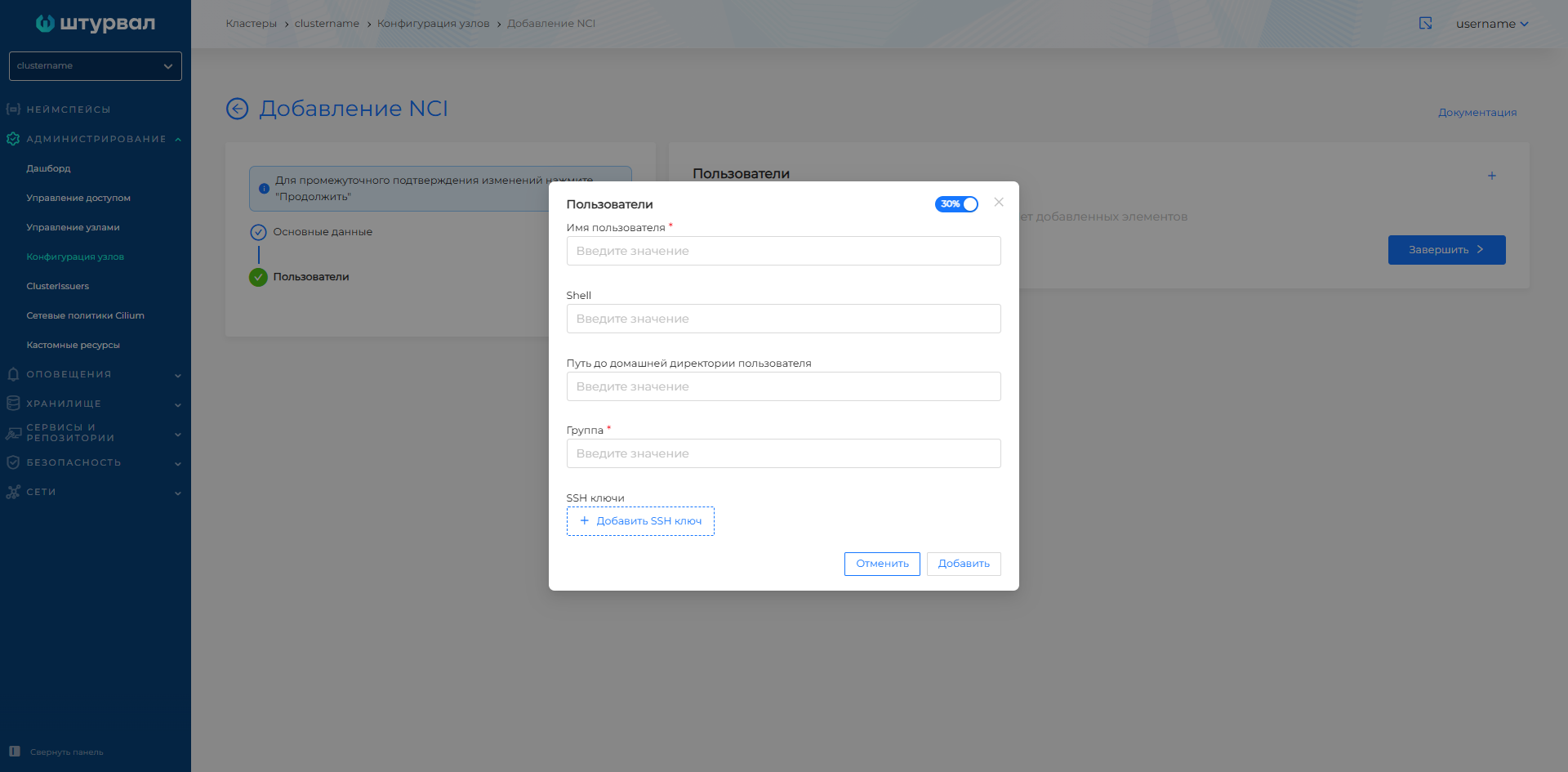
In this section you can create one or more users. Click + to add a new user.
Available fields to fill:
- Enter your username. This field is required. This asks for a username to connect to the host via SSH.
- Path to the user's home directory
- Shell. Determine the path to the command shell. For example,```/bin/bash```.
- Group. Enter the name of the local group in Linux.
- Add the user's public SSH key. The field appears when you click on +. You can add multiple keys.
<details>
<summary>Example</summary>```YAML
apiVersion: node.shturval.tech/v1beta2
kind: NodeConfigItem
metadata:
name: users
spec:
nodeconfigselector:
node-role.kubernetes.io/control-plane: ""
users:
- group: etcd
homedir: ""
shell: /sbin/nologin
username: etcd
priority: 100
```</details>
### Kube API Server
<details>
<summary>Screenshot</summary>
</details>
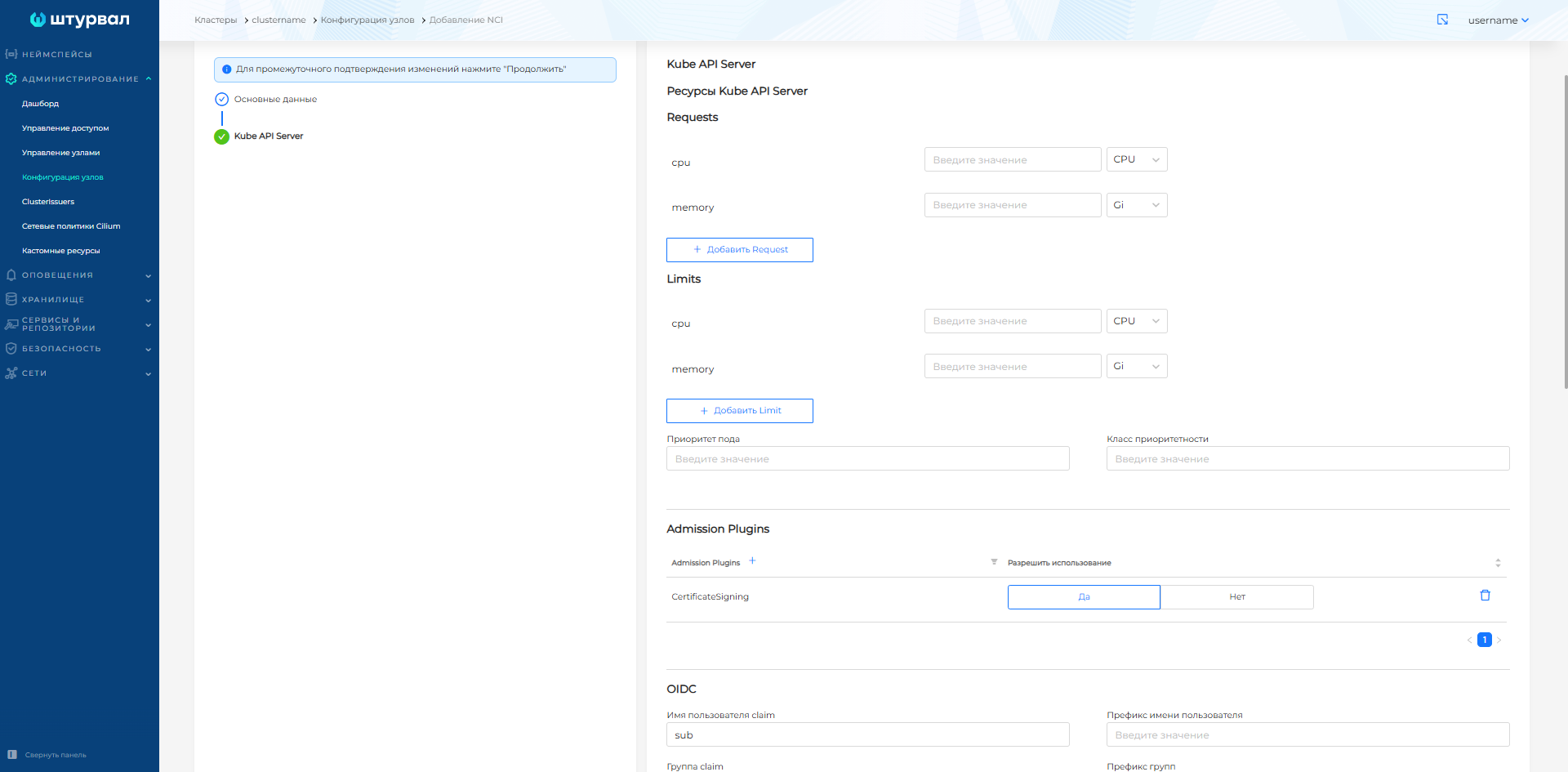
In this section you can configure the Kube API server. Parameter settings are available in sections:
- Kube API Server resources;
- Admission Plugins;
- OIDC;
- Feature Gates;
- Audit Policy;
- Secrets Encryption.
In the **Kube API Server Resources** block you can:
- set Requests and Limits for the kube-apiserver container. By default, it is possible to set requests and limits for Memory and CPU.
- specify the class (priorityClassName) of the kube-apiserver pod and the priority in this class (priority). By default, a pod has a class defined`system-node-critical`with priority - 2000001000. A pod with these values will never be deleted from the node.
The **Admission Plugins** block allows you to manage access controllers. To add, click on **+**, select the plugin from the list and set the usage mode:
- To enable a plugin, add it to the **Admission Plugins** list and allow use.
- To disable a plugin, add it to the **Admission Plugins** list and disable its use.
- If you want to leave the default settings, the plugin should not be in the list.
In the **OIDC** block you can configure the following parameters:
- Username claim (default is set to sub);
- Username prefix;
- Group claim;
- Group prefix;
- OIDC Issuer URL;
- Client OIDC ID;
- specify the CA file (encoded in base64).
In the **Feature Gates** block it is possible to control additional functions (Feature Gates). To add, press **+*, set the key and select the value:
- Setting the Feature Gates key to true allows you to enable the feature;
- false - disable the function.
In the **Audit Policy** block you can define the main parameters for applying the audit policy:
- specify the Audit Policy configuration (encoded in base64);
- set the maximum number of log copies. If you want to disable the limit on the number of copies, set it to 0;
- set the storage period for logs (maximum number of days for storing logs);
- maximum log size in megabytes (Mb).
For more fine-tuning, go to edit the NCI manifest.
In the **Secrets Encryption** block you can specify the Secrets encryption configuration, encoded in base64.
<details>
<summary>Example</summary>```YAML
apiVersion: node.shturval.tech/v1beta2
kind: NodeConfigItem
metadata:
name: oidc-nci
spec:
nodeconfigselector:
node-role.kubernetes.io/control-plane: ""
kubeapi:
oidc:
cafile: LS0tLS1CRUdJTiBDRVJUSUZJQ0FURS0tLS0tClvQtNCw0L3QvdGL0LUg0LIg0LrQvtC00LjRgNC+0LLQutC1IGJhc2U2NF0KLS0tLS1FTkQgQ0VSVElGSUNBVEUtLS0tLQ==
clientid: backend
groupsclaim: claims
groupsprefix: "shturval:"
issuerurl: https://shturval.clustername.ip-10-11-12-13.shturval.link
usernameclaim: sub
usernameprefix: "shturval:"
priority: 100
```</details>
## View and change node configuration (NCI)
The created NCIs are displayed as a list on the **Node Configuration** page in the Cluster/Administration section.
To view, click on the NCI name in the list.
The **NCI** tab contains sections that contain user settings that are displayed available for management/viewing. Incomplete sections appear disabled.
If you need to change the section data, click **Manage** in the block with the section name. You will be taken to a page containing information about the sections.
Upon completion of editing the section data, click **Continue**, you will return to the main menu with preliminary saving of the changes. If no changes are required, click **Back**.
To save changes to NCI, click the **Save** button on the NCI page.
**<span style="color: red;">Please note!</span>** The NCI name is immutable.
NCI can be changed using the YAML manifest. To do this, go to the **Manifest** tab and make changes. After modifying the manifest, perform verification. The test result will be available on the right side of the screen. Expand the verification result block to see the full manifest. If NCI manifest format validation fails, manifest verification will not be available.
Save the changes you made to the manifest. Unsaved data will not be applied.
The **Nodes** tab contains a list of cluster nodes for which the configuration (NCI) is configured. The information on the tab allows you to verify that NCI is being applied or is experiencing errors on the scheduled cluster nodes. By clicking on the node name you can go to the node view page.