Node
From the Node Management you can go to the node viewing page by clicking on the node name.
Node tab
Screenshot
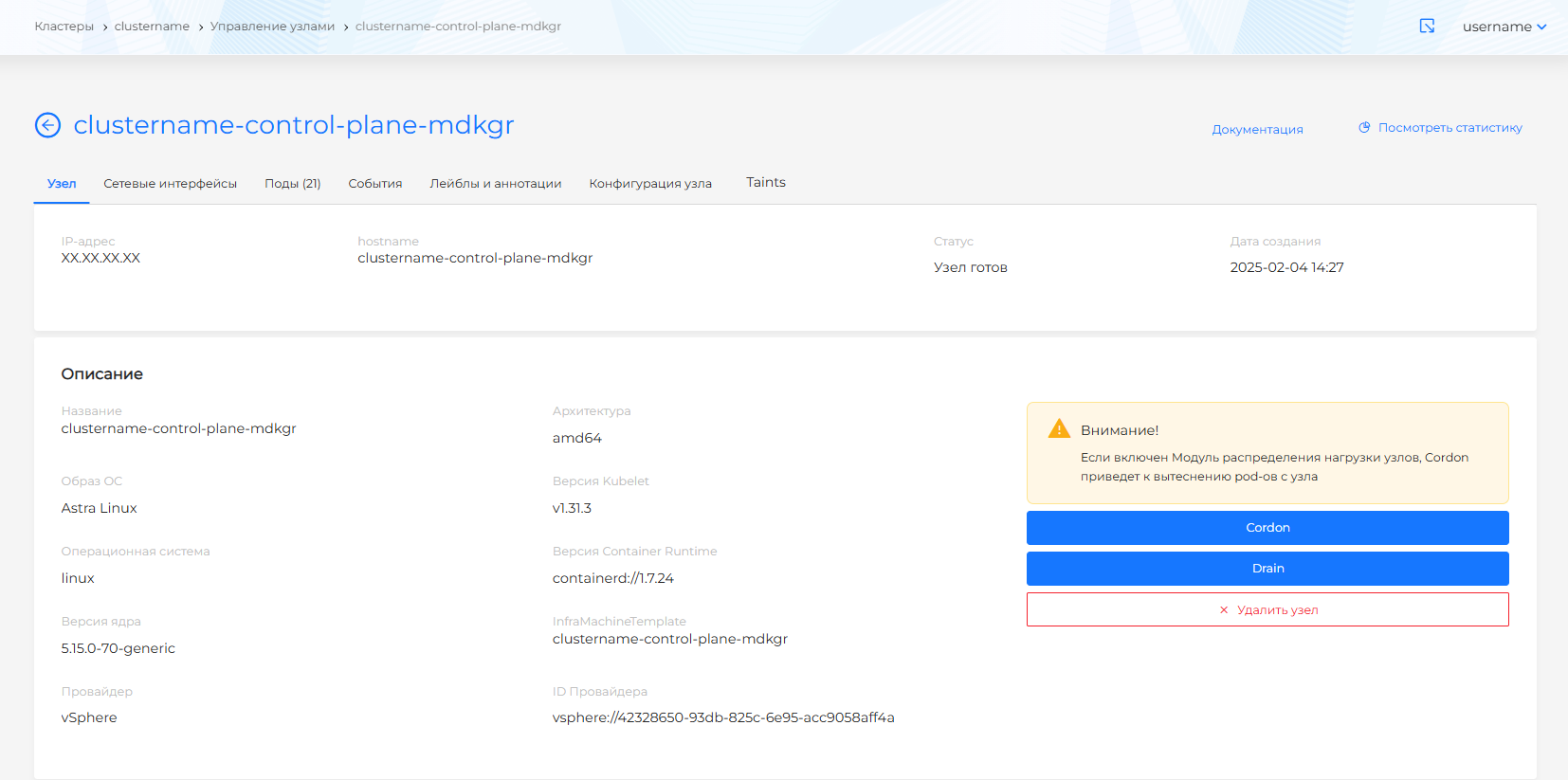
The tab provides a description of the node, the status of the ClusterAPI, infrastructure and the node itself. The page is available for viewing from the moment you request to add a node and allows you to track the stages of node creation. On the Conditions of cluster nodes the statuses of the states of a healthy node are shown.
Screenshot

When the node is available, the page will display compute resources. If the graphical metrics display module is installed and enabled in the client and management clusters, a button will be available to go to the Grafana dashboard.
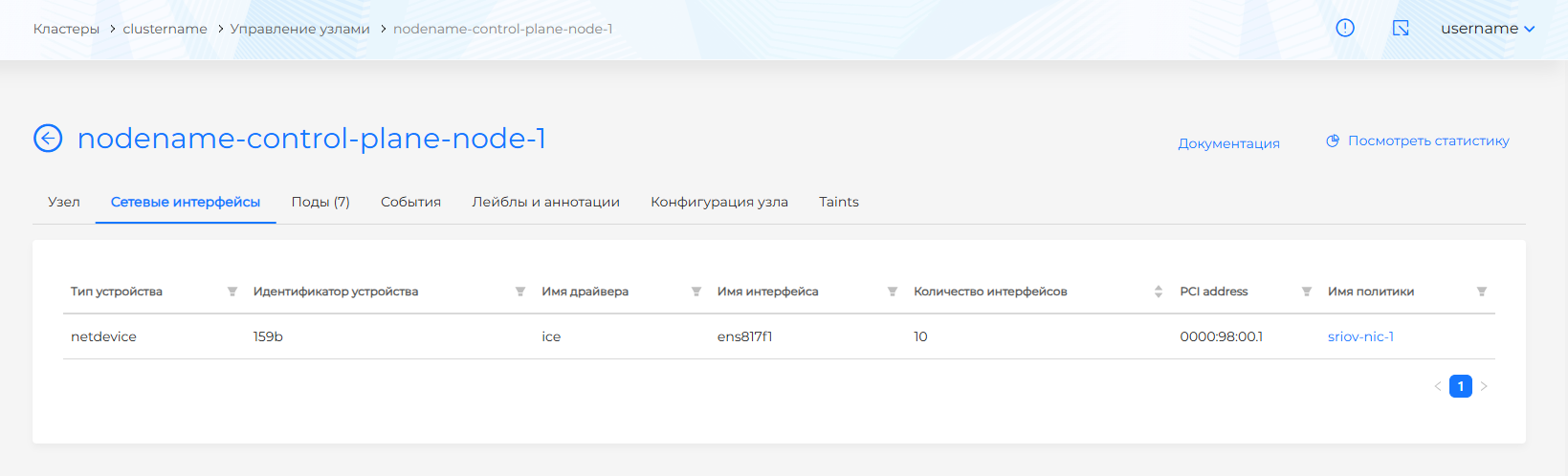
If SR-IOV Network Operator is configured in the cluster and virtual machines are created, then the following information will be available on the Network Interfaces tab:
- Device type (filtering available);
- Device ID (filtering available);
- Driver name (filtering available);
- Interface name (filtering available);
- Number of interfaces (sorting available);
- PCI address (filtering available);
- Policy name (filtering available). Clicking on the policy name opens the Sriov Network Policy view page.
Screenshot
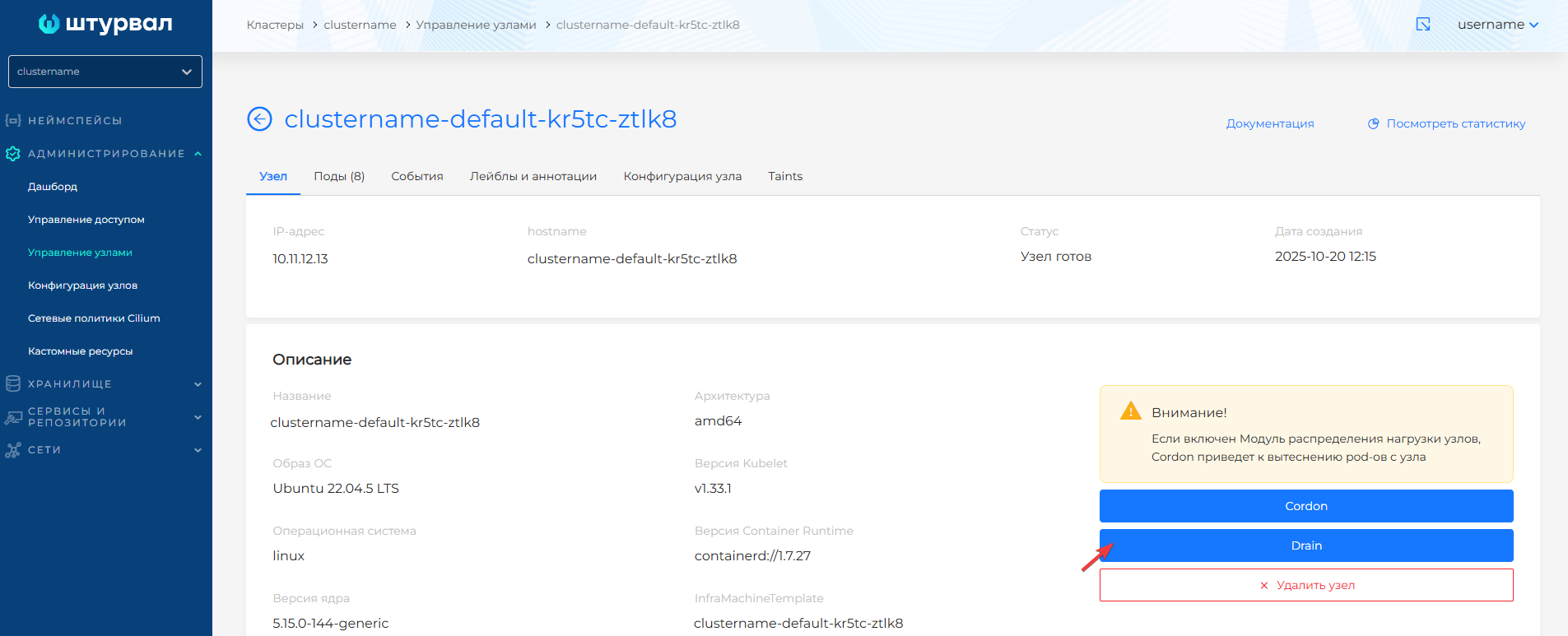
Cordon
The Cordon button is available on the node page. When you press the Cordon button:
Screenshot
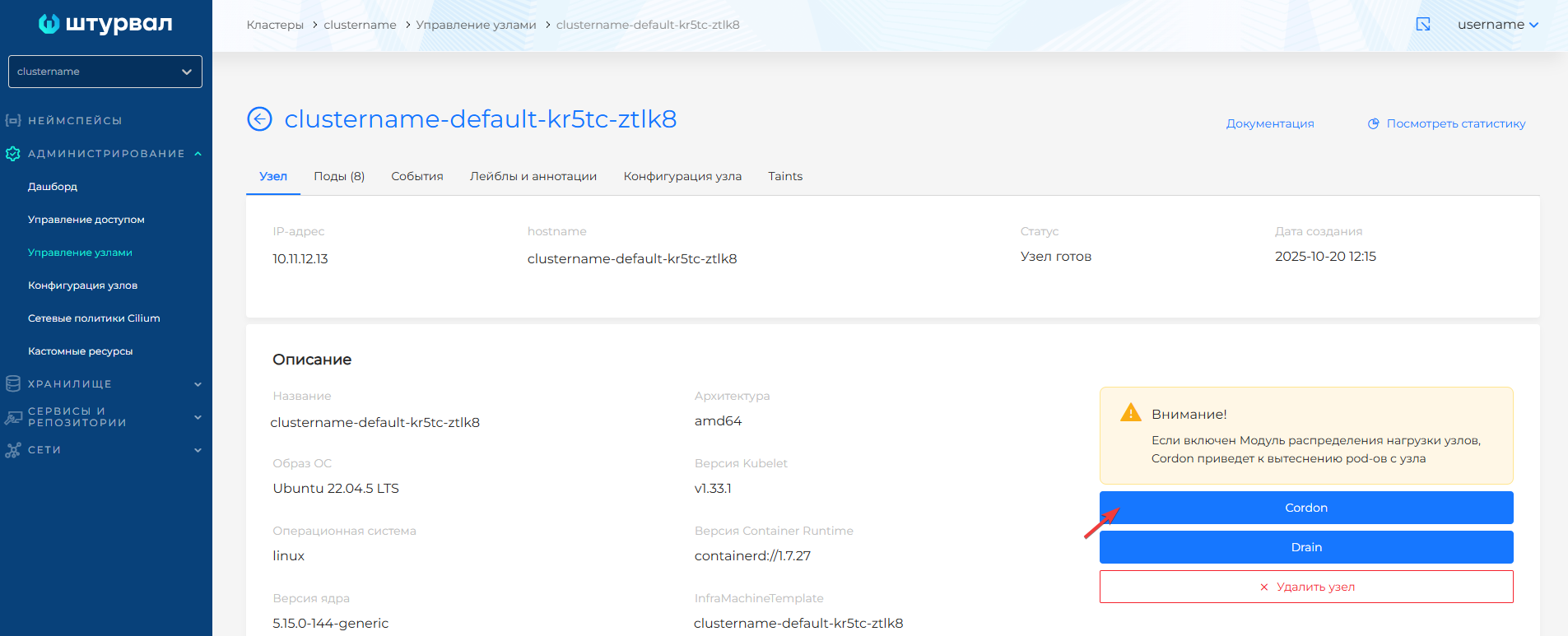
- the node is blocked to distribute new pods;
- the work of existing pods on the node is not interrupted;
- a node blocked for distributing new pods is marked in the “Scheduling” column of the node table on the “Node Management” page with the “Disabled” sign;
- the name of the button is replaced with Uncordon, which cancels the action.
Screenshot
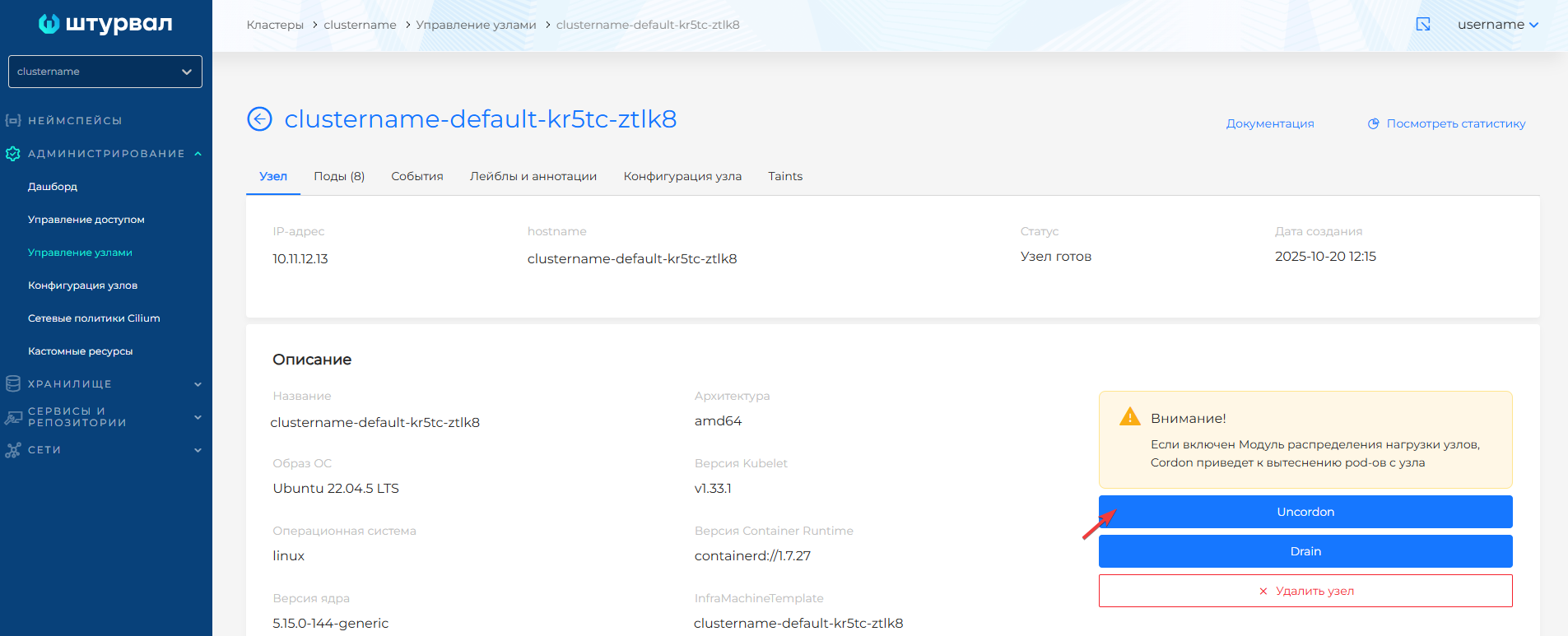
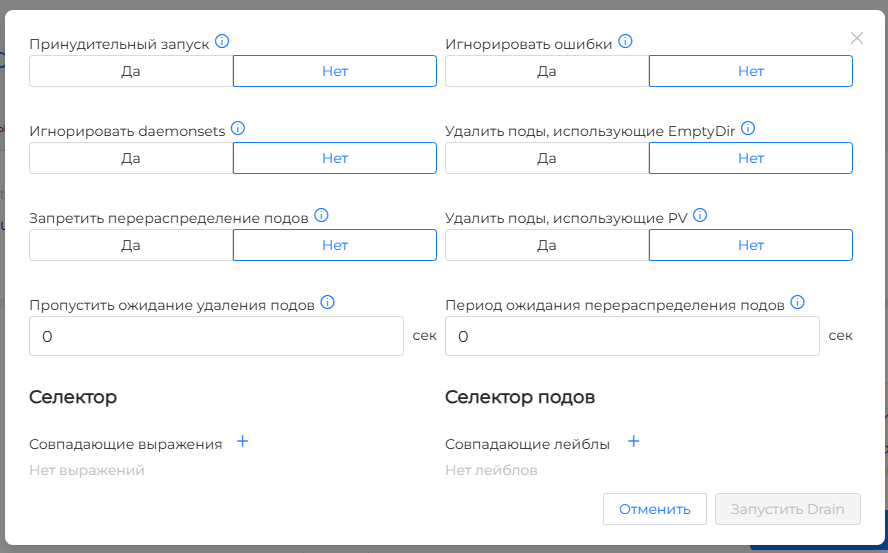
After clicking the Uncordon button, the attribute is removed from the node. ###Drain The Drain button is available on the node page. Clicking on Drain opens a modal window with the available Drain node settings. By default, all settings are disabled. To run Drain of a node with default settings, in the Drain node settings window, click Run Drain.
Screenshot
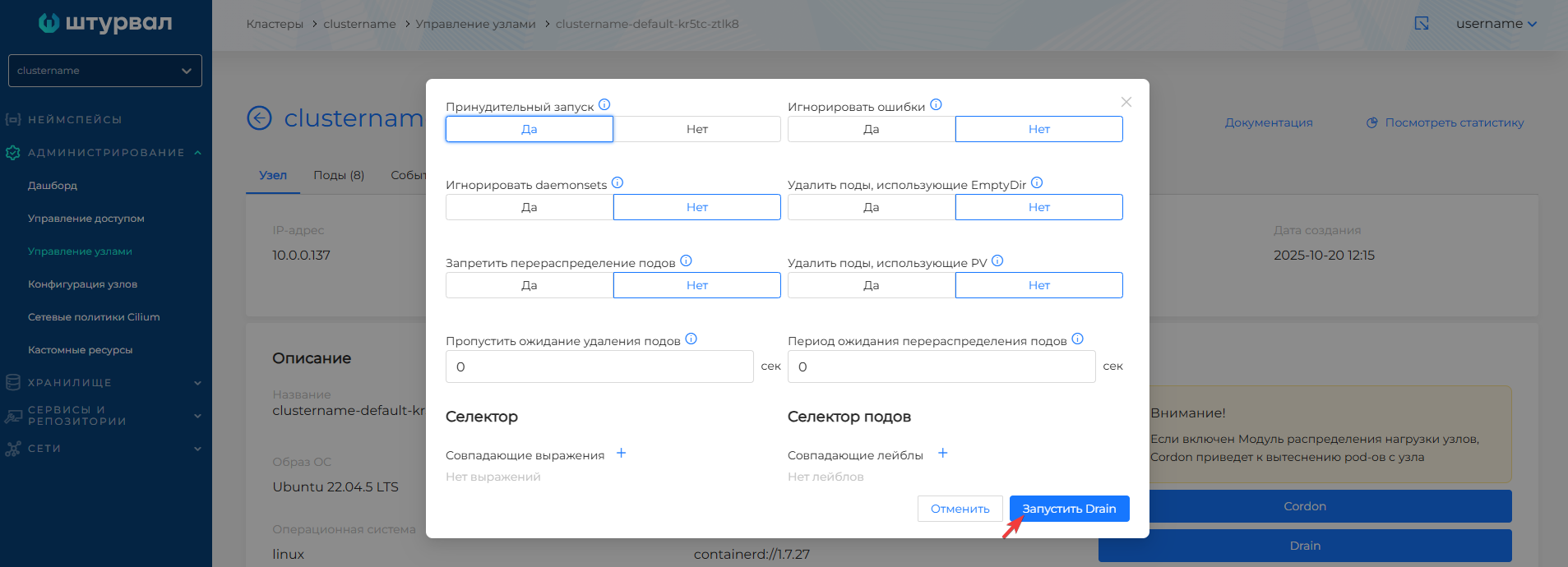
If necessary, it is possible to set the following Drain node settings:
- Forced launch of the Drain node. Will cause the pods to terminate immediately, ignoring any errors or warnings. Please note! If you force it to start, data may be lost.
- Ignore daemonsets. To ignore termination and reallocation of Pods slaved to Daemonsets, select Yes.
- Prohibit redistribution of pods. When the ban is enabled, pods will not be redistributed, the Eviction resource will not be launched, and the PodDisruptionBudget and terminationGracePeriodSeconds settings will be ignored.
- Skip waiting for pods to be deleted. Set the time in seconds to wait for pods to be deleted. If the time period after setting the DeletionTimestamp exceeds the specified time, the deletion wait will be skipped. A value of 0 disables the skip wait setting.
- Ignore errors. When enabled, the setting will ignore errors that occur between nodes in the group.
- Whether to delete pods that use EmptyDir. If pods are deleted, the EmptyDir data will also be deleted.
- Whether to remove pods using PV. If pods are deleted, the PV data will also be deleted.
- Waiting period for hearth redistribution. After the waiting period for redistributing pods, the Drain node will end. A value of 0 does not limit the wait time for pods to be reallocated.
- Selector. To determine the scope of application of the Drain node settings, you can specify matching expressions. Press +, specify the key, select the comparison operation (= and == correspond to “equality”, != correspond to “inequality”), specify the value of the key.
- Pod selector. You can add pod labels to which you want to apply the Drain node settings. Click on +, set the key and, if necessary, the value.
Please note! The label selector works on the principle of union. The selected object must have all of the specified labels.
Screenshot
When running Drain:
- the node is blocked for the distribution of new pods of the node (receives the “Cordoned” sign);
- Pods are forcibly terminated and redistributed to other nodes. All pods except vital ones are forcibly terminated and will be redistributed to other cluster nodes (if there are such nodes);
- a node blocked for pod distribution is marked in the “Scheduling” column of the node table on the “Node Management” page with the “Disabled” sign.
- the Cordon button is replaced by Uncordon.
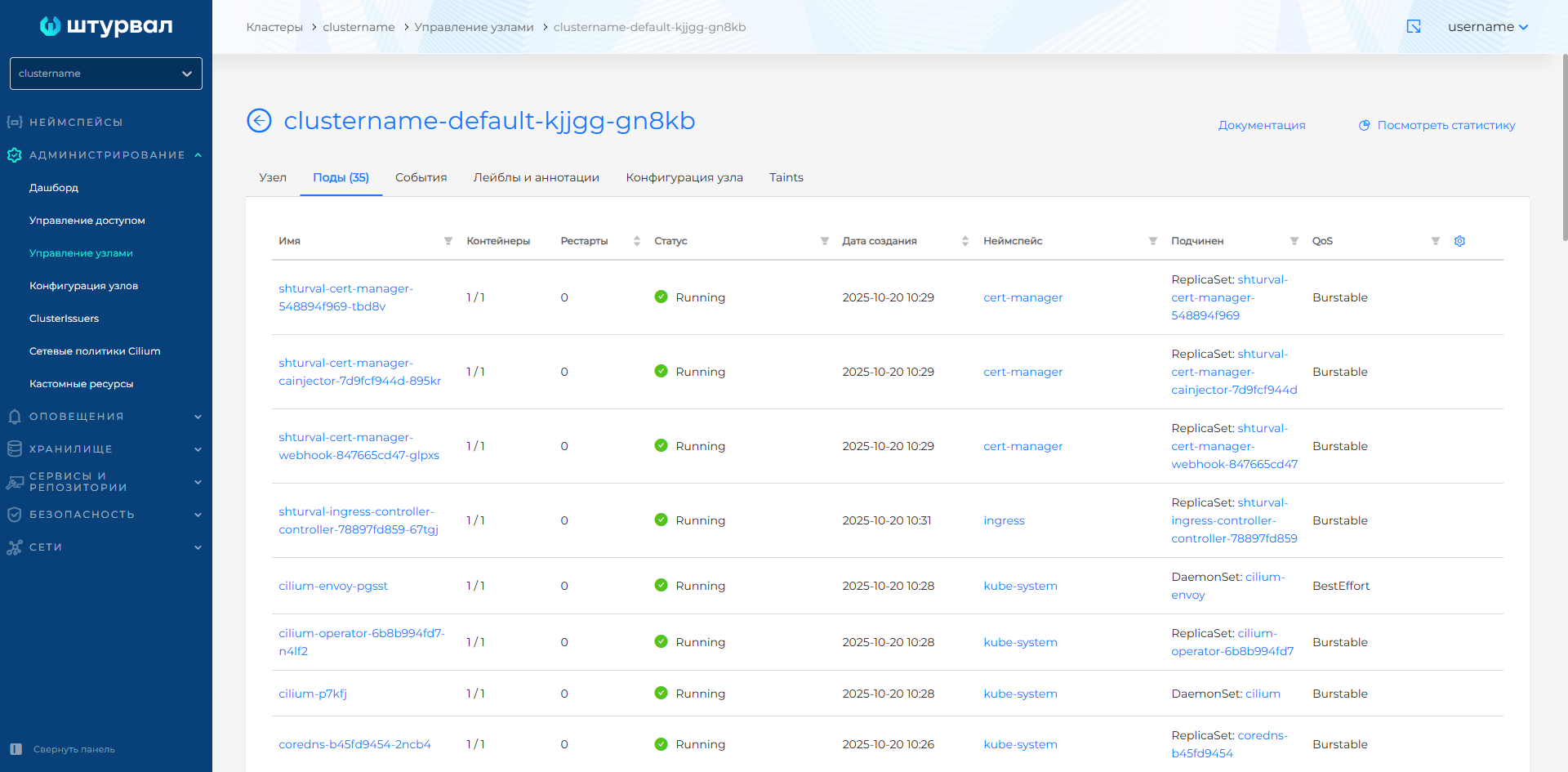
You can track the progress of the Drain node on the Pods tab of the node.
Screenshot
After clicking on the “Uncordon” button, the attribute is removed from the node.
To protect nodes from automatic restart during configuration changes or updates, use instructions.
Deleting a node
Worker nodes
To delete a node on the Worker node page, click the Delete node button. In the window that opens, you must select whether you want to delete the node and then recreate it or delete the node completely.
Screenshot
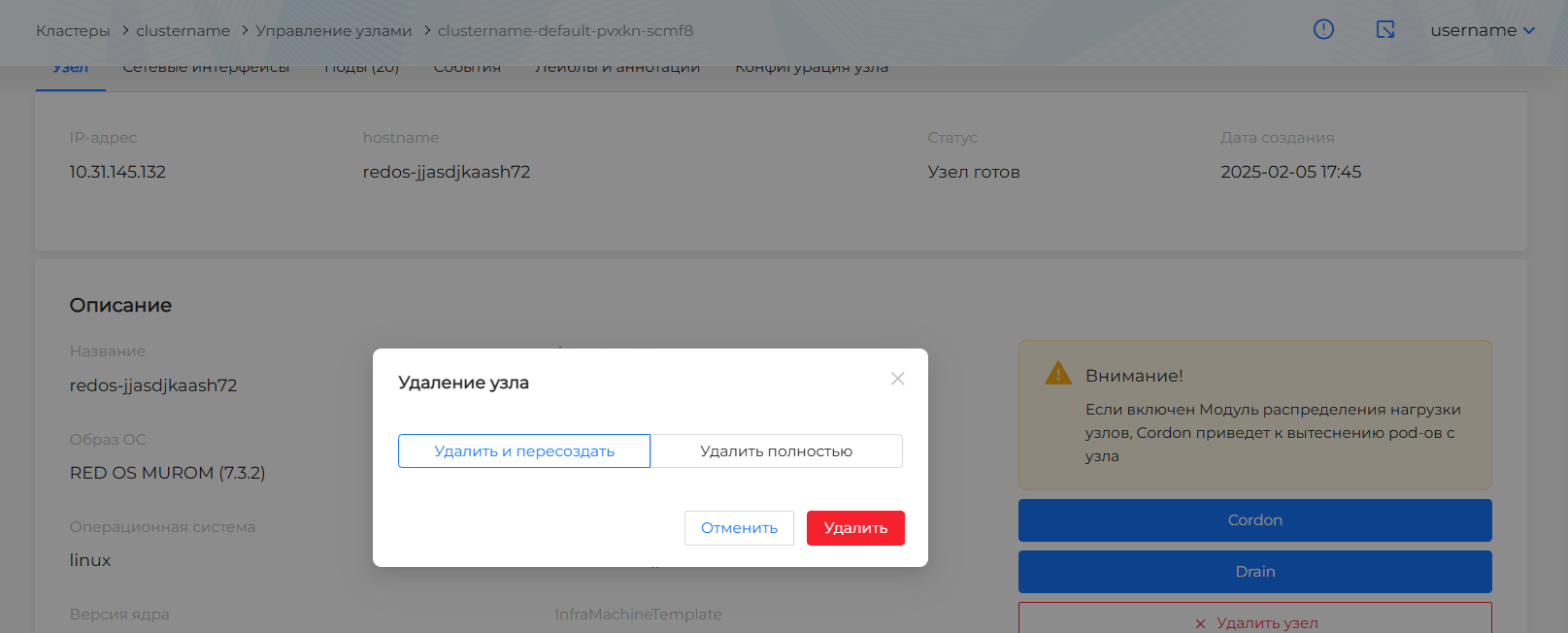
Complete node deletion is only available when manually scaling Worker nodes. The choice of scaling method is on the Node Management/Group Configuration page.
Screenshot
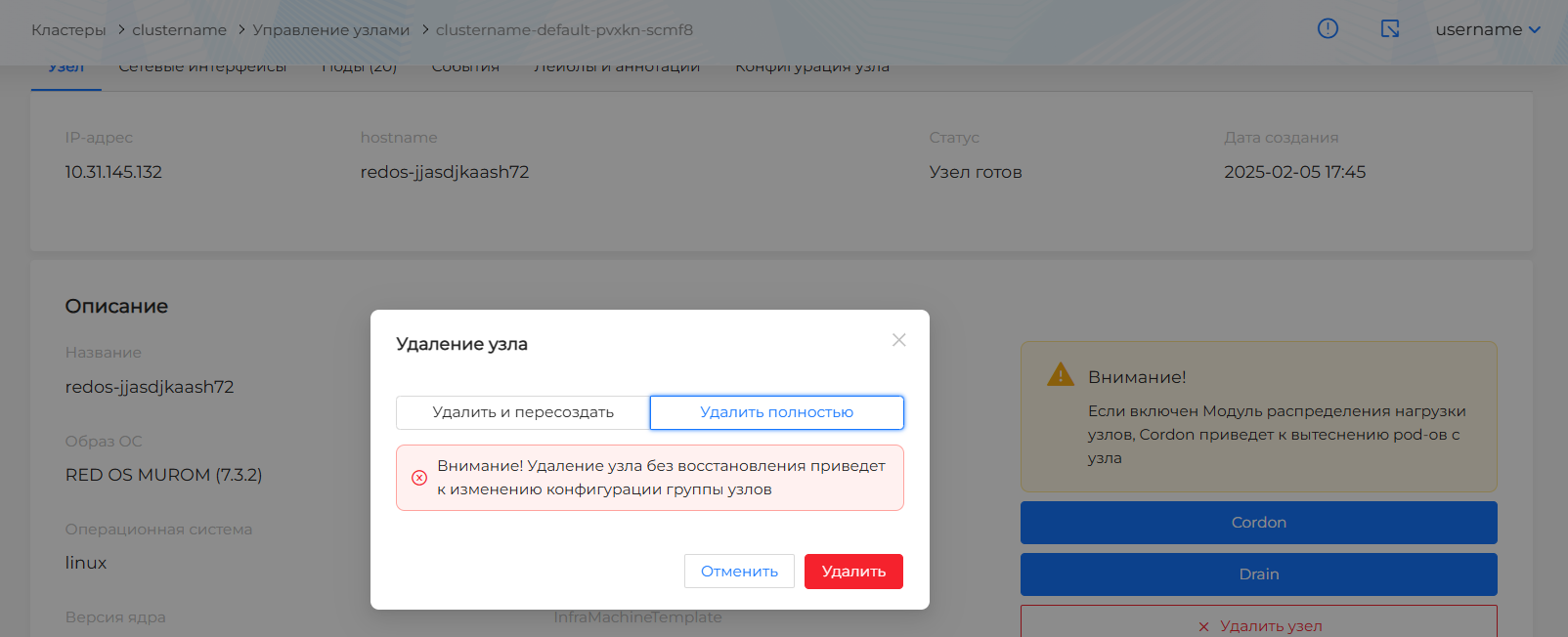
When a Worker node is completely (without re-creation) removed from a cluster with the Shturval v2 provider, the node is cleaned by default. If the node cleanup is unsuccessful, ShturvalMachine will be forcibly removed.
Control Plane nodes
For nodes of the Control Plane group in the interface you can:
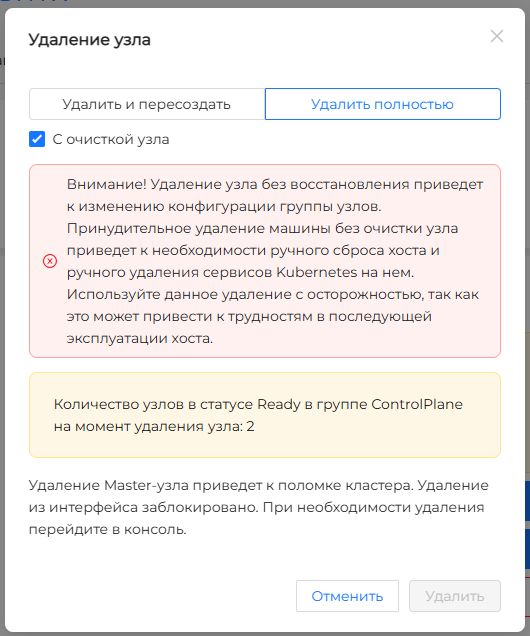
- delete a Control Plane node completely, if after deletion there remains an odd number of working Control Plane nodes in the cluster (for example: 3 or 1). The presence of running nodes is checked at the time of the deletion request. If the condition is not met, the deletion request will not be available.
Screenshot
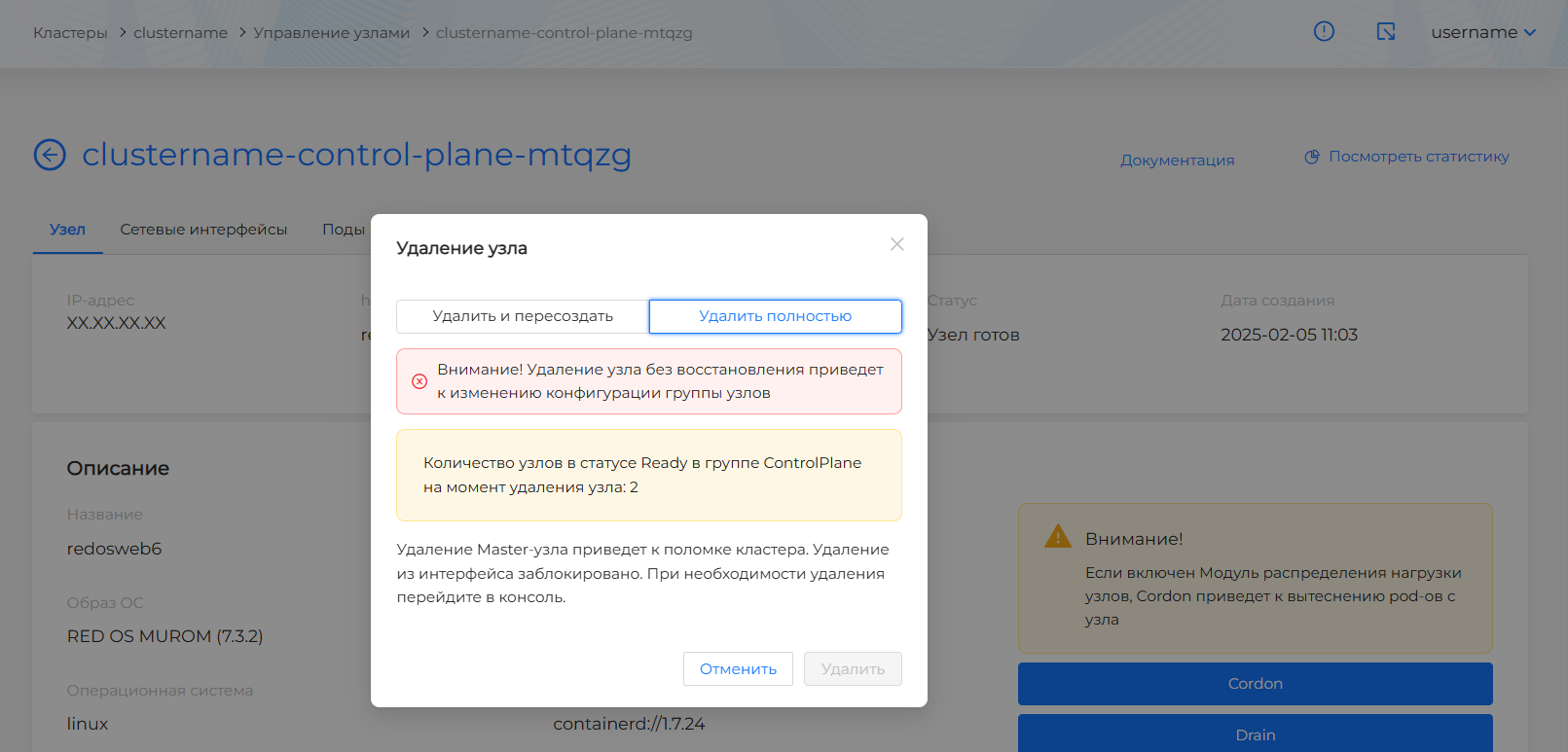
- delete a Control Plane node and re-create the node, provided that as a result of deleting a node, at least two working Control Plane nodes must remain in the cluster. The presence of two running nodes is verified at the time of the deletion request. If the condition is not met, the request to delete with re-creation will not be available.
Screenshot
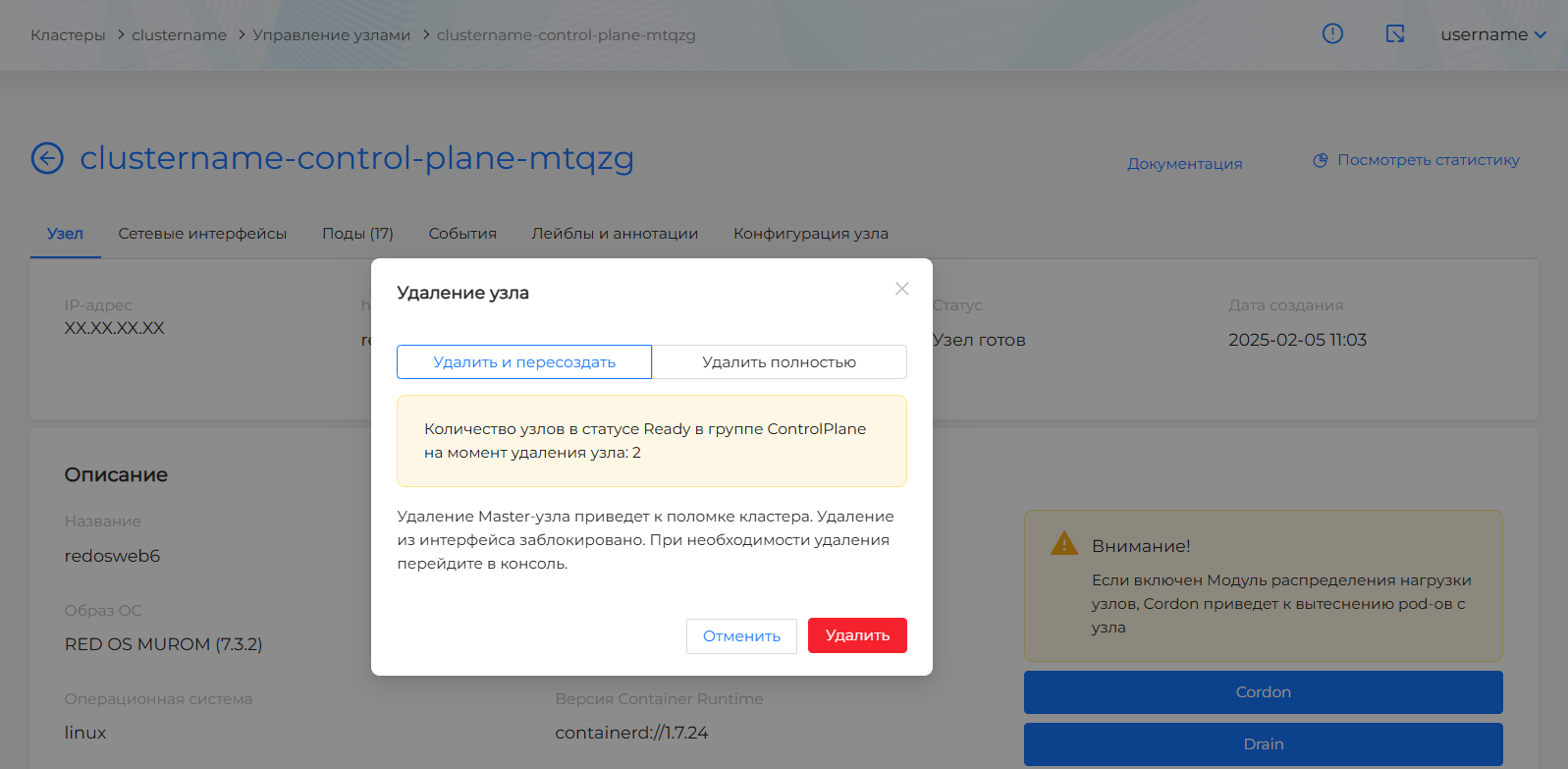
When submitting a request to delete a Control Plane node, you must enter the name of the node as proof of intent.
If a node is out of order for any reason and there is a need to quickly remove it without waiting for pods to complete, disks to be disconnected, etc., add taint to such a nodenode.kubernetes.io/out-of-service=NoExecute. In this case, when deleting, k8s will not wait for the standard shutdown of the node and will urgently restart the pods on another node.
When a Control Plane node is completely (without re-creation) removed from a cluster with the Shturval v2 provider, the node is cleaned by default. If necessary, you can cancel the node cleanup by deselecting the With node cleanup field
Please note!
Forcibly deleting Machine without wiping the node will require manually resetting the host and manually removing Kubernetes services from it. It is recommended that you cancel host cleanup with caution as it may cause difficulties in later operation of the host.
Screenshot
Exception from autoscaling
You can protect a node from being deleted in case of autoscaling. To do this, on the node page, click on the Exclude from autoscaling button. The option is available only for a group of Worker nodes with autoscaling enabled. Nodes excluded from autoscaling will be marked as “Forbidden” on the “Node Management” page in the “Autoscaling” column.
Pods tab
The Pods tab is a table with a list of pods of the selected node, containing the columns:
Screenshot
- Pod name (filtering available). Clicking on the pod name opens the pod view page.
- Containers. The ratio of the number of running containers to the total number of containers in the pod.
- Number of pod restarts (sorting available).
- Status (filtering available). Possible values to select in the filter: Running, Pending, Terminating, CrashLoopBackOff, Completed, Failed, Unknown.
- Creation date (sorting available).
- Namespace (filtering available). Clicking on the namespace name opens the namespace dashboard. You can enter a value to filter pods by namespace. To cancel filtering by namespaces, in the filter, click Cancel and then Apply.
- Which parent object is subordinated to (filtering is available). When a pod is subordinated to a load, clicking on the load’s name opens its view page.
- QoS (Quality of Service) pod (filtering available by: Guaranteed, Burstable, BestEffort). Read more about QoS on the Pods.
- Labels. By default, the column is not displayed. To view pod labels, click on the gear in the right corner of the table and select the Labels column to display on the screen.
On the Pods tab you can track the redistribution of pods when a node is drained.
Events tab
The Events tab displays standard Kubernetes events for the ClusterAPI, infrastructure, and the node itself. The tab displays an indication of the number of events.
Labels and Annotations tab
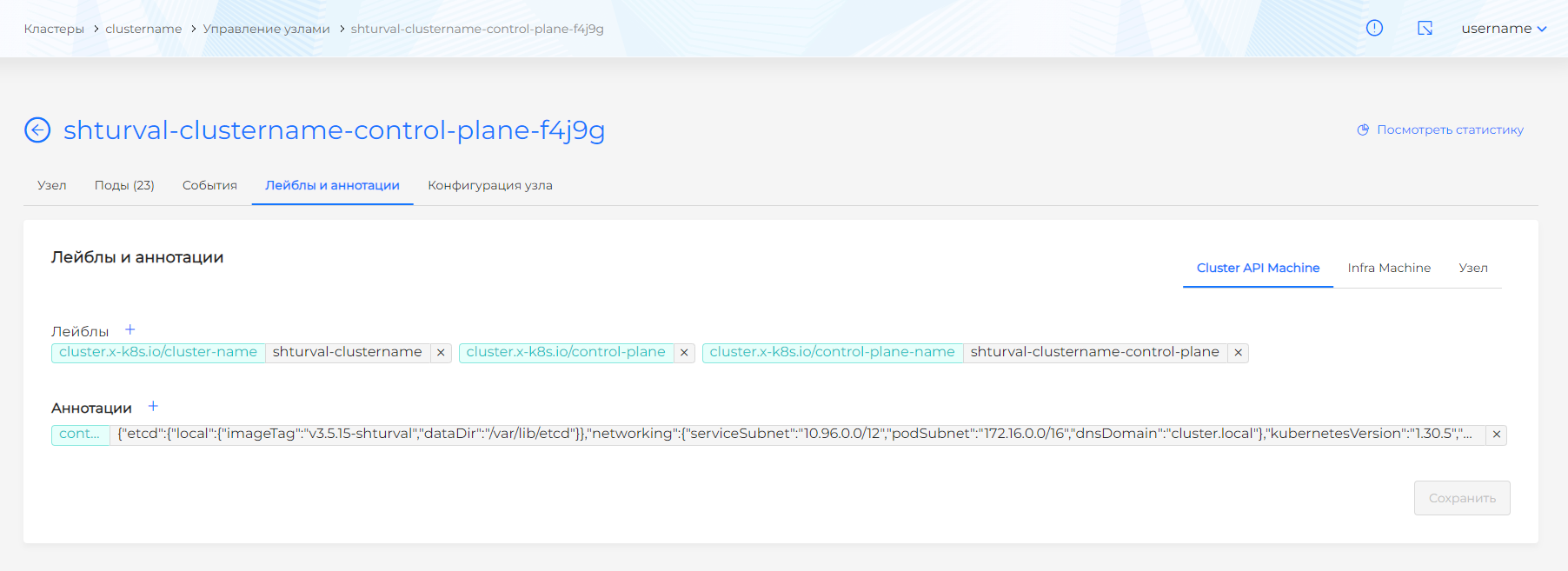
On the Labels and Annotations tab, you can optionally assign labels and annotations for the ClusterAPI, the infrastructure, and the node itself.
Screenshot
Node Configuration tab
The Node Configuration tab displays Node Config resource information and contains a list of Node Config Item (NCI) configurations scheduled for use on the node. If an NCI application error occurs on a node, the status will change to Not Applied.
Also, information about the node reboot status is available on the tab when:
- reboot required;
- reboot is scheduled (reboot scheduler);
- reboot allowed.
Screenshot
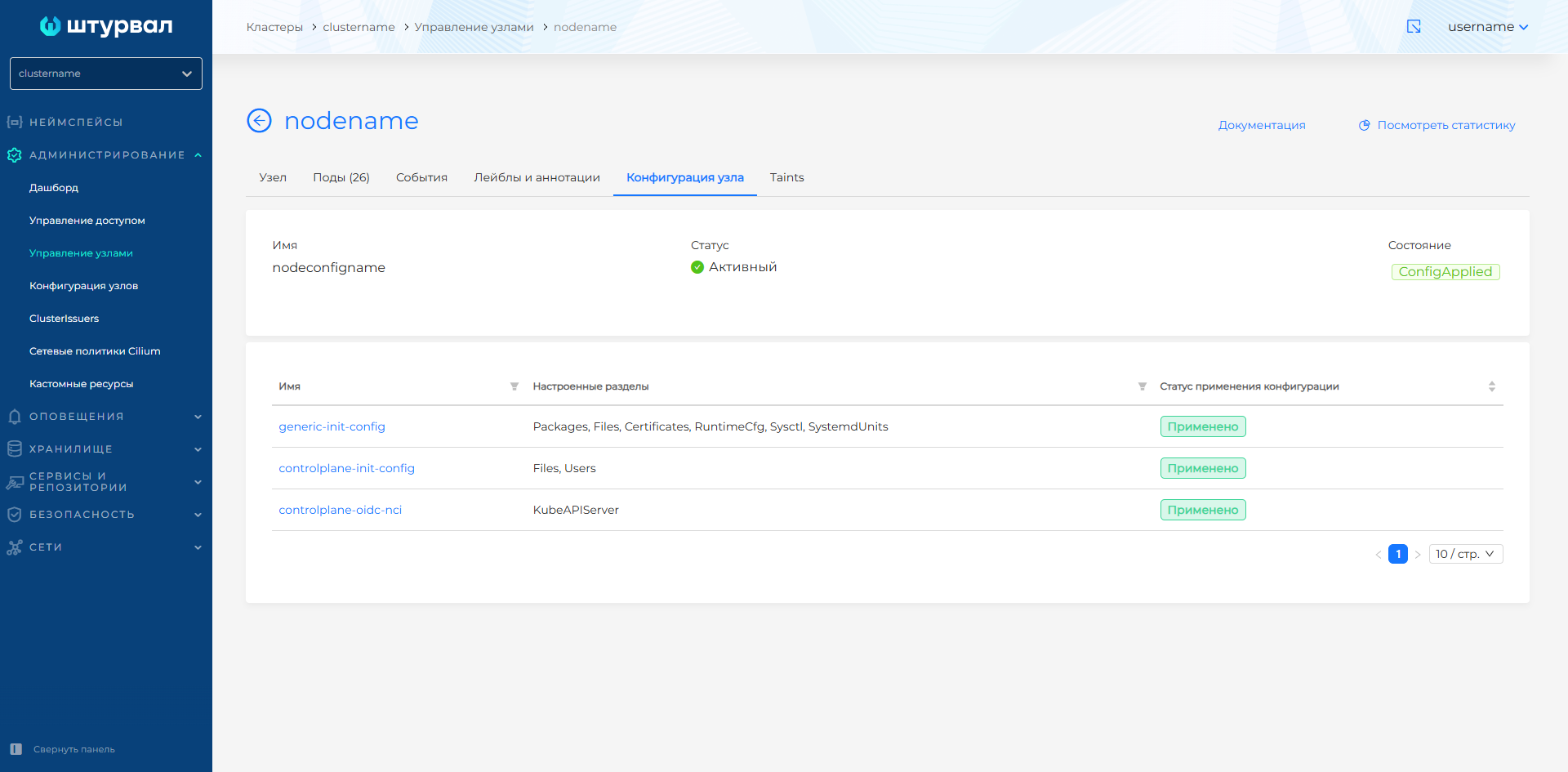
To view NCI configuration settings, click on the NCI name in the list.
Taints tab
The Taints tab displays a list of Taints (restrictions) that prohibit the placement of pods on the node. If necessary, you can assign a new Taint to a node, change or delete an existing one.
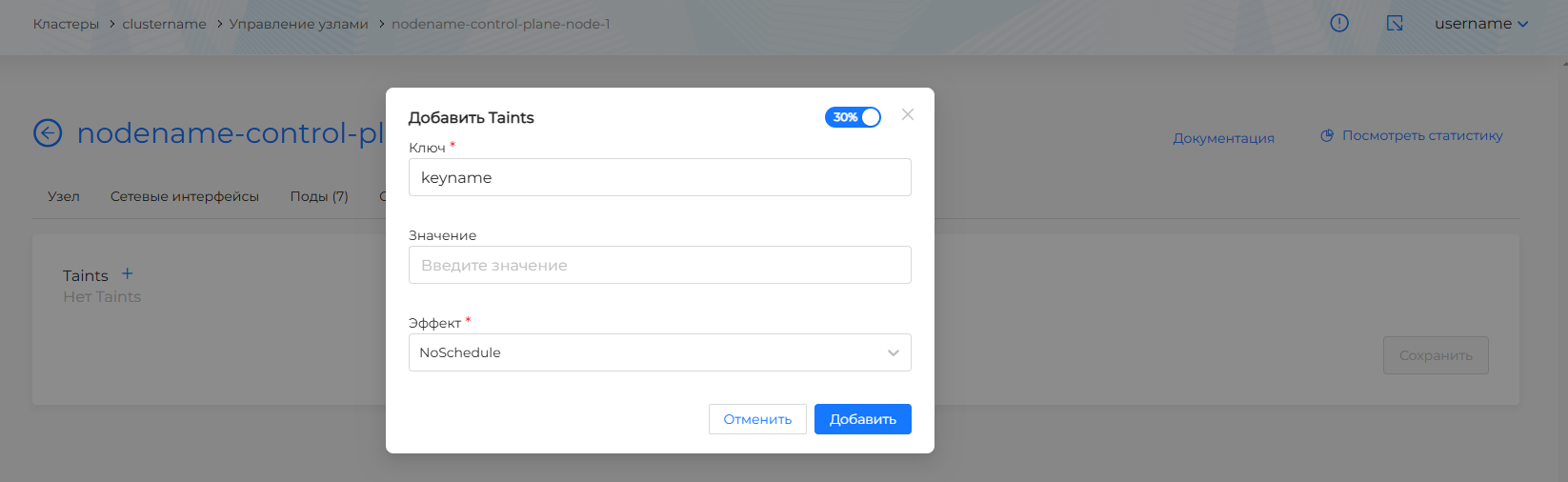
To add Taint, click on + and in the window that opens you need:
- set the key for Taint (key);
- if necessary, specify the value;
- select Effect to limit the placement of pods on the node (effect). To ensure that no pods are scheduled on a node without the appropriate Toleration, select NoSchedule. If you do not need a strict restriction on hosting pods without the appropriate Toleration, select PreferNoSchedule. If you need to evict already running pods on a node, select NoExecute, in this case:
- Pods without appropriate Toleration are immediately evicted.
- Pods with the appropriate Toleration remain on the node forever.
- Pods with the appropriate Toleration and the specified permission period (tolerationSeconds) remain on the node for the specified time, after which they are evicted.
Screenshot
When you need to place a pod on a node with Taints, set the pod’s Toleration to match the Taint configuration.
Example
Please note! When a node has multiple Taints (constraints), to place a pod on the node, you must set the Toleration corresponding to each Taint.