InfraMachineTemplate
When creating a new group of Worker nodes in the InfraMachineTemplate block, it is possible to configure the parameters of the infrastructure template.
When viewing the group configuration on the InfraMachineTemplate tab, you can change the settings by manually applying new values or copying values from another existing template.
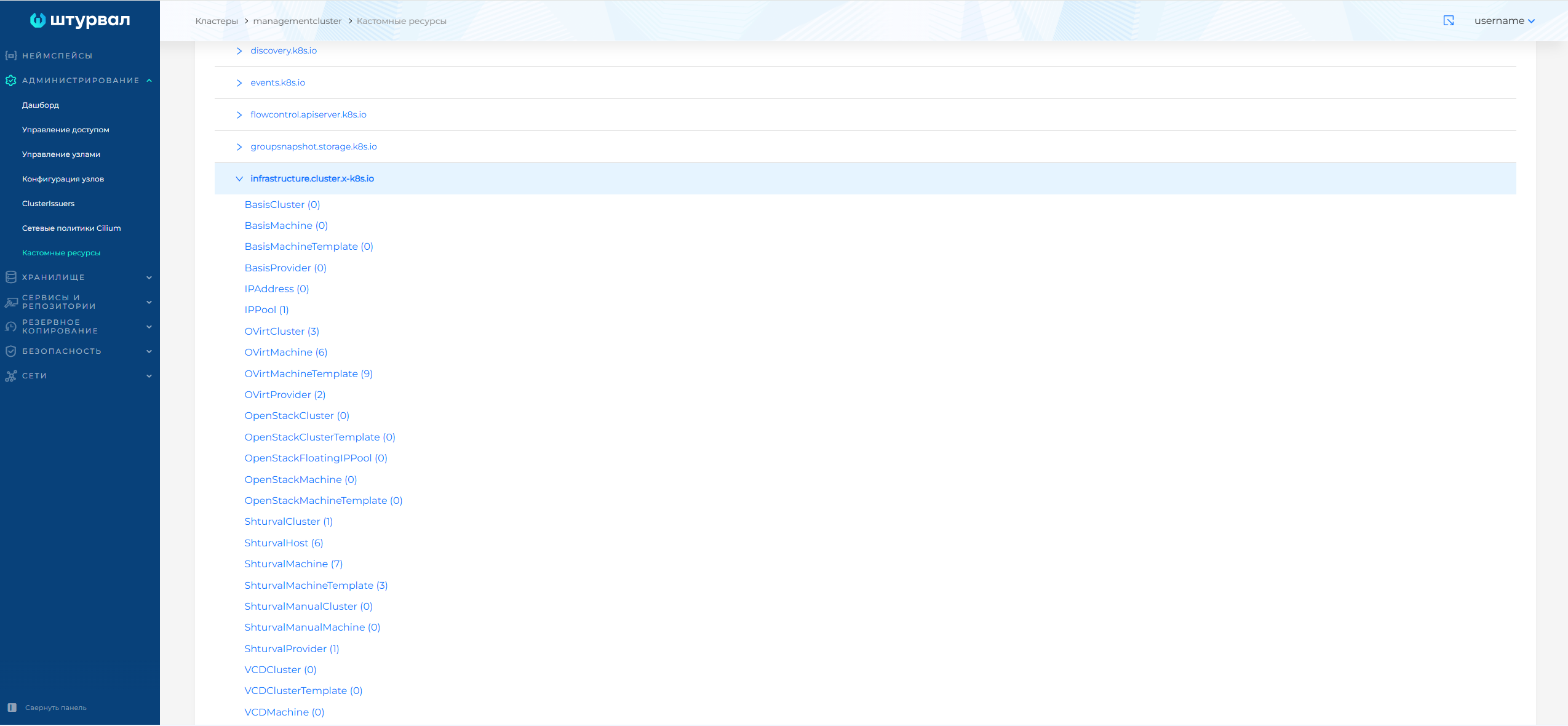
Depending on the type of provider, the resource is edited/created:
- VSphereMachineTemplate;
- OpenStackMachineTemplate;
- BasisMachineTemplate;
- ShturvalMachineTemplate;
- YandexMachineTemplate;
- VCDMachineTemplate.
More detailed settings for infrastructure templates can be configured in the management cluster in the Administration/Custom Resources section using a custom resource of the corresponding provider in the infrastructure.cluster.x-k8s.io API group.
Screenshot
OVirtMachineTemplate
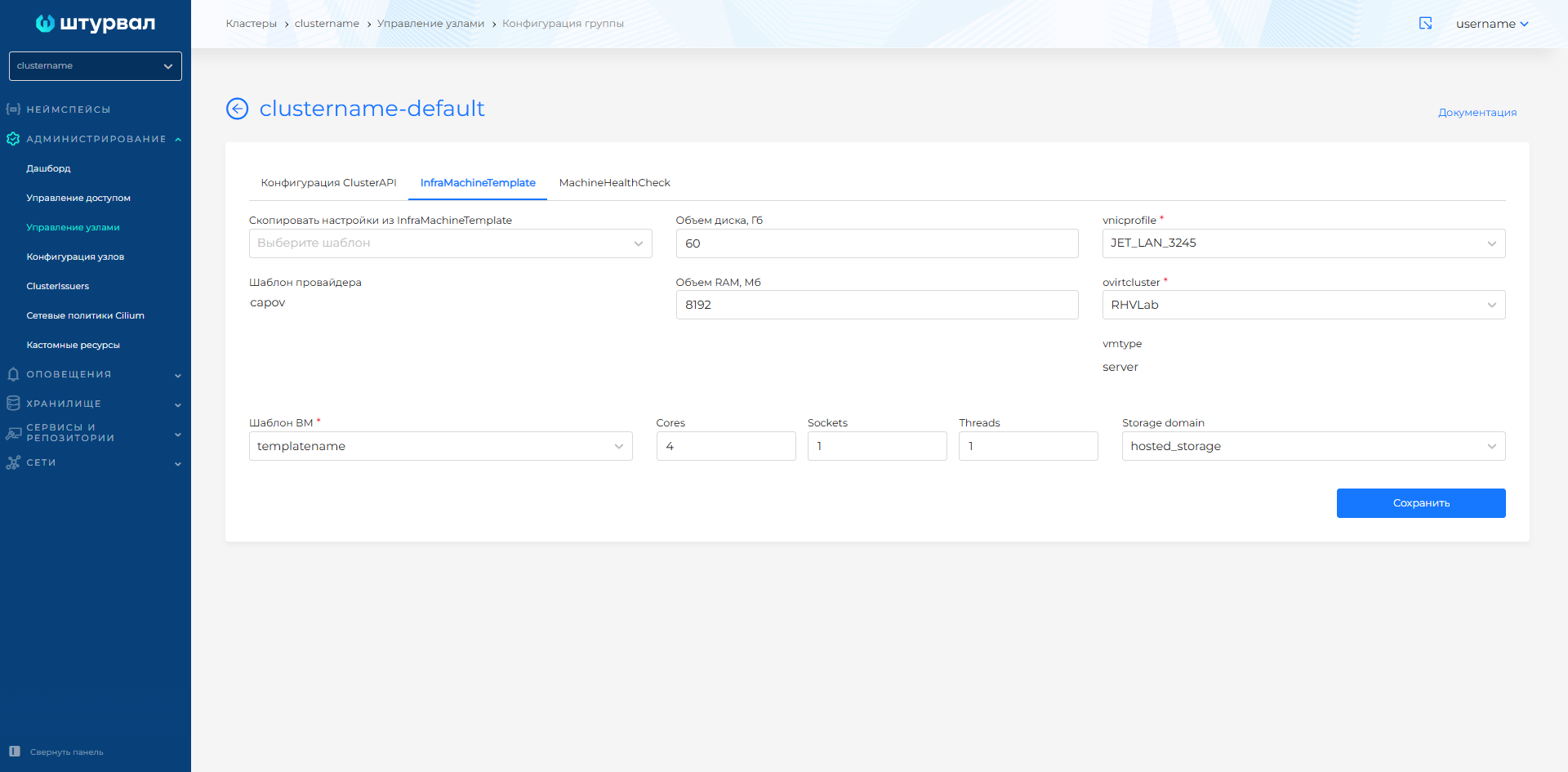
For OVirtMachineTemplate parameters available for configuration:
- CPU:
- cores
- sockets
- threads
- RAM volume, MB (sizemb)
- Disk capacity, GB (osdisksizegb)
- vnicprofile
- ovirtcluster
- VM template (template): VM templates of the provider instance on which the cluster is deployed are available. It is recommended to use VM templates with one operating system within one cluster. If VM templates are used on different operating systems within the same cluster, errors may occur during the cluster update process. For more on creating a VM template, see Creating a VM template.
Screenshot of group configuration
VSphereMachineTemplate
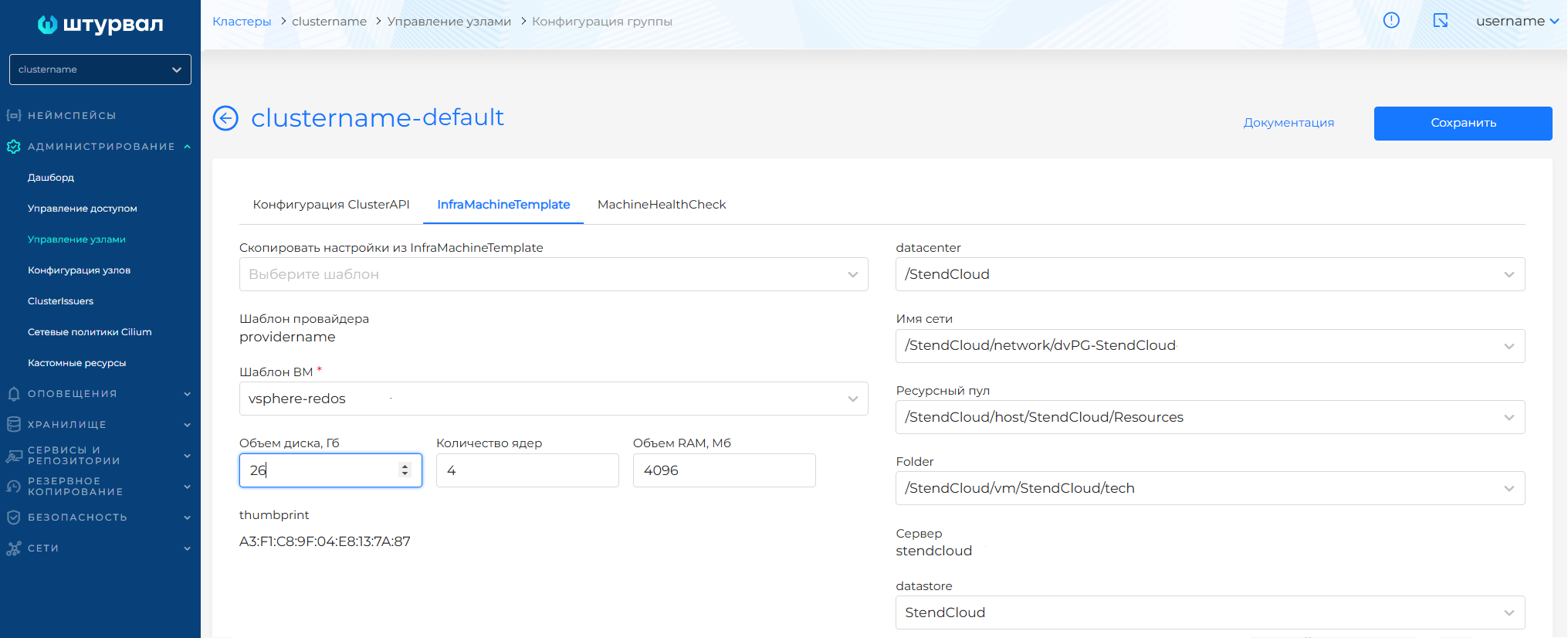
For VSphereMachineTemplate parameters available for configuration:
- datacenter (drop-down list of all data centers available for the service account of the provider instance)
- datastore (drop-down list of all datastores available for the service account of the provider instance)
- Disk capacity, GB (diskGiB)
- RAM volume, MB (memoryMiB)
- Folder (path to the place where the VM was created)
- Number of cores (numCPUs)
- Network name (networkName)
- Resource pool (resourcePool)
- VM template (template): VM templates of the provider instance on which the cluster is deployed are available. It is recommended to use VM templates with one operating system within one cluster. If VM templates are used on different operating systems within the same cluster, errors may occur during the cluster update process. For more on creating a VM template, see Creating a VM template.
Screenshot of group configuration
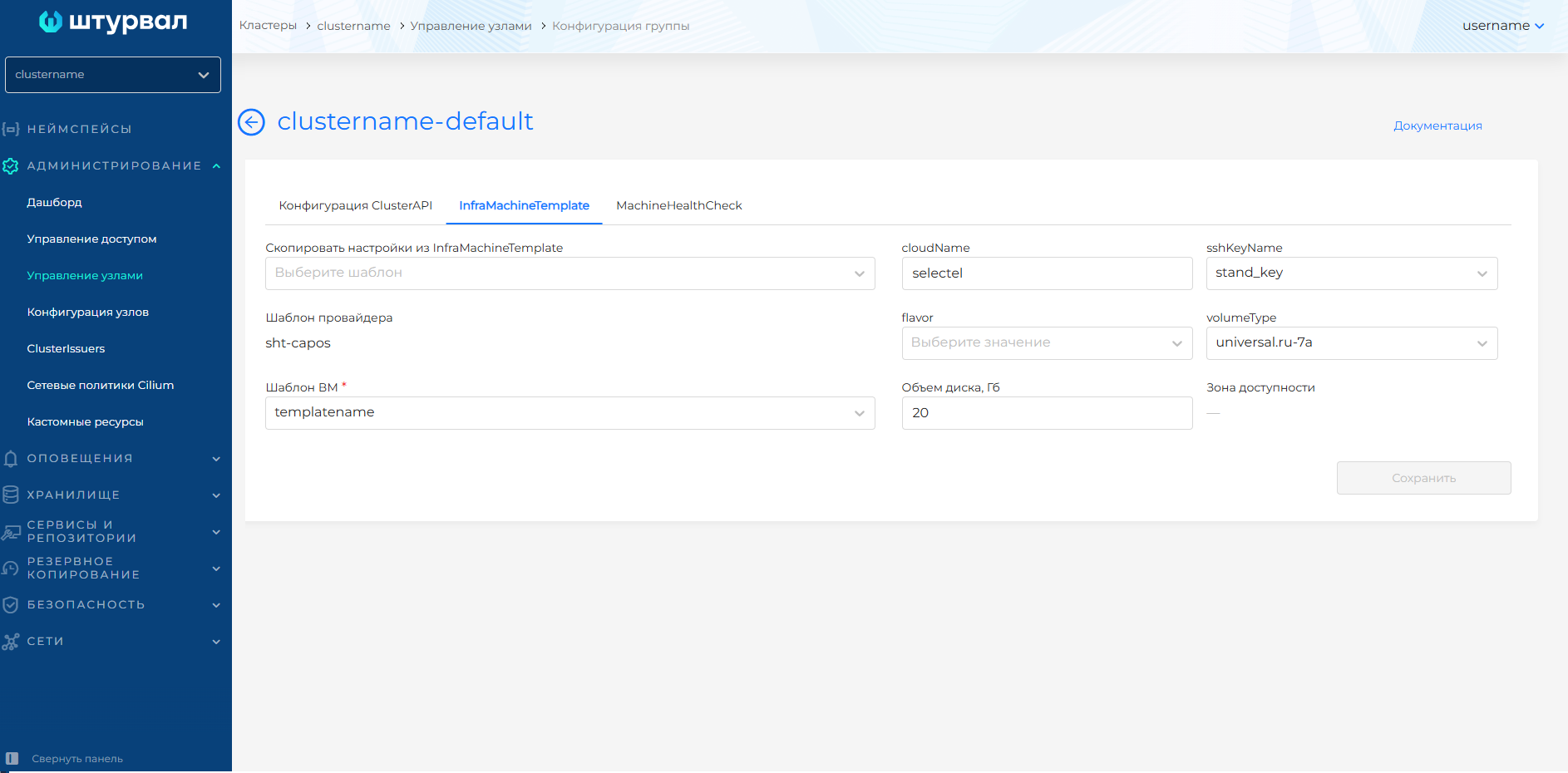
OpenStackMachineTemplate
For OpenStackMachineTemplate parameters available for configuration:
- cloudName
- flavor (VM types)
- sshKeyName
- volumeType
- Disk capacity, GB
- VM template (template): VM templates of the provider instance on which the cluster is deployed are available. It is recommended to use VM templates with one operating system within one cluster. If VM templates are used on different operating systems within the same cluster, errors may occur during the cluster update process. For more on creating a VM template, see Creating a VM template.
The availability zone setting in OpenStackMachineTemplate is view-only. The VM template contains an availability zone if it was specified in the configuration of Worker nodes at the stage of creating the cluster.
Screenshot of group configuration
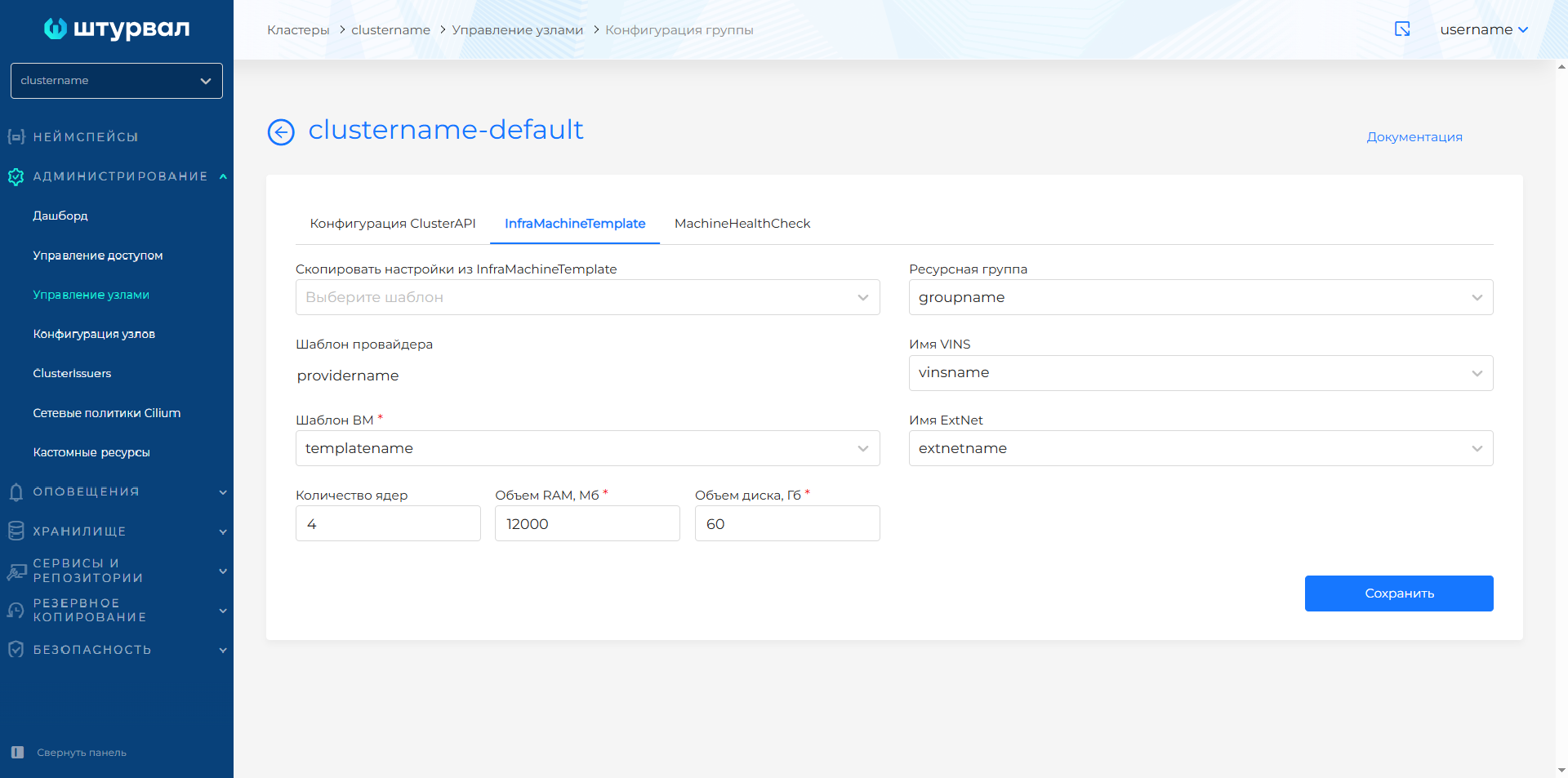
BasisMachineTemplate
For BasisMachineTemplate available parameters:
- Number of cores;
- RAM volume, MB;
- Disk capacity, GB;
- Resource group;
- VINS name;
- Name ExtNet.
Screenshot of group configuration
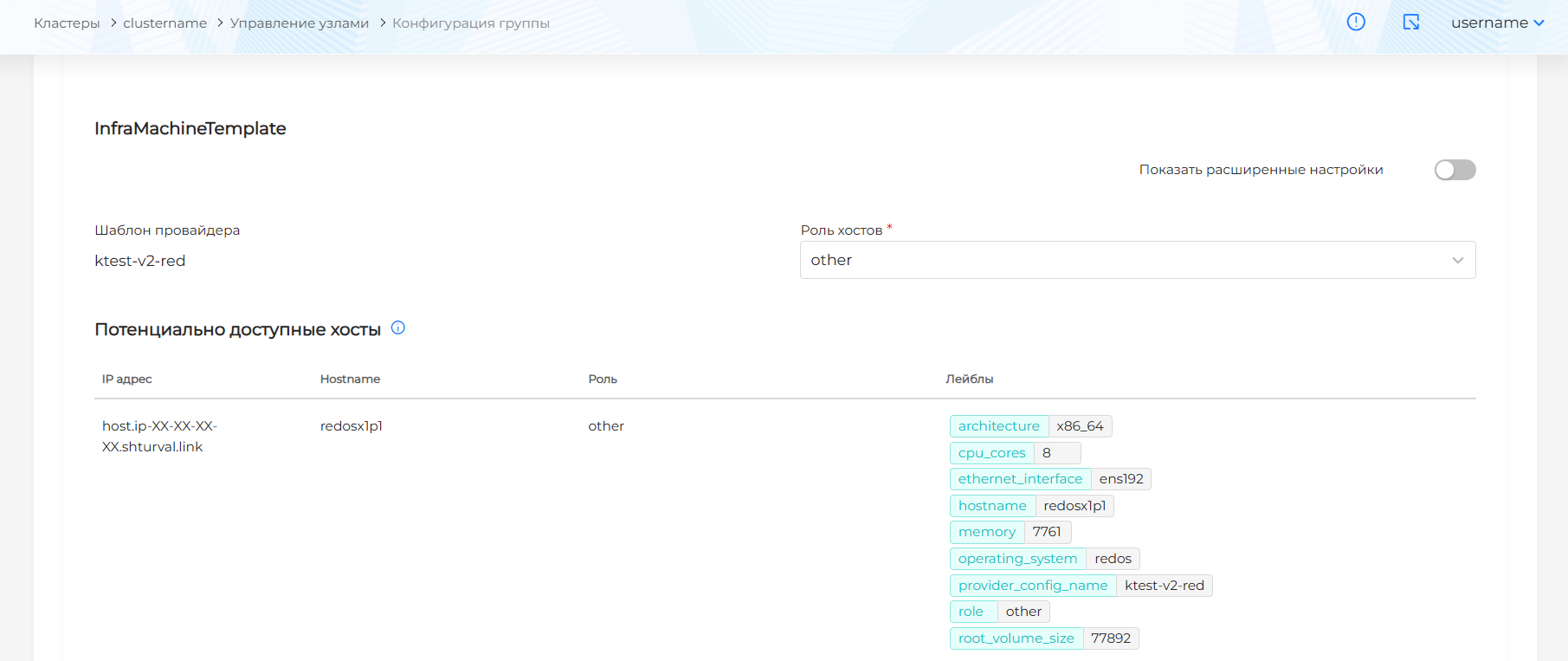
ShturvalMachineTemplate
For ShturvalMachineTemplate configuration options are available in basic mode and advanced mode. By default, Basic mode is enabled.
In Basic mode, select a hosts role to determine that only hosts with the selected role join when scaling a group of nodes. After selecting a role, the Potentially available hosts block will display available hosts with the specified role.
Screenshot of group configuration
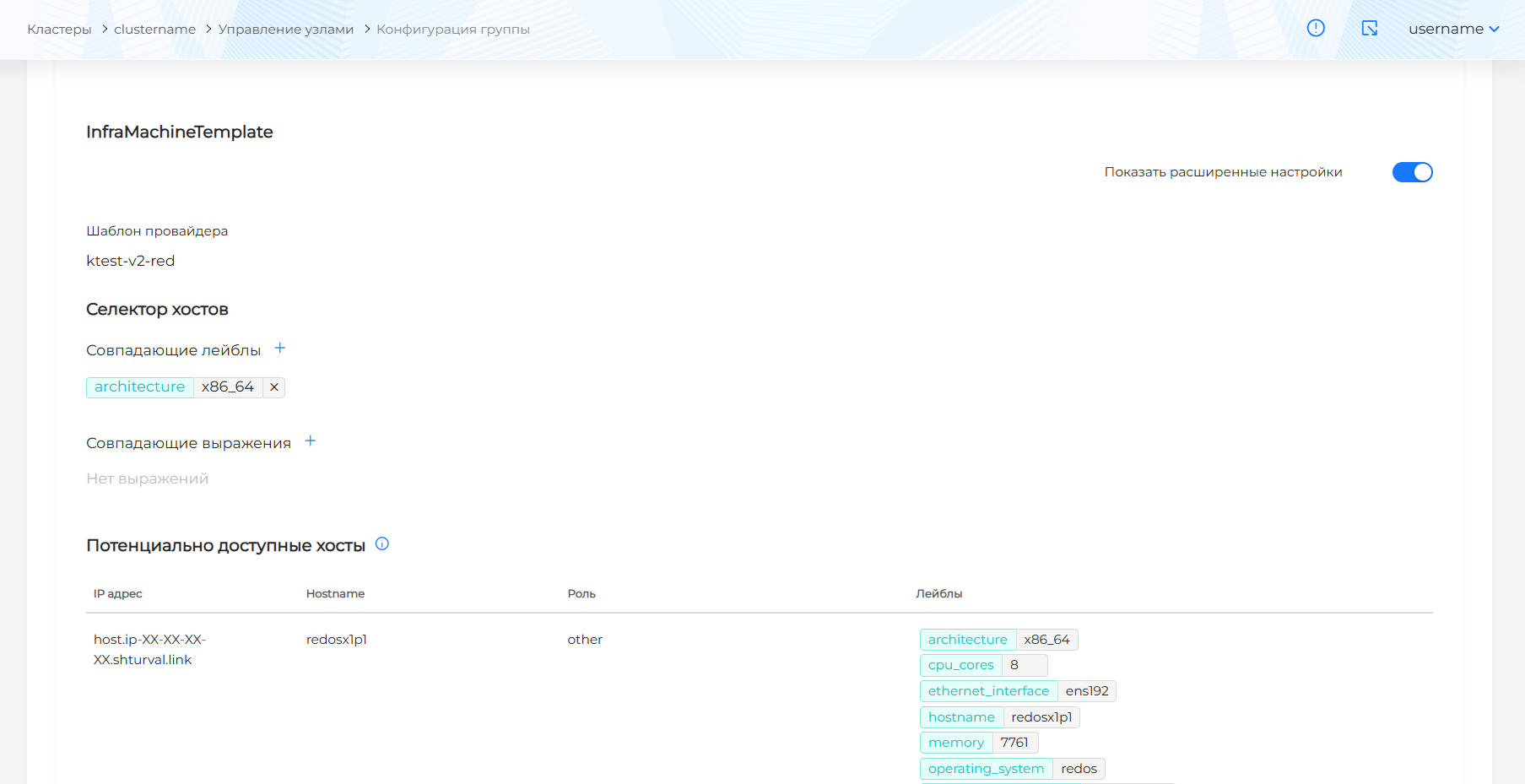
To enable the advanced settings mode, move the Show advanced settings toggle switch to the active state. When switching from advanced settings mode to basic mode, the changes will be lost.
In advanced settings you can set matching labels and expressions to determine the available hosts to join when scaling a group of nodes:
- when adding a host label, select the key in the window that opens. The value corresponding to the label key of the existing host in the Shturval v2 provider template will be automatically set.
- when adding a host label, select the key and operator in the window that opens. Available operators:
- In - hosts with matching key and value will be selected. The value will be filled in automatically or offered for selection in accordance with the specified host label key, without the possibility of changing;
- NotIn - hosts with the same key and value are not selected. The value will be filled in automatically or offered as a choice in accordance with the value of the specified label key, without the possibility of changing;
- Exists - hosts with a matching key will be selected. No value is required;
- DoesNotExist - hosts with a matching key are not selected. No value is required;
If you specify multiple matching expressions, available hosts matching all expressions will be displayed.
Screenshot of group configuration
Pay attention!
Changing the InfraMachineTemplate configuration in a previously created node group will result in the nodes being re-created.
Labels specified in the selector as matching in one group of nodes must be specified in matching expressions as an exception in other groups according to the principle:
key = label key selected in another group;
operator = NotIn;
value = label value selected in another group.
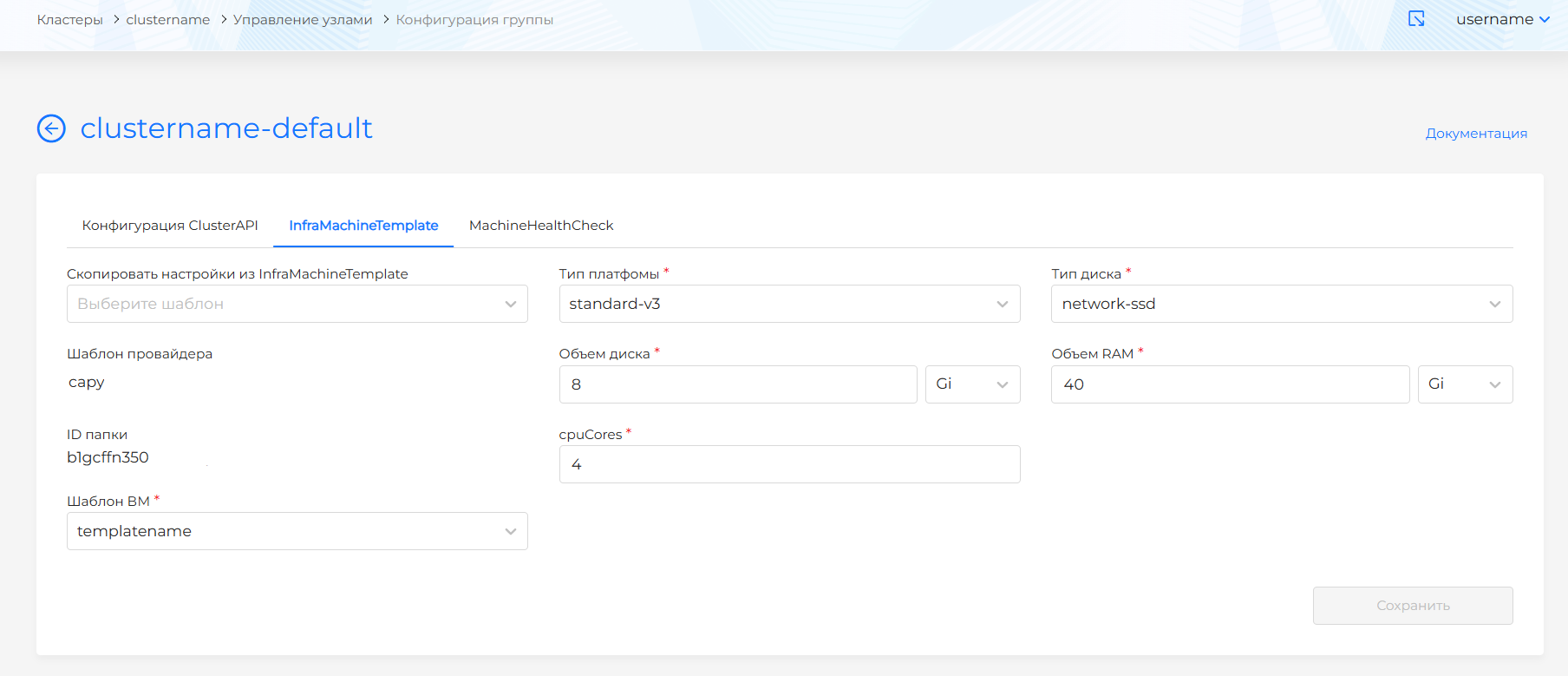
YandexMachineTemplate
For YandexMachineTemplate parameters available for configuration:
- Platform type;
- Disc type;
- RAM volume. Available unit of measurement: Gi, Mi;
- Disk volume. Available unit of measurement: Gi, Mi;
- cpuCores;
- VM template (template): VM templates of the provider instance on which the cluster is deployed are available. For more on creating a VM template, see Creating a VM template.
Screenshot of group configuration
VCDMachineTemplate
For VCDMachineTemplate parameters available for configuration:
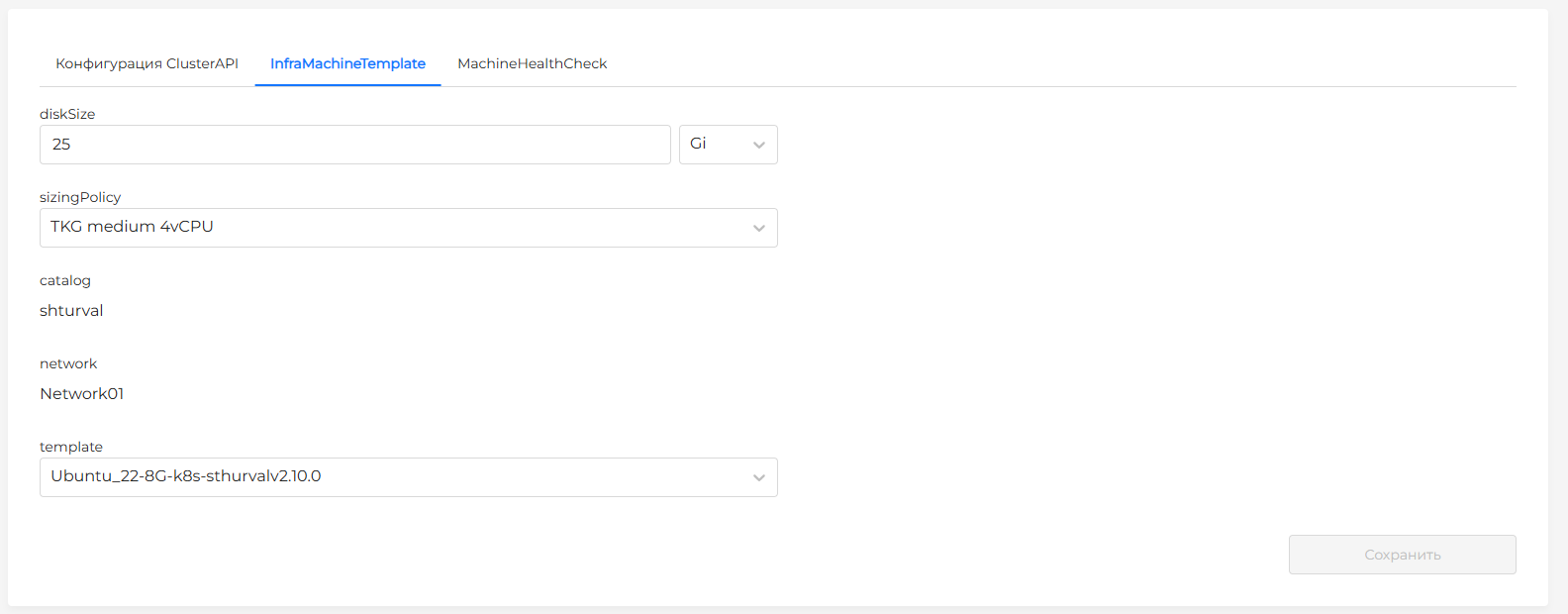
- DiskSize. Select a unit of measurement and set the required value. You can set the disk size in Gi (selected by default) or Mi.
- SizingPolicy. Select a resource management policy (CPU, RAM) from the available ones in the drop-down list.
- template (VM template). For more on creating a VM template, see Creating a VM template.
The catalog (image catalog) and network (host subnet) fields are available for viewing.
Screenshot of group configuration