Backups
After adding storage, you can create backups. To do this, go to the Backup and Restore section on the Backups page. To add a request to create a backup, click “Add Backup”.
Pay attention!
- A backup copy is not a snapshot. Only those resources that are requested are included in the backup. When restoring, you will not receive the entire system in its state at the time of the backup, but only the state of those resources that were in the backup.
- This is a one-time backup configuration. Once created, the fields will not be editable. To create a backup scheduler configuration, go to the “Schedulers” page.
- Namespace velero will be automatically excluded from the backup copy, because restoring the velero namespace results in an error.
- If you are backing up a cluster with a full set of data, you must disable the use of the pod volume file system backup for all volumes (defaultVolumesToFsBackup). This will avoid errors when restoring from a backup.
Create a backup
Screenshot
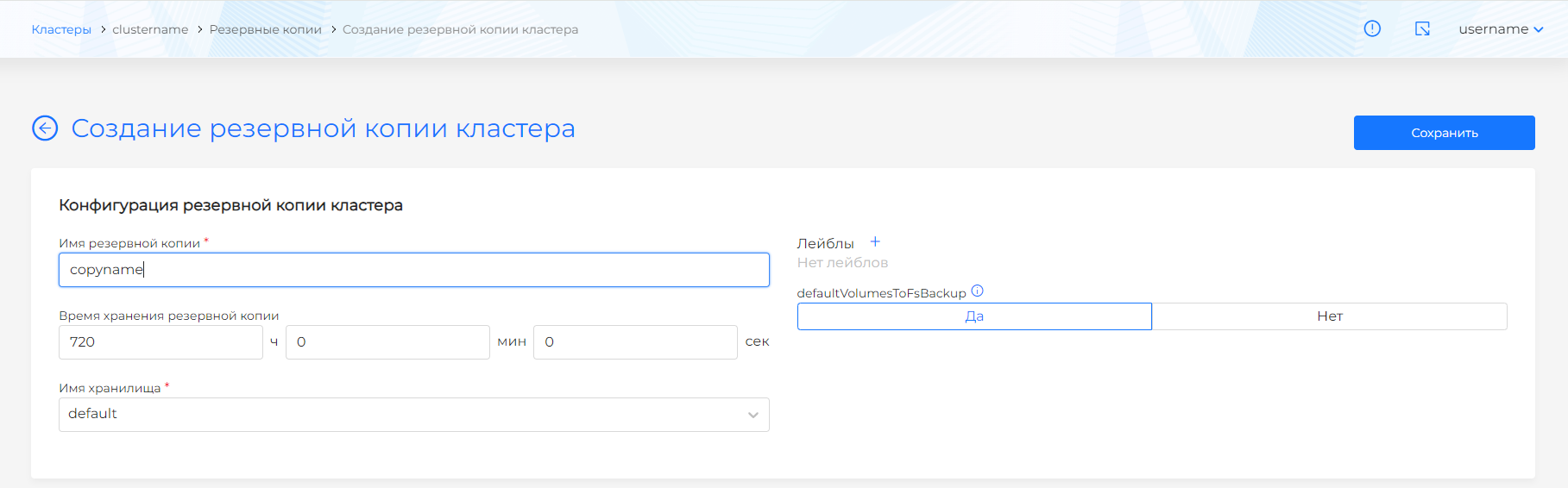
On the page that opens, the following configuration fields will be available:
- Backup name. Required field. The backup name must contain only small Latin letters and numbers, and begin with a letter.
- Backup storage time (TTL).
- Storage name. Required field. Previously created S3 storages are available for selection.
- defaultVolumesToFsBackup - Whether to use a backup copy of the module volume file system for all volumes by default / By default yes (true).
- Backup labels.
- Object selector. The selector type “and” is used. Those. Selected objects of clusters, namespaces and objects that have selected labels/labels corresponding to the selected expressions will be added to the backup copy.
Screenshot

In the blocks for selecting namespaces, namespace and non-namespace resources, there are two ways to select objects:
- Only selected (inclusive);
- Except the selected ones (exclusive).
Screenshot
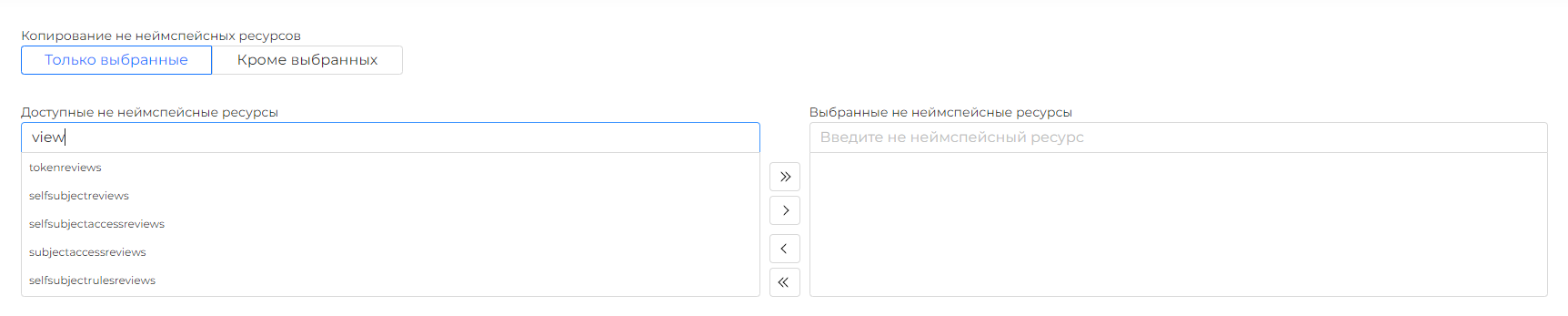


The blocks contain complete lists of resources included in the scope, as well as available namespaces. Determine which resources and namespaces should be included in the backup copy.
Please note! The backup module has an understanding of dependent objects. For example, PVC and PV. If you selected PVC in the namespace resources, then the PVs will automatically be included in the backup copy.
The following tabs are available on the page of the created backup:
- Backup copy. The tab displays the backup execution status and its configuration;
Screenshot
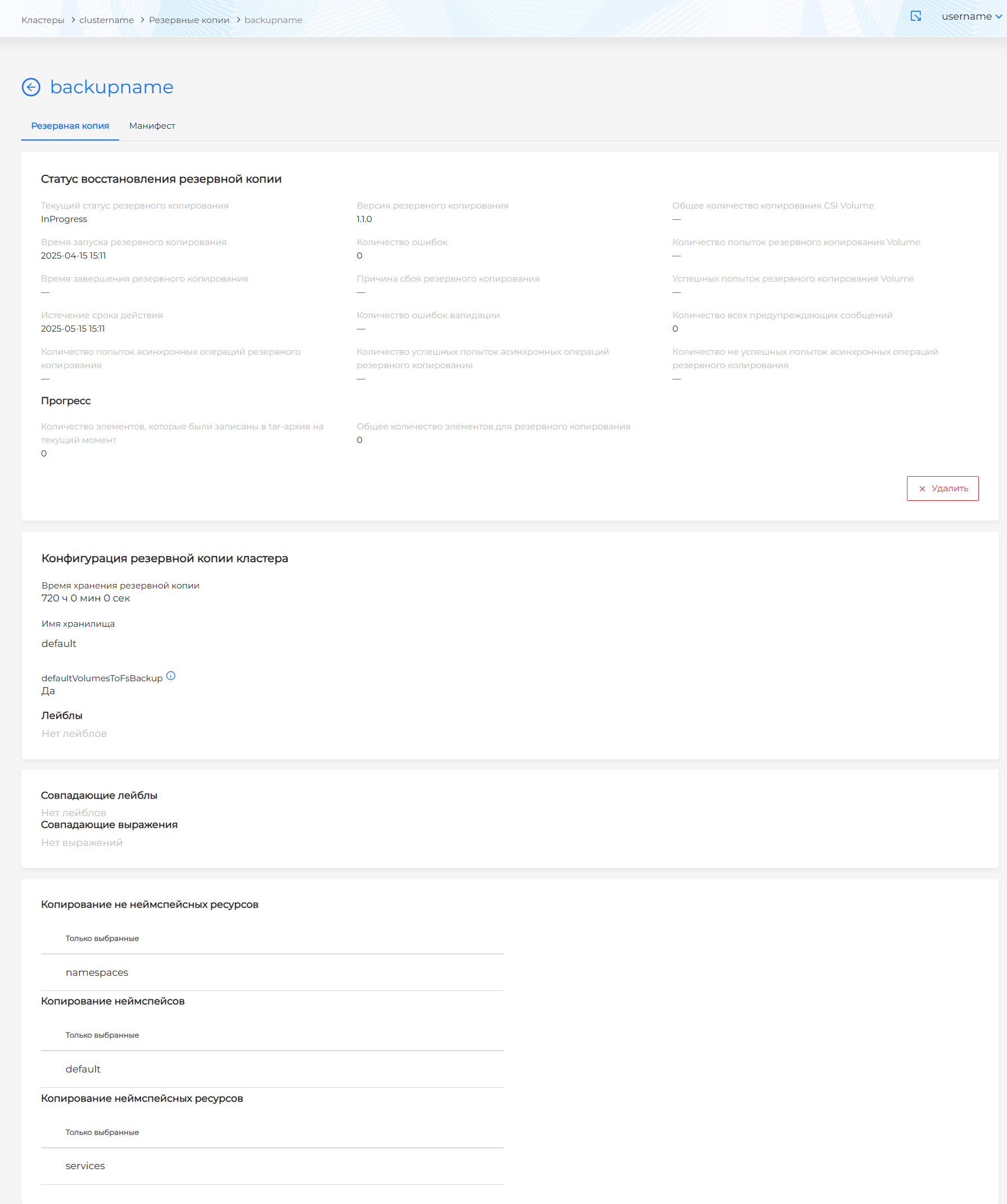
- Manifesto. The YAML manifest of the backup copy is available for viewing on the tab. It is possible to copy the manifest and delete the backup copy.
Screenshot
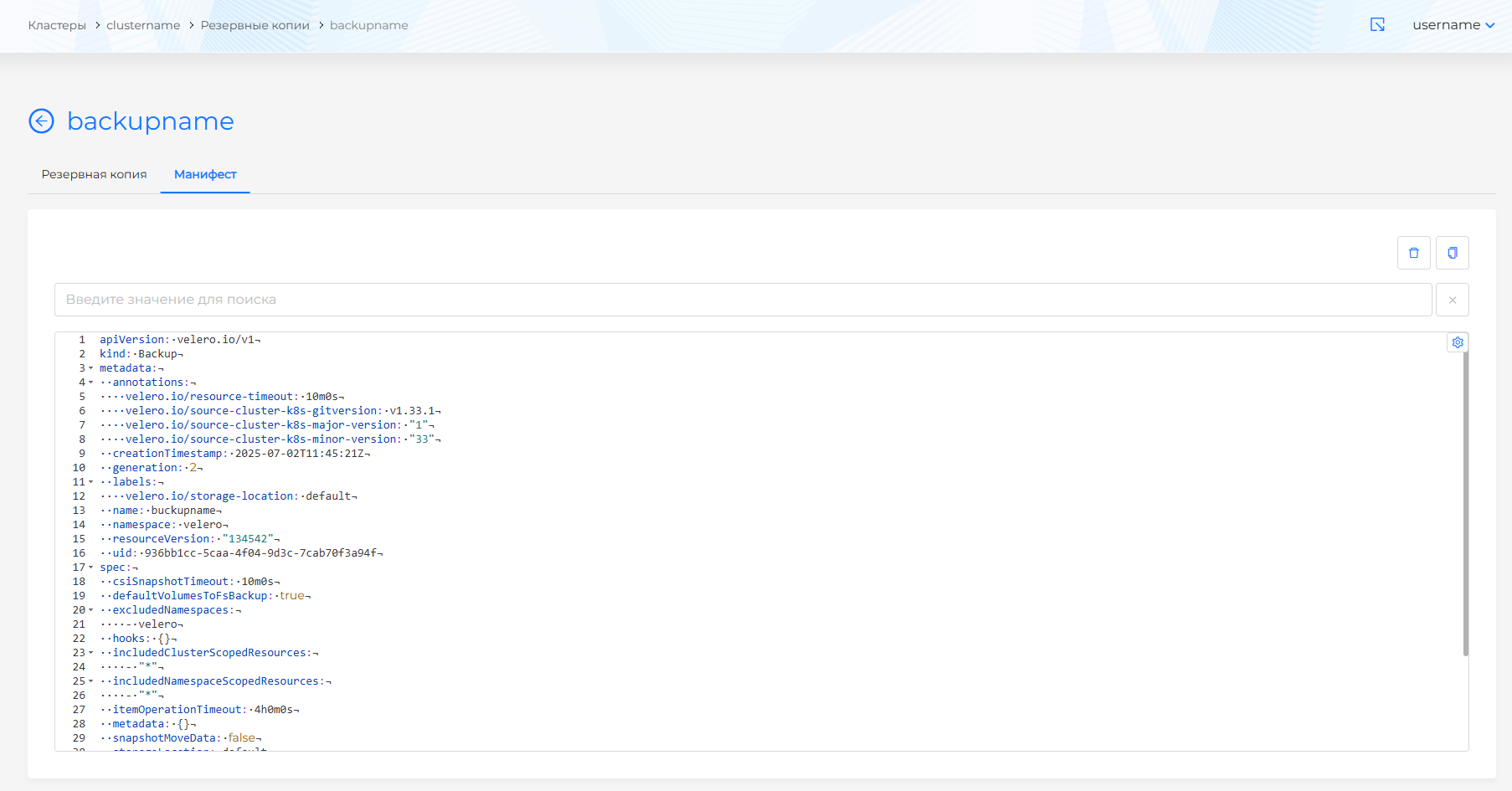
You can delete a backup copy from a cluster in one of the following ways:
- on the Backups page, clickin object string;
- on the backup viewing page, on the Backup tab, click the Delete button;
- on the backup viewing page, go to the Manifest tab and click.
Deleting backups
When creating a backup that includes a PV, a directory with backup files is created on the S3 side, as well as an entry in the kopia directory. The kopia directory contains only repositories. Repositories are tied to the namespaces in which the backed up PVs are located, and not to specific backup copies. For each namespace with PV, custom BackupRepository resources with a prefix containing the namespace name will be created as part of the backup copy. Custom resources will be located in the velero namespace.
Screenshots
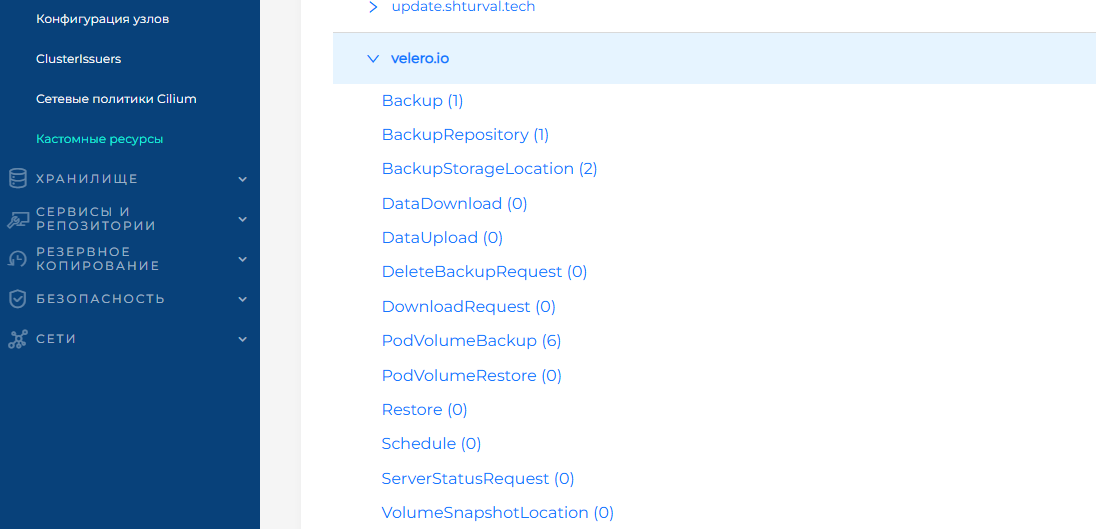
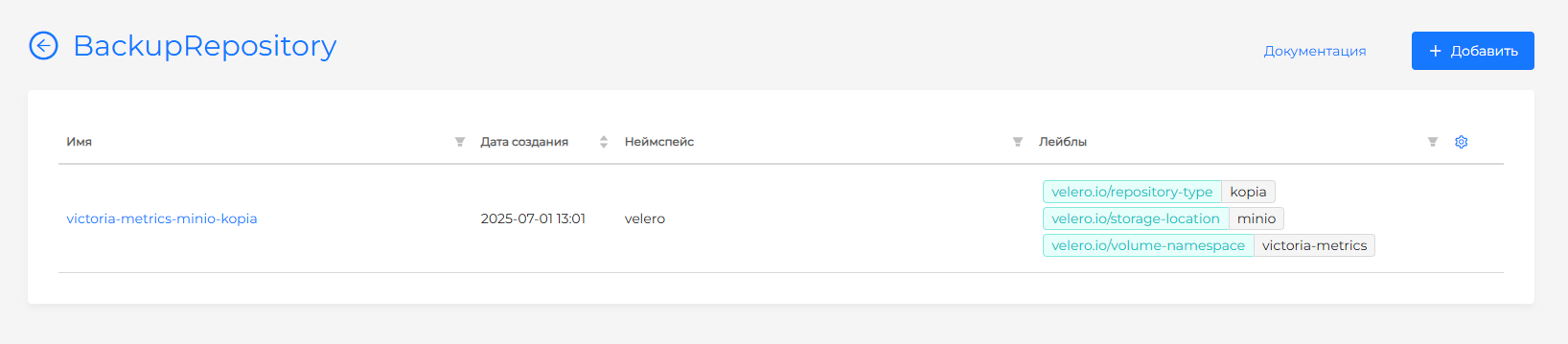
Deleting backups does not affect the repositories. So you can see “traces” of backup information in the kopia directory.
Repositories are cleaned during the automatic maintenance procedure. Maintenance can be quick or full.
Since version 1.16 Velero (backup and recovery module) you can control the frequency of quick maintenance launches via custom resource BackupRepository (maintenanceFrequency option, default 1 hour).
Screenshot
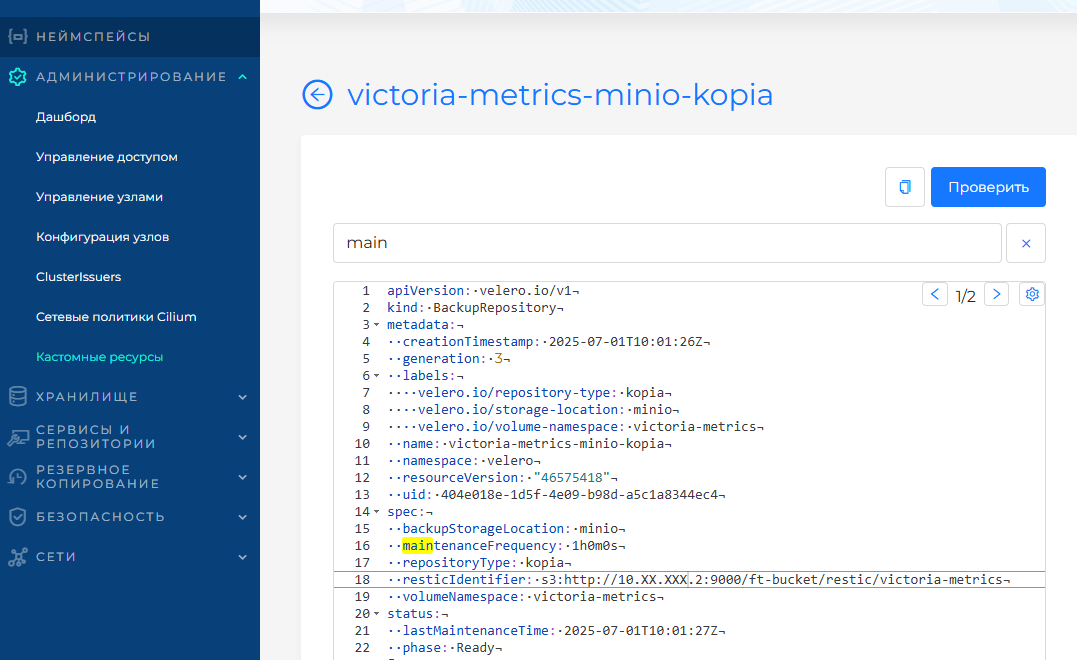
In the status of the same resource, you can see information on the last three maintenance. Maintenance logs can be viewed in Jobs of the velero namespace (the last 3 Jobs are stored).
You cannot manage full maintenance. It starts automatically. The expected period for complete deletion is a week after deleting the backup.