Storage
The modified Velero module is used as a backup and recovery module in the Shturval platform.
To create a backup you need to:
- Connect S3 storage.
- Create a backup configuration or scheduler.
Connecting storage
Screenshot
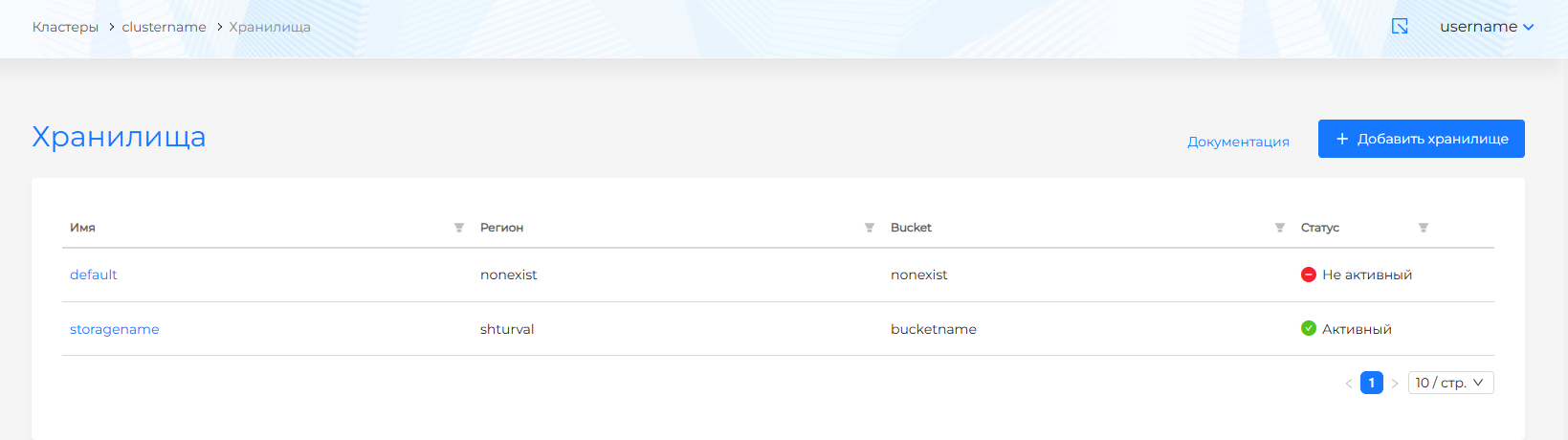
To connect storage, go to the Backup and Restore section on the Storages page, click “Add Storage”.
There are two modes on the add storage page: basic and advanced. In basic mode, the user can fill in the data:
Screenshot
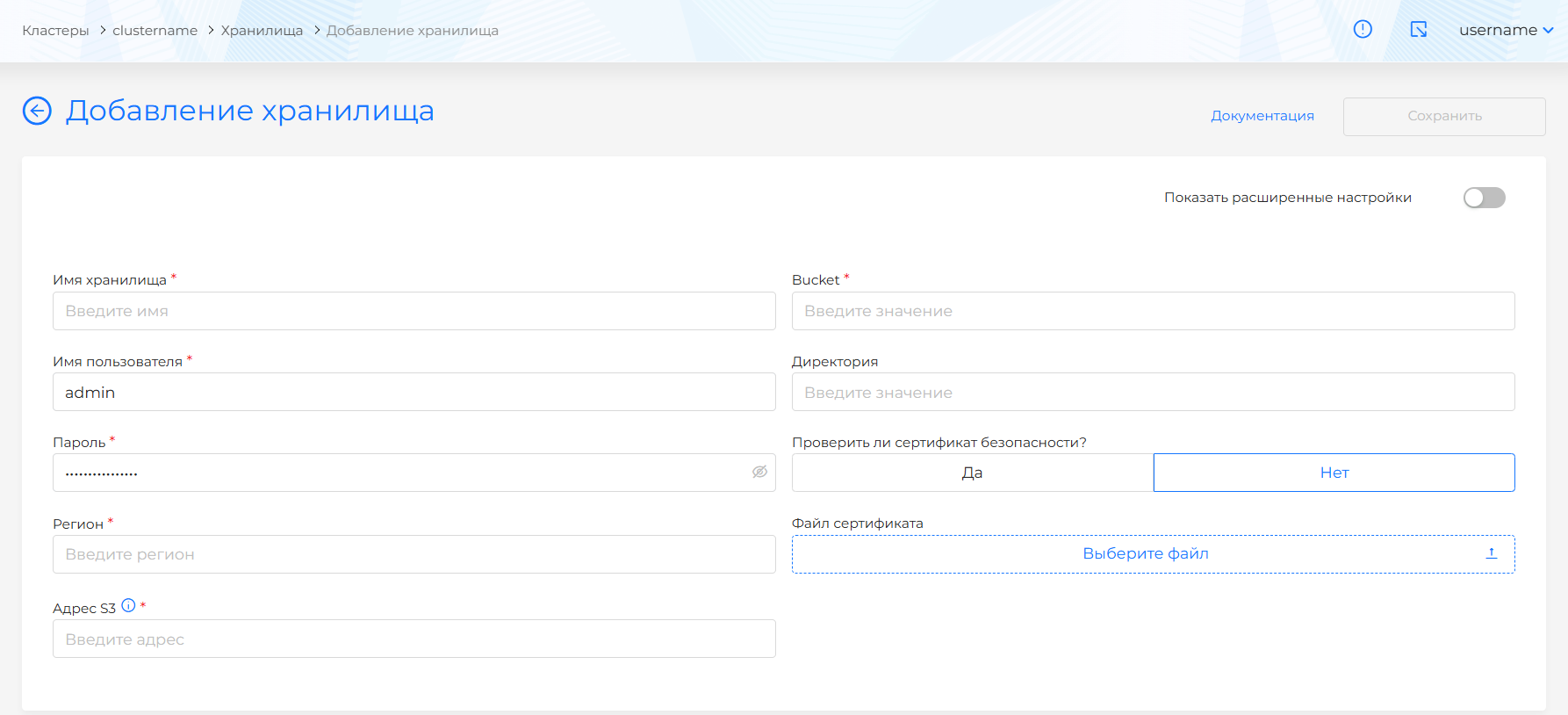
- Storage name. Required field. After saving the configuration, the field will not be available for editing.
- Bucket. Required field. The storage segment where backups are downloaded.
- Directory. Optional field. Bucket index (folder) for storing backups.
- Username. Required field. Username/login for connecting to S3 storage. After saving the configuration, the field will not be available for editing.
- Password. Required field. Password for connecting to S3 storage. After saving the configuration, the field will not be available for editing.
- Region. Required field.
- Address S3. Required field. Acceptable options for specifying an address using FQDN/VIP over HTTP/HTTPS. Specify ports if necessary. Example: http://example.com:9000 or https://11.11.111.11
- Should I check the security certificate? (whether to skip certificate verification).
- Certificate file.
If you are connecting S3 storage without TLS, skip downloading the certificate.
In advanced mode the following fields are added:
Screenshot
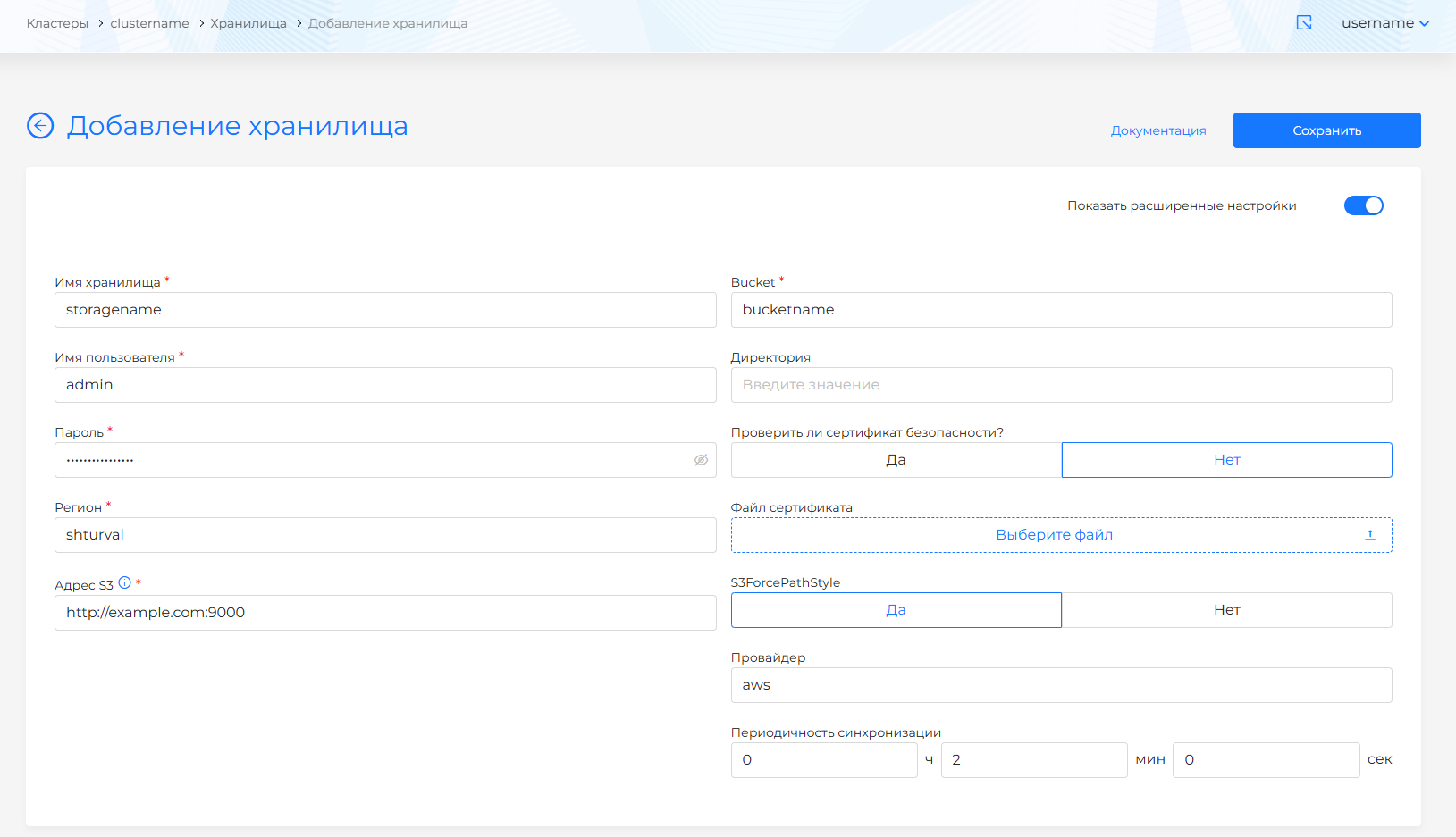
- S3ForcePathStyle. Whether requests to S3 storage always use path-style addressing (yes is selected by default).
- Provider. Velero is natively supported by the AWS provider. Validity of work with other providers is not guaranteed.
- Synchronization frequency (backupSyncPeriod) in hours, minutes and seconds.
Please note! The request to delete backups from the storage on the platform side is asynchronous. The deletion request may not complete successfully.
In addition, if there were/are backups in the storage at the time of connection, they can be reflected in the interface.
View and edit storage data
To view previously connected storage, click on the names in the list of storages. On the Storage tab you can view the status and data of the connected storage. Editing the parameters of a connected storage is temporarily available only through the manifest interface.
Screenshot
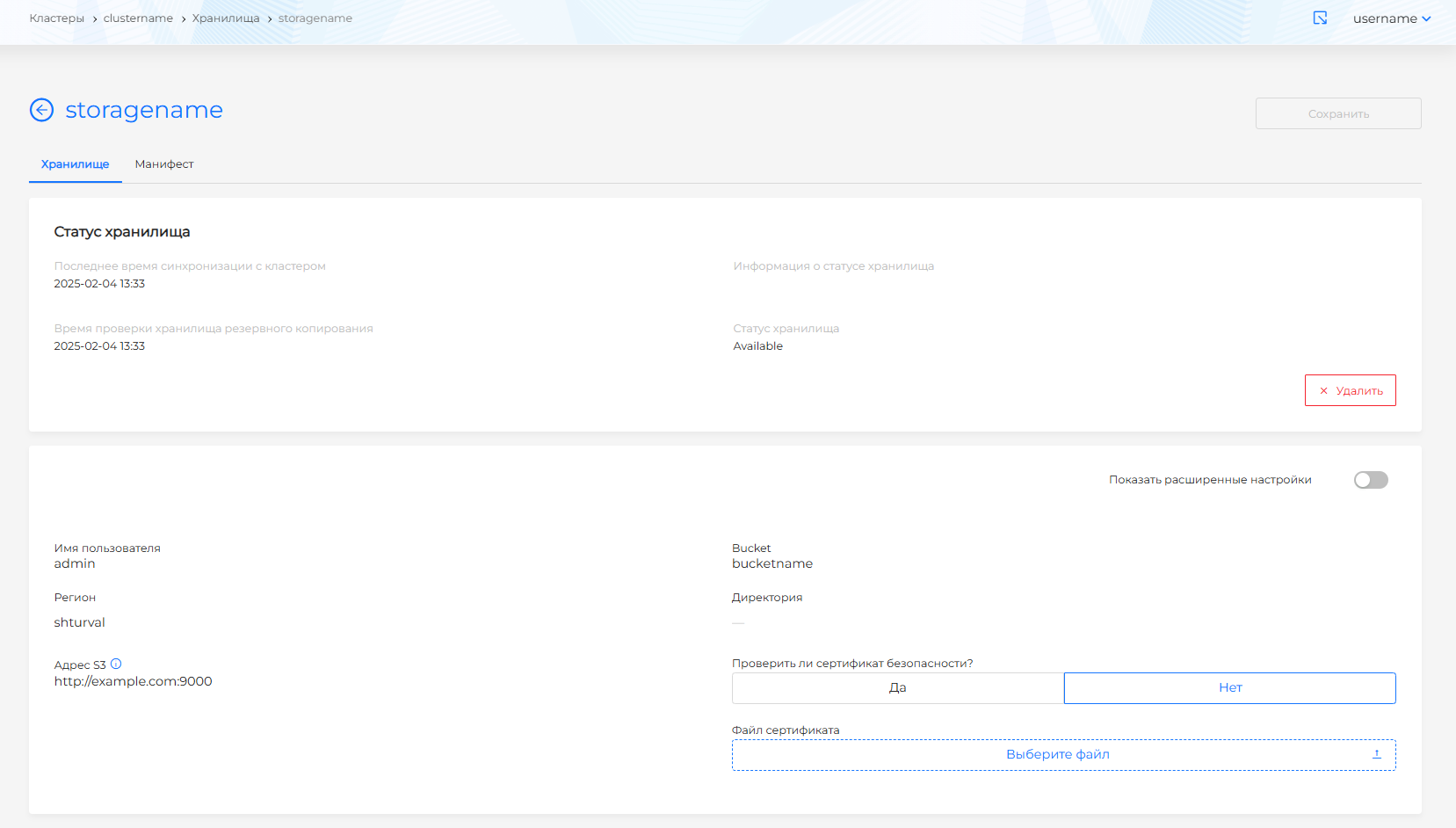
If necessary, you can change the choice of whether to skip certificate verification, upload the certificate file, and synchronization frequency. After editing is complete, click the Save button.
It is also possible to change data using the object manifest. To do this, go to the Manifest tab.
Screenshot
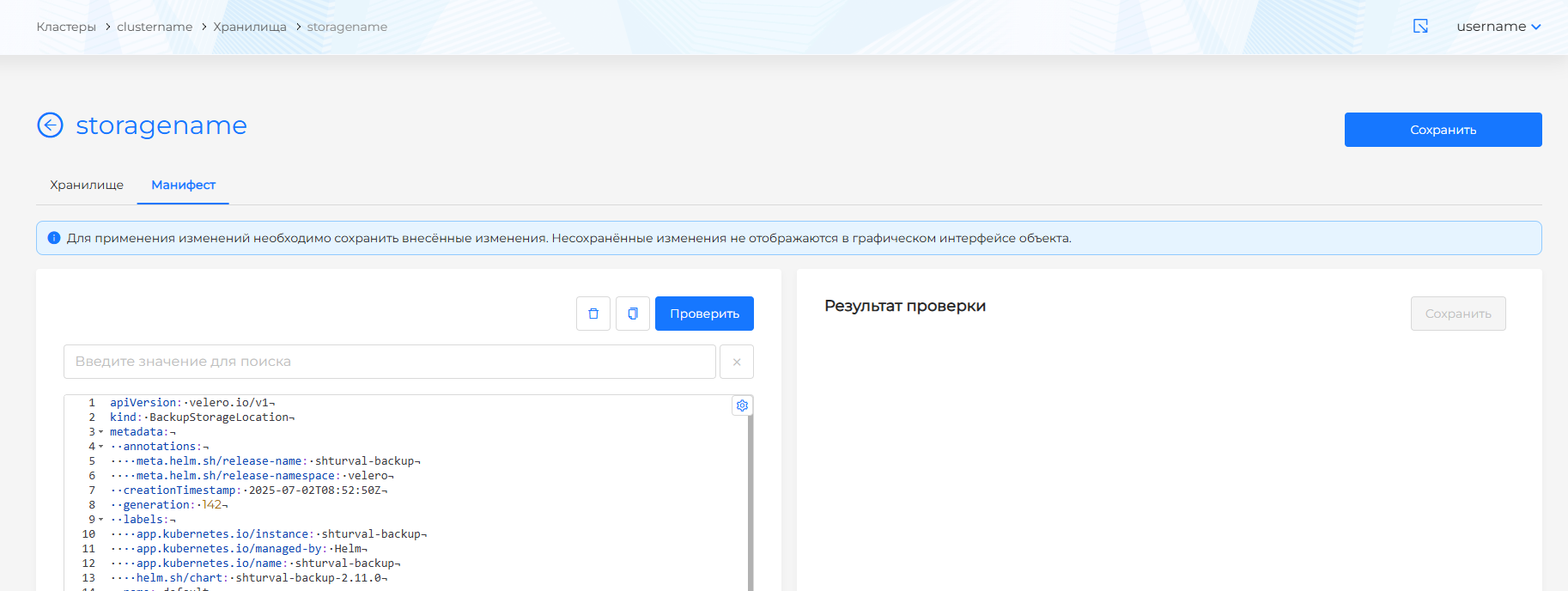
After making changes to the manifest, run a review. The test result will be available on the right side of the screen. Expand the verification result block to see the full manifest. If the storage manifest format validation fails, manifest verification is not available.
You can delete storage in one of the following ways:
- on the Storages page, clickin object string;
- on the storage viewing page, on the Storage tab, click the Delete button;
- on the repository viewing page, go to the Manifest tab and click.