Storage Classes
The StorageClasses page contains a list of storage classes.
Screenshot
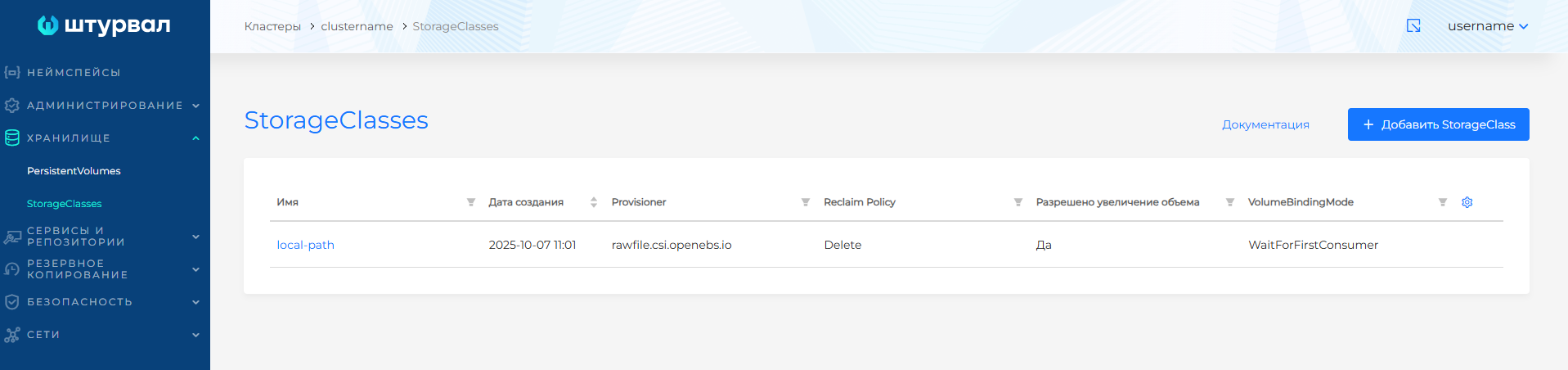
On the StorageClass page, you can create, edit, delete, or view previously created storage classes. In the created StorageClass resource, only labels and annotations can be changed.
Creating a StorageClass
To add a StorageClass, click on the + Add StorageClass button.
Each StorageClass contains provisioner, parameters, reclaimPolicy, volumeBindingMode fields, which are used when it is necessary to dynamically allocate a PersistentVolume belonging to the class to satisfy a PersistentVolumeClaim (PVC) request.
When configuring StorageClass:
- you need to set the StorageClass name;
- it is possible to add labels and annotations;
- you must select the Provisioner Type. In the graphical interface, the concept of a provider type is introduced to simplify the StorageClass configuration. Available types: oVirt, vSphere, NFS, Rawfile, CephFS, CephRBD, Other.
- the Provisioner value will be set automatically for all types (except for the Other type):
- vSphere - csi.vsphere.vmware.com. Information about setting up access rights for the vCenter service account is located on the [vSphere] provider page (/2.13/en/platform-admin/interface/providers/vsphere/vsphere-requirement/).;
- NFS - nfs.csi.k8s.io;
- oVirt - csi.ovirt.org;
- Rawfile - rawfile.csi.openebs.io;
- CephFS - cephfs.csi.ceph.com;
- CephRBD - bd.csi.ceph.com.
- it is possible to select the return policy of the PersistentVolume (PV) of the created StorageClass. Select Retain when you need to manually manage PV data in case of PVC deletion. Specify Delete so that after deleting a PVC, the corresponding PV will also be deleted. Default Delete;
- it is possible to select the PV binding mode. If you need to provide PV immediately after creating the PVC, select Immediate mode. When you want to provide PV only after creating a pod that uses PVC, set the mode to WaitForFirstConsumer. Default is Immediate.
- it is possible to manage a set of StorageClass parameters.
Screenshot
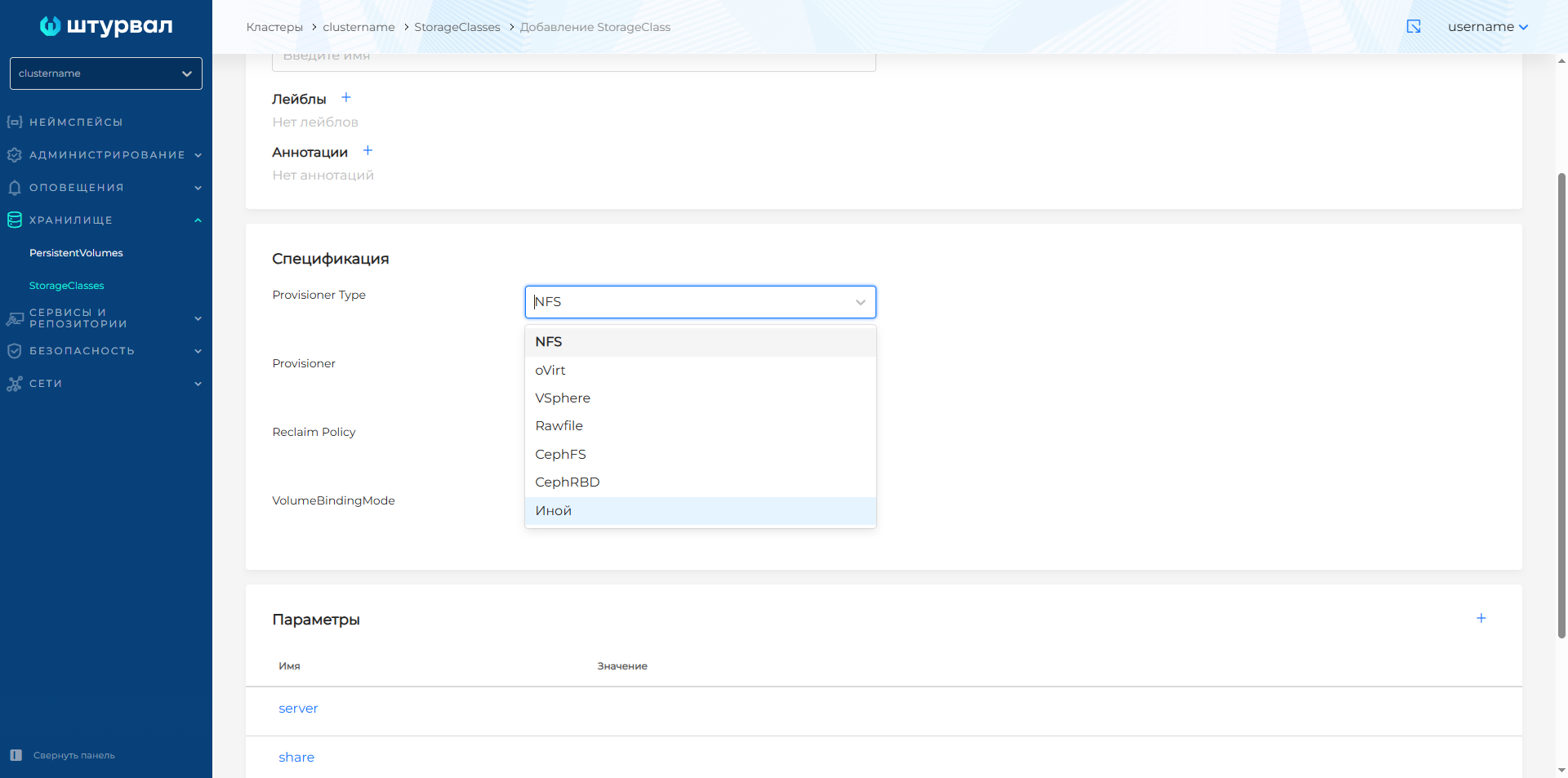
You can install provider types that are compatible with Kubernetes. By default, the following types of providers are available in the Shturval platform:
- CephFS Provisioner;
- CephRBD Provisioner;
- OpenEBS Rawfile Provisioner;
- oVirt Provisioner;
- vSphere Provisioner;
- NFS Provisioner.
###Setting options
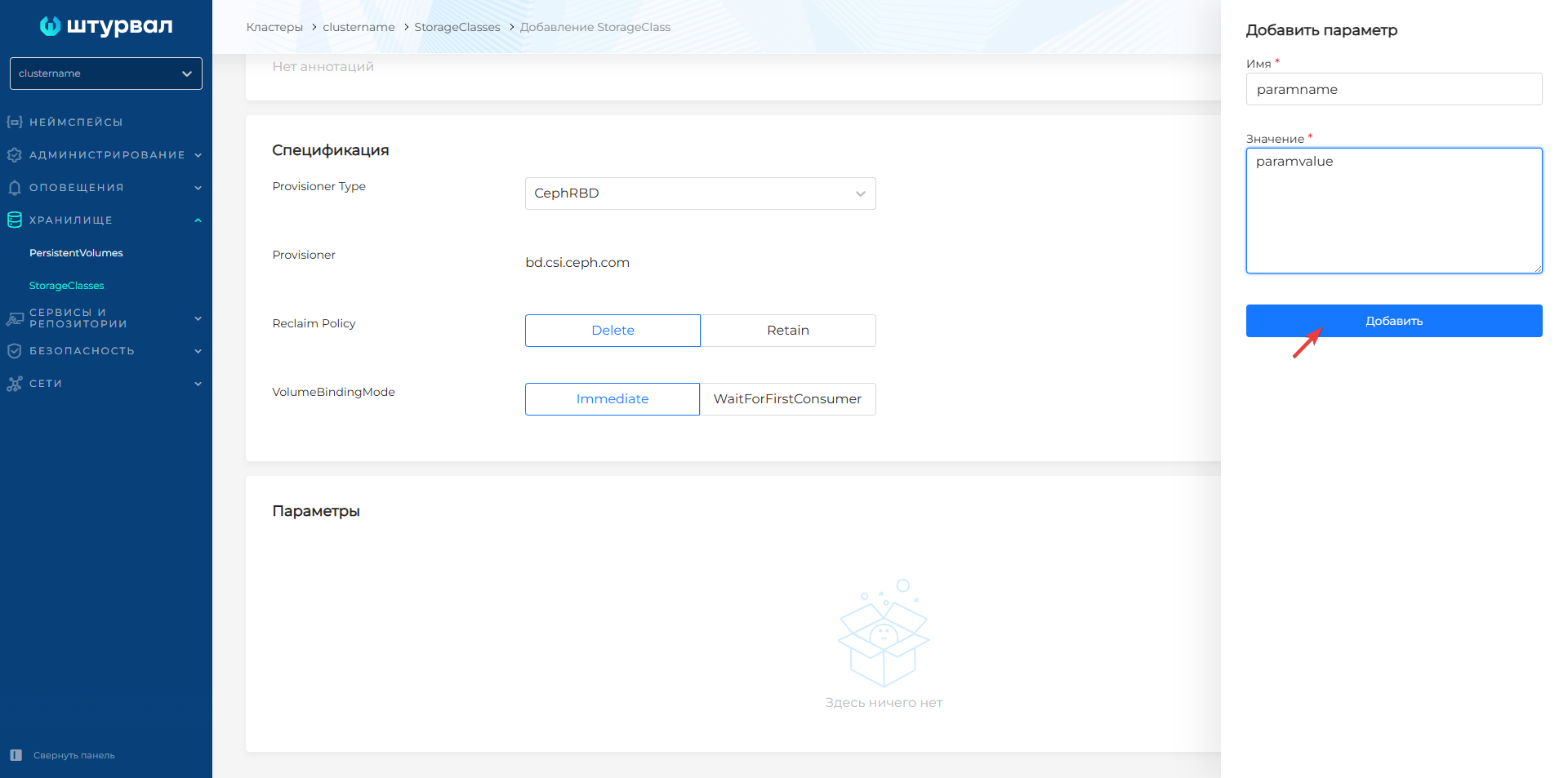
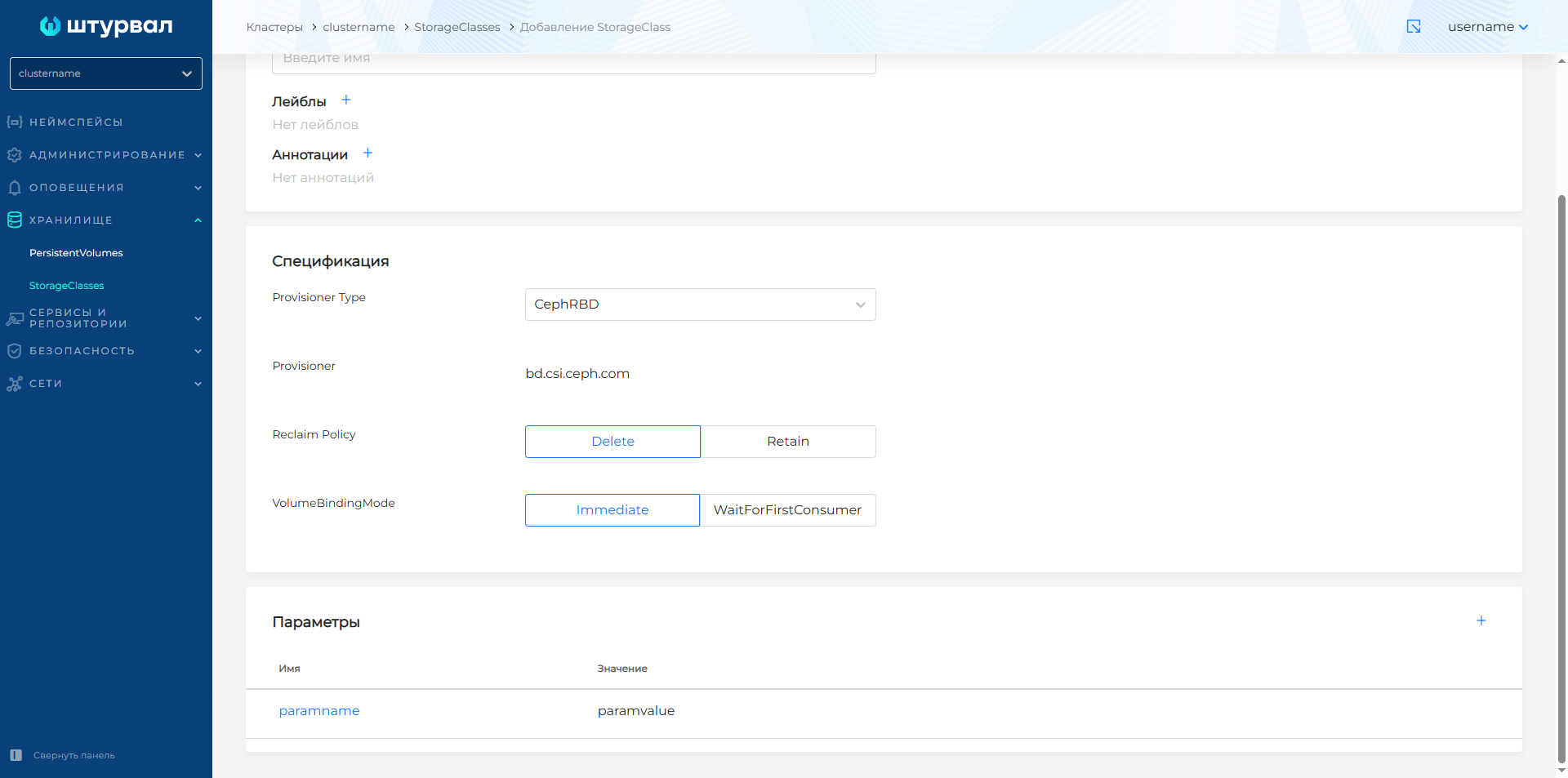
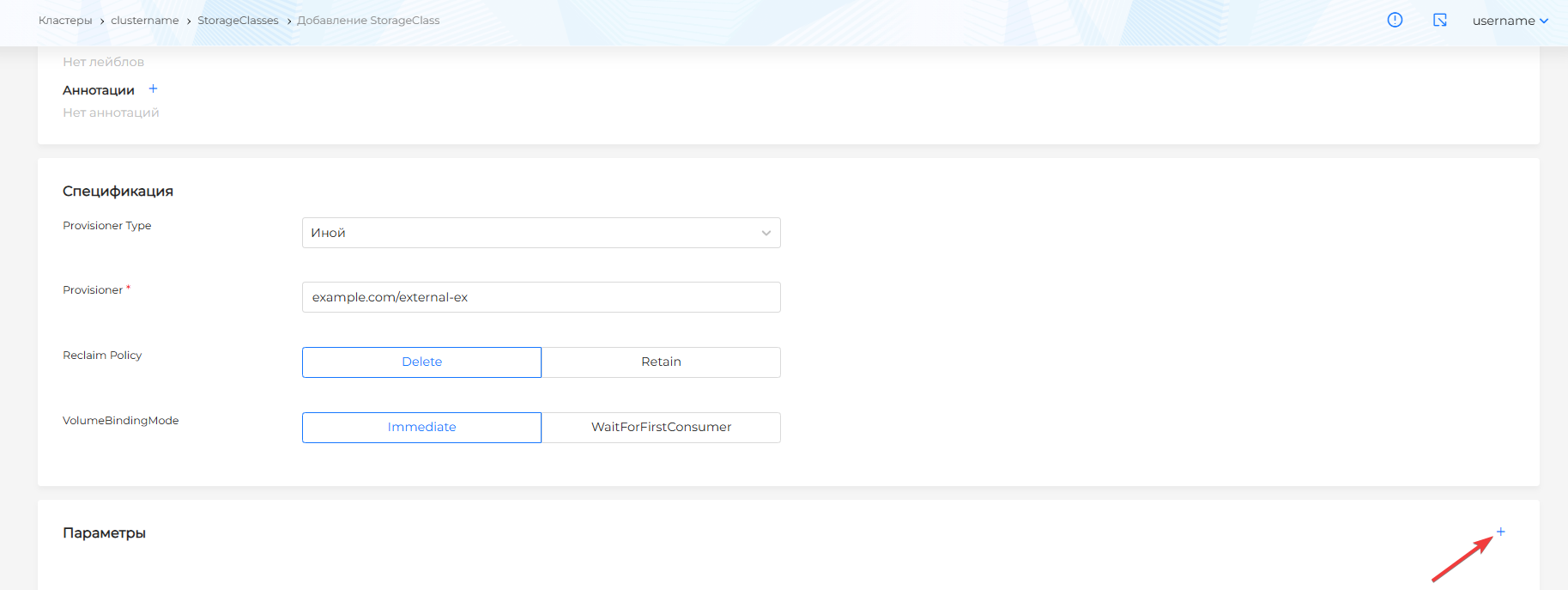
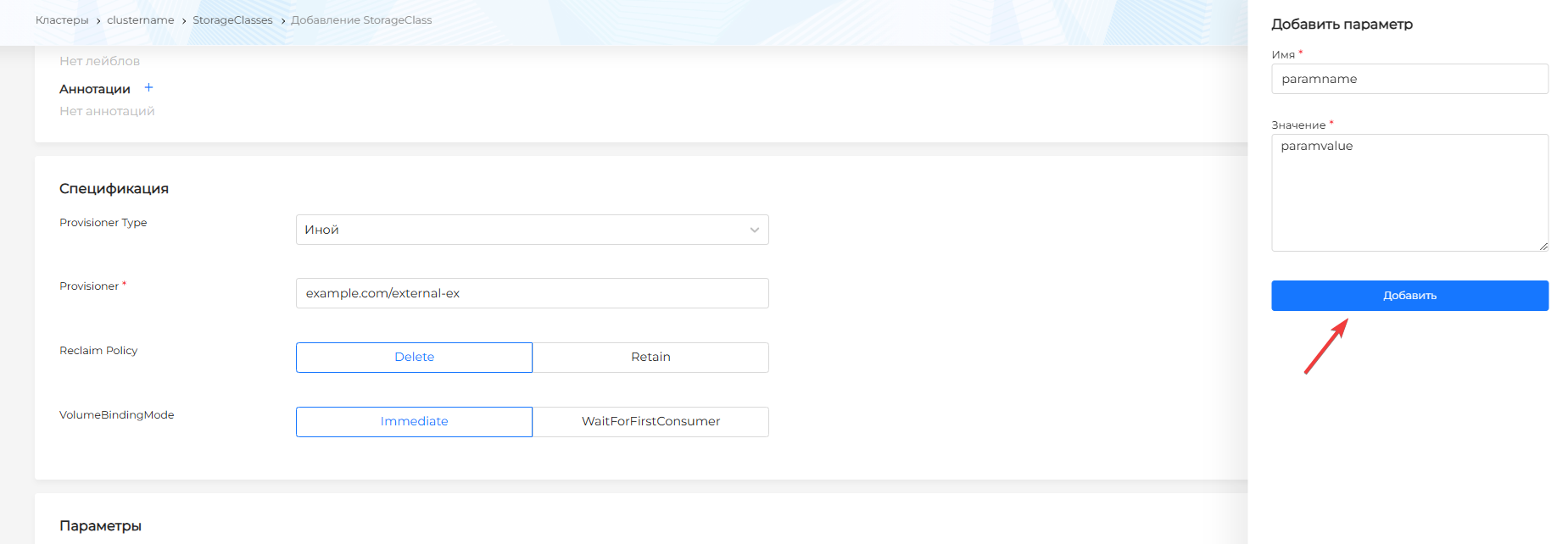
To add a parameter for CephFS, CephRBD, OpenEBS Rawfile providers or when selecting the type of another provider, click on + in the Parameters block. In the window that opens, specify the name of the parameter and its value. Click Add.
Screenshot
To configure NFS, vSphere, oVirt, the following default parameters are offered:
Screenshot of parameters for NFS

- Valid values for the parameter
onDelete: delete, retain, archive. - Default in parameter
mountPermissionsis set to 0. If you need to assign permissions to files and folders, change the value.
Screenshot of parameters for oVirt

- For the option to allocate storage space not immediately when creating a disk, but as the need for it arises
thinProvisioningvalid values: true, false. - For the file system type parameter
ovirtFstypevalid values: ext4, xfs.
Screenshot of parameters for vSphere

- For the file system type parameter
vsphereFstypevalid values: ext4, xfs.
To set a value for a parameter, click on the line of the selected parameter and in the window that opens, enter data in the Value field, click Change.
Screenshot
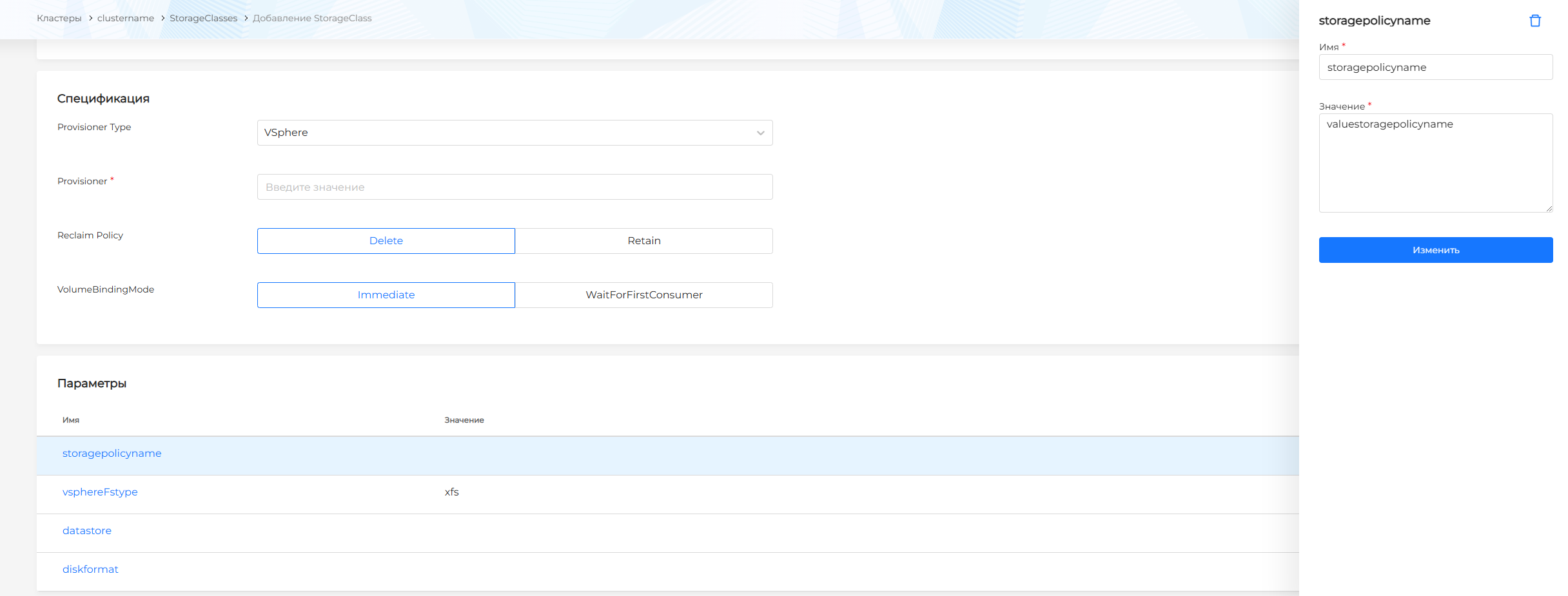
If the parameter set is not suitable, you can:
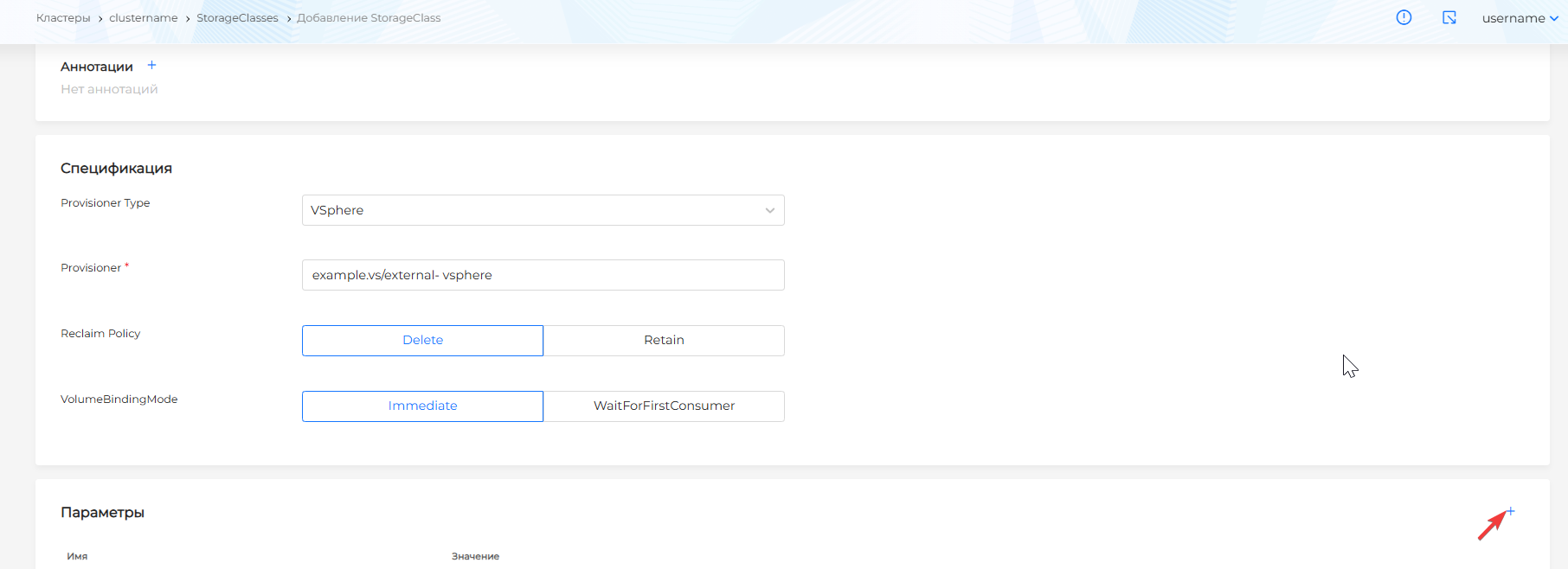
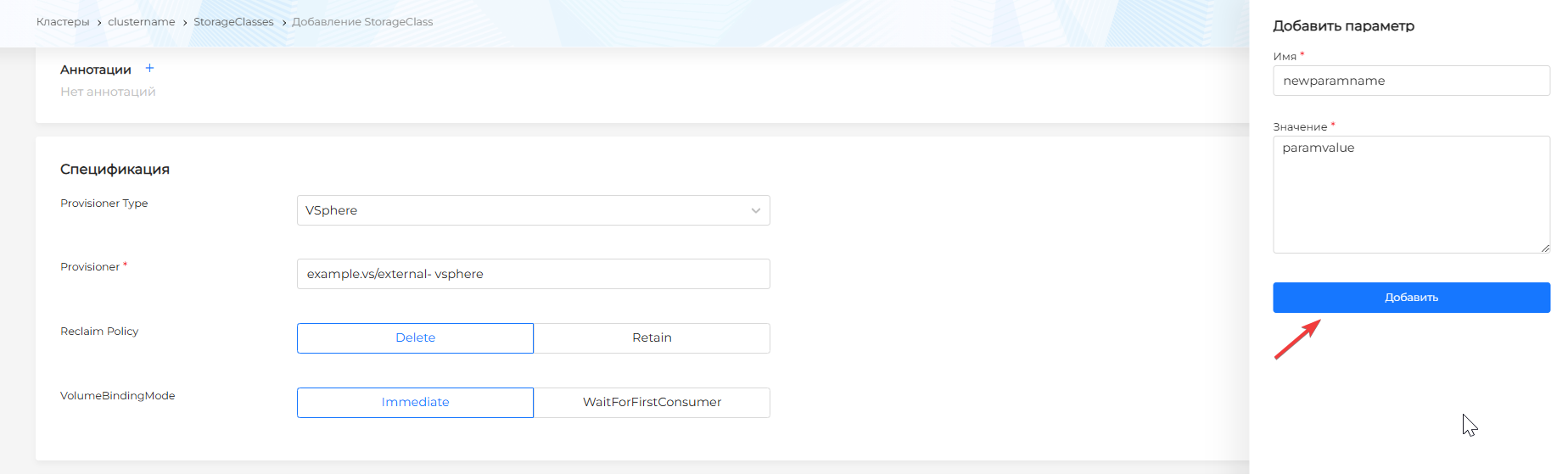
- add a new parameter. Click on + in the Parameters block, in the window that opens, specify the name of the parameter and its value. Click Add;
Screenshot
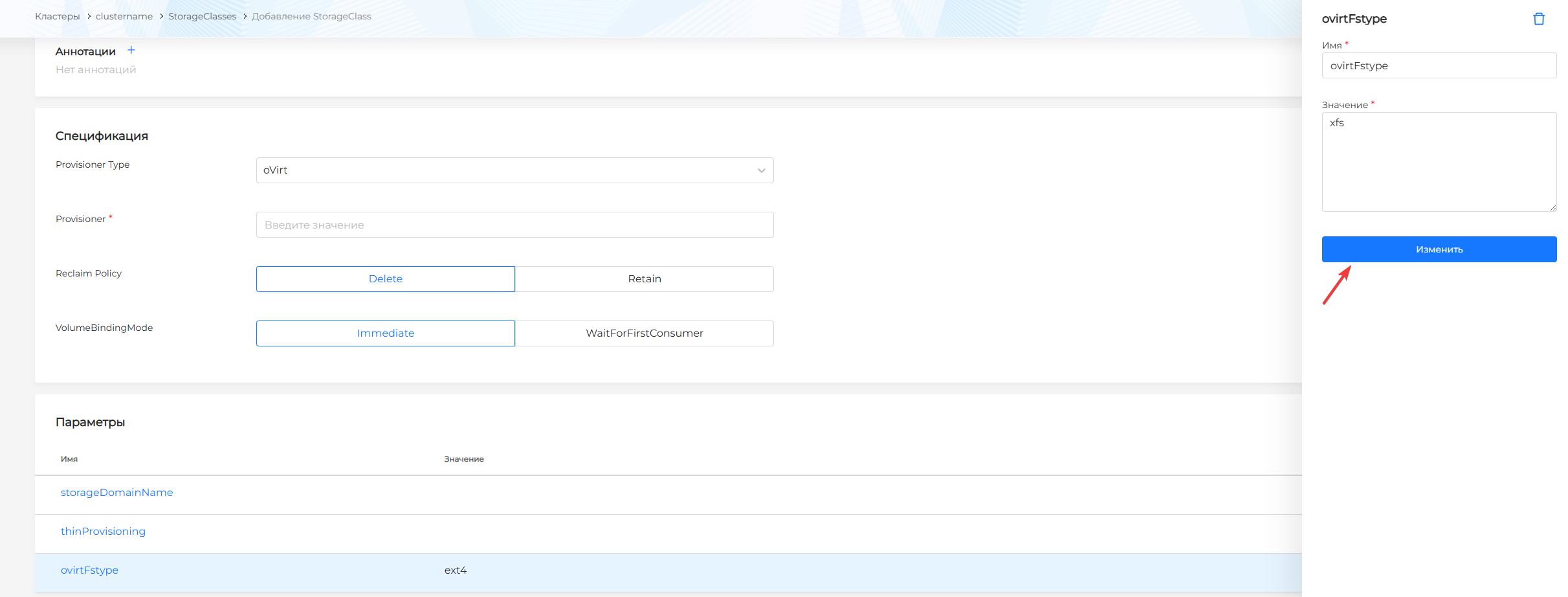
- change an existing parameter. Click on the line with the name of the parameter you are interested in and make changes, click Change;
Screenshot
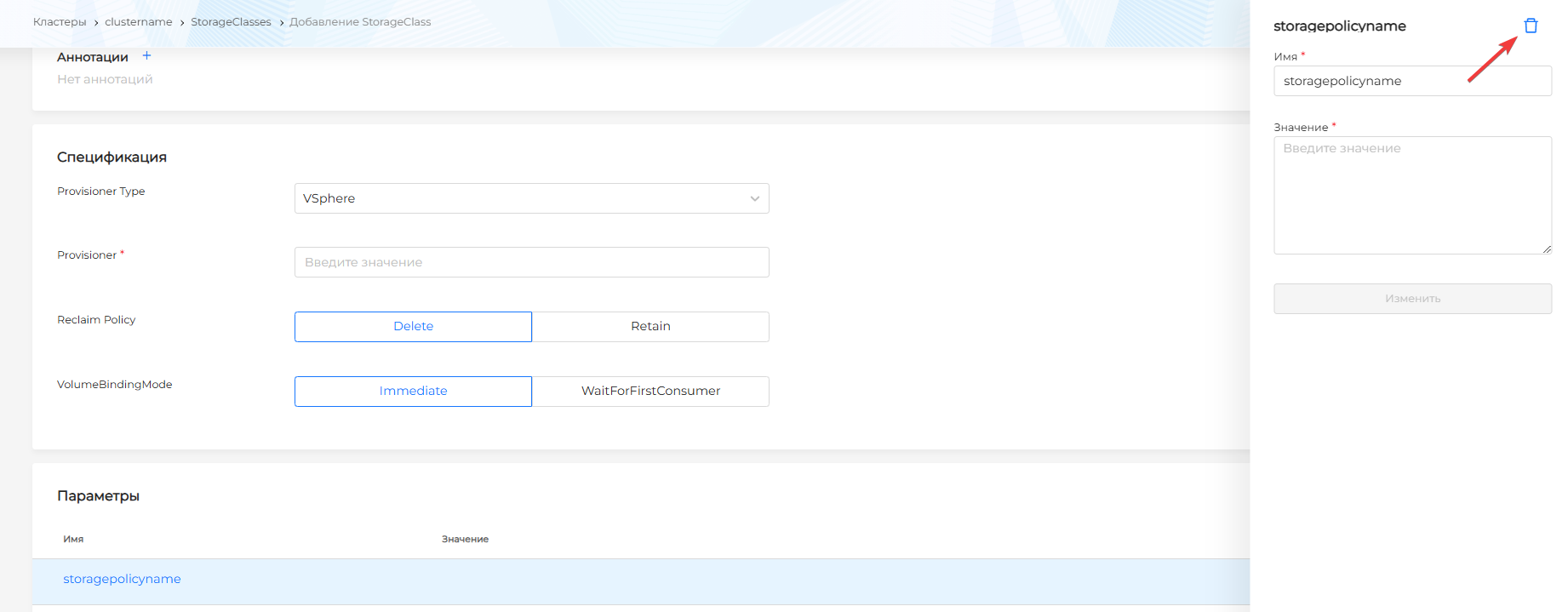
- delete an existing parameter. Click on the line with the name of the parameter you are interested in, click on;
Screenshot
- select the provider type Other and configure the required parameters.
Screenshot
View and change StorageClass
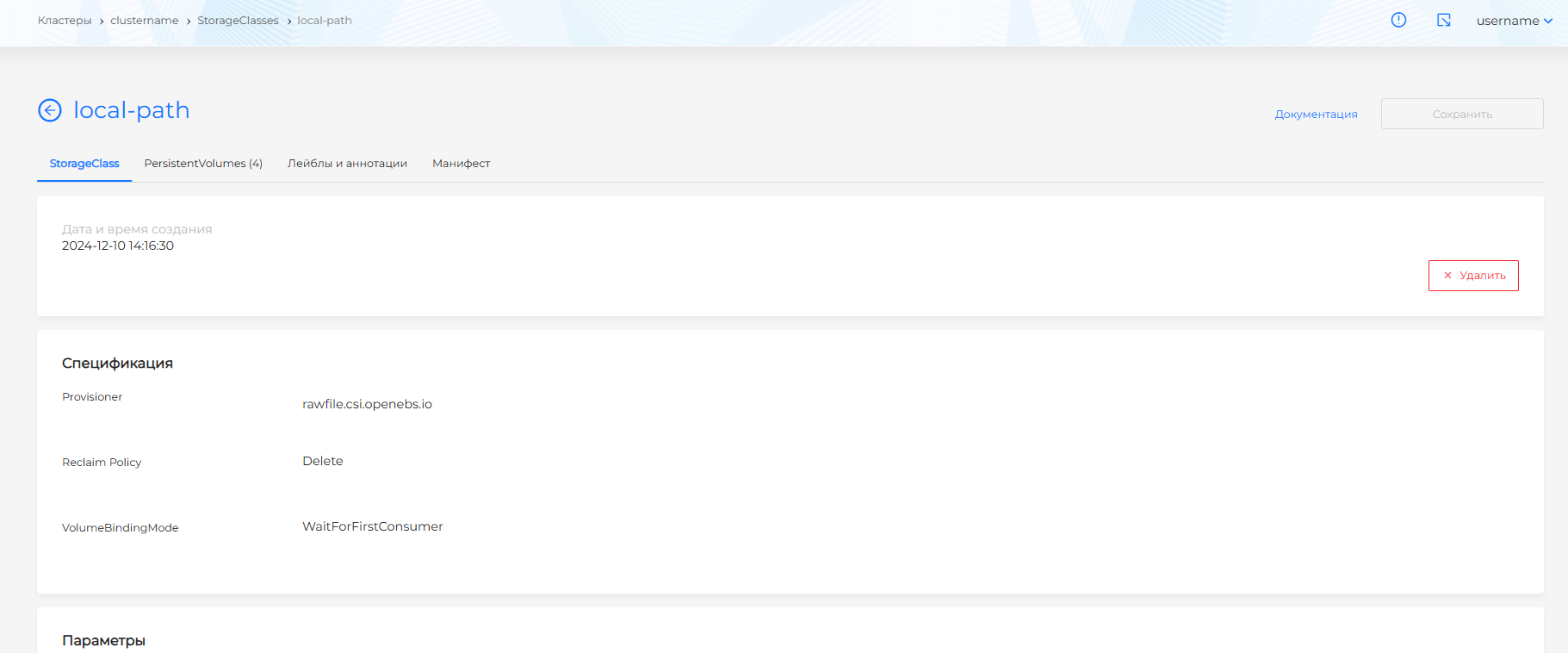
On the page of the created StorageClass there is an opportunity:
- view storage class data, StorageClass tab.
- see a list of PersistentVolumes that use this storage class, PersistentVolumes tab. By clicking on the line called PersistentVolume you can go to the PersistentVolume view page;
- adjust the list of labels and annotations on the Labels and annotations tab;
- view the StorageClass manifest, and also adjust the list of labels and annotations in the StorageClass manifest.
Screenshot
To adjust the list of labels and annotations in the StorageClass manifest, go to the Manifest tab and make changes. After modifying the manifest, click Apply. The test result will be displayed on the right side of the screen. Expand the verification result block to see the full manifest.
Save the changes you made to the manifest. Unsaved changes will not be applied.
You can delete StorageClass in one of the following ways:
- on the StorageClasses page clickin object string;
- on the StorageClass viewing page, on the StorageClass tab, click the Delete button;
- on the StorageClass viewing page, go to the Manifest tab and click.