Assign an IP address for outgoing application traffic
To assign an IP address for outgoing traffic of your application, you can configure Egress Gateway (CiliumEgressGatewayPolicy) in the GUI of the “Shturval” platform. To do this, follow the instructions in the section In the platform GUI.
Once the Egress Gateway has been created, you can verify that the policy rules are being followed and ensure that an IP address is assigned for outgoing application traffic. To do this, follow the instructions in the Checking outgoing traffic section.
In the platform GUI
- Go to your cluster, where you need to assign an IP address for outgoing application traffic. Open the Egress Gateway page in the Networks section and click +Add Egress Gateway.
- On the page that opens, configure the Egress Gateway configuration.
Example
- In the Egress Gateway Name field, enter
egressname. - In the IP address field, specify the IP address of outgoing traffic -
11.22.33.44. - Leave destinationCIDRs unchanged - 0.0.0.0/0. Specify CIDR if you want only traffic sent to the specified IP address to be forwarded to the host. Value 0.0.0.0/0 allows any IP address for outgoing traffic.
- In the Node selector block, click + next to Labels and in the Key field that opens, enter the label of the node through which traffic will go to the outgoing network -
node-role.kubernetes.io/workers. In this case, traffic will be transmitted only through a node with the workers role. You can specify the operating system label:kubernetes.io/os:linux. In this case, application packets with the specified outgoing IP address will exit through nodes with this label. Please note! The label selector works on the principle of union. The selected object must have all of the specified labels. - In the Namespace field, select the name of the namespace in which the application is deployed, for example,
namespacename. - Add a label for the pod in which the application is deployed -
podkey: podvalue.
Please note! If the application is deployed in several instances of several namespaces of the same cluster and you need to assign a single IP address to them, click + Add namespace and select the second namespace and, if necessary, add a pod label.
Screenshot
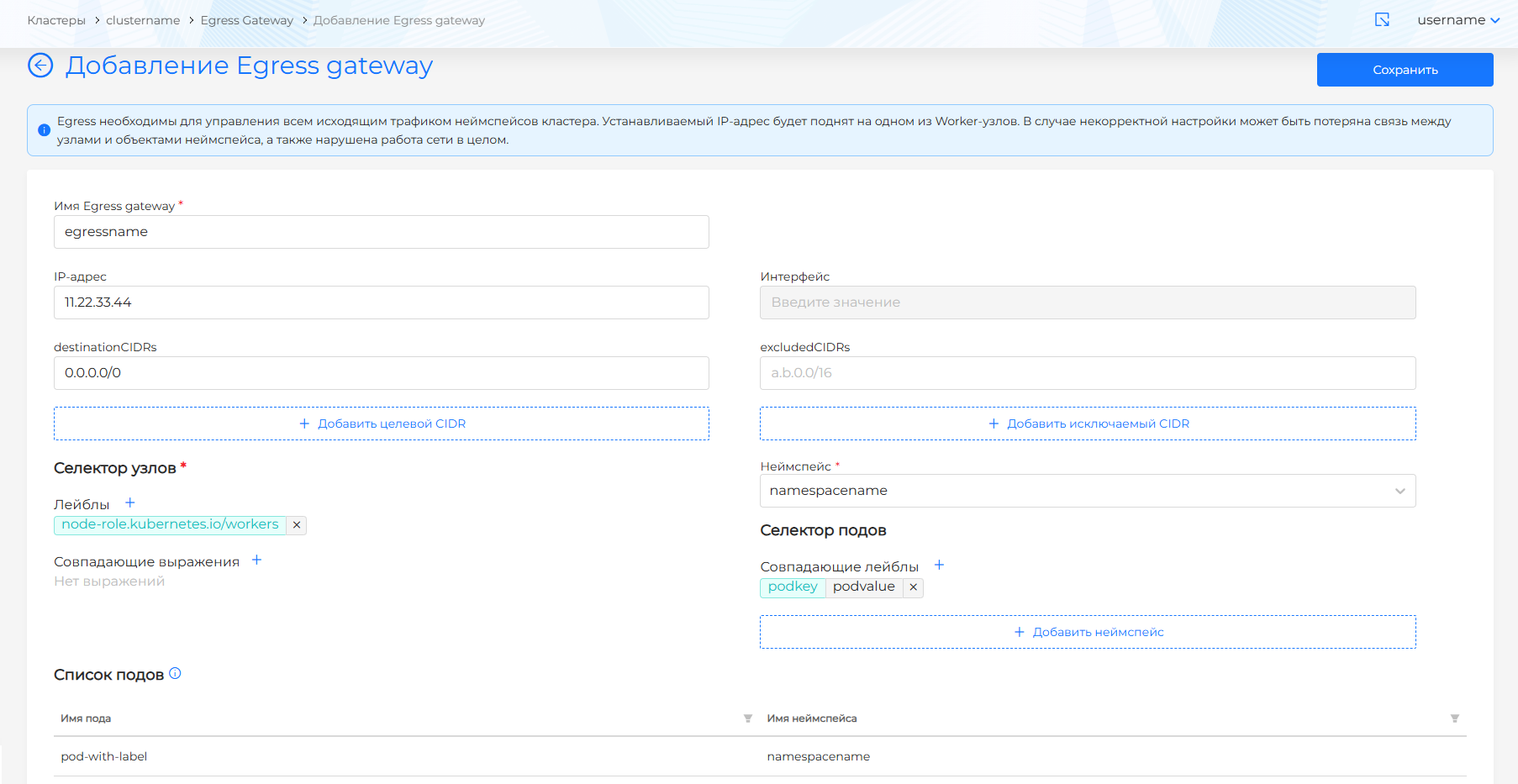
- Create Egress Gateway by clicking on Save.
Now all traffic from the application with the label podkey: podvalue of the namespace namespacename will be directed from the node with the label node-role.kubernetes.io/workers and IP address 11.22.33.44.
Checking outgoing traffic
- Create a pod in the same namespace (
namespacename) where the pod with the application is running, for example, with the namepod-without-label. Don’t label itpodkey: podvalue.
Screenshot
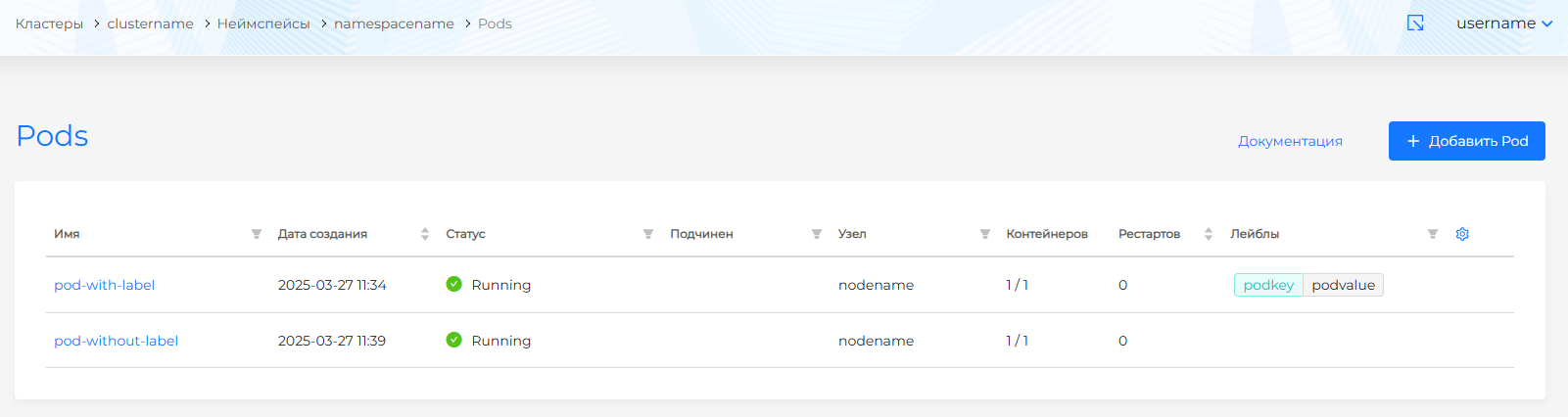
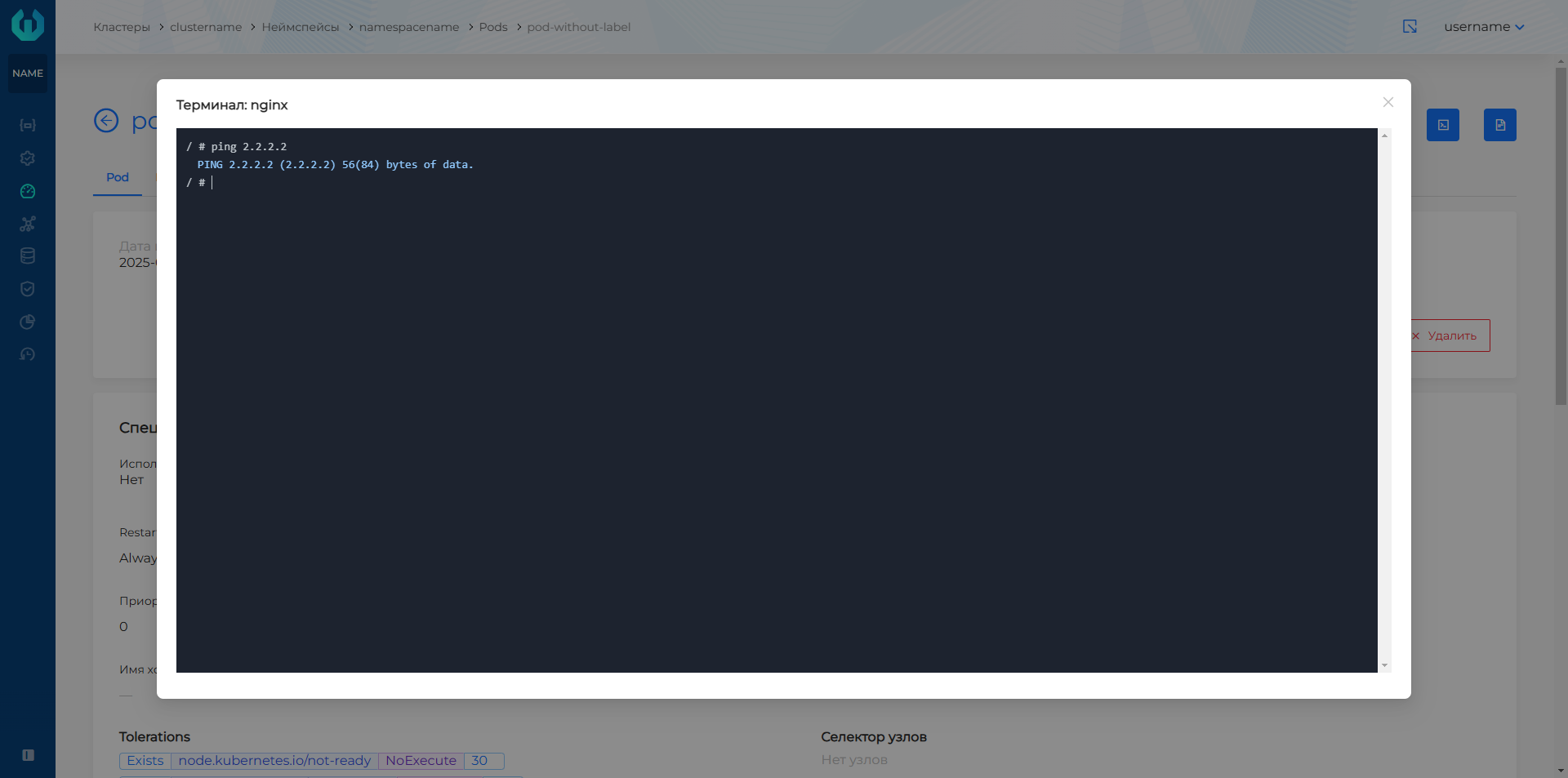
From the view page of the created pod, open the Terminal of the pod and test the connection to the host using the ping command.
Command
ping 2.2.2.2
Where instead of 2.2.2.2 specify the host’s IP address.
Screenshot
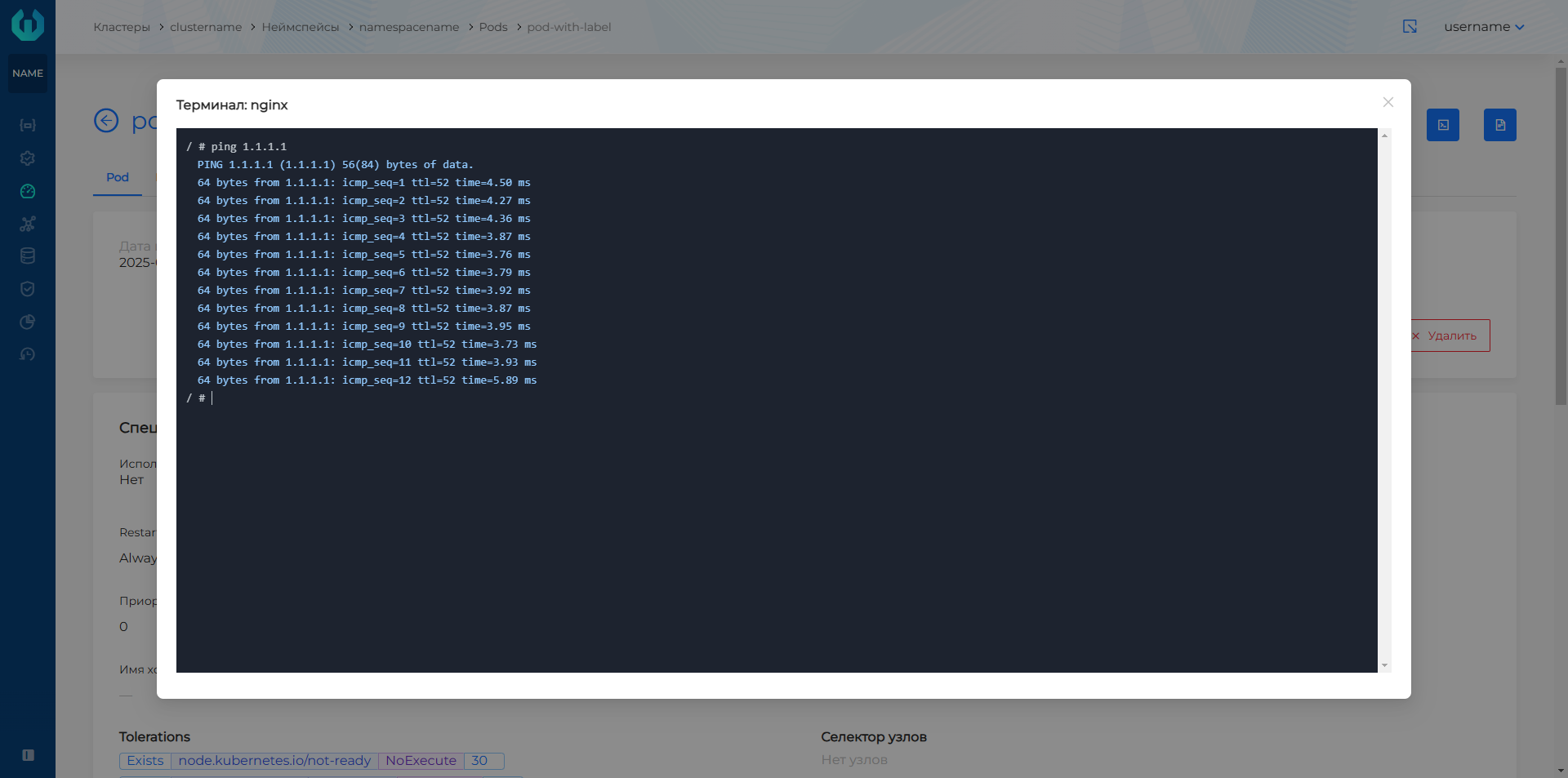
- Go to the pod where the above application is deployed and open Terminal. Test the connection to a host with an IP address different from the one specified in the previous step.
Command
ping 1.1.1.1
Where instead of 1.1.1.1 specify the host’s IP address.
Screenshot
- Open the command line interface and connect to the cluster. Find the IP address of the node that is defined for outgoing traffic.
Command
kubectl -n kube-system exec ds/cilium -- cilium-dbg bpf egress list
In the command response, the IP address of such a node is displayed in the Gateway IP column.
Screenshot

- Connect via SSH to the node with the IP address obtained in the previous step and run the utility to analyze and display the incoming and outgoing network traffic of the node.
Command
tcpdump -i eth0 -n -s0 icmp
In the response you receive, you can verify that application packets are being forwarded from the Egress Gateway IP address and only from the pod that matches the Egress Gateway rule.
Screenshot

Where 11.22.33.44 is the IP address of outgoing traffic, 10.10.10.10 is the IP address of the host.