Corporate certificate
Before proceeding with adding the certificate to the cluster, create a backup. If there is an error changing the certificate in the cluster, you can use a backup to roll back the changes.
Script for adding a corporate certificate to a cluster
- Create certificate.
- Update root certificate in namespace
cert-manager. - Place the created certificate as a secret of the namespace
ingress. - Add customvalues in External connection control module
shturval-ingress-controller.
After adding a corporate certificate to the cluster, additional configuration in system services is not required. By default, the corporate certificate will be used.
###Create a certificate
Prepare a corporate certificate. See corporate certificate creation instructions.
###Updating the root certificate
- When you have a corporate certificate, then in the cluster go to namespace
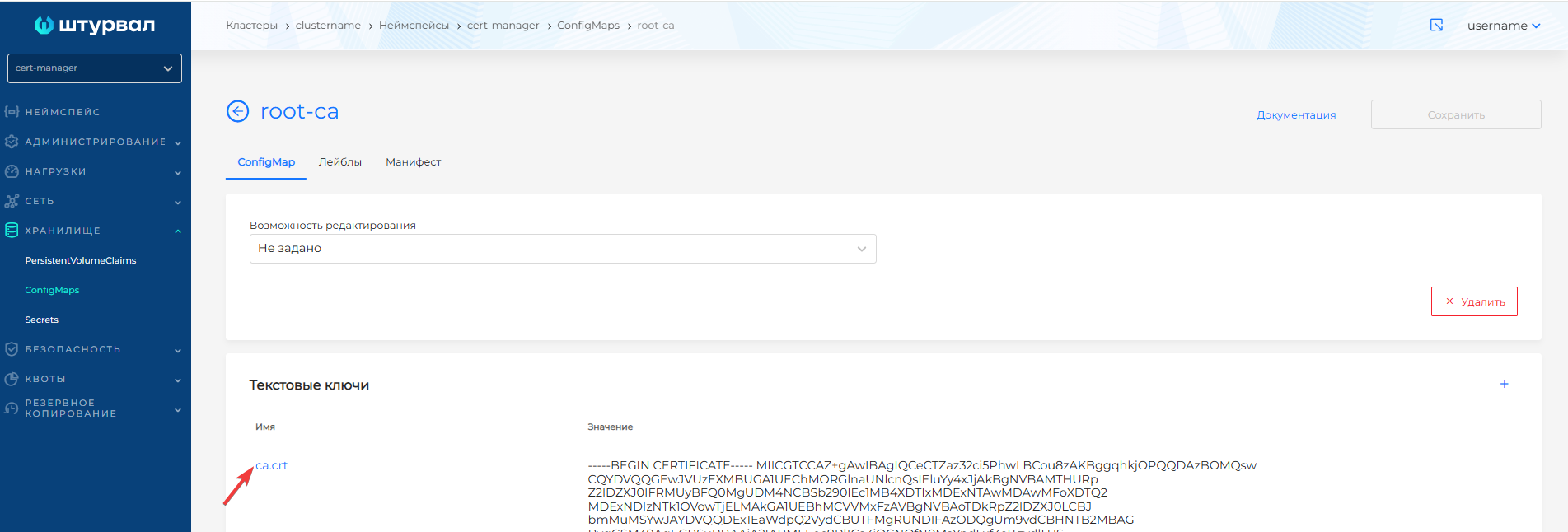
cert-manager. In the Storage section, find the Configmap namedroot-ca. On theroot-capage, change the value of theca.crtkey. The value must include your corporate certificate.
Screenshot
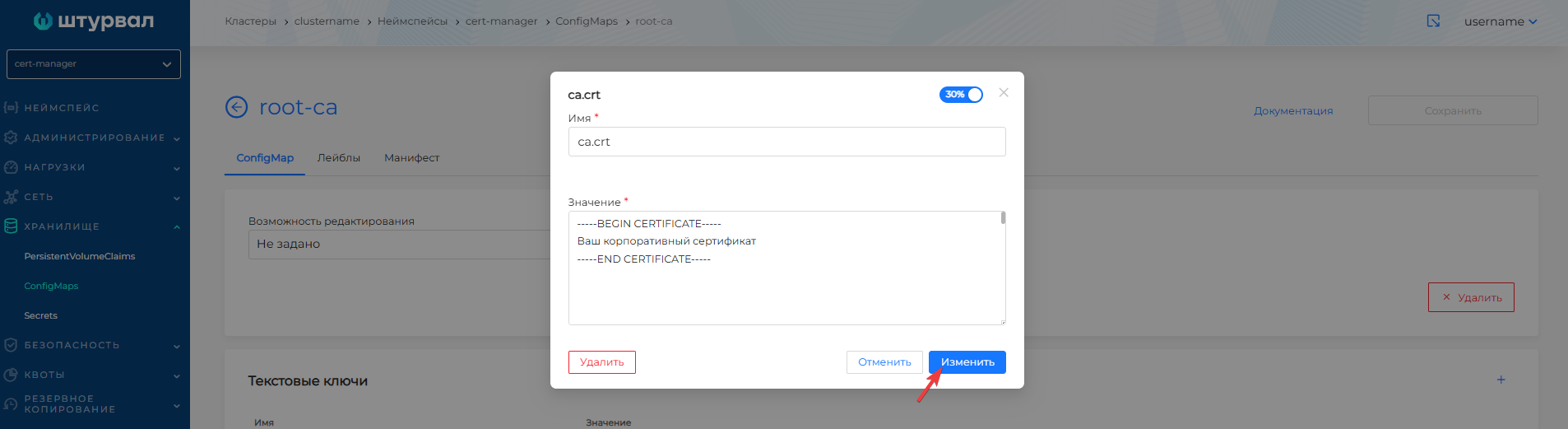
Save changes to Configmap root-ca.
- In the namespace
ingress, go to the Storage section, open the Secrets page and create a secret with the namecorp-tls, select the typekubernetes.io/tls.
Screenshot

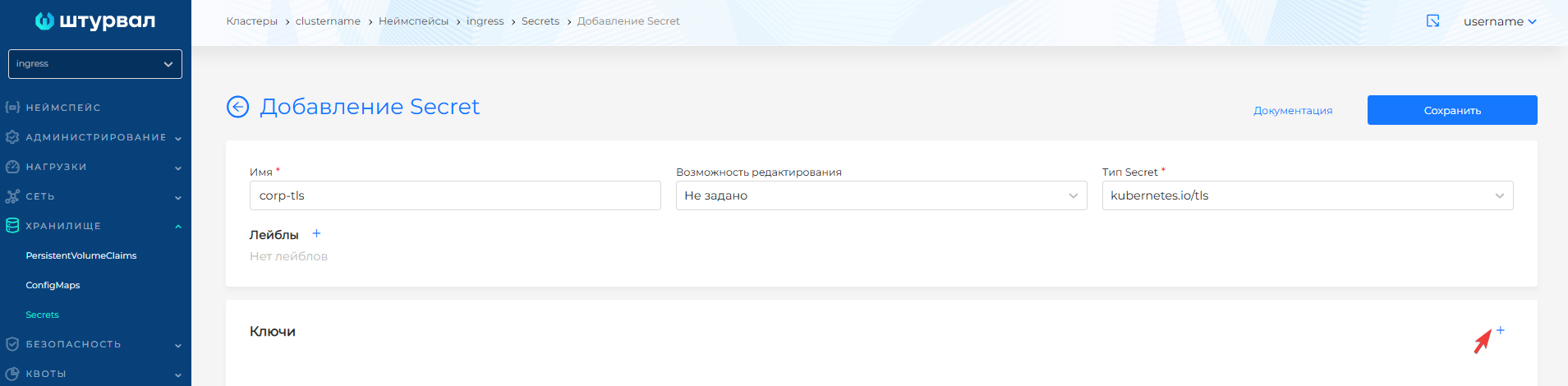
Placing the certificate as a secret
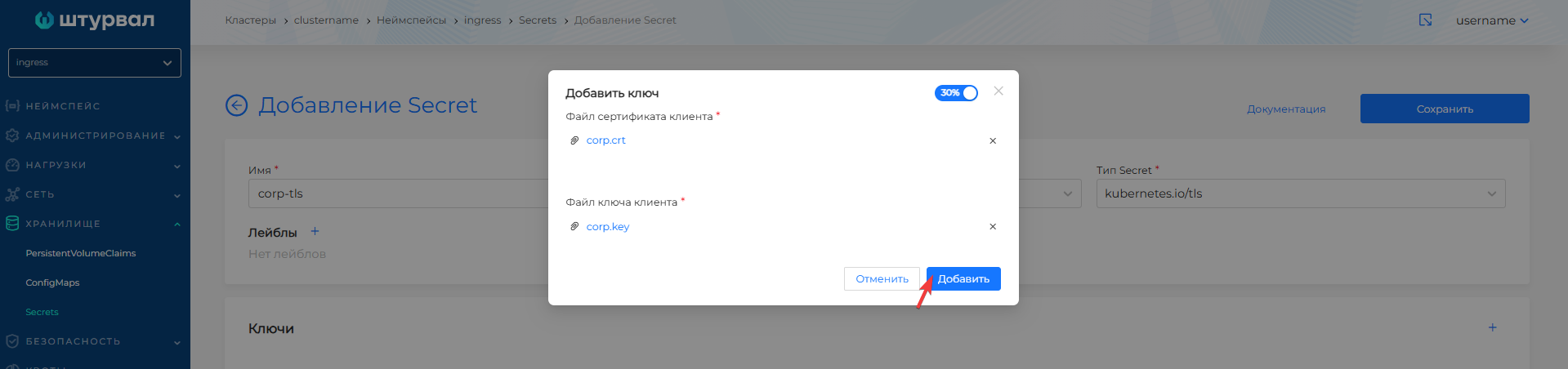
Add the corporate certificate and corporate certificate key to the Secret corp-tls key.
Screenshot
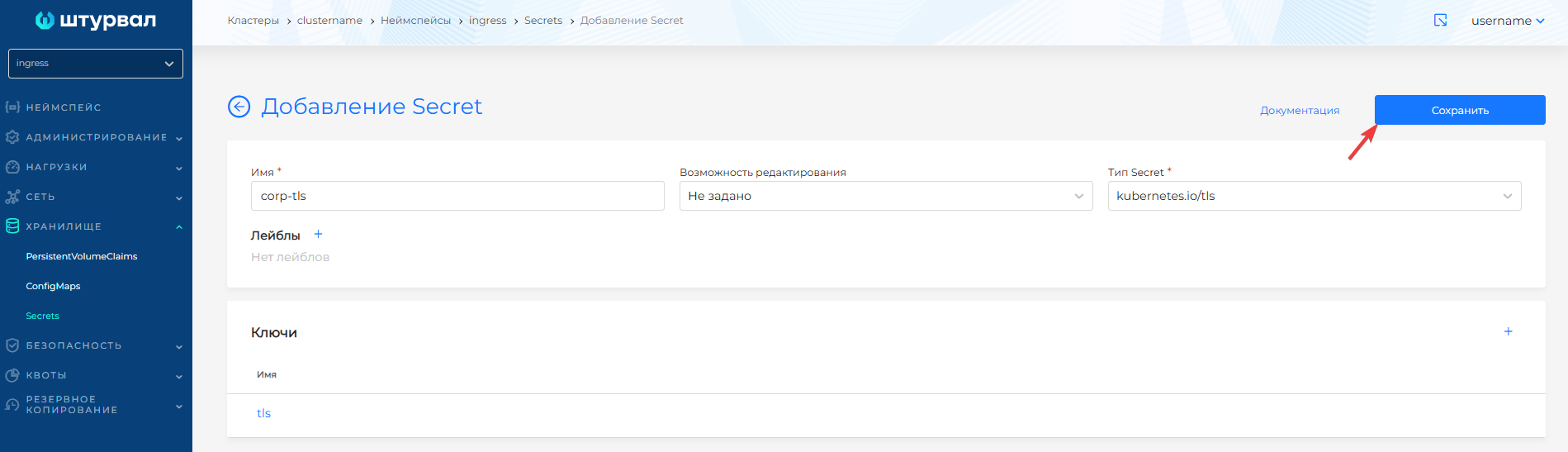
Save Secret corp-tls.
Adding customvalues to ingress-controller
To make changes to the customvalues of the External Connection Control Module (shturval-ingress-controller), use the ShturvalServicePatch (PatchSSC) object:
- Prepare a ShturvalServicePatch manifest with the required parameter in customvalues, as in the example below.
ShturvalServicePatch
apiVersion: ops.shturval.tech/v1beta2
kind: ShturvalServicePatch
metadata:
  name: <resource name>
spec:
  shturvalServiceConfigName: shturval-ingress-controller
  customvalues:
    controller:
      extraArgs:
        default-ssl-certificate: "ingress/corp-tls"
| Parameter | Description | Data type | Example |
|---|---|---|---|
metadata.name | Name of the created PatchSSC | string | shturval-ingress-controller-cert |
- In the GUI, using manifest import, upload ShturvalServicePatch to the cluster:
- Click on the manifest import icon located to the left of the user name. Upload the file with the prepared manifest ShturvalServicePatch for shturval-ingress-controller or drag the manifest into the window that opens. Verify and click Download.
Screenshot

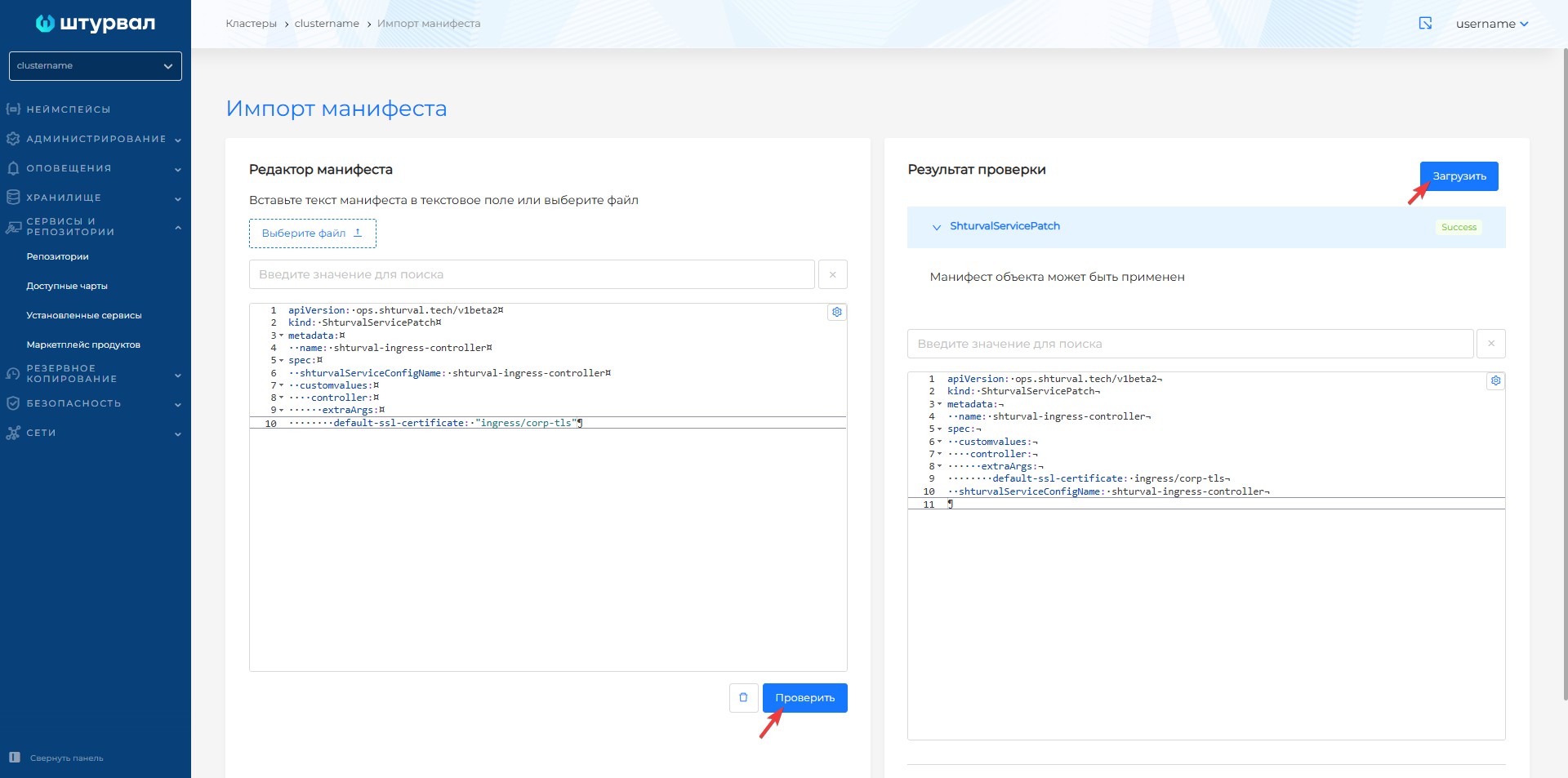
- In the cluster, go to the Services and repositories section to the Installed services page, find the External connection management module (
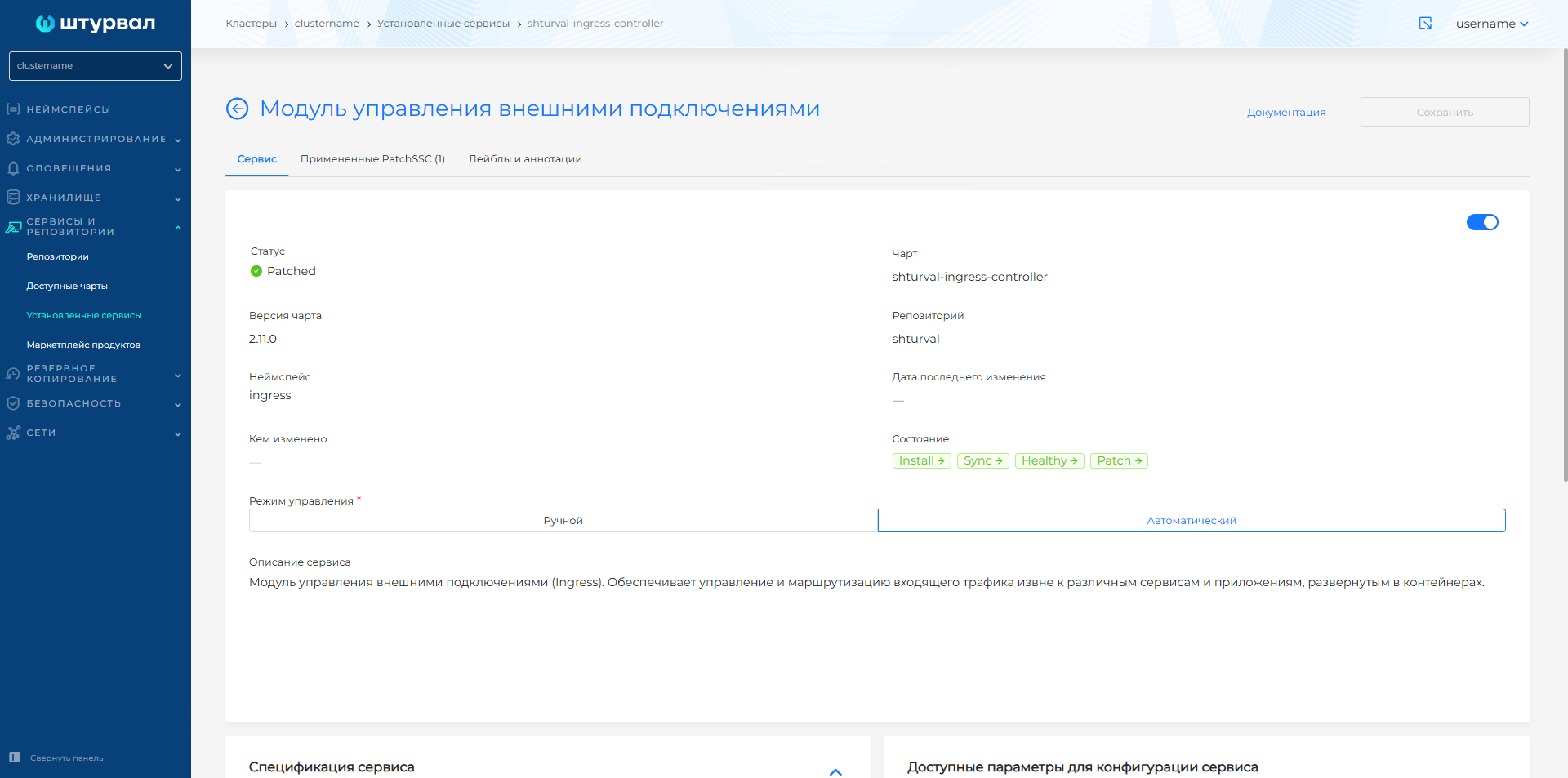
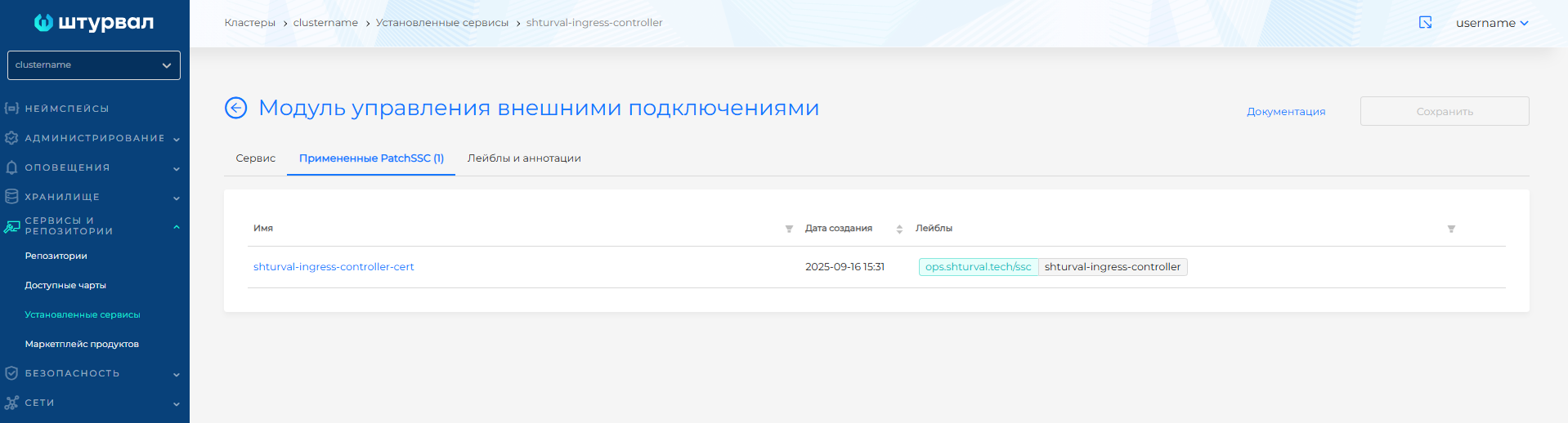
shturval-ingress-controller) and go to management. The Applied PatchSSC tab will display the loaded ShturvalServicePatch. When ShturvalServicePatch is applied, the status on the Service tab will be Patched.
Screenshot