Intermediate and ACME certificates
Before proceeding with adding a certificate to the cluster, review the procedure on the How to add a certificate page.
Script for adding to a cluster
- Create certificate.
- Place the created certificate in the namespace secret cert-manager (only for intermediate certificate).
- Configure ClusterIssuer.
- Update root certificate (CA-bundle).
- Update certificate settings in system services.
To generate an intermediate or ACME certificate for an existing infrastructure, it is suggested to use Step. Step represents the certificate authorityations (CA) for automated management of X.509 certificates.
Please note! If an ACME certificate is added to the cluster, you need to monitor the operation of the ACME server. In the event of a server failure, clusters with ACME certificates will be unavailable.
Create a certificate
Intermediate certificate
If you have an Intermediate CA certificate signed by a Corporate Certificate Authority (CA), then proceed to step 3 of the instructions.
- With Step installed, generate a certificate signing request (CSR) and generate an intermediate certificate key using the
step certificate createcommand.
Command
step certificate create "Intermediate CA Name" intermediate-ca.csr intermediate-ca.key --csr
- Obtain a signed intermediate certificate (
intermediate-ca.crt) in PEM format by sending the generatedintermediate-ca.csrsignature request to the administrator of the Certificate Authority (CA). - Once the signed intermediate certificate (intermediate-ca.crt) is received, create a certificate chain (intermediate CA certificate -> root CA) in PEM format, for example named
intermediate-ca-chain.crt.
Command
cat intermediate-ca.crt root-ca.crt >intermediate-ca-chain.crt
Where is intermediate-ca.crt is an intermediate certificate, root-ca.crt is a corporate root CA certificate.
Next you need:
- create a secret
corp-intermediate-cacontaining a chain of certificates and a key; - specify in ClusterIssuer
oauth-ca-issuerthe data of the created secret.
- In the cluster, go to namespace
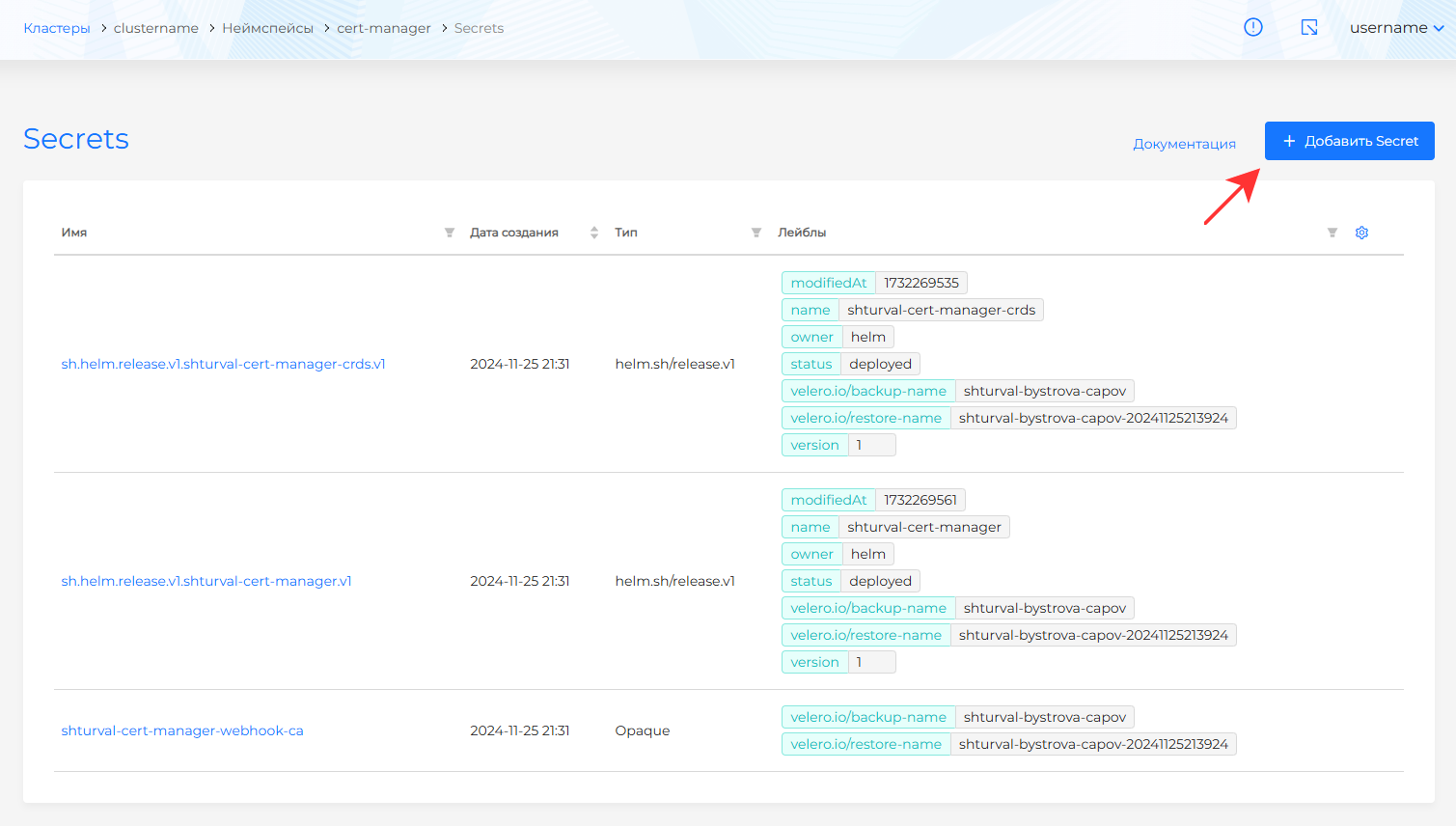
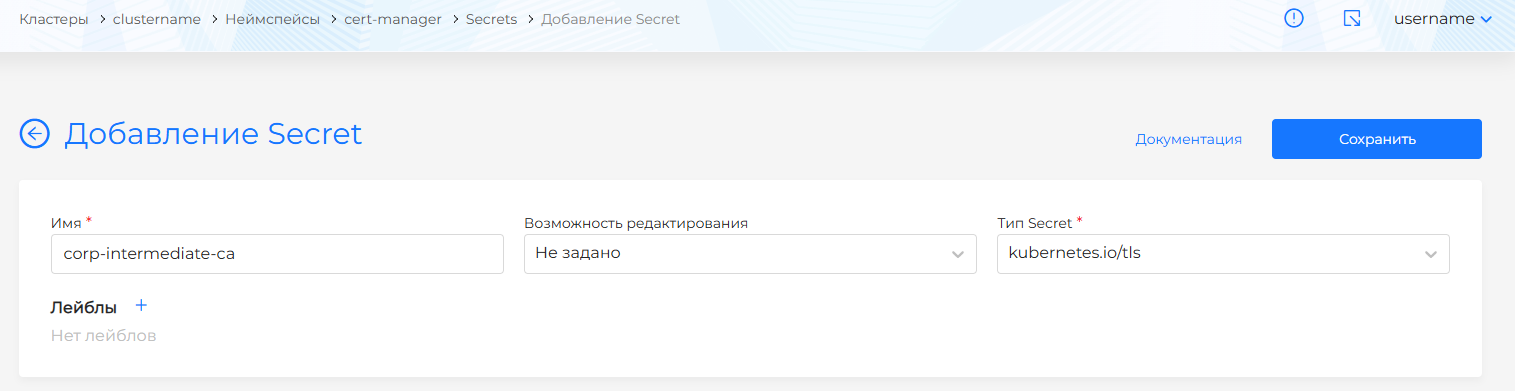
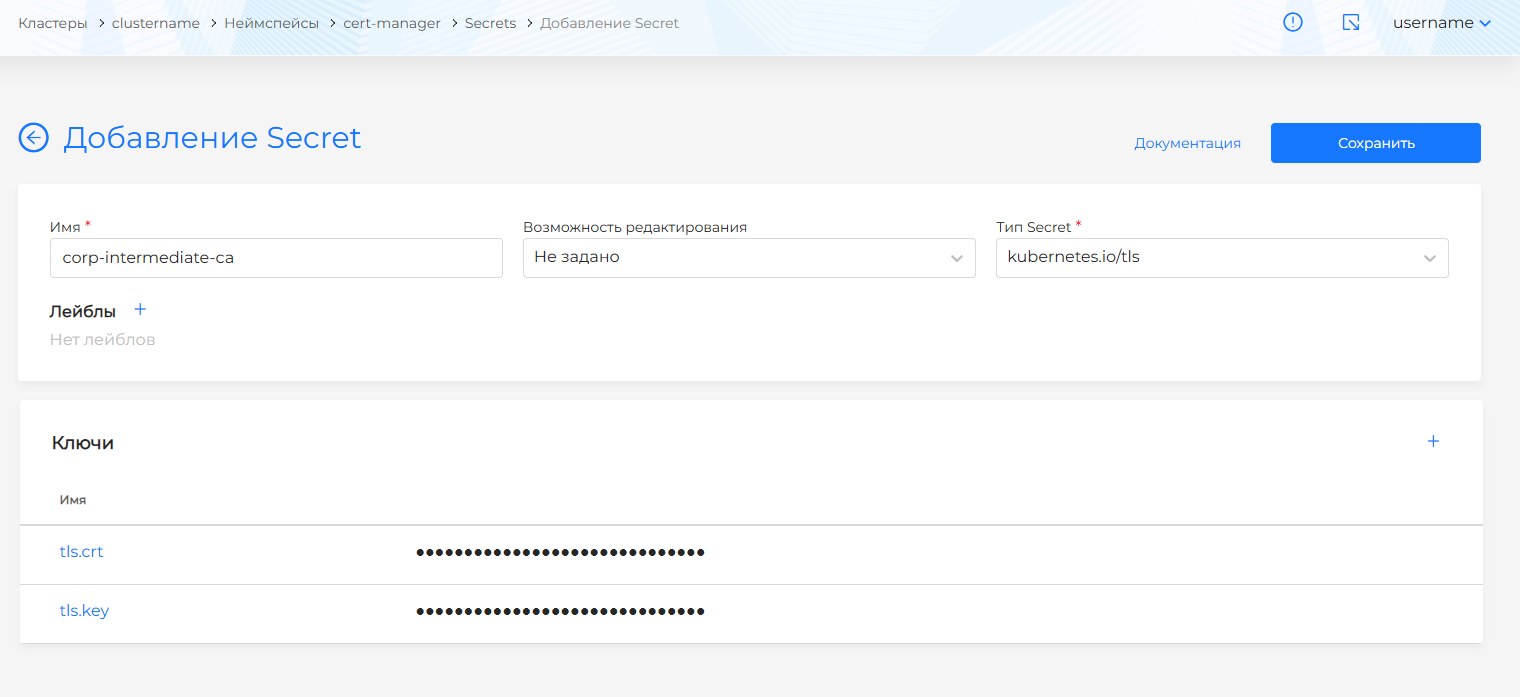
cert-manager, open the Secrets page of the Storage section and create a secret with the namecorp-intermediate-ca, select the typekubernetes.io/tls.
Screenshot
- Add
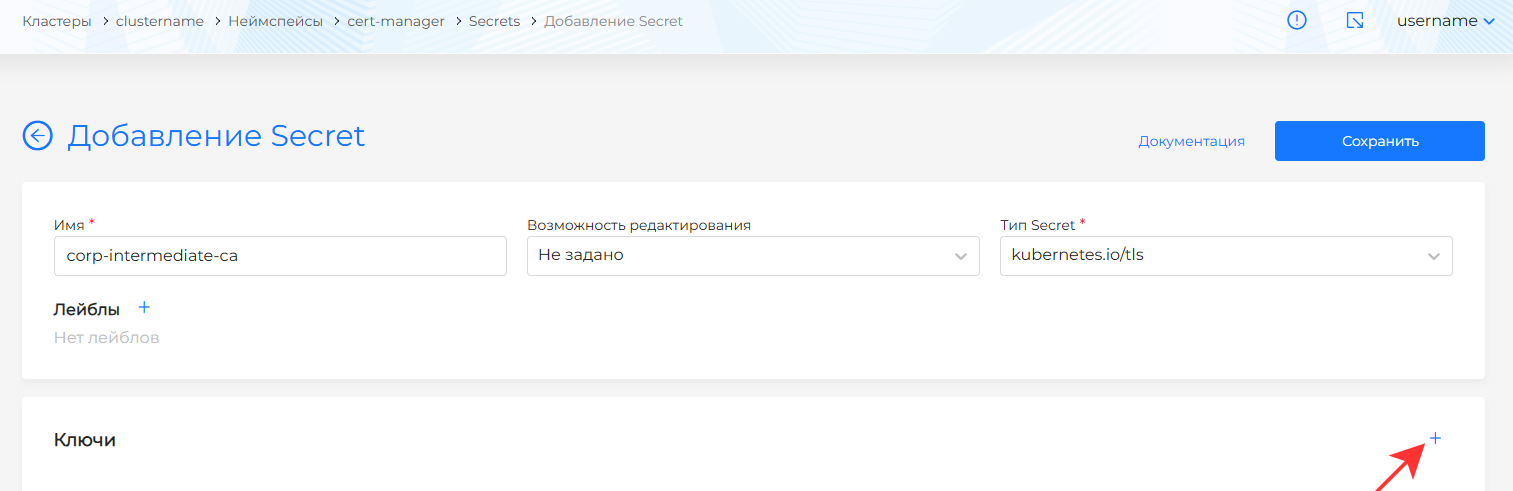
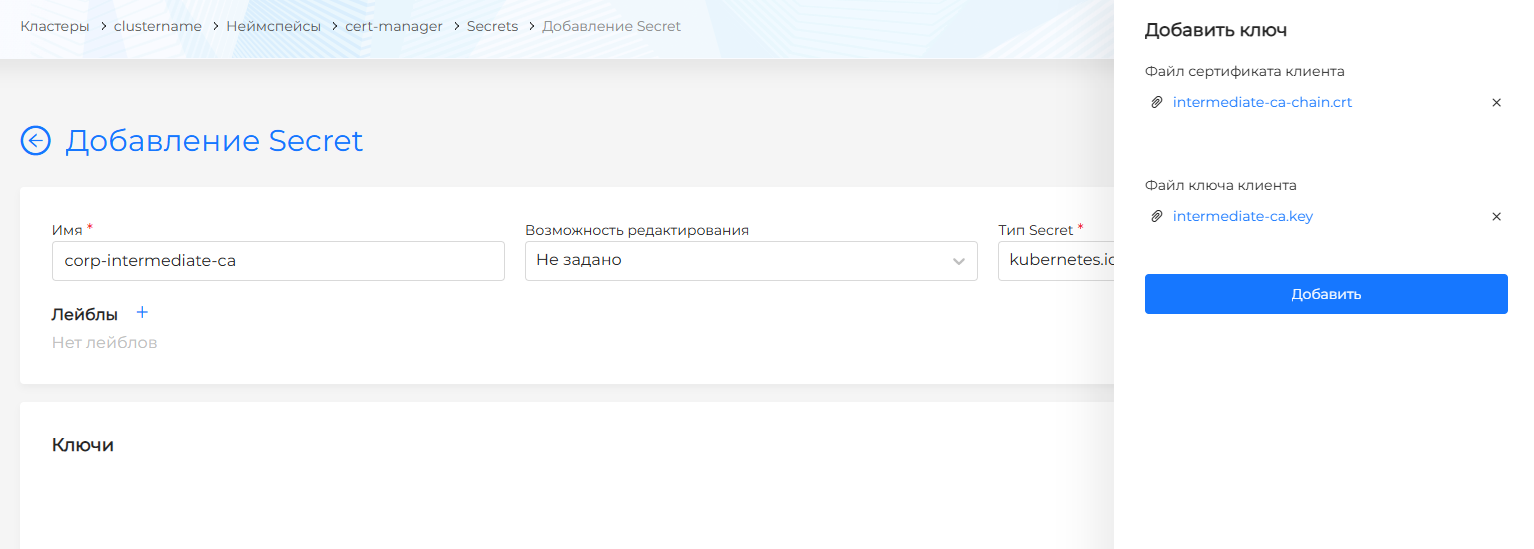
intermediate-ca-chain.crtandintermediate-ca.keyto the Secretcorp-intermediate-cakeys.
Screenshot
ACME Certified
ACME Certificate in Kubernetes automates the process of obtaining SSL certificates. To configure automatic issuance of certificates through the ACME server, you must:
- obtain the root CA certificate that the ACME server uses and encode its data;
- add a ClusterIssuer containing the root CA certificate from ACME to the cluster;
When your organization has an ACME server, request a root CA certificate from the ACME server administrator and go to the instructions section Installing the ACME root CA certificate in the cluster.
If there is no ACME server, you can install a step-ca server to obtain a root CA certificate. Using a certificate from step-ca in the root CA platform will ensure that all certificates issued by the certificate from step-ca are trusted.
Root CA certificate from step-ca
You can install step-ca in several ways. The instructions provide an example of installation using a docker container. If necessary, select a different installation method from official documentation.
- Create a directory in which the step-ca configuration and certificates will be stored.
Command
mkdir data
chown 1000:1000 data
- Create a YAML file
docker-compose.yaml.
Example
In the DOCKER_STEPCA_INIT_DNS_NAMES parameter, specify the DNS name by which the server responds.
services:
  step-ca:
    container_name: step-ca
    image: smallstep/step-ca:0.27.2
    restart: always
    ports:
        - "9443:9000"
    environment:
       DOCKER_STEPCA_INIT_DNS_NAMES: issuer.ip-XX-XX-XXX-XX.shturval.link # the hostname(s) or IPs that the CA will accept requests on
       DOCKER_STEPCA_INIT_NAME: shturval # the name of your CA—this will be the issuer of your CA certificates
       DOCKER_STEPCA_INIT_REMOTE_MANAGEMENT: true # enable remote provisioner management
       DOCKER_STEPCA_INIT_ACME: true # also create an initial ACME provisioner for the CA
       # DOCKER_STEPCA_INIT_PROVISIONER_NAME: admin # a label for the initial admin (JWK) provisioner.
       # DOCKER_STEPCA_INIT_SSH: "" # set this to a non-empty value to enable SSH certificate support
       # DOCKER_STEPCA_INIT_PASSWORD_FILE: "" #  the location of a password file to be used for both private keys and the default CA provisioner.
       # DOCKER_STEPCA_INIT_PASSWORD: shturval #Normally, CA passwords will be generated for you. With this option, you can specify a password for the encrypted CA keys and the default CA provisioner.
    volumes:
        - ./data:/home/step # 1000:1000
    logging:
      driver: "json-file"
      options:
        max-size: "200m"
- Start step-ca server.
Command
# Start the step-ca server
docker compose up -d
# Verify the server is running
docker compose ps
If docker (container) is in UP state, then the step-ca server is ready to issue certificates.
- When step-ca is deployed, you will receive the root CA certificate of the step-ca server.
Command
cat data/certs/root_ca.crt
Example answer
The response contains the root CA certificate-----BEGIN CERTIFICATE-----
MIIBoDCCAUagAwIBAgIRAJV9+1S0q+d9+V/UmBXhR+4wCgYIKoZIzj0EAwIwLjER
MA8GA1UEChMIc2h0dXJ2YWwxGTAXBgNVBAMTEHNodHVydmFsIFJvb3QgQ0EwHhcN
MjQxMTIyMTUyMzQ5WhcNMzQxMTIwMTUyMzQ5WjAuMREwDwYDVQQKEwhzaHR1cnZh
bDEZMBcGA1UEAxMQc2h0dXJ2YWwgUm9vdCBDQTBZMBMGByqGSM49AgEGCCqGSM49
AwEHA0IABNhNCtkBTfs+HXA6h1Ty8Qlg+zKQNu
-----END CERTIFICATE-----
Setting up ClusterIssuer
Intermediate certificate
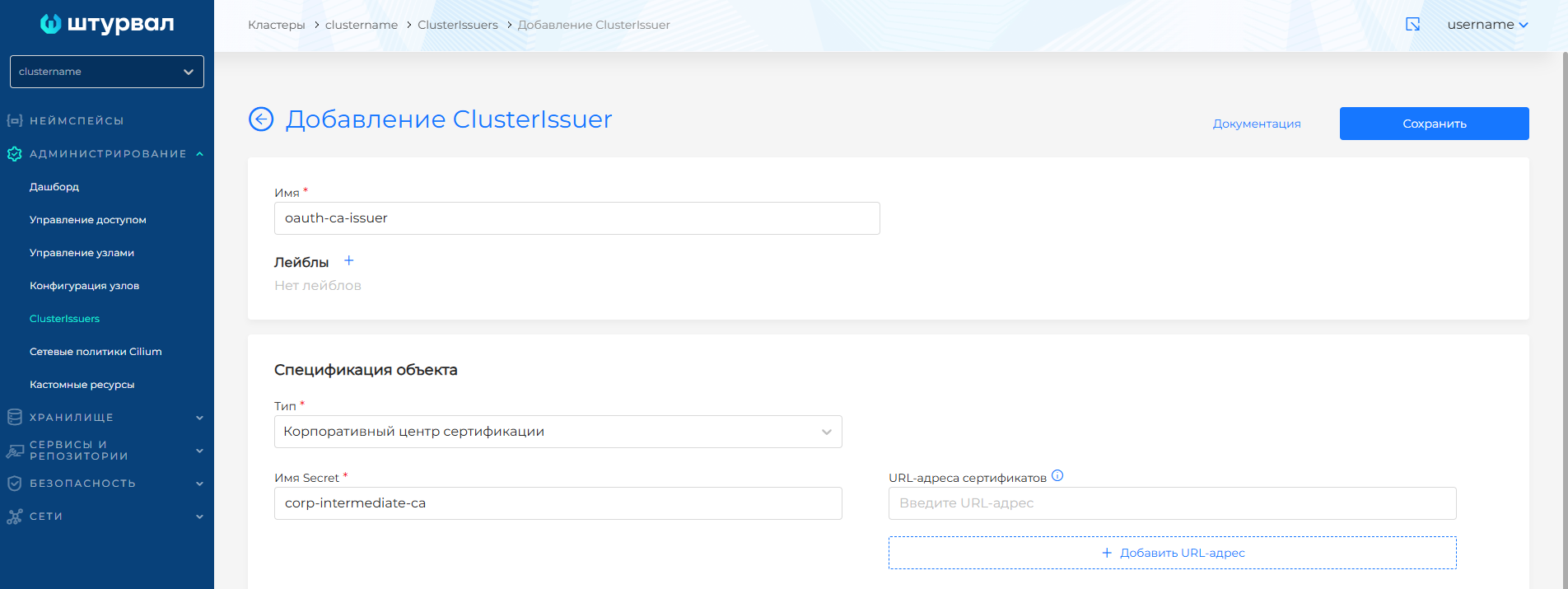
In the cluster, go to the Administration section on the ClusterIssuers page and create an object specifying the corporate certificate type and the secret name corp-intermediate-ca:
ClusterIssuer Example
ACME Certified
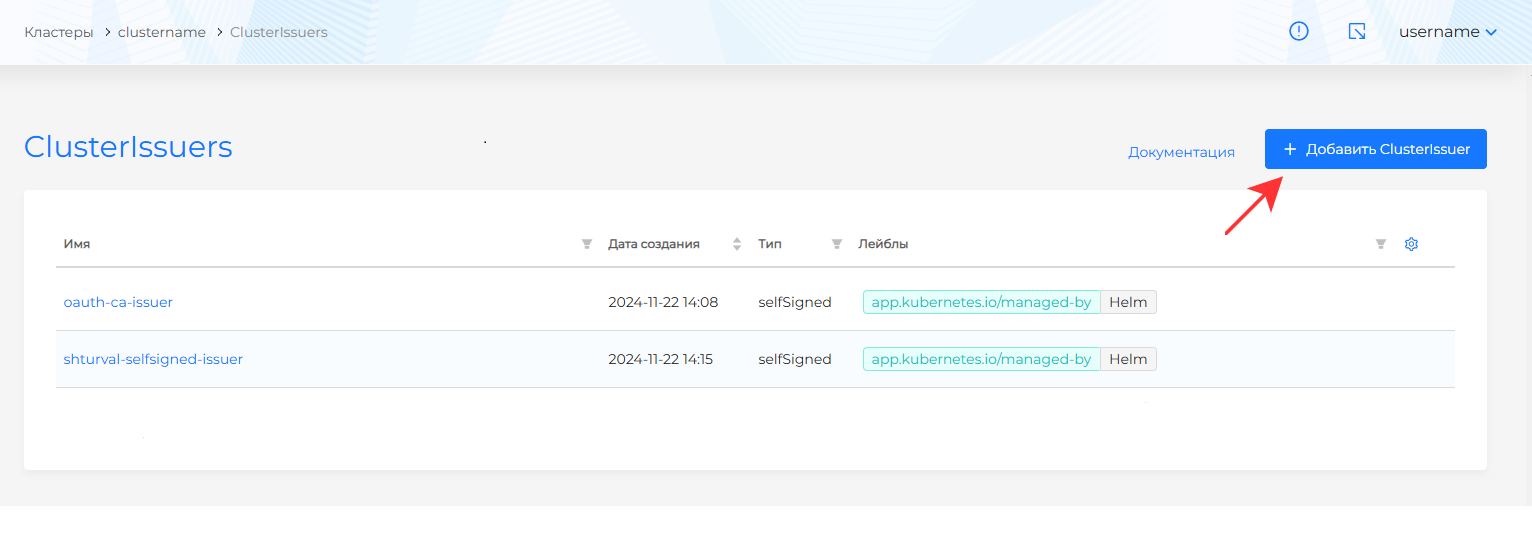
Please note! If you are installing a certificate in a management cluster, follow all the steps described in the instructions. When installing into a client cluster, follow steps 1-2 of the instructions below.
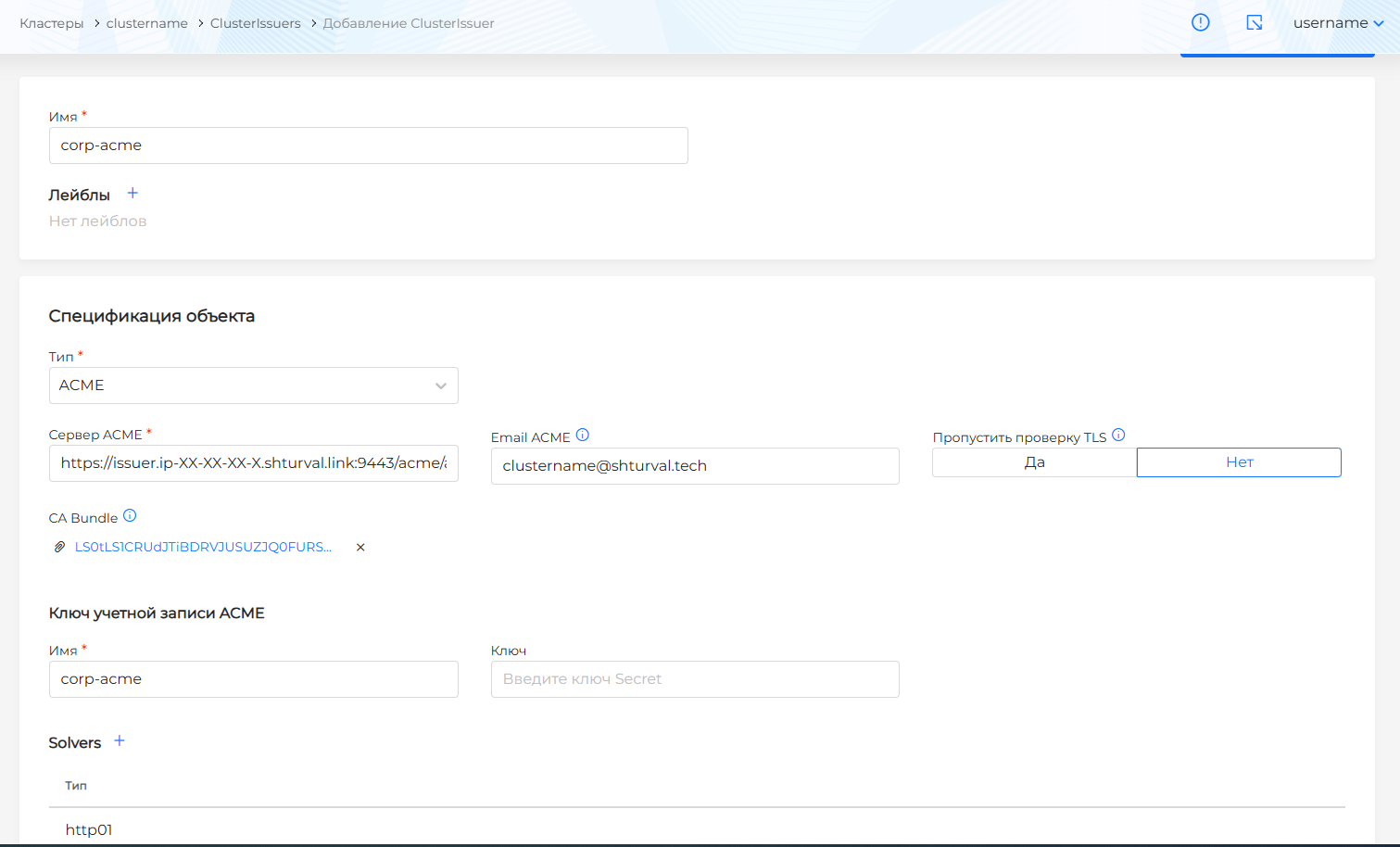
- In the cluster, go to the ClusterIssuers page of the Administration section. Create a ClusterIssuer, for example, named
corp-acme.
Screenshot
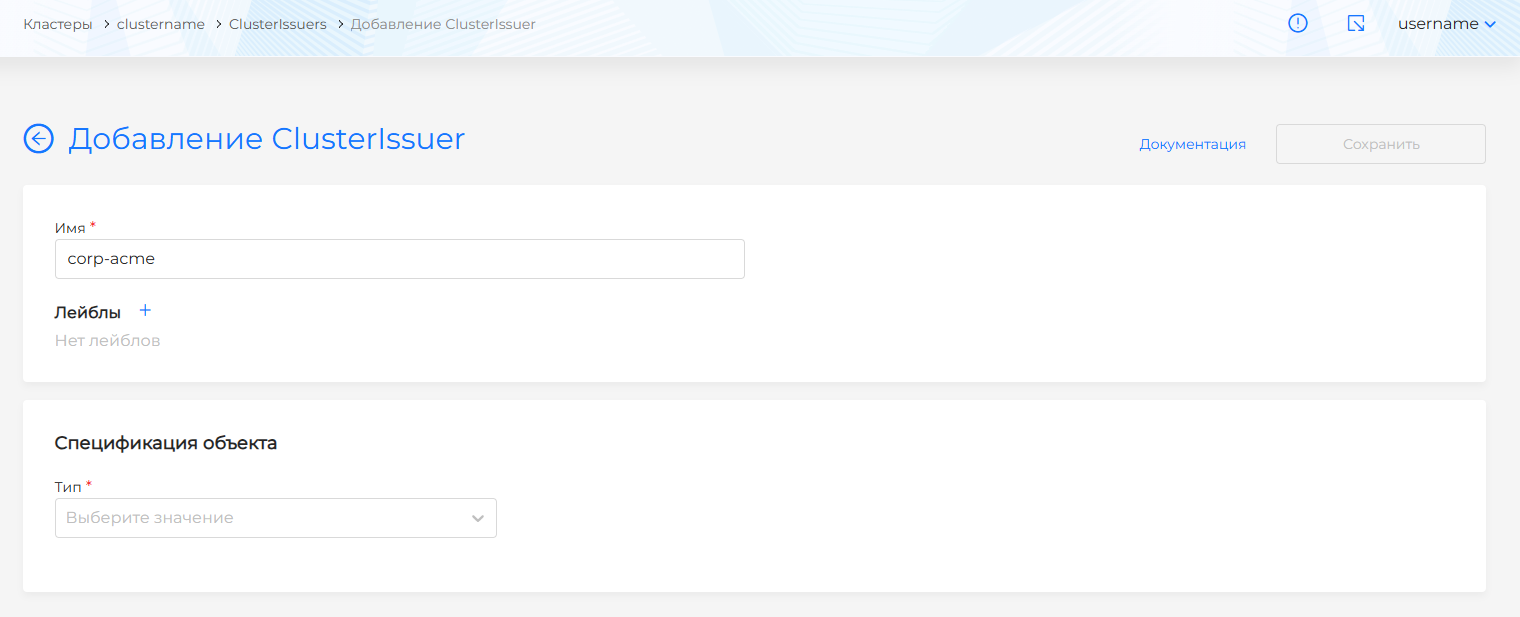
- In the Object specification block:
- select ACME type;
- fill in the ACME server address;
- VCA Bundle download the root CA certificate from the ACME server;
- in the Account Key block, specify the name of the secret in which the key will be automatically saved;
- add solver with type
http01and nginx toClassIngress.
Example corp-acme
apiVersion: cert-manager.io/v1
kind: ClusterIssuer
metadata:
  name: corp-acme
spec:
  acme:
    caBundle: LS0tLS1CRUdJTiBDRVJUSUZJQ0FURS0tLS0tCk1JSUJvRENDQVVhZ0F3SUJBZ0lSQUpWOSsxUzBxK2Q5K1YvVW1CWGhSKzR3Q2dZSUtvWkl6ajBFQXdJd0xqRVIKTUE4R0ExVUVDaE1JYzJoMGRYSjJZV3d4R1RBWEJnTlZCQU1URUhOb2RIVnlkbUZzSUZKdmIzUWdRMEV3SGhjTgpNalF4TVRJeU1UVXlNelE1V2hjTk16UXhNVEl3TVRVeU16UTVXakF1TVJFd0R3WURWUVFLRXdoemFIUjFjblpoCmJERVpNQmNHQTFVRUF4TVFjMmgwZFhKM
    email: test-cluster@shturval.tech
    privateKeySecretRef:
      name: corp-acme
    server: https://issuer.ip-XX-XX-XX-XX.shturval.link:9443/acme/acme/directory
    solvers:
    - http01:
        ingress:
          class: nginx
Screenshot
Updating the root certificate
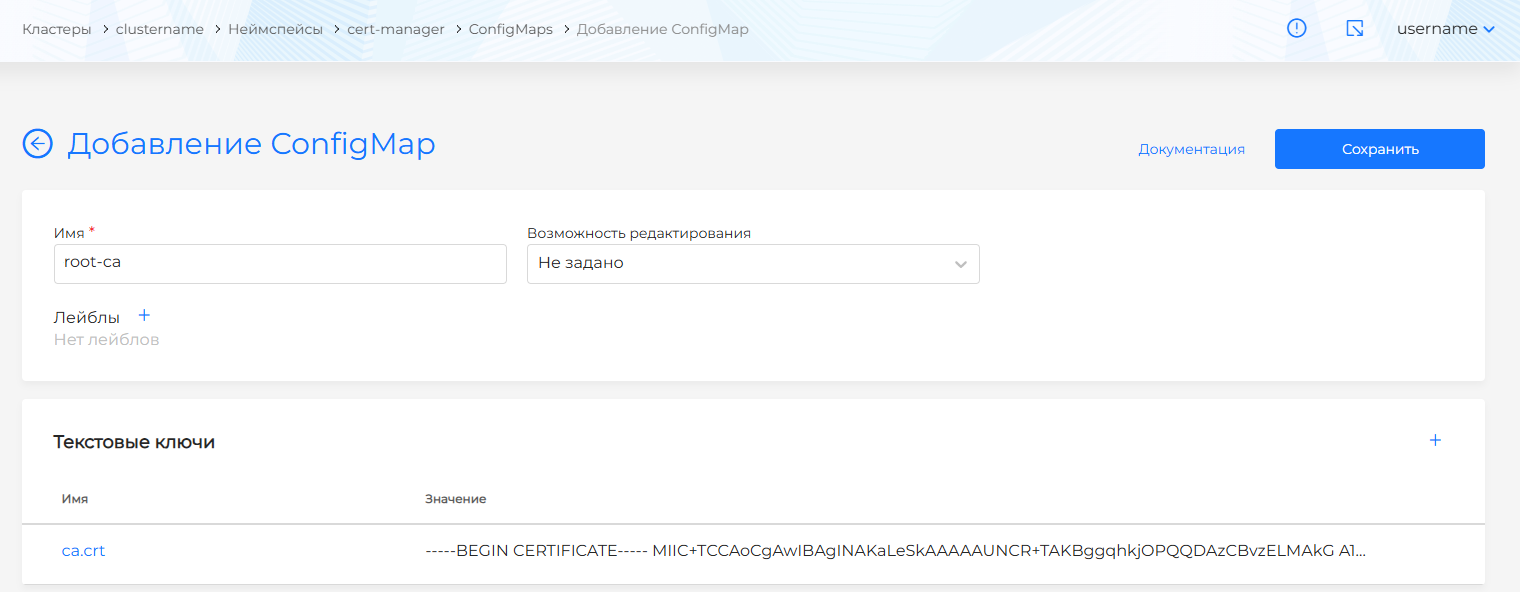
In the cluster, go to namespace cert-manager. In the “Storage” section, find the Configmap named root-ca:
- If there is a Configmap with the name
root-ca, go to the view page and in the Text keys block, replace the value of the ca.crt key with the certificate data (corporate or ACME acme-ca.crt). - If there is no such Configmap, then create a Configmap with the name
root-ca. Add a key in the Text keys block, specify the certificate data (corporate or ACME acme-ca.crt) in the value.
Screenshot
Once you have updated the root certificate, configure certificates in system services.