Adding to system services
If you change certificates (to intermediate, ACME, Let’s Encrypt) in the management cluster, an update is always required:
- “Platform software control module” (
shturval-backend); - “Platform graphic control module” (
shturval-frontend); - “Authentication management module” (
shturval-auth).
When services such as ArgoCD, Grafana are running in the cluster, then when adding an intermediate or ACME certificate to the cluster, customvalues must be configured in these system services (shturvalserviceconfigs). This will ensure that authorization works correctly when switching to services from the cluster.
For management cluster
Backend, Frontend, Auth
- Prepare resource manifests ShturvalServicePatch for application to specifications (ssc) ModuleI software management of the Platform (
shturval-backend), Graphical management module of the Platform (shturval-frontend), Authentication management module (shturval-auth). In thecustomvaluesblock, add parameters as in the examples below.
Example ShturvalServicePatch for backend
apiVersion: ops.shturval.tech/v1beta2
kind: ShturvalServicePatch
metadata:
  name: <resource name>
spec:
  shturvalServiceConfigName: shturval-backend
  customvalues:
    tls:
      enabled: true
      backend_tls_secretname: <your parameter value>
      cluster_issuer_name: <your parameter value>
| Parameter | Description | Data type | Example |
|---|---|---|---|
metadata.name | Name of the created PatchSSC | string | shturval-backend-cert |
backend_tls_secretname | Secret name for establishing a TLS connection | string | shturval-tls |
cluster_issuer_name | Name of the created ClusterIssuer | string | corp-acme |
Example ShturvalServicePatch for frontend
apiVersion: ops.shturval.tech/v1beta2
kind: ShturvalServicePatch
metadata:
  name: <resource name>
spec:
  shturvalServiceConfigName: shturval-frontend
  customvalues:
    tls:
      enabled: true
      front_tls_secretname: <your parameter value>
      docs_tls_secretname: <your parameter value>
      cluster_issuer_name: <your parameter value>
| Parameter | Description | Data type | Example |
|---|---|---|---|
metadata.name | Name of the created PatchSSC | string | shturval-frontend-cert |
front_tls_secretname | Secret name for establishing a TLS connection | string | shturval-tls |
docs_tls_secretname | Secret name for docs | string | docs-tls |
cluster_issuer_name | Name of the created ClusterIssuer | string | corp-acme |
Example ShturvalServicePatch for auth
apiVersion: ops.shturval.tech/v1beta2
kind: ShturvalServicePatch
metadata:
  name: <resource name>
spec:
  shturvalServiceConfigName: shturval-auth
  customvalues:
    tls:
      enabled: true
      auth_tls_secretname: <your parameter value>
      cluster_issuer_name: <your parameter value>
| Parameter | Description | Data type | Example |
|---|---|---|---|
metadata.name | Name of the created PatchSSC | string | shturval-auth-cert |
auth_tls_secretname | Secret name for establishing a TLS connection | string | shturval-tls |
cluster_issuer_name | Name of the created ClusterIssuer | string | corp-acme |
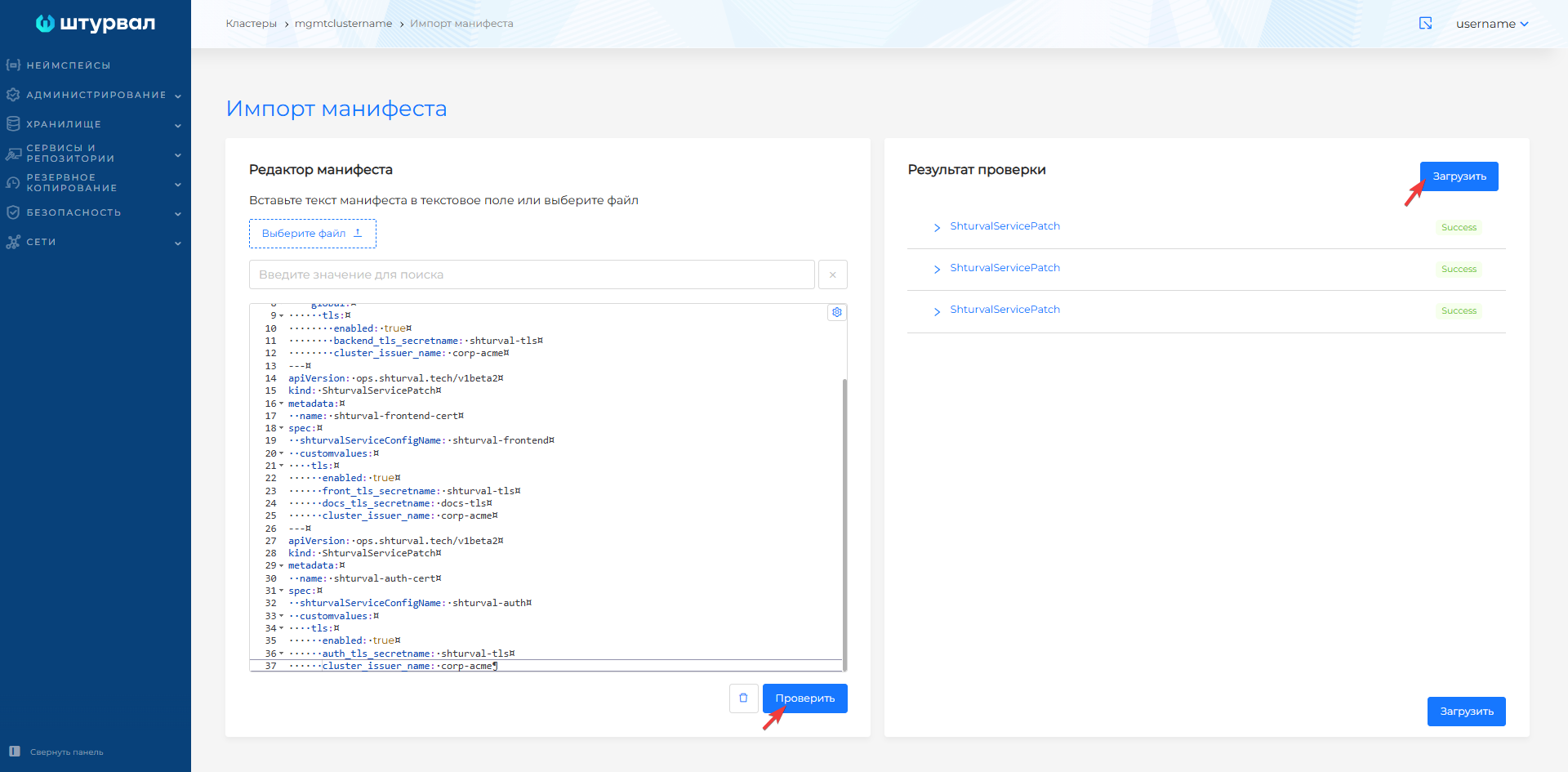
- Load the prepared ShturvalServicePatches using manifest import. To do this:
- Click on the manifest import icon located to the left of the user name. Upload files or drag ShturvalServicePatch manifests into the window that opens. Verify and click Download.
Screenshot

- To view the applied manifests, go to the Services and repositories section and open the Installed services page, go to management:
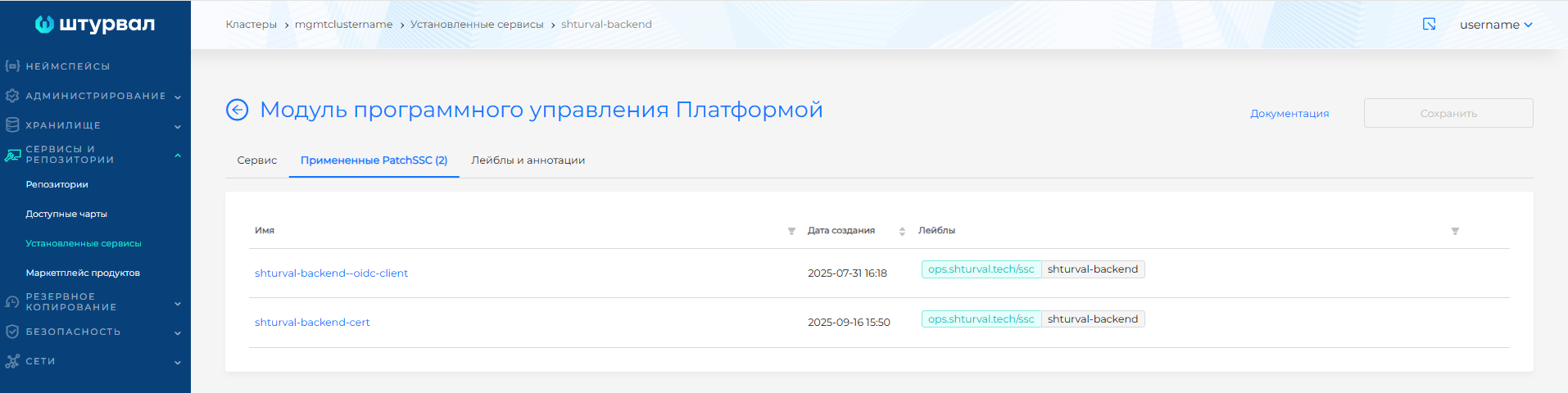
- Platform software control module (
shturval-backend). The Applied PatchSSC tab will display the loaded ShturvalServicePatch.
Screenshot
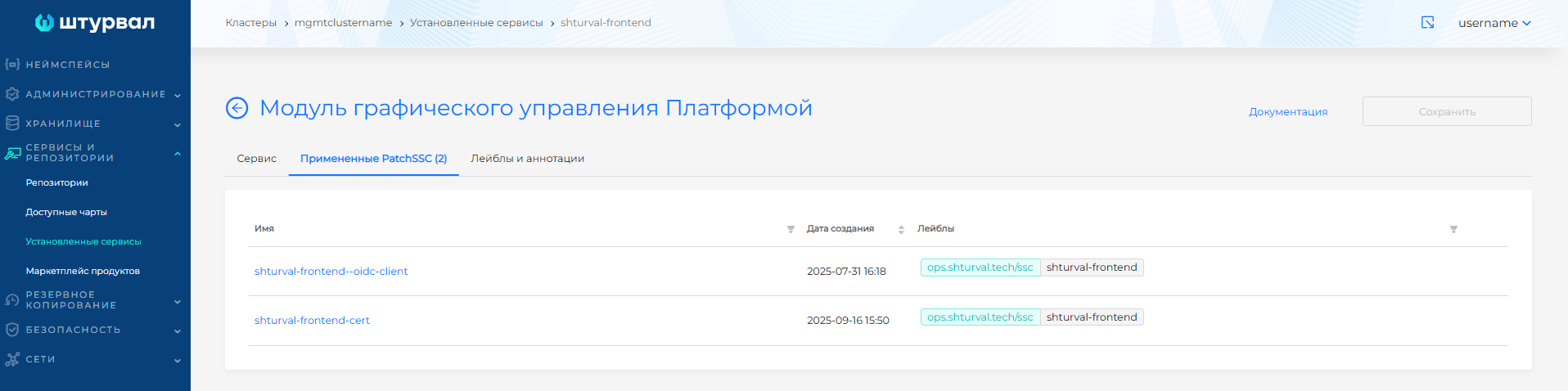
- Platform graphic control module (
shturval-frontend). The Applied PatchSSC tab will display the loaded ShturvalServicePatch.
Screenshot
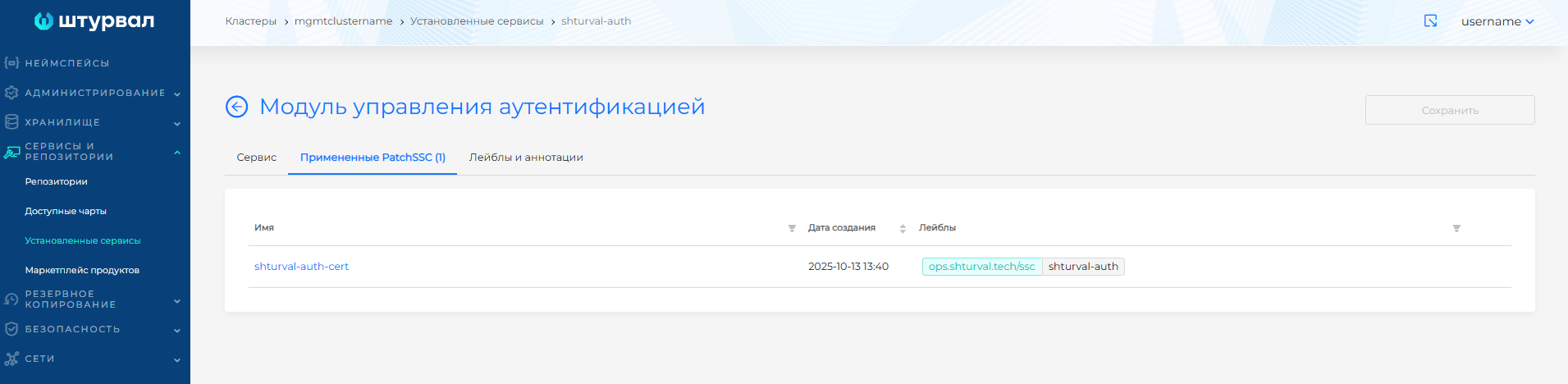
- Authentication management module (
shturval-auth). The Applied PatchSSC tab will display the loaded ShturvalServicePatch.
Screenshot
Grafana
- Prepare a ShturvalServicePatch manifest to apply to the Grafana Metrics Graphics Module (
shturval-dashboards) specification (ssc). Add parameters to thecustomvaluesblock, as in the example given.
Example ShturvalServicePatch for shturval-dashboards
apiVersion: ops.shturval.tech/v1beta2
kind: ShturvalServicePatch
metadata:
  name: <resource name>
spec:
  shturvalServiceConfigName: shturval-dashboards
  customvalues:
    grafana.ini:
      security:
        cookie_secure: true
      auth.generic_oauth:
        tls_skip_verify_insecure: true
    ingress:
      annotations:
        cert-manager.io/cluster-issuer: <your parameter value>
      enabled: true
      tls:
      - hosts:
        - <your parameter value>
        secretName: <your parameter value>
| Parameter | Description | Data type | Example |
|---|---|---|---|
metadata.name | Name of the created PatchSSC | string | shturval-dashboards-cert |
grafana.ini.security.cookie_secure | Configuring Grafana authentication file transfer over HTTPS connection | boolean | true |
grafana.ini.auth.generic_oauth.tls_skip_verify_insecure | Configuring disabling SSL/TLS certificate verification on the authentication service | boolean | true |
annotations.cert-manager.io/cluster-issuer | Annotation with the name of the created ClusterIssuer | string | corp-acme |
tls.hosts | List of hosts for which a TLS connection is established | array | dashboards.clustername.ip-10-11-11-13.shturval.link |
tls.secretName | Secret name for establishing a TLS connection in which the certificate for Grafana will be stored | string | dashboards-ingress-tls |
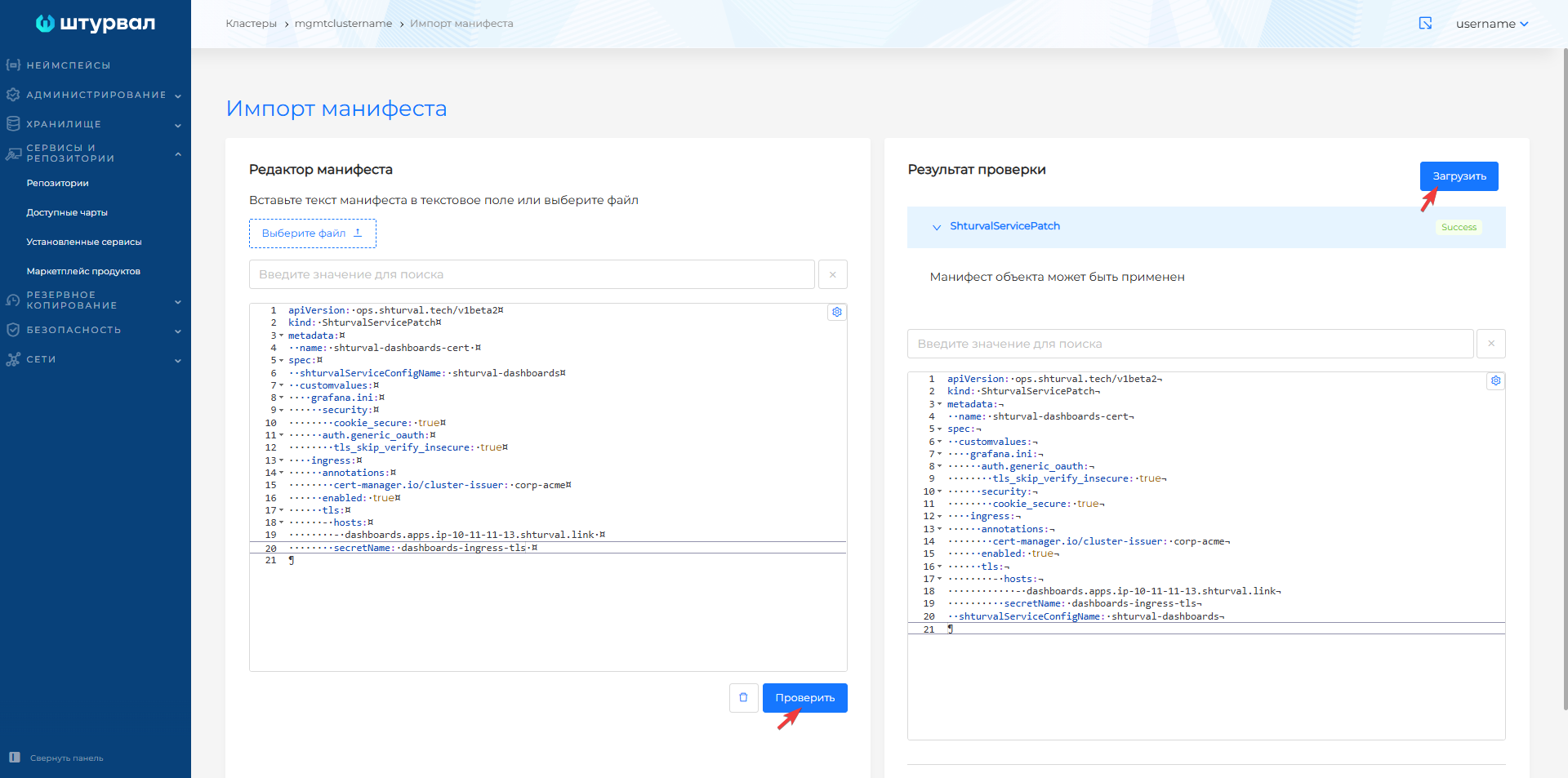
- Upload the prepared ShturvalServicePatch for shturval-dashboards to the management cluster using manifest import. To do this:
- Click on the manifest import icon located to the left of the user name. Upload the file or drag the manifest of the created ShturvalServicePatch into the window that opens. Verify and click Download.
Screenshot
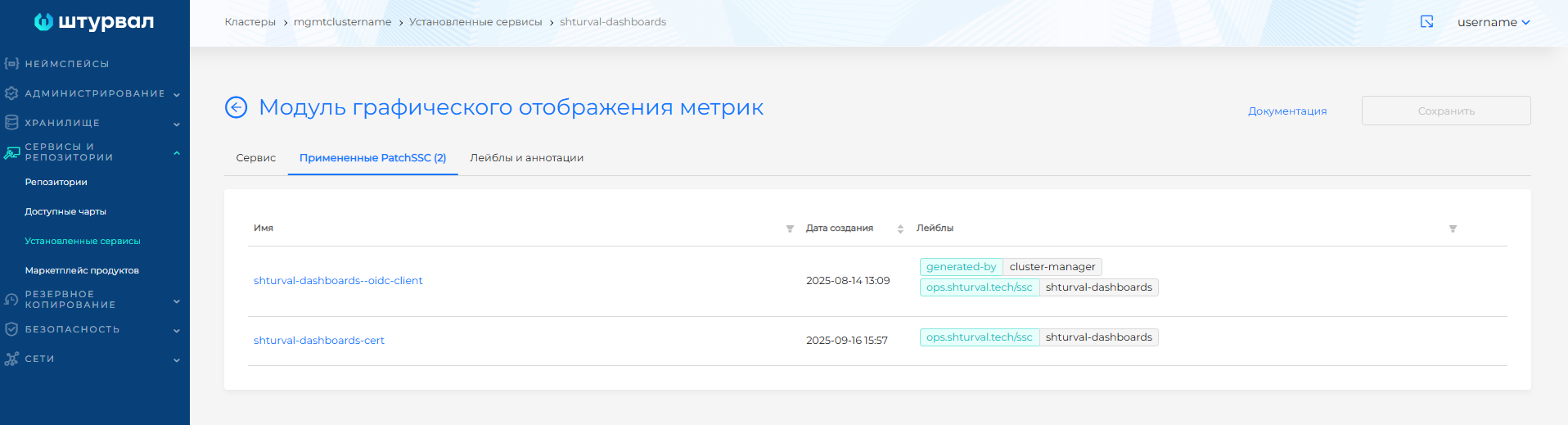
- After downloading the manifest, from the Services and repositories section, open the Installed services page, find Graphical metrics display module (Grafana) (
shturval-dashboards) and go to management. The Applied PatchSSC tab will display the loaded ShturvalServicePatch.
Screenshot
For any cluster type
###ArgoCD
- Prepare a ShturvalServicePatch manifest to apply to the Application Continuous Delivery (ArgoCD) specification (ssc) (
shturval-cd).Add parameters to thecustomvaluesblock, as in the example given.
Example ShturvalServicePatch for shturval-cd
apiVersion: ops.shturval.tech/v1beta2
kind: ShturvalServicePatch
metadata:
  name: <resource name>
spec:
  shturvalServiceConfigName:  shturval-cd
  customvalues:
    server:
      ingress:
        annotations:
          cert-manager.io/cluster-issuer: <your parameter value>
        enabled: true
        hostname: <your parameter value>
        path: /
        pathType: Prefix
        tls: true
| Parameter | Description | Data type | Example |
|---|---|---|---|
metadata.name | Name of the created PatchSSC | string | shturval-cd-cert |
annotations.cert-manager.io/cluster-issuer | Annotation with the name of the created ClusterIssuer | string | corp-acme |
ingress.hostname | Argo CD Server Hostname | string | argocd.clustername.ip-10-11-11-13.shturval.link |
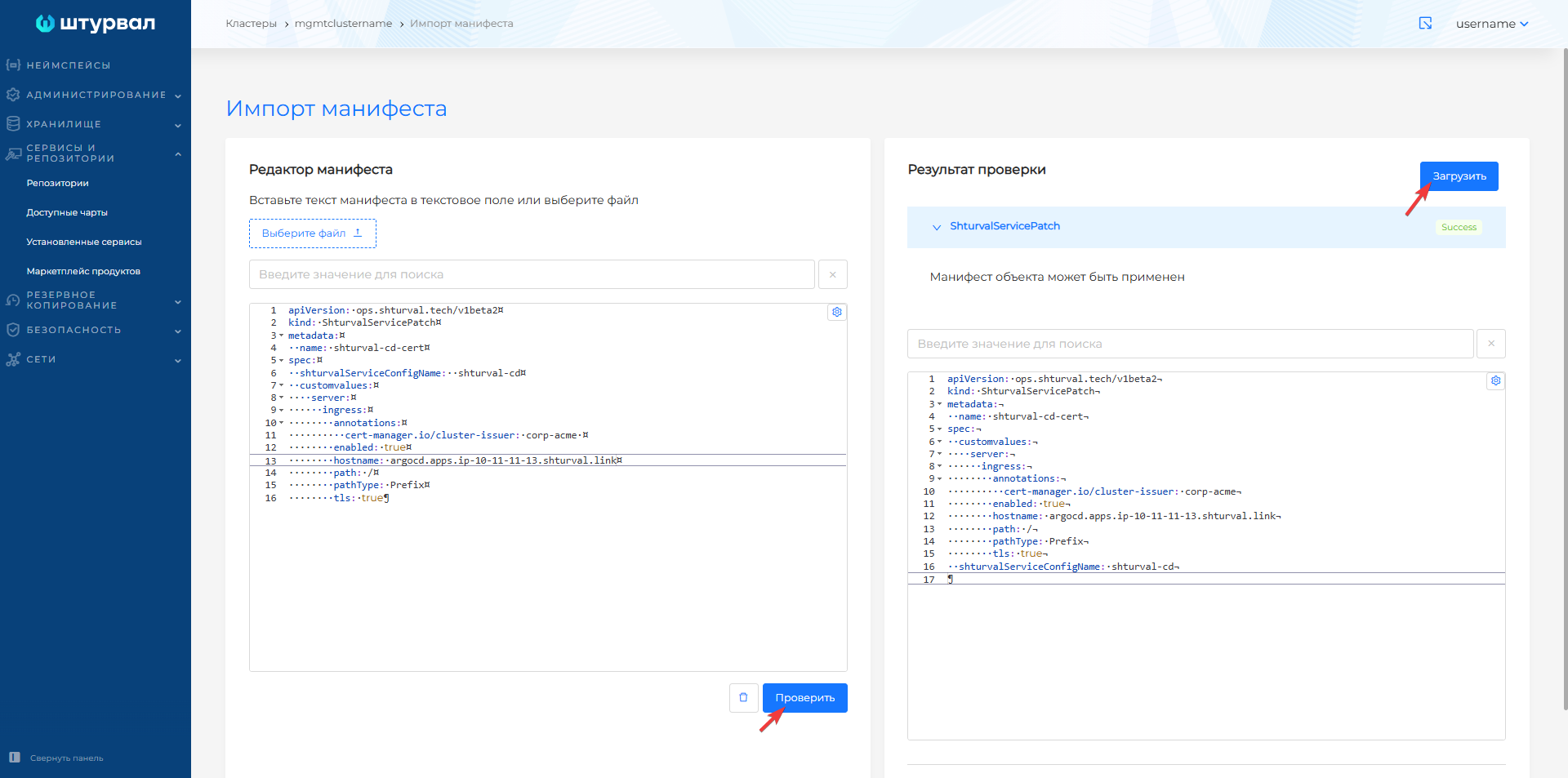
- Upload the prepared ShturvalServicePatch for shturval-dashboards to the cluster using manifest import. To do this:
- Click on the manifest import icon located to the left of the user name. Upload the file or drag the manifest of the created ShturvalServicePatch into the window that opens. Verify and click Download.
Screenshot
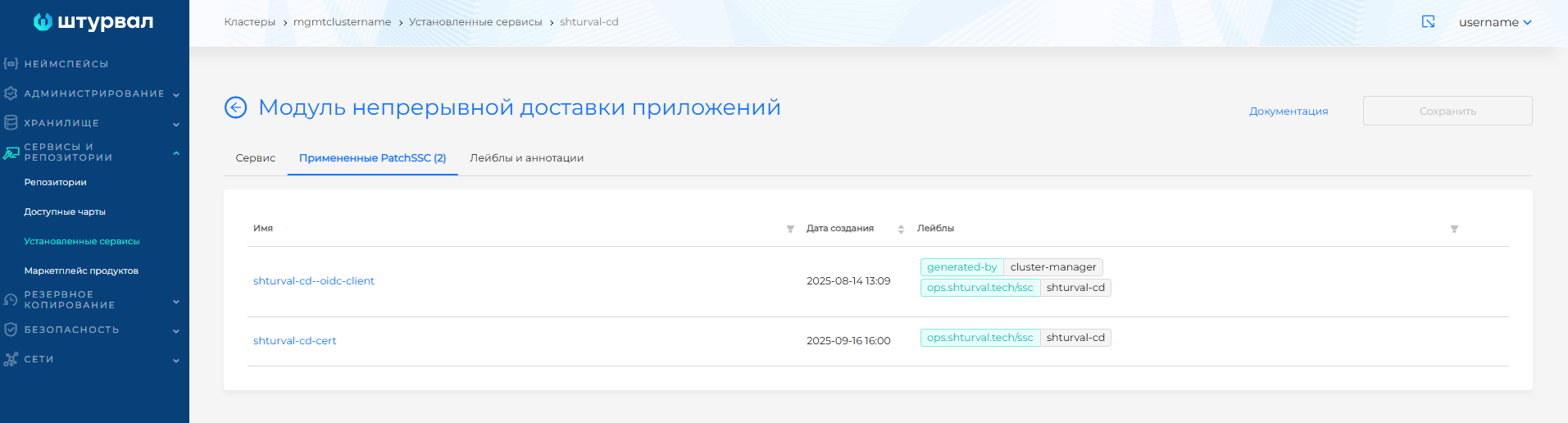
- After downloading the manifest, from the Services and Repositories section, open the Installed Services page, find the Continuous Application Delivery Module (ArgoCD) (
shturval-cd) and go to management. The Applied PatchSSC tab will display the downloadedShturvalServicePatch.
Screenshot