Managing the number of nodes in a cluster
In the Shturval platform GUI, you can manage the number of nodes in previously created clusters (client clusters and the management cluster). The instructions are applicable for clusters with providers:
- Basis Dynamix;
- oVirt (zVirt, HostVM, ED Virtualization, ROSA Virtualization);
- vSphere;
- OpenStack (VK Cloud, Selectel);
- Yandex Cloud;
- vCloud Director.
To change the number of nodes in a cluster with the Shturval v2 provider, see Add hosts to a cluster with the Shturval v2 provider and Remove hosts from a cluster with the Shturval v2 provider.
You manage node counts in node group configuration. You can scale Control Plane and Worker nodes up or down.
Please note! The Shturval platform license limits the number of Worker nodes and vCPUs. If you exceed the limit, a notification appears on every GUI screen.
Scaling nodes in a cluster
Follow these steps to change the number of nodes in a cluster:
- Go to the Node Management page in the Administration section.
- Select the group in which you want to scale nodes:
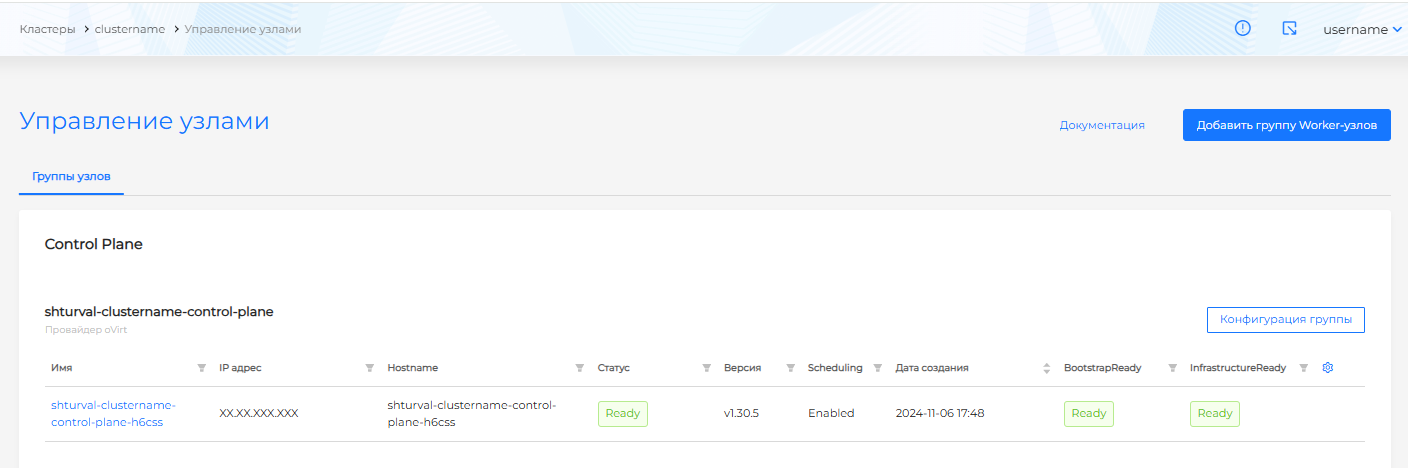
- Control Plane node group;
Screenshot
 Please note! Reducing the number of Control Plane nodes in the management cluster may lead to failure of the management cluster.
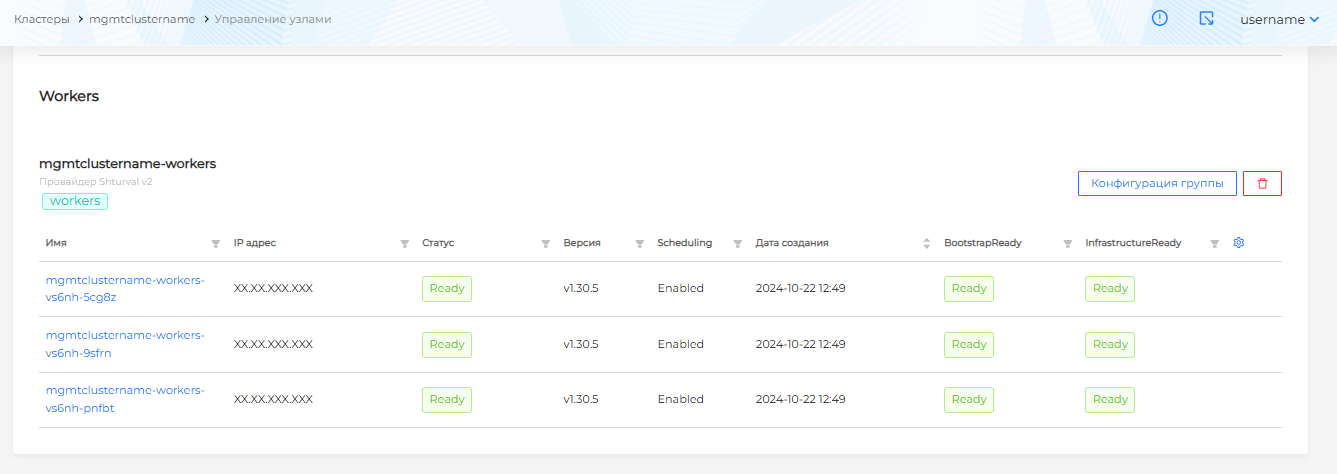
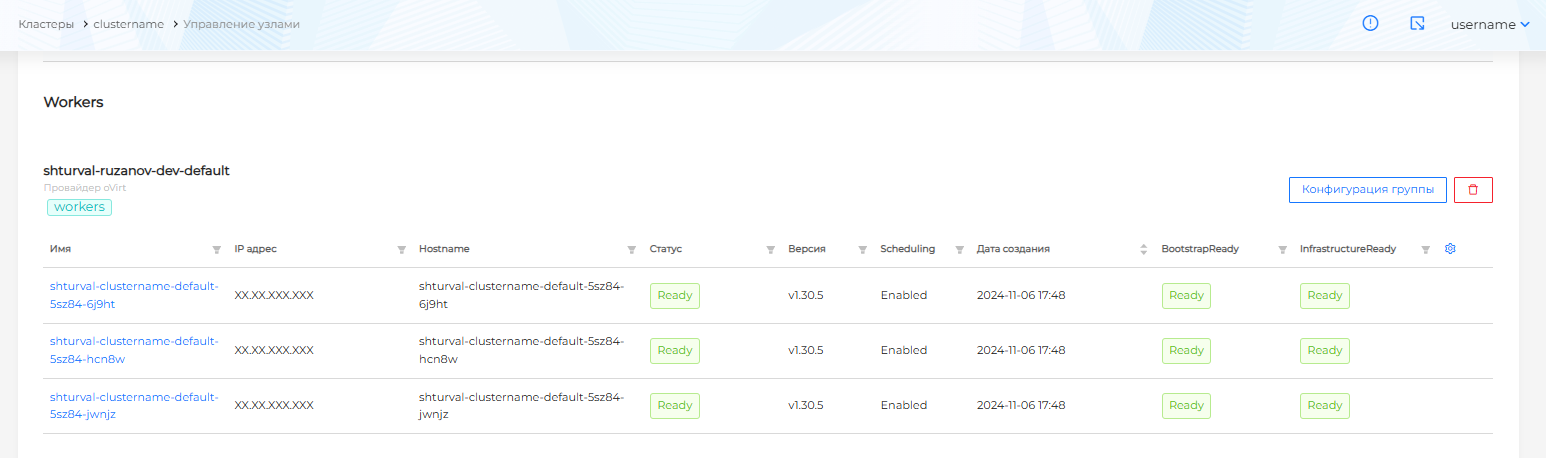
- Worker node group. In client clusters, you can manage the number of nodes for each Worker node group type (Default, Infra, or a custom Worker node group).
Screenshot Worker nodes in the management cluster
Screenshot of Worker nodes in the client cluster
- Open the node group configuration by clicking Group Configuration:
Control Plane node group
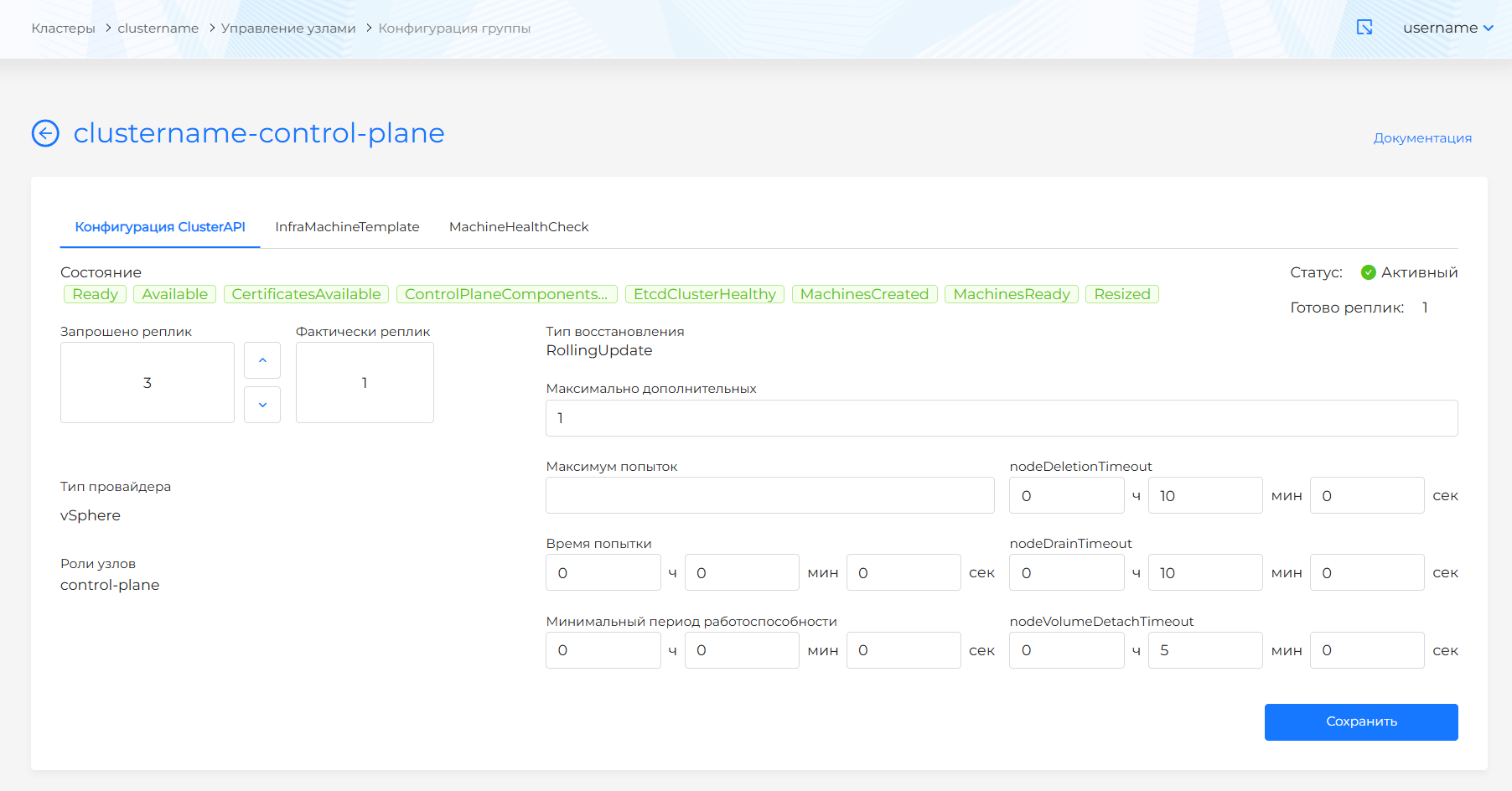
- On the Control Plane node group’s ClusterAPI Configuration tab, set the desired number of nodes in Replicas Requested.
Please note! Reducing the number of Control Plane nodes in the management cluster may lead to failure of the management cluster.
Screenshot of the configuration of a group of Control Plane nodes
- Save the node group configuration. On the Manage Nodes page, you can track node scaling progress in the cluster.
Worker node group
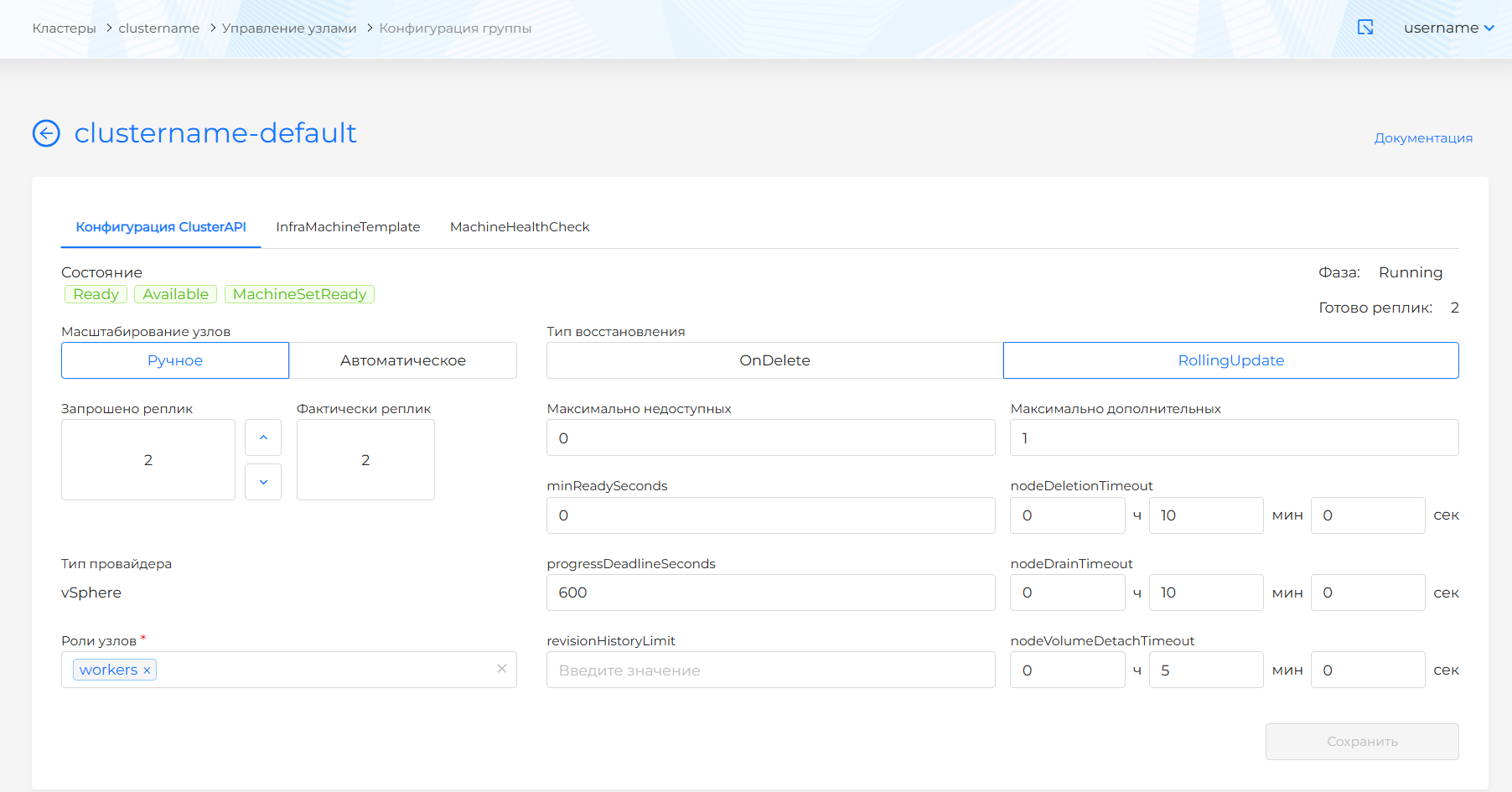
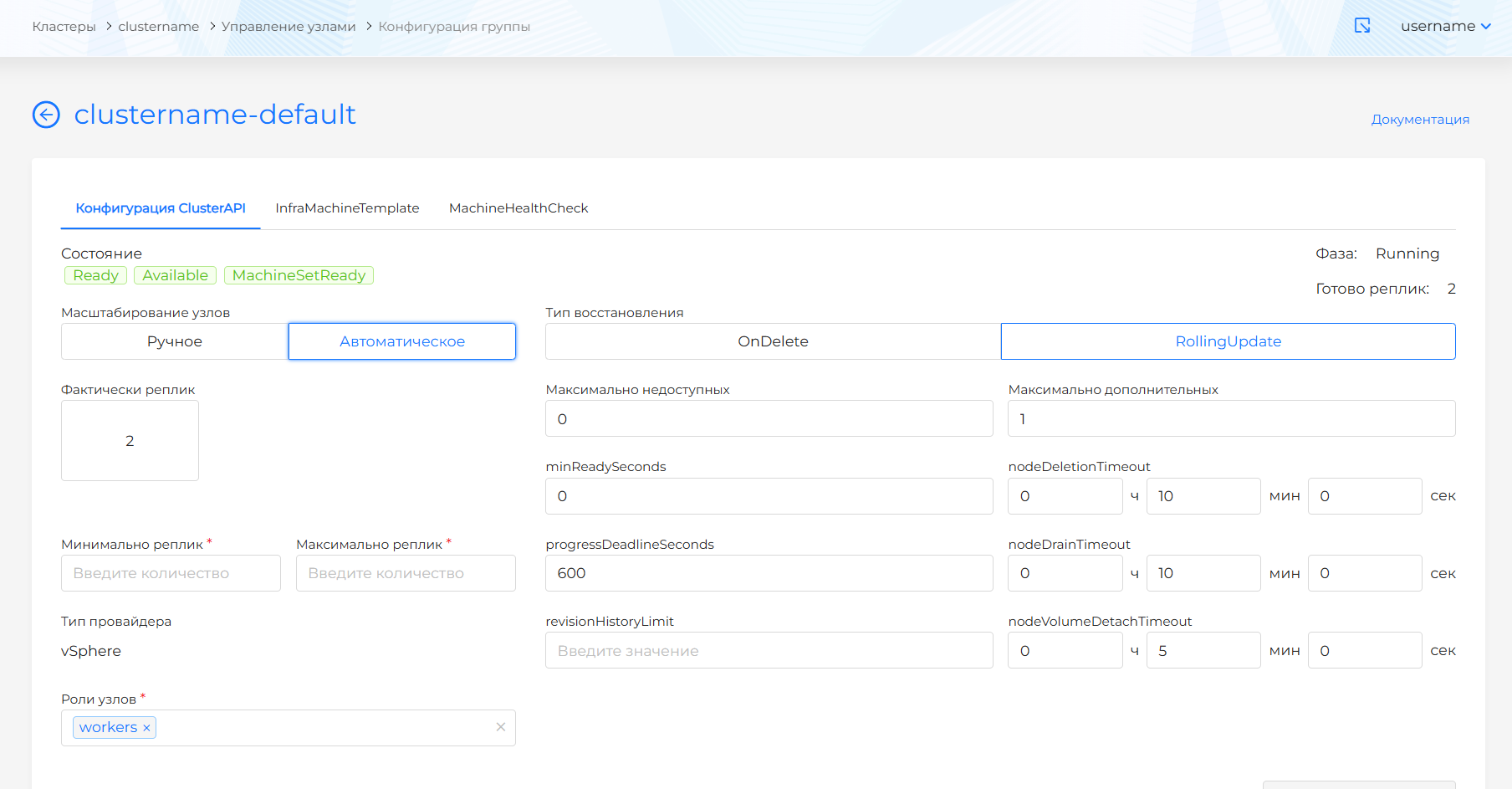
- On the Worker node group’s ClusterAPI Configuration tab, choose one of two scaling modes:
- Select Manual to specify the required number of nodes. Set the desired number in Replicas Requested.
- Select Automatic to change the number of nodes automatically within a specified range. Set the minimum and maximum in Minimum Replicas and Maximum Replicas.
Screenshot. Manual scaling
Screenshot. Automatic scaling
- Save the node group configuration. On the Manage Nodes page, you can track node scaling progress in the cluster.