With vSphere provider
For information about creating a client cluster, see Creating a cluster. To create a management cluster from the graphical interface, see Installation with the shtil utility.
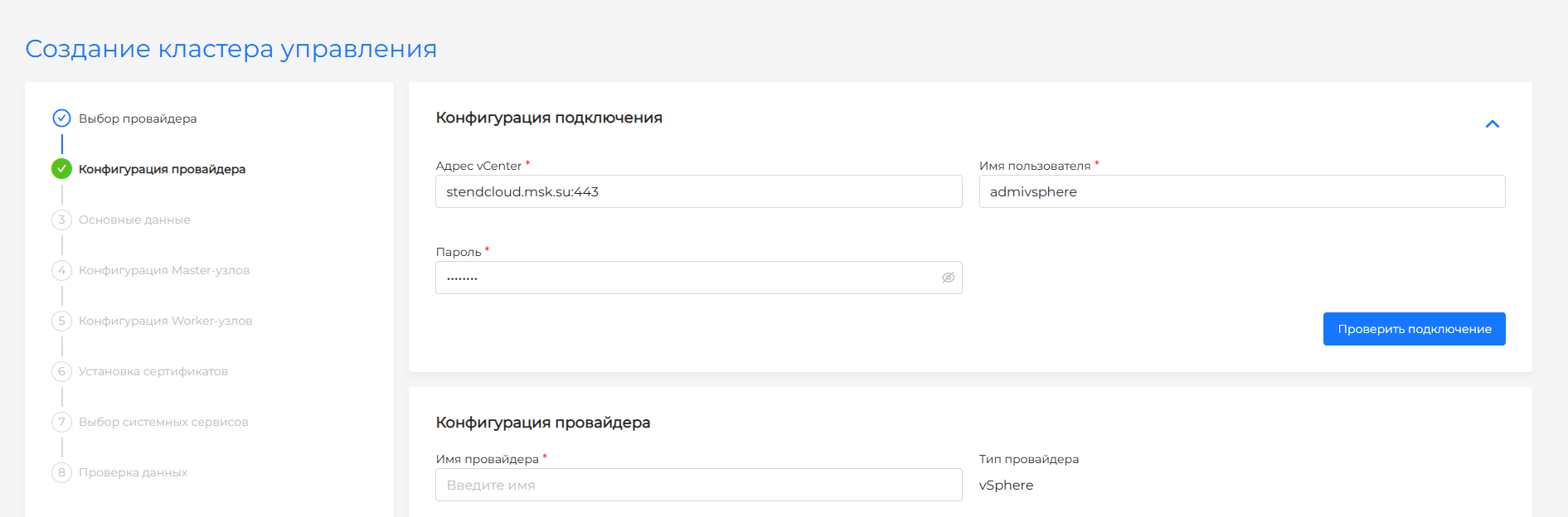
Provider configuration (step for management cluster only)
On the screen you can create the [VMWare vSphere] provider configuration(/2.13/en/platform-admin/interface/providers/vsphere/vsphere/).
Screenshot
Basic data
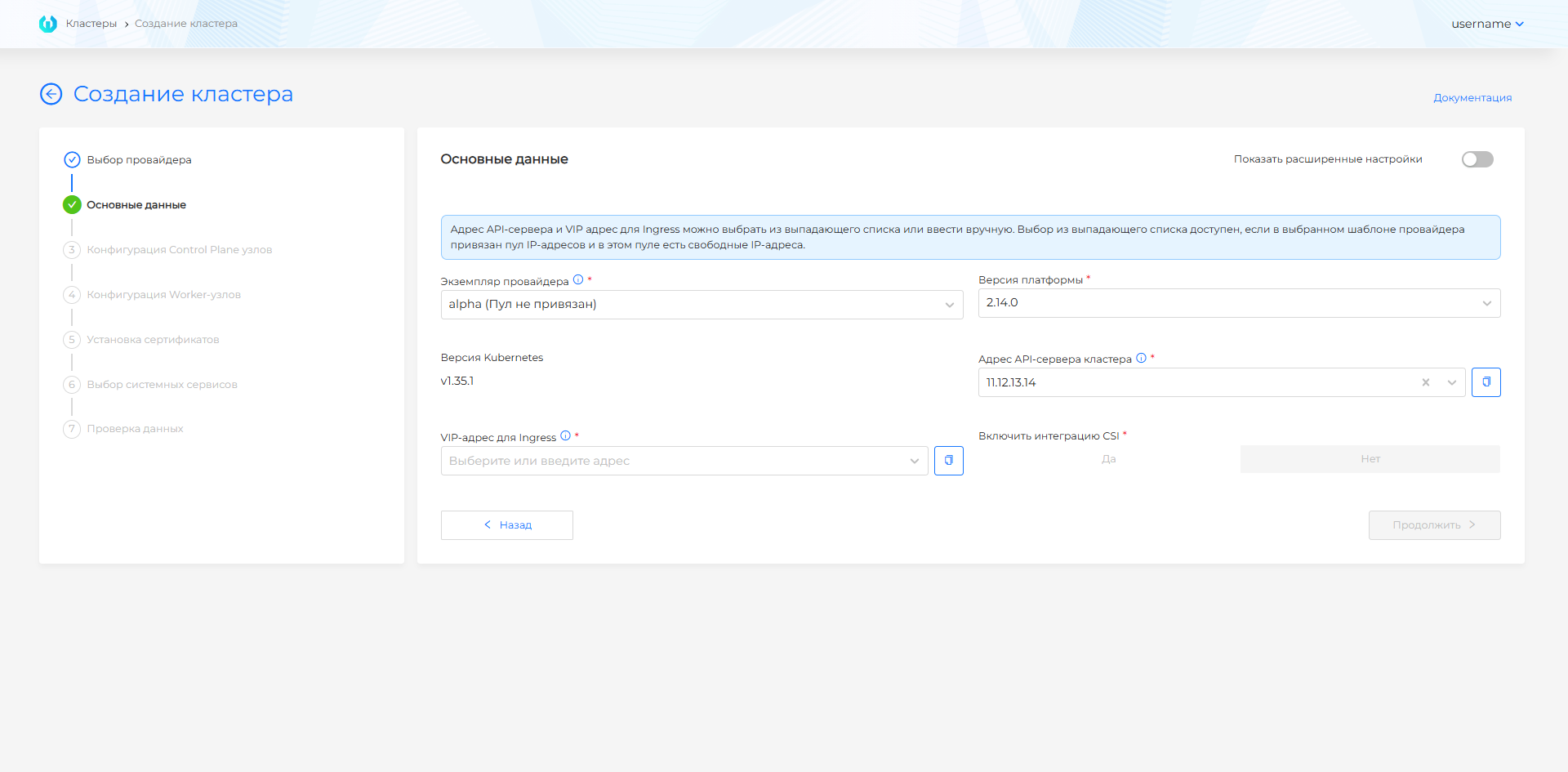
The screen provides fields for defining basic cluster settings. Filling in data is available in basic mode and advanced settings mode.
By default, Basic mode is enabled. To enable advanced settings mode, move the Show advanced settings toggle switch to active. When switching from advanced settings mode to basic mode, the data entered in the fields that will be hidden is lost.
Basic data for the vSphere provider in basic mode
- Template provider. Dropdown list. If only one template is available, it will be selected automatically. If a pool of IP addresses was associated with a provider template, then a tooltip with the number of free IP addresses in the pool will be displayed for this template. You can select free pool IP addresses for the cluster API server address and VIP addresses for Ingress.
- Address of the cluster API server. For the cluster management API address, manually enter the IP address or FQDN of the API, or select a free IP address from the drop-down list. You can copy the entered value.
- Platform version. After selecting a provider template, you have the option to select the platform version. In the drop-down list, platform versions are available that are compatible with the Kubernetes version specified in the VM templates of this provider instance, as well as with the current version of the platform. By default, the highest platform version compatible with the selected VM template is selected.
- VIP address for Ingress. Enter a free IPv4 address manually from the internal subnet of the cluster nodes or select an IP address from the drop-down list. This IP address will be added to the network interface of one of the Worker nodes. The system Ingress controller will be available at this address. You can copy the entered value.
- Enable CSI integration. If there is no prohibition in the provider template, then the button is available and is set to no by default. If there is a prohibition in the provider’s template, the button is not available. Information about setting up access rights for the vCenter service account is located on the [vSphere] provider page (/2.13/en/platform-admin/interface/providers/vsphere/vsphere-requirement/).
For the API server address and VIP address for Ingress, the list of IP addresses contains only free IP addresses of the pool of the selected provider template. If there is only one free IP address in the provider template pool, you will be able to specify it either as the API server address or as the Ingress Controller VIP address. When the provider template you selected does not have an associated pool, or the associated IP pool does not contain free IP addresses, enter the IP addresses manually.
Pay attention!
- There is no reservation mechanism for IP addresses. The provider’s pool of IP addresses provides a list of IP addresses that are free at the time of the request. Situations are possible when the IP address was free at the time of cluster configuration, but by the time the cluster creation was initialized, the IP address was already occupied. In this case, the cluster will not be deployed successfully. We recommend allocating different subnets for each management cluster, as well as creating pools of IP addresses with non-overlapping subnets for different teams.
- In the cluster, FQDNs are formed according to one of the options for the specified Ingress:
- If the Ingress DNS record is specified: *.
. - If the VIP address for Ingress is specified: *.<CLUSTER_NAME>.ip-
.shturval.link, where CLUSTER_NAME is the specified cluster name.
- If the Ingress DNS record is specified: *.
Advanced information security settings are not installed. An external balancer is not used. Options are not displayed in the interface in Basic mode. To change parameter values, enable advanced settings.
Screenshot
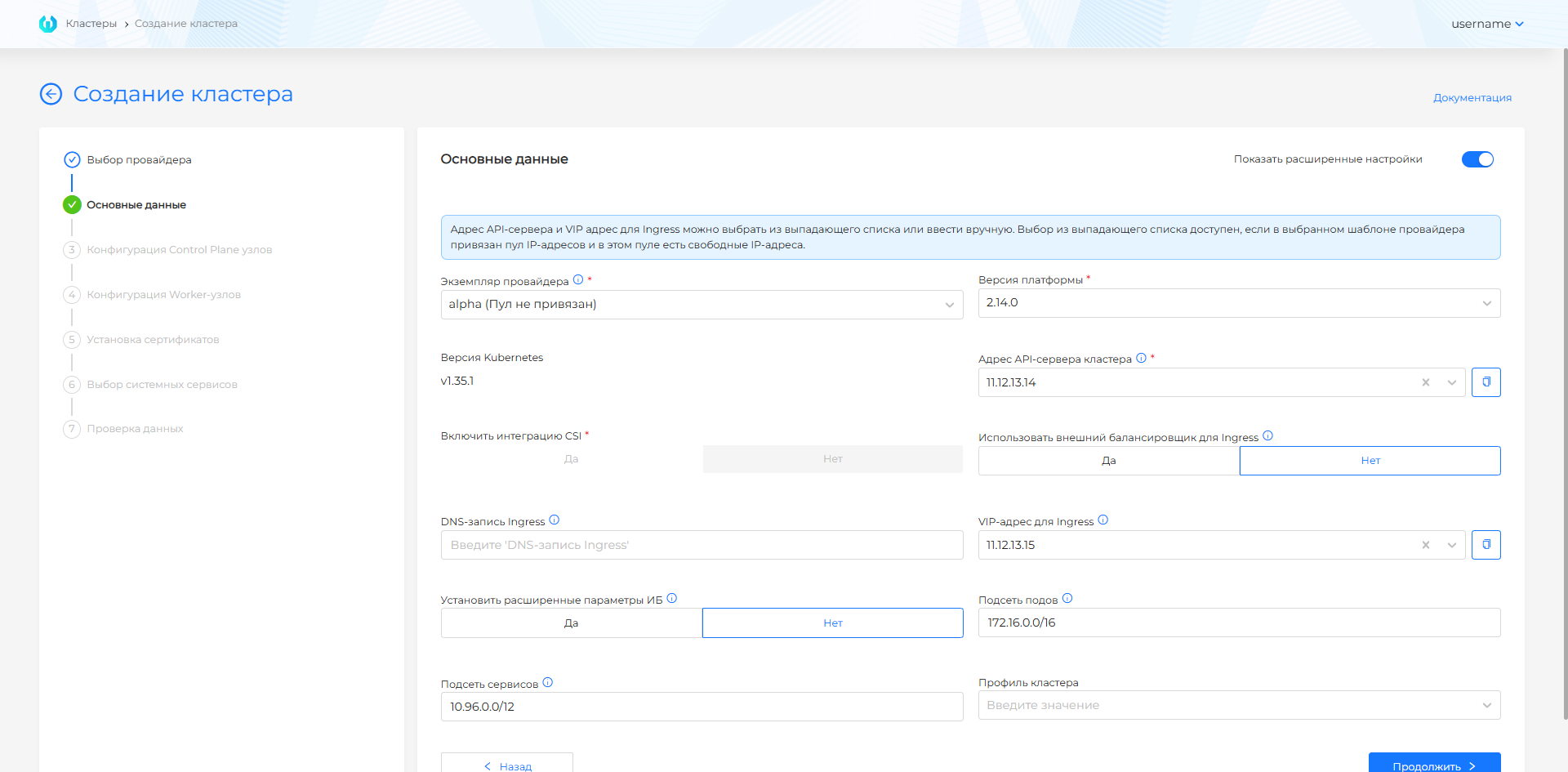
Basic data for the vSphere provider in advanced settings mode
- Address of the cluster API server. For the Cluster Management API Address, enter the IP address or FQDN of the API. You can copy the entered value.
- VIP address for Ingress or DNS record for Ingress. Enter a free IPv4 address from the internal subnet of the cluster nodes in the VIP address for Ingress field or enter a Wildcard FQDN in the Ingress DNS record field.
- Template provider. Dropdown list. If only one template is available, it will be selected automatically.
- Platform version. After selecting a provider template, you have the option to select the platform version. In the drop-down list, platform versions are available that are compatible with the Kubernetes version specified in the VM templates of this provider instance, as well as with the current version of the platform. By default, the highest platform version compatible with the selected VM template is selected.
- Enable CSI integration. If there is no prohibition in the provider template, then the button is available and is set to no by default. If there is a prohibition in the provider’s template, the button is not available. Information about setting up access rights for the vCenter service account is located on the [vSphere] provider page (/2.13/en/platform-admin/interface/providers/vsphere/vsphere-requirement/).
- Use an external balancer. If an external balancer is selected, haproxy will be used. Otherwise, balancing within the cluster is not used, all control traffic will go to the VIP.
- Set advanced information security settings. Sets up Secret Encryption for ETCD, a pre-configured Audit Policy, and a TLS connection to the Kubelet.
- Pod subnet. The subnet from which IPv4 addresses will be assigned to the Pods. The subnet must not overlap with the network of hosts and services. Recommended range: 172.16.0.1-172.16.255.254.
- Subnet of services. The subnet from which IPv4 addresses will be assigned for services with type: ClusterIP. The subnet is not routed to and should not intersect with the host and pod network. Recommended range: 10.96.0.0/12 (kubeadm won’t understand it any other way).
- Cluster profile. By default, the default profile is used.
Before configuring subnets, check the ranges for overlap. For more on subnet allocation in a cluster, see Cluster network configuration.
If you choose to use an external load balancer for Ingress, only the Ingress DNS Record field will remain available. Enter Wildcard FQDN into it.
For the API server address and VIP address for Ingress, the list of IP addresses contains only free IP addresses of the pool of the selected provider template. If there is only one free IP address in the provider template pool, you will be able to specify it either as the API server address or as the Ingress Controller VIP address. When the provider template you selected does not have an associated pool, or the associated IP pool does not contain free IP addresses, enter the IP addresses manually.
Pay attention!
- There is no reservation mechanism for IP addresses. The provider’s pool of IP addresses provides a list of IP addresses that are free at the time of the request. Situations are possible when the IP address was free at the time of cluster configuration, but by the time the cluster creation was initialized, the IP address was already occupied. In this case, the cluster will not be deployed successfully. We recommend allocating different subnets for each management cluster, as well as creating pools of IP addresses with non-overlapping subnets for different teams.
- In the cluster, FQDNs are formed according to one of the options for the specified Ingress:
- If the Ingress DNS record is specified: *.
. - If the VIP address for Ingress is specified: *.<CLUSTER_NAME>.ip-
.shturval.link, where CLUSTER_NAME is the specified cluster name.
- If the Ingress DNS record is specified: *.
Screenshot
Node configuration
To determine the system requirements for Control Plane, Worker nodes, please review the minimum and recommended requirements of Client Cluster, management cluster.
###Configuration of Control Plane nodes
Screenshot
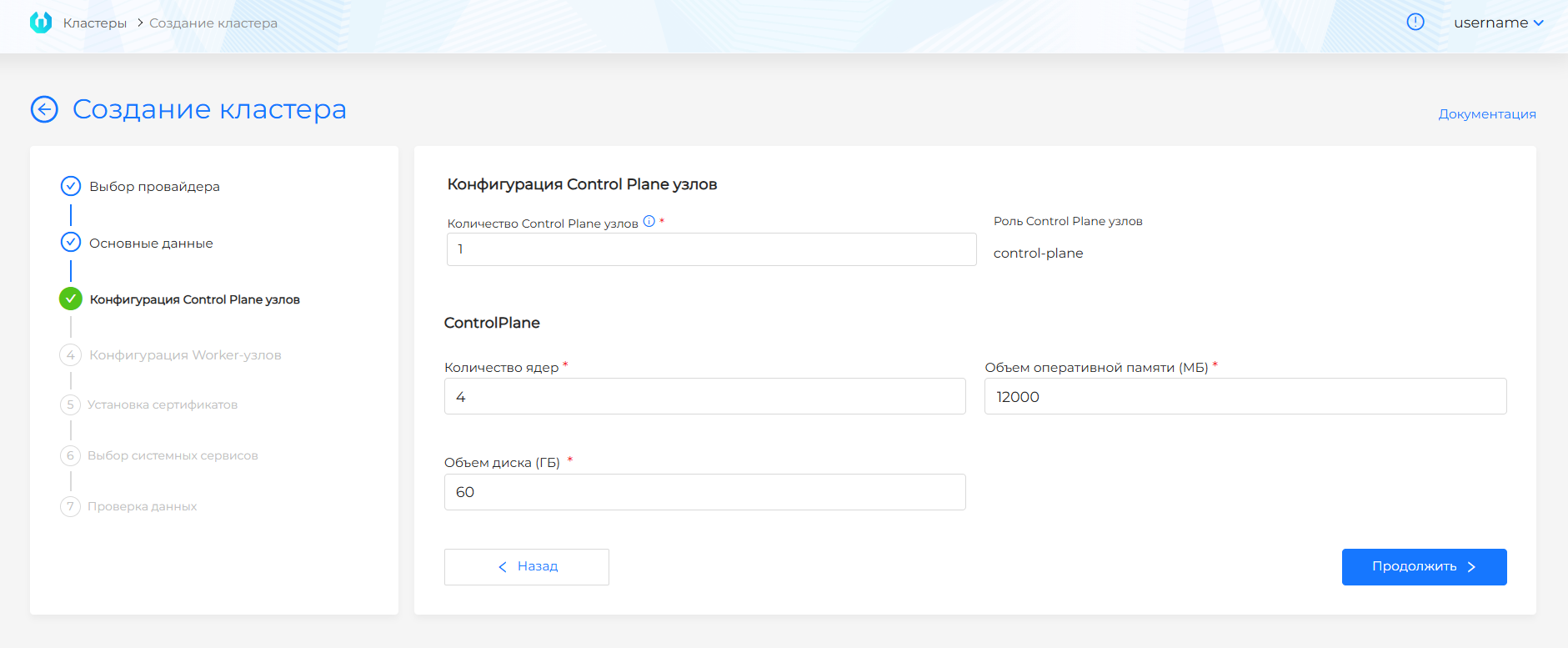
- Number of Control Plane nodes (must be an odd value. No more than 5 is recommended)
- Number of cores (default: 4, recommended: 12)
- Amount of RAM (MB) (default value: 8192)
- Disk capacity, (GB) (default value: 60, recommended: 120). When using local storage, the disk size should not be less than 60 GB.
For client clusters, the default values correspond to the minimum resource requirements. The interface blocks the ability to create a client cluster with a resource configuration (number of cores, amount of RAM) less than the minimum required.
Worker node configuration
By default, 2 groups of Worker nodes are created with three nodes in each group:
- default;
- infra.
Screenshot
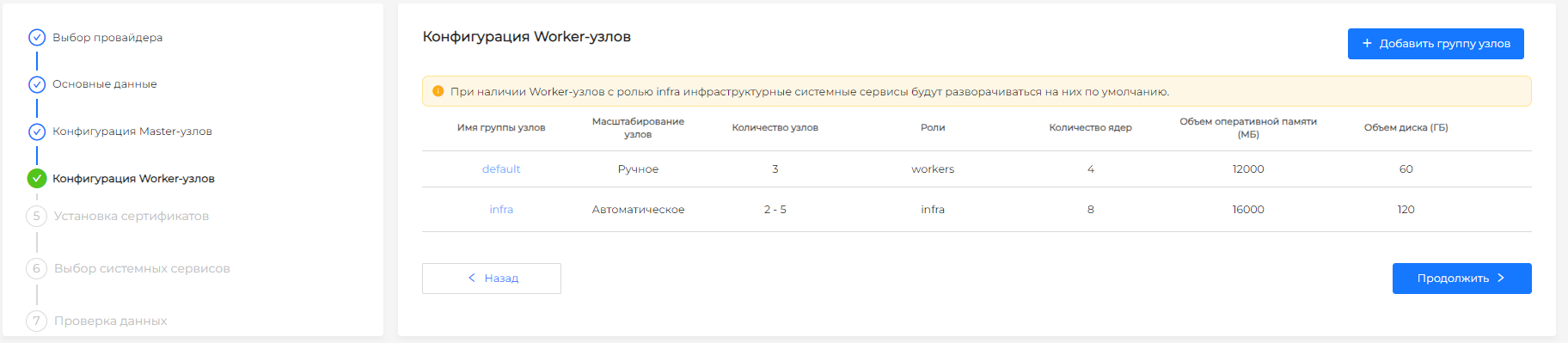
They are protected from being deleted when creating a cluster. If, when creating a cluster, worker nodes in these groups are not required, enter the value “0” in the “Number of worker nodes” field. MachineDeployments will be created, and in the future you can easily add nodes to groups if necessary. In addition to the default and infrastructure groups, it is possible to add additional groups of Worker nodes.
A group of infrastructure nodes will preferably be used to deploy the cluster’s infrastructure services. If there are no free nodes in the group, services will be deployed on Worker nodes of other groups. The default group of Worker nodes, as well as any additional groups, can be used to deploy custom workloads.
It is possible to copy the settings of the default group to other groups of Worker nodes. To do this, click on the copy icon on the right side of the node group line.
You can edit group parameters by clicking on the group name in the table. When editing you have the option to:
- duplicate the configuration of the created group of Worker nodes. To do this, click Duplicate configuration from group and select from the list the name of the group whose settings you want to copy.
- create a duplicate group with configured parameters. Click on the copy element in the upper left corner of the modal window to add a group with the same parameters. In the duplicate, you must fill in the name of the new group.
The following options are available for group configuration:
Screenshot
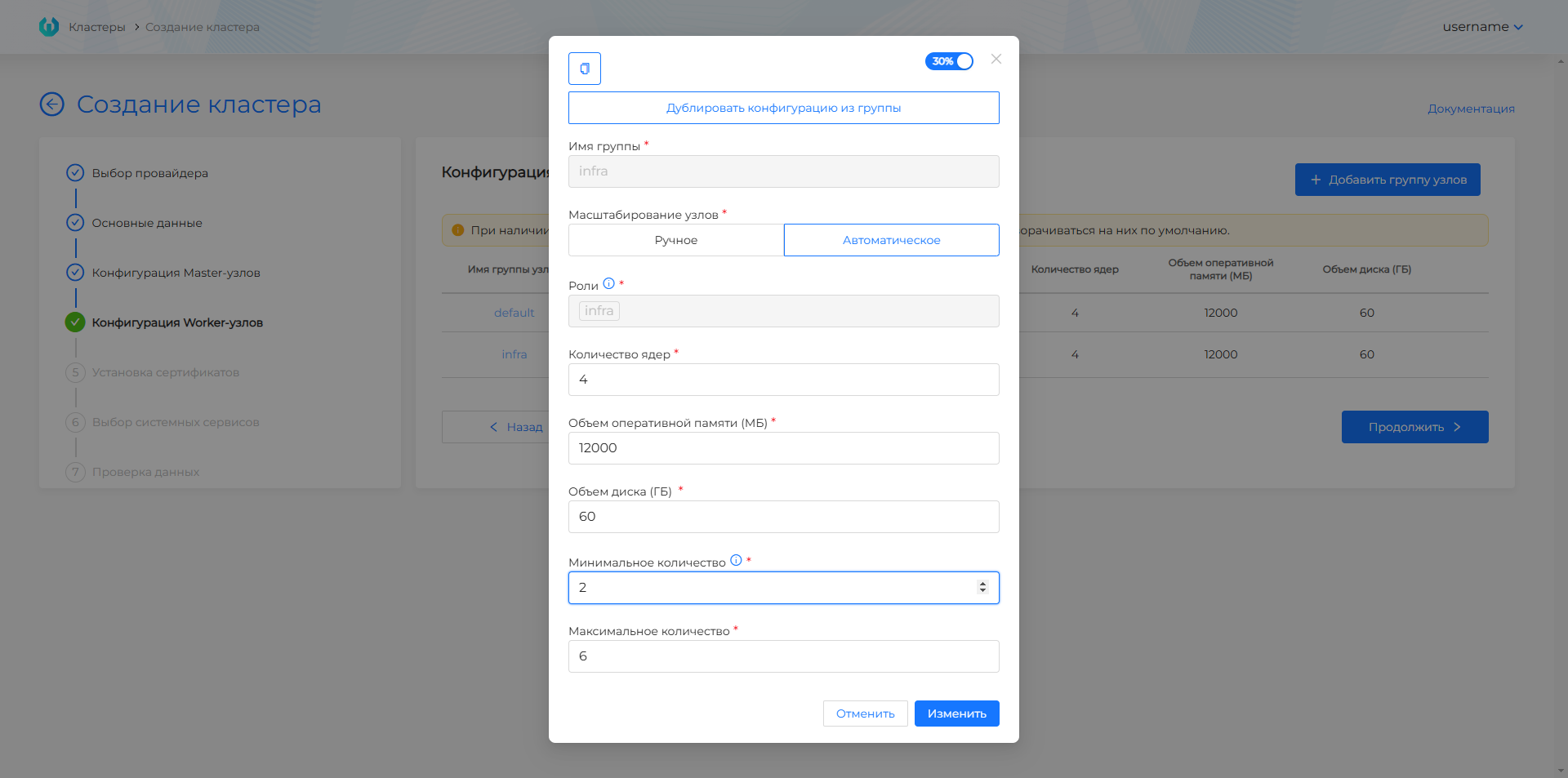
Node scaling: Manual/Automatic
- If manual node scaling is selected, determine the number of Worker nodes.
- When automatic node scaling is selected, define the range for automatic scaling of Worker nodes (by default, the minimum and maximum number is not set). The minimum number of nodes can be 2. In the graphical interface, the ability to set the minimum replicas to less than 2 is limited.
- Number of cores (default: 4, recommended: 12)
- Amount of RAM (MB) (default value: 8192)
- Disk capacity, (GB) (default value: 60, recommended: 240). When using local storage in a cluster, the disk size should not be less than 60 GB.
If the Number of Worker nodes field is set to 0, Worker nodes will not be created.
For client clusters, the default values correspond to the minimum resource requirements. The interface blocks the ability to create a client cluster with a resource configuration (number of cores, amount of RAM) less than the minimum required.
Installing certificates
You can create a cluster with a certificate:
Screenshot
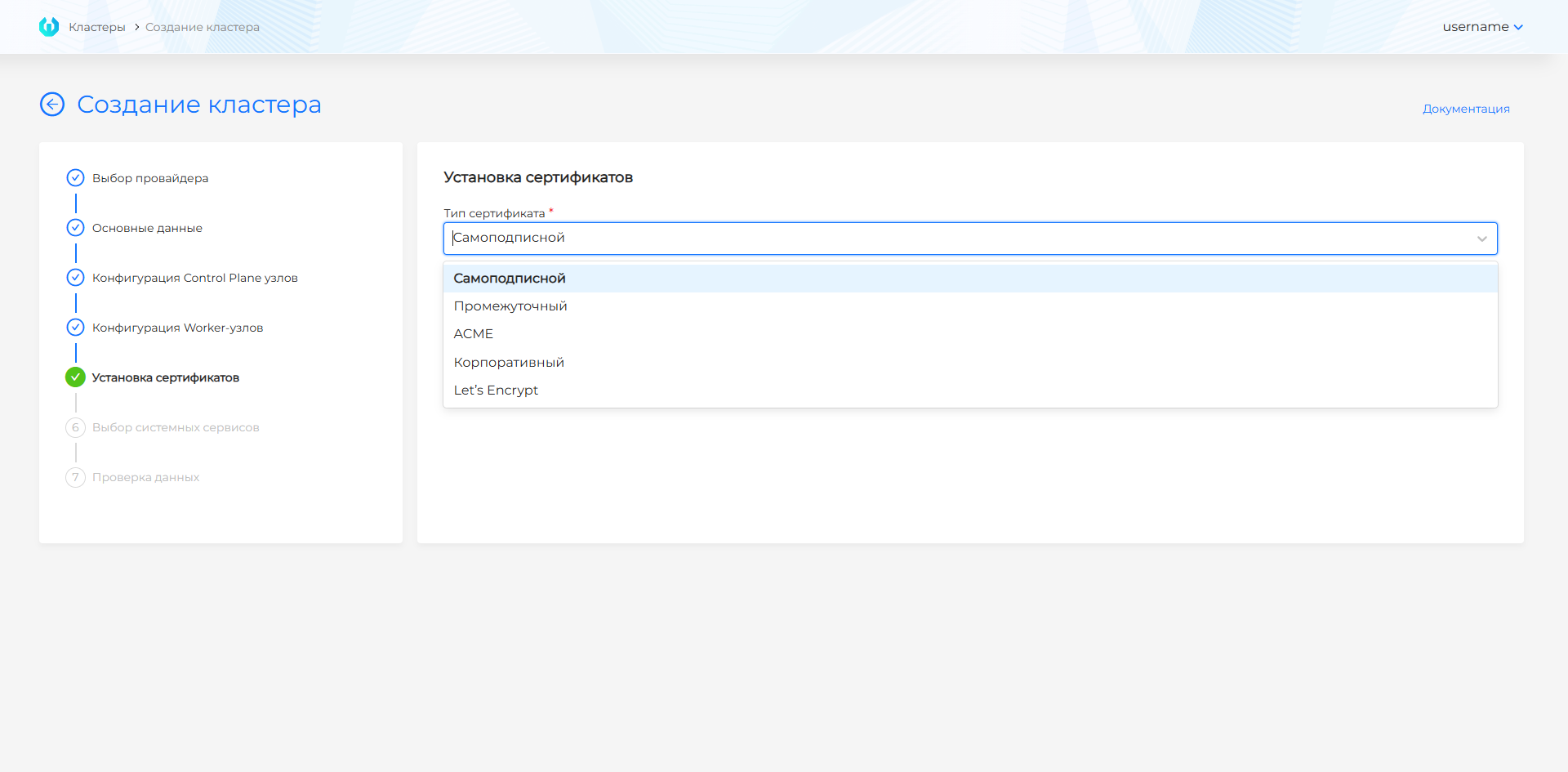
- Self-signed (does not require additional configuration).
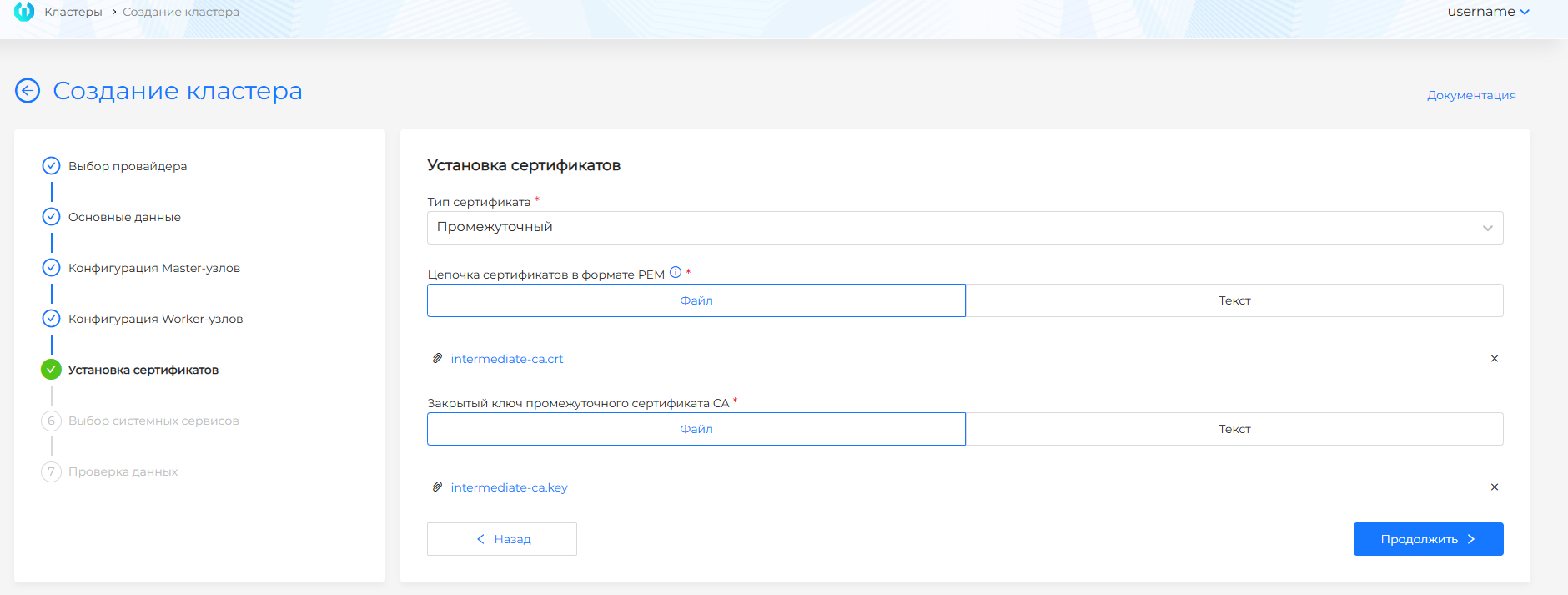
- Intermediate. Upload the certificate chain in PEM (intermediate certificate) format and the private key of the intermediate CA certificate. You can set the certificate and key by uploading files or entering data in text format;
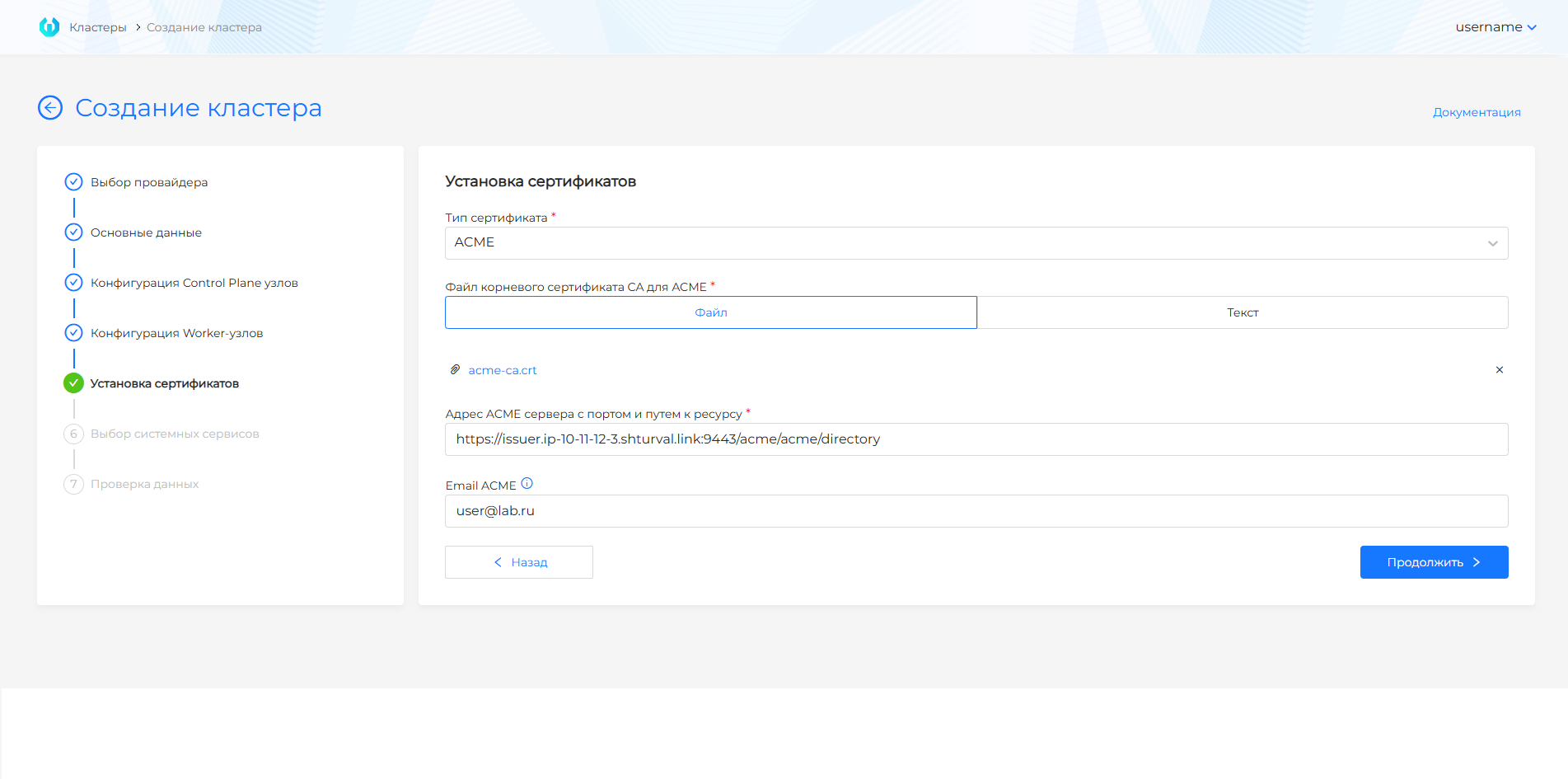
- ACME (Automatic Certificate Management Environment). Upload the CA root certificate file for ACME and provide the ACME server address with port and resource path. You can upload a certificate file or specify the certificate in text format;
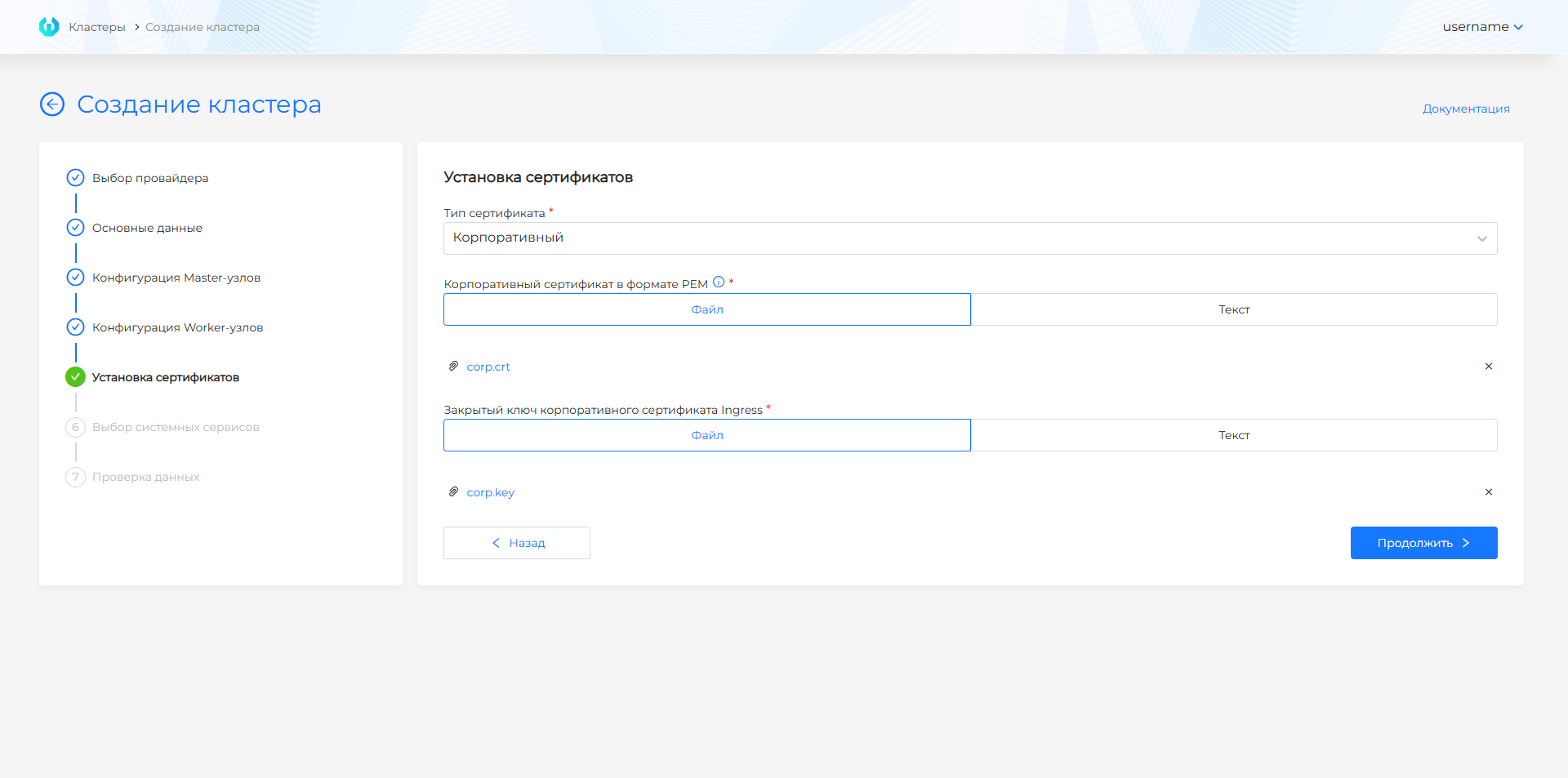
- Corporate. Upload the enterprise certificate in PEM format and the private key of the Ingress enterprise certificate. You can set the certificate and key by uploading files or entering data in text format. The certificate must be issued by a Certificate Authority (CA) (in which case there will be a certificate chain in the file) or self-signed for the Ingress domain name.
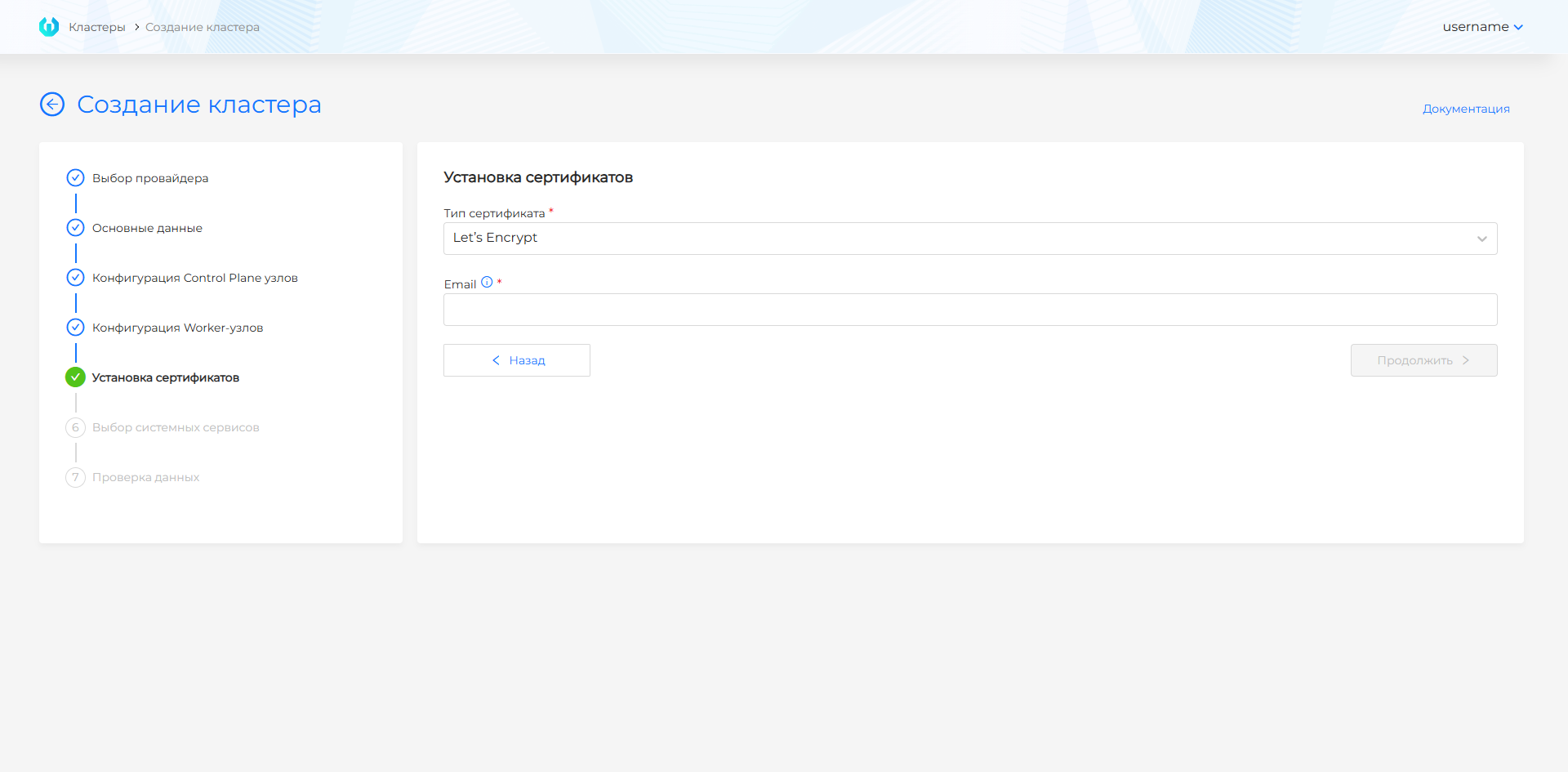
- Let’s Encrypt. Enter the Email associated with your Let’s Encrypt account. The root CA certificate for Let’s Encrypt is loaded automatically, the Let’s Encrypt server address is set by default - https://acme-v02.api.letsencrypt.org/directory.
Please note! If an ACME certificate is installed in the cluster, you need to monitor the operation of the ACME server. In the event of a server failure, clusters with ACME certificates will be unavailable.
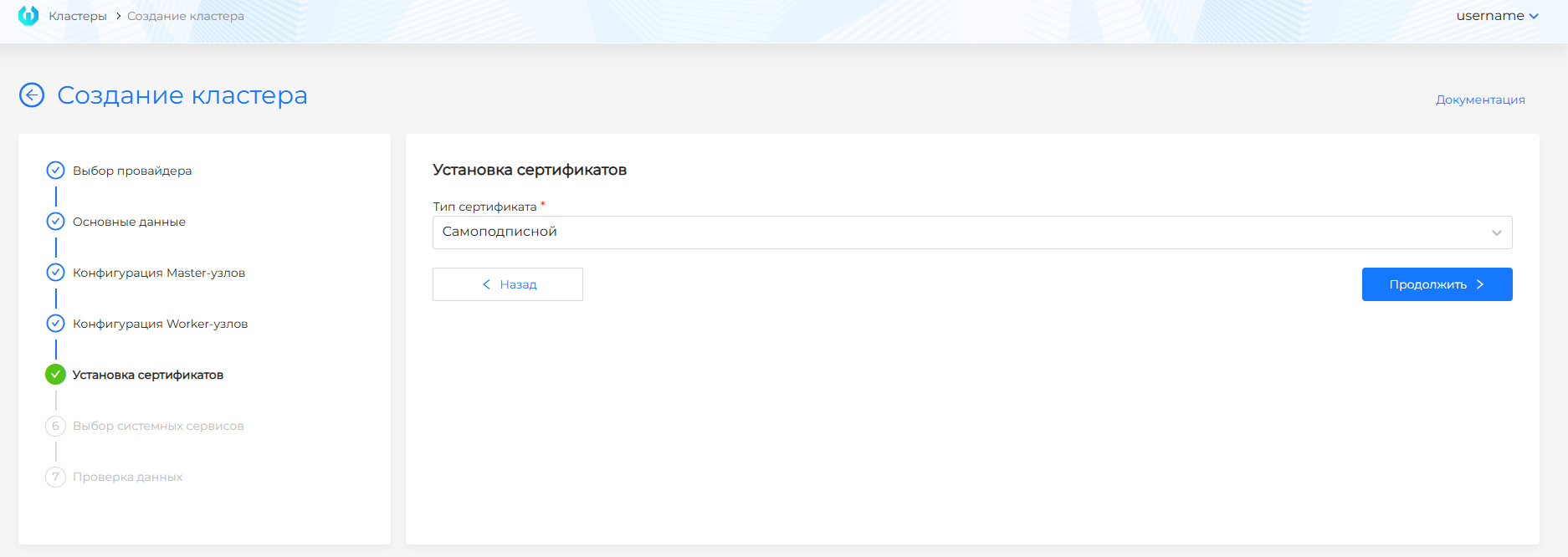
Screenshot of creating a cluster with a self-signed certificate
Screenshot of creating a cluster with an intermediate certificate
Screenshot of creating a cluster with ACME
Screenshot of creating a cluster with a corporate certificate
Screenshot of creating a cluster with Let’s Encrypt
After successful installation of the cluster, the installed certificates will be available in the Administration section on the ClusterIssuers page of the created cluster.
Selecting services
This step is common to all providers.
At this step, you can select services to automatically enable services in the cluster in basic mode or advanced settings mode. When creating a cluster, services critical for the operation of the cluster are automatically installed; they cannot be disabled in any of the modes. When switching between modes, the selected selection is canceled.
By default, the basic mode is enabled, where you can select services grouped by functionality to be automatically turned on:
- Backup and restore
- Logging
- Application delivery
- Monitoring
- Load balancing
- Information security tools
Screenshot
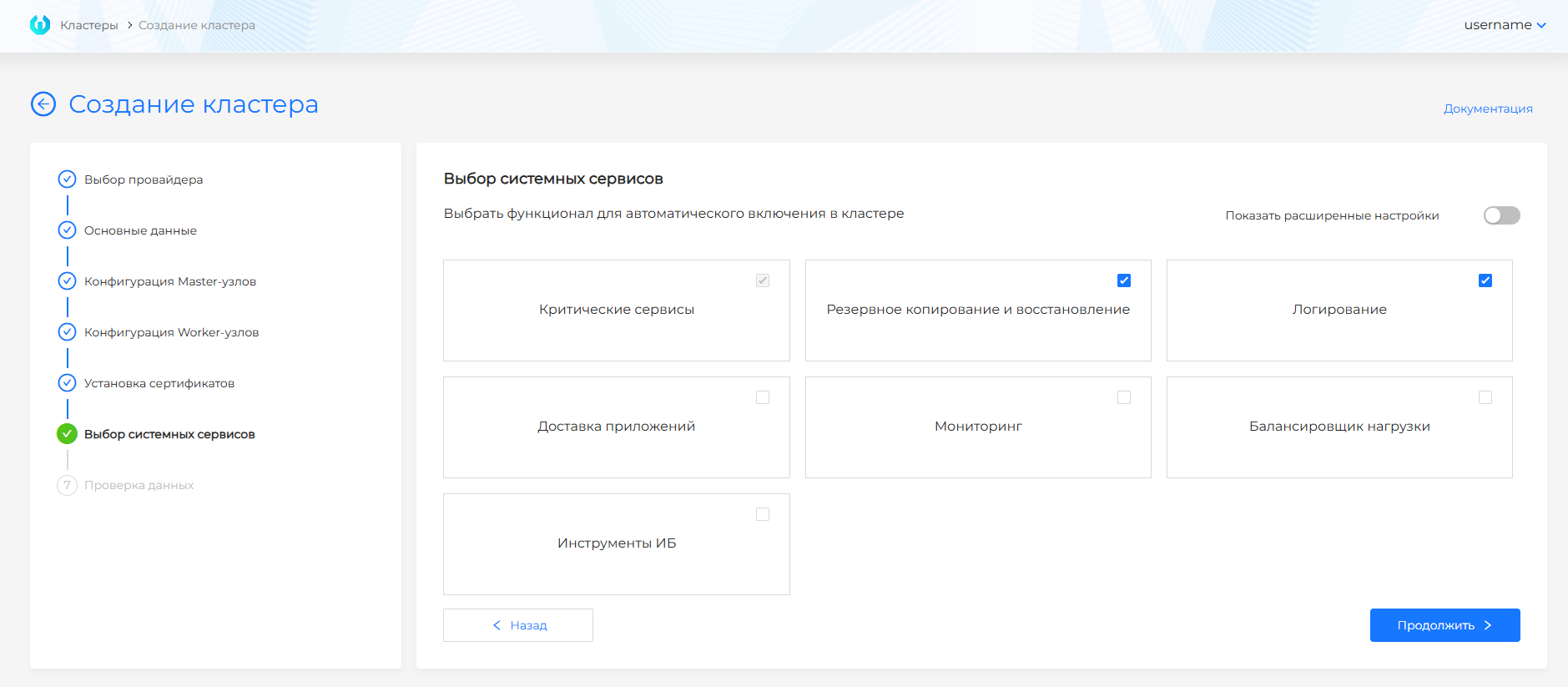
If you need to independently select services to enable in the cluster, go to the advanced settings mode. To do this, move the Show advanced settings toggle switch to the active state and select the services to enable. The list of services is displayed in alphabetical order.
Screenshot
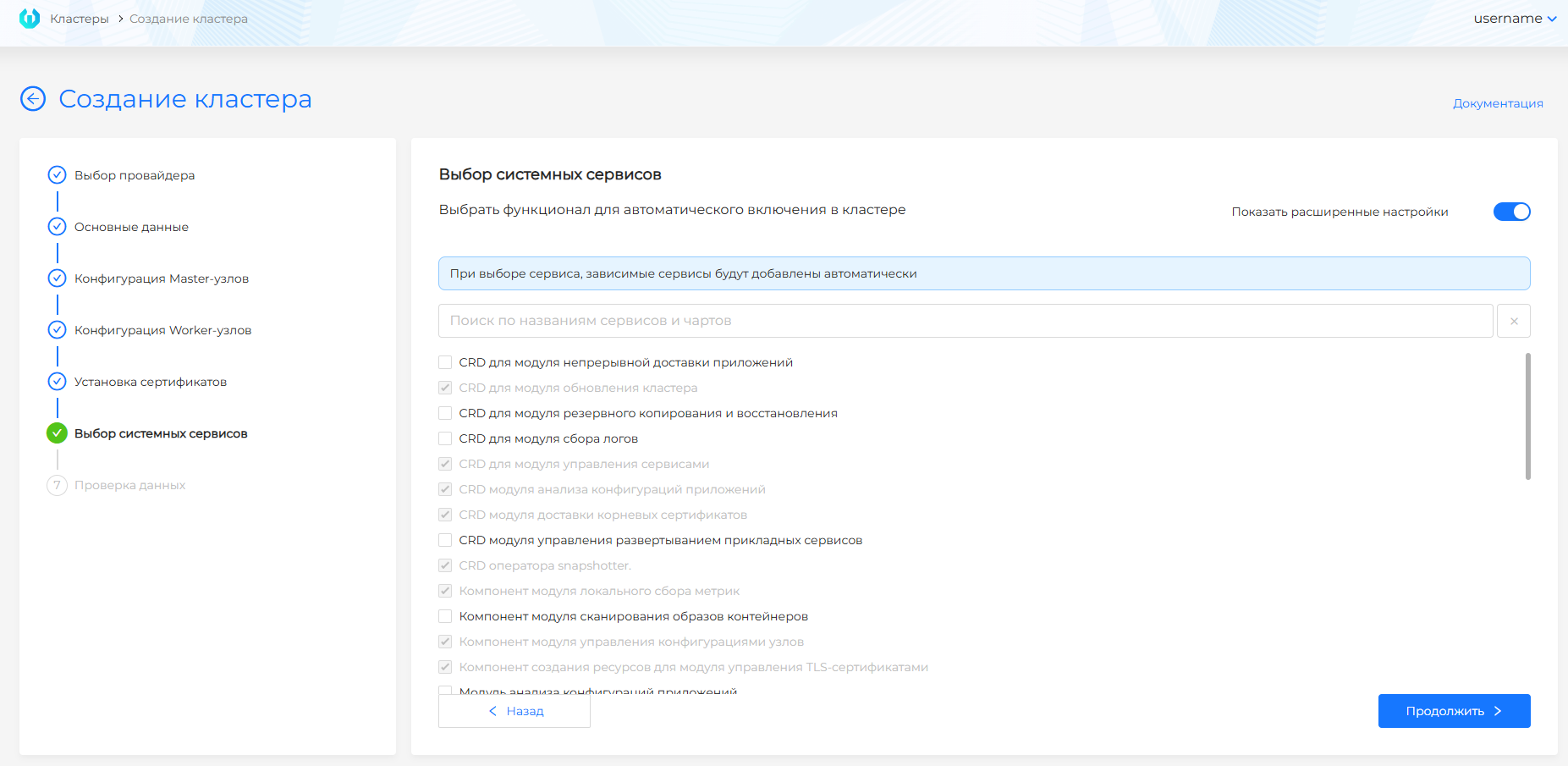
Please note! When selecting a service, dependent services will be selected automatically. This is necessary for the main service to work correctly.
Services selected for inclusion are installed with the latest version, automatic control mode, and service instance name equal to the service name. For each version of the Shturval platform, the composition of services and their versions will be different.
After successful cluster installation, the included services are available in the Services and Repositories section on the Installed Services page. During the cluster installation process, the necessary configuration of services to operate in the cluster is performed. Therefore, services that were not selected to be automatically enabled are set to disabled in the cluster and are available in the Services and Repositories section on the Installed Services page. This allows you to avoid manual configuration of services in the deployed cluster if you need to enable them later.
Data verification
The screen is a page containing all the information you filled out in the previous steps. Information is displayed in reading mode. If you need to change the selected parameters, you can return to the desired step by clicking on the step name on the left side of the screen or on the Back button.
To create a cluster, click on the Create cluster button.
Creation status
After initializing the creation of a client cluster and installation of a management cluster, a graphical dashboard of the cluster deployment status is available. This process is common to all providers. For information about the cluster deployment status model, see Cluster deployment status.