Cluster deployment status
In the Shturval platform, after you start creating a client cluster or begin platform installation (management cluster), you can track cluster creation by deployment status.
The deployment status interface is displayed only at the stage of creating a client cluster and installing a management cluster. Data is updated automatically as the cluster is deployed. The stages are not strictly sequenced and can be executed in parallel, independently of each other, so the completion of one stage does not trigger the start of the next.
Deployment status stages
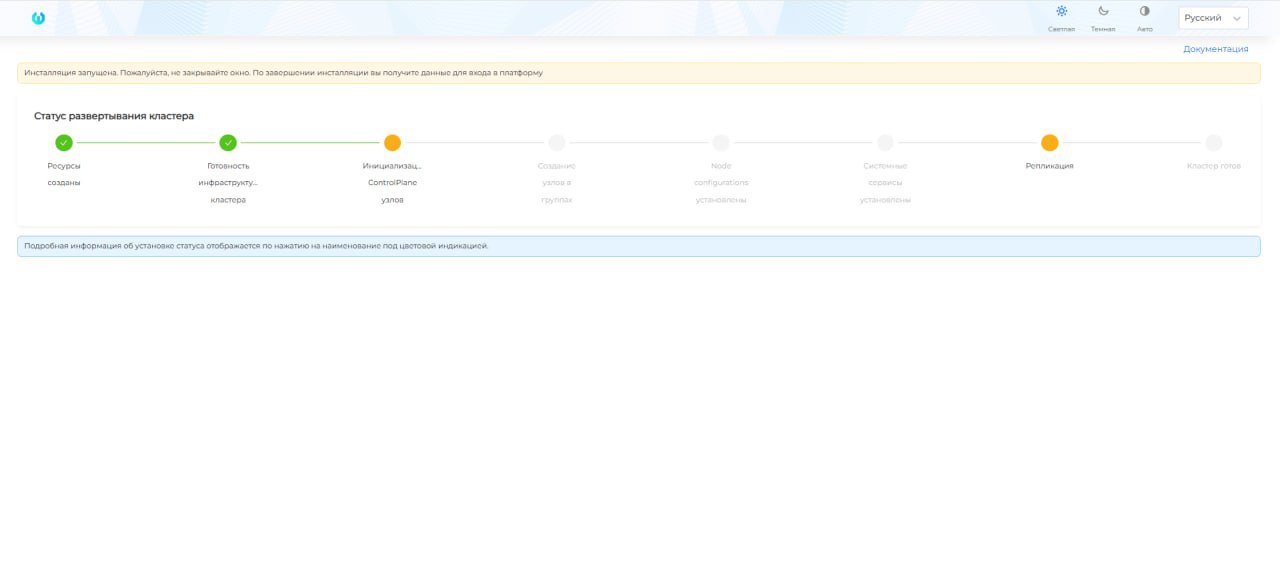
Clicking on the deployment status stage displays additional information
- Creation of resources - the initial stage of preparing resources;
Screenshot
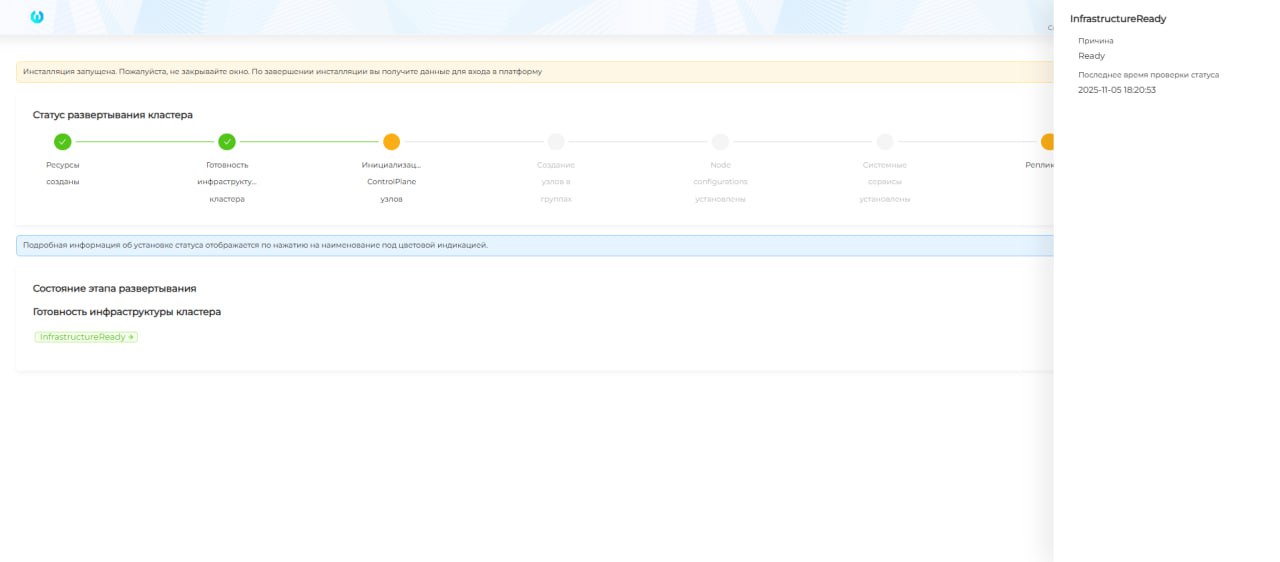
- Preparation of the cluster infrastructure. Displays information about the state of infrastructure readiness;
Screenshot of the stage
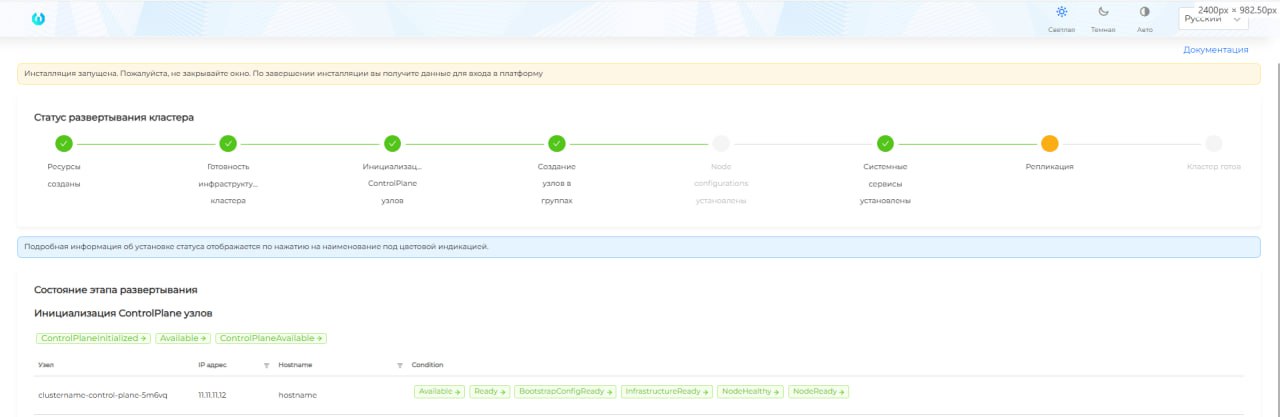
- Initialization of Control Plane nodes. This stage displays a list of initialized Control Plane nodes. Clicking on condition opens a side window for viewing detailed information on the condition;
Screenshot of the stage
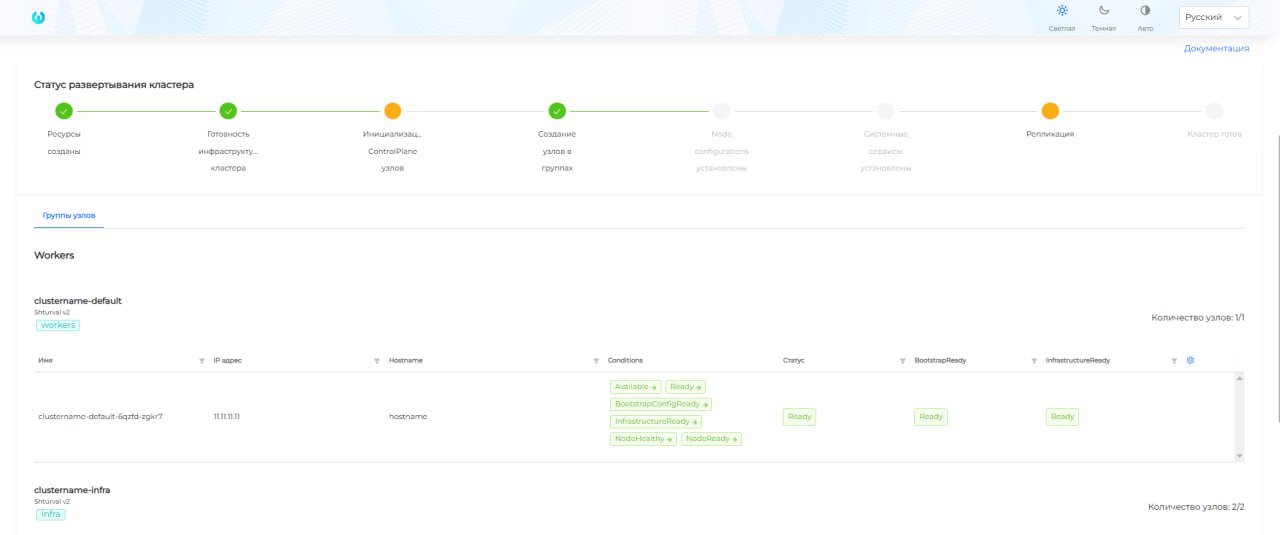
- Creation of Worker nodes in groups. This stage displays a list of initialized Worker nodes by group. Clicking on condition opens a side window for viewing detailed information on the condition;
Screenshot of the stage
- Installation of Node configurations - automatic application of default node configurations (Node Config Item, NCI). The stage displays a list of NCIs with information about the ratio of the number of nodes on which the configuration is applied to the number of planned nodes for application in the “Applied on nodes” column;
Screenshot of the stage
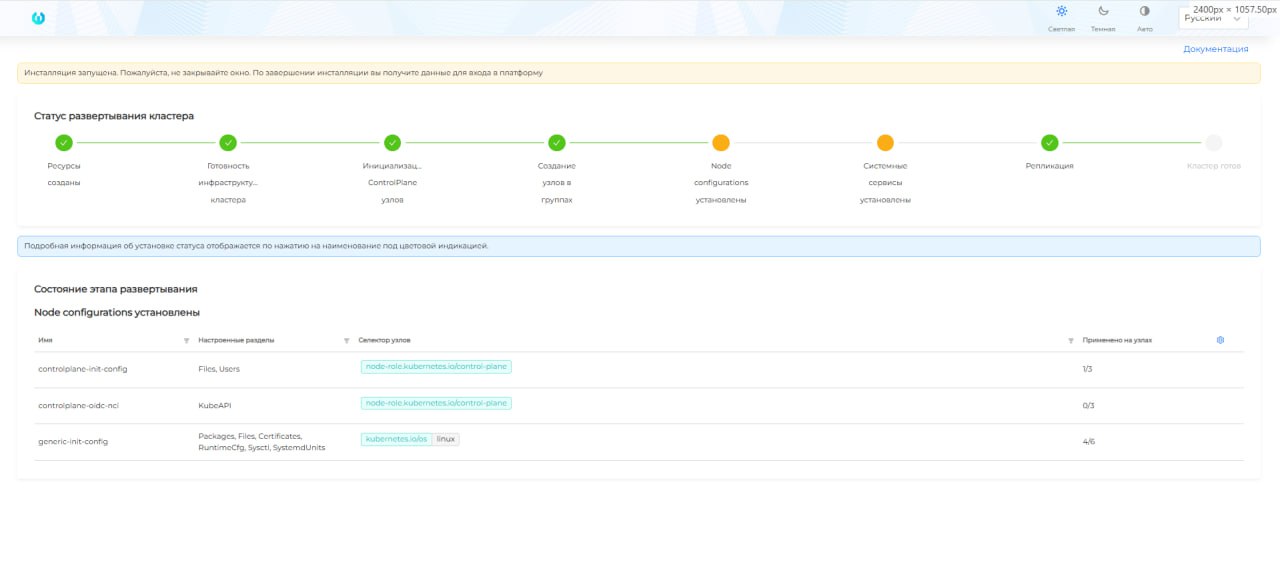
In the graphical interface of the deployed cluster, the list of NCIs applied to the node is available on the Node Configuration.
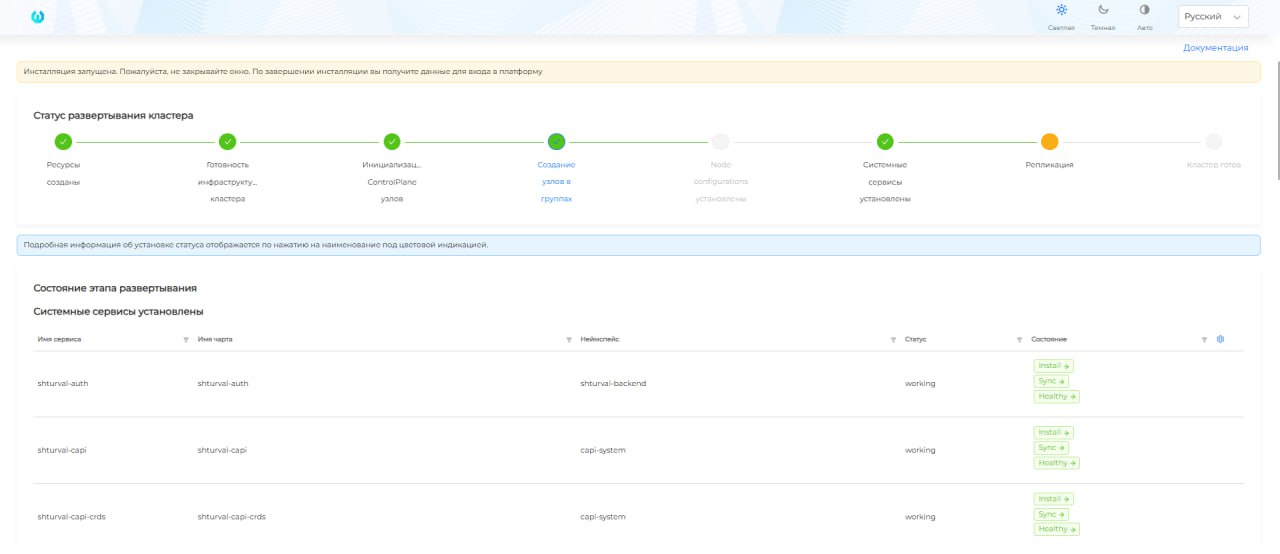
- Installation of Shturval repository services to the cluster. Clicking on condition opens a side window for viewing detailed information on the state of the service;
Screenshot of the stage
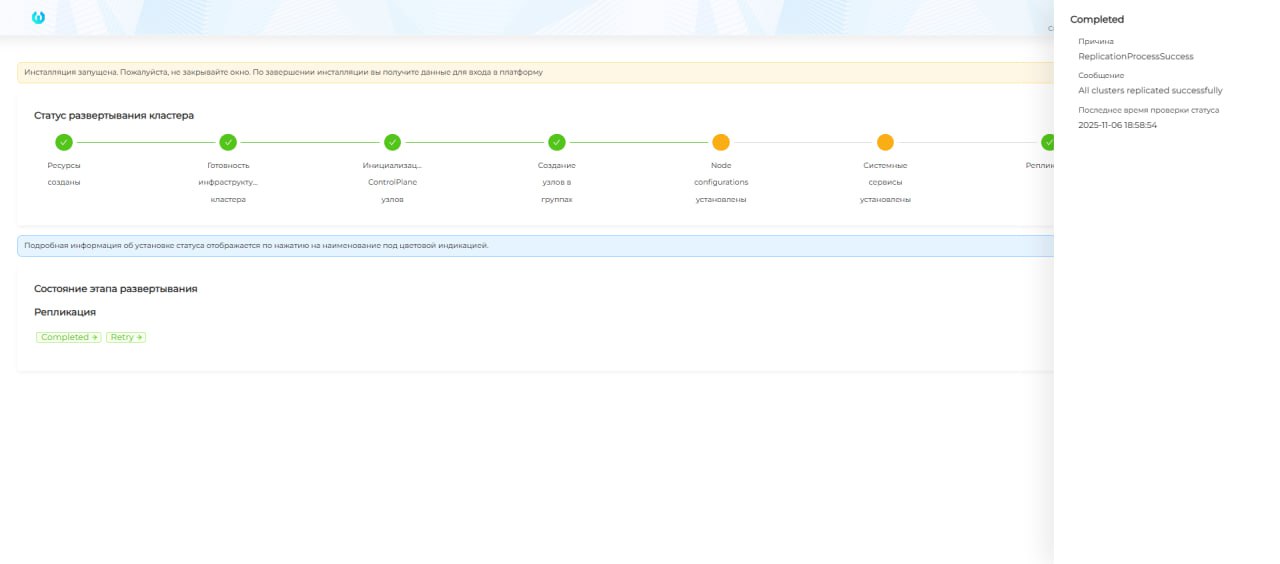
- Replication (for management cluster only). The stage displays a list of replication conditions;
Screenshot
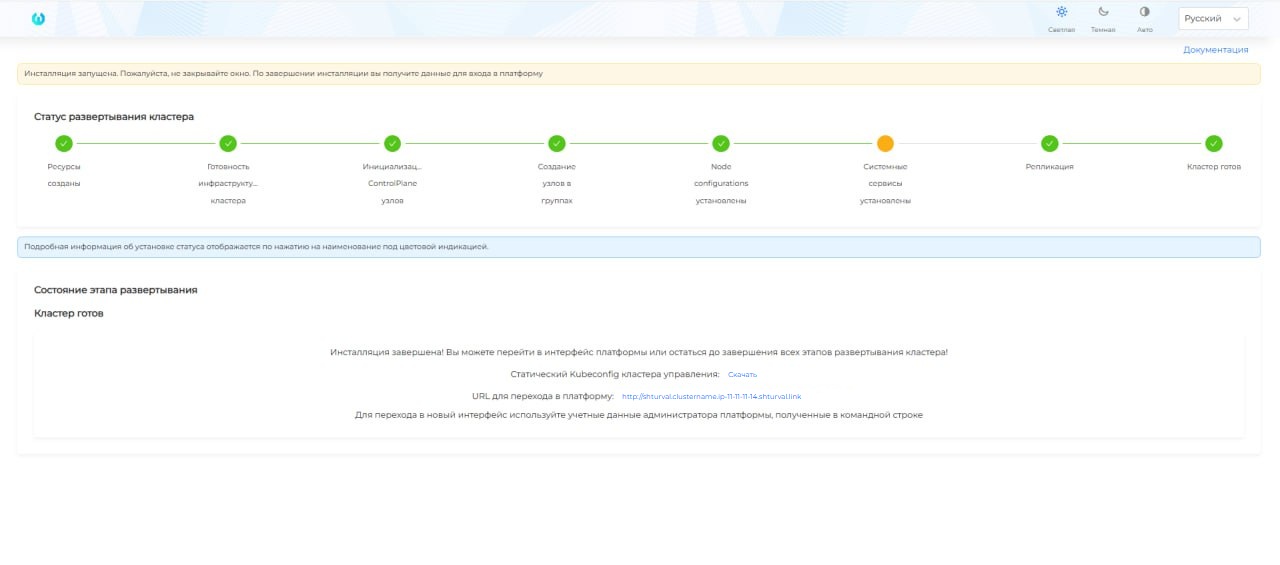
- Cluster readiness - the final status of the cluster deployment.
Color indication determines the status of each stage:
- green color upon successful completion of the stage;
- yellow - if the stage is in progress;
- gray - the stage execution process has not started.
Client cluster status
After initializing the creation of a client cluster, you can track cluster creation status in Cluster/Client Clusters by clicking the name of the cluster being created. Until cluster deployment completes, the Dashboard page is available in the Administration section and shows deployment status information.
When all Control Plane and Worker nodes are up and the infrastructure is ready, the deployed cluster dashboard is displayed.
Installation of Shturval repository services in the cluster and node configurations (applying NCI to nodes) in the client cluster is shown for additional tracking and does not affect the final cluster deployment status. Therefore, if the cluster becomes available before all services are installed and/or all NCIs are applied to cluster nodes, you can verify completion of NCI application and service installation on the GUI pages.
Management cluster status
When the management cluster installation process is started, the cluster deployment status with its stages will be displayed on the screen. Do not close the tab until the installation is complete. Upon completion, you will be automatically redirected to the “Cluster Ready” stage, where the following will be available:
- static kubeconfig of the persistent management cluster for download, save it;
- link to switch to the permanent management cluster. To log in, use the platform administrator login and password obtained in the console.
Screenshot of the stage
Completion of the management cluster installation is determined by the minimum requirements:
- infrastructure readiness;
- readiness of at least 1 Control Plane node;
- services installed successfully:
- Platform software control module (shturval-backend)
- Authentication Management Module (shturval-auth)
- Graphical Platform Management Module (shturval-frontend)
- External connection control module (shturval-ingress-controller)
When the persistent management cluster’s kubeconfig is available and linked to its GUI, some steps may not yet be completed, for example, not all services have been installed or not all NCIs have been applied. You can wait for all steps to complete in the temporary cluster GUI or monitor the installation in the permanent cluster management GUI pages (Node Configuration, Installed services).
Installation of Shturval repository services occurs in two stages: first, critical services are installed, then all those selected at the “Selecting services” step. Therefore, after the completion of the first stage, the service installation indication changes again to a color corresponding to the state of the execution process.