Egress Gateway
The Egress Gateway page contains a list of the Cilium Egress Gateway Policies created in the cluster. The Cilium Egress Gateway Policy resource defines how pods with a predictable IP address or interface route and access the external network. Because pods constantly change IP addresses, Cilium Egress Gateway Policy can be useful in cases where traffic requires a known source IP address or interface.
On the Egress Gateway page you can create, edit, delete or view previously created Egress Gateways.
Creating Egress Gateway
To add a new resource, click +Add Egress Gateway.
On the page that opens, fill in the information:
Screenshot
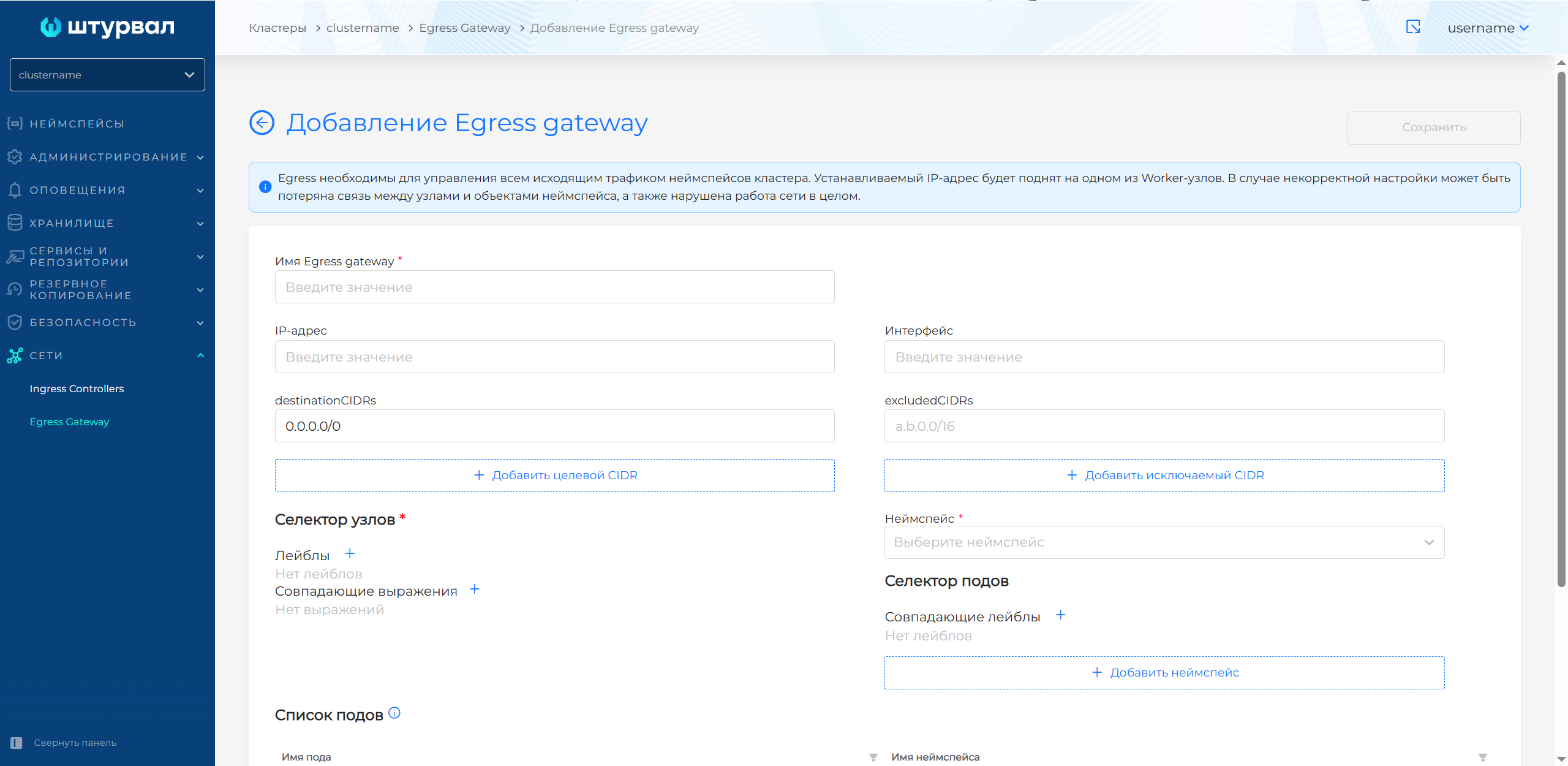
- Name Egress Gateway.
- IP address used for SNAT (network address translation) traffic. You cannot specify an IP address and a network interface at the same time.
- Interface. Instead of an IP address, you can specify the network interface that will be used for outgoing traffic, for example, eth1.
- List of target CIDRs - destinationCIDRs. The destinations where traffic will be sent from the pods. The default is 0.0.0.0/0.
- List of excluded CIDRs - excludedCIDRs. You can specify one or more CIDRs to exclude.
- Namespace. Select a namespace to define pods for outgoing traffic. When a namespace is selected, a list of potential pods will be displayed in the List of Pods table. To add pods from different namespaces, click + Add namespace. This may be required when the application is deployed in several instances of several namespaces of the same cluster and it is necessary to assign a single IP address for outgoing traffic to them.
- If necessary, set matching labels in the Pod Selector to identify potential pods of the selected namespace for outgoing traffic.
Please note! The label selector works on the principle of union. The selected object must have all of the specified labels.
Screenshot
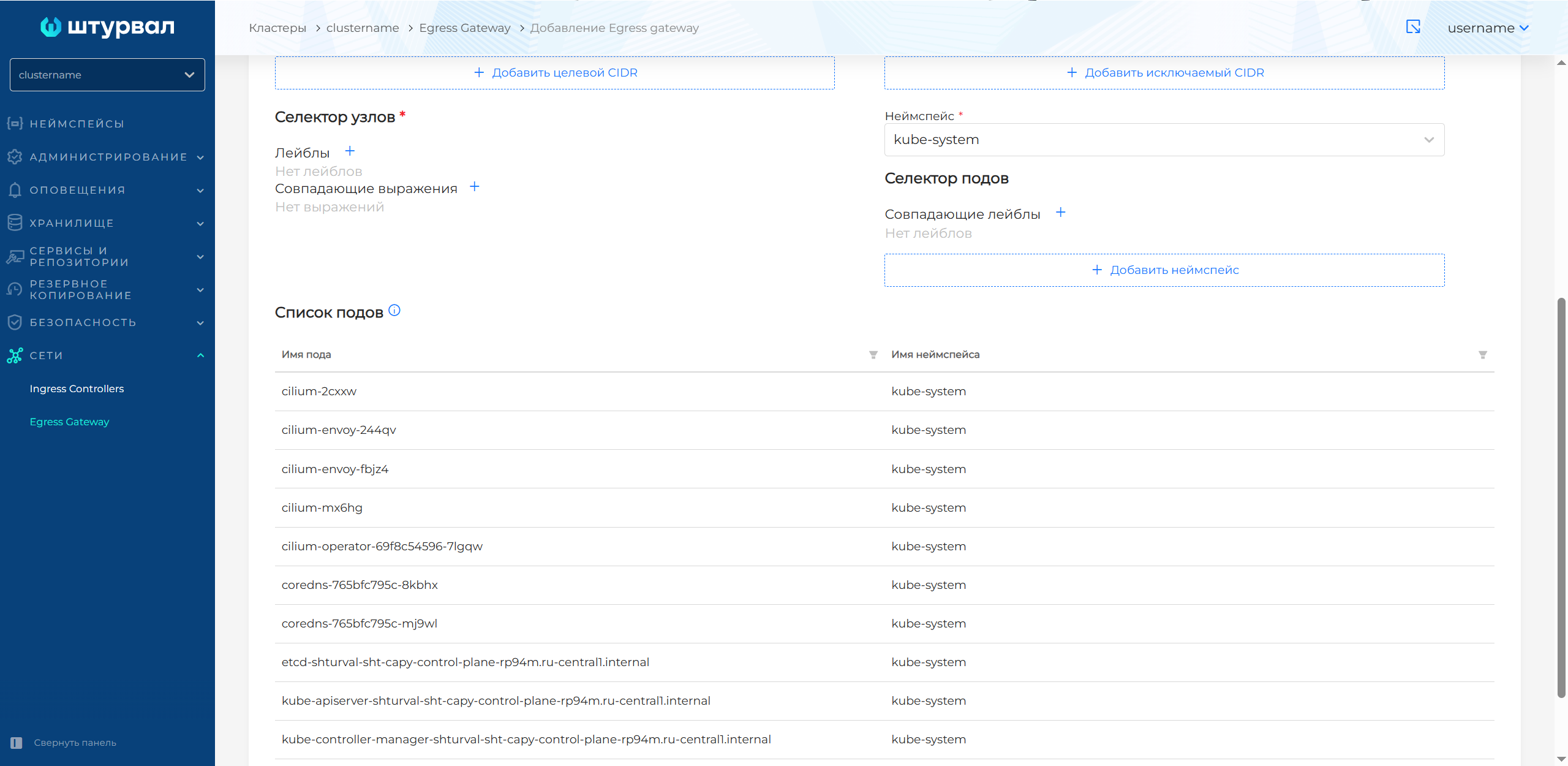
To define a cluster Worker node as a gateway node, set one or more conditions in the Node selector section:
- Labels. To add labels, click + and specify the label key, if necessary, specify the key value.
- Matching expressions. Click on + to add an expression. In the window that opens, select a key and operator. Available operators:
- In - nodes with the matching key and the specified value will be selected;
- NotIn - nodes with a matching key and the specified value are not selected;
- Exists - nodes with the matching key will be selected. No value is required;
- DoesNotExist - nodes with a matching key are not selected. No value is required.
If several Worker nodes correspond to a given set of conditions (labels, expressions), the first node in lexical order will be used. Click Save to complete the creation of the Egress Gateway.
The created resource will appear in the list on the Egress Gateway page.
Features of setting up Egress Gateway
- If you specify an IP address, outgoing traffic will exit through the specified IP address from the Worker node.
- If you specify a network interface, outgoing traffic will pass through the network interface of one of the nodes selected in the selector. If the specified interface is unavailable on the selected node, outgoing traffic will be prohibited.
- If conditions (labels, matching expressions) are selected in the node selector for which no Worker nodes were found, outgoing traffic will be prohibited.
- If only 1 Worker node is selected in the node selector, and this node is unavailable, outgoing traffic will be prohibited.
- If you do not directly specify a network interface or IP address, one of the Worker nodes of the cluster will use the first IPv4 assigned to the interface with the default route.
View and change Egress Gateway
To view, click on the Egress Gateway line in the list on the Egress Gateway page.
Screenshot
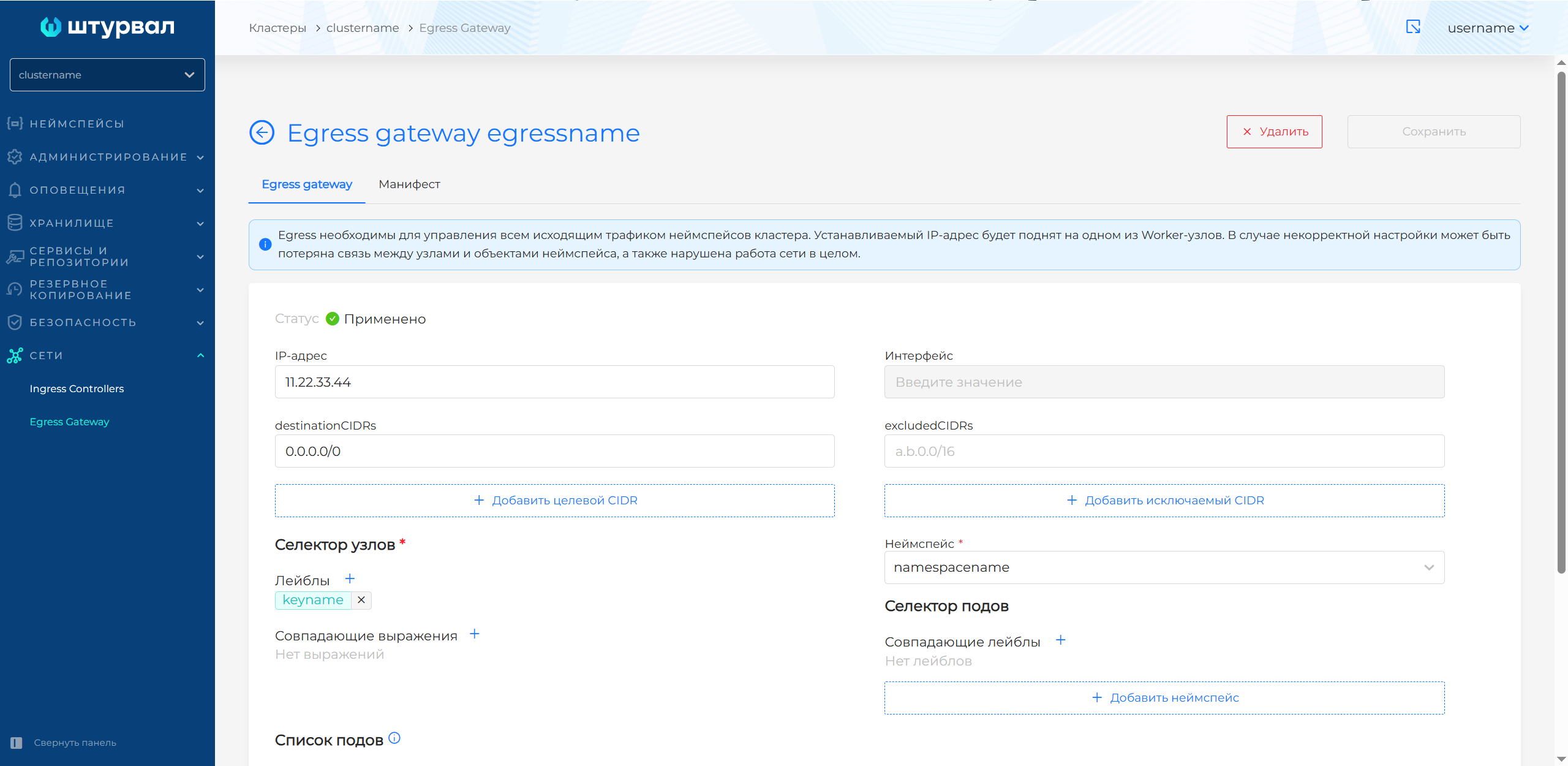
The viewing page contains two tabs:
- Egress Gateway;
- Manifesto.
If you need to change the Egress Gateway, you can update the information:
- IP addresses;
- network interface;
- list of target CIDRs - destinationCIDRs;
- list of excluded CIDRs - excludedCIDRs;
- a list of namespaces whose pod traffic will be output in accordance with the Egress Gateway settings.
When you are finished making changes, click Save.
Egress Gateway can also be modified using a YAML manifest. Go to the Manifest tab. After modifying the manifest, perform verification. The test result will be available on the right side of the screen. Expand the verification result block to see the full manifest. If Cluster Issuer manifest format validation fails, manifest validation is not available.
Save the changes you made to the manifest. Unsaved data will not be applied.
To remove Egress Gateway, clickin the object row on the Egress Gateway page, or go to the view page and click Delete on the Egress Gateway tab or on the Manifest tab on.