Continuous Application Delivery (ArgoCD) module
Argo CD is a declarative GitOps continuous delivery tool that uses Git repositories to define the desired state of an application.
Argo CD constantly monitors the state of applications residing in the cluster relative to the Git/Helm Repo in such a way that:
- automatically delivers changes when changes appear in the application in Git/Helm Repo;
- automatically brings the application into a state corresponding to the data in the Git/Helm Repo when changes occur directly in the application.
Additional information can be found on official website.
Installation and configuration
To view the ArgoCD settings in the cluster interface of the Shturval platform:
- in the side menu, open the Services and repositories section;
- go to the Installed services page;
- find Continuous Application Delivery Module (
shturval-cd).
If the module is not displayed, go to the Services and Repositories section and open the Available Charts page, find the “shturval-cd” chart and click “Install”.
In case you install the shturval-cd chart after creating the cluster, make sure that it is enabled and in auto-update mode:
- CRD for the continuous application delivery module (shturval-cd-crds);
- External connection control module (shturval-ingress-controller).
Resource configuration (CPU, memory)
By default, limits and requests for resources (CPU, memory) are defined. If necessary, you can set the required resource limits/requests for ArgoCD. To do this you need:
- Prepare ShturvalServicePatch for application to the specification (ssc) of the Continuous Application Delivery Module (
shturval-cd), in which to define the limits/requests parameters, as in the example below.
Example ShturvalServicePatch
apiVersion: ops.shturval.tech/v1beta2
kind: ShturvalServicePatch
metadata:
  name: <resource-name>
spec:
  shturvalServiceConfigName: shturval-cd
  customvalues:
    controller:
      resources:
        limits:
          cpu: <your-parameter-value>
          memory: <your-parameter-value>
        requests:
          cpu: <your-parameter-value>
          memory: <your-parameter-value>
| Parameter | Description | Data type | Example |
|---|---|---|---|
metadata.name | Name of the created PatchSSC | string | shturval-cd-resource |
limits.cpu | CPU limit. Default 500m | string | 600m |
limits.memory | Memory limitation. Default 512Mi | string | 800Mi |
requests.cpu | Requested CPU resources CPU request. Default 250m | string | 400m |
requests.memory | Requested memory resources. Default 256Mi | string | 300Mi |
- In the cluster, load the prepared ShturvalServicePatch using import manifests.
Screenshot
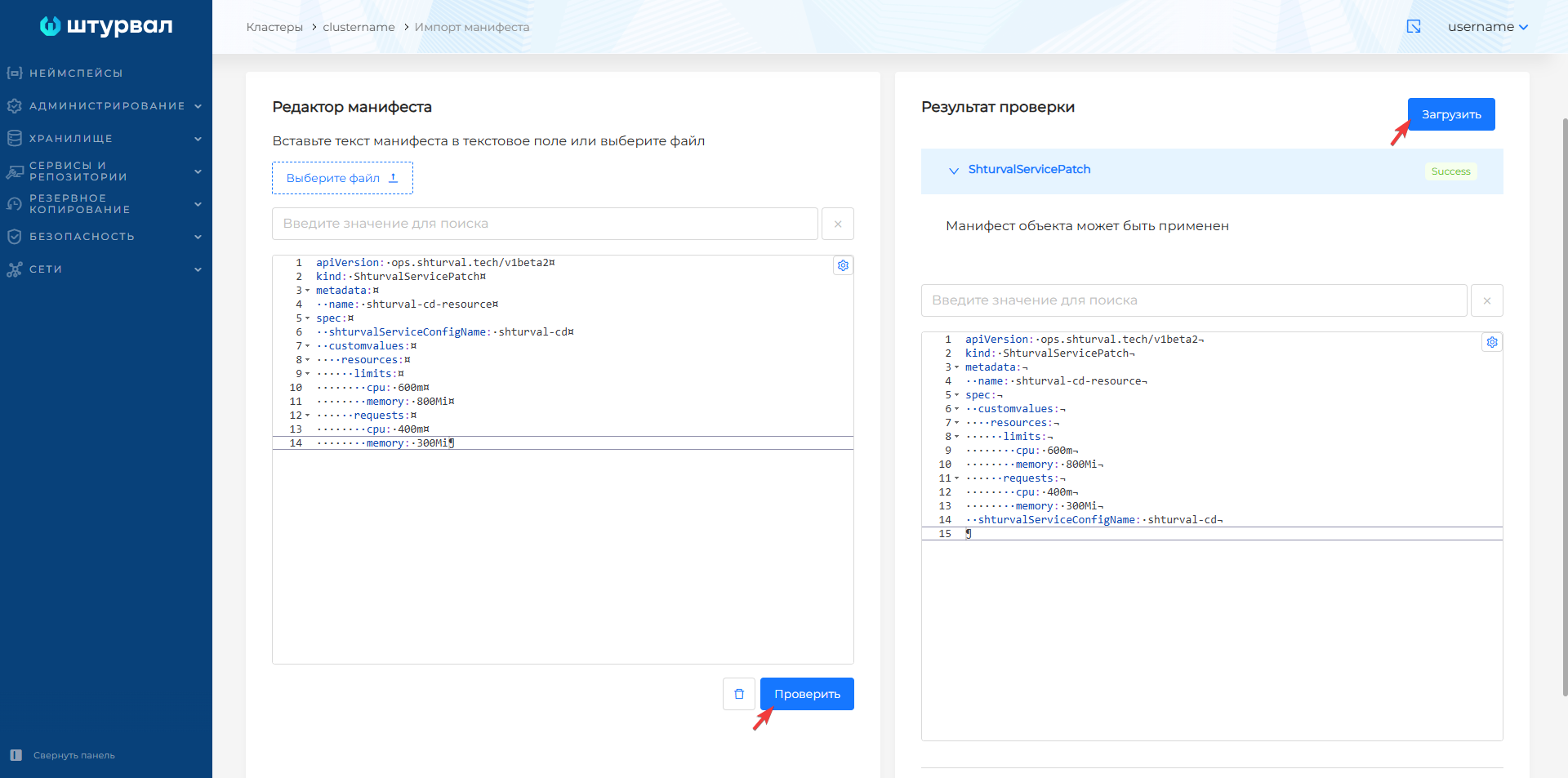
After downloading ShturvalServicePatch it will take time for the changes to take effect.
Transition to Argo CD
There are 4 ways to access the Argo CD interface:
The Argo CD interface is accessible by the argocd prefix in the cluster domain. For example:
argocd.clustername.ip-XX-XX-XX-XX.shturval.link.from the client cluster dashboard using the “Argo CD” button (SSO authorization).
from the namespace of the client cluster using the “Argo CD” button. If in the namespace you see the “Create a project in Argo CD” button, it means that a project has not yet been created in this namespace. The button to go to the Argo CD interface will become available after successful creation of the project (SSO authorization).
from the namespace shturval-cd/Network/Ingresses/shturval-cd-server.
To authorize in the Argo CD interface, you can use your authorization credentials in the Shturval platform or the Argo CD administrator credentials:
- login: admin
- the password can be obtained in the graphical interface of the platform or console.
In the graphical interface, the password can be found in the namespace shturval-cd in the secret argocd-initial-admin-secret.
In the console, to obtain the password, connect to the cluster and run the command.
Command
kubectl -n shturval-cd get secret argocd-initial-admin-secret -o jsonpath="{.data.password}" | base64 -d
Interface customization
To customize the ARGO CD interface:
- Prepare a ShturvalServicePatch for application to the specification (ssc) of the Continuous Application Delivery Module (
shturval-cd), where you specify the customization parameters.
Example ShturvalServicePatch
apiVersion: ops.shturval.tech/v1beta2
kind: ShturvalServicePatch
metadata:
  name: <resource-name>
spec:
  shturvalServiceConfigName: shturval-cd
  customvalues:
    configs:
      styles: |
                <your-parameter-value>
      cm:
        ui.bannercontent: "<your-parameter-value>"
        ui.bannerpermanent: <your-parameter-value>
| Parameter | Description | Data type | Example |
|---|---|---|---|
metadata.name | Name of the created PatchSSC | string | shturval-cd-interface |
styles | CCS styles for customizing interface elements | string | .ui-banner { background-color: #FF0000; } |
cm.ui.bannercontent | Banner content (text to be displayed to the user) | string | !!! PRODUCT!!! |
cm.ui.bannerpermanent | Sign of permanent banner visibility | boolean | true |
- In the cluster, load the prepared ShturvalServicePatch using import manifests.
Screenshot
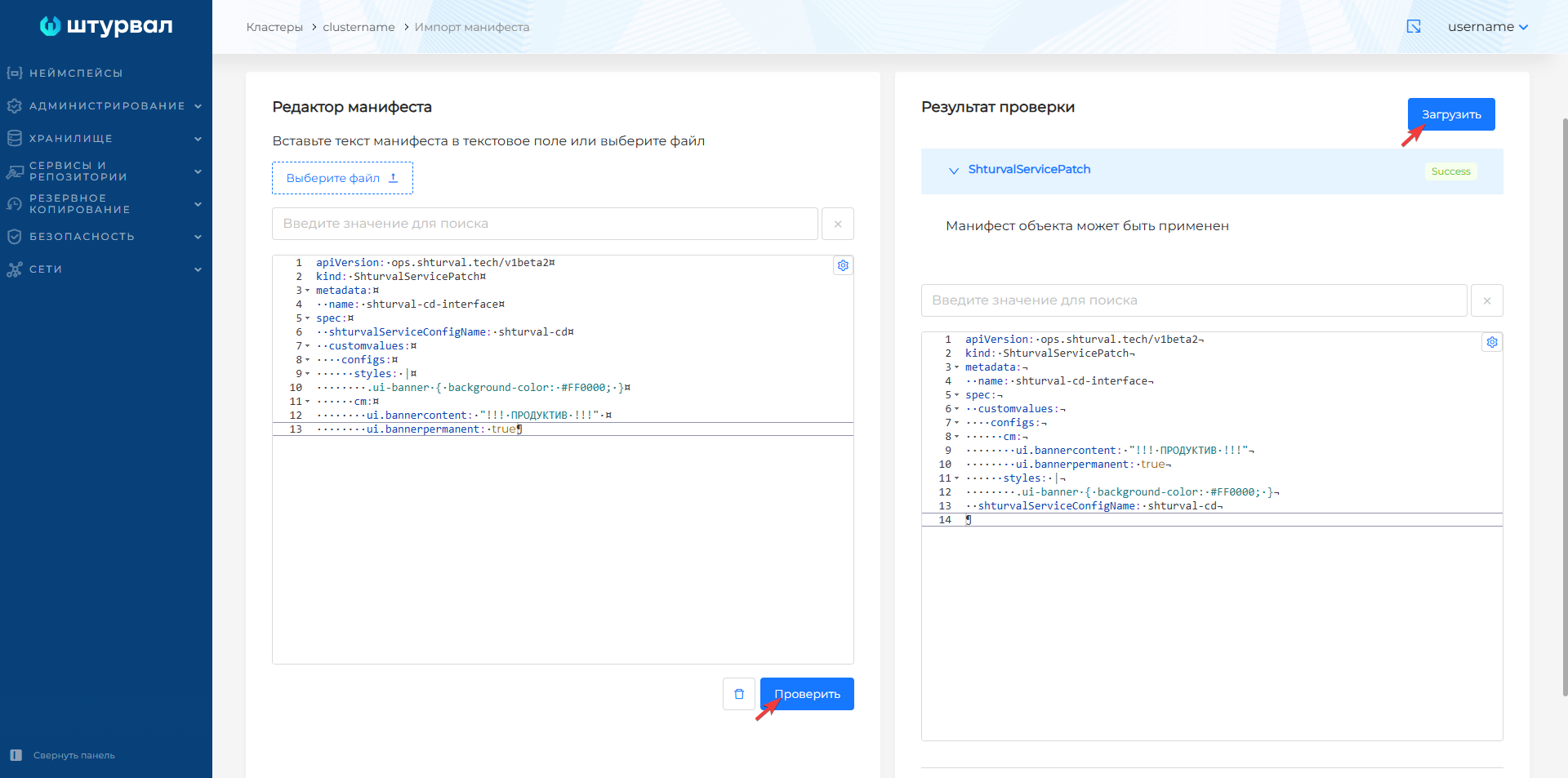
After downloading ShturvalServicePatch it will take time for the changes to take effect.
Connecting a certificate to ARGO CD
When connecting a repository using a self-signed or corporate certificateificate, you can configure certificates from the ARGO CD interface. To do this:
- Go to the Settings/Repository certificates section.
- Click Add TLS certificate.
- In the window that opens, enter the repository address (Repository server name) and TLS certificate in PEM format.
Please note! The body of the certificate must include:
Contents
----BEGIN CERTIFICATE---- and ----END CERTIFICATE----