Available charts
The Available charts page contains Helm charts of services available for installation in a cluster. The charts are arranged in tabs according to the connected repositories.
It is possible to search for the Helm chart of a service by its name. The search input line is located under the tab name. The search works starting from the first character entered.
By default, Helm charts of services are available in the Shturval repository.
Screenshot
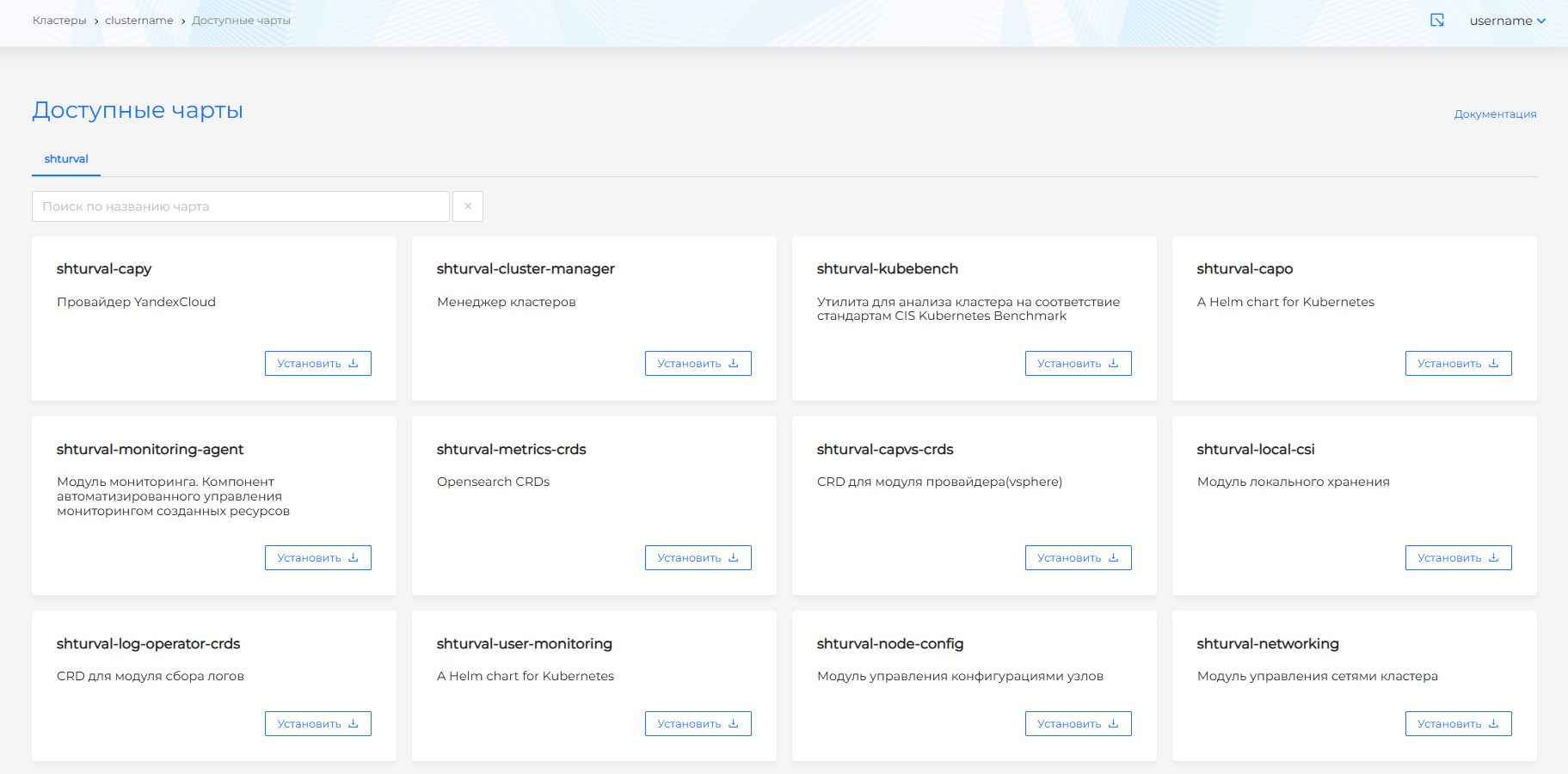
Installing and configuring a service instance
To install a service instance, click the Install button on the service chart card. On the Chart Installation page you need to perform the initial configuration of the service instance.
Screenshot
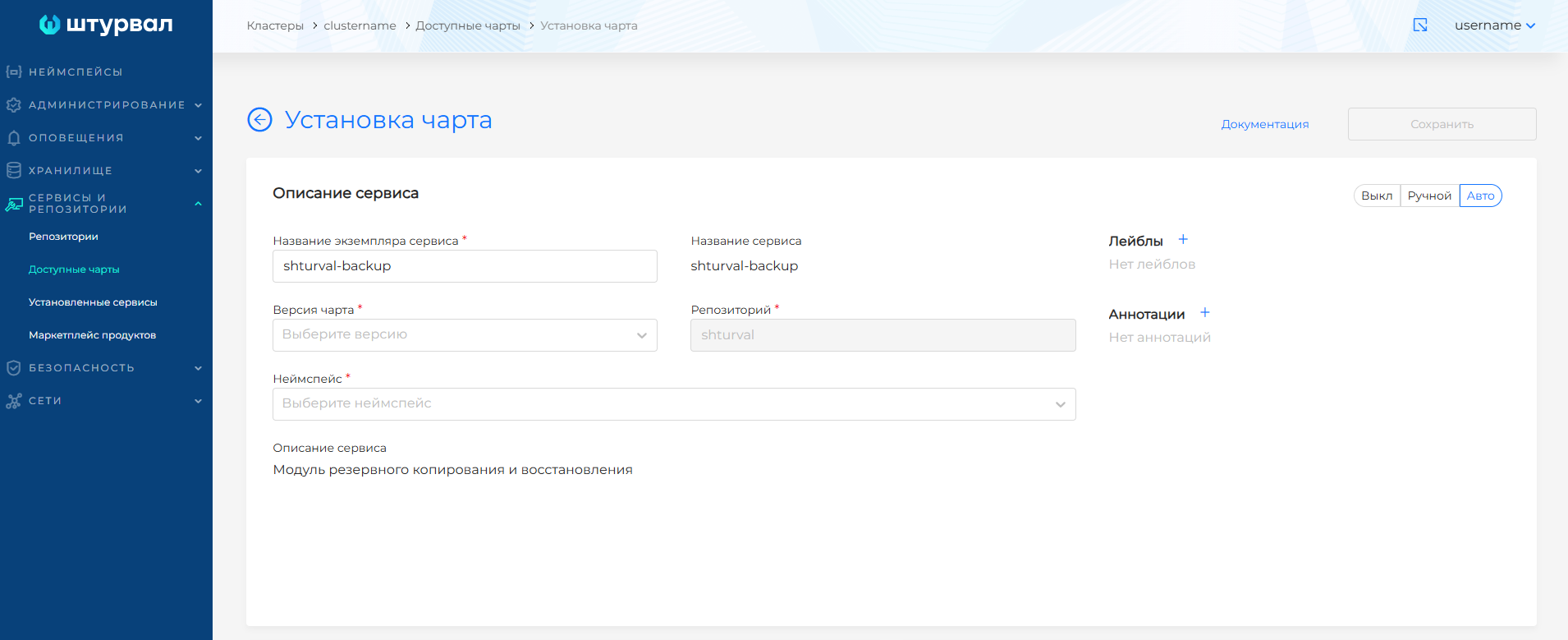
To do this, specify the name of the service instance. Select the chart version (the latest available is selected by default). Select the namespace in which you want to install the service instance. In the drop-down list of namespaces, the option to create a new namespace is available.
Screenshot
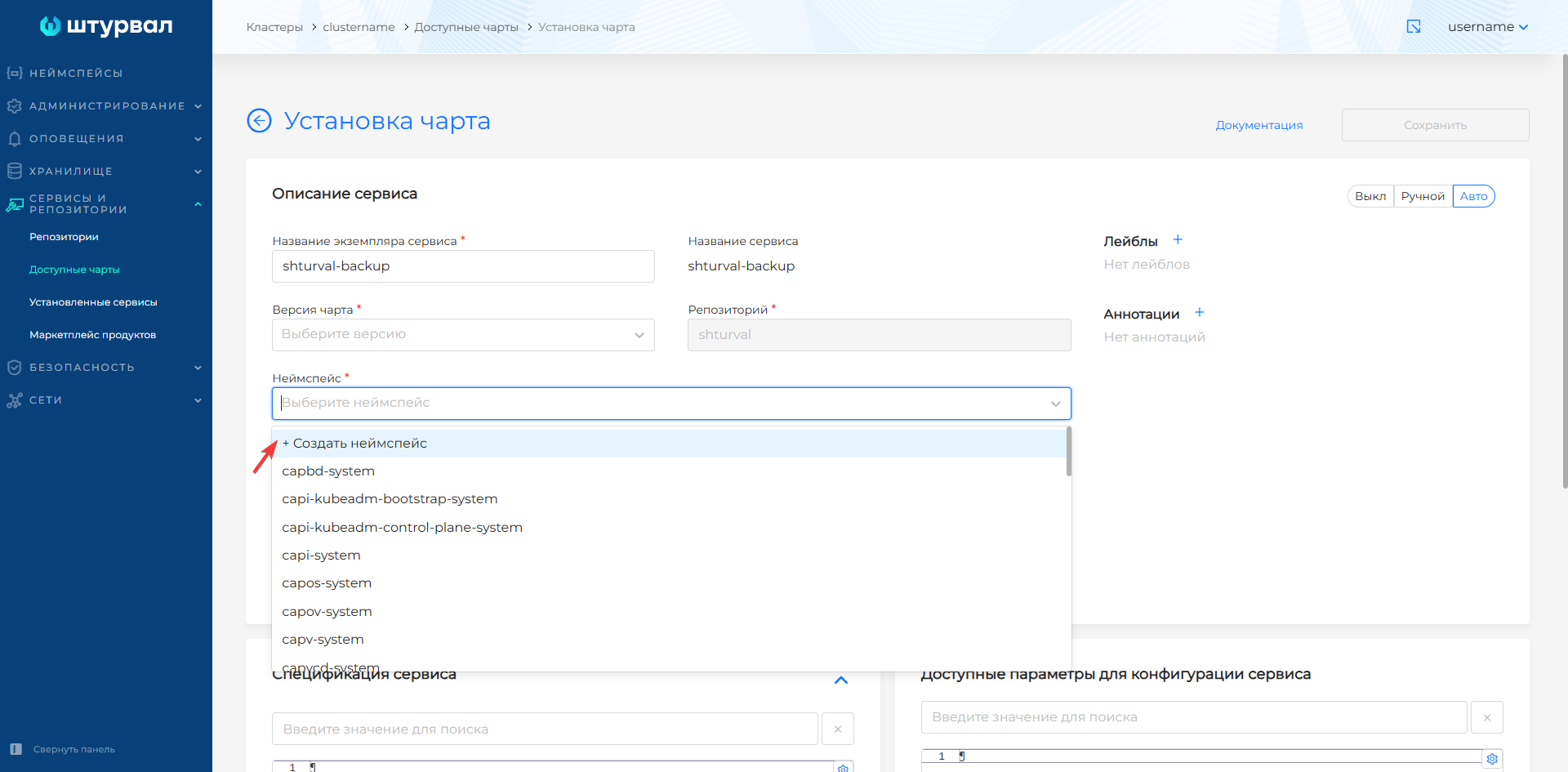
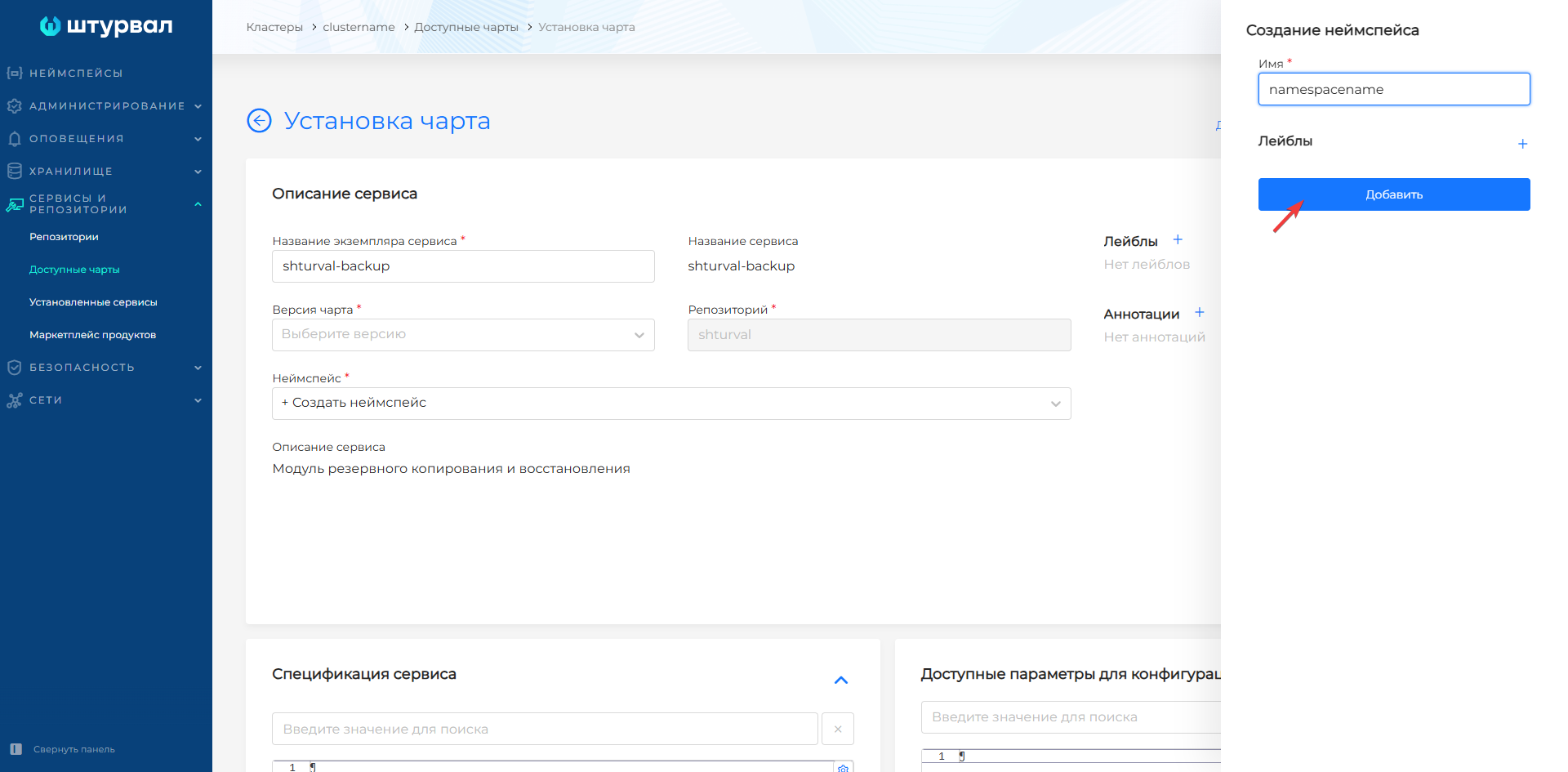
Define the management mode of the installed service instance:
- Off (Absent) - the service instance will be set to disabled. After installing the service, on the Installed services page you can enable the service automatically or manually.
- Auto (Auto) - the service instance will be installed and enabled, while the service resources in the namespace will be created automatically, which will lead to the service automatically starting in the cluster. When making changes to the service configuration, select this mode to automatically apply updates.
- Manual - the service instance will be installed and enabled, and the service will be launched and updated manually. This may be necessary if you want to use a version of the service that is different from the version that comes with the cluster.
Please note! The graphical interface of the platform is strictly related to the supported version of services. In case of version discrepancies, the graphical interface may not correspond to the actual data.
Define labels and annotations as needed.
Adding a repository chart connected via oci
If the repository is connected via the oci protocol, on the repository tab, enter nThe name of the repository chart for installing the service instance. Click Check Version to get a list of chart versions.
Screenshot
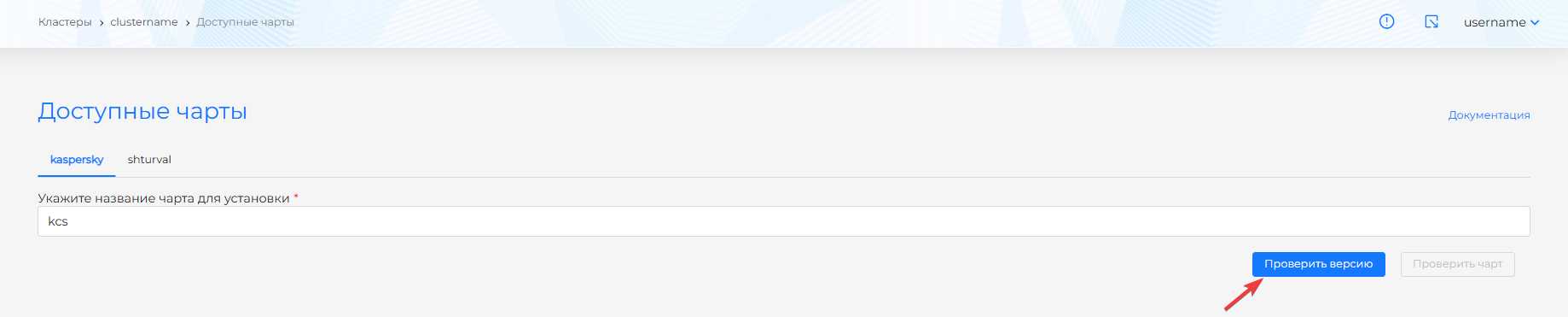
When the correct chart name is entered, the available versions of the chart will be retrieved for installation. The latest version of the chart will be automatically added to the title. You can view the list of versions and select the chart version on the Chart Installation page.
Screenshot

To subsequently install the chart and configure the service instance, click Check chart, the Chart Installation page will open. Perform the initial configuration of the service instance. The service instance name and chart version will be pre-filled in accordance with the chart name and version specified on the repository tab.
Screenshot
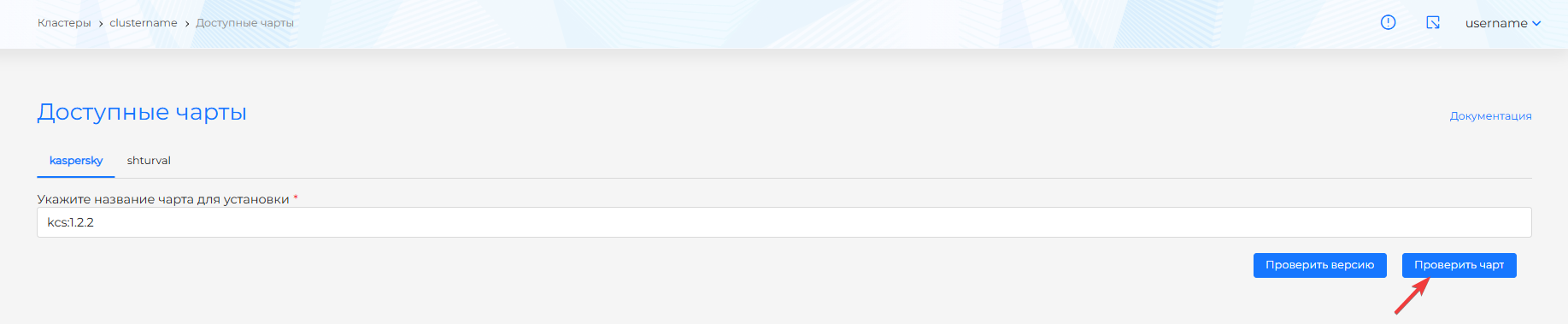
Further, the settings of the service instance on the Chart Installation page are identical to the settings of the service instance of the shturval repository, section Installing and configuring a service instance.
###Service Specification
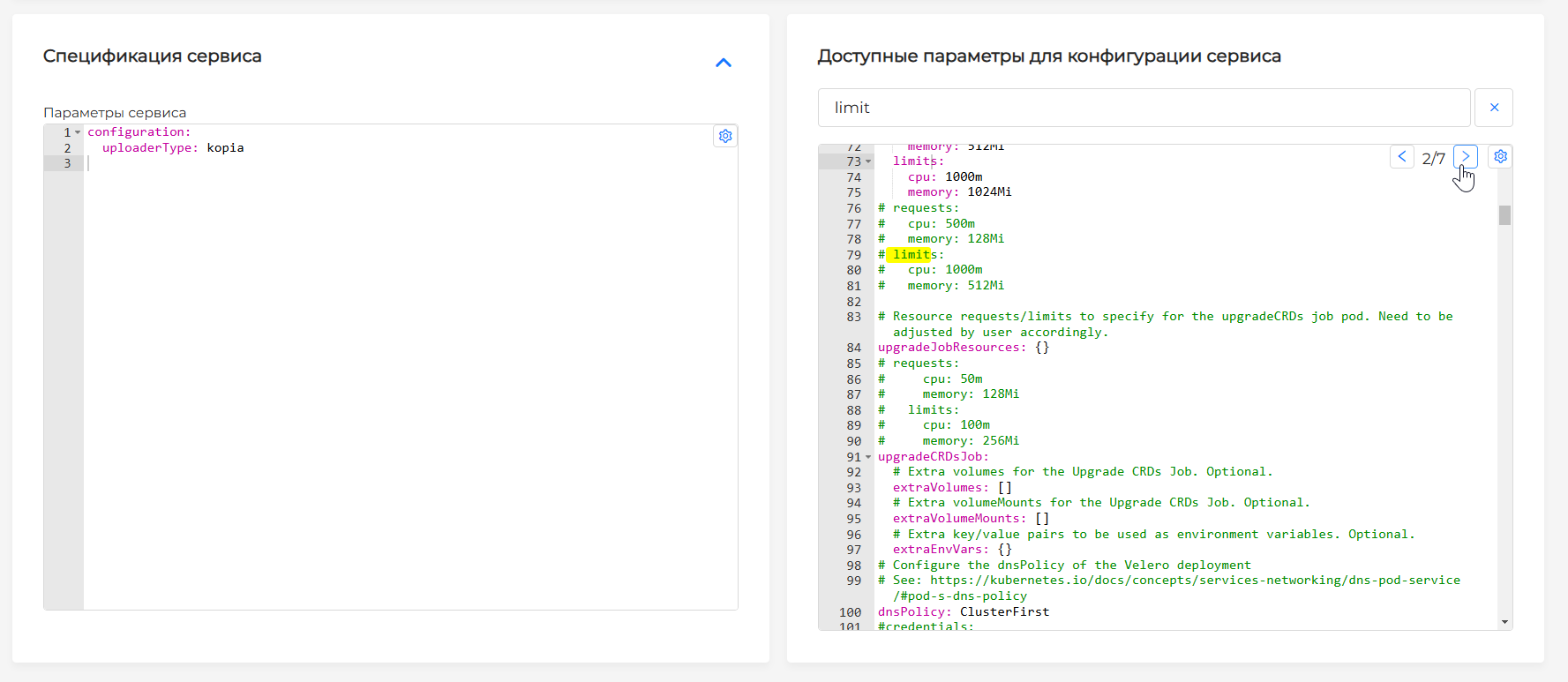
Initially, Helm uses default configuration options. The Service specification block is nothing more than the values transferred in the file when installing the service or updating it. Values must be in YAML format. Some of the services of the Shturval platform have a preliminary configuration, which you can see immediately after deploying the cluster. customvalues are not overwritten when the cluster is updated.
If a service chart comes with a set of available values, they will be displayed on the right side of the screen. Values on the right side of the screen are displayed only for viewing as they appear in the chart. It is possible to search for available values by name. When you enter the first character in the input line, value is searched. All changes (customization) must be made on the left side in the “Service Specification” block.
Screenshot
After completing the initial configuration of the service, click the Install button.
The installed instance of the service will be available for viewing and editing on the Installed Services page.