Repositories
The Repositories page displays a list of repositories connected to the cluster. When installing a cluster, the Shturval repository is connected by default. It is possible to add a repository containing Helm charts of services.
Screenshot
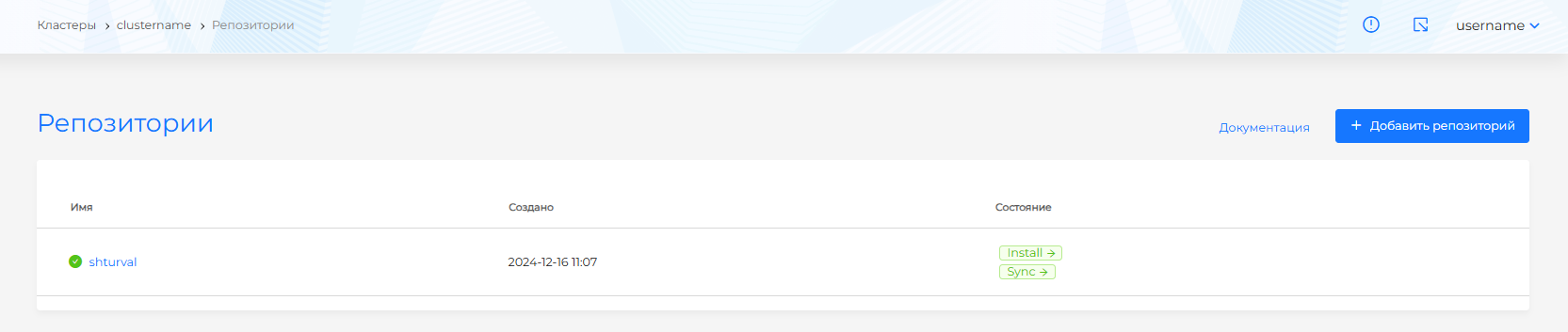
To add a new repository, click the + Add repository button.
In the window that opens:
- set the name of the connected repository;
- In the URL field, enter the path to the repository. Available protocols for connection: http, https, oci;
- select whether certificate verification is required for connection;
- if access to the repository is limited, enter the user’s login and password;
- Define repository labels and annotations if necessary.
Charts from the created repository will be available on the Available charts page of the “Services and Repositories” section on the tab with the repository name. Please note! If you connect a repository with the oci protocol, on the repository tab you must enter the name of the chart for its subsequent installation.
To view or edit data from a previously created repository, click on the repository names in the list of repositories.
Screenshot
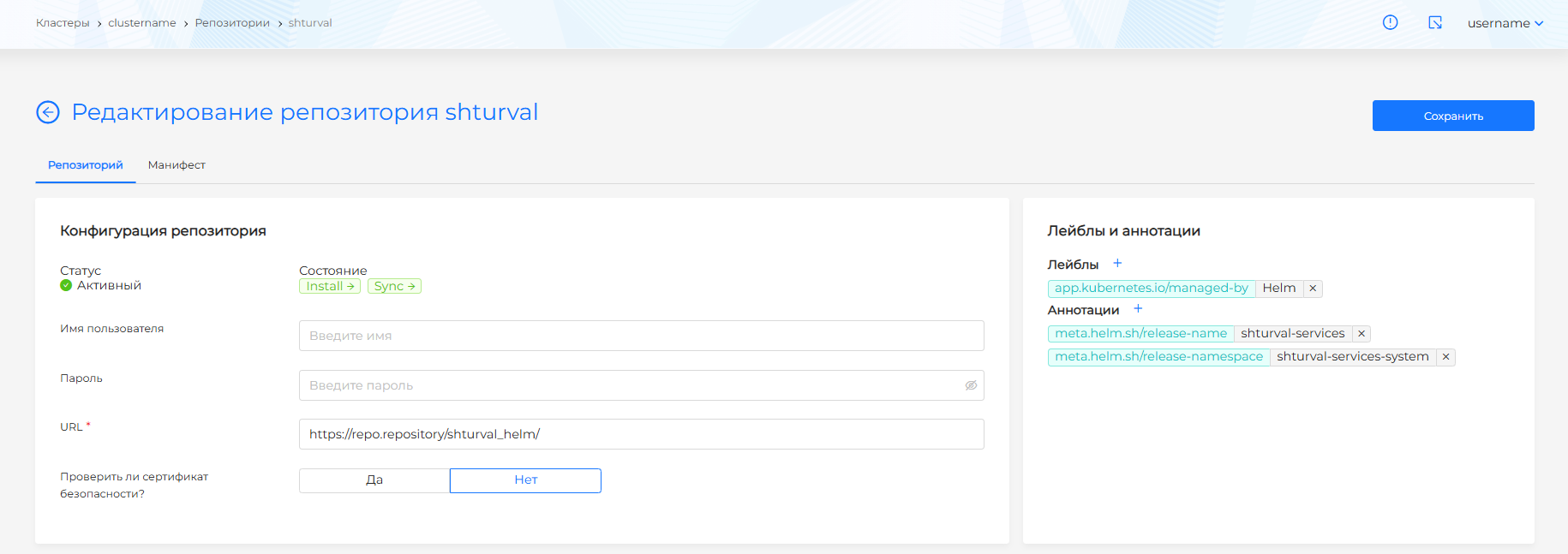
On the Repository tab you can view the status, status and data of the connected repository.
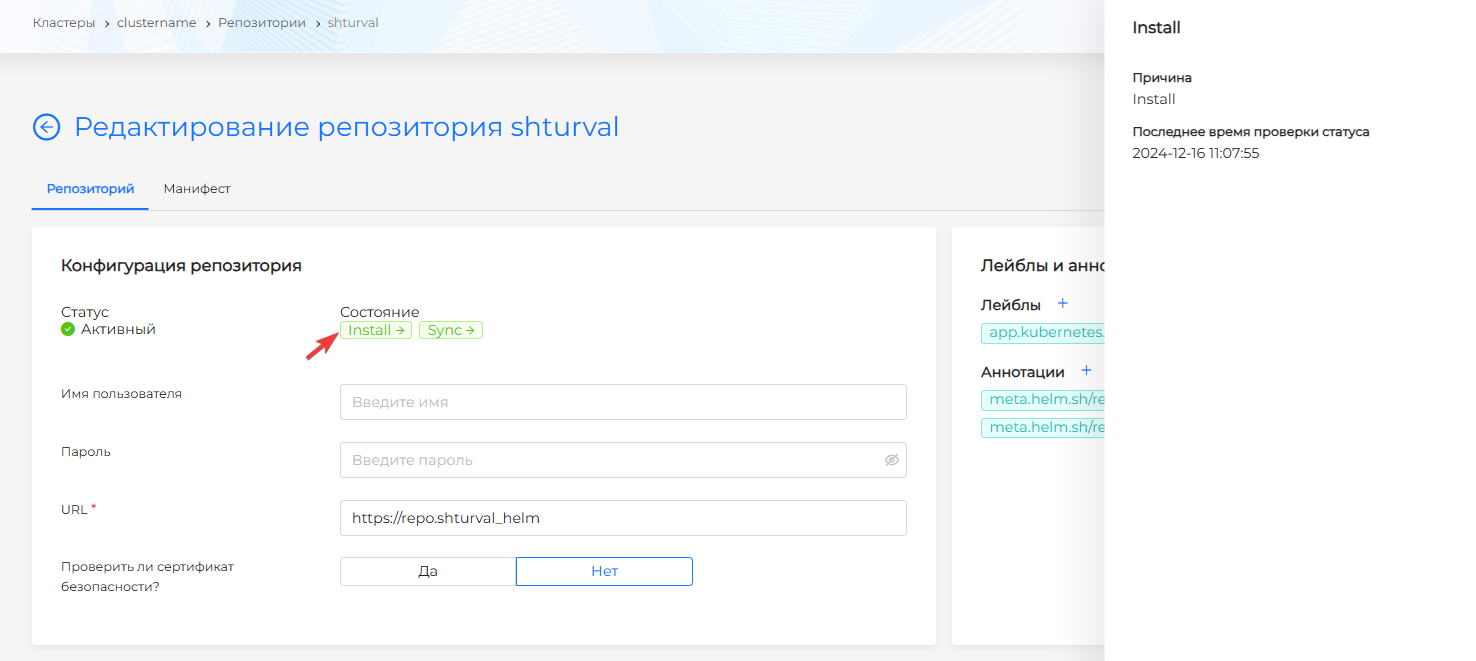
The State block contains a list of states that are set when the repository is connected. To view more information, click on the state name from the list. The status information displays: the status name, the date and time the status status was checked, and the reason for setting the status status.
Screenshot
In case of unsuccessful installation of the status status, an additional message about the repository connection error is available.
Screenshot
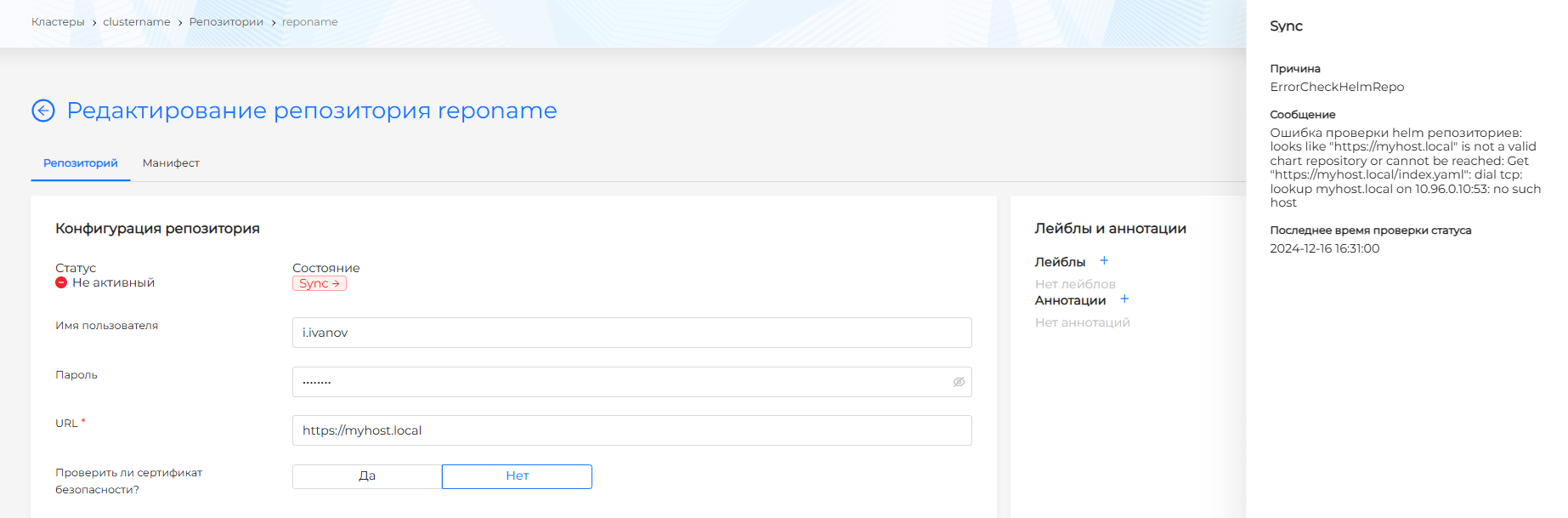
If necessary, you can change the path data to the repository, repository access data, certificate verification, define labels and annotations. After editing is complete, click the Save button.
It is also possible to change data using the object manifest. To do this, go to the Manifest tab. After making changes to the manifest, run a checku. The test result will be available on the right side of the screen. Expand the verification result block to see the full manifest. If the repository manifest format validation fails, manifest verification is not available.
Screenshot
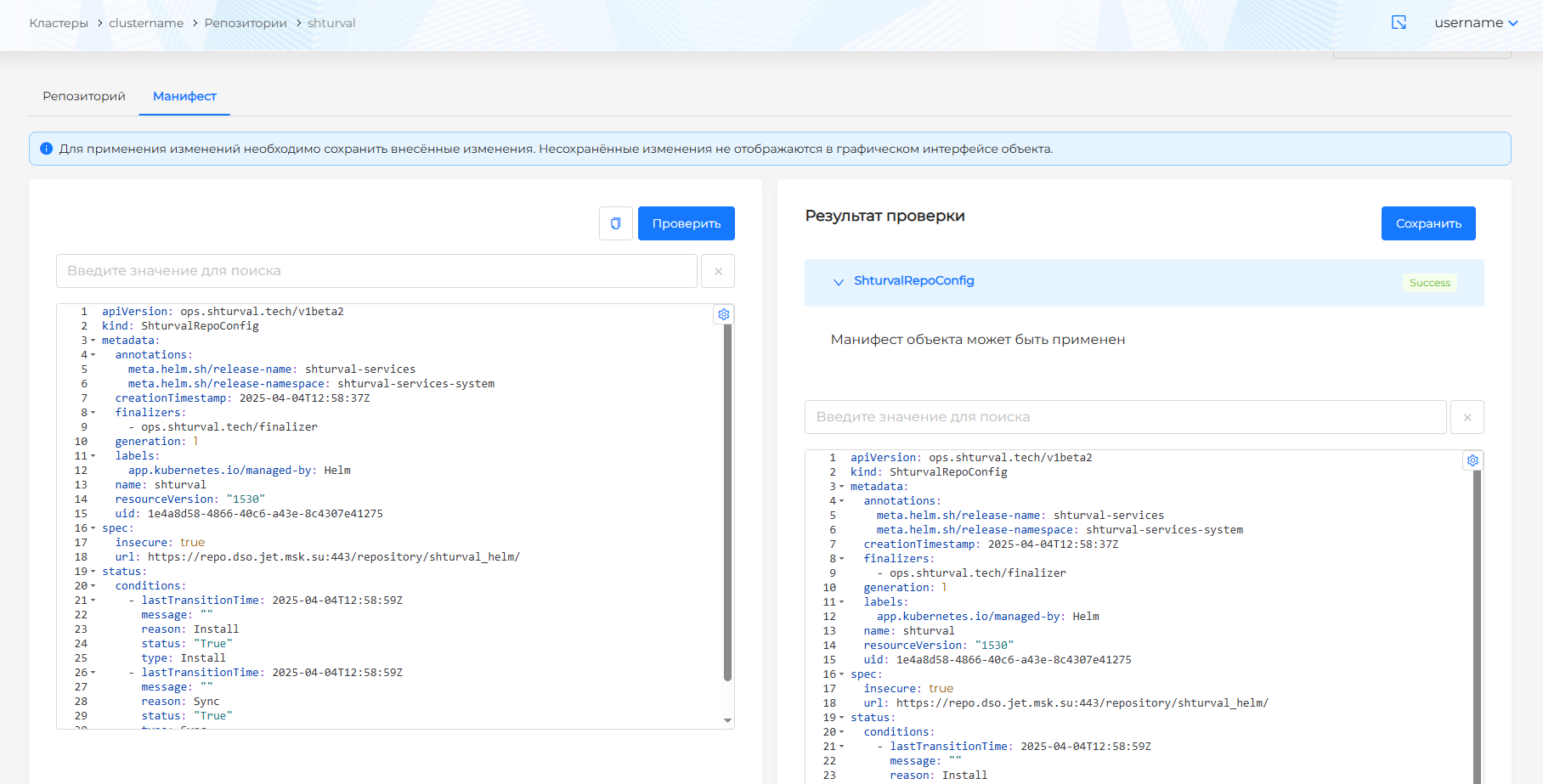
Save the changes you made to the manifest. Unsaved data will not be applied.
To delete a repository, click on in the repository line.
After deleting a repository, services installed from charts in this repository to the cluster will remain installed.