Product marketplace
On the Product Marketplace page you can connect pre-configured repositories of partner products. To connect other repositories, go to the Manage Repositories page.
Partner Product Management
Adding a partner product
To add partner products to the platform, you must connect to the partner’s product repository. To do this, go to the Product Marketplace page, select a product and click Add.
Screenshot
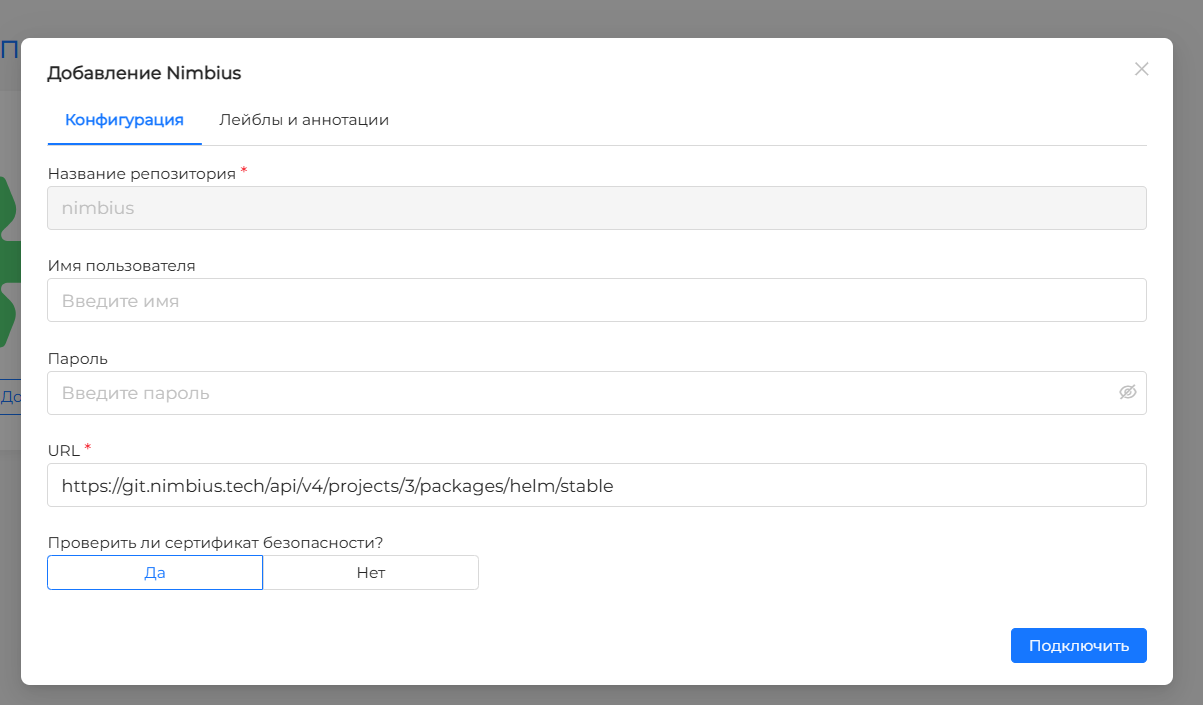
In the modal window that opens, on the Configuration tab, fill in the fields:
- Username. You must provide account information if you are connecting to a partner’s private product repository.
- Password. Provide the password for your account access to the partner’s private product repository.
- URL. Required field. The field contains a link to go to the partner’s product repository, which contains Helm charts for installing services. By default, a URL is defined that points to the partner’s public product repository. You can change the default URL if the charts for the services you need are located at a different address, for example, to the URL of a private repository or mirror. Available protocols: http, https, oci.
Select whether to check the security certificate. Checking the security certificate will confirm the secure connection and the authenticity of the server with which the connection is being established.
If necessary, add labels and annotations on the Labels and Annotations tab.
Please note! If the connection to the partner’s product repository is via the oci protocol, then instead of selecting a chart from the list of available ones, you must enter the name of the chart for its subsequent installation.
The name of the partner product repository is defined by default and matches the name of the selected product on the Product Marketplace page. You cannot set or change the name.
After completing the required fields and completing the partner product repository configuration, click Connect. As a result of the connection, the Available charts tab will appear in the modal window. Select service charts and install services. You can complete the connection without installing services; to do this, click Finish without installation.
Select and install services from available charts inYou can in the modal window of the previously connected partner product repository. To do this, open the Product Marketplace page, select Manage product and go to the Available charts tab, select charts and install services.
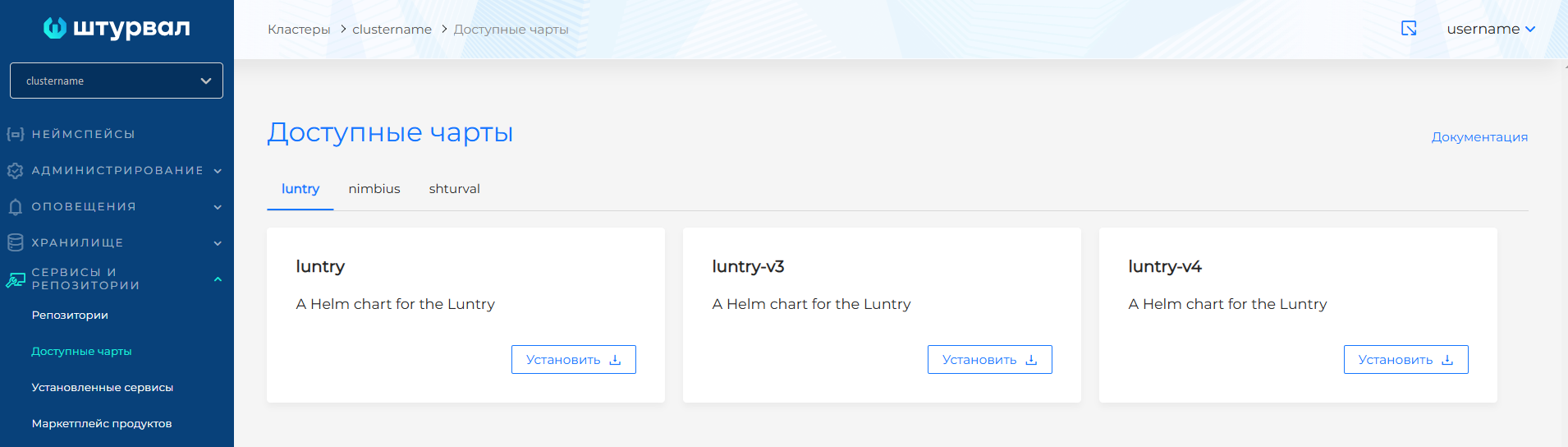
Also, charts of the connected partner product repository are available for installation on the Available charts page on the same tab of the partner product repository.
Partner Product Change
If the connection to the partner’s product repository is established, but the charts are unavailable, check the URL and credentials settings, then reconnect.
Screenshot
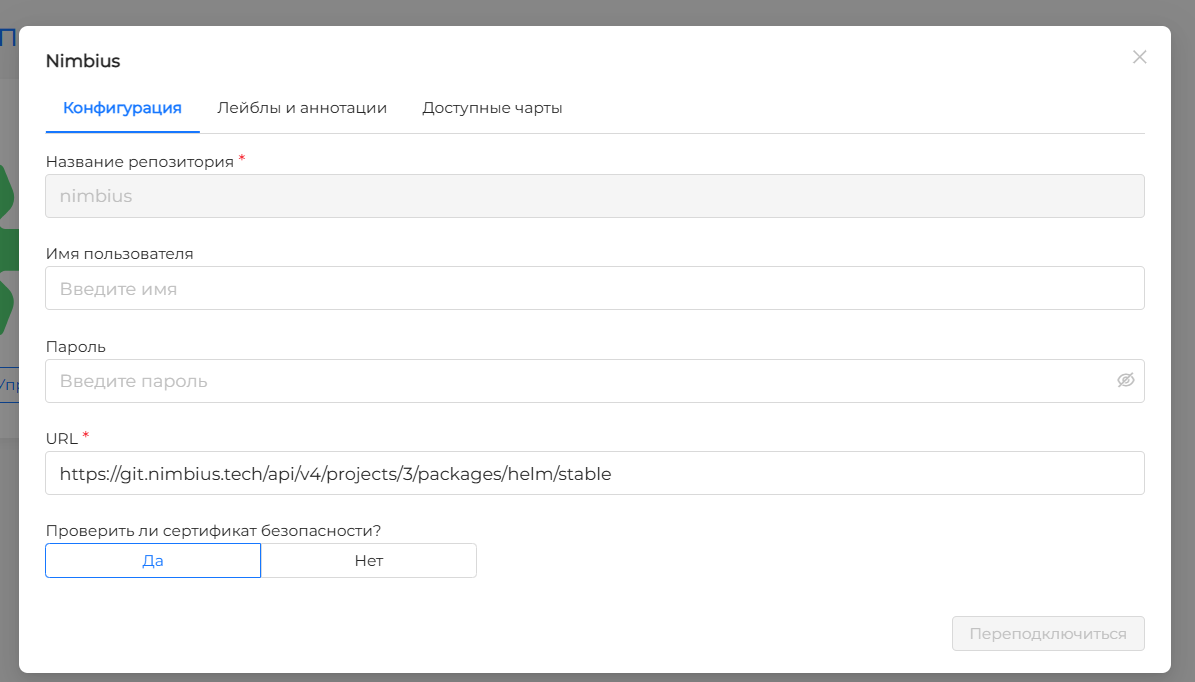
To reconnect the partner’s product repository, go to the Product Marketplace page, select Manage product. Update the repository configuration, click Reconnect. After reconnection, the configuration data and available charts will be updated.
Including, editing the data of a previously connected partner product repository is possible on the Repositories page. Click on the repository name in the list of connected repositories and update the data if necessary. Don’t forget to Save your changes. Once saved, the configuration data and available charts will be updated.
Previously installed services from the partner’s product repository charts will continue to work without changes.
Disabling access to a partner’s product repository
If necessary, you can disable access to the partner’s product repository on the platform. Go to the Repositories page, select the partner’s product repository from the list, click on the “cart” and confirm the action.
Screenshot
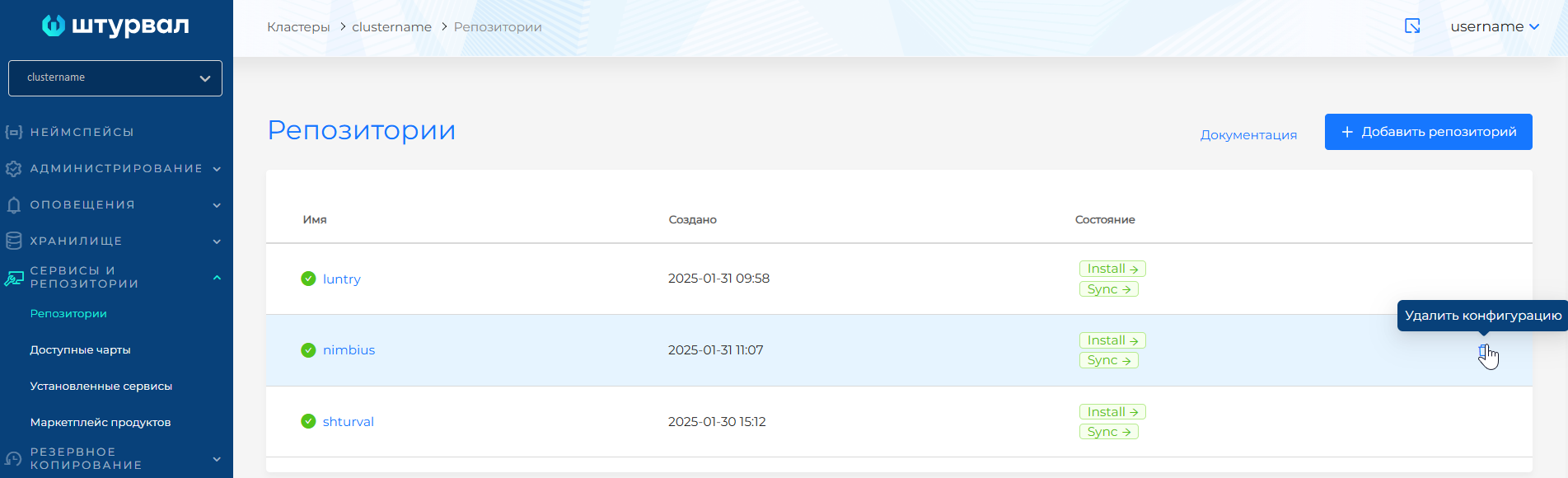
Please note! If access to a partner’s product repository is disabled, its charts will not be accessible from the platform. Disabling access will not affect the operation of previously installed services.
Available products
Repositories of partner products are available on the platform for connection:
Screenshot
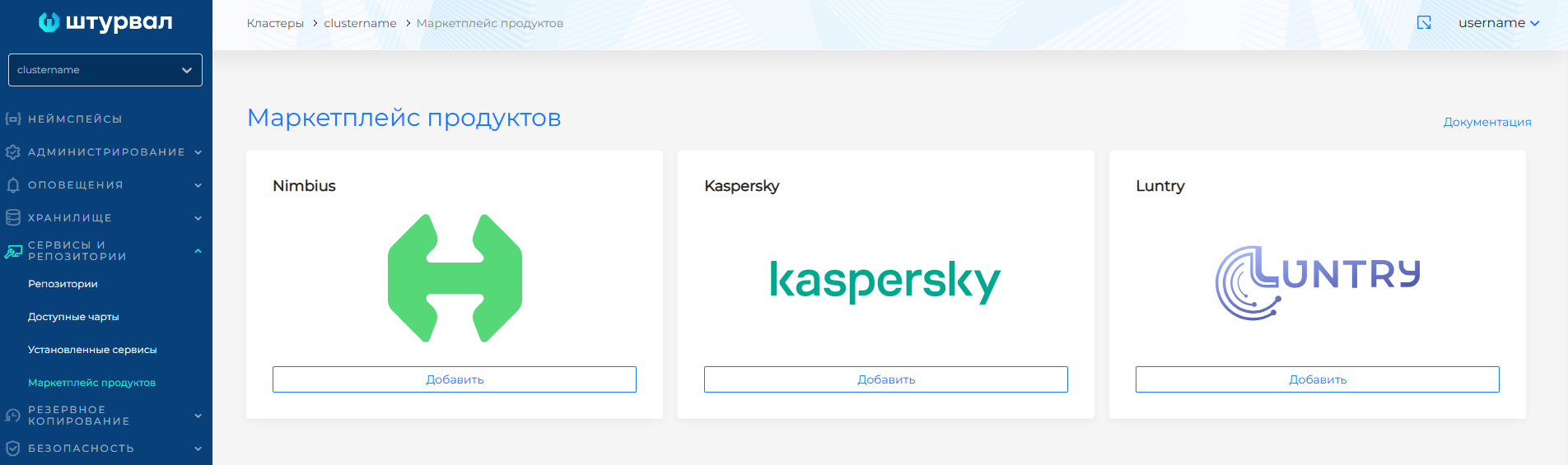
- Nimbius - hybrid cloud management platform. The chart is located in a public repository.
- Kaspersky - overlaid information security tools for the cluster.
- Luntry - comprehensive protection of containers and Kubernetes at all stages of life qicla applications.
Nimbius
When installing the chart, create or select the previously created namespace nimbius. After installing the chart, you will need to create a secret in the nimbius namespace with the name regcred and type dockerconfigjson, containing license data, and also change the service configuration. To purchase a license, contact Nimbius.
On the service management page, you must enter customvalues in the “Service Specification” block.
Customvalues example
ui:
  portalUrl: <your-parameter-value>
orchestrator:
  env:
    applicationDomain: <your-parameter-value>
| Parameter | Description | Data type | Example |
|---|---|---|---|
ui.portalUrl | Nimbius user portal domain name | string | nimbius-ui.clustername.ip-11-12-13-14.shturval.link |
orchestrator.env.applicationDomain | Nimbius admin portal domain name | string | nimbius.clustername.ip-11-12-13-14.shturval.link |
Kaspersky Container Security
Kaspersky Container Security helps identify security issues at all stages of the life cycle of container applications, from development to operation. To install the chart, enter your user credentials to connect to the private repository. If you connect using a mirror, update the repository URL.
If you successfully connect to the Kaspersky repository, on the “Available charts” tab, enter “kcs” and check the version. If the chart search is successful, the maximum available version of the chart will be offered. Proceed to install the chart. The Kaspersky Container Security installation window will open. Select the required version and install.
###Luntry
Luntry provides a high level of process security, helps create an infrastructure without blind spots and establish seamless communication between IT and information security teams even in the largest projects.
After successfully connecting the repository, Luntry service charts are available for installation on the Available charts tab. If the connection to the repository was completed without installing services, on the luntry tab of the Available charts page or in the Luntry partner product management modal window, select and install the necessary service charts.
Screenshot