Installed services
The page displays cards of installed services and the following are available:
- counters for installed, enabled and running services;
- search by names of services and charts;
- sorting by working and non-working services, allowing you to quickly see problems with services in the cluster;
- filtering by control mode: Manual, Automatic, Disabled.
Screenshot
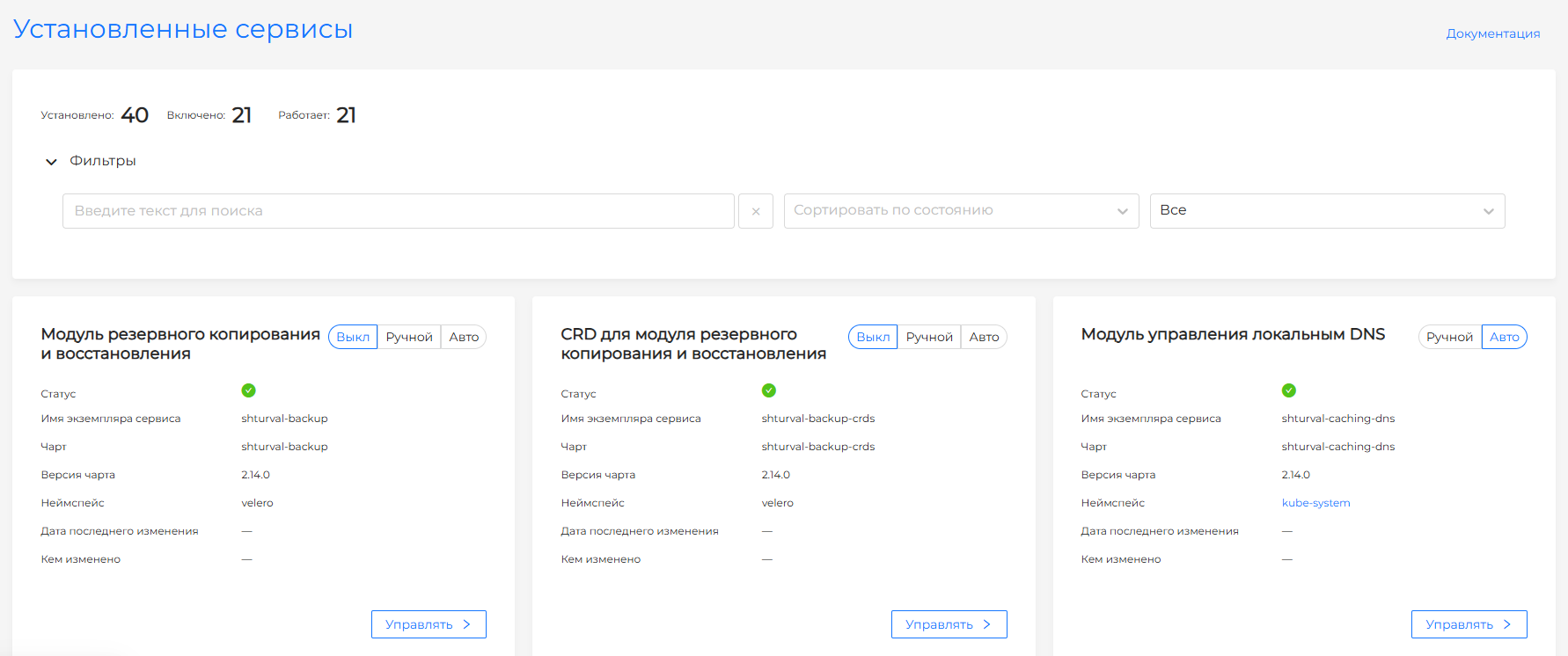
For installed services, changing the control mode is available:
- Off (Absent) - disable the service in the cluster. The mode is not available for critical platform services.
- Auto (Auto) - service resources in the namespace will be created automatically, which will lead to the automatic launch of the service in the cluster. When making changes to the service configuration, select this mode to automatically apply updates.
- Manual - the service will be enabled, and the service will be launched and updated manually. This may be necessary if you want to use a version of the service that is different from the version that comes with the cluster.
View and edit a service
To change the specification, labels and annotations of a service instance, click on the Manage button on the installed service card.
The Service tab displays information about the name, version, chart installation status, service status and last modified date. It is possible to change the control mode.
Screenshot
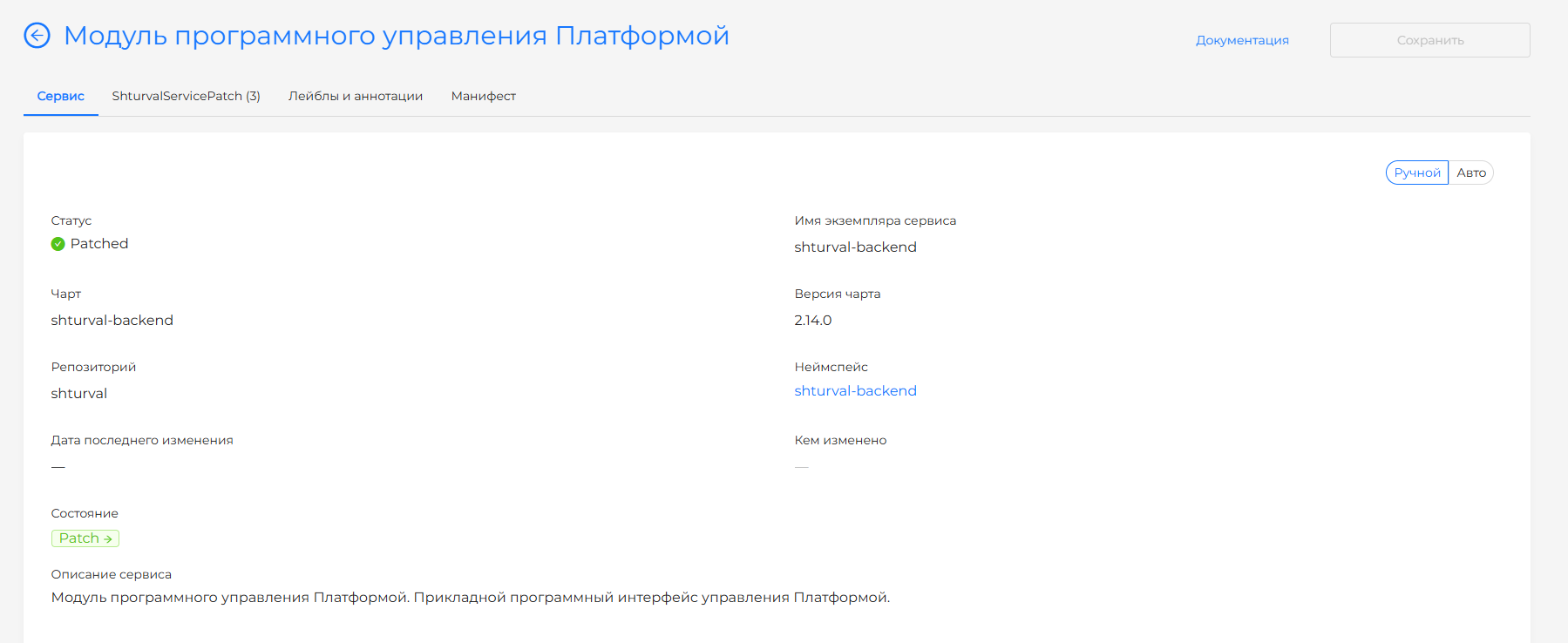
If necessary, you can make changes to the specification (custom values) of the service by redefining the parameters and adding new ones to the Service Specification block. It is recommended to make changes using a custom resource ShturvalServicePatch (PatchSSC).
If the installed version of the chart comes with a set of available values, they will be displayed in the Available parameters for service configuration block and are available for viewing only. It is possible to search for available values by name. When you enter the first character in the input line, a search is performed.
On the Applied PatchSSC tab, the created ShturvalServicePatch (PatchSSC) for the service is available.
Screenshot
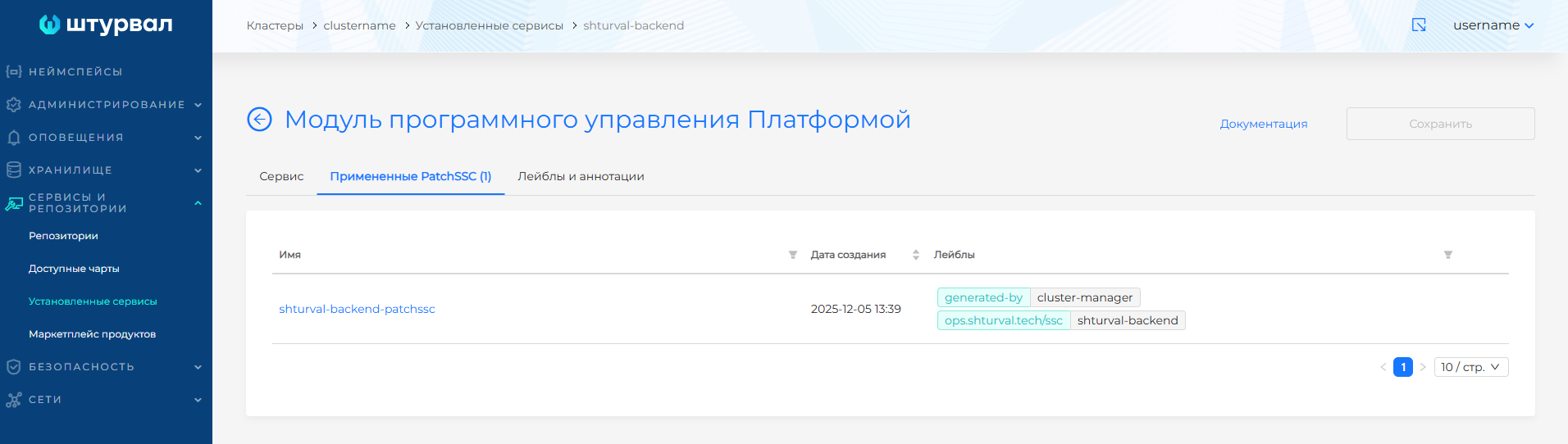
By clicking on the line with ShturvalServicePatch, you can go to the page for viewing and editing the YAML manifest.
Screenshot
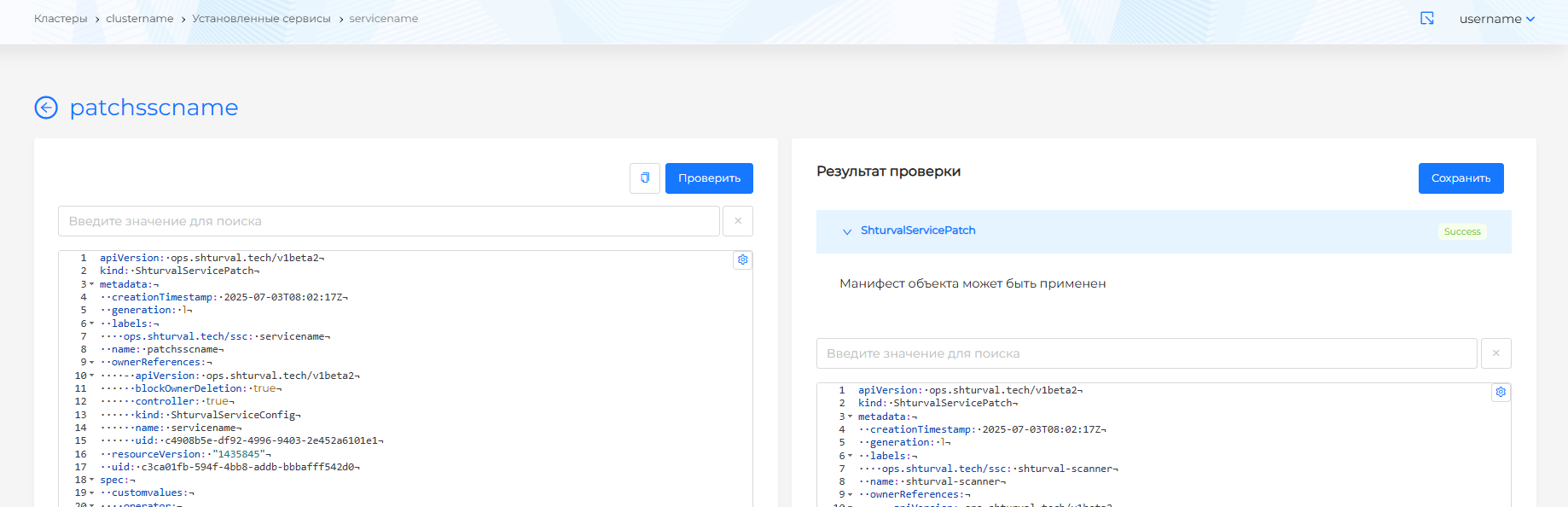
After changing the manifest, you must perform a review. The test result will be available on the right side of the screen. Expand the verification result block to see the full manifest. If the custom resource manifest format validation fails, manifest verification is not available.
Save your changes to the manifest. Changes will not be applied without saving.
On the Labels and Annotations tab you can change the labels and annotations of the service.
After making changes, click on the Save button.
To delete an instance of an installed service, click the Delete button on the installed service card.
To pause the service, select the control mode Off.
Please note!
- The name of the installed service instance is not available for editing.
- Removal and disabling of services critical for the operation of the platform is blocked.
If you need to change the version of the service yourself, go to editing the service in the custom resources interface. To do this, in the ops.shturval.tech API group, go to the list of services (ShturvalServiceConfig), select the required service and make a change in the version field.