Kubernetes
Kubernetes/API server
The dashboard is designed to monitor the status of API servers in the Kubernetes environment. It provides visibility into the availability and performance of API requests, allowing you to analyze both inbound (read) and outbound (write) operations. Using this tool, you can quickly identify errors and anomalies in the operation of services, which is critical to ensuring the stability and reliability of applications.
Screenshot
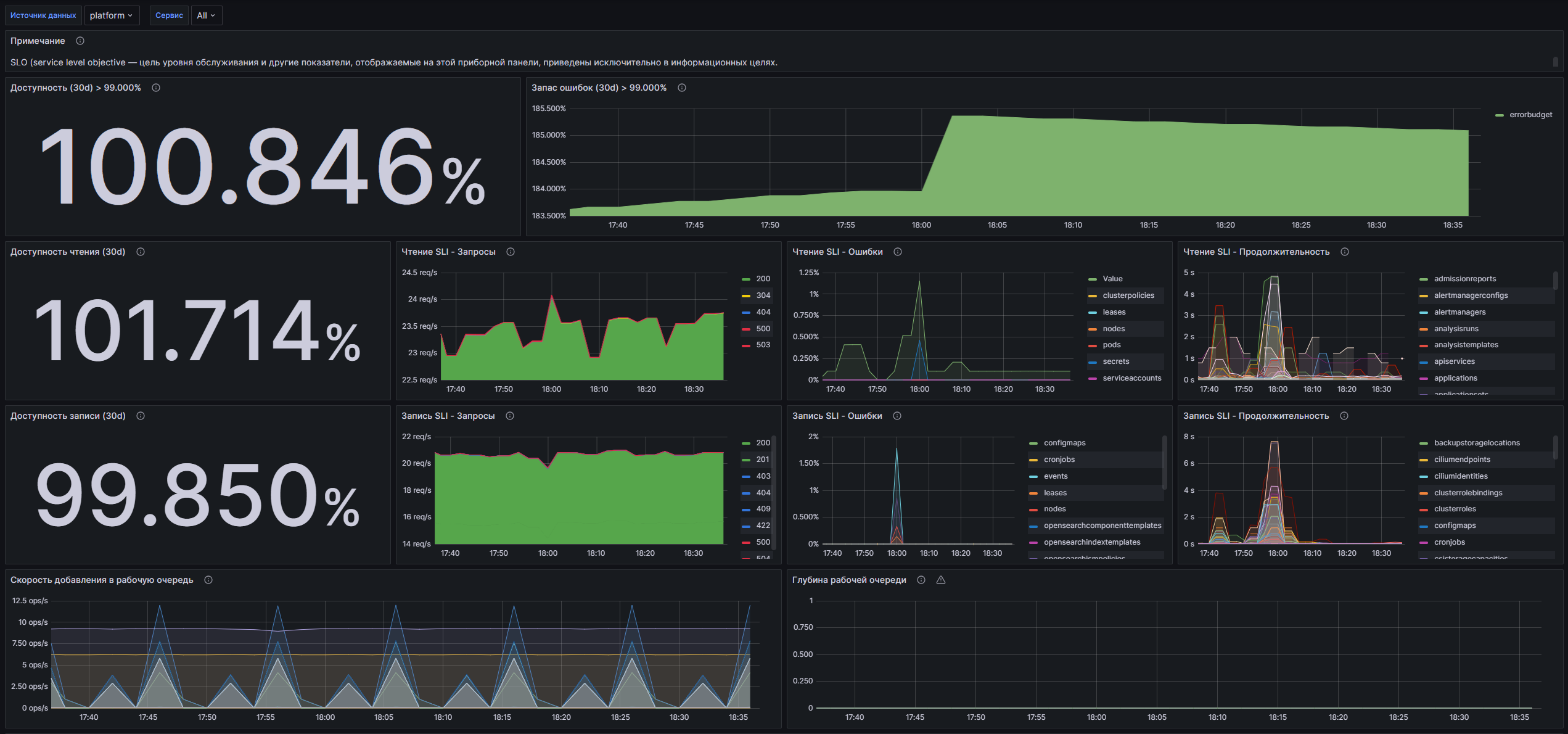
Dashboard structure
- Availability (30d) > 99.000%: Displays the percentage of successful API requests over the last 30 days.
- Error Margin (30d) > 99.000%: Graph showing the error margin remaining with a 0.990% availability guarantee.
- Read Availability (30d): Displays the percentage of successful read requests (LIST, GET) over the last 30 days.
- SLI Reading - Requests: Graph showing the number of read requests (LIST, GET) per second by response codes.
- SLI Read - Errors: Graph showing the percentage of errors (5xx) among read requests.
- SLI Read - Duration: Graph showing the 99th percentile of read request completion times. SLI metrics only on the master/over a longer period
- Write Availability (30d): Displays the percentage of successful write requests (POST, PUT, PATCH,DELETE) over the last 30 days.
- SLI Recording - Requests: A graph showing the number of write requests per second by response code.
- SLI Write - Errors: Graph showing the percentage of errors (5xx) among write requests.
- SLI Write - Duration: A graph showing the 99th percentile of write request completion times. SLI metrics only on the master/over a longer period
- Work Queue Add Rate: A graph showing the total number of work queue additions per second.
- Work Queue Depth: A graph showing the number of I/O operations being processed simultaneously in the queue.
- Work Queue Latency: A graph showing how long in seconds an item remains in the queue before being processed.
- Memory Usage: A graph showing the amount of memory used (in bytes) for API servers.
- CPU Usage: A graph showing how much time the process was using per daylast unit of time.
- Go routines: A graph displaying the number of active Go routines.
Configurable parameters
- datasource: Allows you to select the data source used to display metrics.
- service: Allows you to select a service for which metrics will be filtered, or select all services (All) of the cluster.
Kubernetes/Controller Manager
The dashboard is designed to monitor Kubernetes Controller Manager and provides users with the ability to monitor the status and performance of system components. With it, you can monitor important metrics such as the number of running processes, the rate of additions to the work queue, Kube API request latencies, and system resource usage. The data update period is 10 seconds, which allows you to receive up-to-date information about the operation of clusters in real time.
Screenshot
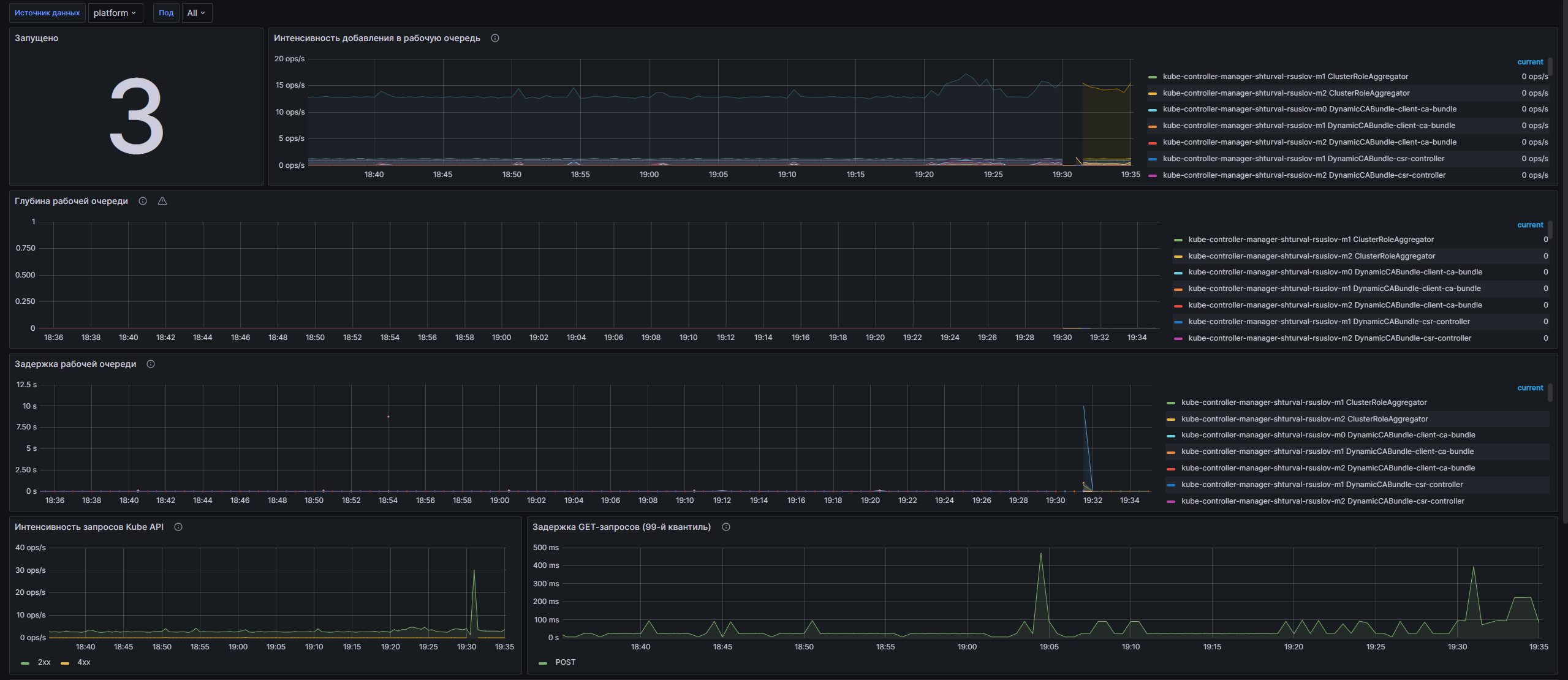
Dashboard structure
- Running: Displays the total number of running Kube Controller Manager instances on the selected cluster.
- Work Queue Addition Rate: A graph showing the total number of work queue additions broken down by cluster and thread.
- Work Queue Depth: A graph that displays the number of I/O operations that can be processed simultaneously by the system.
- Work Queue Latency: A graph that shows the time an item remains in the work queue before it is processed.
- Kube API Request Intensity: A graph that displays the total number of client requests to the Kube API broken down by response code.
- GET Request Latency (99th Quantile): Graph showing GET request latency in seconds, broken down by request type and URL.
- POST Request Latency (99th Quantile): Graph showing the latency of POST requests in seconds, broken down by request type and URL.
- Memory Usage: A graph showing the amount of memory used (in bytes) for each Kube Controller Manager pod.
- CPU Usage: A graph showing the CPU time used by the last object of each pod per unit of time.
- Go routines: A graph showing the number of active Go routines in each pod.
Configurable parameters
-datasource: Allows you to select a data source to configure the dashboard.
- pod: Allows you to select one pod to monitor or all pods on the selected cluster.
Kubernetes/ETCD Cluster Health
The dashboard is designed to monitor the health of the ETCD cluster in the Kubernetes environment. It is integrated with the VM Agent metrics collection system and provides detailed information about ETCD performance, including leadership status, number of leader changes, database size, throughput, and various performance metrics. Users can monitor key performance indicators and set alerts to improve cluster reliability and stability.
Screenshot
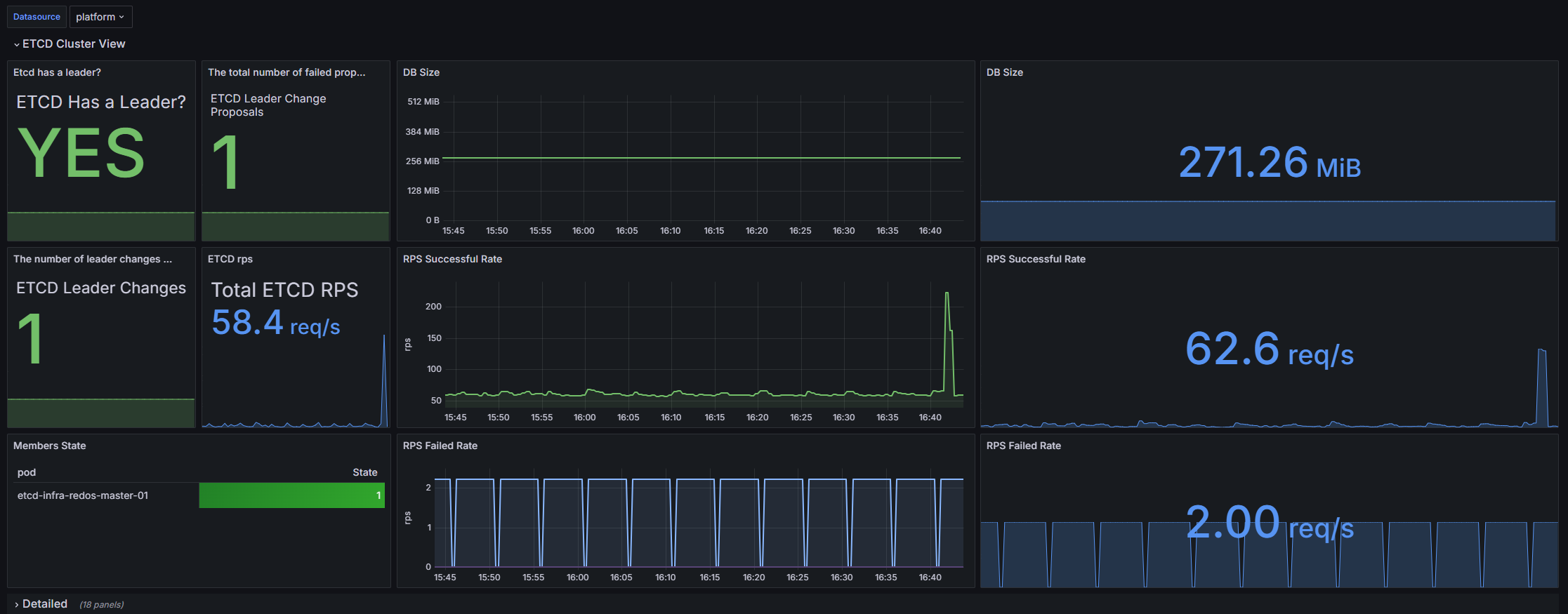
Dashboard structure
ETCD Cluster View:
- Etcd has a leader?: Displays information about the presence of a leader in the ETCD cluster.
- The total number of failed proposals seen: Shows the total number of failed proposals in the cluster.
- DB Size: A graph showing an estimate of the total size of the database, presented as a graph and statistics.
- The number of leader changes seen: The number of leader changes in the cluster.
- ETCD rps: Shows the number of requests per second to ETCD.
- RPS Successful Rate: A graph displaying successful requests per second, presented as a graph and statistics.
- Members State: State table of cluster members, shows which of them is the leader.
- RPS Failed Rate: A graph showing failed requests per second, presented as a graph and statistics.
Detailed:
- Memory: A graph showing the memory usage of the ETCD pod process.
- RPS Failed Rate: Graph of failed requests per second by submission.
- Disk Sync Duration: A graph displaying the duration of synchronization on the disk, presented as a 99th percentile graph.
- Disk Compact Duration: A graph showing the compression time on the disk is shown twice; one of the graphs is with the 99th percentile.
- Heartbeat Failures: A graph showing the number of heartbeat sending failures.
- Raft Proposals: A graph showing overall Raft Proposal metrics, including the rate of successful and unsuccessful proposals.
- Proposals pending: A graph showing the number of pending proposals.
- The total number of consensus proposals committed: Total number of proposals agreed upon in the cluster.
- Client Traffic In: Graph of incoming traffic from clients.
- Client Traffic Out: Graph of outgoing traffic to clients.
- Total Leader Elections Per Day: A graph showing the total number of leader elections per day.
- Peer Traffic In: A graph showing incoming traffic between cluster nodes.
- Peer Traffic Out: A graph showing outgoing traffic between cluster nodes.
- Disks operations: Disk operations schedule.
- Network: Graphs of total client traffic, both incoming and outgoing.
- Snapshot duration: A graph showing the duration of snapshots identifies possible disk problems.
Alerts:
- ETCD disk io latency alerts: Graph showing I/O latency alerts on ETCD disk.
- alert if 99th percentile of round trips take 150ms: Graph showing alerts when 150 ms is exceeded for the 99th percentile of round trips take 150ms.
- ETCD Status: The ETCD system status graph shows the overall status of the pods.
- ETCD Leader Changes Alert: Graph showing warnings about leader changes in the cluster.
- Disk Compact Duration: Graph showing alerts based on disk compression time.
- Disk Sync Duration: A graph showing disk sync time alerts.
Configurable parameters
- datasource: Allows you to select a data source to configure the dashboard.
Kubernetes/Ingress
The dashboard is designed to monitor NGINX Ingress operators in Kubernetes. It allows users to monitor various metrics such as request volume, success rates, network load and resource utilization, as well as perform analytics on the performance of Ingress controllers. With graphical data views and customizable parameters, users can easily monitor the health of their applications and identify potential performance issues.
Screenshot
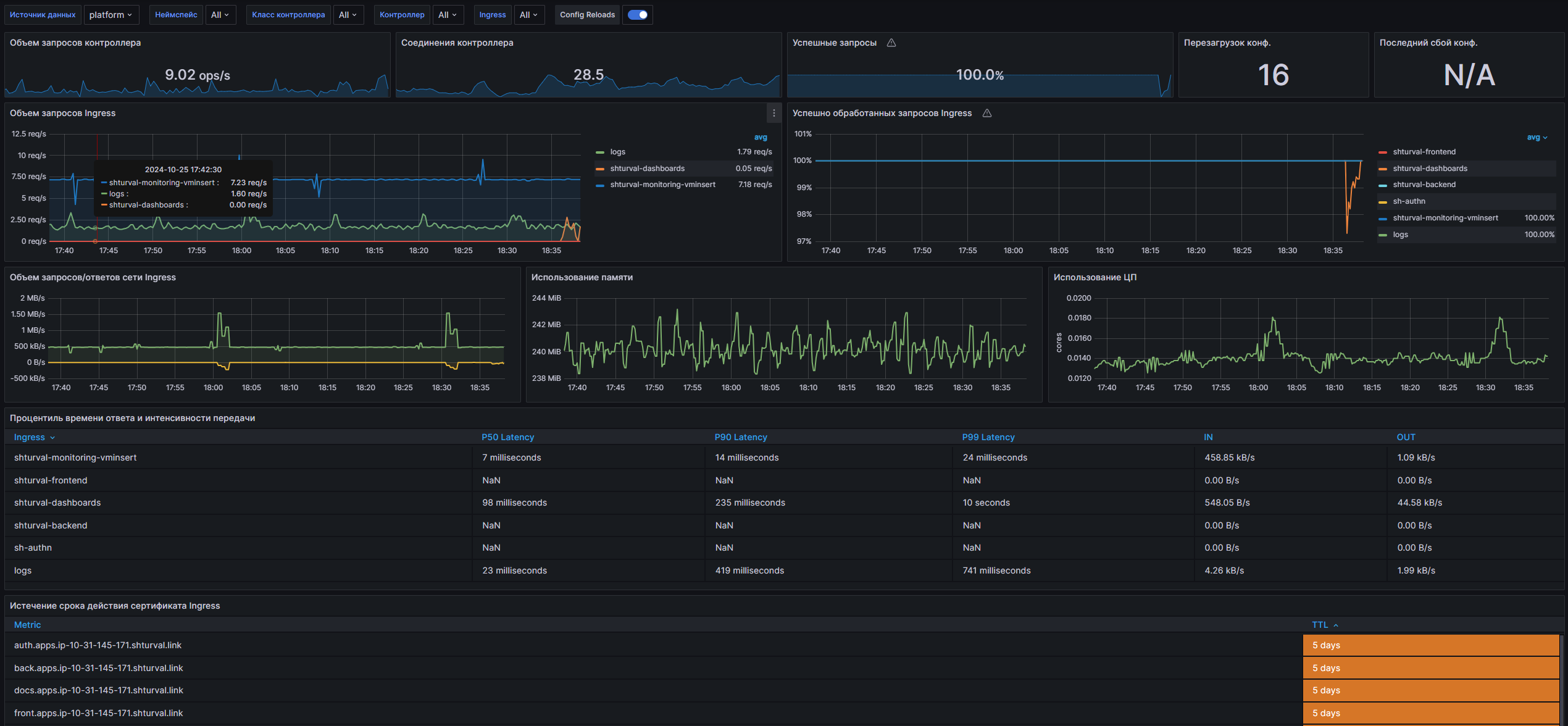
Dashboard structure
- Controller Request Volume: Displays the volume of requests processed by the Ingress controller.
- Controller Connections: Shows the number of active NGINX controller connections.
- Controller Success Rate (non-4|5xx responses): Graph showing the percentage of successful responses (response codes other than 4xx and 5xx).
- Config Reloads: Displays how often the controller configuration is reloaded.
- Last Config Failed: Displays the number of failed attempts to reload the last configuration.
- Ingress Request Volume: A time graph showing the volume of requests to a specific Ingress.
- Ingress Success Rate (non-4|5xx responses): The percentage of successful responses for a specific Ingress.
- Network I/O pressure: Graphs showing incoming and outgoing network pressure.
- Average Memory Usage: A graph showing the average memory consumption of the NGINX controller.
- Average CPU Usage: A graph showing the average CPU usage of the NGINX controller.
- Ingress Percentile Response Times and Transfer Rates: Table showing percentile response times and transfer rates for Ingress.
- Ingress Percentile Response Times (Ingress Namespaces): Time series of response time percentages for various Ingress.
- Ingress Request Latency Heatmap (Ingress Namespaces): Heatmap showing request latency for Ingress.
- Ingress Certificate Expiry: Table with information about the expiration time of certificates for Ingress.
Configurable parameters
- datasource: Allows you to select a data source to configure the dashboard.
- namespace: Allows you to select the namespace in which the Ingress controller operates.
- controller_class: Allows you to select the controller class to filter metrics.
- controller: Allows you to select a sub-controller to track metrics.
- exported_namespace: Allows you to select the Ingress namespace for query analysis.
- ingress: Allows you to select a specific Ingress to monitor its metrics.
Kubernetes/Kubernetes
The dashboard is designed to monitor the status of Kubernetes clusters using data received via Kubelet. It displays key metrics such as the number of running containers, pods, and execution times, allowing administrators and DevOps teams to effectively manage resources and respond to potential issues.
Screenshot
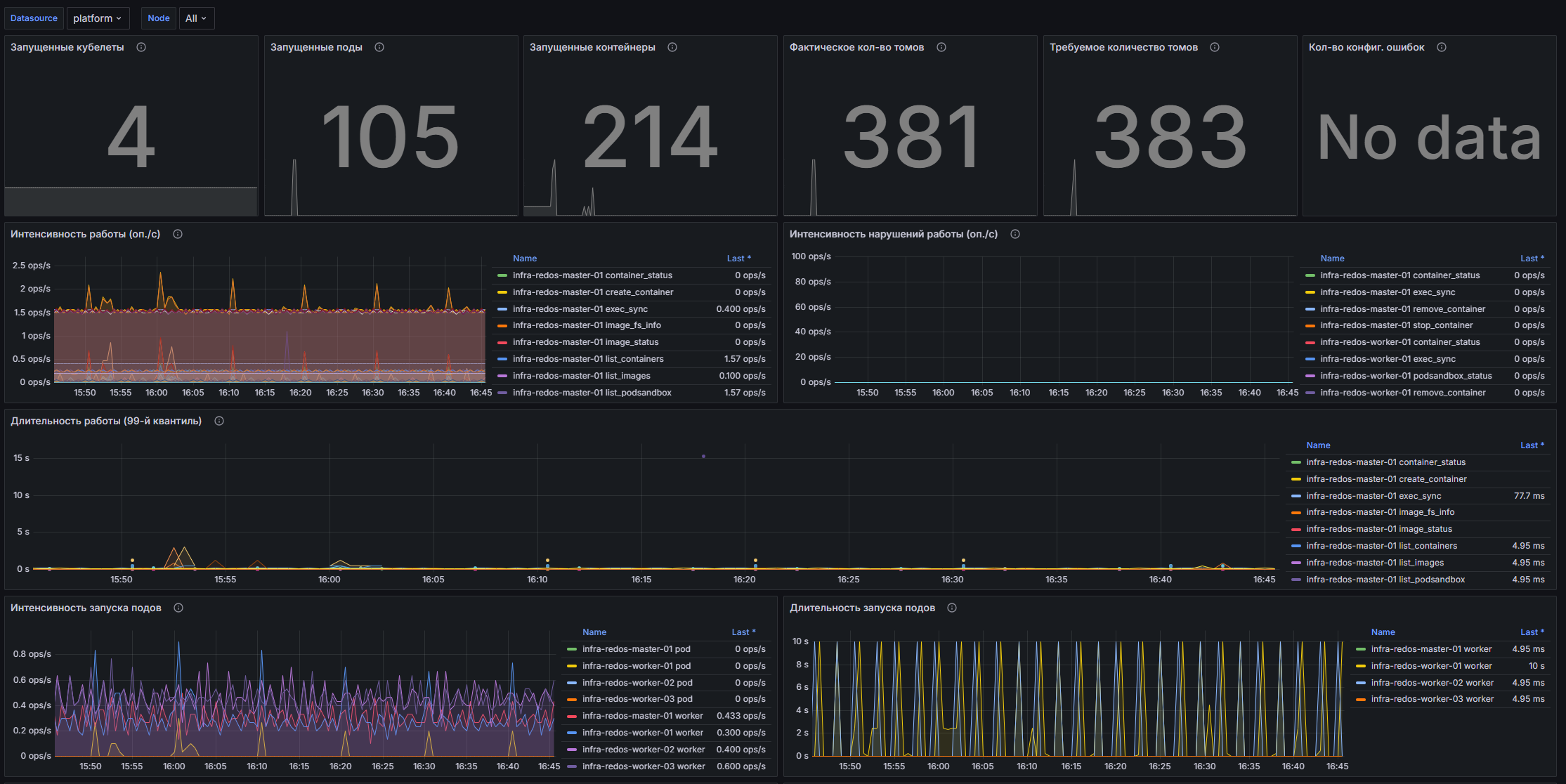
Dashboard structure
- Running Kubelets: Displays the total number of all running Kubelets.
- Running pods: Displayreflects the total number of all running pods, divided by nodes.
- Running containers: Displays the total number of all running containers, divided by node.
- Actual number of volumes: Displays the total number of all used volumes.
- Required number of volumes: Displays the total number of volumes required for proper operation.
- Number of config. errors: Displays the total number of Kubelet configuration errors.
- Work Intensity (op./s): A graph displaying the number of operations per second for performing various types of operations.
- Disruption Rate (op/s): A graph displaying the number of operations per second spent on individual Kubelet tasks.
- Duration of operation (99th quantile): Graph displaying the 99th quantile of the number of operations per second of Kubelet incorrect operation.
- Pod Launch Rate (op/s): A graph displaying the time it takes to launch Pods, broken down by node.
- Pod Launch Duration (99th Quantile): A graph displaying the 99th quantile of Pod launch duration.
- Storage workload (op/s): A graph displaying the number of operations per second spent on storage operations.
- Intensity of storage disruptions (op./s): A graph displaying the number of operations per second of incorrect storage operation.
- Storage run time (99th quantile): A graph displaying the 99th quantile of storage operation time.
- PLEG Update Rate (ops/s): The number of operations per second performed by the PLEG event generator.
- PLEG list update period (99th quantile): Graph displaying the 99th quantile of PLEG list update time.
- PLEG List Update Duration (99th Quantile): Graph displaying the 99th quantile of PLEG list update time.
- Remote Call Rate (RPC): A graph showing the total number of remote client requests per second, divided by response code.
- Request Duration (99th Quantile): A graph showing the 99th quantile of API request durations.
- Memory: A graph showing the amount of memory used by the Kubelet.
- CPU Usage: A graph showing the CPU time consumed by the Kubelet.
- Go-routines: A graph showing the number of goroutines used by Kubelet.
Customizable parameters
- datasource: Allows you to select a data source to configure the dashboard.
- node: Allows you to select a node to monitor. Available nodes are taken from the cluster data.
Kubernetes/Networking/Cluster
The dashboard is designed to monitor the network activity of Kubernetes clusters. It provides detailed information about data transmission and reception, as well as network status within clusters. Using this dashboard, users can monitor key metrics such as byte transfer rate, number of packets sent and received, and number of packets lost, which is an important part of ensuring the stability and performance of applications running in containers.
Screenshot
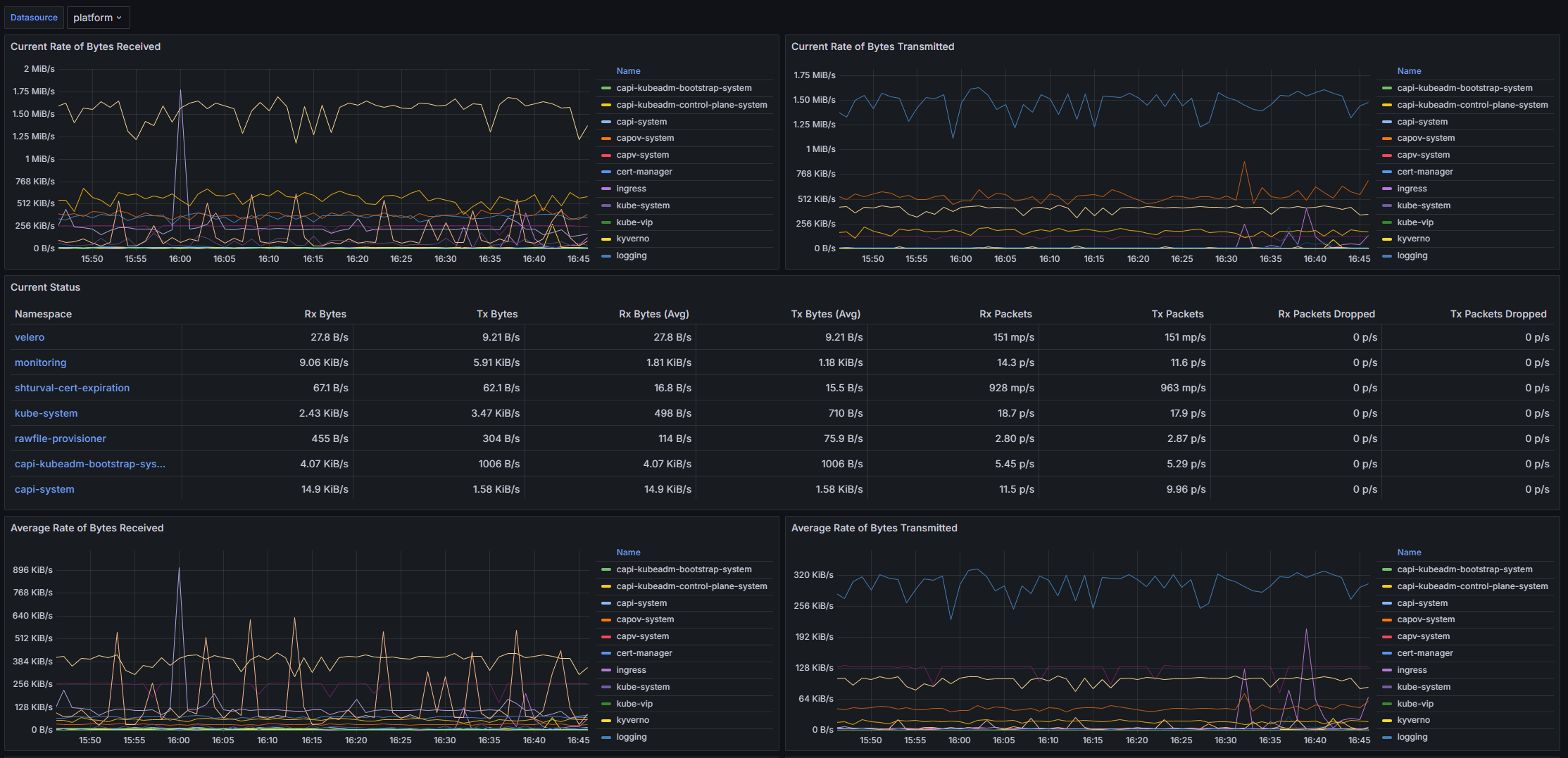
Dashboard structure
- Current Rate of Bytes Received: A graph showing the current rate of bytes received by namespace in the cluster.
- Current Rate of Bytes Transmitted: A graph showing the current byte transmission rate across the namespace.
- Current Status: A table that displays the current metrics for bytes received and transmitted, average values, as well as the number of received and transmitted packets and the number of lost packets.
- Average Rate of Bytes Received: A graph showing the average rate of bytes received by namespace.
- Average Rate of Bytes Transmitted: A graph showing the average byte transfer rate across the namespace.
- Receive Bandwidth: Graph showing the bandwidth for receiving traffic on the namespace.
- Transmit Bandwidth: A graph showing the bandwidth for transmitting traffic across the namespace.
- Rate of Received Packets: A graph showing the rate of packets received by namespace.
- Rate of Transmitted Packets: A graph showing the rate of packet transmission across the namespace.
- Rate of Received Packets Dropped: A graph showing the rate of dropped packets when received via namespace.
- Rate of Transmitted Packets Dropped: A graph showing the rate of lost packets when transmitted over the namespace.
- Rate of TCP Retransmits out of all sent segments: A graph showing the retransmission rate of TCP segments out of all sent segments.
- Rate of TCP SYN Retransmits out of all retransmits: A graph showing the TCP SYN retransmission rate out of all retransmits.
Configurable parameters
- datasource: Allows you to select a data source to configure the dashboard.
- cluster: Allows the user to select a specific cluster to display on the dashboard by extracting label values from the data received from the Kubelet.
Kubernetes/Networking/Namespace (Pods)
The dashboard is designed to monitor the network activity of pods in the Kubernetes cluster. It provides visualization of various metrics related to the transmission and reception of network data, as well as the number of packets transmitted and lost. The dashboard allows administrators and developers to monitor the status of network activity in real time, which is critical for optimizing application performance and ensuring the stability of containerized services.
Screenshot
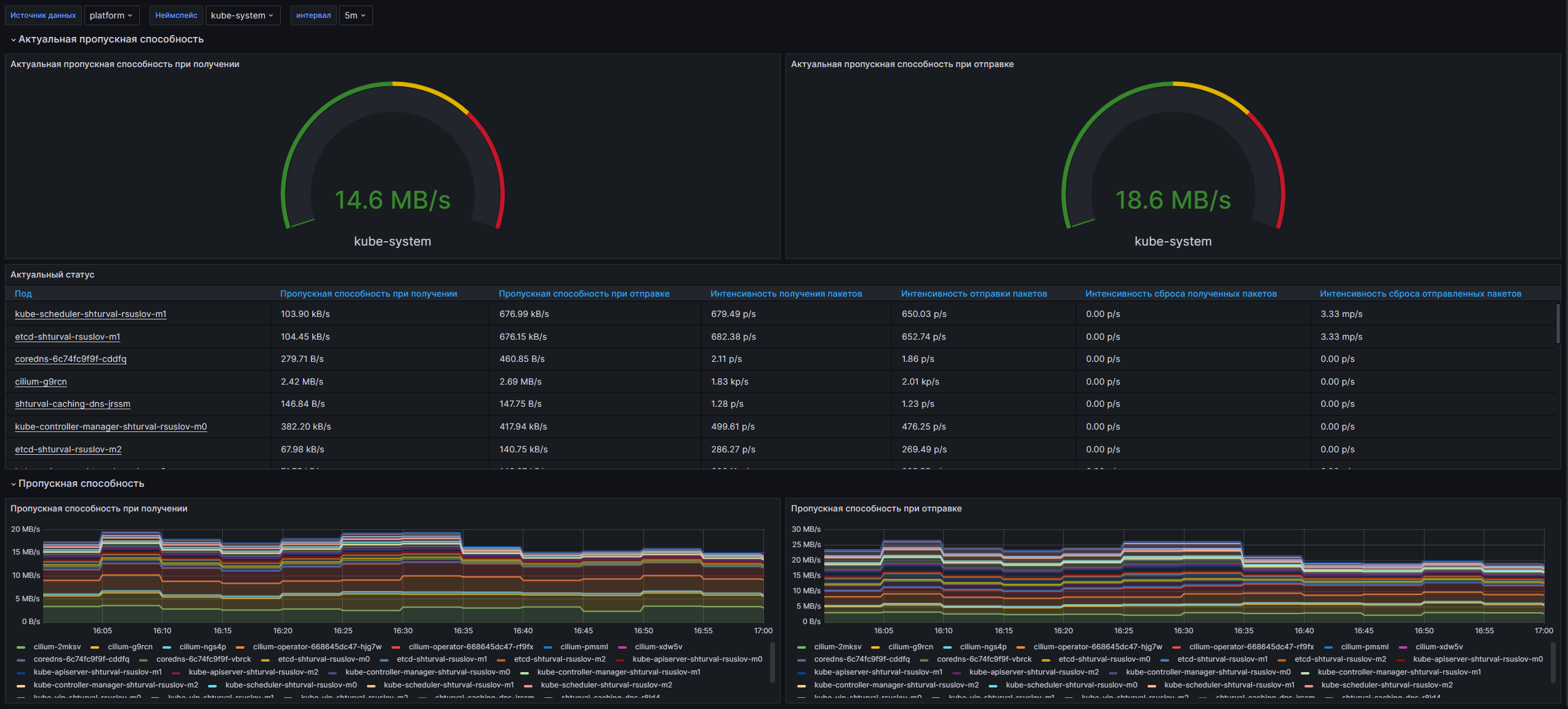
Dashboard structure
- Current Rate of Bytes Received: The panel displays the current rate of bytes received from pods in the selected cluster and namespace.
- Current Rate of Bytes Transmitted: The panel shows the current rate of bytes transmitted from the pods.
- Current Network Usage: A table that provides network usage metrics for each pod, including byte rate, packet rate, and packet loss.
- Receive Bandwidth: Time graph displaying the byte reception rate per pod.
- Transmit Bandwidth: A time graph showing the byte transfer rate per pod.
- Rate of Received Packets: Time graph for monitoring the rate of packets received by pod.
- Rate of Transmitted Packets: Time graph for monitoring the rate of packet transmission across pods.
- Rate of Received Packets Dropped: A time graph showing the rate of packet loss upon receipt, grouped by namespace.
- Rate of Transmitted Packets Dropped: A time graph displaying the rate of packet loss when transmitted across pods.
Configurable parameters
- datasource: Allows you to select a data source to configure the dashboard.
- namespace: Allows you to select a namespace within which resources will be monitored.
Kubernetes/Networking/Namespace (Workload)
The dashboard is designed for network monitoringth activity of containers in the Kubernetes environment. It provides the user with the ability to monitor various metrics related to the receipt and transmission of data, as well as the state of network resources at the namespace level. The dashboard helps you quickly identify problems and optimize network performance by analyzing incoming and outgoing traffic, as well as statistics on lost packets.
Screenshot
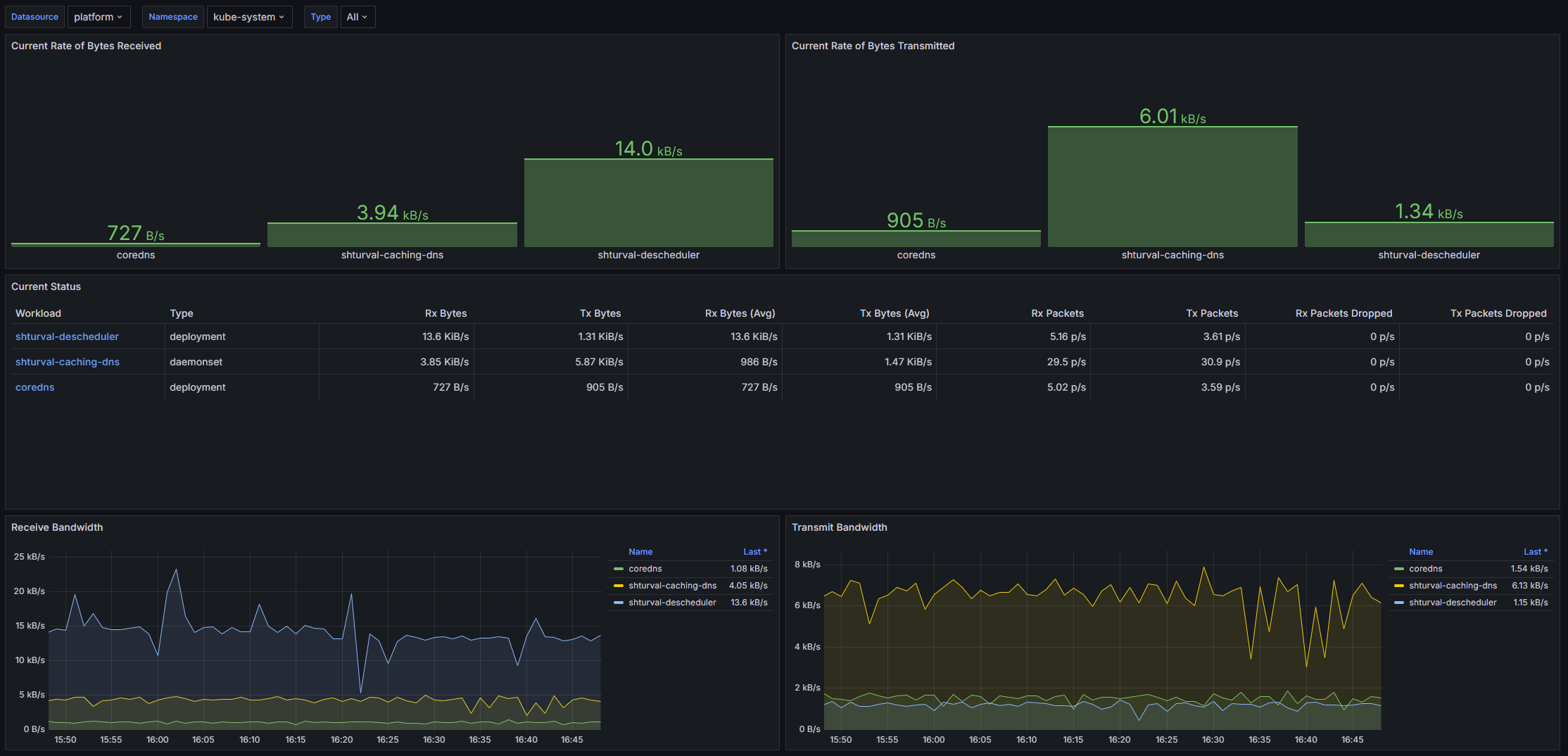
Dashboard structure
- Current Rate of Bytes Received: Displays the current rate of bytes received in containers, across various workloads.
- Current Rate of Bytes Transmitted: Displays the current rate of bytes transmitted from containers.
- Current Status: Status summary table showing the number of bytes received and transmitted, as well as packet activity (number of packets received and transmitted).
- Receive Bandwidth: A graph displaying the amount of traffic received in bytes.
- Transmit Bandwidth: A graph showing the amount of traffic transmitted in bytes.
- Average Container Bandwidth by Workload: Received: Average speed of data received by containers by workload.
- Average Container Bandwidth by Workload: Transmitted: Average data transfer rate of containers by workload.
- Rate of Received Packets: A graph showing the rate of packets received.
- Rate of Transmitted Packets: A graph showing the packet transmission rate.
- Rate of Received Packets Dropped: A graph showing the rate of dropped packets when received.
- Rate of Transmitted Packets Dropped: A graph displaying the rate of dropped packets during transmission.
Configurable parameters
- datasource: Allows you to select the data source for the metrics request, specified in the VM Agent format.
- namespace: Allows you to filter metrics by a specific namespace in the cluster.
- type: Allows you to select the type of workload.
Kubernetes/Networking/Pod
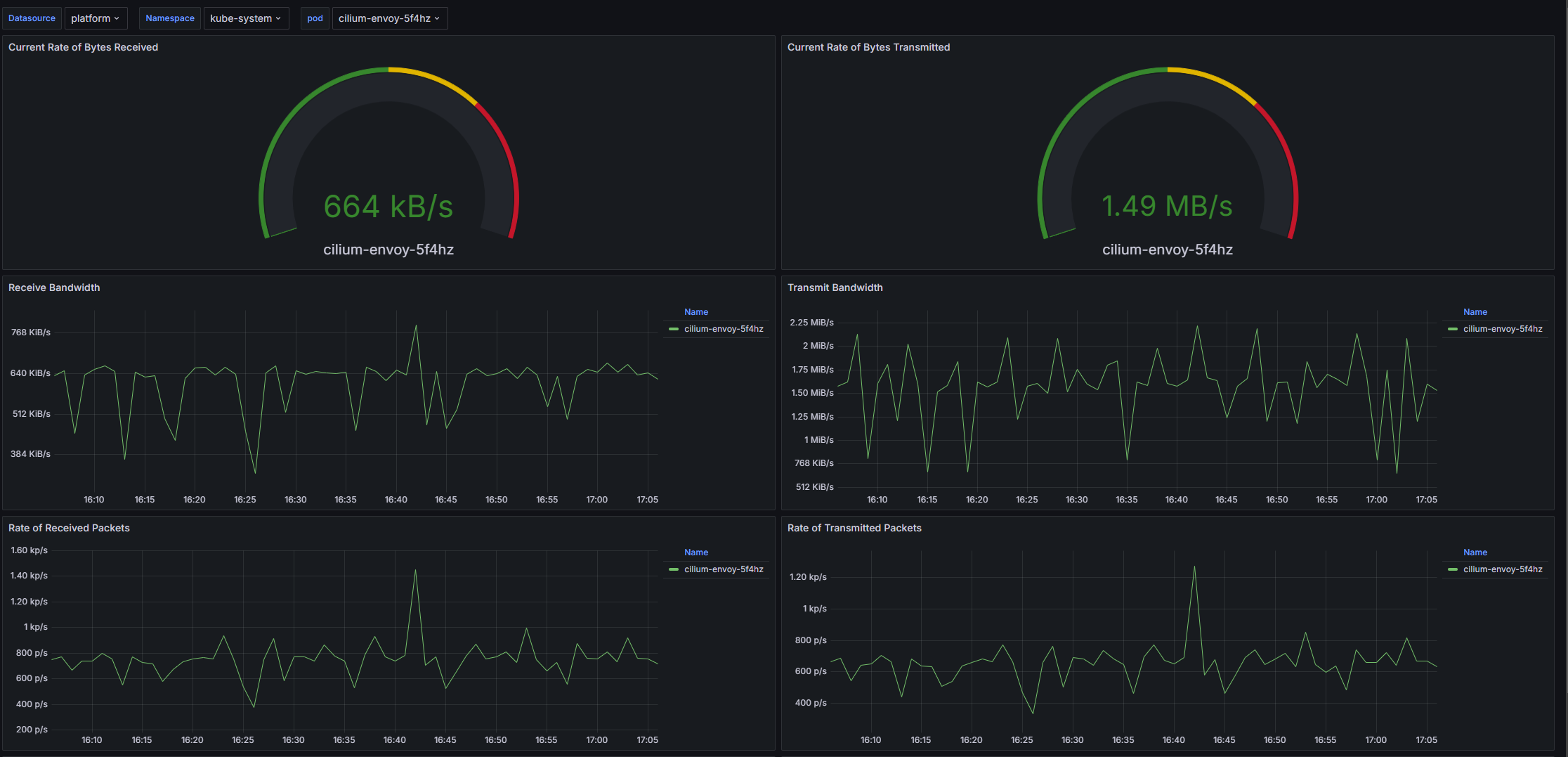
The dashboard is designed to monitor network indicators in the Kubernetes environment. It provides the user with the ability to monitor current network parameters such as the speed of receiving and transmitting data, as well as the number of packets received and sent by containers. The dashboard uses data from VM Agent to visualize mmetric, which allows you to quickly identify network problems and analyze application performance.
Screenshot
Dashboard structure
- Current Rate of Bytes Received: Displays the current rate of bytes received for the specified cluster, namespace and pod.
- Current Rate of Bytes Transmitted: Shows the current byte transmission rate for the specified parameters.
- Receive Bandwidth: A time graph showing the data receiving rate for each pod over time.
- Transmit Bandwidth: A time graph showing the data transfer rate for each pod.
- Rate of Received Packets: A time graph showing the rate at which network packets are received, grouped by pod.
- Rate of Transmitted Packets: A time graph showing the packet transmission rate on the network for each pod.
- Rate of Received Packets Dropped: A time graph showing the rate of dropped packets received over the network for each pod.
- Rate of Transmitted Packets Dropped: A time graph showing the rate of packets dropped at the transmission level for each pod.
Configurable parameters
- datasource: Allows you to select a data source to configure the dashboard.
- namespace: Allows you to select a namespace for which metrics will be displayed.
- pod: Allows you to select one pod to monitor or all pods on the selected cluster.
Kubernetes/Networking/Workload
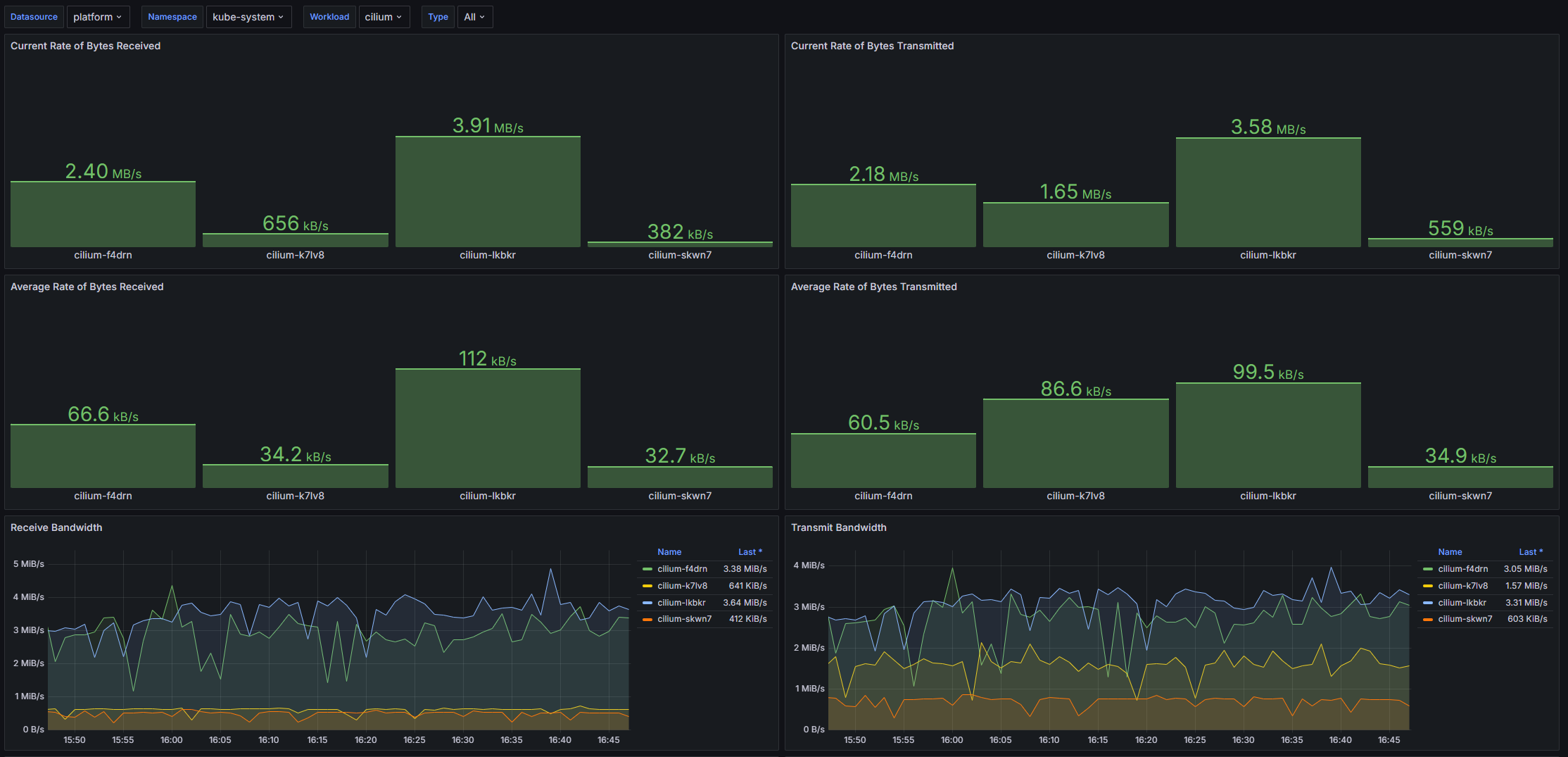
The dashboard is designed to monitor network performance in Kubernetes environments. It provides users with the ability to monitor current and average byte rates, as well as the number of packets received and transmitted. This is especially useful for administrators and developers responsible for the performance and reliability of applications running on Kubernetes clusters. The dashboard highlights critical metrics that help identify bottlenecks in workload networking.
Screenshot
Dashboard structure
- Current Rate of Bytes Received: Displays the current rate of bytes received in seconds for the selected workloads.
- Current Rate of Bytes Transmitted: Displays the currentThe total byte transfer rate in seconds for the selected workloads.
- Average Rate of Bytes Received: Displays the average byte received rate for the selected workloads.
- Average Rate of Bytes Transmitted: Displays the average byte transmission rate for the selected workloads.
- Receive Bandwidth: Graph of consumed bandwidth for received bytes.
- Transmit Bandwidth: Graph of consumed bandwidth for transmitted bytes.
- Rate of Received Packets: A graph showing the rate of received packets per second for selected workloads.
- Rate of Transmitted Packets: A graph showing the packets per second transmission rate for selected workloads.
- Rate of Received Packets Dropped: A graph showing the rate of received packets dropped per second for selected workloads.
- Rate of Transmitted Packets Dropped: A graph showing the rate of transmitted packets dropped per second for selected workloads.
Configurable parameters
- datasource: Allows you to select a data source to configure the dashboard.
- namespace: Allows you to select a namespace in the cluster for which metrics will be displayed.
- workload: Allows you to select a specific load for workloads within the specified namespace.
- type: Allows you to select a workload type to filter metrics by specific workloads.
Kubernetes/Persistent Volumes
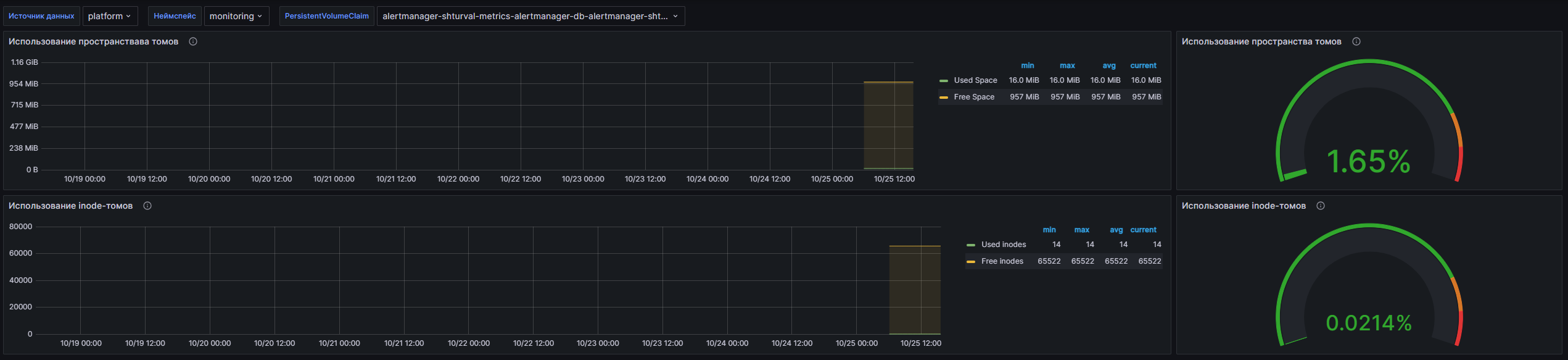
The dashboard is designed to monitor resource usage of persistent volumes in the Kubernetes environment. It allows you to monitor parameters such as the amount of used and free memory, as well as the use of inode volumes. This tool is useful for system administrators and DevOps professionals by providing the ability to monitor the health of data storage and prevent potential resource shortage issues.
Screenshot
Dashboard structure
- Volume Space Usage: A graph showing the amount of used and free memory on persistent volumes. Metrics are calculated using Kubelet queries, allowing you to analyze the actual state of storage usage.
- Volume Space Usage: Displays the current memory usage percentage of persistent volumes. This panel provides a quick understanding of the loadingwomen’s storage.
- Inode Volume Usage: A graph showing the number of inodes used on persistent volumes. This is important for understanding how effectively metadata is used when working with the file system.
- Inode Volume Usage: Displays the percentage of inodes used, allowing you to quickly determine the current state of an inode resource.
Configurable parameters
- datasource: Allows you to select a data source to configure the dashboard.
- namespace: Allows you to select a namespace within which resources will be monitored.
- volume: Allows you to select a specific PersistentVolumeClaim for a detailed analysis of its status.
Kubernetes/Compute Resources/Cluster
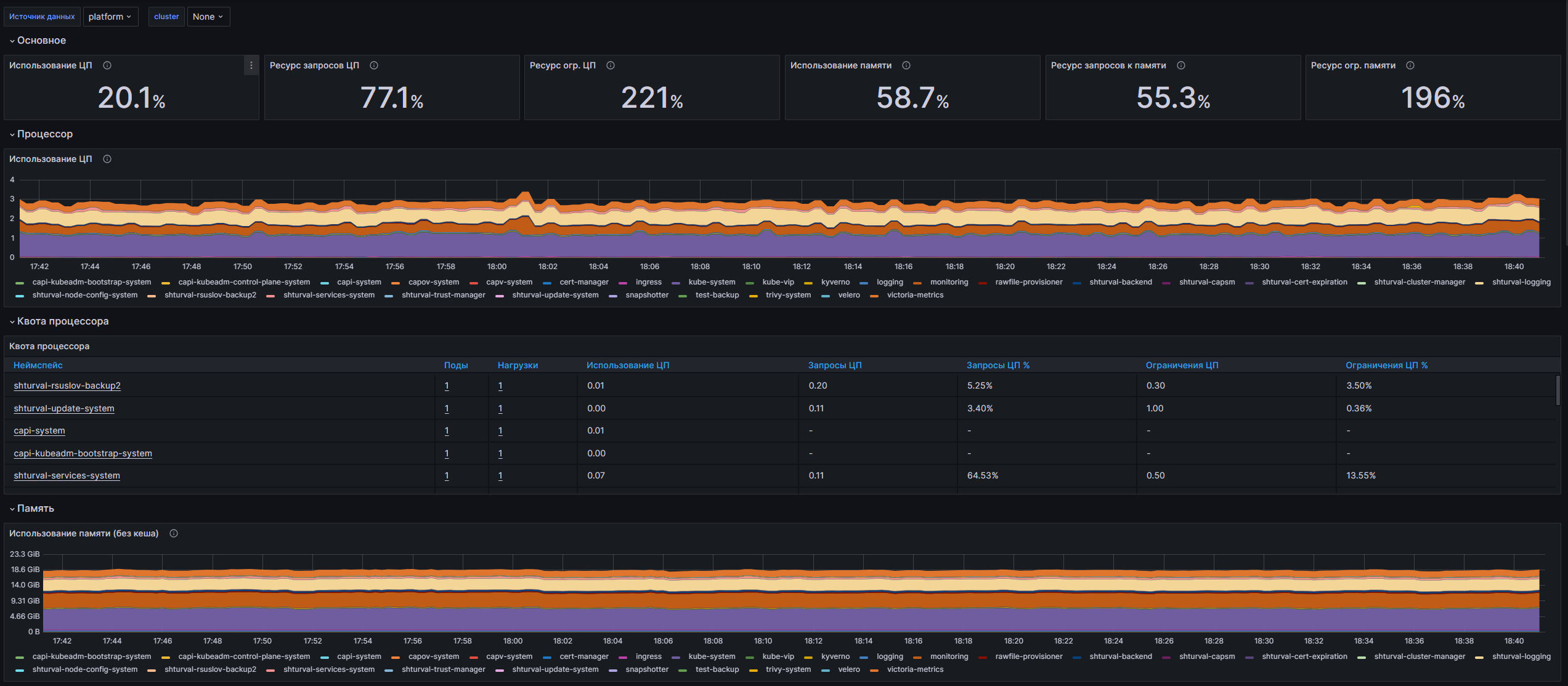
The dashboard is designed to monitor computing resources in the Kubernetes cluster. It provides users with the ability to monitor CPU and memory usage, requested and limited resources, as well as network activity and I/O operations of containers. Using this dashboard, administrators can quickly assess the health of the cluster, identify resource bottlenecks, and optimize load distribution.
Screenshot
Dashboard structure
- CPU Utilisation: Displays CPU utilization over time for the selected cluster.
- CPU Requests Commitment: Shows the ratio of requested CPU resources to the total number of available resources.
- CPU Limits Commitment: shows the ratio of CPU resource limits to the total number of available resources.
- Memory Utilisation: Displays the percentage of memory used compared to the total available memory in the cluster.
- Memory Requests Commitment: Shows the ratio of requested memory resources to the total number of available resources.
- Memory Limits Commitment: Shows the ratio of memory resource limits to the total number of available resources.
- CPU Usage: Displays CPU usage by namespace in the form of a time graph.
- CPU Quota: A table that displays data about pod owners, the number of pods using CPU, requested CPU resources and the ratio of usage to namespace limits.
- Memory: Displays memory usage by containers by namespace in the form of a time graph.
- Memory Requests by Namespace: Tablesa, displaying information about pod ownership, memory usage and requested resources by namespace.
- Current Network Usage: A table that shows the current network load, including the number of bytes and packets sent and received, as well as the number of lost packets by namespace.
- Receive Bandwidth: Displays a time graph of the incoming bandwidth for containers by namespace.
- Transmit Bandwidth: Displays a time graph of outgoing bandwidth for containers by namespace.
- Average Container Bandwidth by Namespace: Received: Time graph showing the average incoming bandwidth of containers by namespace.
- Average Container Bandwidth by Namespace: Transmitted: Time graph showing the average outgoing bandwidth of containers by namespace.
- Rate of Received Packets: A time graph displaying the flow rate of packets received by containers across namespaces.
- Rate of Transmitted Packets: A time graph showing the flow rate of packets sent by containers across namespaces.
- Rate of Received Packets Dropped: A time graph displaying the rate of lost packets received by containers via namespaces.
- Rate of Transmitted Packets Dropped: A time graph showing the rate of lost packets sent by containers across namespaces.
- IOPS(Reads+Writes): Time graph showing the number of I/O operations per second (reads and writes) by namespace.
- ThroughPut(Read+Write): Time graph displaying the amount of data read and written to containers by namespace.
- Current Storage IO: Table showing the characteristics of I/O containers, including reading and writing data, by namespace
Configurable parameters
- datasource: Allows you to select a data source to configure the dashboard.
- cluster: Allows you to select the cluster for which metrics will be displayed, extracting information from the Kubernetes metrics parameters.
Kubernetes/Compute Resources/Namespace (Pods)
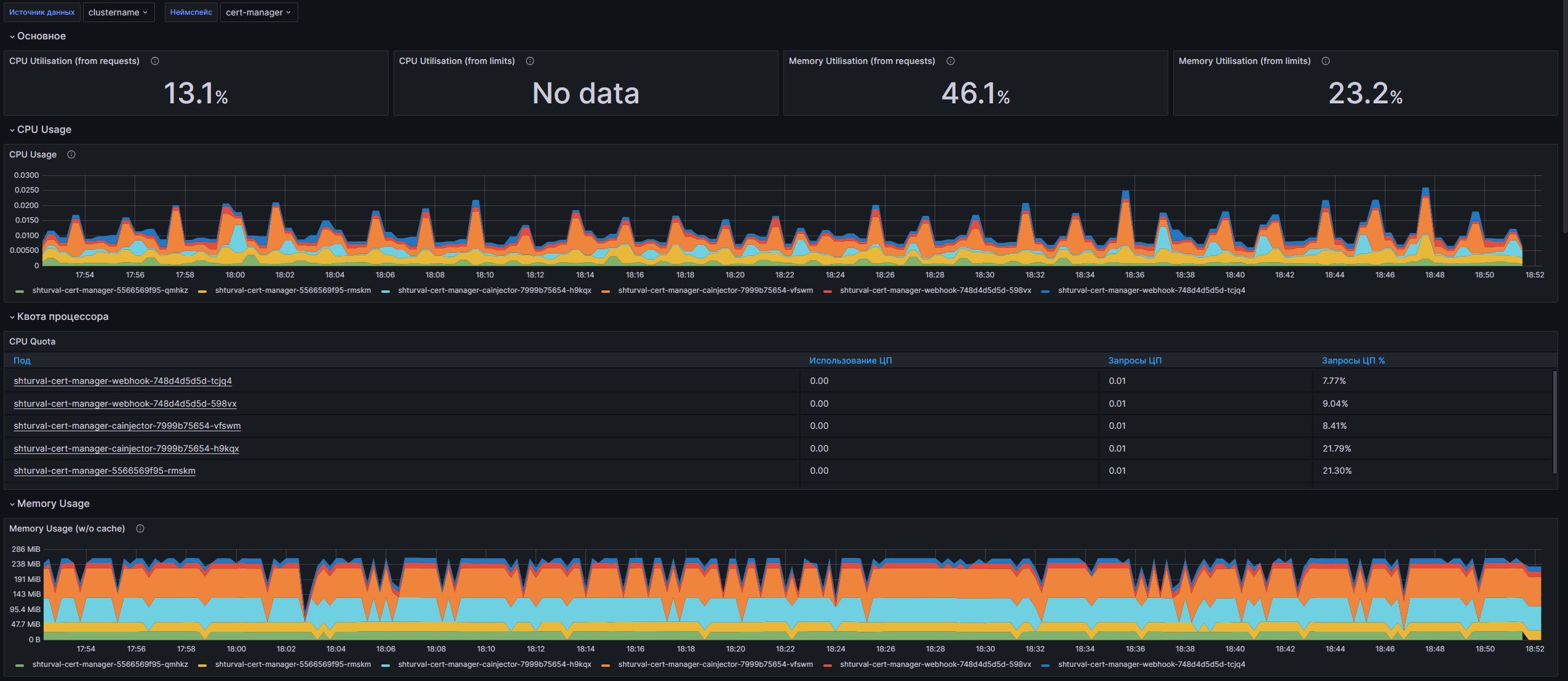
The dashboard provides comprehensive monitoring of computing resources in the Kubernetes cluster at the namespace level. It allows you to monitor CPU and memory usage, as well as network and disk activity of containers. Using metrics from kube-state-metrics and kubelet, the dashboard offers the user the ability to visualizeCapture key performance indicators, identify bottlenecks, and optimize resources in real time.
Screenshot
Dashboard structure
- CPU Utilization (from requests): Displays CPU utilization as a percentage based on requested resources.
- CPU Utilization (from limits): Shows CPU utilization as a percentage based on the set limits.
- Memory Utilization (from requests): Outputs memory usage based on requested resources.
- Memory Utilization (from limits): Displays memory usage based on the set limits.
- CPU Usage: Seeks to visualize the total CPU usage for each pod, and also compares to resource quotas.
- CPU Quota: A table showing CPU usage by pod and their resource quota, both by request and by limit.
- Memory Usage (w/o cache): Visualizes memory usage without cache at the pod level.
- Memory Quota: Table showing memory usage and resource quota for each pod.
- Current Network Usage: A table displaying current network activity, including the number of bytes and packets received and transmitted.
- Receive Bandwidth: A graph showing the number of bytes received per pod.
- Transmit Bandwidth: A graph displaying the number of bytes transferred by pod.
- Rate of Received Packets: Visualization of the rate of received packets by pod.
- Rate of Transmitted Packets: Visualization of the rate of transmitted packets by pod.
- Rate of Received Packets Dropped: A graph showing the rate of dropped packets when received.
- Rate of Transmitted Packets Dropped: A graph showing the rate of dropped packets during transmission.
- IOPS(Reads+Writes): Visualizes the number of reads and writes at the pod level.
- ThroughPut(Read+Write): Displays the read and write throughput of the pods.
- Current Storage IO: A table showing current I/O operations for containers by pod.
Configurable parameters
- datasource: Allows you to select a data source to configure the dashboard.
- cluster: Allows the user to select a specific cluster to monitor by retrieving label values using a query.
- namespace: Allows you to select a namespace within which the r will be monitoredresources.
Kubernetes/Compute Resources/Namespace (Workloads)
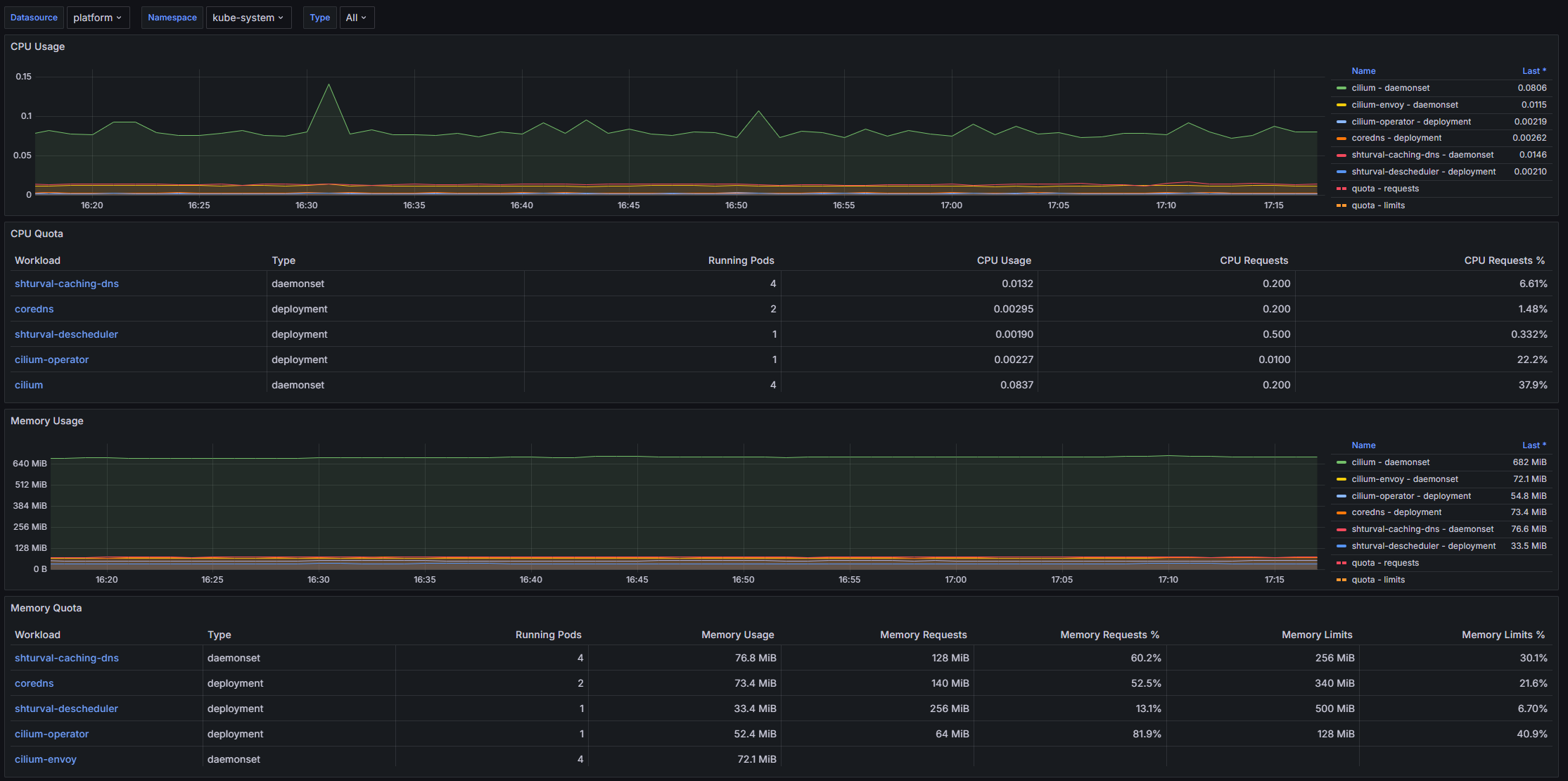
The dashboard is designed to monitor computing resources in the Kubernetes cluster at the namespace level. It provides users with the ability to monitor CPU and memory usage, as well as network activity of containers within workloads. Using this dashboard, you can effectively manage resources, identify overloads and optimize load distribution on the cluster.
Screenshot
Dashboard structure
- CPU Usage: Displays a time graph of CPU usage by containers in the selected namespace and workload.
- CPU Quota: A table showing CPU quota information at the workload level, including total utilization and requested resources.
- Memory Usage: Displays a time graph of memory usage by containers in the selected namespace and workload.
- Memory Quota: A table showing memory quota information at the workload level, including total usage and requested resources.
- Current Network Usage: A table representing the current network activity for the selected containers, including bytes received and transmitted, packets and packet losses.
- Receive Bandwidth: A time graph showing the network data reception rate at the workload level.
- Transmit Bandwidth: A time graph showing the network data transfer rate at the workload level.
- Average Container Bandwidth by Workload: Received: A time graph showing the average rate at which containers receive data by workload.
- Average Container Bandwidth by Workload: Transmitted: A time graph showing the average data transfer rate of containers by workload.
- Rate of Received Packets: A time graph displaying the rate at which network packets are received.
- Rate of Transmitted Packets: A time graph displaying the transmission rate of network packets.
- Rate of Received Packets Dropped: A time graph showing the rate of dropped packets received.
- Rate of Transmitted Packets Dropped: A time graph showing the rate at which transmitted packets are lost.
Configurable parameters
- datasource: Allows you to select a data source to configure the dashboard.- namespace: Allows you to select a namespace within which resources will be monitored.
- type: Allows you to select the type of workload for more detailed analysis of metrics.
Kubernetes/Compute Resources/Node (Pods)
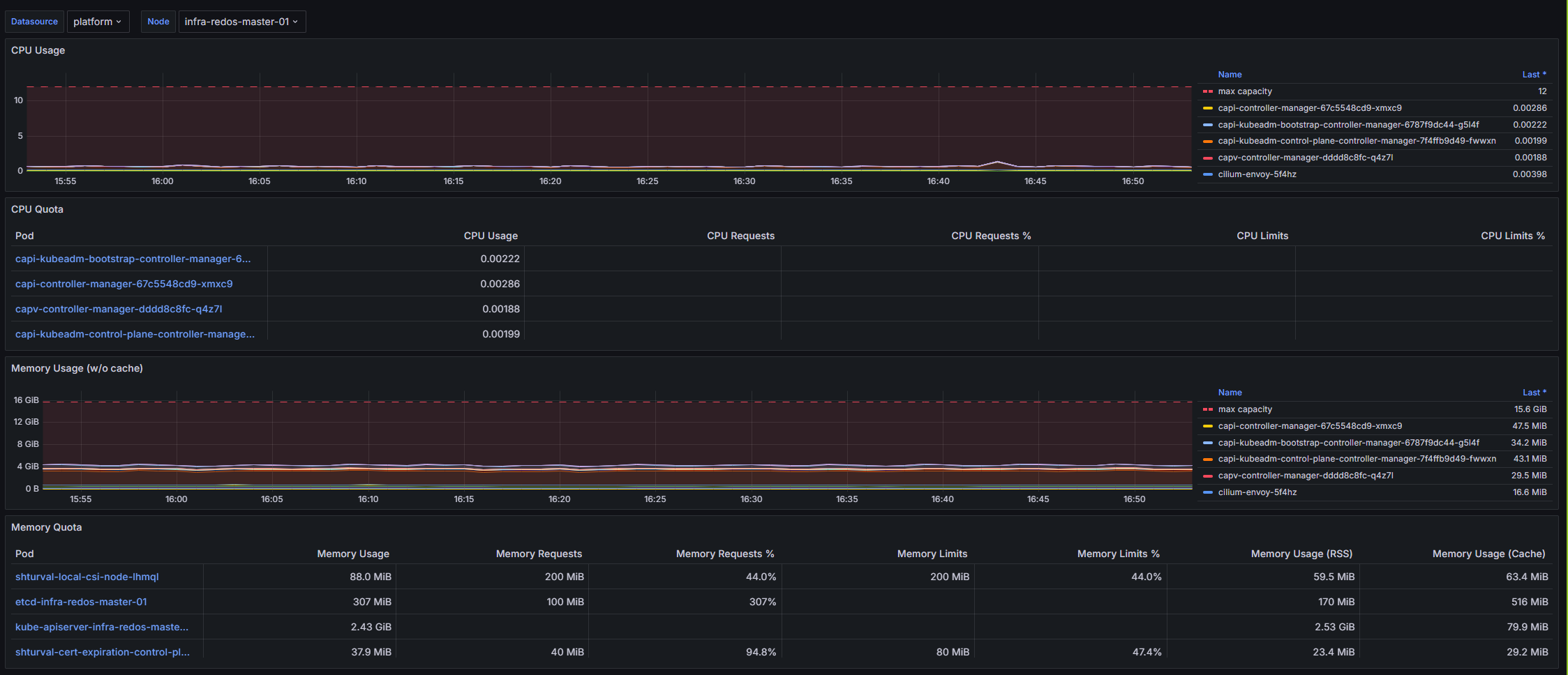
The dashboard is designed to monitor the resources of computing nodes in the Kubernetes cluster. It provides important information about the consumption of resources such as CPU and memory, as well as their quotas for individual pods. Users can quickly assess the current state of nodes, monitoring maximum available capacity and resource utilization, which is key to ensuring high performance and stability of containerized applications.
Screenshot
Dashboard structure
- CPU Usage: Displays the dynamics of CPU usage in pods, showing both the current load and the maximum available power for a given node.
- CPU Quota: A table displaying CPU quotas for pods, including current usage, requested resources, and limits.
- Memory Usage (w/o cache): Displays the memory usage of pods without cache, as well as the maximum available memory for the node.
- Memory Quota: A table that displays pod memory usage, requests and memory limits, as well as a breakdown by RSS, caches and swaps for deeper analysis.
Configurable parameters
- datasource: Allows you to select the data source for monitoring, in this case VM Agent is used.
- node: Parameter for selecting a node in the cluster, which also helps in detailed resource analysis at the node level.
Kubernetes/Compute Resources/Pod
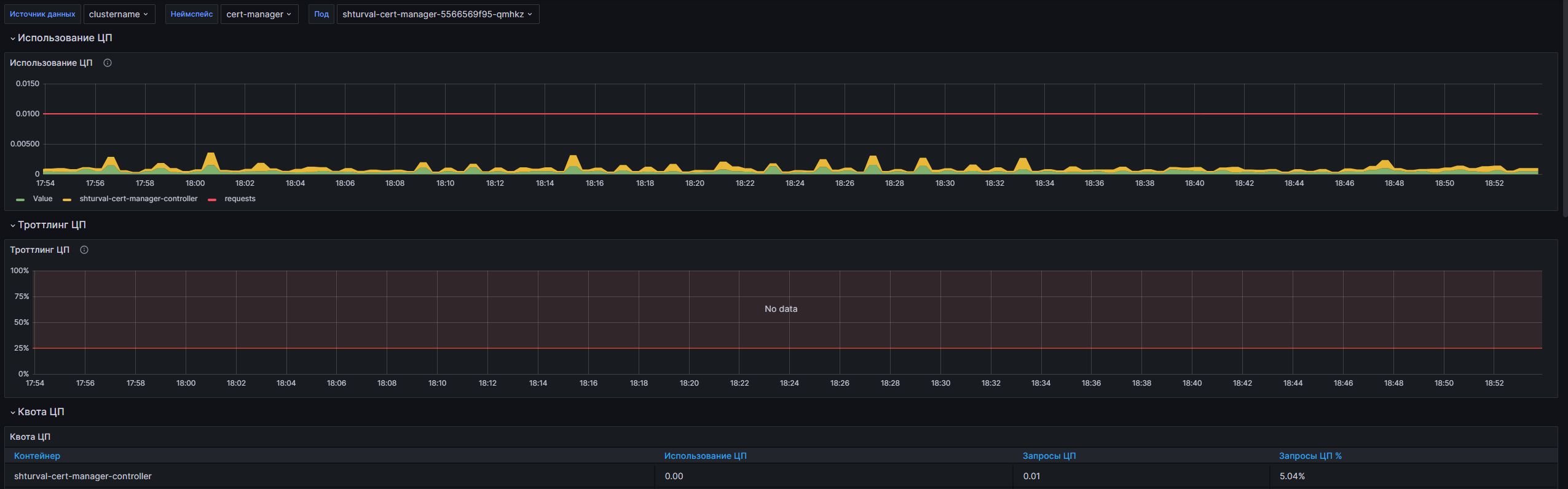
The dashboard is designed to monitor container resources in the Kubernetes environment. It provides users with the ability to monitor CPU and memory usage, network metrics, and disk I/O activity. With this dashboard, administrators and developers can quickly identify performance issues and optimize resource allocation.
Screenshot
Dashboard structure
- CPU Usage: Displays the CPU usage in the containers of the selected pod based on metrics received from the VM Agent.
- CPU Throttling: Shows CPU throttling, which allows you to monitor CPU usage limits.
- CPU Quota: Table displaying current CPU usage limits and requests.
- Memory Usage (WSS): Displays the working memory usage of the containers of the selected pod.
- Memory Quota: Table showing memory usage limits and requests for containers.
- Receive Bandwidth: Displays incoming bandwidth data for containers.
- Transmit Bandwidth: Shows outgoing bandwidth data for containers.
- Rate of Received Packets: Displays the rate of packets received.
- Rate of Transmitted Packets: Displays the rate at which packets are sent.
- Rate of Received Packets Dropped: Shows the rate of receiving dropped packets.
- Rate of Transmitted Packets Dropped: Displays the rate at which dropped packets are sent.
- IOPS (Pod): Displays the number of input/output operations per second (IOPS) for the pod.
- ThroughPut (Pod): Shows the baud rate (ThroughPut) for the pod.
- IOPS (Containers): Displays the number of input/output operations per second (IOPS) for containers.
- ThroughPut (Containers): Shows the data transfer rate (ThroughPut) for containers.
- Current Storage IO: A table showing the current input and output operations for containers, including the number of bytes read and written.
Configurable parameters
- datasource: Allows you to select a data source to configure the dashboard.
- namespace: Allows you to select a namespace within which resources will be monitored.
- pod: Allows you to select one pod to monitor or all pods on the selected cluster.
Kubernetes/Compute Resources/Workload
The dashboard is designed to monitor the resources of the computing environment Kubernetes. It provides detailed information about the load on the CPU, memory and network interfaces, as well as the quotas allocated for these resources. By visualizing time graphs and tables in real time, you can monitor the performance and resource efficiency of various workloads in the cluster.
Screenshot
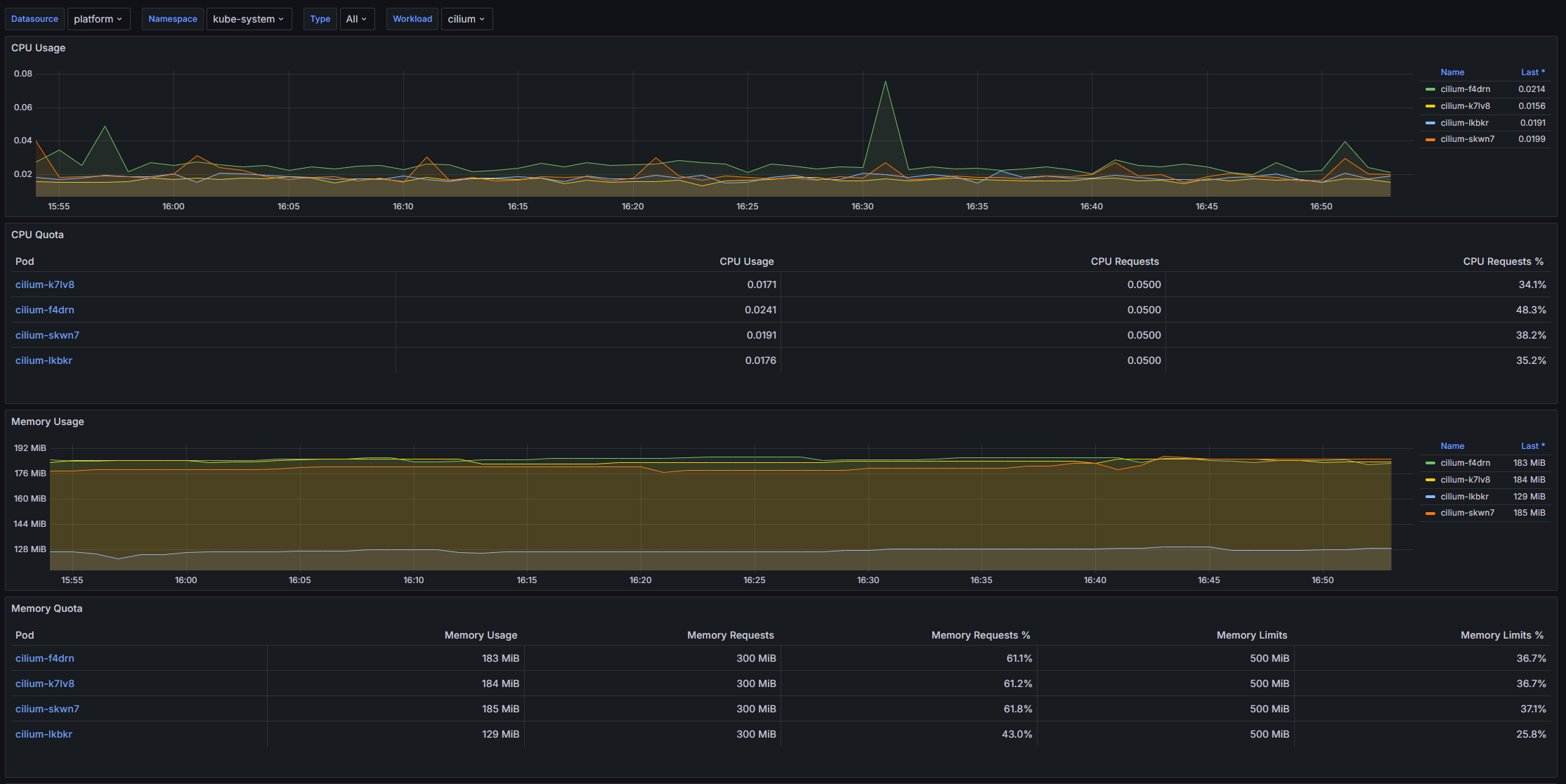
Dashboard structure
- CPU Usage: Displays CPU usage for each pod using time graphs.
- CPU Quota: A table that displays information about the CPU quota allocated to pods in a table format based on various metrics.
- Memory Usage: Presents the current memory usage of the pods in a time graph format.
- Memory Quota: Shows memory quotas for pods with detailed information in table form.
- Current Network Usage: Displays the current network activity of the pods using a table, including both incoming and outgoing traffic.
- Receive Bandwidth: A time graph showing the amount of incoming network activity for pods.
- Transmit Bandwidth: A time graph showing the amount of outgoing network activity for pods.
- Average Container Bandwidth by Pod: Received: Average incoming traffic by pod in time graph format.
- Average Container Bandwidth by Pod: Transmitted: Average outgoing traffic by Pod in time graph format.
- Rate of Received Packets: A time graph displaying the average rate of received network packets.
- Rate of Transmitted Packets: A time graph displaying the average rate of network packets sent.
- Rate of Received Packets Dropped: A time graph showing the number of dropped incoming packets.
- Rate of Transmitted Packets Dropped: A time graph showing the number of dropped outgoing packets.
Configurable parameters
- datasource: Allows you to select a data source to configure the dashboard.
- cluster: Allows you to select a specific Kubernetes cluster to monitor.
- namespace: Allows you to select a namespace within which resources will be monitored.
- type: Allows you to select the workload type for the displayed metrics.
- workload: Allows you to select a specific workload in a given namespace and cluster.
Kubernetes/Scheduler
The dashboard is designed to monitor the work of the Kubernetes scheduler. It allows you to track key metrics related to the scheduling process, including the number of active schedulers, scheduling latency, and HTTP request statistics to the Kube API. The dashboard provides graphical visualization of data that helps in quickly identifying and solving performance problems in the Kubernetes cluster.
Screenshot
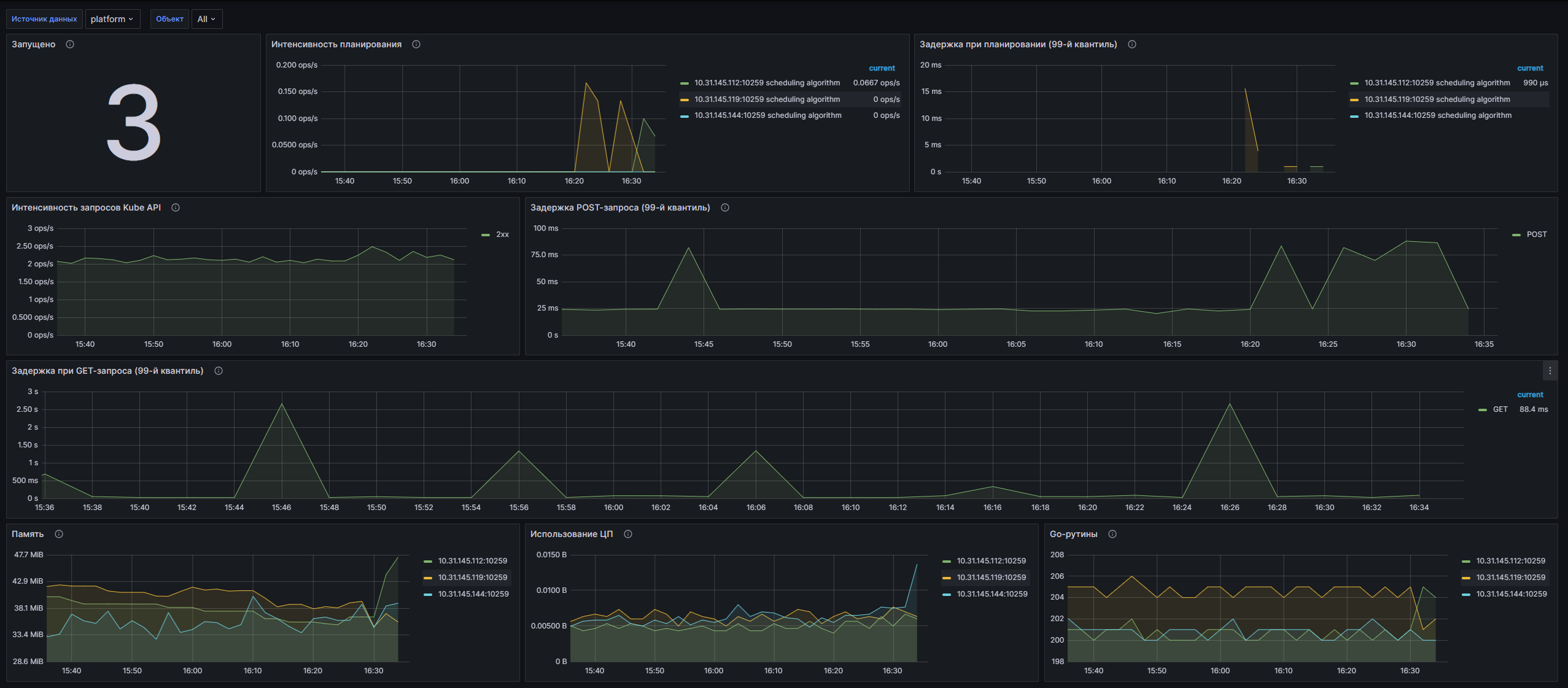
Dashboard structure
- **Running**: Displays the number of running schedulers in the cluster. - **Planning Intensity**: A graph showing the duration of the various planning stages in operations per second. - **Scheduling Latency (99th Quartile)**: Graph showing the 99th quartile of scheduling latency for various scheduling stages such as e2e, binding, scheduling algorithm and volume. - **Kube API Request Intensity**: A graph showing the number of HTTP requests divided by status code, method and host. - **POST Request Latency (99th Quartile)**: Graph showing the 99th quartile of POST request latency in seconds, grouped by method and URL. - **GET Request Latency (99th Quartile)**: Graph showing the 99th quartile of GET request latency in seconds, grouped by method and URL. - **Memory**: A graph showing the amount of memory used by the scheduler, in bytes. - **CPU Usage**: A graph showing the CPU time spent by the running scheduler. - **Go routines**: A graph showing the number of GO routines used by the scheduler.Configurable parameters
- datasource: Allows you to select a data source to configure the dashboard.
- service: Allows you to select a service for which metrics will be filtered, or select all services (All) of the cluster.
Kubernetes/StatefulSet
The dashboard is designed to monitor the state of the StatefulSet in the Kubernetes cluster. It provides at-a-glance metrics to track resource usage such as CPU, memory, and network communications, as well as metrics related to StatefulSet replication. Using a dashboard, users can effectively analyze the performance and health of applications running in Stateful mode.
Screenshot
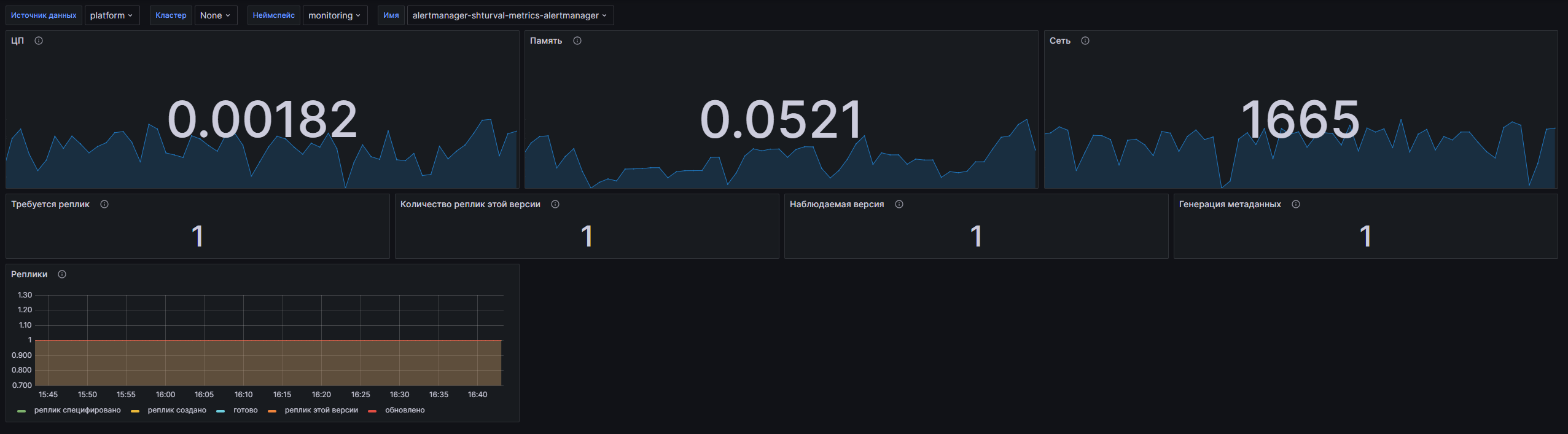
Dashboard structure
- CPU: Displays the CPU time spent working with Staful.
- Memory: Displays the amount of memory used by the StatefulSet.
- Network: Displays the number of bytes transmitted and sent by the StatefulSet.
- Replicas Required: Displays the maximum number of replicas possible.
- Number of replicas in this version: Displays the maximum number of replicas currently available.
- Monitored Version: Displays the generation number observed by the deployment controller.
- Metadata Generation: Displays the sequence number representing the specific generation of the desired StatefulSet.
- Replicas: A timeline of metrics by replica, including the maximum, created, ready, and updated number of replicas.
Configurable parameters
- datasource: Allows you to select a data source to configure the dashboard. (for example, VM Agent).
- cluster: Allows you to select the Kubernetes cluster for monitoring.
- namespace: Allows you to select a namespace within which resources will be monitored.
- statefulset: Purpose - selection of a specific StatefulSet for detailed monitoring.
Kubernetes/Views/Global
The dashboard is designed for monitoring Kubernetes clusters and is a modern “Global View” created for the kube-VM Agent-stack and using the latest Grafana features. It allows users to monitor cluster resources such as CPU and memory usage, number of nodes, pods and other metrics to ensure efficient resource management and keep applications running smoothly.
Screenshot
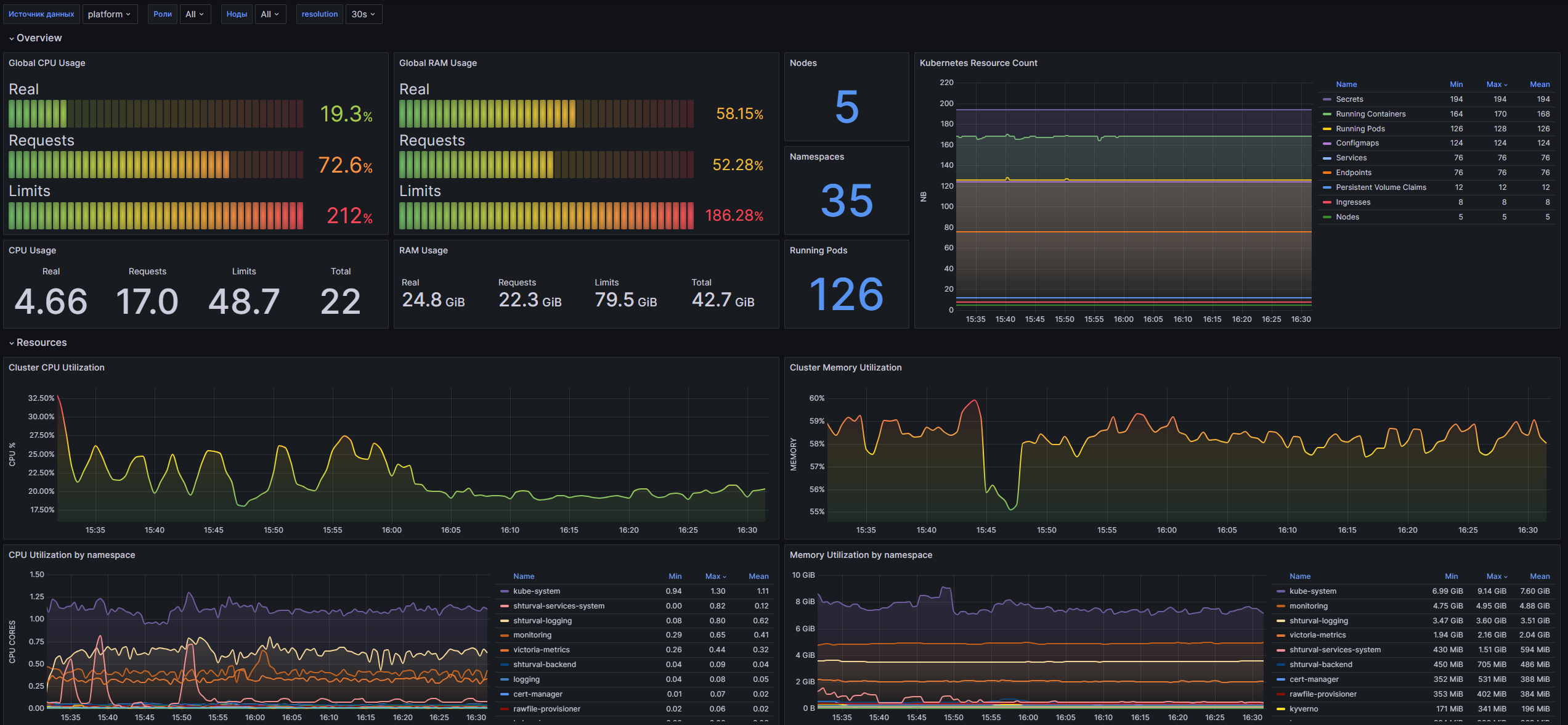
Dashboard structure
Overview:
- Global CPU Usage: Displays average CPU usage as a percentage, including metrics for actual usage, requests, and resource limits.
- Global RAM Usage: Presents RAM usage information, including actual data, requests, and memory limits.
- Nodes: The panel shows the total number of nodes in the cluster.
- Kubernetes Resource Count: Visualizes the number of different Kubernetes resources, including namespaces, running containers, pods, services and others.
- Namespaces: Displays the total number of created namespaces in the cluster.
- CPU Usage: Reports the current CPU usage in the cluster, including real data, requests, limits and total number of CPU cores.
- RAM Usage: RAM usage metrics, including actual data, requests and limits, as well as the total amount of available memory.
- Running Pods: Displays the current number of running pods.
Resources:
- Cluster CPU Utilization: Graph showing average CPU usage per cluster in processntah.
- Cluster Memory Utilization: Displays the percentage of cluster memory usage.
- CPU Utilization by namespace: Estimation of CPU usage for individual namespaces.
- Memory Utilization by namespace: Displays RAM usage by namespace.
- CPU Utilization by node: Graph of average CPU usage for each node.
- Memory Utilization by node: Visualization of RAM usage by node.
- CPU Throttled seconds by namespace: Displays information about CPU idle time by namespace.
- CPU Core Throttled by node: The panel shows how long the CPU cores were in the throttled state.
Kubernetes:
- Kubernetes Pods QoS classes: Displays the number of pods by quality of service (QoS) class.
- Kubernetes Pods Status Reason: Informs about the reasons for pod statuses.
- OOM Events by namespace: Displays the number of shutdown events due to insufficient memory by namespace.
- Container Restarts by namespace: Informs about the number of container restarts by namespace.
Network:
- Global Network Utilization by device: Reflects network load by device, excluding virtual devices.
- Network Saturation - Packets dropped: Shows the number of lost packets when receiving and sending data.
- Network Received by namespace: Displays the receipt and transmission of data via namespaces.
- Total Network Received (with all virtual devices) by node: Information about received and transmitted data by node, including all virtual devices.
- Network Received (without loopback) by node: Shows network activity by node without loopback devices.
- Network Received (loopback only) by node: Visualization of network activity only by loopback devices on nodes.
Configurable parameters
- datasource: Allows you to select a data source to configure the dashboard.
- role: Allows the user to select the role of nodes to filter metrics.
- node: Provides the ability to filter metrics by a specific node.
- resolution: Allows the user to select the temporal resolution for the displayed data (1s, 15s, 30s, 1m, 3m, 5m).
Kubernetes/System/CoreDNS
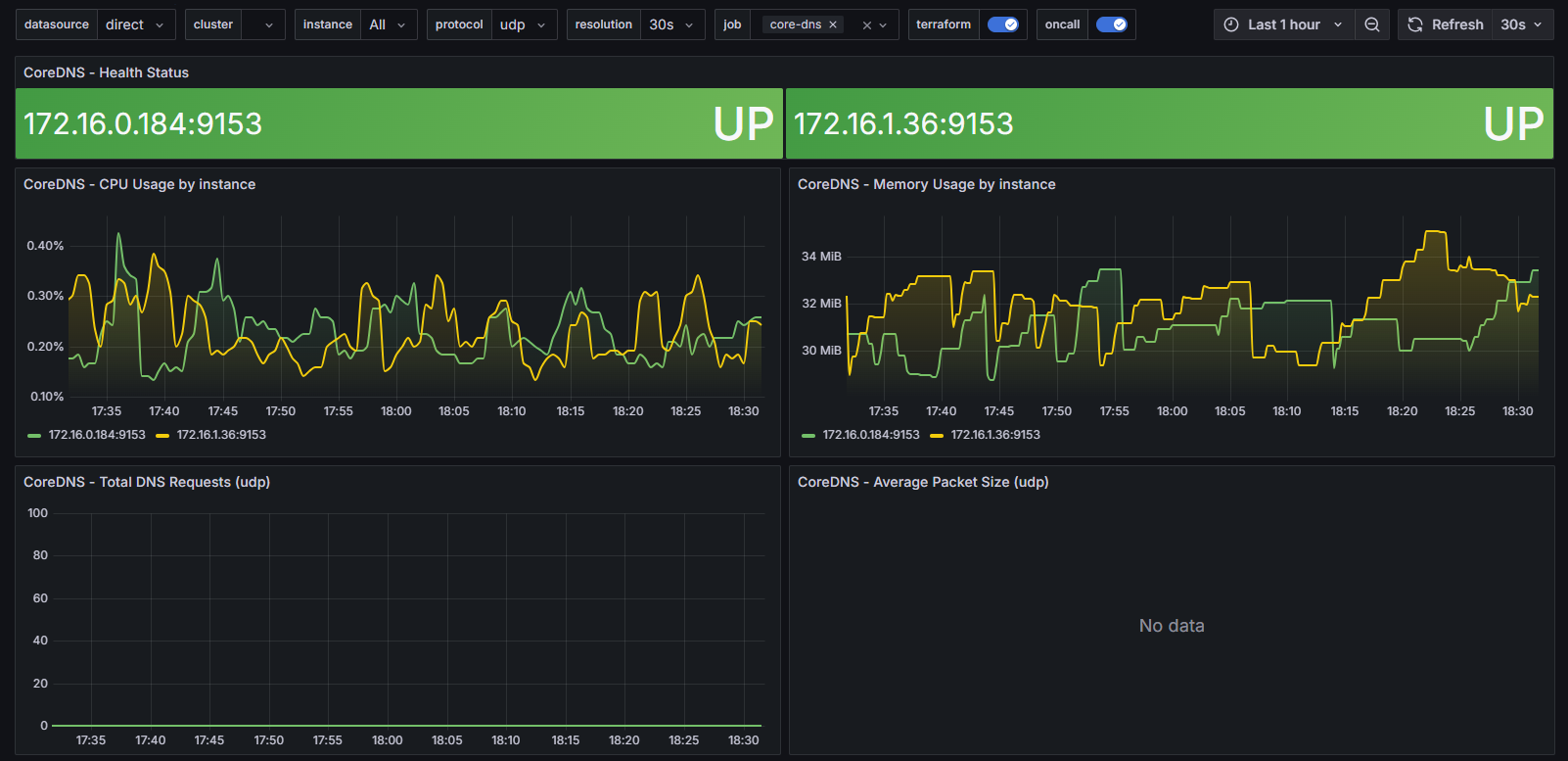
The dashboard is a monitoring solution CoreDNS in Kubernetes clusters. It is designed to be used in conjunction with kube-prometheus-stack and implements the latest Grafana features. The dashboard allows you to track various metrics related to CoreDNS performance, including health status, resource usage, DNS query and caching statistics.
Screenshot
Dashboard structure
- CoreDNS - Health Status: Displays the health status of CoreDNS instances, checking the availability of the service through the
upmetric. - CoreDNS - CPU Usage by instance: Shows CPU usage for each CoreDNS instance using the
process_cpu_seconds_totalmetric. - CoreDNS - Memory Usage by instance: Demonstrates memory usage by CoreDNS instances based on the
process_resident_memory_bytesmetric. - CoreDNS - Total DNS Requests ($protocol): Displays the total number of DNS requests for a certain period, with the ability to filter by protocol.
- CoreDNS - Average Packet Size ($protocol): Provides data on the average packet size of a DNS request, grouped by protocol.
- CoreDNS - Requests by type: Allows you to see the number of DNS requests divided by type (A, AAAA, CNAME, etc.).
- CoreDNS - Requests by return code: Shows how many requests were made with different return codes (for example, SUCCESS, SERVFAIL).
- CoreDNS - Total Forward Requests: Displays the total number of requests forwarded to other DNS servers. Not used
- CoreDNS - DNS Errors: Reports the number of DNS errors (such as SERVFAIL and REFUSED) encountered during operations. Not used
- CoreDNS - Cache Hits/Miss: Provides caching metrics showing the number of hits and misses when using the DNS cache.
- CoreDNS - Cache Size: Displays the size of the DNS cache, aggregating data by type.
- CoreDNS - DNS request duration: Displays a heat map of the processing time of DNS requests.
- CoreDNS - DNS request size: Represents DNS request sizes as a heat map.
- CoreDNS - DNS response size: Shows the sizes of DNS responses as a heat map.
Configurable parameters
- datasource: Allows you to select a data source to configure the dashboard.
- cluster: Allows you to select the TERM_KUBE clusterRNETES for monitoring. The variable requests unique values for the
clusterlabel from thekube_node_infometric. - instance: Allows monitoring to be filtered by CoreDNS instances based on operational status. This variable includes all available instances for selection.
- protocol: Allows you to select the protocol to display DNS query metrics (for example, UDP or TCP).
- resolution: Allows you to select the data resolution for displaying metrics, with available values from 1 second to 5 minutes.
- job: Allows you to select jobs to filter CoreDNS metrics by different tasks.