Graphical metrics module (Grafana)
An external monitoring module (not supplied as part of the Platform) provides collection and display of:
- system metrics of cluster nodes;
- metrics of system components of the cluster;
- container metrics.
All information is displayed on information panels (Dashboards). The Grafana platform is used for interactive visualization, monitoring and data analysis. The graphical metrics display module (Grafana) provides the ability to visualize and analyze data used for monitoring.
To configure the module for graphical display of metrics in the cluster graphical interface, in the side menu, open the Services and repositories section and go to the Installed services page, click Manage.
If the module is not displayed, open the Services and repositories section in the side menu and go to the Available charts page, on the shturval tab, find the “shturval-dashboards” chart and click “Install”.
To change the service configuration:
- Prepare a ShturvalServicePatch to be applied to the Metric Graphics Module (
shturval-dashboards) specification (ssc).
Example ShturvalServicePatch
apiVersion: ops.shturval.tech/v1beta2
kind: ShturvalServicePatch
metadata:
  name: <resource-name>
spec:
  shturvalServiceConfigName: shturval-dashboards
  customvalues:
    adminPassword: <your-parameter-value>
    adminUser: <your-parameter-value>
    grafana.ini:
      auth.generic_oauth:
        api_url: <your-parameter-value>
        auth_url: <your-parameter-value>
        client_id: grafana
        client_secret: <your-parameter-value>
        token_url: <your-parameter-value>
      server:
        root_url: <your-parameter-value>
    ingress:
      enabled: true
      hosts:
      - <your-parameter-value>
| Parameter | Description | Data type | Example |
|---|---|---|---|
metadata.name | Name of the created PatchSSC | string | shturval-dashboards-access |
adminPassword | Account password for connecting to Grafana | string | password |
adminUser | Username of the account to connect to Grafana | string | admin |
auth.generic_oauth.api_url | URL to retrieve OAuth2 provider user information | string | http://auth.admin-manual.shturval.tech/oauth/user_info |
auth.generic_oauth.auth_url | OAuth2 Provider Authorization URL | string | http://auth.admin-manual.shturval.tech/oauth/authorize |
auth.generic_oauth.client_secret | Client secret key provided by OAuth2 provider | string | HG0rxJMKopmAGSasDxDtkJYQH |
auth.generic_oauth.token_url | URL to get OAuth2 access token | string | http://auth.admin-manual.shturval.tech/oauth/token |
server.root_url | URL to access Grafana from a web browser | string | dashboards.admin-manual.shturval |
ingress.hosts | List of hosts Ingress | array | dashboards.admin-manual.shturval |
- In the management cluster, load the prepared ShturvalServicePatch using import manifests.
Screenshot
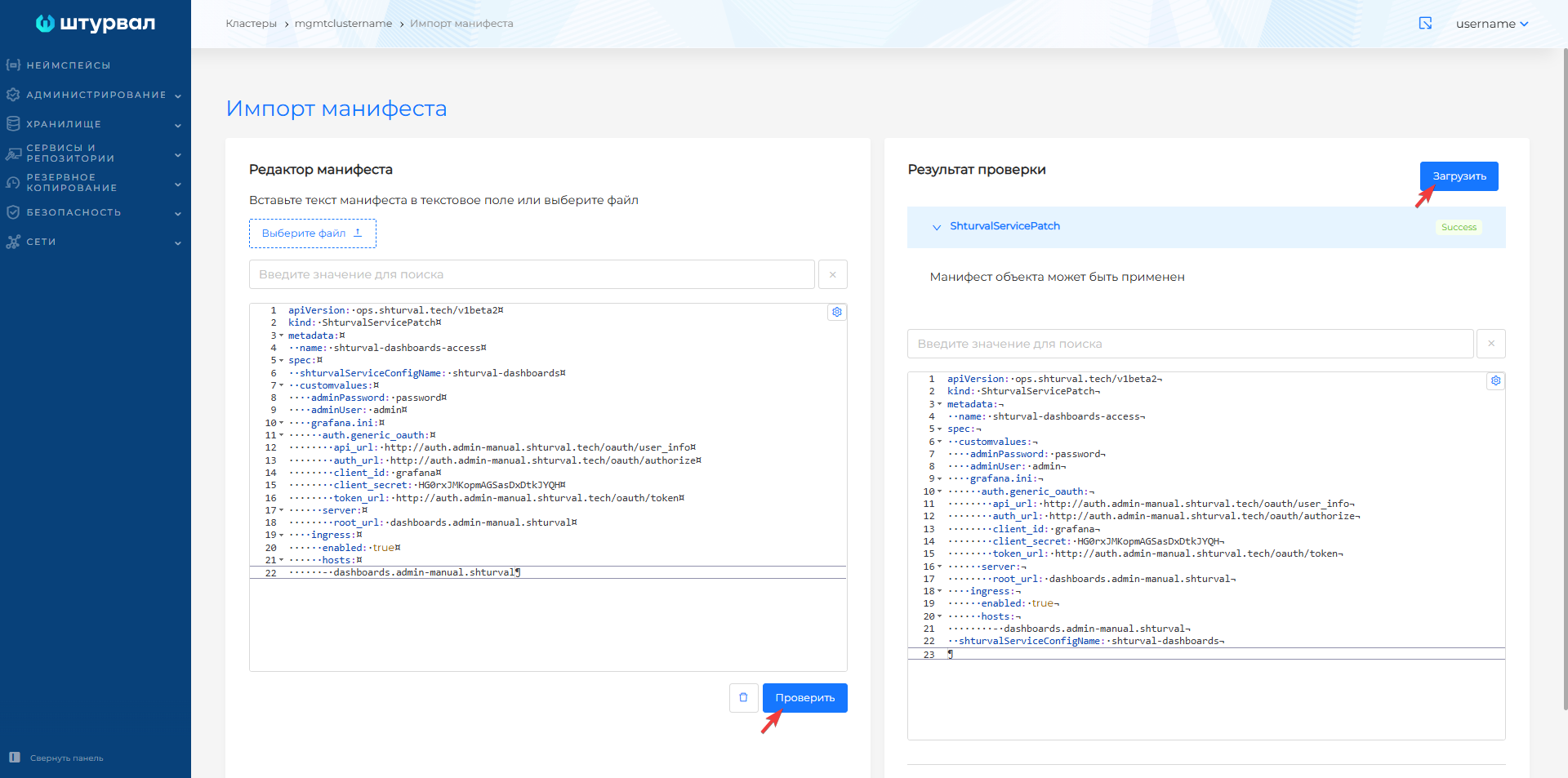
After downloading ShturvalServicePatch it will take some time forchanges changes.
Grafana interface
The Grafana interface is accessible by the dashboards prefix in the cluster domain. For example: dashboards.clustername.ip-XX-XX-XX-XX.shturval.link.
Login data is generated when the cluster is deployed and can be viewed in Secret shturval-dashboards in the namespace monitoring of the management cluster.
Commands
$ kubectl -n monitoring get secret shturval-dashboards -o go-template='{{ index .data "admin-user" | base64decode }}'
$ kubectl -n monitoring get secret shturval-dashboards -o go-template='{{ index .data "admin-password" | base64decode }}'
You can go to the Grafana interface by clicking the Statistics button on the Dashboard page of the cluster. The button is available if the following services are installed and enabled:
- in your cluster Monitoring module control component (Victoria Metrics Agent) (
shturval-metrics-collector); - in the management cluster Graphical display of metrics module (Grafana) (
shturval-dashboards) and Monitoring module. Centralized collection of metrics (Victoria Metrics) (shturval-monitoring).
After successfully switching to the Grafana interface, go to the Dashboards menu section to view the list of dashboards. A description of the available dashboards in the Grafana interface is given in the subsection Available Grafana dashboards. If you need to add a custom dashboard to the Grafana interface, use instructions.
By clicking on the name of the dashboard, information panels open with data that changes in real time.
Some information blocks are provided with hints. They are displayed when you hover over the i icon.
Additional information can be found on official website.
When switching from the Shturval platform to Grafana dashboards, 401 error may occur. This behavior is due to the way Grafana works with tokens. To access the dashboards, re-login to the Grafana interface.