Increase Victoria Metrics storage capacity
The monitoring engine centralized metrics storage component (shturval-monitoring) may require increased disk space. If necessary, you can change the disk volume from the platform GUI using the PersistentVolumeClaim (PVC resource).
All actions to increase disk space are performed in the management cluster.
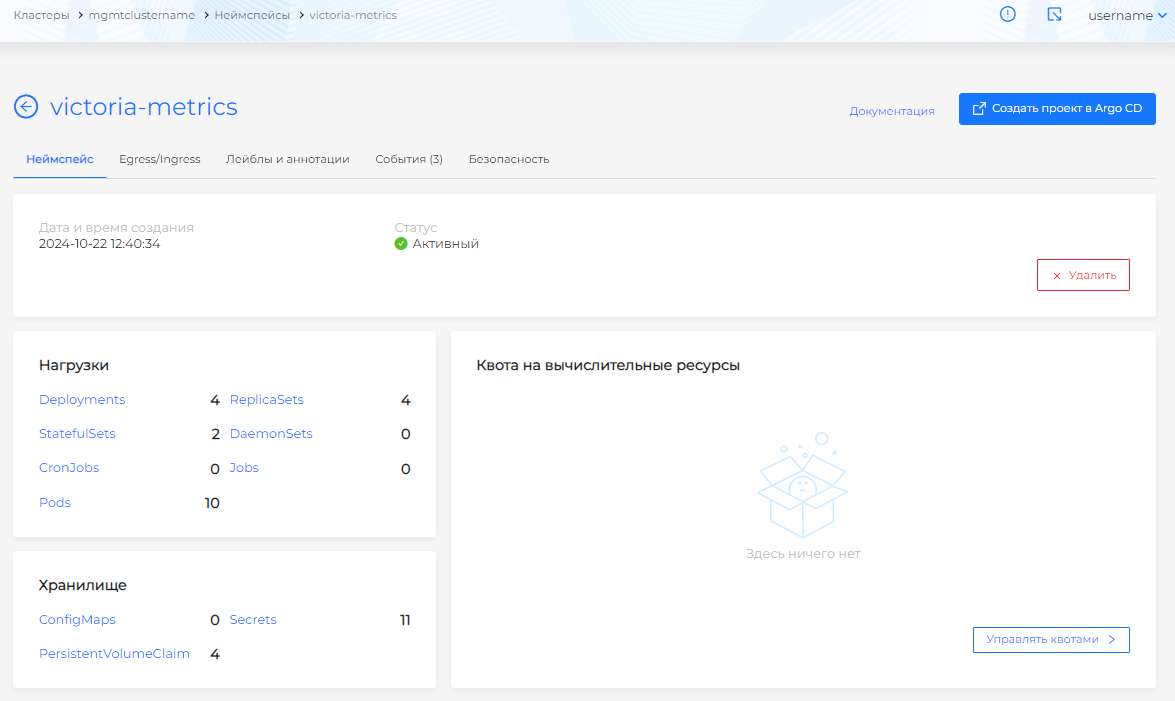
- In the management cluster, go to the victoria-metrics namespace.
Screenshot
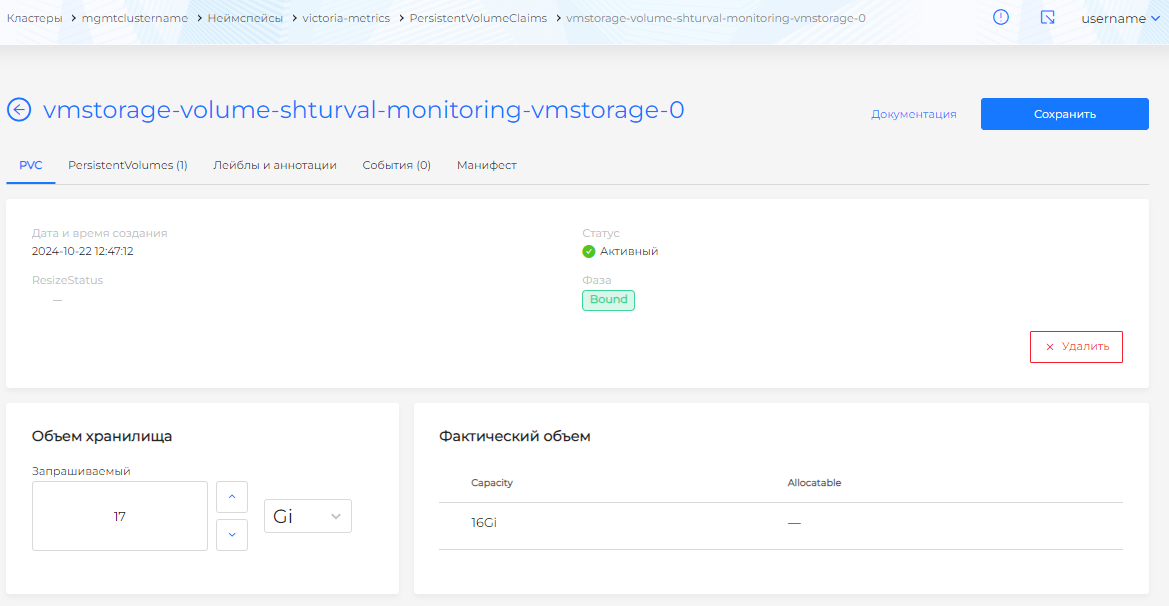
- In the side menu, open the Storage section and go to the PersistentVolumeClaims page. Select the PVC that is mounted in the Pod of the module that requires more disk space. Update the Requested Storage Amount field and save the changes.
Please note! You cannot reduce the amount of disk space in PVC.
Screenshot
- From the Loads section, go to the Pods page. Perform removal of the Pod in which the modified PVC is mounted.
Screenshot
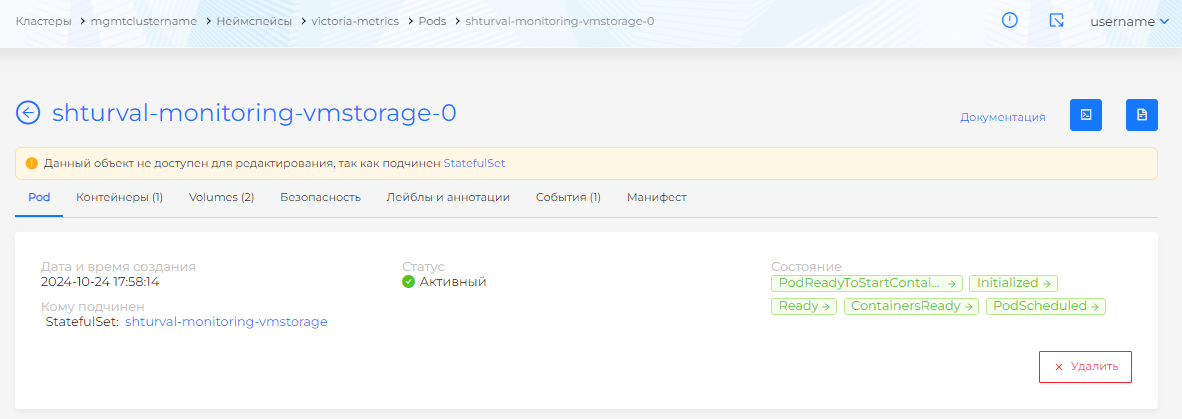
The new Pod will start with the changed amount of disk space. There will be no data loss until the module’s disk space volume is changed.
The centralized metrics collection component of the monitoring module is critical; the configuration must be changed before disabling:
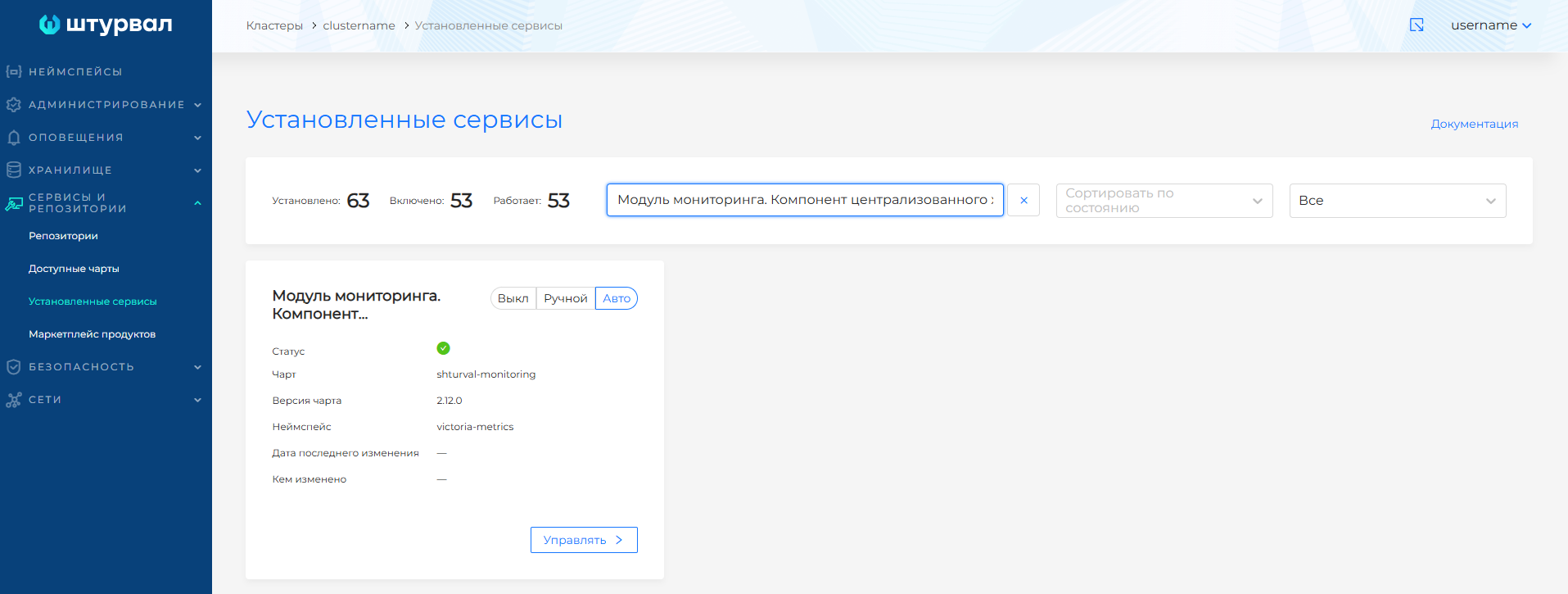
- Go to the Services and repositories section, then to the Installed system services page, find Monitoring module. Central Metrics Storage Component (
shturval-monitoring) and disable it by selecting Off.
Screenshot
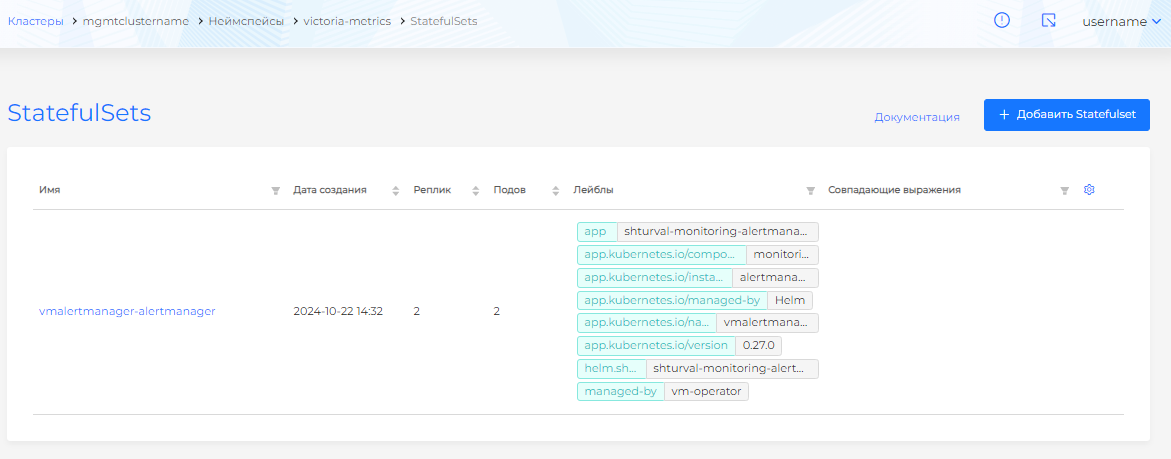
- Go to the victoria-metrics namespace of the cluster and from the Loads section open the StatefulSets page. Make sure there is no StatefulSet named
shturval-monitoring-vmstorage. If necessary, wait until the StatefulSet is deleted.
Screenshot
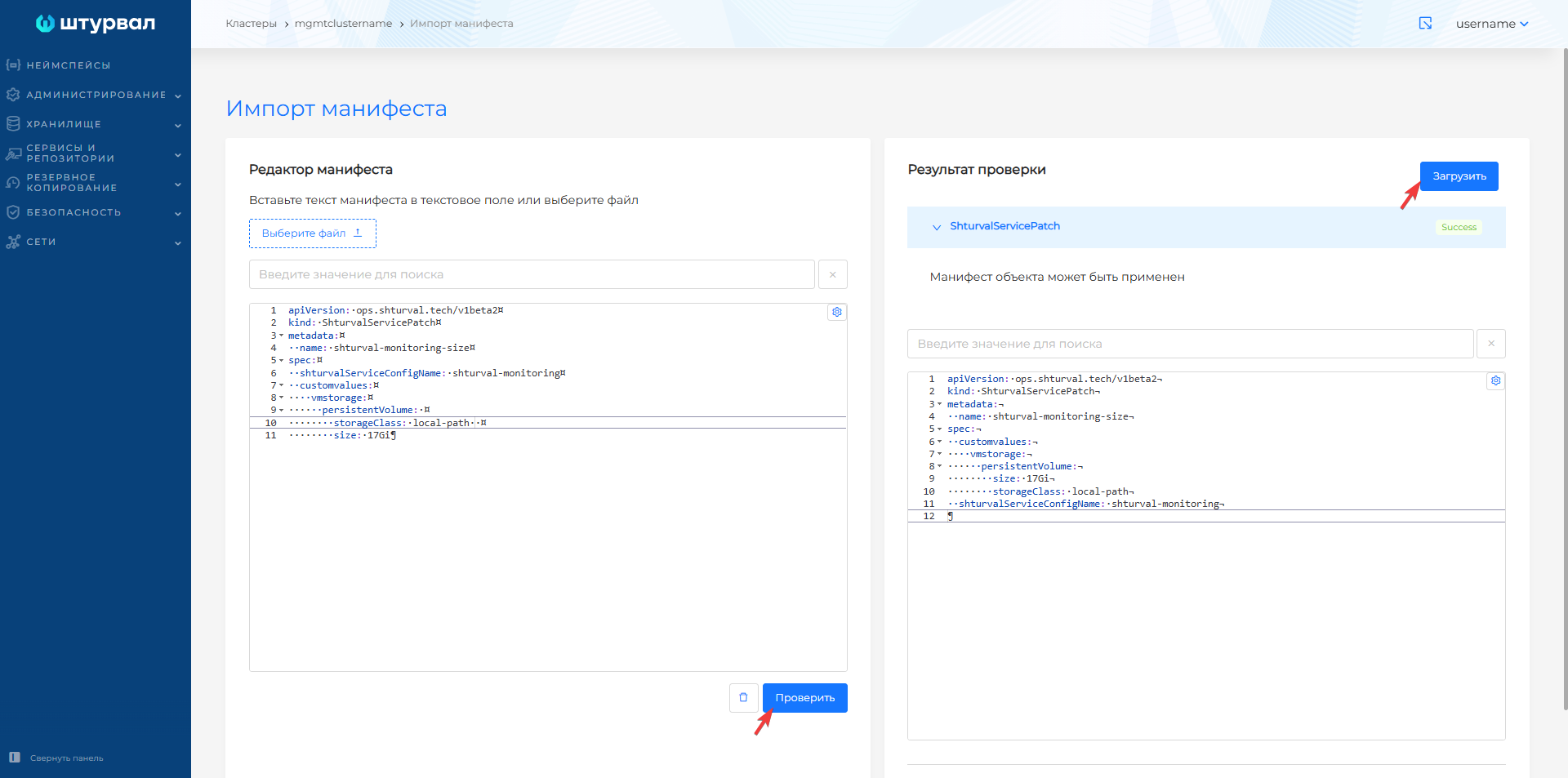
- When the StatefulSet is deleted, prepare a ShturvalServicePatch forI application to the specification (ssc) Monitoring module. Centralized metrics storage component (
shturval-monitoring), where you specify the amount of disk space using the size configuration parameter:
Example ShturvalServicePatch
apiVersion: ops.shturval.tech/v1beta2
kind: ShturvalServicePatch
metadata:
  name: <resource-name>
spec:
  shturvalServiceConfigName: shturval-monitoring
  customvalues:
    vmstorage:
      persistentVolume:
        storageClass: <your-parameter-value>
        size: <your-parameter-value>
| Parameter | Description | Data type | Example |
|---|---|---|---|
metadata.name | Name of the created PatchSSC | string | shturval-monitoring |
storageClass | Storage Class Name | string | local-path |
size | Disk space size as in modified PVC | string | 17Gi |
Screenshot
- Go to the Services and repositories section to the Installed system services page, find Monitoring module. Centralized metrics storage component (
shturval-monitoring) and enable the module by selecting the automatic control mode “Auto” and save the changes.