Container image scanning module (Trivy)
In this section you can configure the Trivy vulnerability scanner.
Trivy is a container image and file system vulnerability scanning tool used to develop and operate applications on the Docker platform. It is used to detect vulnerabilities in dependencies and packages used in containers.
In a cluster, Trivy provides an automated scanning and reporting process for timely detection of possible vulnerabilities:
- in container images. More details on the Image Analysis page.
- in the cluster configuration. More details on the Scan Results page.
To configure the Trivy vulnerability scanner, go to the “Installed services” page of the “Services and repositories” section, find “Container image scanning module” (shturval-scanner).
If there is no such service in the cluster, go to the “Available charts” page of the “Services and repositories” section. On the “shturval” tab, select the shturval-scanner chart and click “Install”.
Select the required chart version. After selecting the chart version, the available “Service Configuration Options” (values) will be displayed on the right side of the screen. Enter the required parameters as custom values in the “Service Specification” block.
Restarting scanning and storing reports
By default, scanning is restarted every 24 hours, and the report is stored for 24 hours before being deleted. To set the desired interval for restarting the scan and the period for storing the report before deleting, you must:
- Prepare a ShturvalServicePatch (PatchSSC) object manifest to apply to the Container Image Scanning Module (
shturval-scanner) specification (ssc) with the required parameters incustomvalues, as in the example below.
Example ShturvalServicePatch
apiVersion: ops.shturval.tech/v1beta2
kind: ShturvalServicePatch
metadata:
  name: <resource-name>
spec:
  shturvalServiceConfigName: shturval-scanner
  customvalues:
    operator:
      scanJobTTL: "<your-parameter-value>"
      scannerReportTTL: "<your-parameter-value>"
| Parameter | Description | Data type | Example |
|---|---|---|---|
metadata.name | Name of the created PatchSSC | string | shturval-scanner-ttl |
scanJobTTL | Scan restart interval. Default 24 hours | string | 12h |
scannerReportTTL | The period for which reports are retained before deletion. Default 24 hours | string | 12h |
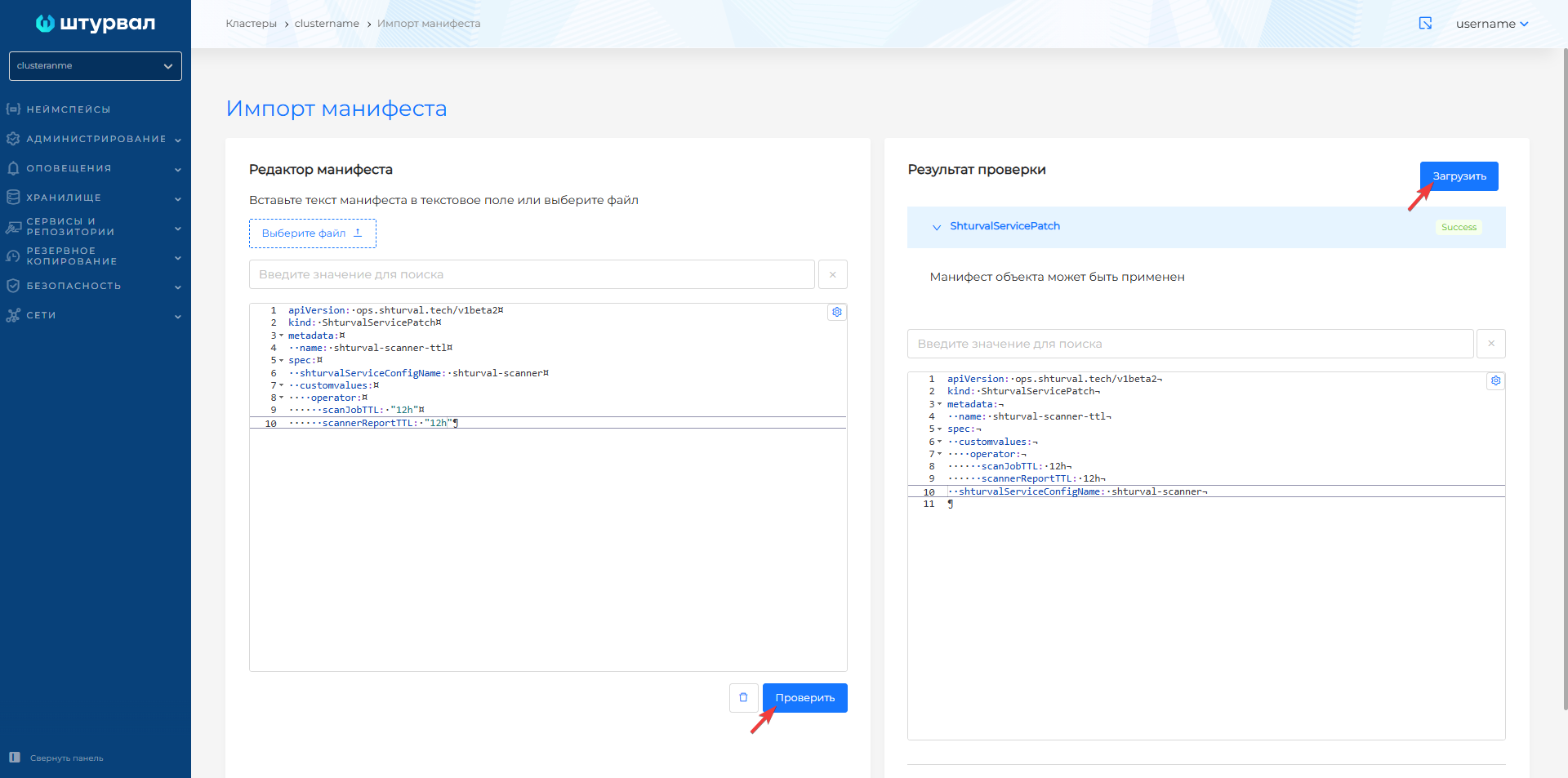
- In the graphical interface, using manifest import, load the prepared ShturvalServicePatch into the cluster:
- Click on the manifest import icon located to the left of the user name. Upload the file with the prepared manifest ShturvalServicePatch for shturval-scanner or drag the manifest into the window that opens. Verify and click Download.
Screenshot

Once ShturvalServicePatch is downloaded, it will take some time for the changes to take effect.
##ClusterComplianceReports
ClusterComplianceReports reports can be generated in a general or extended format. To ensure that information about checks is available in the platform’s graphical interface, Trivy has the report detailing configured: reportType:all. If you specify summary in reportType, the GUI will not display reporting information.
For reports of the type ClusterComplianceReports, scanning is configured by default once every 6 hours. To change the default value, you must:
- Prepare a manifest of the ShturvalServicePatch (PatchSSC) object for application to the specification (ssc) Container image scanning module (
shturval-scanner), where in thecronparameter specify the scanning period, as in the example below.
Example ShturvalServicePatch
apiVersion: ops.shturval.tech/v1beta2
kind: ShturvalServicePatch
metadata:
  name: <resource-name>
spec:
  shturvalServiceConfigName: shturval-scanner
  customvalues:
    compliance:
      cron: <your-parameter-value>
| Parameter | Description | Data type | Example |
|---|---|---|---|
metadata.name | Name of the created PatchSSC | string | shturval-scanner-cron |
compliance.cron | Scanning period for ClusterComplianceReports in cron format. Please note that there must be spaces between the values. | string | 0 7 * * * |
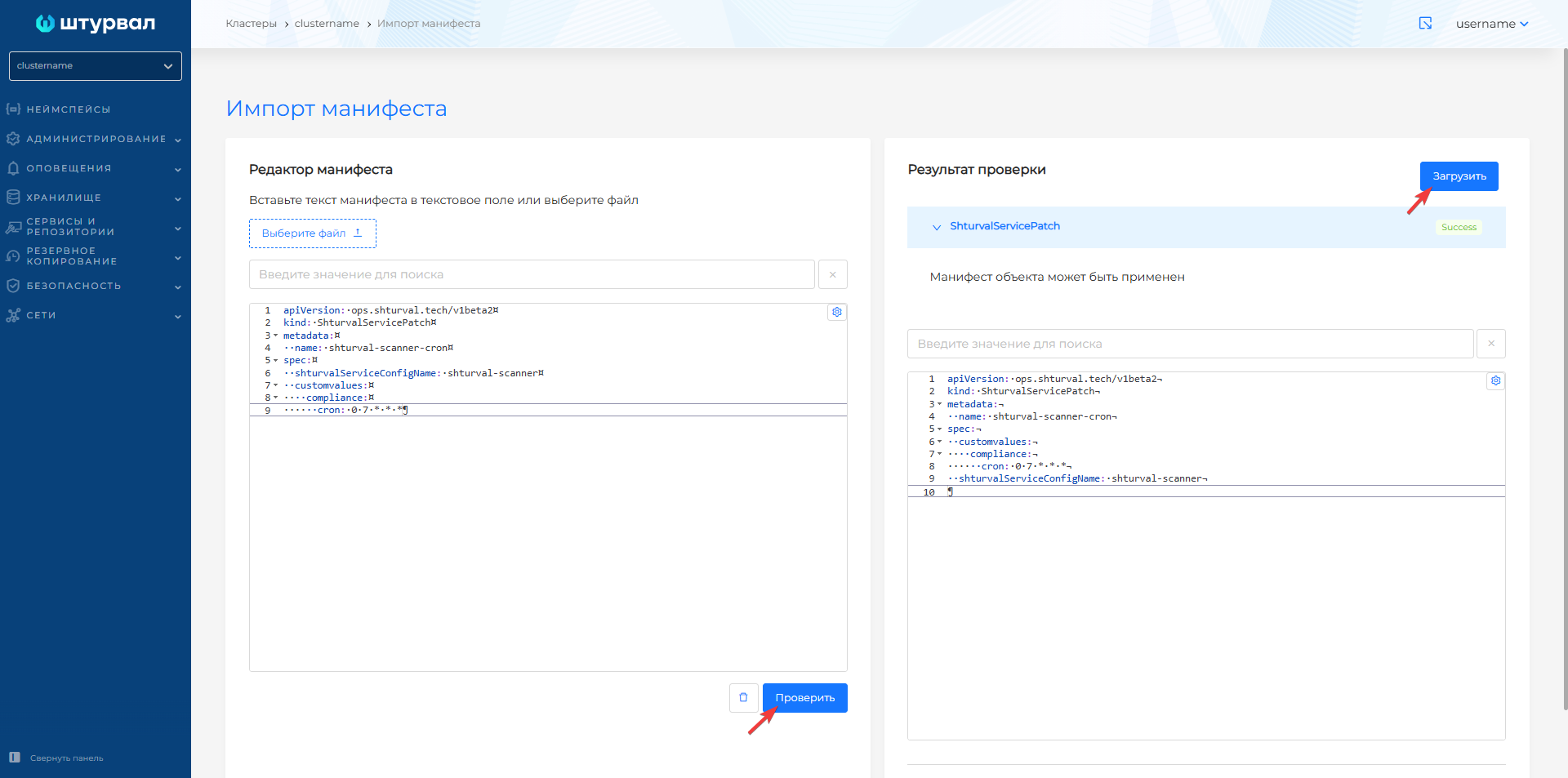
- In the graphical interface, using manifest import, load the prepared ShturvalServicePatch into the cluster.
Screenshot
Once ShturvalServicePatch is downloaded, it will take some time for the changes to take effect.
Setting up scanning from a local repository
To configure scanning of images from a local repository, if you are using an SSL certificate issued by a non-public CA, for example, corporate or self-signed, you must:
- Prepare a manifest of the ShturvalServicePatch (PatchSSC) object for application to the specification (ssc) Container Image Scanning Module (
shturval-scanner), where you set the repository name in thenameOfRegistryparameter, as in the example below.
Example ShturvalServicePatch
apiVersion: ops.shturval.tech/v1beta2
kind: ShturvalServicePatch
metadata:
  name: <resource-name>
spec:
  shturvalServiceConfigName: shturval-scanner
  customvalues:
    trivy:
      insecureRegistries:
        nameOfRegistry: <your-parameter-value>
| Parameter | Description | Data type | Example |
|---|---|---|---|
metadata.name | Name of the created PatchSSC | string | shturval-scanner-localrepo |
nameOfRegistry | Local repository DNS name | string | registry.corp.domain |
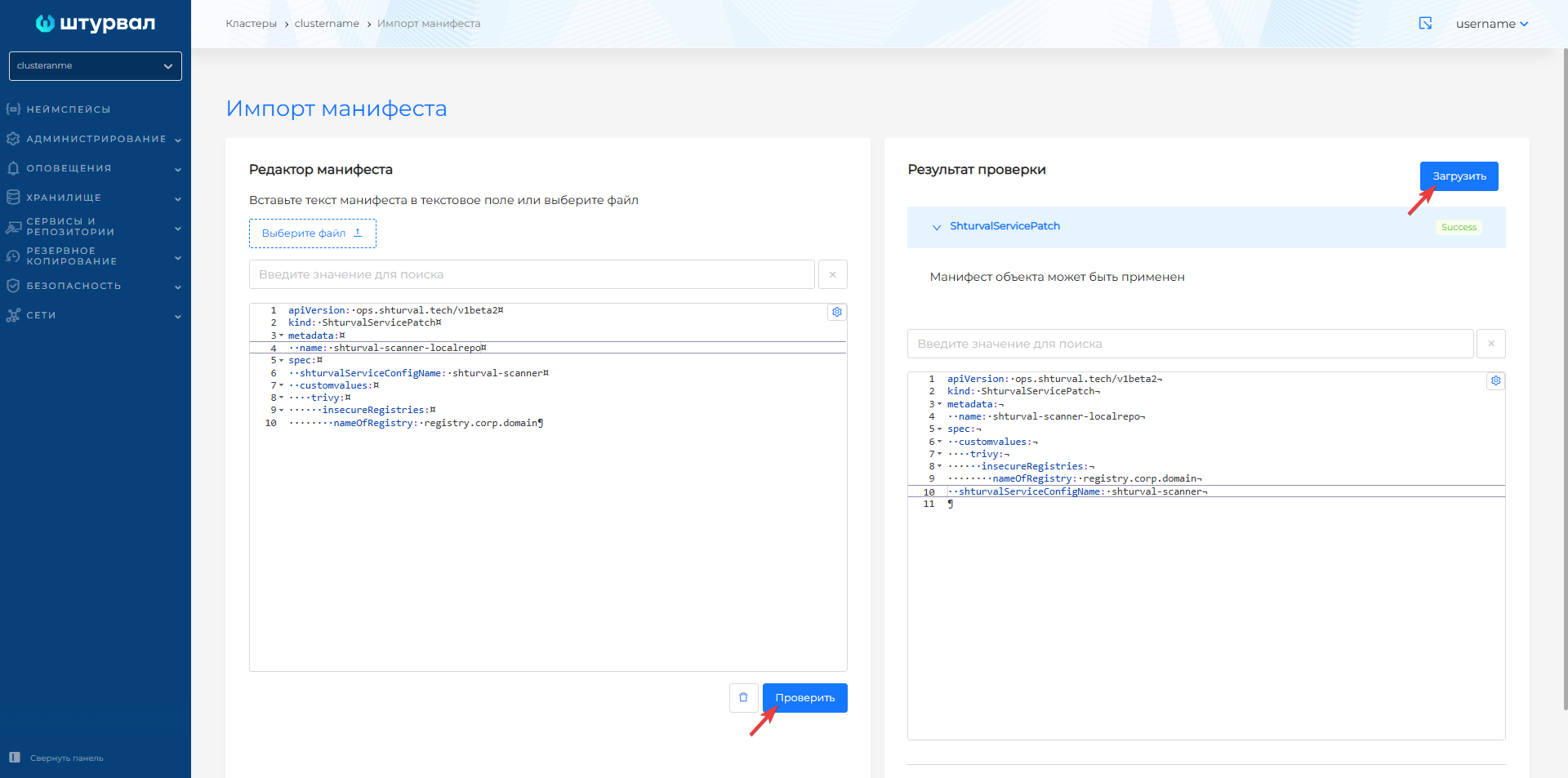
- In the graphical interface, using manifest import, load the prepared ShturvalServicePatch into the cluster.
Screenshot
Once ShturvalServicePatch is downloaded, it will take some time for the changes to take effect.
Additional information can be found on Trivy website and Trivy Operator website.