Managing updates in the interface
The Shturval platform is available in minor and patch versions. 4 minor versions of the cluster are released per year. Patch versions are released as needed. For more on how updates work, see Platform update process.
To correctly update the Shturval platform, first update the management cluster, and then update the client clusters.
In GUI
To update a cluster in the platform GUI, go to the dashboard of the cluster that needs to be updated (management cluster or client cluster) and click Manage next to the current version of the cluster.
In the cluster update window you have the option to manually start an update or configure it to automatically start an update on a schedule. You can track the progress of a running update based on the status specified in the update block.
Screenshot
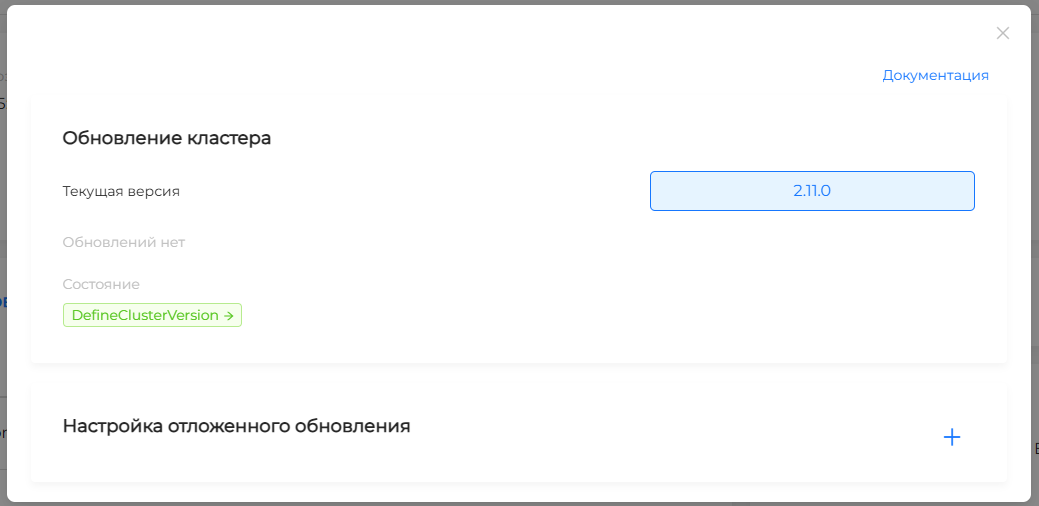
If you see the text “No updates”, then you have the latest version available.
If difficulties arise during the update process, you can contact the Shturval Platform development team for advice and support. To do this, from the “About the system” tab of the platform’s graphical interface, go to the service desk and leave a request for support.
When you complete the cluster upgrade, you will need to replace the Kubernetes version in InfraMachineTemplates. To do this, follow the steps in the instructions Updating the kubernetes version. Applicable to all clusters except the cluster with the Shturval v2 provider.
Manually starting a cluster update
If there is an update version available, in the modal update window of the cluster:
- Select the cluster version from the list.
- Click Update to start updating to the selected version.
Automatically trigger a cluster update
Deferred upgrade allows you to configure a schedule to automatically trigger a cluster upgrade when a version is available. You can create different deferred update configurations for different scenarios. For example, for minor and patch versions. You can view all created schedules for cluster updating in the cluster updating modal window; the name of the schedule is created automatically.
To configure a deferred cluster update, in the update window click on + next to “Configure deferred update”. In the block that opens, indicate:
Screenshot
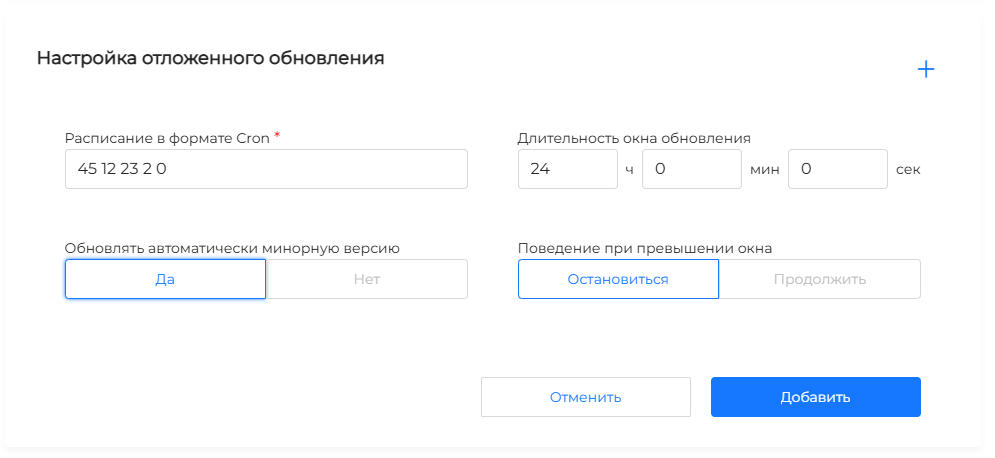
- schedule in cron format. Spaces must be placed between values to separate them from each other. The schedule is interpreted in the time zone of the controller process, usually UTC;
- duration of the update window (default is 24 hours). The duration indicates how much time can be used to perform the update if a suitable version for the update is available at the time of the scheduled scan. In the GUI, the minimum value for the update window duration is set to 30 minutes. Less time may not be enough to correctly update the cluster.
Please note! The schedule specifies the start of the update window, and the window duration specifies the period during which the update can be started. When checking the schedule, the controller first calculates the window from the nearest previous Cron run. If the current time falls within this window, the update will start immediately, without waiting for the next scheduled launch. For example, when scheduling0 20 * * *and the window duration is 24 hours, the update will begin immediately. If, with the same schedule at 18:00 UTC, the window duration is set to 4 hours, then the update will start at 20:00 UTC.
Screenshot
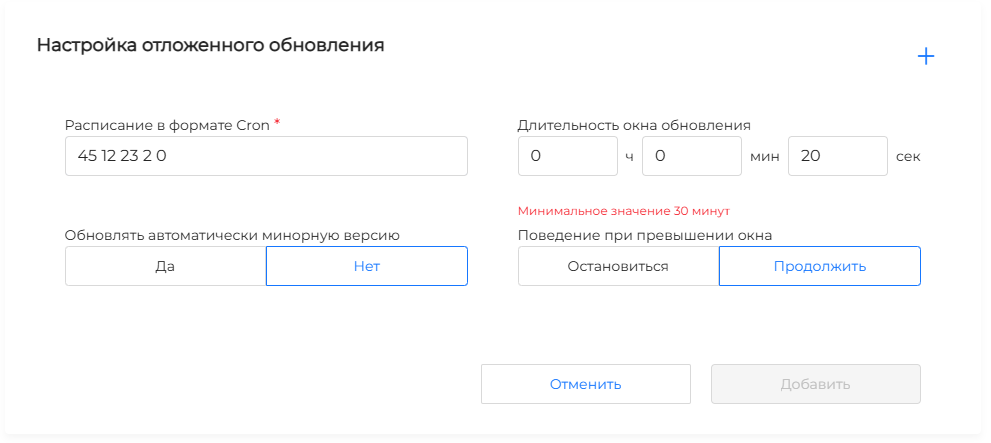
- system behavior when the update window duration is exceeded. This parameter does not prohibit the initial launch of a scheduled update, but controls an already running update:
- stop: all update processes will be suspended and the “UpdatePaused” status will be displayed in the update window. To resume the cluster update, click Continue unscheduled.
- continue: the update will continue until completed.
- is it allowed to automatically update to minor versions? If not, then the automatic update will only be for patch versions.
To complete the setup, click Add.
If necessary, you can change the schedule configuration at any time. Select the required schedule in the modal window and configure it again. If the schedule configuration is changed at the time the cluster is updated, the update will follow the new schedule scenario.
A deferred update schedule can be delete if the update for it has not yet started.
Update statuses
After running the cluster update, the cluster dashboard will display the stages of the cluster update status:
- Updating the version of Cluster Update Module (
shturval-update); - Forced removal of outdated services. The stage can be skipped if such services are not available;
- Update Node Configuration Management Module
shturval-node-config. The step can be skipped, the update will complete without initializing the step; - Updating the Kubernetes version;
- Updating versions of system services.
Color indication determines the status of each stage:
- green color upon successful completion of the stage;
- yellow - if the stage is in progress;
- gray - the stage is not initialized.