Backups
The Shturval platform uses Velero for backup and restore. You can manage backups in a selected cluster namespace under Backup.
To create a backup:
- Connect S3 storage.
- Create a backup configuration or schedule.
Note! A backup is not a snapshot. Only resources requested in the backup are included. On restore you get the state of those resources only, not the entire system as it was at backup time.
Note! Backup is not available from the velero namespace because restoring the velero namespace causes errors.
Creating a backup
After adding storage, you can create backups. Open Backups and click Add backup.
Screenshot
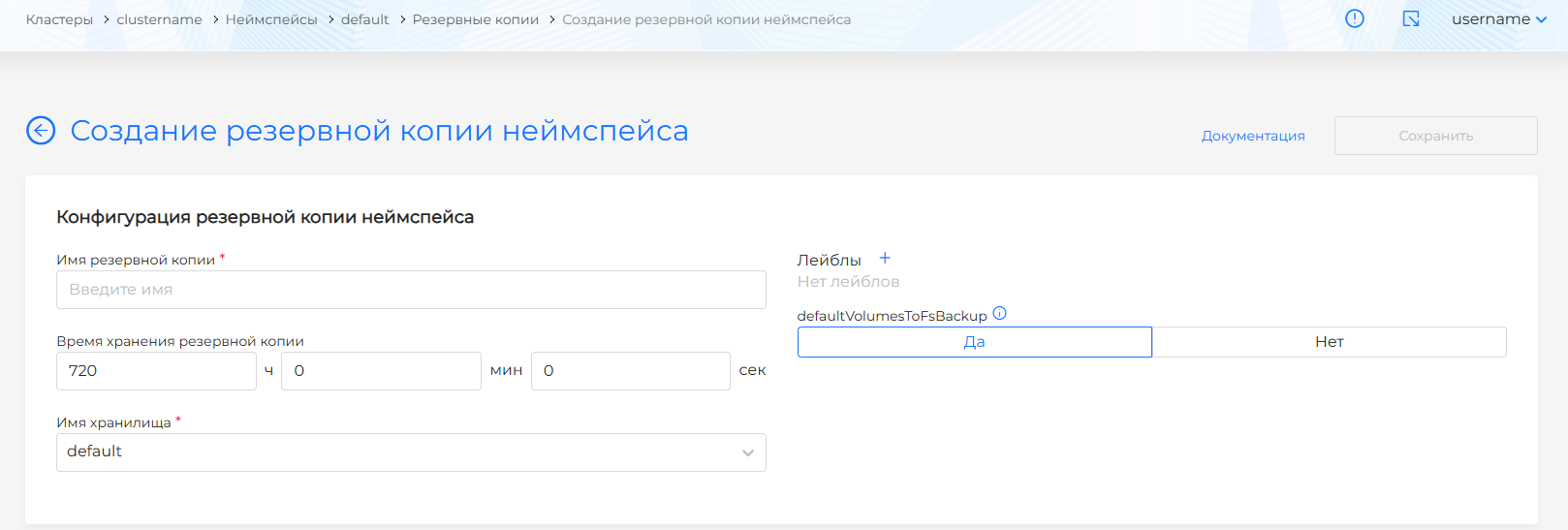
On the page that opens, configure:
- Backup name. Required. The name must contain only lowercase Latin letters and digits and start with a letter.
- Backup retention time (TTL).
- Storage name. Required. Previously created S3 storage locations are available.
defaultVolumesToFsBackup— whether to use the module’s filesystem volume backup for all volumes by default (default: yes).- Backup labels.
- Object selector. Uses an AND selector. Only namespace objects with the specified labels/expressions are included in the backup.
Screenshot

In the namespace resource selection block, choose objects in one of two ways:
- Selected only (inclusive).
- All except selected (exclusive).
Screenshot
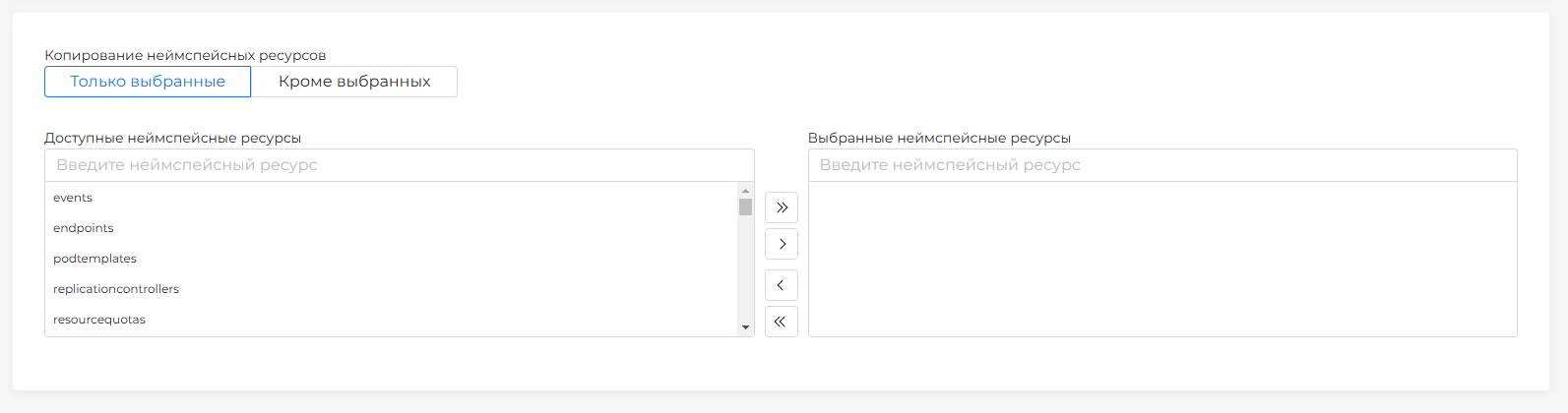
The block lists namespace-scoped resources. Select which resources to include in the backup.
The created backup page shows backup status and configuration.
Note! This is a one-off backup configuration. Fields cannot be changed after creation. To add a scheduled backup configuration, open Schedules.
Viewing and editing a backup
The created backup page has tabs:
- Backup — backup status and configuration.
Screenshot
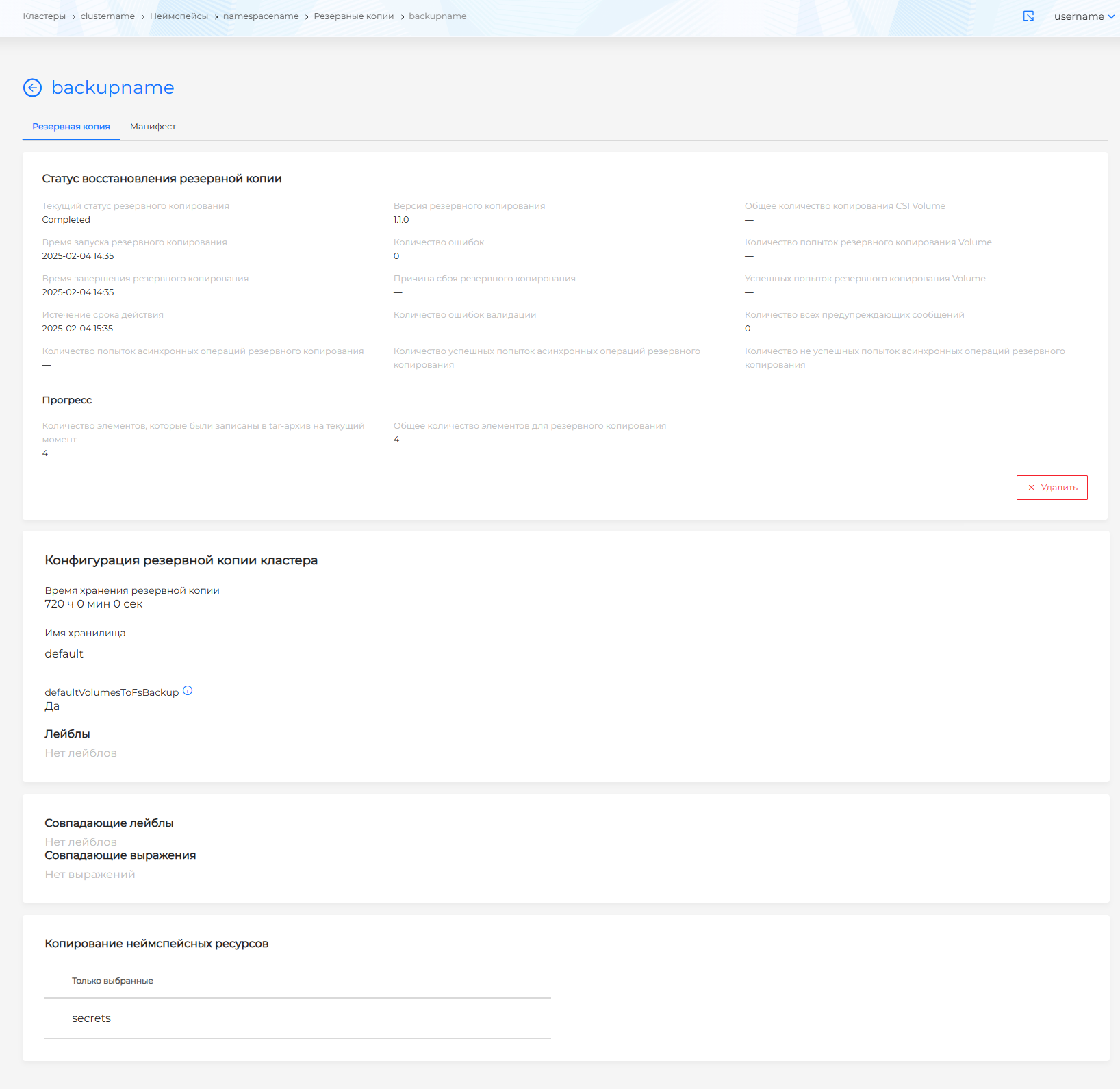
- Manifest — YAML manifest for viewing. You can delete the backup by clicking .
Screenshot
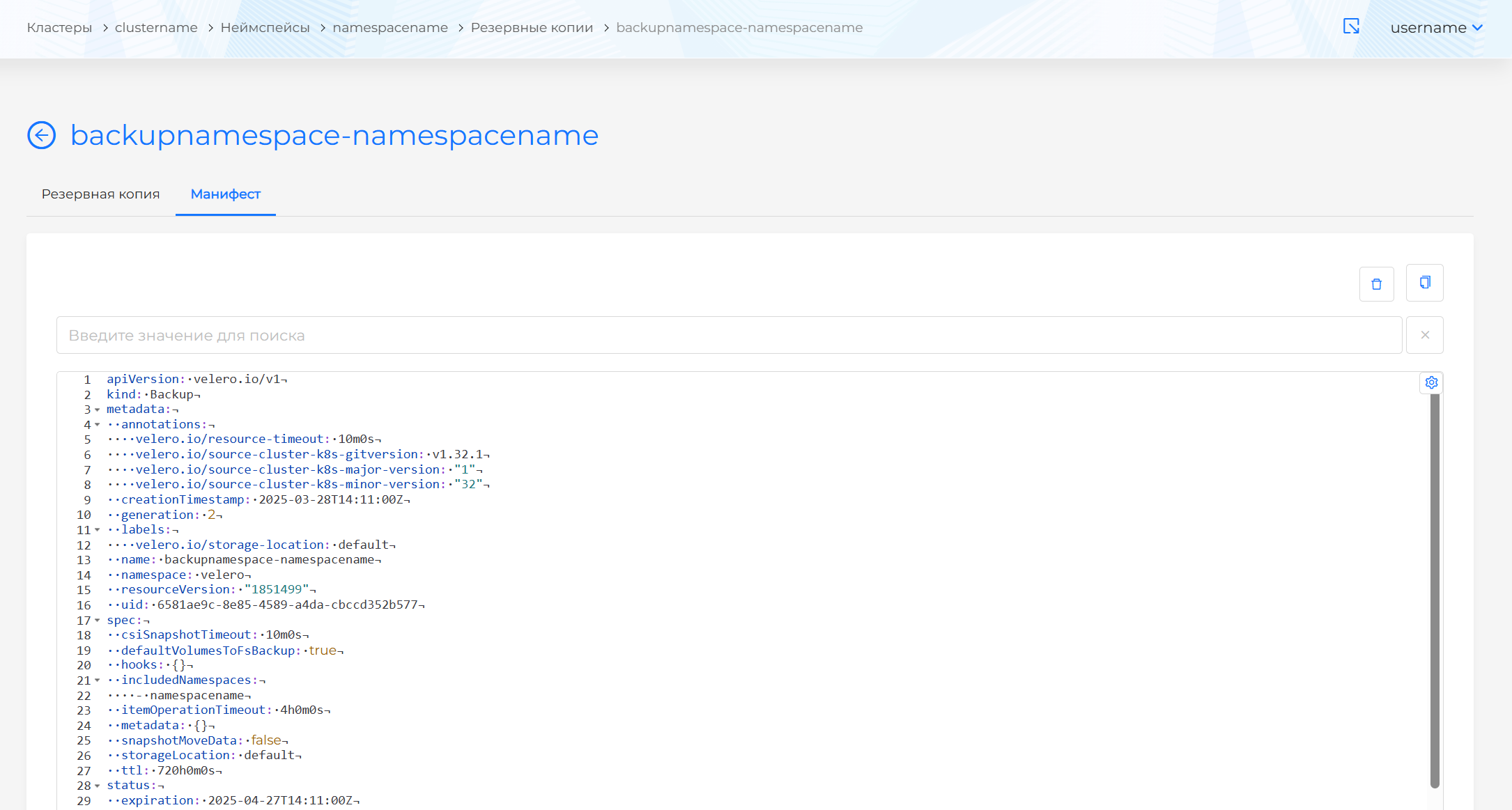
You can delete a backup from the namespace in one of the following ways:
- On the Backups page, click in the object row.
- On the backup view page, on the Backup tab, click Delete.
- On the backup view page, open the Manifest tab and click .
Deletion requests for backups in storage are asynchronous on the platform side and may fail. After a deletion request is sent, the backup appears in deleting status in the GUI.