Schedules
A schedule is an object that requests backup creation on a schedule.
Creating a schedule
To create a backup schedule, open Schedules and click Add schedule.
Screenshot
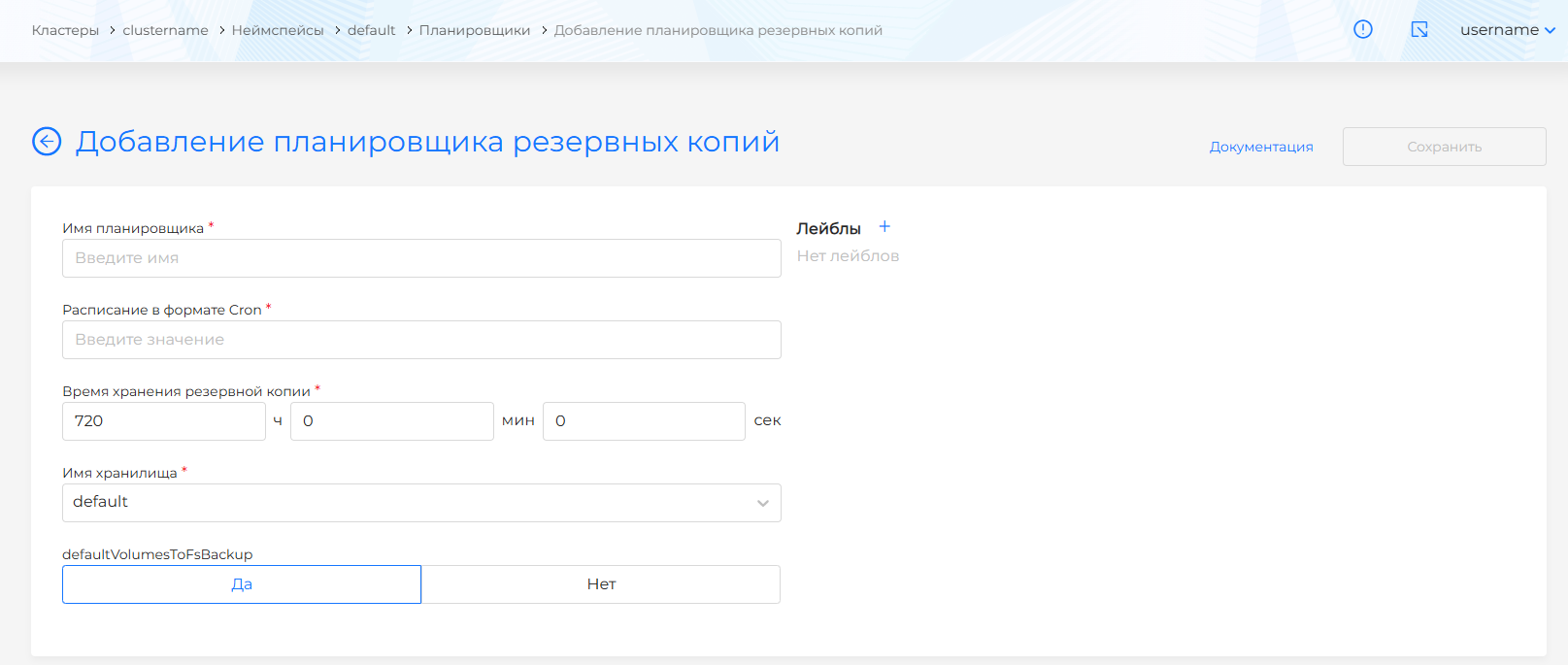
On the page that opens, set a cron schedule for backup creation and configure the backups to create:
- Schedule name. Required. The name must contain only lowercase Latin letters and digits and start with a letter.
- Cron schedule. Required.
- Backup retention time (TTL).
- Storage name. Required. Previously created S3 storage locations are available.
defaultVolumesToFsBackup— whether to use the module’s filesystem volume backup for all volumes by default. Default: yes.- Backup labels.
- Object selector. Uses an AND selector. Namespace objects with matching labels/expressions are included in the backup.
Screenshot

In the namespace resource selection block, choose objects in one of two ways:
- Selected only (inclusive).
- All except selected (exclusive).
Screenshot
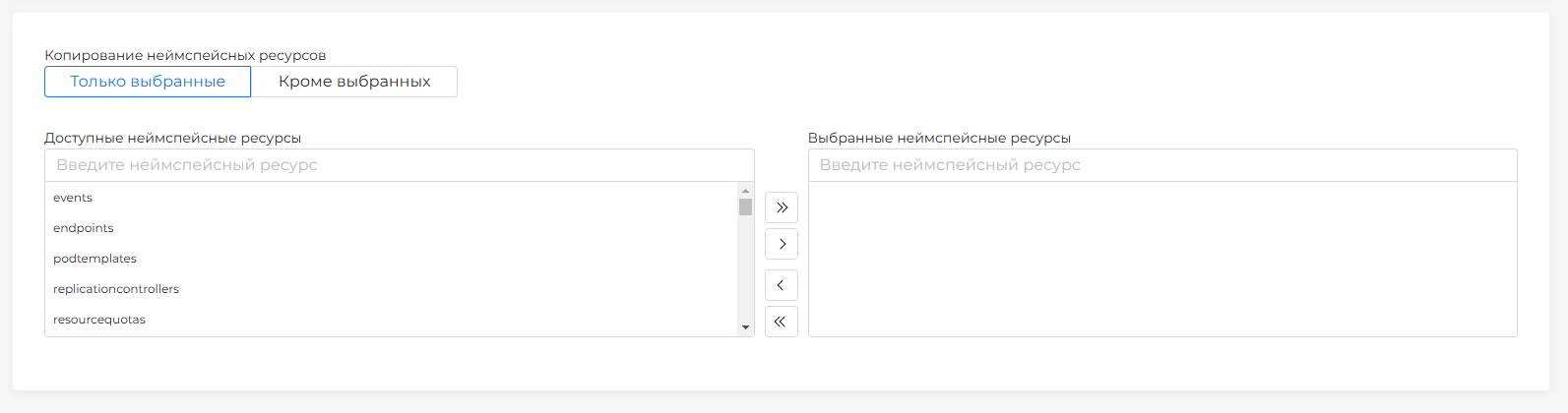
The block lists namespace-scoped resources. Select which namespace resources to include in the backup.
Viewing and editing a schedule
In a saved schedule you can change:
- Schedule.
- Object selector.
- Resource selection for backup.
- Labels.
Changes apply to newly created backups.
You can also edit the object via its manifest. Open the Manifest tab.
Screenshot
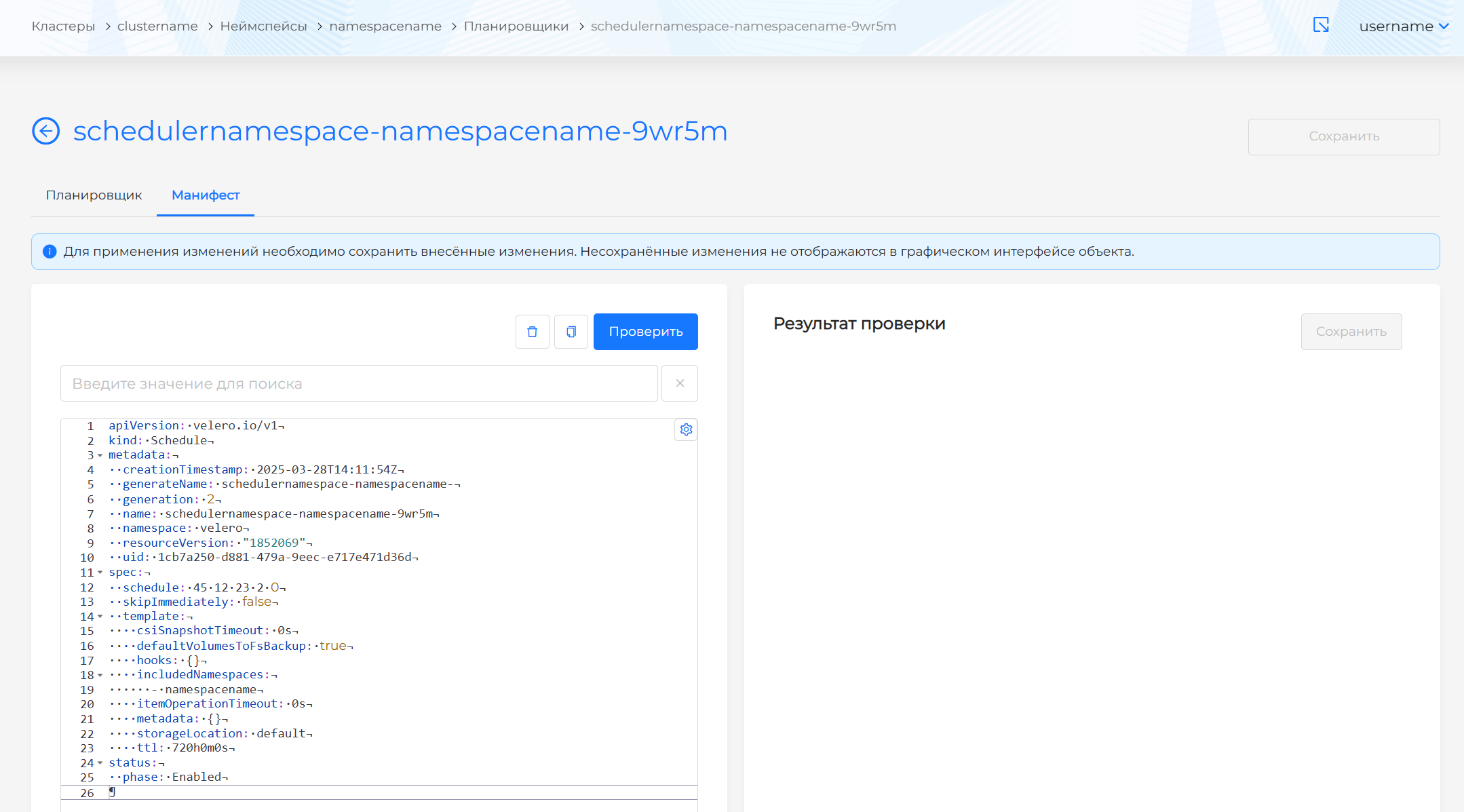
After editing the manifest, run validation. The result appears on the right side of the screen. Expand the validation result block to see the full manifest. If schedule manifest format validation fails, manifest validation is unavailable.
You can delete a schedule from the namespace in one of the following ways:
- On the Schedules page, click in the object row.
- On the schedule view page, on the Schedule tab, click Delete.
- On the schedule view page, open the Manifest tab and click .