Storage locations
Connecting storage
Screenshot
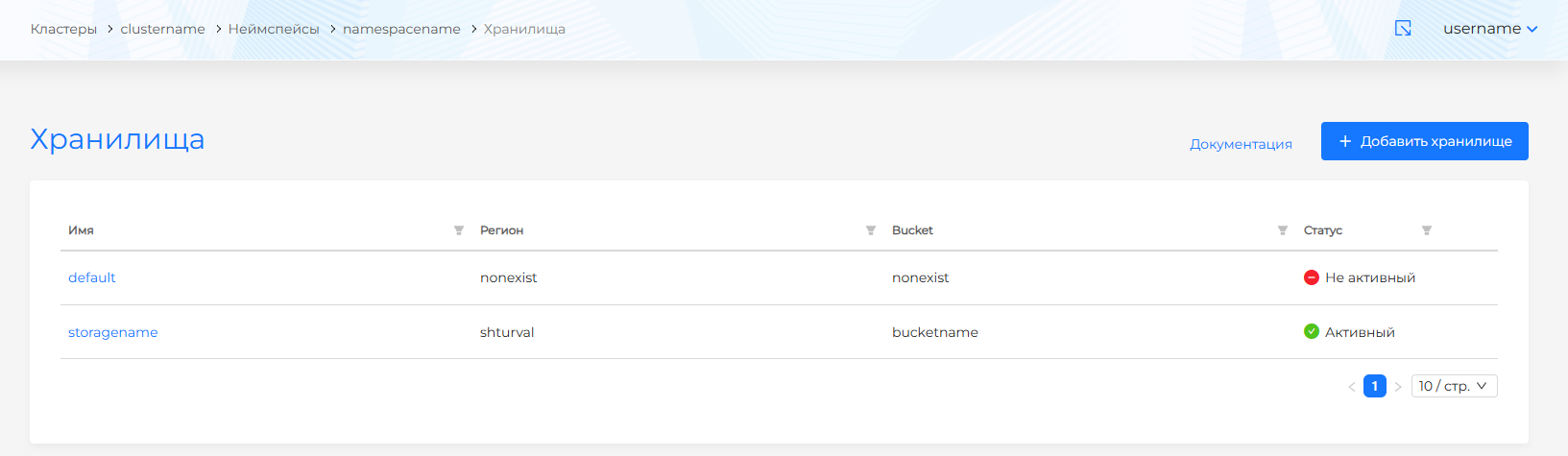
To connect storage, open Storage locations and click Add storage.
The add storage page has basic and advanced modes. In basic mode you can set:
Screenshot
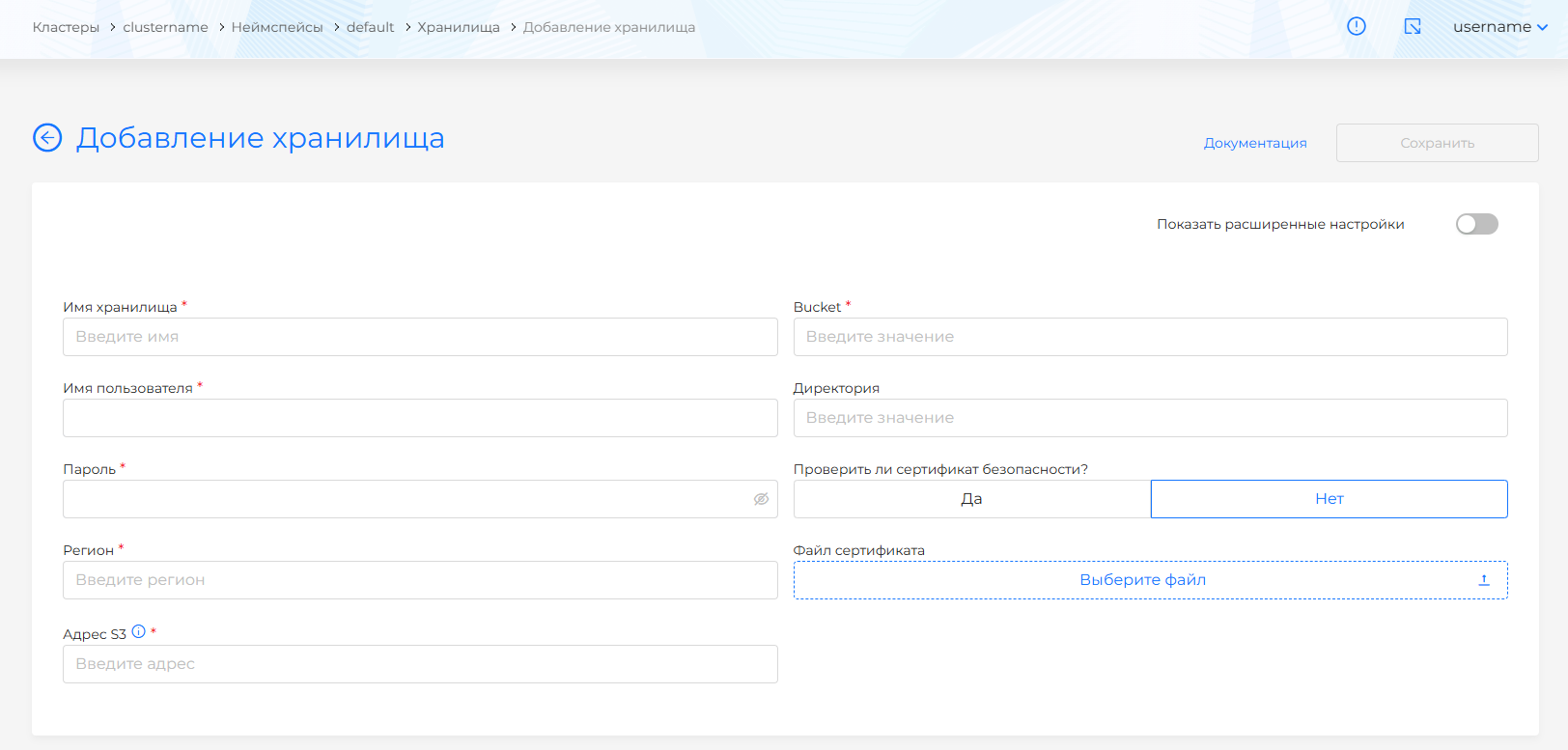
- Storage name. Required. After saving, this field cannot be edited.
- Bucket. Required. Storage segment where backups are uploaded.
- Directory. Optional. Bucket prefix (folder) for storing backups.
- Username. Required. Username/login for S3 storage. After saving, this field cannot be edited.
- Password. Required. Password for S3 storage. After saving, this field cannot be edited.
- Region. Required.
- S3 address. Required. You can specify FQDN/VIP over HTTP/HTTPS. Include ports if needed. Example:
http://example.com:9000orhttps://11.11.111.11 - Enable security certificate validation (enabled by default).
- Upload a certificate file.
If you connect S3 storage without TLS, skip certificate upload.
Advanced mode adds fields:
Screenshot
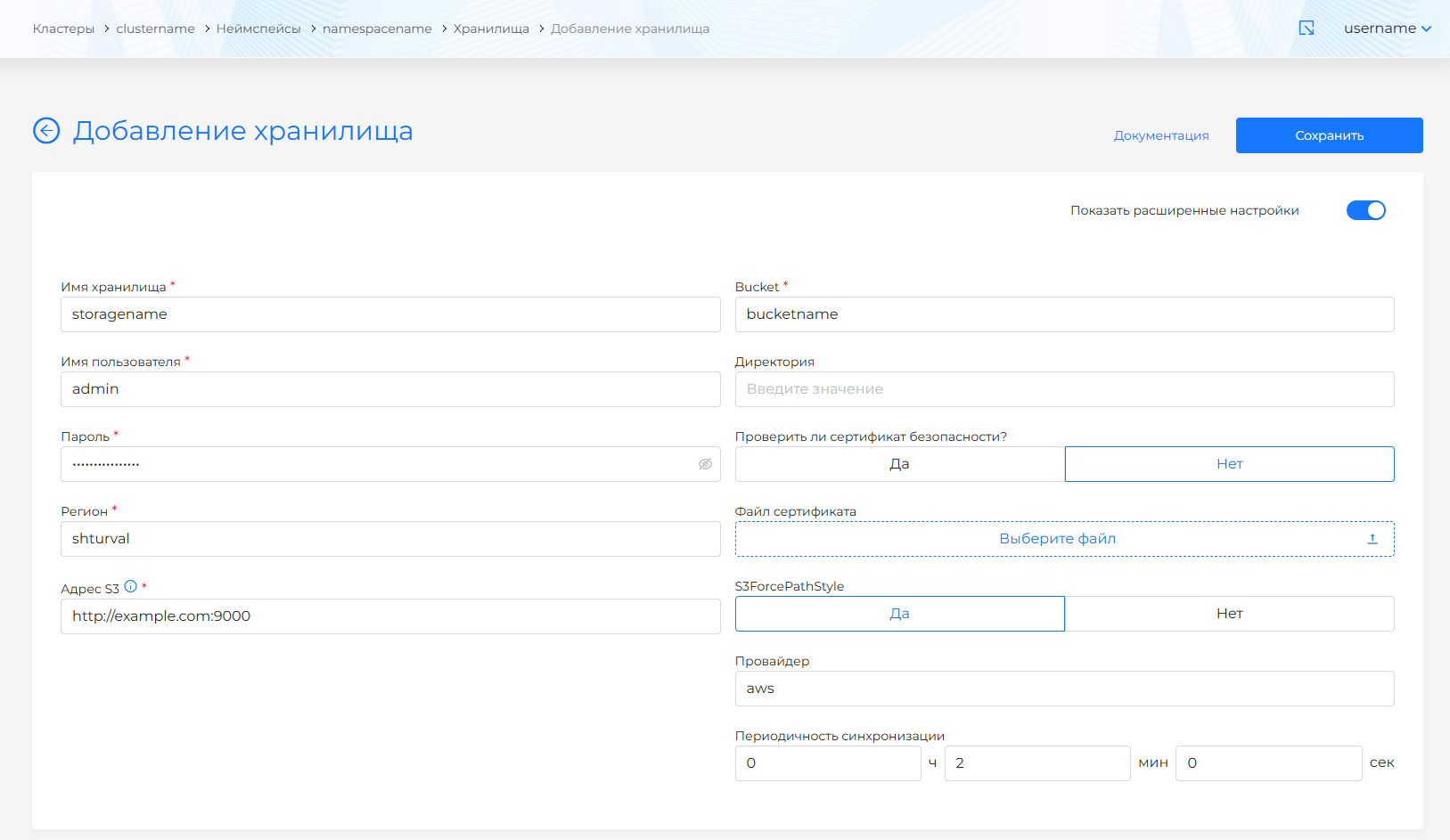
S3ForcePathStyle— whether S3 requests always use path-style addressing (default: yes).- Provider. Velero natively supports the AWS provider. Compatibility with other providers is not guaranteed.
- Sync period (
backupSyncPeriod) in hours, minutes, and seconds.
If backups already exist in storage when you connect it, they may appear in the GUI.
Viewing and editing storage
To view a connected storage location, click its name in the list. On the Storage tab you can view status and connection details. Editing connected storage parameters is temporarily available only via the manifest interface.
Screenshot
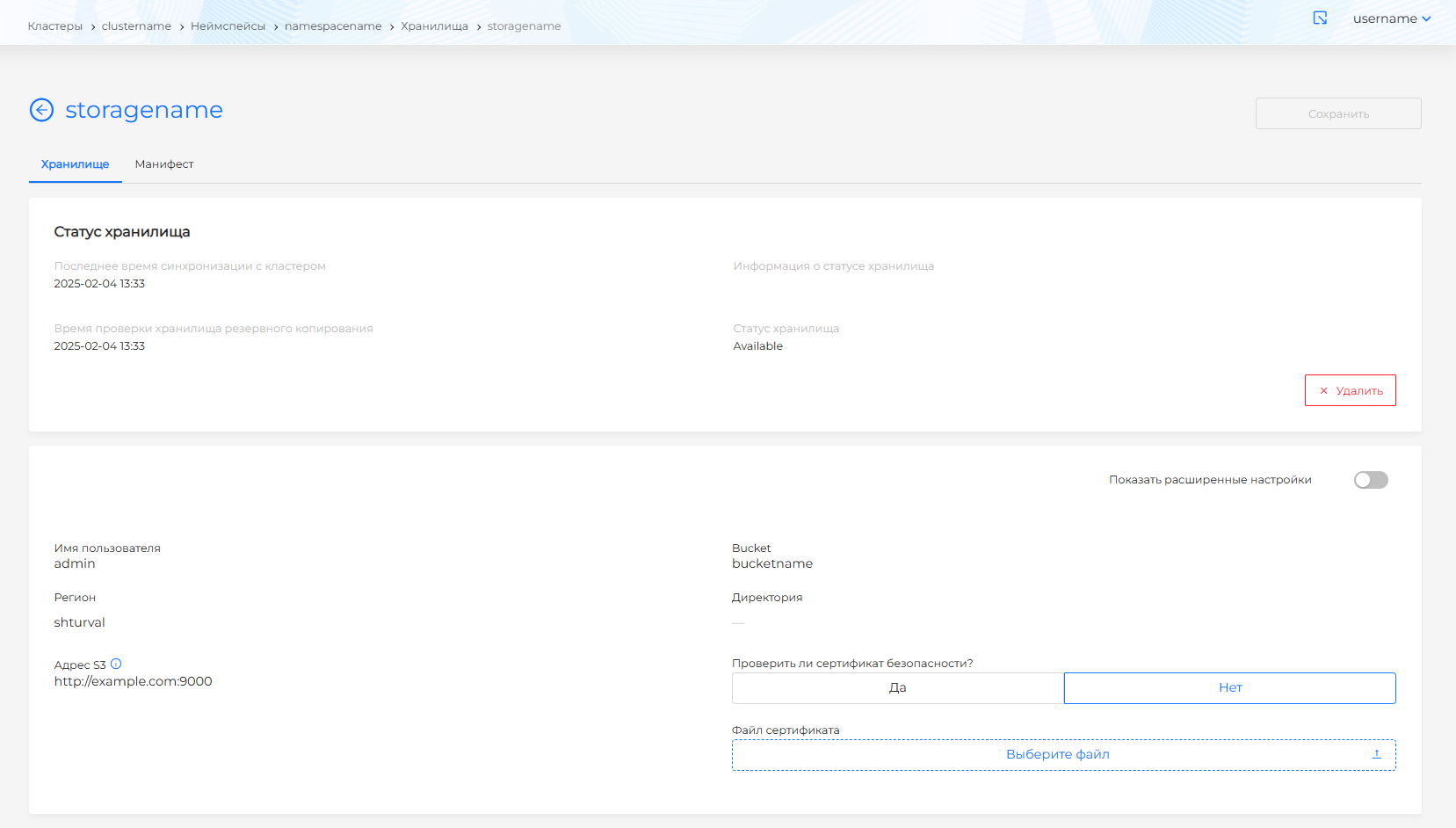
You can change whether to skip certificate validation, upload a certificate file, and set the sync period. After editing, click Save.
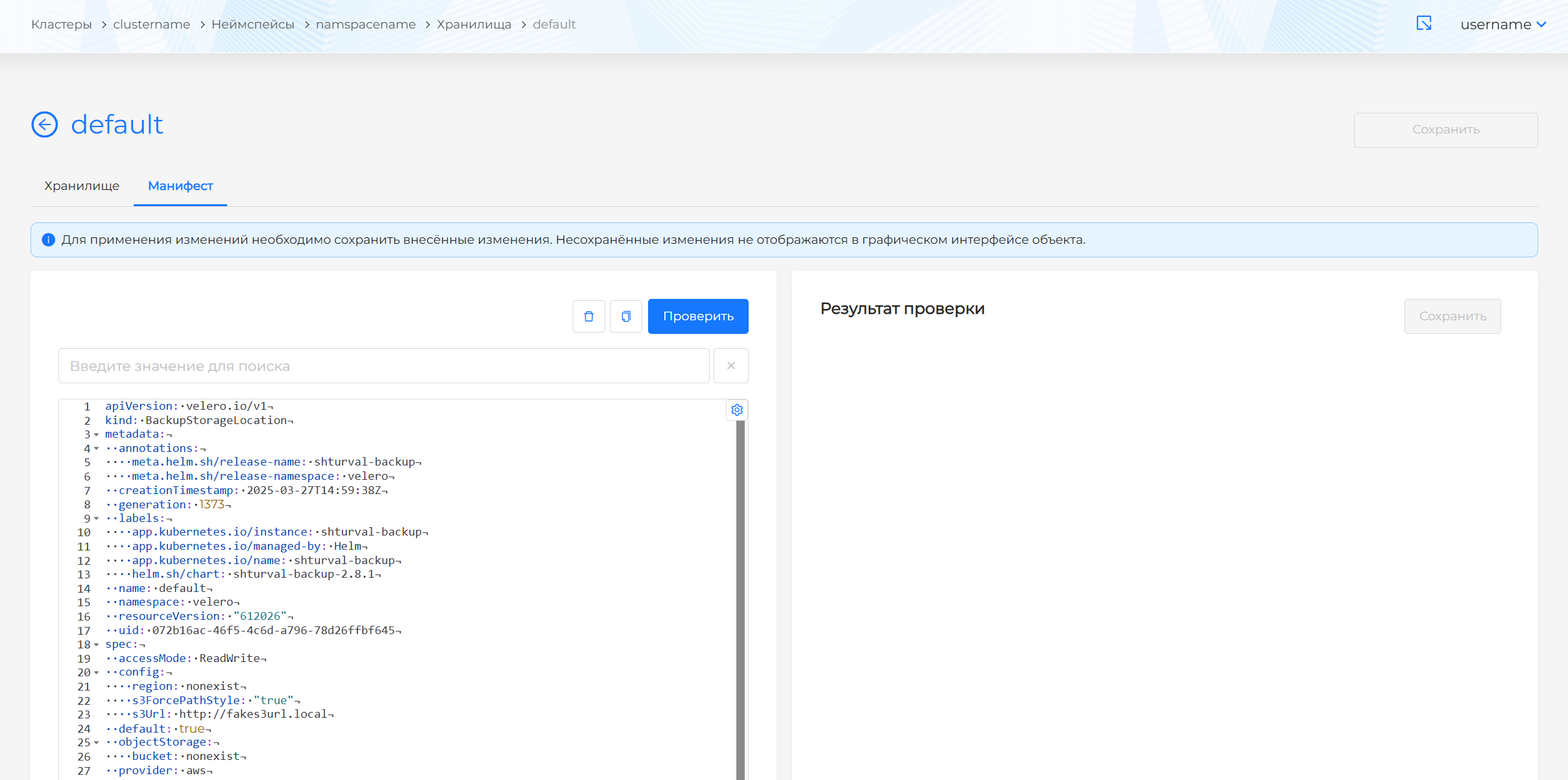
You can also edit the object via its manifest. Open the Manifest tab. After editing, run validation. The result appears on the right side of the screen. Expand the validation result block to see the full manifest. If storage manifest format validation fails, manifest validation is unavailable.
Screenshot
You can delete storage from the namespace in one of the following ways:
- On the Storage locations page, click in the object row.
- On the storage view page, on the Storage tab, click Delete.
- On the storage view page, open the Manifest tab and click .