Ingresses
An Ingress is an object that manages external access to services in the cluster. An Ingress provides HTTP and HTTPS routes from outside the cluster to services inside the cluster. It can provide load balancing, SSL/TLS configuration, and name-based virtual hosting.
You can create, edit, delete, and view Ingresses.
Creating an Ingress
To add a new Ingress, click + Add Ingress.
In the dialog:
- Enter the Ingress name.
- Add labels and annotations.
- Fill in the object specification, including:
- IngressClassName — select the required IngressClass name from the drop-down list.
- Ingress Service Backend:
- Name: specify the service name to use as the Ingress backend.
- Port name: specify the port name for incoming requests.
- Port number: specify the port number for incoming requests.
- Fill in rules. Click + and set:
- Host value covered by the certificate.
- Add HTTPIngressPath. Click + and in the panel on the right:
- Fill in Path (the path where the service is available).
- Select Path type. Available values: Exact, Prefix, ImplementationSpecific.
- Fill in Ingress Backend Service fields:
- ServiceName: specify the service name for which the certificate should be changed.
- Port name: specify the service port name for incoming requests.
- Port number: specify the service port number for incoming requests.
- Set IngressTLS. Click + and select:
- Secret name from the drop-down list. You can select a previously created secret that contains certificates.
- One or more Hosts. Host values in
hostsmust match the host values set in the rules.
After you finish creating the Ingress, click Save.
You can delete an Ingress in one of the following ways:
- On the Ingresses page, click in the object row.
- On the Ingress view page, on the Ingress tab, click Delete.
- On the Ingress view page, open the Manifest tab and click .
Viewing and editing an Ingress
Screenshot
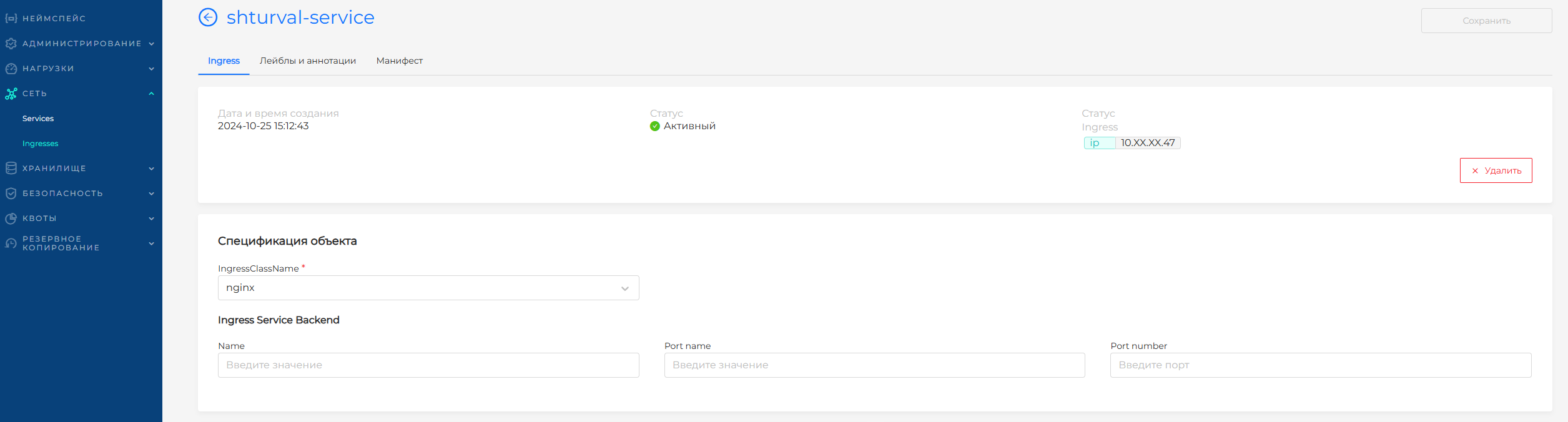
To view configuration, status, and creation date for an Ingress, select it from the list and open its details page. On the Ingress tab you can:
- Open the Manifest tab to view and edit the manifest.
- Delete the Ingress with Delete.
- Change Ingress Service Backend settings.
- Add and remove Rules and IngressTLS.
If needed, add labels and annotations on the Labels and annotations tab.
After making changes, click Save.
Publishing a service with TLS
You can set the certificate value in an Ingress from the console or the platform GUI.
To secure access to an Ingress application, specify a Secret that contains the required TLS private key and certificate. Note that Ingress supports only one TLS port — 443 — and assumes TLS is terminated at the entry point (all traffic to the service and its pods is unencrypted). If different hosts are specified in the TLS configuration section, they are handled on the same port using TLS SNI. The TLS Secret must contain keys named tls.crt and tls.key, where tls.crt contains the certificate and tls.key contains the private key used for the TLS connection.
Secret example
apiVersion: v1
kind: Secret
metadata:
  name: testsecret-tls
  namespace: default
data:
  tls.crt: base64 encoded cert
  tls.key: base64 encoded key
type: kubernetes.io/tls
A reference to this Secret in the Ingress tells the Ingress controller to secure the channel from the client to the load balancer using TLS. Make sure the TLS Secret you create contains a Common Name (CN) or fully qualified domain name (FQDN) for https-example.foo.com.
Note: TLS does not work with a default rule because certificates must be issued for all possible subdomains. Therefore, hosts specified in the tls section must explicitly match the host in the rules section.
Ingress example
apiVersion: networking.k8s.io/v1
kind: Ingress
metadata:
  name: tls-example-ingress
spec:
  tls:
  - hosts:
      - https-example.foo.com
    secretName: testsecret-tls
  rules:
  - host: https-example.foo.com
    http:
      paths:
      - path: /
        pathType: Prefix
        backend:
          service:
            name: service1
            port:
              number: 80
Note: The Shturval platform uses NGINX as the Ingress controller. For more information, see the official NGINX Ingress Controller documentation.
Example
Publish the my-service service and make it available at my-service.corp.domain.
Steps:
- Go to Storage/Secrets.
- Create a new Secret.
- Select type
kubernetes.io/tls. - Add the client certificate file and key file for the published address.
- Click Save.
- Go to Network/Ingresses.
- Create a new Ingress and fill in the fields:
Ingress name: my-service-ingress
IngressClassName: leave empty (if you do not need to specify an Ingress class)
Ingress Service Backend:
- Name: my-service
- Port name: http
- Port number: 80
Rules:
- Host: my-service.corp.domain
- HTTPIngressPath:
- Path: /
- Path type: Prefix