Services
A Service is an object that defines a logical set of pods and a policy for accessing them. Services connect pods that depend on them. A Service can expose unique pod IP addresses outside the cluster.
Services can be configured for different access modes. The following service types are available:
- LoadBalancer — automatically provides an external load balancer for applications in the cluster. Use this type when you need external access to applications.
- ExternalName — exposes a service via the
externalNamefield (for example,foo.bar.example.com) by returning a CNAME record. No proxy is used. - ClusterIP — for internal cluster use; provides access to pods inside the cluster.
- NodePort — exposes applications inside the cluster from outside by opening a static port on each cluster node and forwarding traffic from that port to pods matching the service selector.
You can create, edit, delete, and view services.
Creating Services
To add a service, click + Add Service.
In the dialog, fill in:
- Service name.
- Labels and annotations.
- Deployment details, including:
- Service type. Available: LoadBalancer, ExternalName, ClusterIP, NodePort.
- Whether to ignore Pod status (default: no).
- Ports — click + and fill in:
- Port name, AppProtocol, NodePort, Port, TargetPort.
- Protocol: TCP, UDP, SCTP.
- External IP addresses.
- Pod label selectors. Note! Label selectors use logical AND. The selected object must have all specified labels.
After you finish creating the service, click Save.
You can delete a service in one of the following ways:
- On the Services page, click in the object row.
- On the Service view page, on the Service tab, click Delete.
- On the Service view page, open the Manifest tab and click .
Viewing and editing a Service
Screenshot
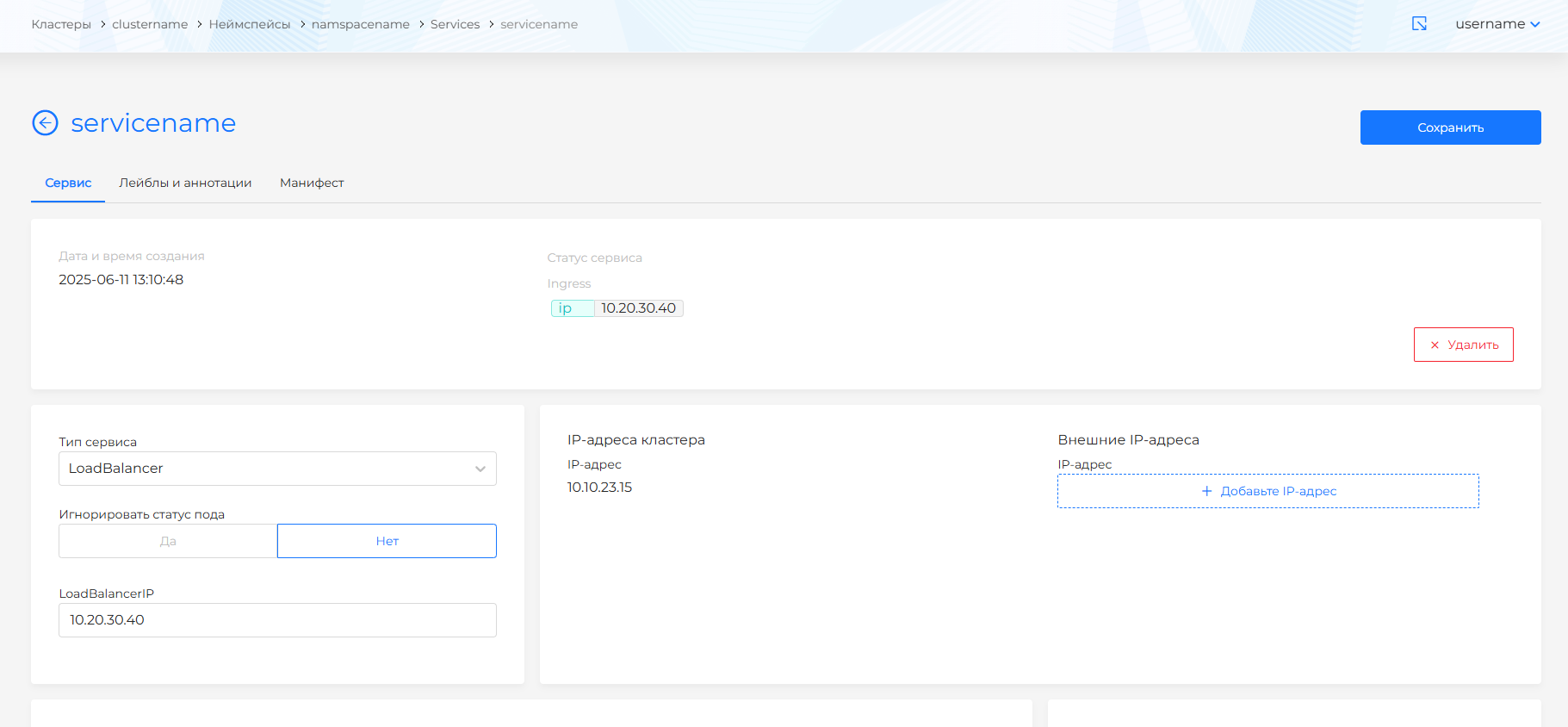
To view configuration, status, and creation date for a service, select it from the list and open its details page. On the Service page you can:
- View and edit the manifest on the Manifest tab.
- Delete the service with Delete on the Service tab or on the Manifest tab via .
- Change the service type or pod status ignore setting.
- Add external IP addresses.
- Update ports and pod label selectors.
If needed, add labels and annotations on the Labels and annotations tab.
After making changes, click Save.
To change a Service with a YAML manifest, open the Manifest tab and update the data. After editing, run validation. The result appears on the right side of the screen. Expand the validation result block to see the full manifest. If manifest format validation fails, manifest validation is unavailable.
Save manifest changes. Unsaved data is not applied.
Creating a Secret for a service
To set a new certificate for a service, create a secret in the namespace Storage section and specify that secret name in the Ingress. In the namespace where the service is deployed:
- Go to Storage/Secrets.
- Create a new Secret with + Add Secret.
- Set the name and editability, and select type
kubernetes.io/tls. - Add the client certificate file and client key file.
- Click Save.
- Go to Network/Ingresses.
- Create a new Ingress and fill in the fields. In SecretName, select the created secret.
- In ServiceName, enter the name of the service whose certificate you want to change.