Limit Ranges
LimitRanges are Kubernetes objects that let administrators set limits on resources used by multiple object types within a namespace.
Before you start configuring LimitRanges, note that:
- A configured LimitRange applies only to newly created objects at the time they are created.
- LimitRange configuration is designed to set default values in containers. For Pods and PersistentVolumeClaims, only minimum and maximum values can be set.
LimitRange configuration anti-patterns
Inappropriate default values: Setting unreasonably large or small LimitRanges can cause serious resource problems. For example, a limit that is too high can exhaust resources, while a limit that is too low can prevent applications from running properly. An example of inappropriate values is setting a CPU limit of 1000m for an application that needs at least 2000m to run normally. The application will not receive enough resources and may become unavailable or run with severe latency. Conversely, setting a limit of 100000m can exhaust resources and overload the system, causing other applications to experience performance issues as well.
Ignoring actual resource usage: Maximum and minimum values in LimitRanges should be set based on actual application resource usage. If this is not considered, it can lead to performance and availability problems. Suppose you set a LimitRange of 1000m CPU and 200Mi memory without accounting for the fact that the application actually uses about 1500m CPU and 500Mi memory. The result will be insufficient resources, which will negatively affect application performance.
If default values in a LimitRange for CPU or memory are larger than the node size, pods may fail to start because Kubernetes cannot find a suitable node. If your node has 1 CPU and 2Gi memory, and you set LimitRange defaults of 2 CPU and 4Gi memory, Kubernetes will not be able to start pods because they exceed the resources the node can provide.
If limits are set too low, pods may remain in Pending status because they cannot obtain the required resources. If you have a pod that requires 1 CPU and 2 Gi memory to run normally, but you set a maximum of 500m CPU and 1Gi memory, the pod will stay in Pending status because it cannot get enough resources to start.
Creating LimitRanges
Go to Namespace/Quotas/Limit Ranges. Create a new LimitRange and set its name.
Screenshot
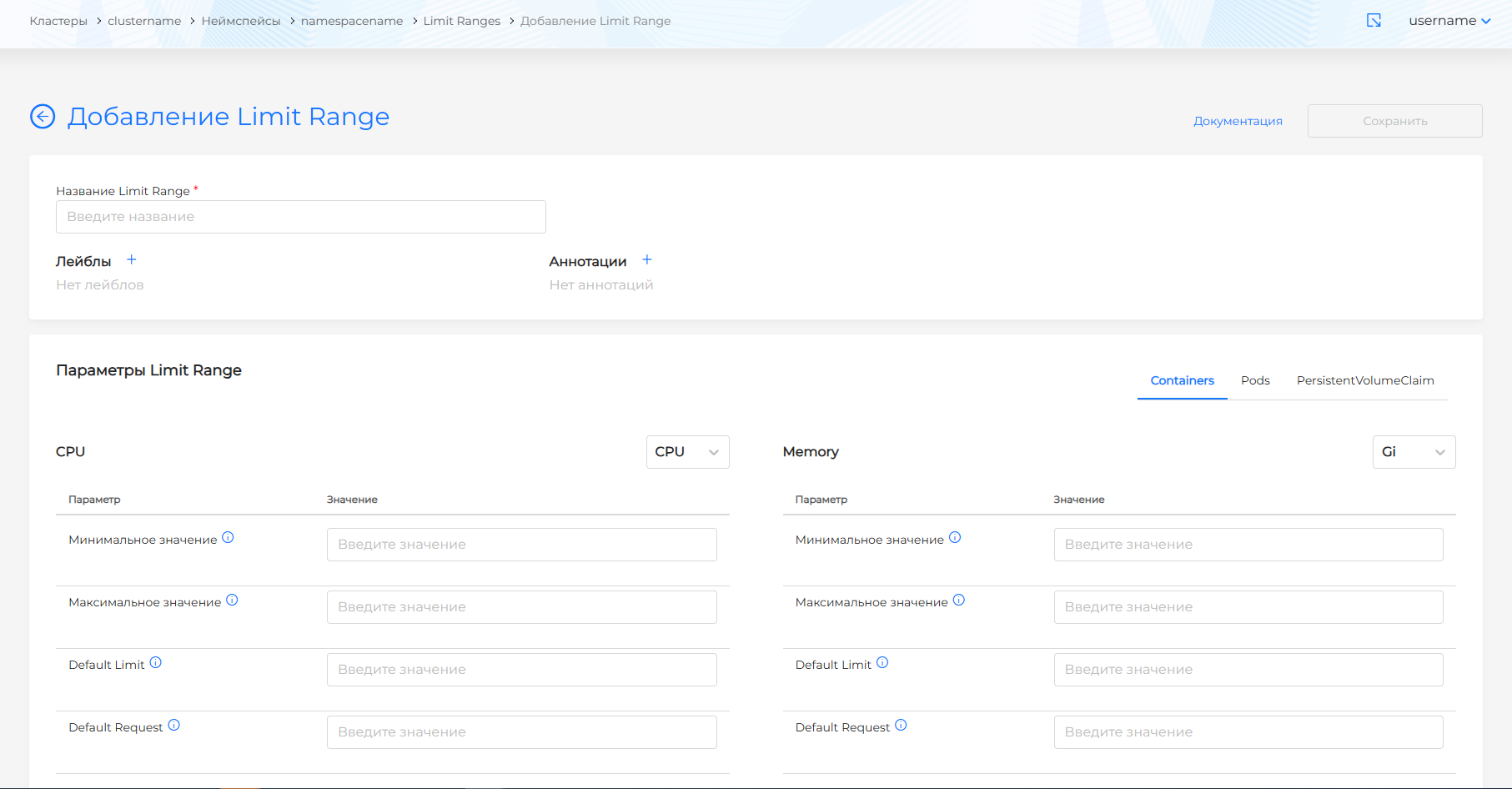
To set default values for containers, on the Container tab, specify:
- CPU Default Request (limits.defaultRequest.cpu);
- CPU Default Limit (limits.default.cpu);
- Memory Default Request (limits.defaultRequest.memory);
- Memory Default Limit (limits.default.memory).
Memory units follow Kubernetes standards: byte (B), kibibyte (Ki), mebibyte (Mi), gibibyte (Gi). Units are sorted from largest to smallest (Gi to B).
These parameters are assigned to a container if limits and requests are not specified when the container is created.
Consider the following example. Set these container parameters:
Memory Default Limit: 512Mi CPU Default Limit: “1” Memory Default Request: 256Mi CPU Default Request: “0.5”
In this example, containers receive the following limits:
If a container does not specify a memory request, it receives 256Mi.
If a container does not specify a memory limit, it receives 512Mi.
If a container does not specify a CPU request, it receives 0.5 CPU.
If a container does not specify a CPU limit, it receives 1 CPU.
You can restrict creation of containers that are too small or too resource-intensive. To do this, set the maximum and minimum values allowed for containers in this namespace.
- CPU Minimum (limits.min.cpu) means that on selected pods, a container with CPU below the minimum will not start.
- CPU Maximum (limits.max.cpu) means that on selected pods, a container with CPU above the maximum will not start.
- Memory Minimum (limits.min.memory) means that on selected pods, a container with memory below the minimum will not start.
- Memory Maximum (limits.max.memory) means that on selected pods, a container with memory above the maximum will not start.
You can apply similar limits to an entire pod. In the LimitRange settings, open the Pod tab and set upper and lower bounds:
- CPU Minimum (limits.min.cpu) means that in this namespace, pods with total CPU below the minimum will not start.
- CPU Maximum (limits.max.cpu) means that in this namespace, pods with total CPU above the maximum will not start.
- Memory Minimum (limits.min.memory) means that in this namespace, pods with total memory below the minimum will not start.
- Memory Maximum (limits.max.memory) means that in this namespace, pods with total memory above the maximum will not start.
To set upper and lower bounds for PersistentVolumeClaims, open the PersistentVolumeClaims tab in the LimitRange configuration.
- The resource request in a PVC must be greater than or equal to the minimum PVC limit specified in the LimitRange.
- The resource request in a PVC must be less than or equal to the maximum PVC limit specified in the LimitRange.
If several LimitRange objects with different default values exist in one namespace, the defaults from the most recently created LimitRange object are applied when pods are created.
Created Limit Ranges appear in the list on the Limit Ranges page under Quotas in the namespace.
Viewing and editing a Limit Range
To view a Limit Range, click its name in the list.
To change a Limit Range, update the quota parameters and click Save.
You can also change a Limit Range with a YAML manifest. Open the Manifest tab and update the data. After editing, run validation. The result appears on the right side of the screen. Expand the validation result block to see the full manifest. If Limit Range manifest format validation fails, manifest validation is unavailable.
Save manifest changes. Unsaved data is not applied.
You can delete a Limit Range in one of the following ways:
- On the Limit Ranges page, click in the object row.
- On the Limit Range view page, on the Limit Range tab, click Delete.
- On the Limit Range view page, open the Manifest tab and click .