Quotas
Quotas are Kubernetes objects that limit resource consumption for each namespace. Quotas restrict:
- the number of objects that can be created;
- total compute resources;
- total storage resources that can be requested in the namespace.
On the Quotas page you can create, edit, delete, or view existing compute resource quotas.
You can delete a Quota in one of the following ways:
- On the Quotas page, click in the object row.
- On the Quota view page, on the Quota tab, click Delete.
- On the Quota view page, open the Manifest tab and click .
Creating a Quota
To create a quota, click + Create quota.
Screenshot
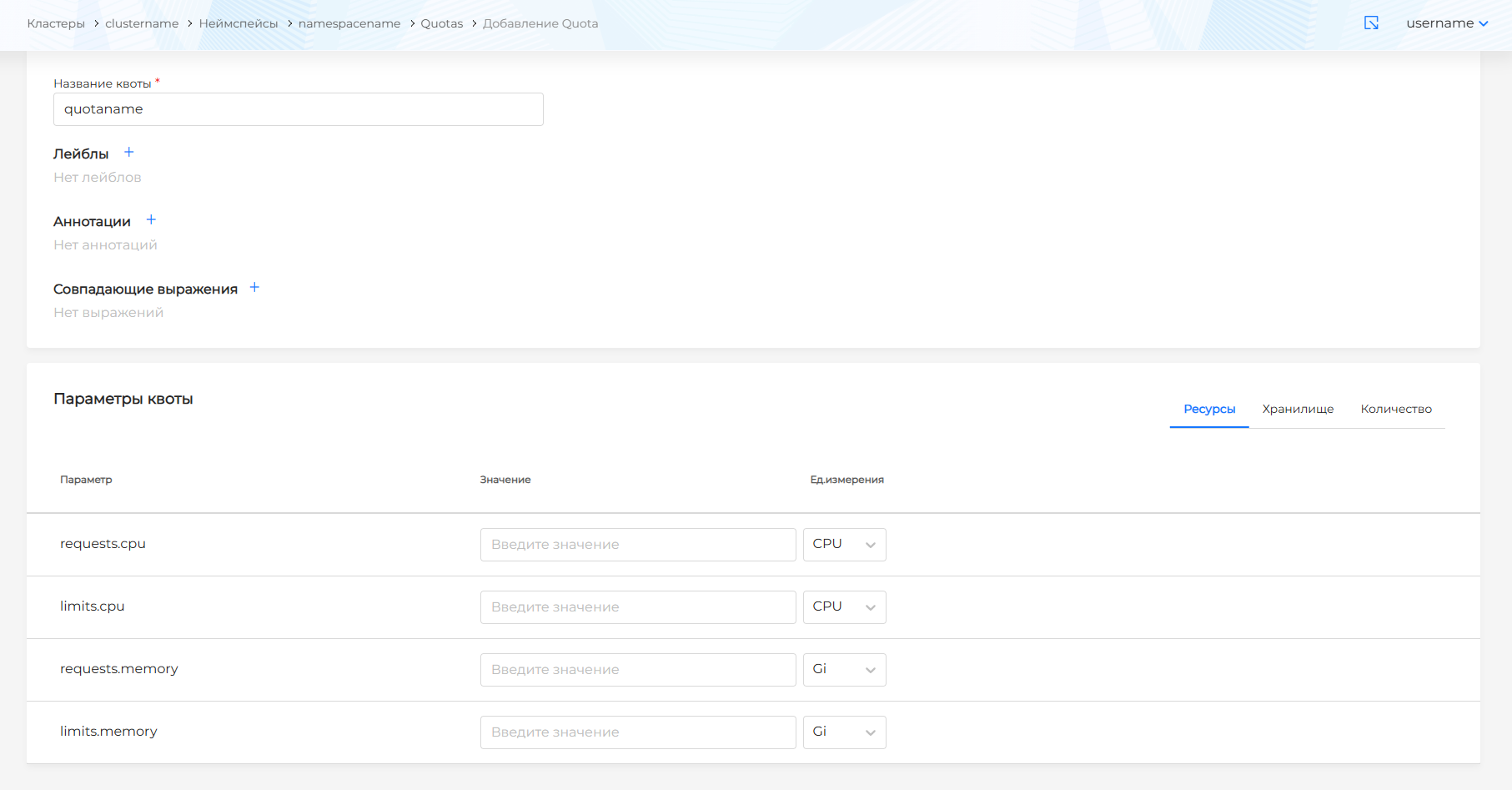
In the dialog, set the quota name and optionally labels and annotations. To define the quota scope, set matching expressions.
Quota parameters available in the platform GUI are grouped into three tabs:
- Resources.
- Storage.
- Count.
On the Resources tab you can set quotas (limits) for:
- total memory/CPU requests (
requests.memory/requests.cpu) for namespace pods; - total memory/CPU limits (
limits.memory/limits.cpu) for namespace pods.
On the Storage tab you can limit storage resources in the namespace:
- To limit total storage requests, set a value for requests.storage and select a unit.
- To limit the number of PVCs, set a value for persistentvolumeclaims.
- To limit total ephemeral storage requests, set a value for requests.ephemeral-storage and select a unit.
- To limit total ephemeral storage limits, set a value for limits.ephemeral-storage and select a unit.
- To limit total storage requests for a specific StorageClass, select the StorageClass name, set the total value, and select a unit.
- To limit the number of PVCs for a specific StorageClass, select the StorageClass name and set the PVC count.
Compute and storage units follow Kubernetes standards: byte (B), kibibyte (Ki), mebibyte (Mi), gibibyte (Gi). Compute units are sorted from largest to smallest (Gi to B).
On the Count tab you can limit the total number of namespace objects by resource type.
After entering quota data, click Save.
Created quotas appear in the list on the Quotas page under Quotas in the namespace.
Viewing and editing a Quota
To view a quota, click its name in the list.
To change a quota, update the quota parameters and click Save.
You can also change a quota with a YAML manifest. Open the Manifest tab. After editing, run validation. The result appears on the right side of the screen. Expand the validation result block to see the full manifest. If Issuer manifest format validation fails, manifest validation is unavailable.
Save manifest changes. Unsaved data is not applied.