Secrets
A Secret is a Kubernetes resource that holds a small amount of confidential data, such as a password, token, or key. Using Secrets reduces the risk of exposing data during pod creation, viewing, and editing.
By default, Kubernetes Secrets are stored unencrypted in the API server (etcd) datastore. To use Secrets securely, encrypt Secrets at rest, configure RBAC rules with least-privilege access to Secrets, restrict access to specific containers, and use external secret providers.
Screenshot
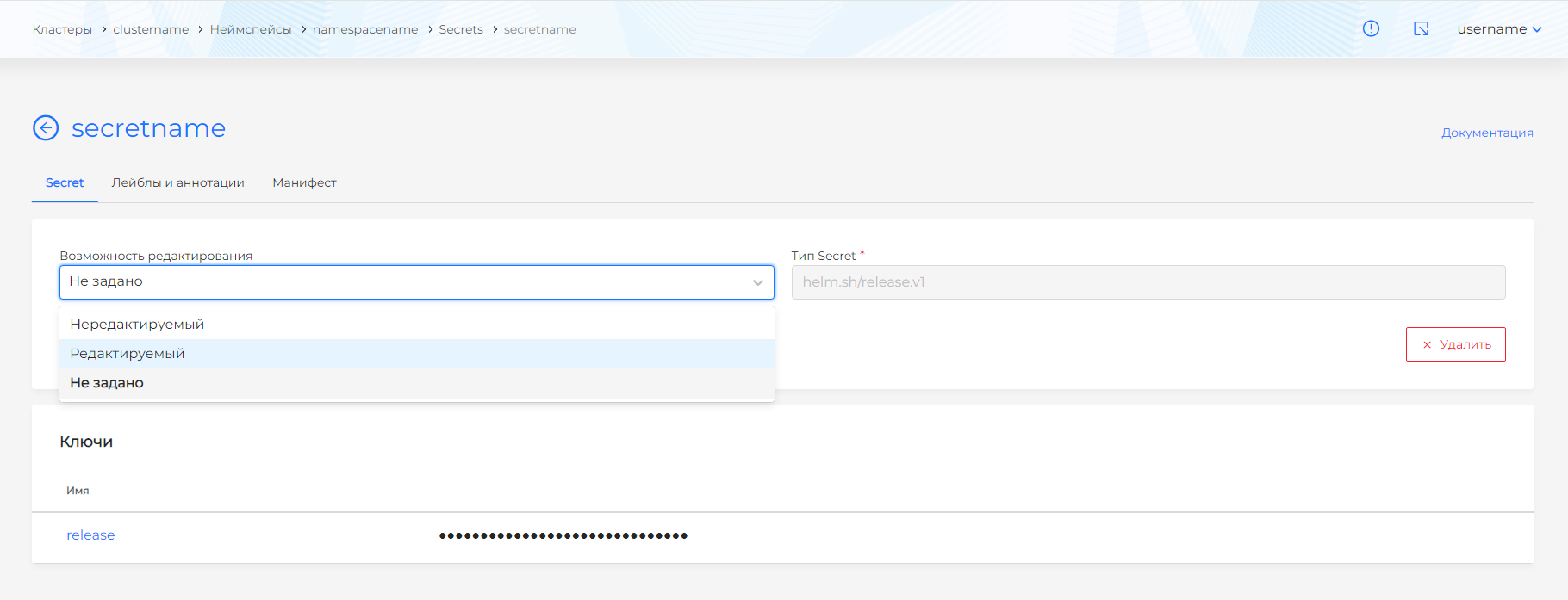
On the Secrets page you can create, edit, delete, or view existing Secrets.
Creating a Secret
To create a Secret, click + Add Secret.
In the dialog you can set:
- Secret name.
- Editability. If you set Editability to Non-editable, the Secret cannot be changed.
- Secret type. When type kubernetes.io/service-account-token is selected, you must select ServiceAccountName and can optionally add Annotations.
- Labels.
- Keys.
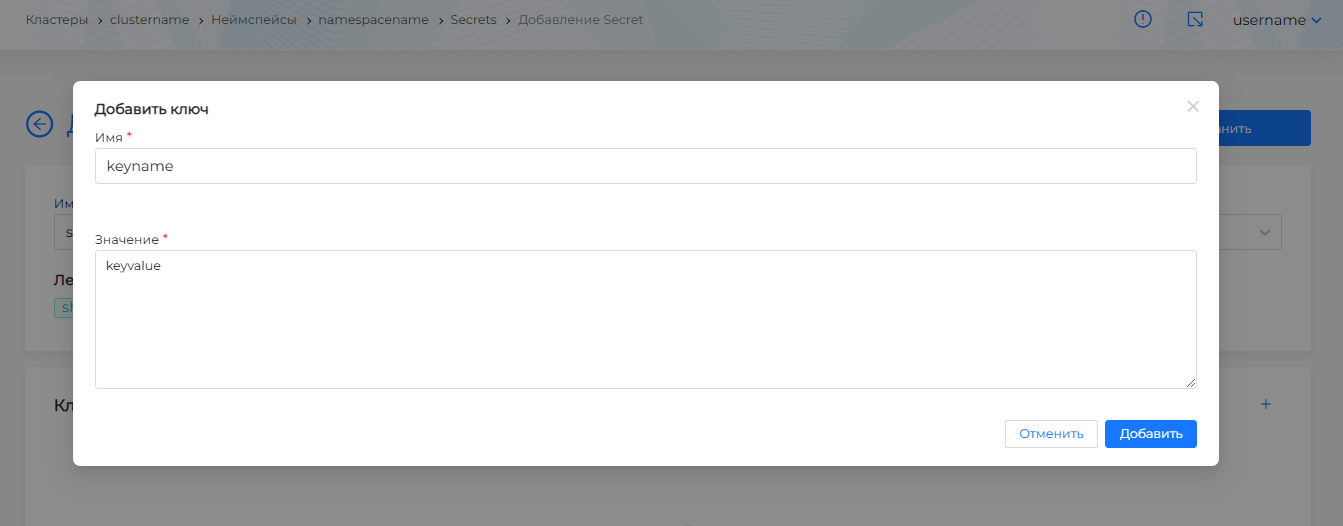
To add a text key, click +. In the modal dialog:
- If the Secret type is Opaque or kubernetes.io/service-account-token, enter the key and value and click Add.
Screenshot
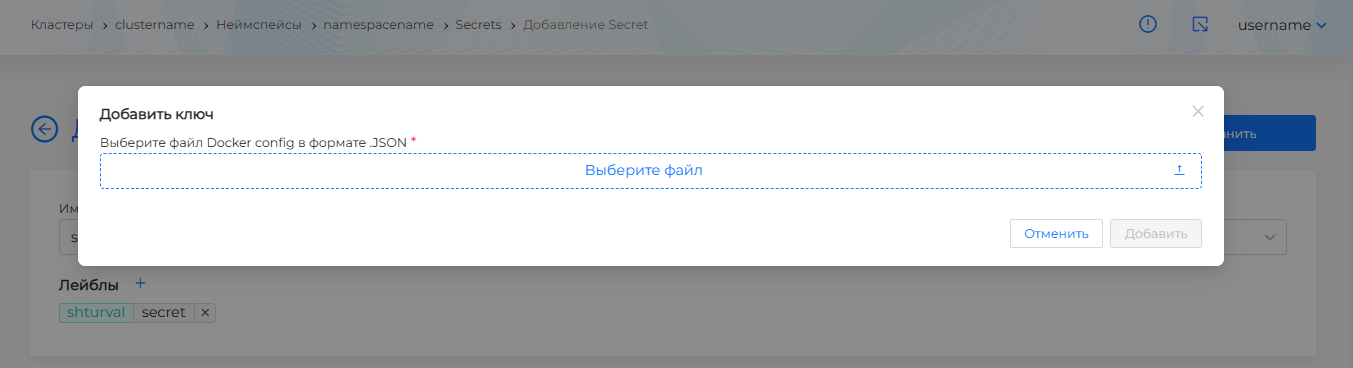
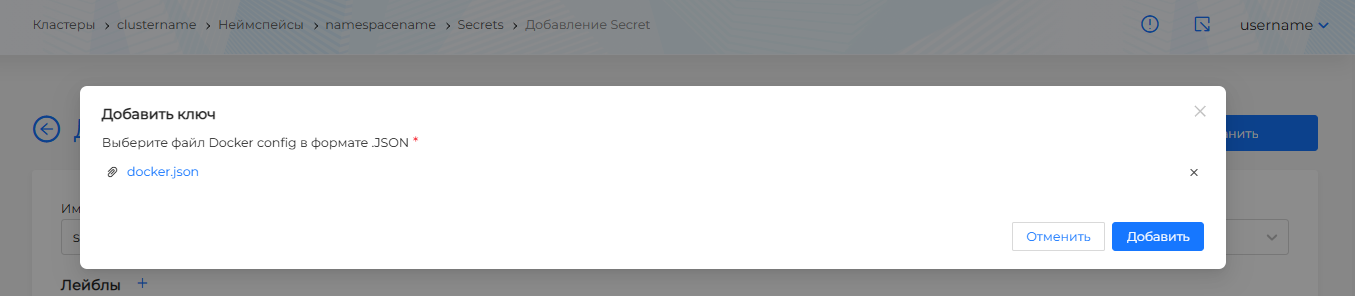
- If the Secret type is kubernetes.io/dockercfg or kubernetes.io/dockerconfigjson, upload a Docker config file in JSON format and click Add.
Screenshot
Docker config example
{
  "auths": {
    "your.private.registry.example.com": {
      "username": "janedoe",
      "password": "xxxxxxxxxxx",
      "email": "jdoe@example.com",
      "auth": "c3R...zE2"
    }
  }
}
where auth = "username:password" encoded in base64.
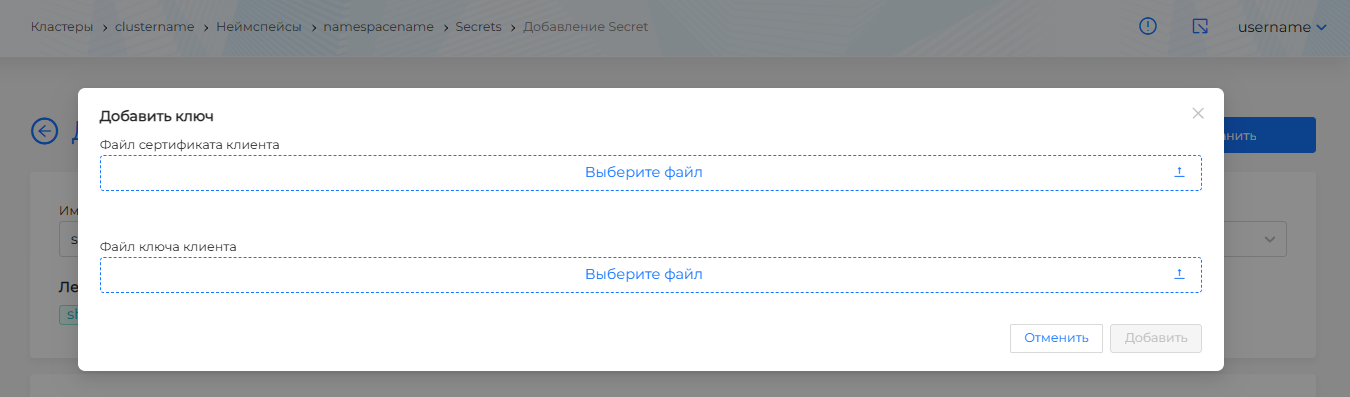
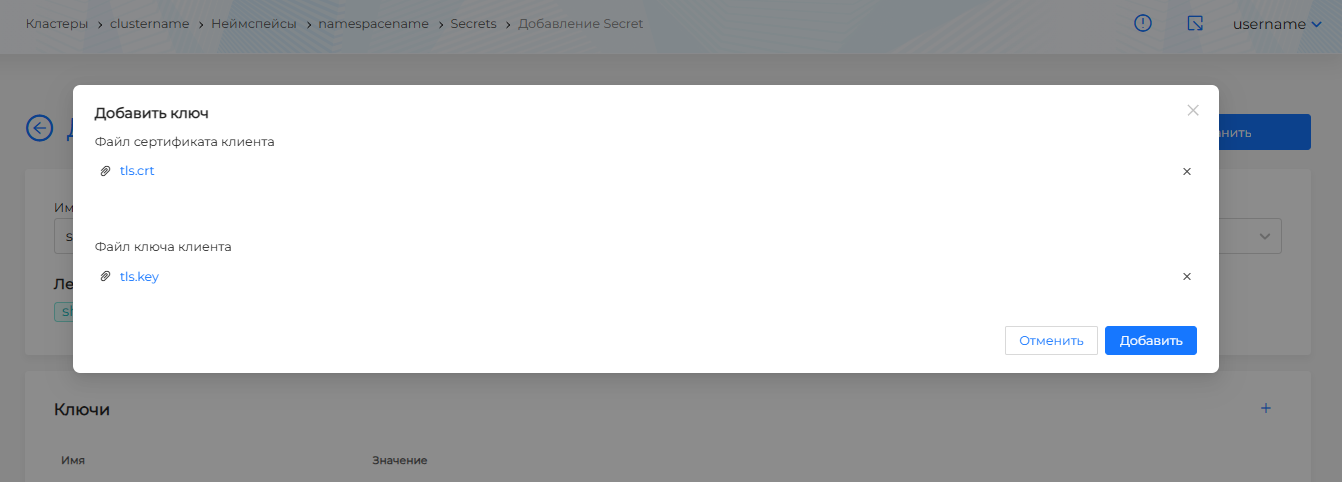
- If the Secret type is kubernetes.io/tls, upload the client certificate file and client key file, then click Add.
Screenshot
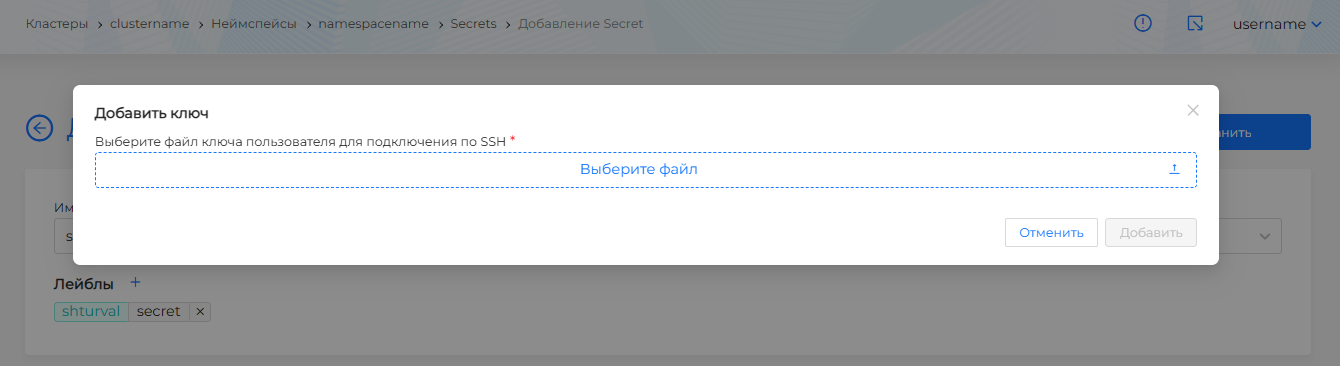
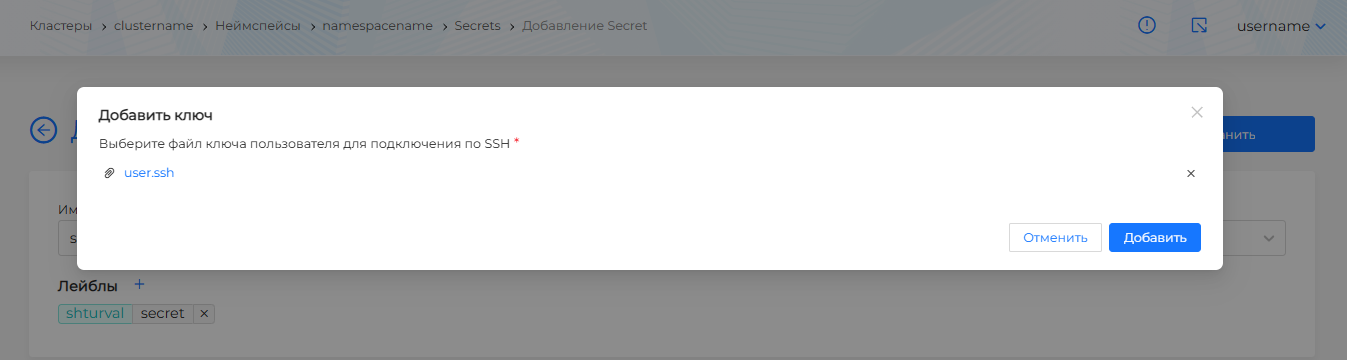
- If the Secret type is kubernetes.io/ssh-auth, upload the user key file for SSH connection and click Add.
Screenshot
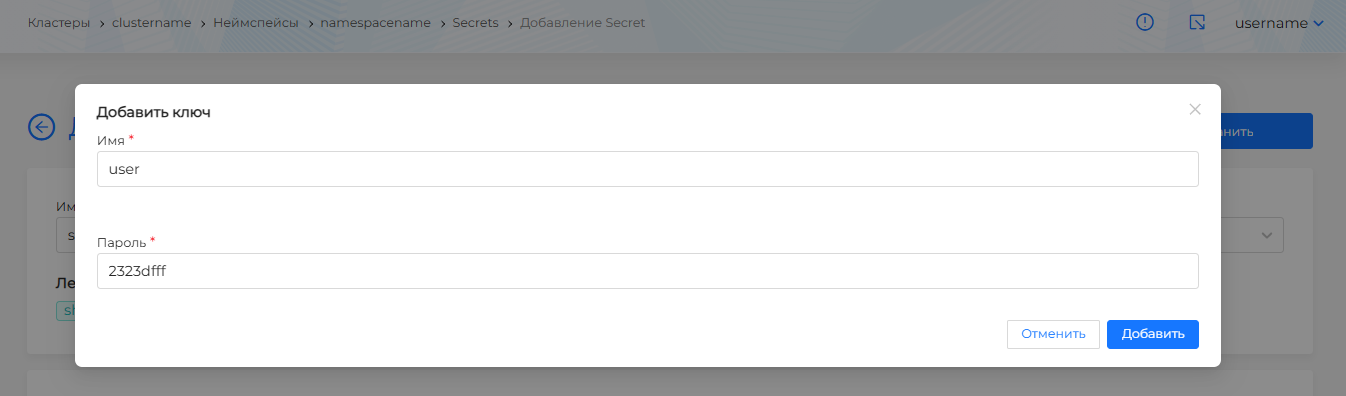
- If the Secret type is kubernetes.io/basic-auth, specify the username and password in the key fields and click Add.
Screenshot
- If the type is bootstrap.kubernetes.io/token, you can set:
- auth-extra-groups — list of group names that must be authenticated in addition to the
system:bootstrappersgroup. - expiration — token expiration time.
- token-id — token identifier.
- token-secret — token secret.
- usage-bootstrap-authentication — flag indicating the token is used for authentication.
- usage-bootstrap-signing — flag indicating the token is used for signing.
- auth-extra-groups — list of group names that must be authenticated in addition to the
Screenshot
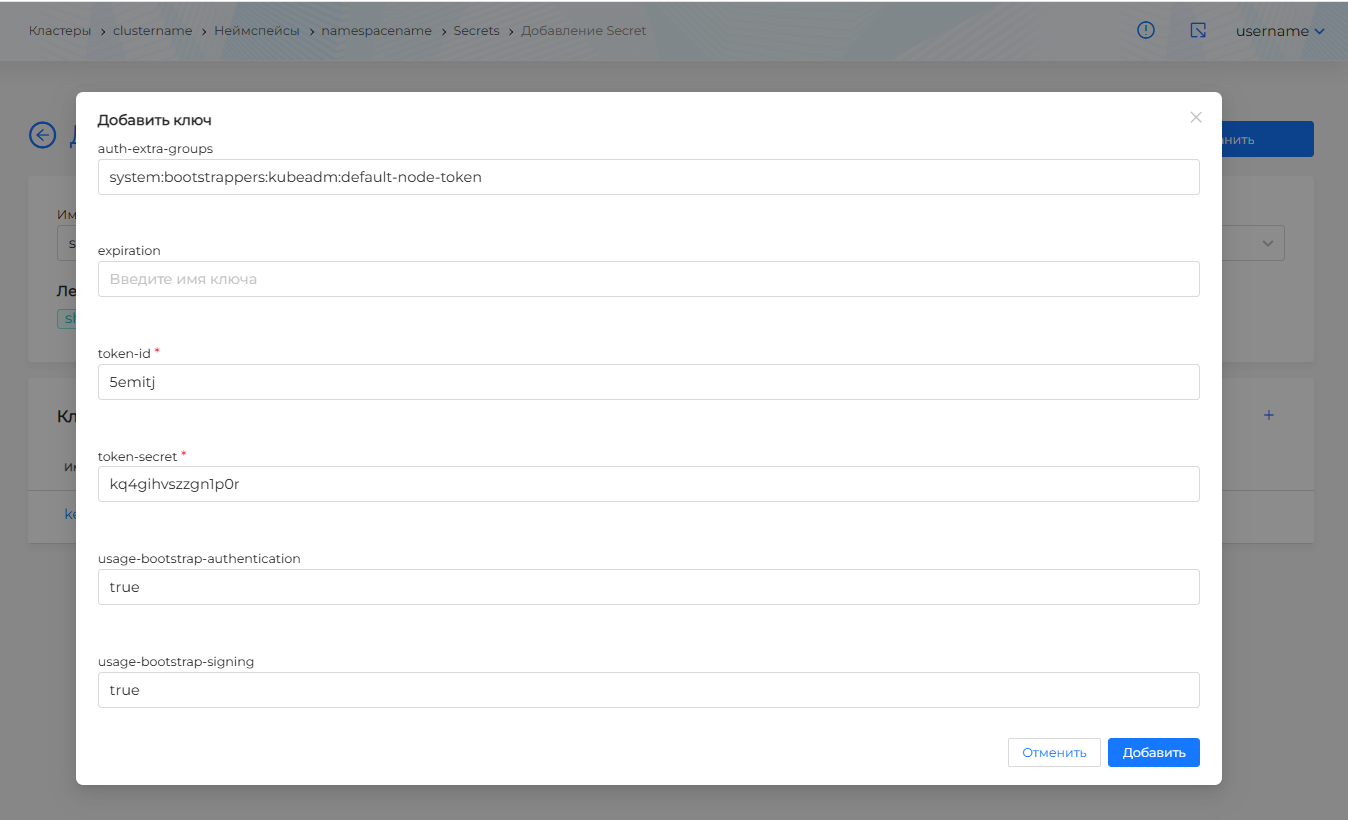
After you finish creating the Secret, click Save.
Viewing and editing a Secret
The view page has these tabs:
- Secret
- Labels and annotations
- Manifest
If Editability was set to Non-editable when the Secret was created, the Secret is view-only.
If Editable or Not set was selected at creation, you can edit:
- editability;
- Secret type;
- additional fields depending on the Secret type;
- labels and annotations;
- keys.
To change a Secret with a YAML manifest, open the Manifest tab. The manifest is not editable if its type is Non-editable. After editing, run validation. The result appears on the right side of the screen. Expand the validation result block to see the full manifest. If Issuer manifest format validation fails, manifest validation is unavailable.
Screenshot
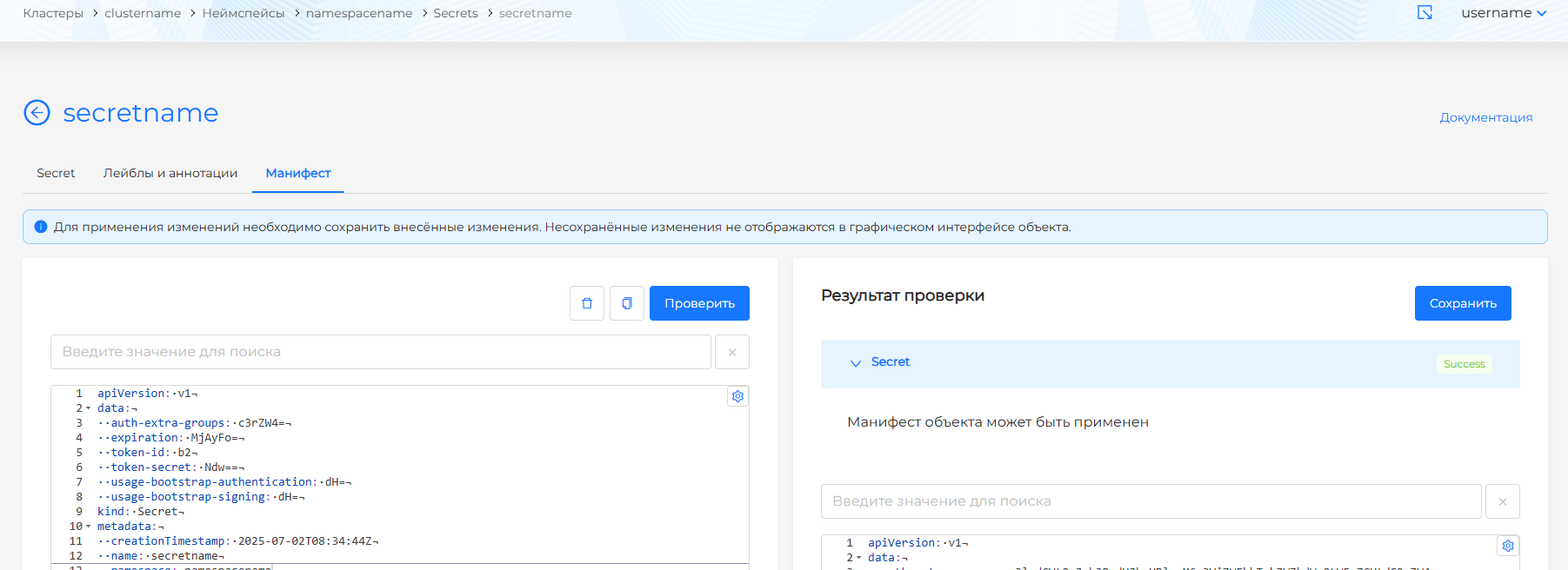
Save manifest changes. Unsaved data is not applied.
You can delete a Secret in one of the following ways:
- On the Secrets page, click in the object row.
- On the Secret view page, on the Secret tab, click Delete.
- On the Secret view page, open the Manifest tab and click .