DaemonSets
A DaemonSet is an object that manages a set of pods on every node in the cluster. Unlike a ReplicaSet or Deployment, it does not control the number of replicas; instead, it ensures that a specific container runs on every node. This lets you run services on each node where Kubernetes is deployed and make those services available to other applications in the cluster. In particular, a DaemonSet can be used to run daemons such as monitoring or logging agents on every cluster node.
Creating a DaemonSet
To create a DaemonSet, click + Create DaemonSet.
In the dialog that opens, in the Description block, set the DaemonSet name.
If needed, define labels and matching pod labels in the Pod selector block.
Set the DaemonSet specification:
- minimum ready time in seconds (minReadySeconds). Minimum time in seconds for a newly created pod to become available without any of its containers failing. Default is 0 (the pod is considered available as soon as it is ready);
- revisionHistoryLimit — limits how many old ReplicaSets are stored (default is 10);
- maximum unavailable;
- maximum surge;
Define init containers and/or containers, and the pod template. If needed, assign Volumes. For section settings, see the Pods page.
Editing a DaemonSet
Screenshot
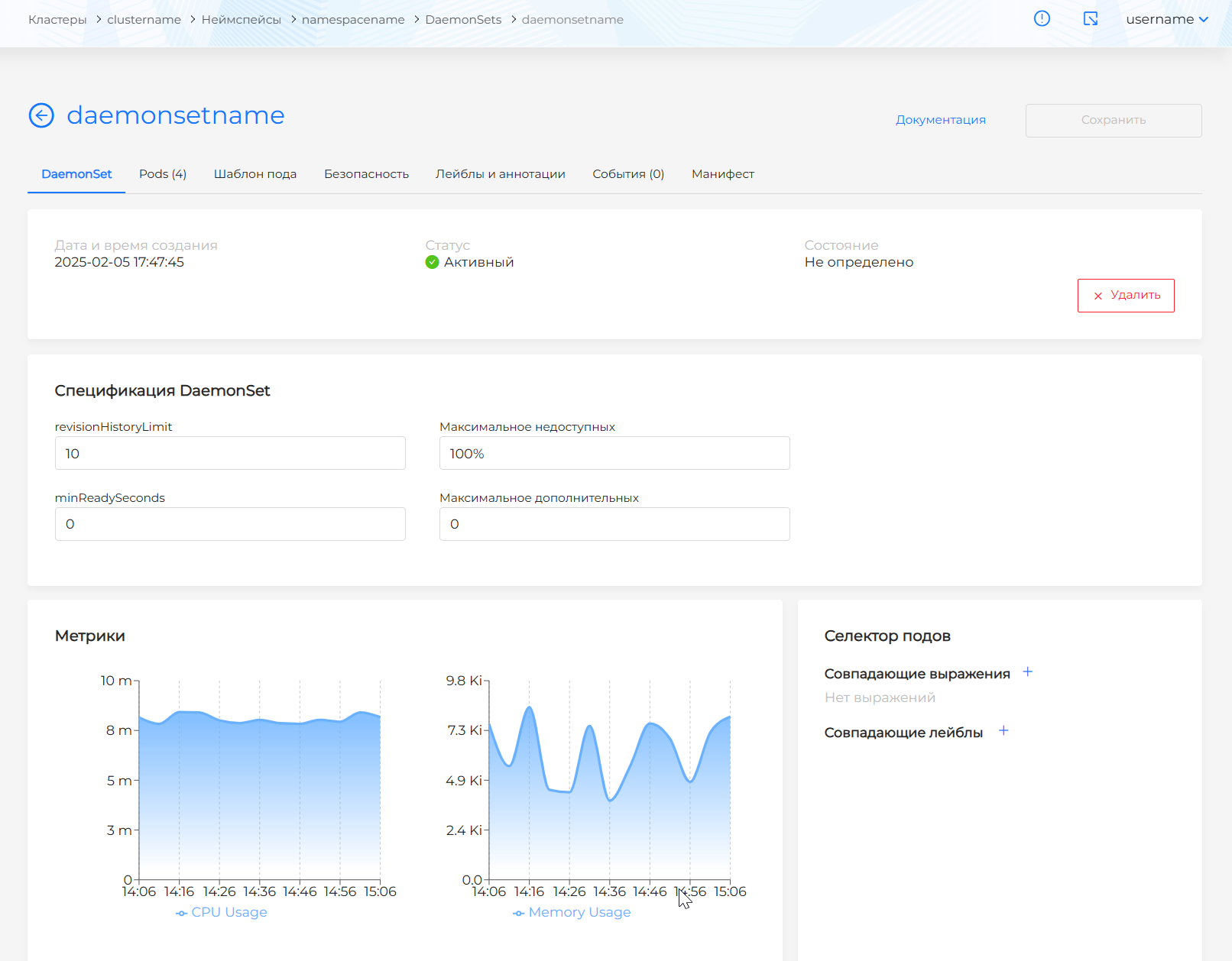
The following settings are available for editing:
- DaemonSet specification, including:
- revisionHistoryLimit;
- minimum ready time in seconds (minReadySeconds);
- maximum unavailable and maximum surge values.
- Pod template;
- Init containers;
- Containers;
- Volumes;
You can also edit a DaemonSet using a YAML manifest. Open the Manifest tab. After changing the manifest, run validation. The validation result appears on the right side of the screen. Expand the validation result block to see the full manifest. If DaemonSet manifest format validation fails, manifest validation is unavailable.
Save the changes made to the manifest. Unsaved data will not be applied.
You can delete a DaemonSet in one of the following ways:
- on the DaemonSets page, click in the object row;
- on the DaemonSet view page, on the DaemonSet tab, click Delete;
- on the DaemonSet view page, open the Manifest tab and click .
Viewing a DaemonSet
The view page has tabs:
- DaemonSet
- Pods (shows a count)
- Pod template (includes Containers, Init containers, and Volumes)
- Security
- Labels and annotations (list of DaemonSet labels and annotations)
- Events (shows a count)
- Manifest
DaemonSet tab
Screenshot
The DaemonSet tab shows DaemonSet details, creation date and time, state, and status. The DaemonSet specification block includes:
- minReadySeconds
- revisionHistoryLimit
- Maximum unavailable (pods)
- Maximum surge (pods)
The Monitoring metrics block shows CPU Usage and Memory Usage for all DaemonSet objects combined over the past hour.
The Pod selector block shows matching pod labels. Note! Label selectors use logical AND. The selected object must have all specified labels.
Pods tab
Screenshot
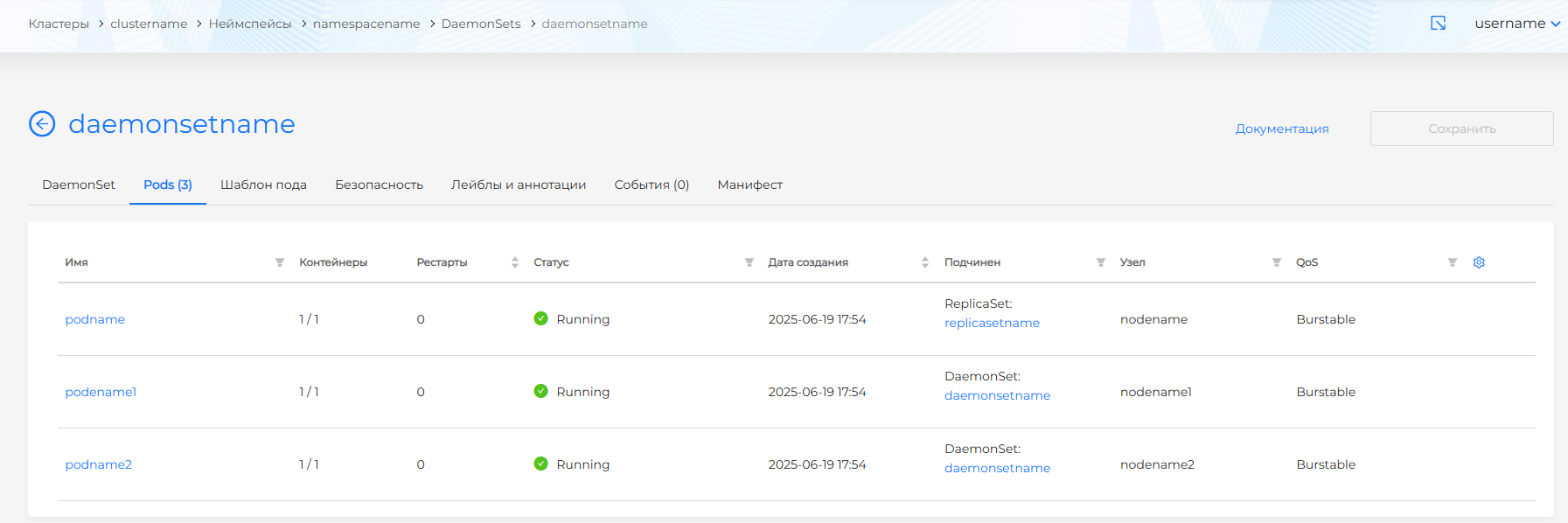
Lists pods owned by the DaemonSet with details:
- Pod name (filterable).
- Ratio of running containers to total containers in the pod.
- Pod restart count (sortable).
- Creation date (sortable).
- Namespace (filterable). Clicking the namespace name opens the namespace dashboard. Enter a value to filter pods by namespace. To clear namespace filtering, click Cancel in the filter, then Apply.
- Status (filterable). Filter values: Running, Pending, Terminating, CrashLoopBackOff, Completed, Failed, Unknown.
- Parent object (filterable). When the pod belongs to a workload, clicking the workload name opens its view page.
- Node where the pod runs (filterable). Clicking the node opens the node view page if you have access.
- Pod QoS (Quality of Service) (filterable: Guaranteed, Burstable, BestEffort). For more about QoS, see Pods.
- Pod labels (the Labels column is hidden by default). To show pod labels, click the gear icon in the table corner and enable the Labels column.
Click a pod row to open the pod view page.
Pod template tab
Screenshot
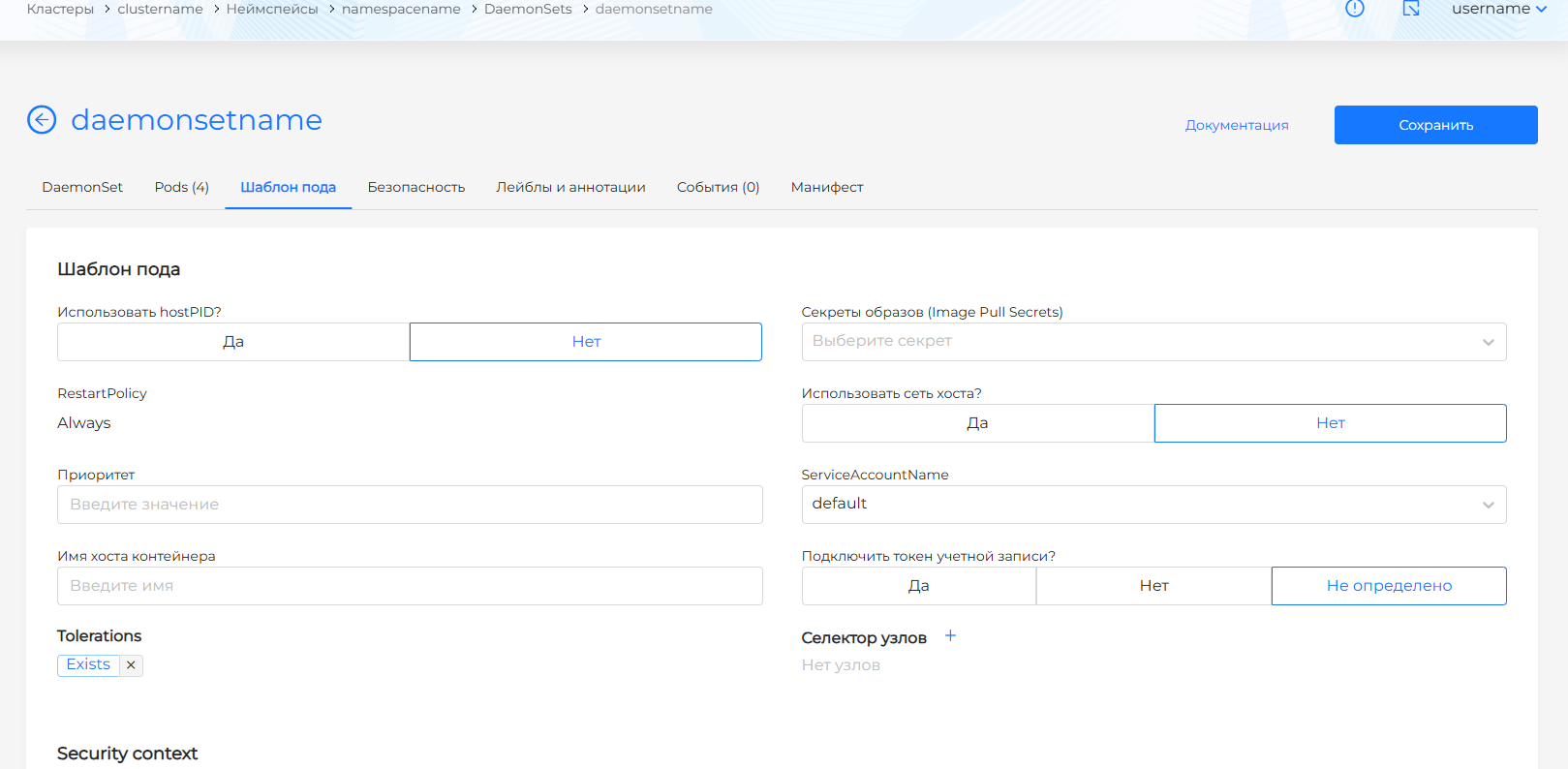
Shows the pod template, containers, init containers, and volumes of the DaemonSet.
Security tab
Screenshot
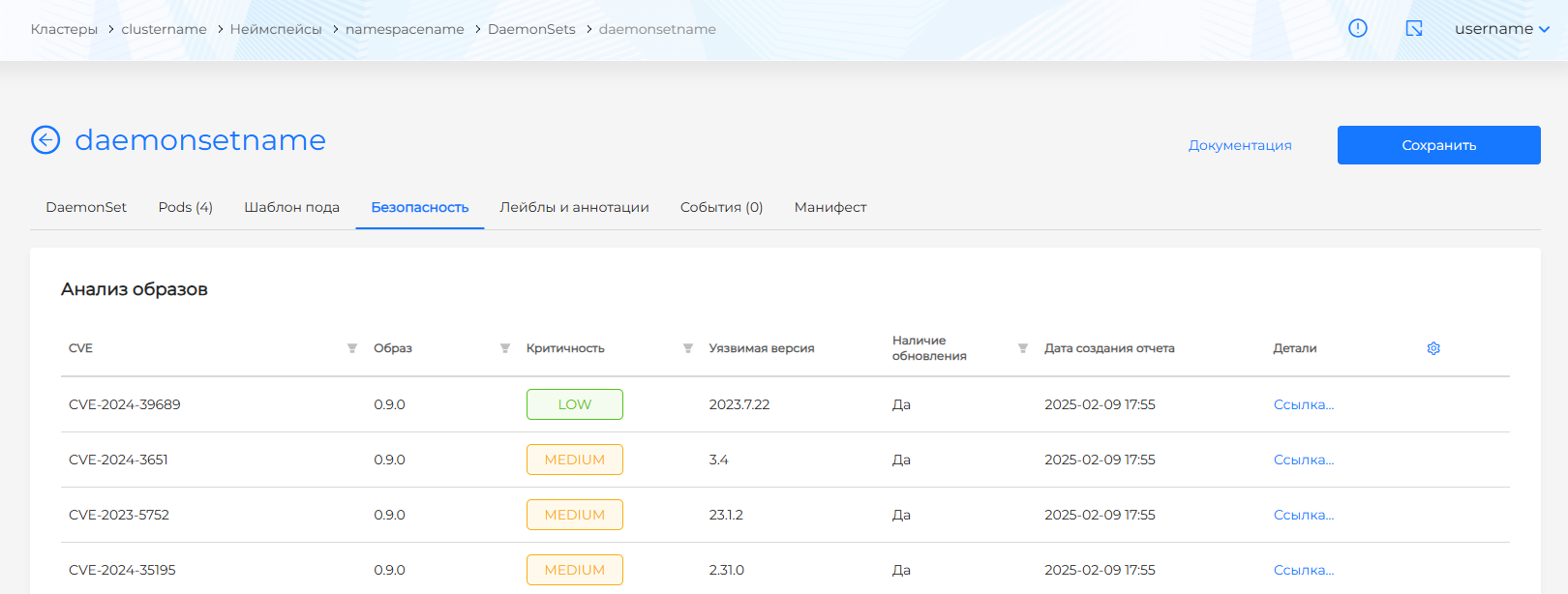
The Security tab shows:
- image vulnerability scan results for objects in this DaemonSet (shown only if the Container Image Scanning module is installed in the cluster);
- policy compliance analysis results for objects in this DaemonSet (shown only if the Application Configuration Analysis module is installed in the cluster).
Events tab
Screenshot
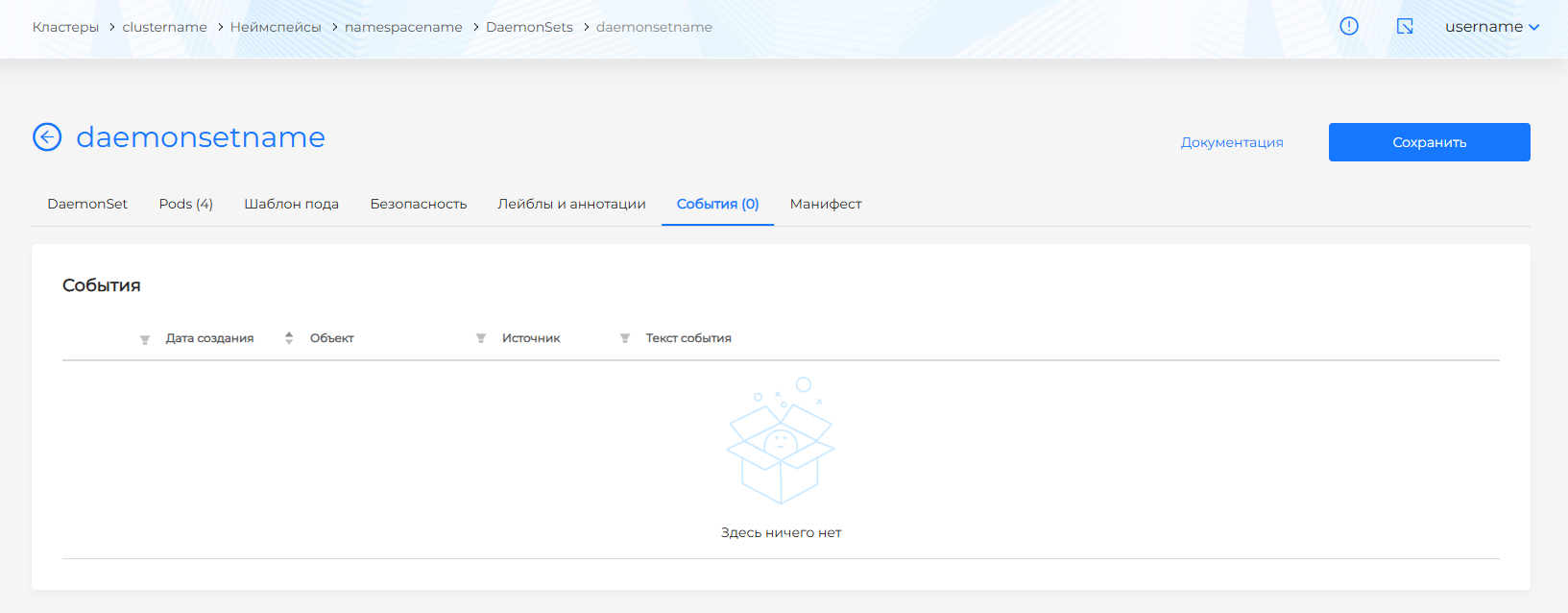
The Events tab lists DaemonSet and related object events with details:
- event type indicator;
- date and time;
- event source;
- event message text.
Manifest tab
Screenshot
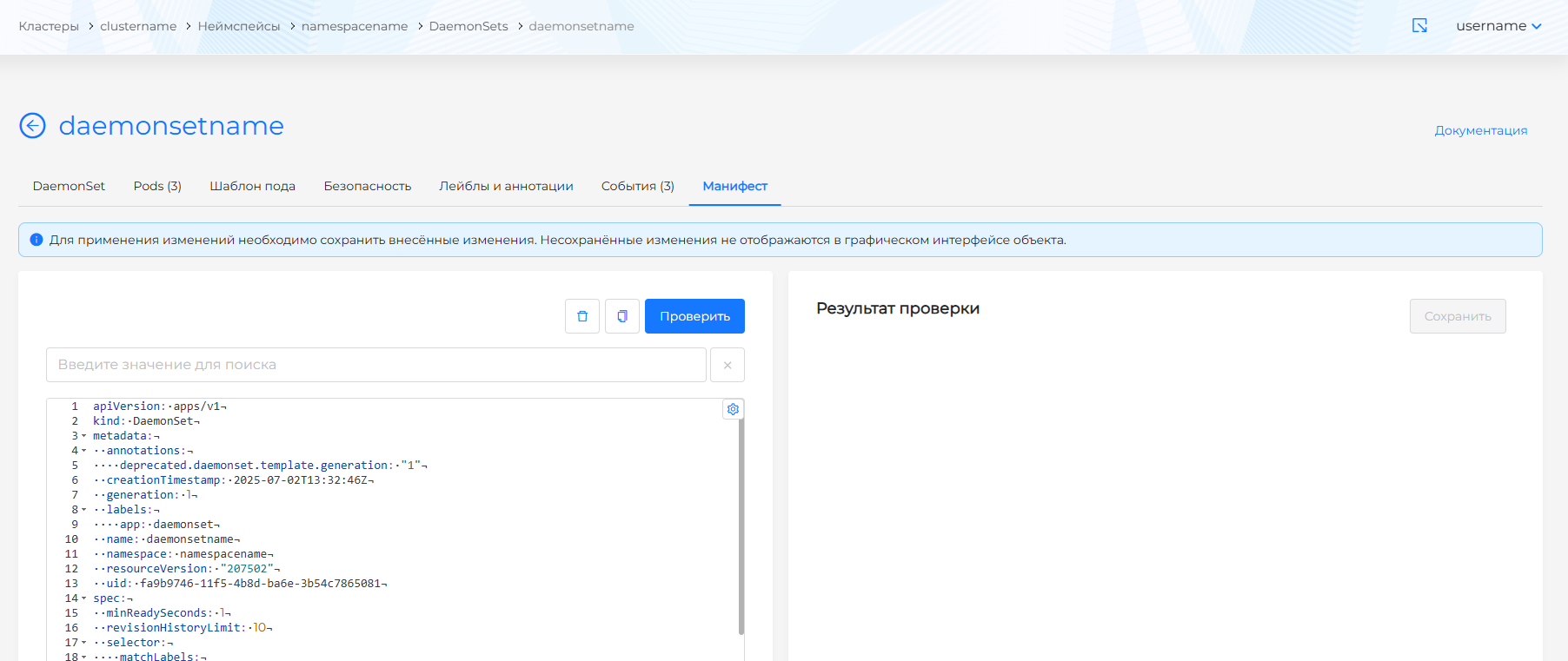
On the Manifest tab of the view and edit pages for an existing DaemonSet, you can change the YAML manifest, copy the manifest, or delete the DaemonSet. If the DaemonSet has at least one privileged container, that information is shown on the tab.