Pods
A Pod is the smallest deployable unit in Kubernetes. It groups one or more containers in a cluster. Each pod has a set of resources, including network, storage, and container images. Each pod can have its own unique name and labels, which makes it easy to configure its parameters. Pods are required to build highly available, scalable applications in a cluster.
The Pods page shows created pods with details:
Screenshot
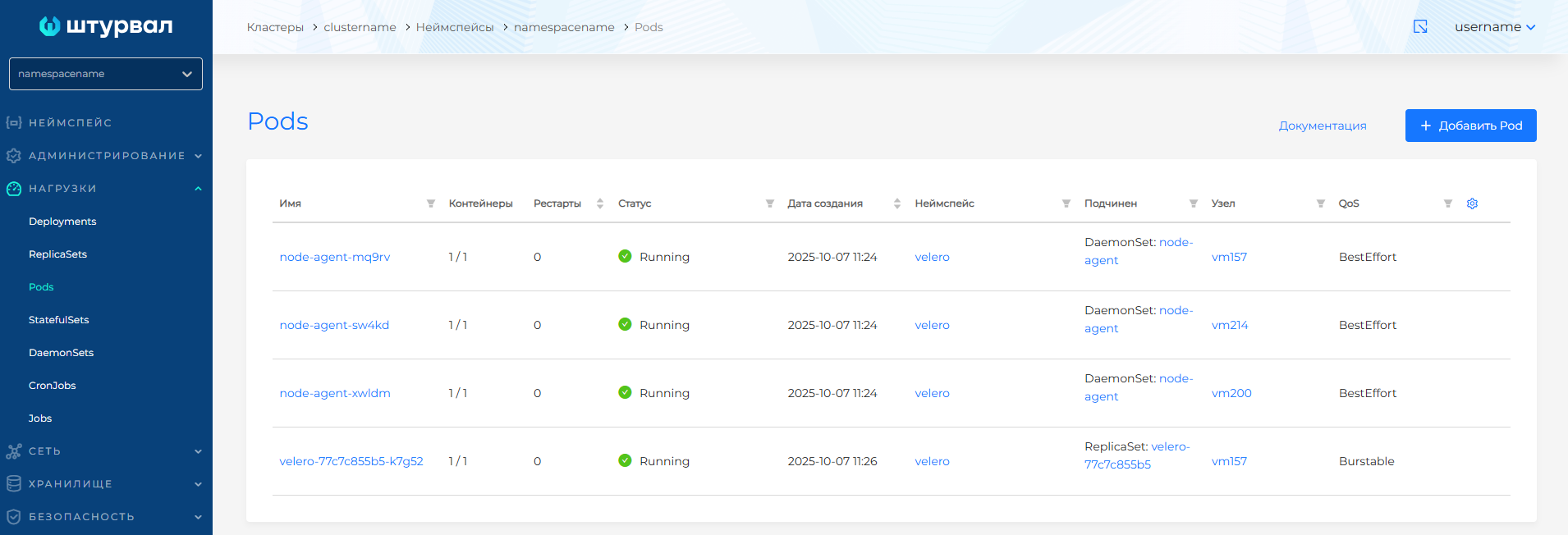
- Pod name (filterable).
- Ratio of running containers to total containers in the pod.
- Pod restart count (sortable).
- Creation date (sortable).
- Namespace (filterable). Clicking the namespace name opens the namespace dashboard. Enter a value to filter pods by namespace. To clear namespace filtering, click Cancel in the filter, then Apply.
- Status (filterable). Filter values: Running, Pending, Terminating, CrashLoopBackOff, Completed, Failed, Unknown.
- Parent object (filterable). When the pod belongs to a workload, clicking the workload name opens its view page.
- Node where the pod runs (filterable). Clicking the node opens the node view page if you have access.
- Pod QoS (Quality of Service) (filterable: Guaranteed, Burstable, BestEffort). For more about QoS, see the Pod tab section.
- Pod labels (the Labels column is hidden by default). To show pod labels, click the gear icon in the table corner and enable the Labels column.
Click a pod row to open the pod view page.
On the pod page you can view pod details, view and download container log files, and open a terminal in a container. To open the terminal, go to the Terminal tab. The tab is shown if the container has a shell. Bash is not supported.
Note! The terminal works reliably only in Google Chrome.
Creating a Pod
To create a pod, click + Add Pod.
Screenshot
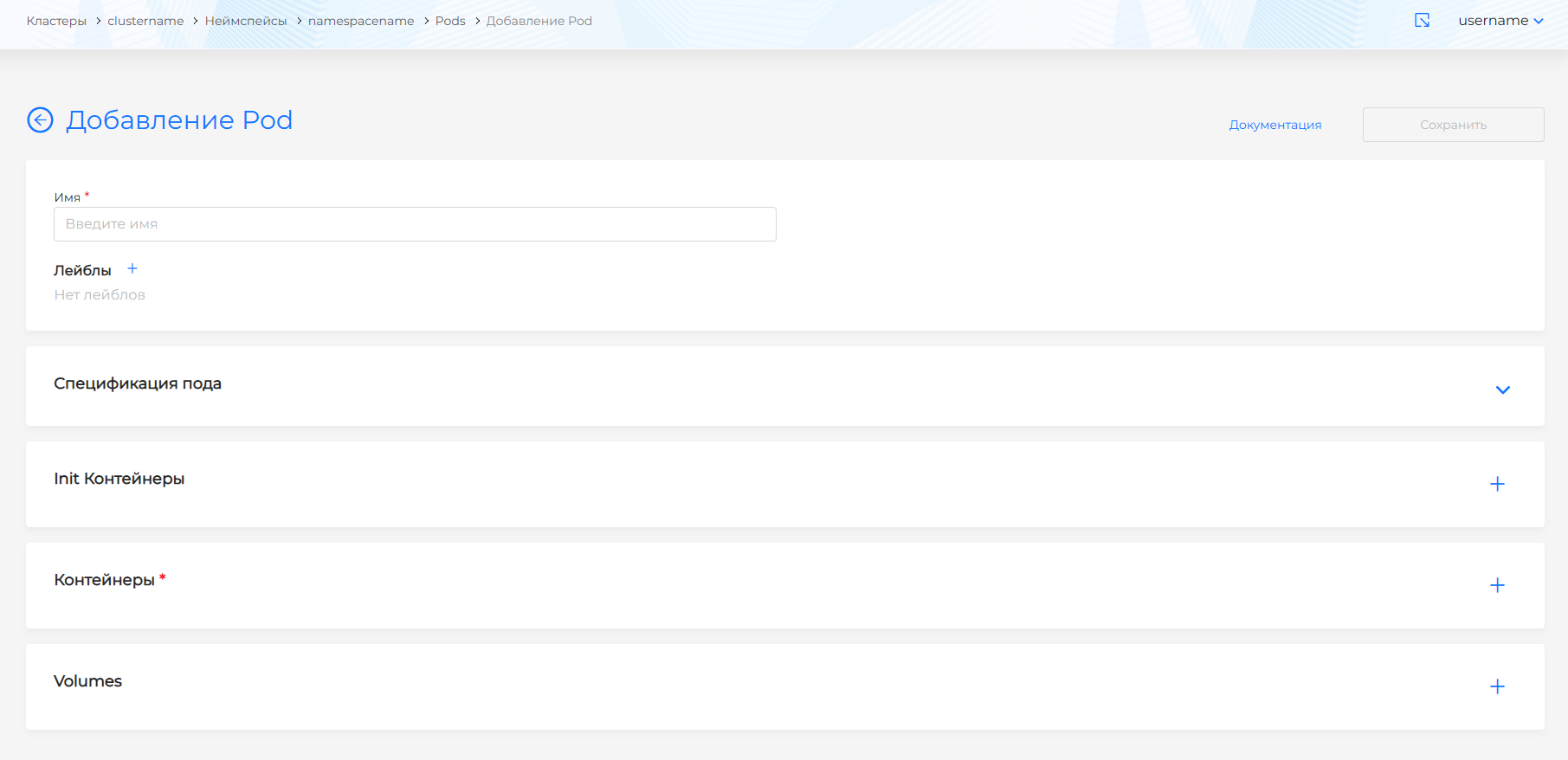
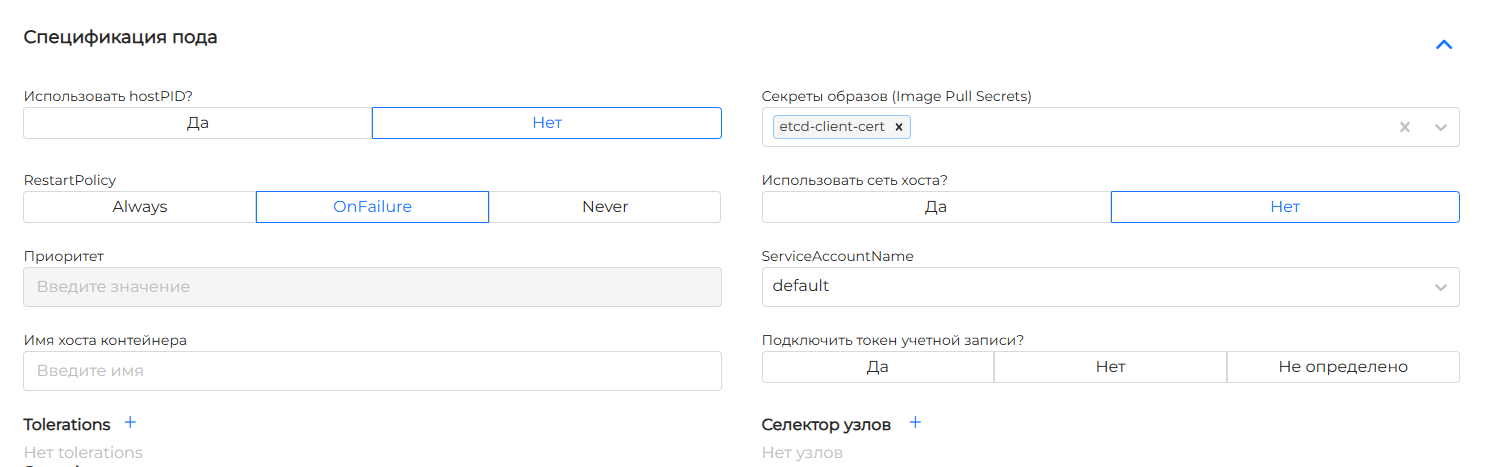
In the Pod spec block, the following settings are available:
- use hostPID? Default is “no”.
- use host network? Default is “no”.
- define the container restart policy. Default is Always, meaning the container restarts after any exit. You can choose OnFailure to restart only after a failed exit, or Never to avoid automatic restarts after a successful exit.
- select image pull secrets (Image Pull Secrets) from the drop-down list. The list shows secrets created on the Storage tab in the Namespace section.
- set the container hostname
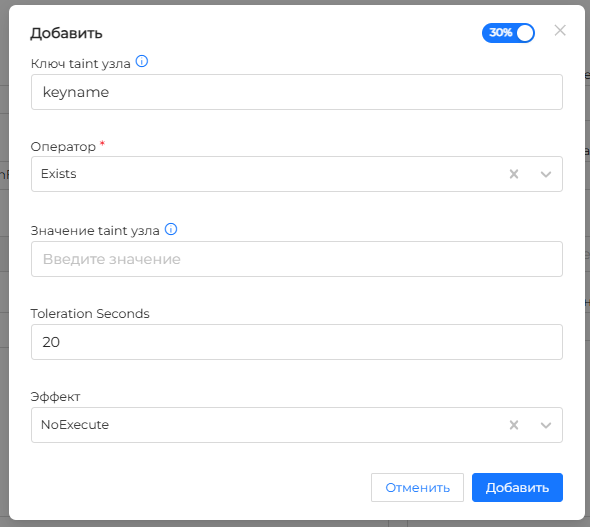
- if needed, create Tolerations. Click + and fill in the fields in the dialog that opens:
- if needed, set the node Taint Key. To match any node Taint keys, leave the key field empty, select the Exists operator, and set the node Taint Effect;
- if needed, set the node Taint Value. If the value is empty, the Toleration matches any node Taint values;
- select the Operator: Exists or Equal. Use Exists when matching by node Taint key only. Use Equal when the value must match the node Taint value. Default is Equal.
- if needed, set the time in seconds during which the Toleration is valid. After this period, the pod is evicted if the Taint is not removed from the node.
- if needed, set the node Taint Effect: NoSchedule, PreferNoSchedule, NoExecute, Any. Any matches all effects for the specified node Taint key.
- when NoExecute is selected, which can evict already running pods on the node, the Toleration Seconds setting is also available for the period after which pods are evicted from the node. Default tolerationSeconds is 5 minutes.
Screenshot
- set nodes. Click + in the node selector. Note! Label selectors use logical AND. The selected object must have all specified labels.
- select ServiceAccountName from the drop-down list.
- define whether to mount the service account token. Default is not set
Screenshot
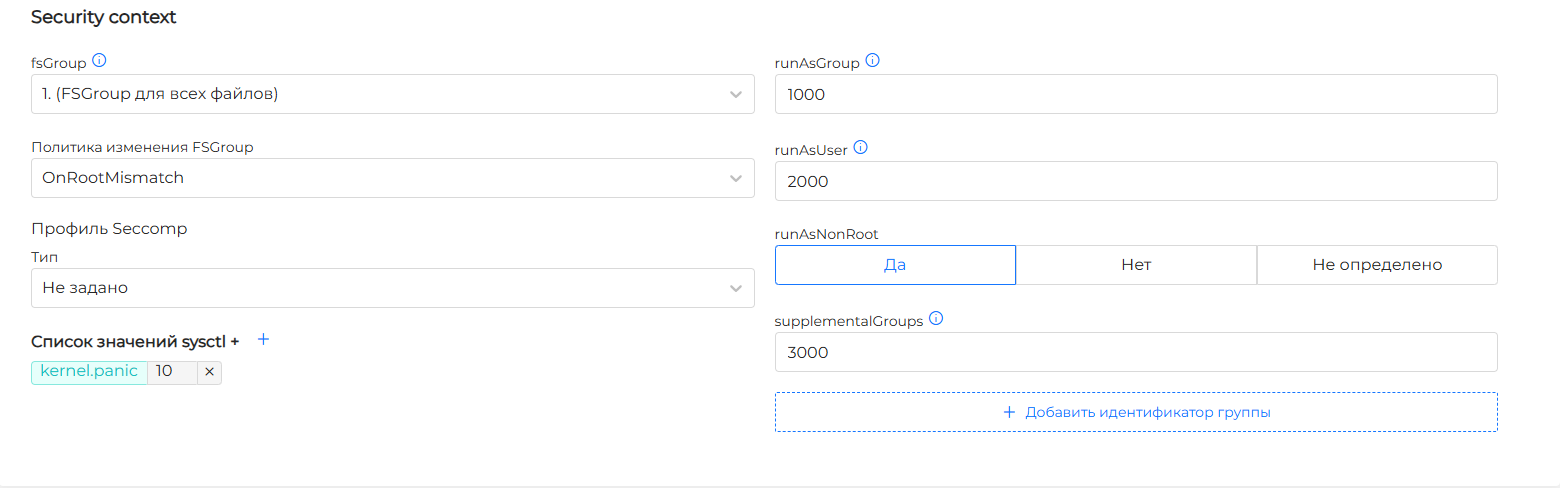
At the pod level you can configure Security context parameters that apply to all containers in the pod.
Available Security context parameters:
- fsGroup — defines the filesystem group whose ownership and permissions are changed for files when a volume is mounted into the pod:
- Select 1. (FSGroup for all volume files) when FSGroup should own all volume files. Note! Changing ownership and permissions for all volume files can delay pod startup on large filesystems.
- Select 2. (FSGroup only for newly created files) when FSGroup should own only newly created volume files.
- Select 3. (rw-rw—-) when you need to add read and write permissions for the owner and group on newly created volume files.
- To clear your choice or if configuration is not needed, select Not selected.
- If fsGroup is not selected, Kubelet does not change volume file ownership and permissions.
- FSGroup change policy:
- Select OnRootMismatch to change volume file permissions only when they do not match the root directory permissions.
- When Always is selected, permissions are always changed when a volume is mounted. Note! The change policy does not apply to secret, configmaps, and emptydir volume types.
- runAsGroup — group ID used to run containers in the pod so they do not run as root. If not set, the primary group ID (GID) is root.
- runAsUser — user ID used to run containers in the pod so they do not run as root. If not set, the user ID (UID) is root.
- runAsNonRoot — run containers without root privileges. Select No if you want containers to run as root. If you select Not defined, the parameter is not set in Security context.
- supplementalGroups — additional group IDs applied to processes in the container, as well as to GID and fsGroup. You can add multiple supplemental group IDs. Click + Add group ID and enter an ID, for example, 3000.
- Sysctl value list +. To add kernel parameters (sysctl) that must be set, click +, set the key and, if needed, the key value for the parameter. Note! If unsafe sysctl values are specified, the pod will not start until those sysctl values are enabled on at least one node.
- Seccomp profile:
- to use a profile for pod containers defined in a file on the node, select Use configured profile and specify the profile name. You must install the Seccomp profile file on the node first. For more about creating and applying a Seccomp profile in the cluster, see the page;
- select Default profile to use the default profile for the container runtime environment.
- select Do not apply profile when you do not want to restrict access to specific system calls from pod containers.
Screenshot
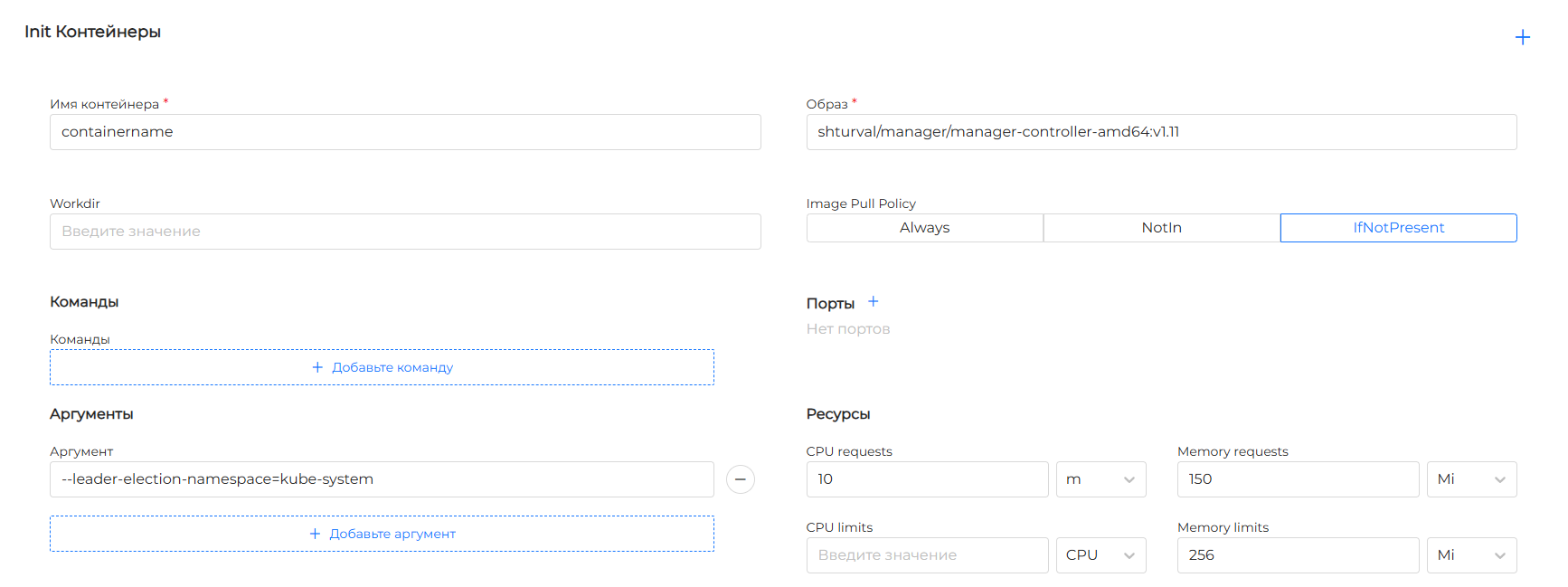
Init containers and Containers
In the Init containers and Containers blocks, configure container settings:
- enter the container name and image;
- if needed, specify the container working directory (Workdir).
- select the image pull policy. Default is Always, meaning kubelet always tries to pull the latest image. You can choose IfNotPresent to use a local image when pull fails, or Never to use only the local image.
- if needed, add commands, arguments, ports, and environment variables, and select a Seccomp profile. Note! Seccomp profile configuration in a container overrides the profile settings defined at the pod level.
- mount volumes into containers: specify the volume name and mount path (mountPath), host-to-container and container-to-host propagation (mountPropagation, default is not set), and if needed the path inside the volume (subPath) and expanded path within the volume (subPathExpr).
- set resource requests and limits for the pod container:
- choose the unit (CPU or m) for CPU request and limit and set the value;
- choose the unit for Memory request and limit and set the value. Available Kubernetes units: byte (B), kibibyte (Ki), mebibyte (Mi), gibibyte (Gi).
Screenshot
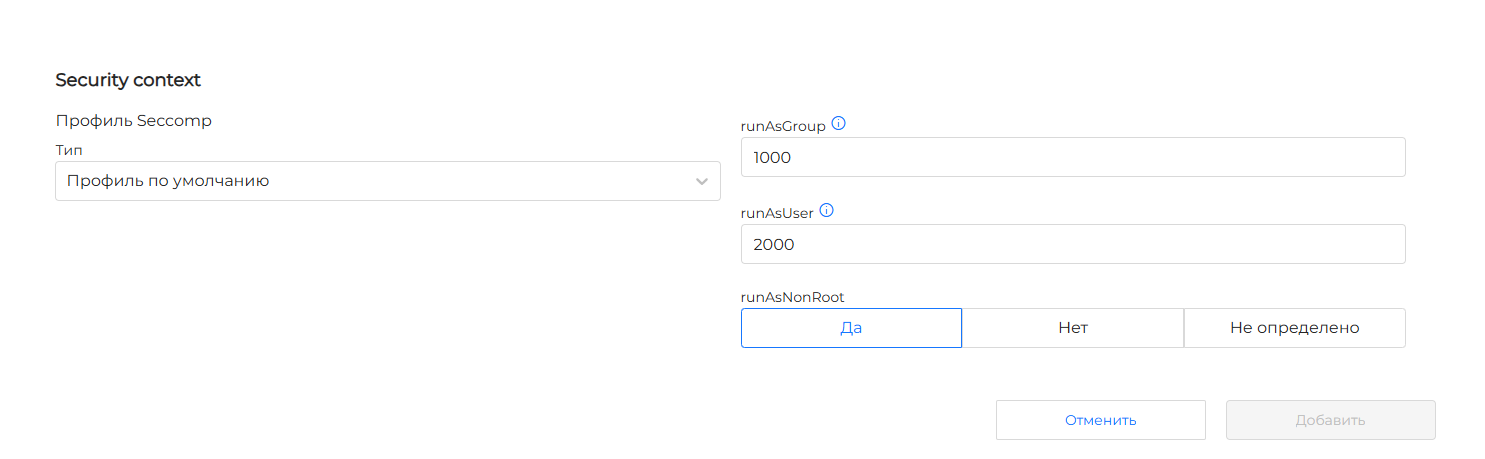
At the container level you can configure Security context parameters that apply only to that container.
Available Security context parameters:
- enable privileged container mode (
privileged: true). Privileged mode is not enabled by default. Privileged containers override protections such as the Seccomp profile, so if privileged mode is enabled, you cannot set a Seccomp profile for that container in the UI. Privileged containers are granted all Linux capabilities. This may be required when containers need administrative operating system capabilities. - Seccomp profile:
- to use a profile for a pod container defined in a file on the node, select Use configured profile and specify the profile name. You must install the Seccomp profile file on the node first. For more about creating and applying a Seccomp profile in the cluster, see the page;
- select Default profile to use the default profile for the container runtime environment.
- select Do not apply profile when you do not want to restrict access to specific system calls from the pod container.
Note! Security context configuration in a container overrides the context settings defined at the pod level.
- runAsGroup — group ID used to run the container so it does not run as root. If not set, the container primary group ID (GID) is root.
- runAsUser — user ID used to run the container so it does not run as root. If not set, the container primary user ID (UID) is root.
- runAsNonRoot — run the container without root privileges. Select No if the container should run as root. If you select Not defined, the parameter is not set in Security context.
Screenshot
Note!:
- If no memory limit is set for a container and no default limit is defined, the container can use all memory available on the node. To set a default memory consumption limit, use a LimitRange resource in the namespace where the container runs.
- A container cannot exceed its configured memory limit. It becomes a candidate for termination if it requests more memory than the configured limit.
- If the sum of container memory requests in a pod exceeds the node memory capacity, the pod cannot be scheduled on that node.
Volumes
In the Volumes block, add volumes that can be mounted into containers:
- enter the volume name and choose one of the types:
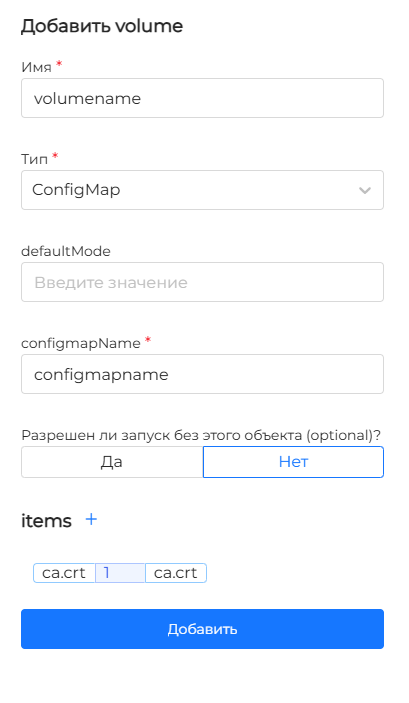
- ConfigMap. Specify the ConfigMap name and, if needed, the access mode (defaultMode).
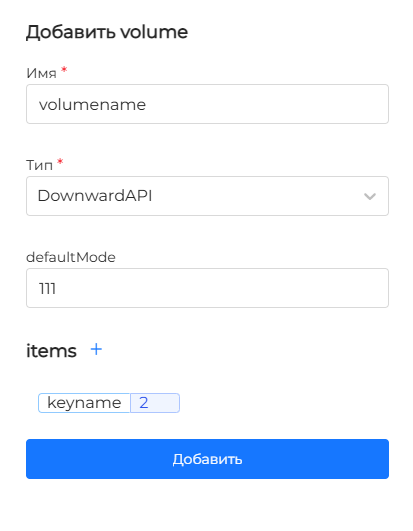
- DownwardAPI — use this when you need to expose Pod information to Pod containers. Specify the field storage file name and add a Pod field. Available Pod fields: annotations, labels, name, and namespace.
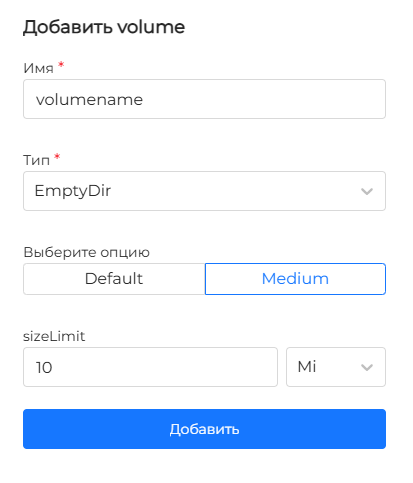
- EmptyDir — an ephemeral empty volume type for reading and writing the same files from Pod containers. You can choose the medium that should support the volume and specify the total storage size required by the volume. To set the total storage size, choose a unit (byte (B), kibibyte (Ki), mebibyte (Mi), gibibyte (Gi)) and enter a numeric value. By default, volumes are stored on any medium (disk, SSD, network storage). Select medium to mount a RAM-backed filesystem.
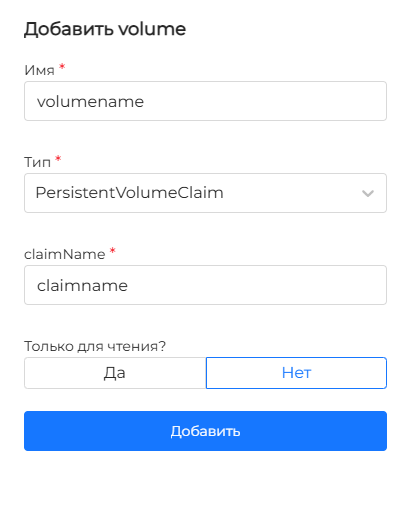
- PersistentVolumeClaim. Specify the PVC name and choose whether to set read-only mode for pod containers.
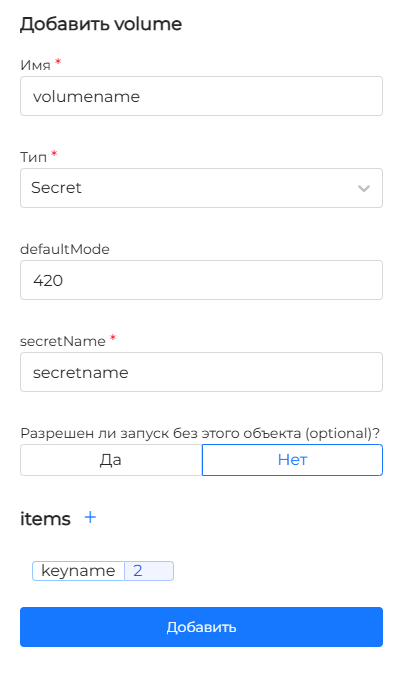
- Secret — use this to pass confidential information into a Pod. Always mounted into Pod containers in ReadOnly mode.
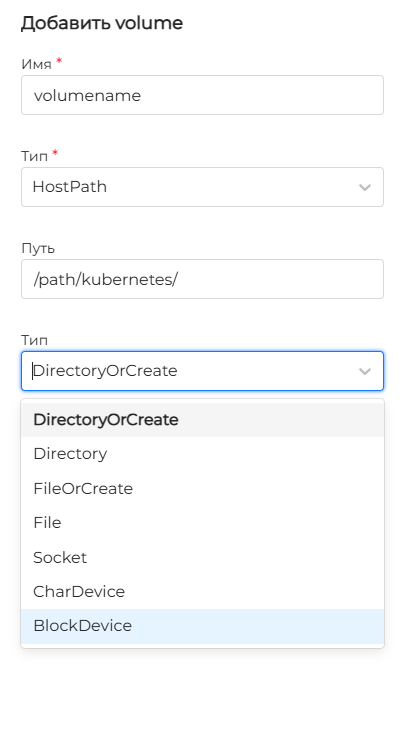
- HostPath mounts a file or directory from the host filesystem into a Pod. Specify the host directory path and the HostPath type.
Depending on the selected volume type, different Volume configuration parameters are offered.
ConfigMap parameters screenshot
DownwardAPI parameters screenshot
EmptyDir parameters screenshot
PersistentVolumeClaim parameters screenshot
Secret parameters screenshot
HostPath parameters screenshot
Viewing a Pod
The pod view page has tabs:
- Pod
- Containers (shows a count)
- Volumes (shows a count)
- Security
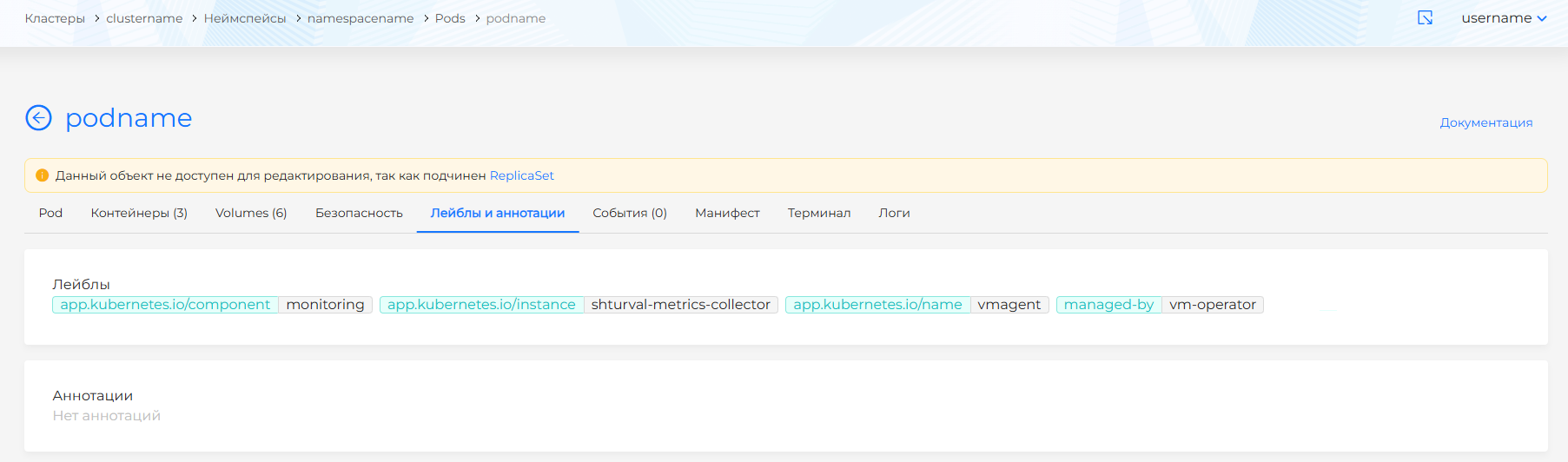
- Labels and annotations (list of labels and annotations)
- Events (shows a count)
- Manifest
- Terminal
- Logs
Pod tab
The Pod tab shows:
Screenshot
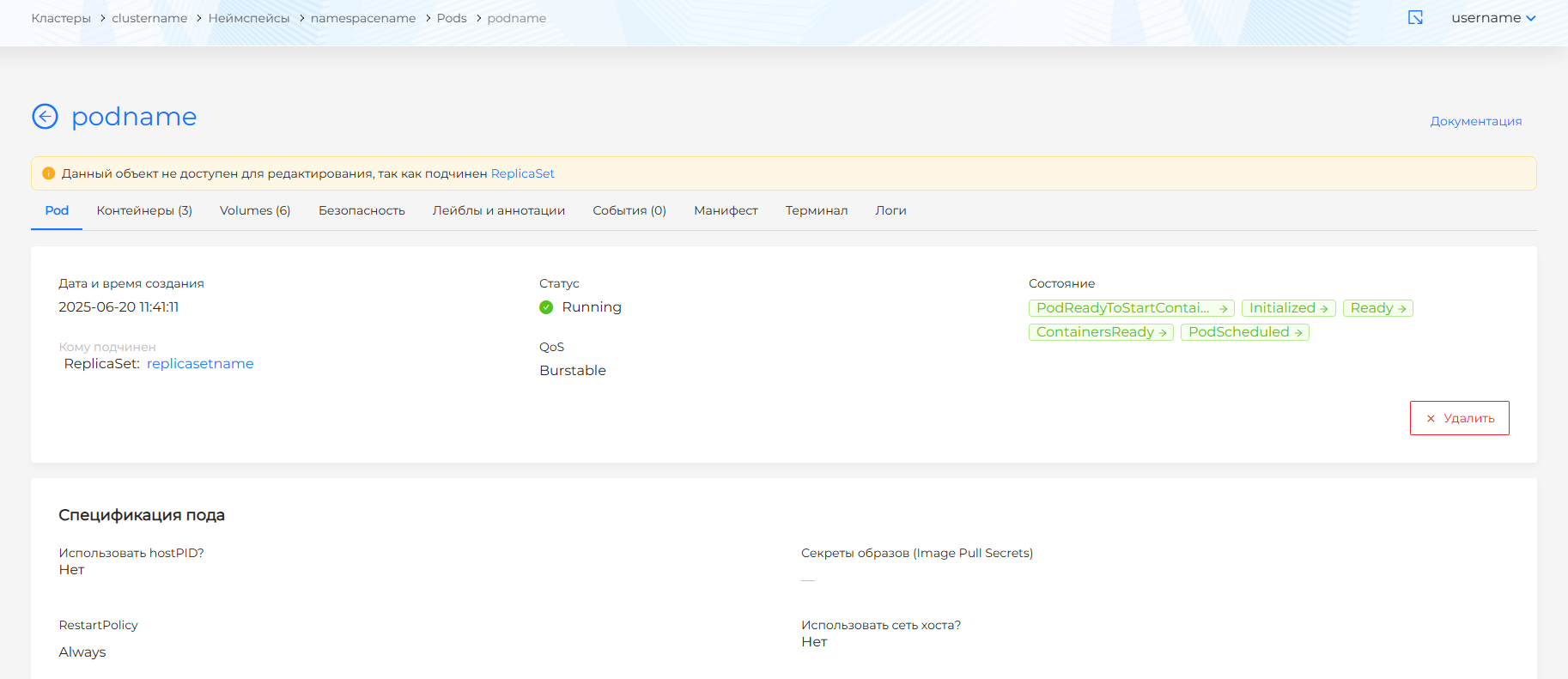
- pod creation date and time, state, status, and parent object;
- pod Quality of Service (QoS). Kubernetes assigns each pod a QoS class based on resource requests and limits (Memory and CPU) set for its containers. QoS is used when evicting pods from a node under node pressure. Pods with BestEffortPod QoS are evicted first, then Burstable, and finally GuaranteedPod if needed. Assigned QoS classes:
- Guaranteed — every container in the pod has Memory request equal to Memory limit and CPU request equal to CPU limit;
- Burstable — at least one container in the pod has a resource request or limit;
- BestEffort — none of the containers in the pod has a resource request or limit.
- pod specification;
- the node where the pod runs. Users with access to view the node can open the node page by clicking its name.
Pod status also has a color indicator:
- green for Running and Completed;
- yellow for Pending;
- red for Terminating, CrashLoopBackOff, and Failed;
- gray for Unknown.
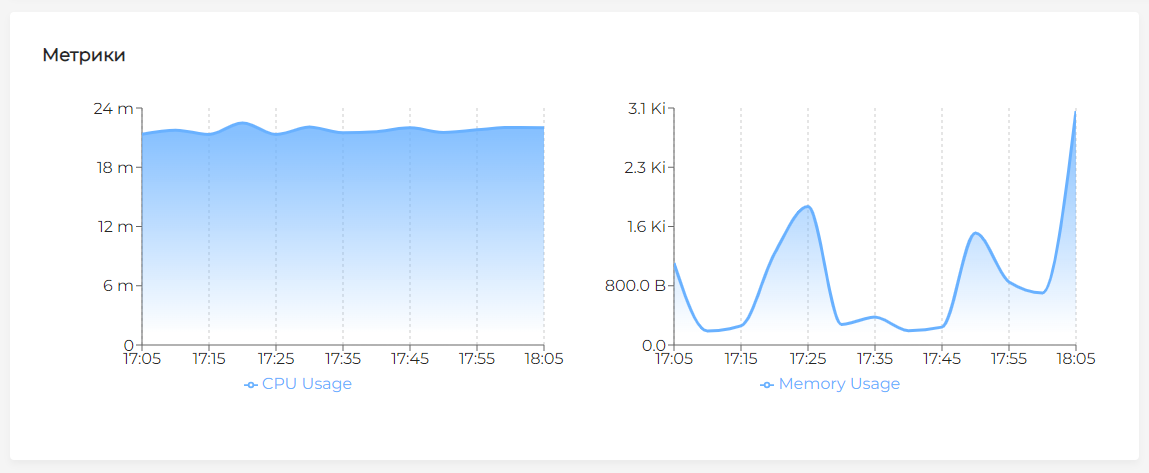
The Monitoring metrics block shows CPU Usage and Memory Usage for the pod over the past hour.
Screenshot
Containers tab
Screenshot
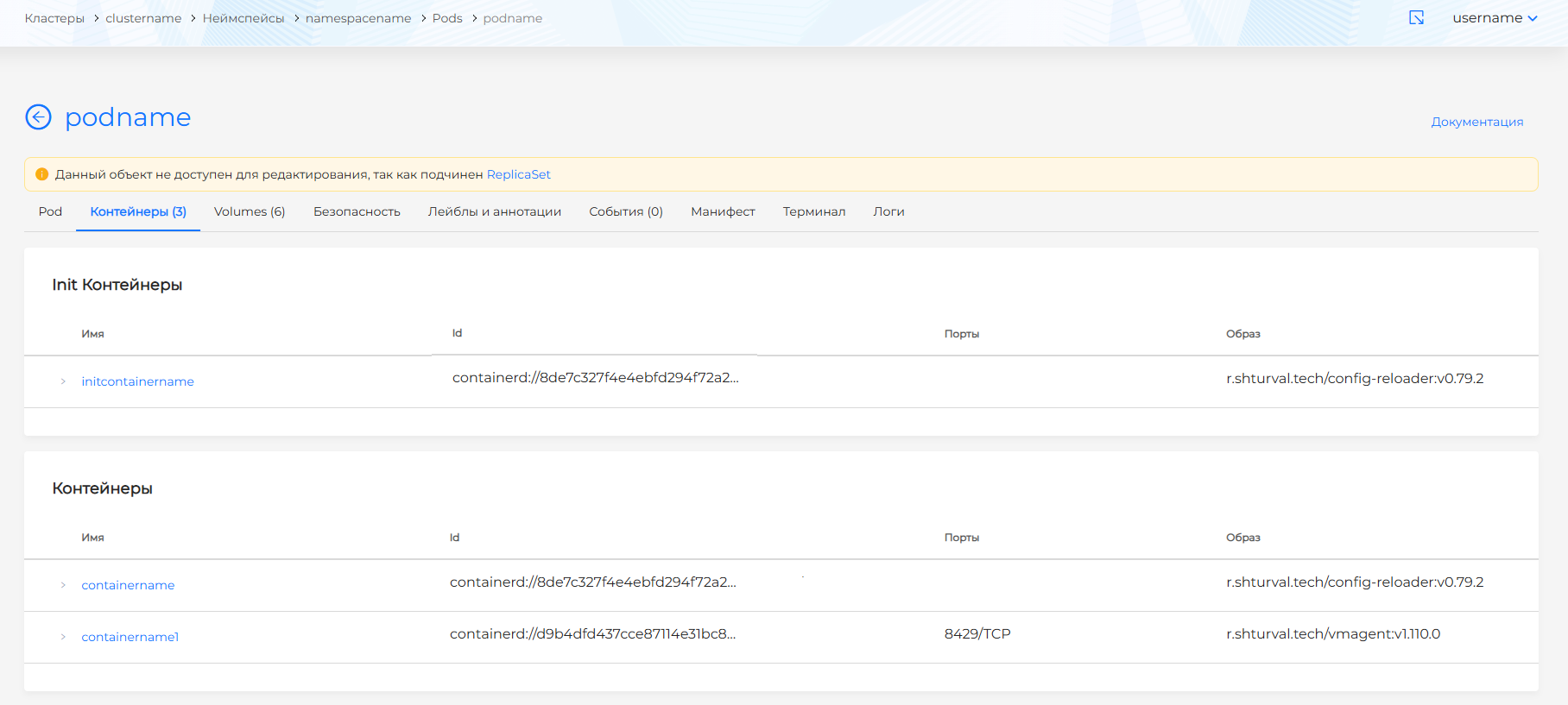
The Containers tab lists the pod containers and init containers. Click a container name in the list to expand the container details block.
Volumes tab
Screenshot
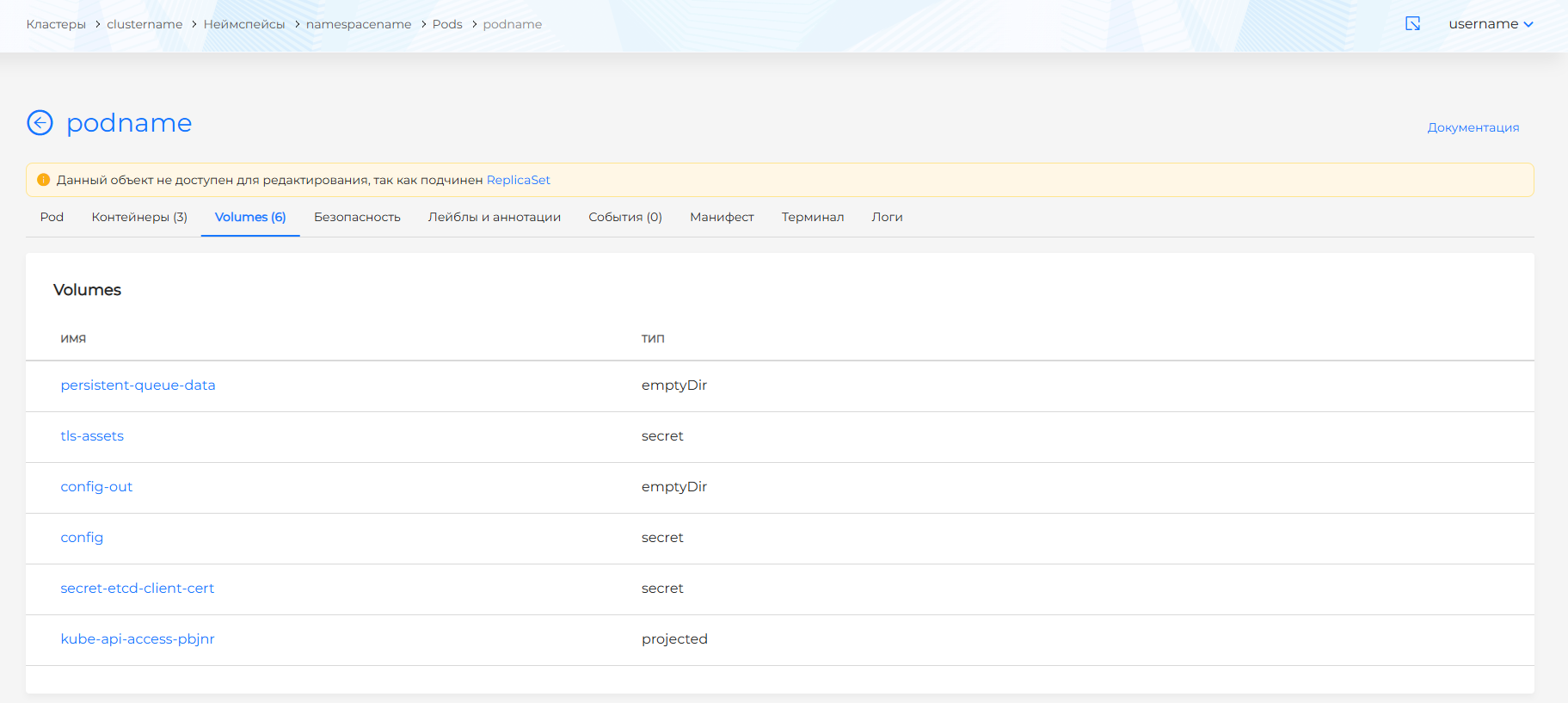
The Volumes tab lists volumes mounted into pod containers. Click a volume row to open a dialog with volume details.
Security tab
Screenshot
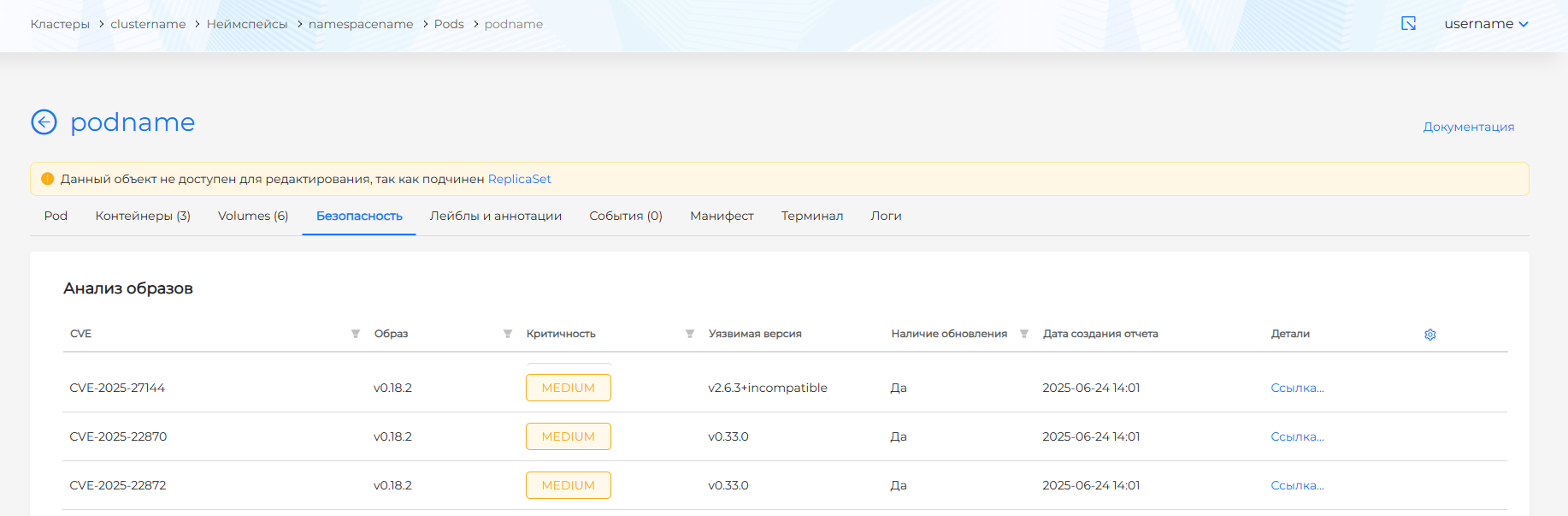
The Security tab shows:
- image vulnerability scan results for objects in this pod (shown only if the Container Image Scanning module is installed in the cluster);
- policy compliance analysis results for objects in this pod (shown only if the Application Configuration Analysis module is installed in the cluster).
Labels and annotations
Screenshot
Events tab
Screenshot
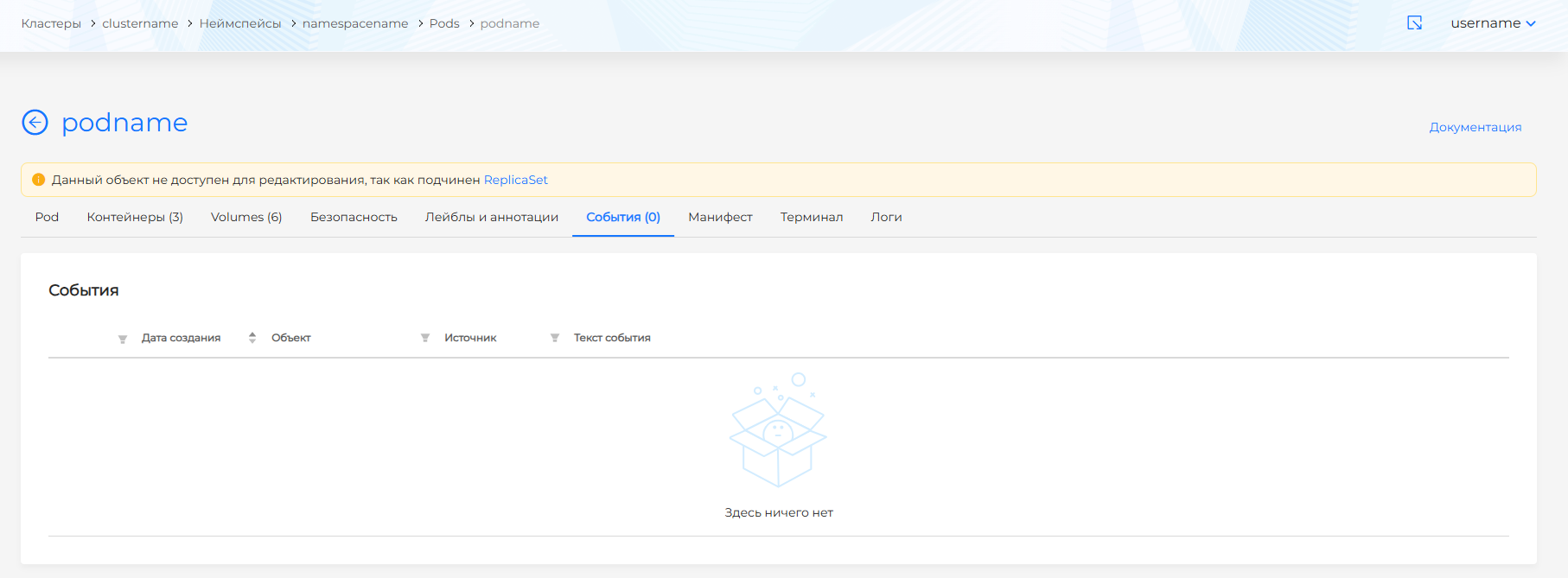
The Events tab lists pod events with details:
- event type indicator;
- date and time;
- event source;
- event message text.
Manifest tab
Screenshot
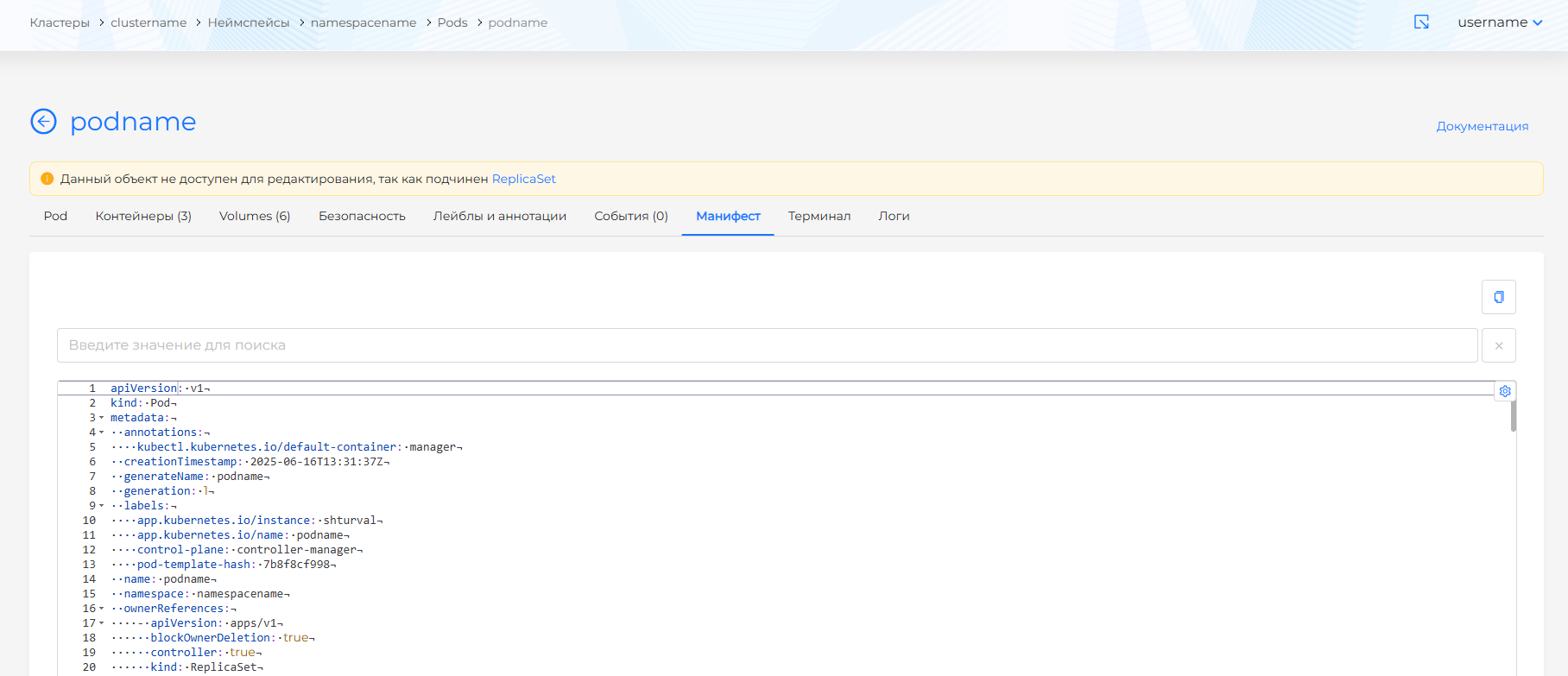
The tab contains the Pod manifest. You cannot change it if the Pod is owned by another Kubernetes object.
If the Pod was created as a standalone object, you can change only the following fields in the manifest:
- spec.containers[*].image
- spec.initContainers[*].image
- spec.activeDeadlineSeconds
- spec.tolerations
- spec.terminationGracePeriodSeconds
Note! After saving manifest changes, the Pod is not restarted with the new configuration. To restart the pod with the new configuration, run the command manually through the Kubectl console interface.
To change existing standalone pods when editing is required, delete the Pod in the old configuration and create a new one. Use Kubernetes resources (Deployments, StatefulSets, DaemonSets) that manage pod restarts automatically.
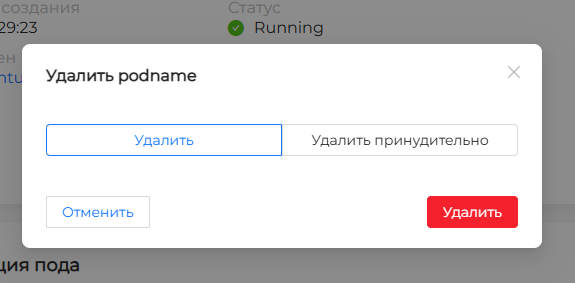
To delete a pod, on the Pods page click in the pod row, or on the pod view page click Delete. When deleting, you can choose:
- Delete — performs graceful termination and deletion of the pod. If pods are stuck in Terminating state, normal deletion will not work.
- Force delete — deletes a pod in Terminating state. Pods running on an unavailable node enter Terminating state after a timeout. This can also happen when a pod is deleted on an unavailable node.
Screenshot
Terminal tab
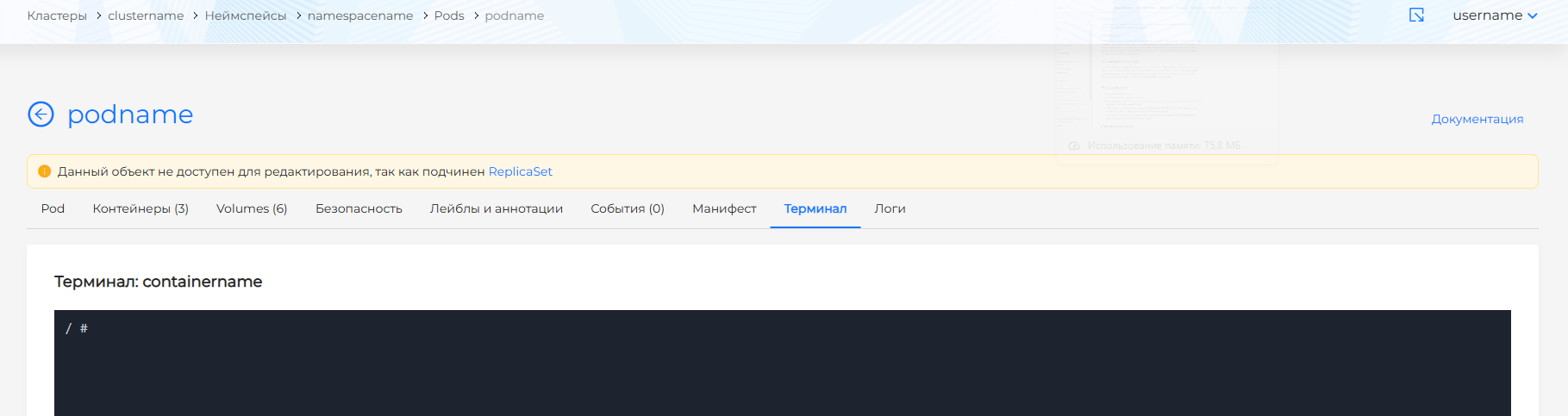
If at least one container in the pod has a shell, the terminal starts and the Terminal tab is available. Bash is not supported.
Note! The terminal works reliably only in Google Chrome.
Screenshot
Logs tab
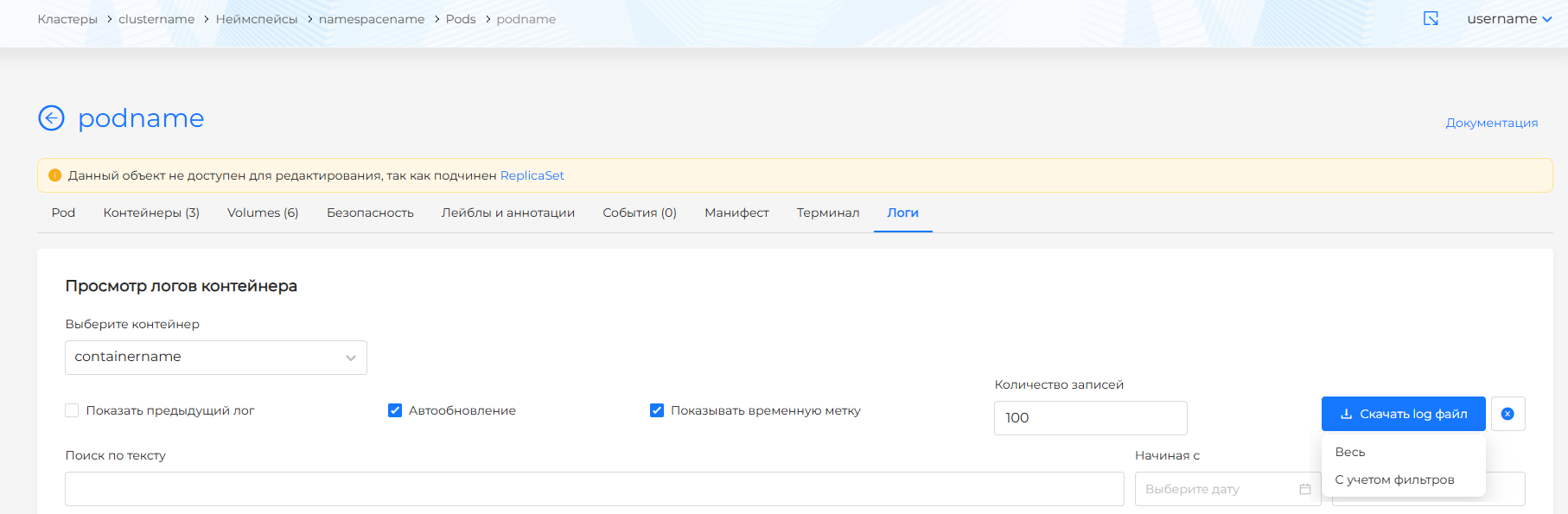
On the Logs tab, the following log output settings are available:
Screenshot
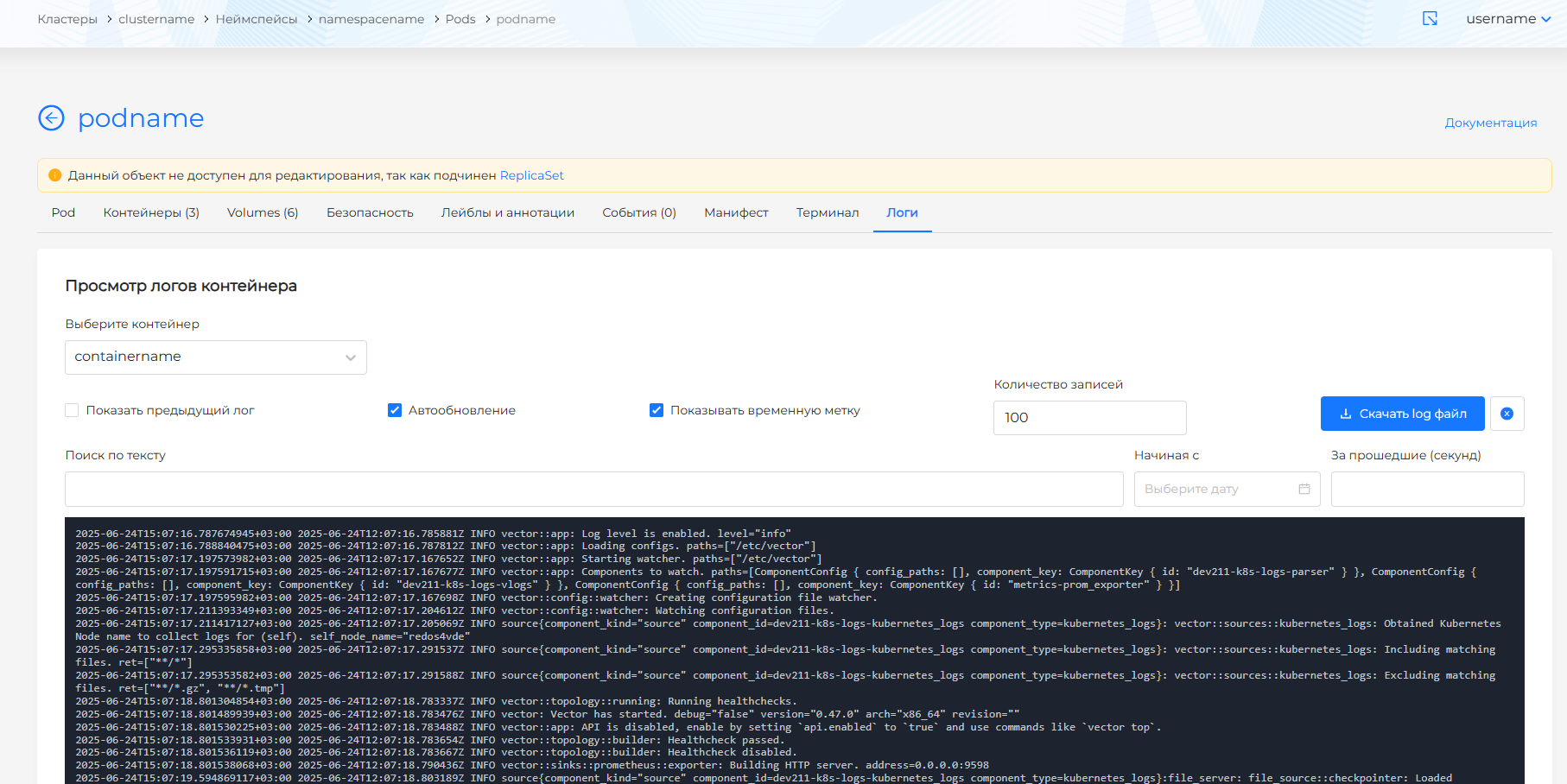
- select a pod container;
- enable or disable:
- auto-refresh;
- timestamp display;
- previous log display;
- set the number of log entries to show in the view window. Default is 100 log entries;
- set the time range for viewing logs. You can set the range in one of the following ways:
- select a start date and time. Logs are shown starting from the selected date.
- specify a range in seconds. Logs are shown for the past specified number of seconds.
- search log text. Enter search text in the Search by text field. Search starts from the first character entered.
- reset display settings to defaults.
- if needed, you can download the log file. Download saves a
.logfile whose name is prefilled and matches the container name. You can download the full container log file or a filtered log based on the configured filters.
Screenshot