ReplicaSets
A ReplicaSet is a Kubernetes component that provides high availability for an application by creating and managing multiple identical pods in the cluster. If one pod fails, the ReplicaSet automatically restores it and maintains the required number of healthy application copies. You can use a ReplicaSet to distribute load across an application, providing high availability and fault tolerance, which improves infrastructure reliability and reduces application downtime.
The ReplicaSets page shows information about replica sets (copies) of pods running in the Kubernetes cluster within the namespace. Because ReplicaSets are part of a Deployment, ReplicaSet parameters cannot be edited on the ReplicaSet page. To edit parameters, go to the Deployments page.
Viewing a ReplicaSet
The ReplicaSet view page has tabs. Below the ReplicaSet name you see the creation date and time, status, conditions, and parent object details.
Screenshot
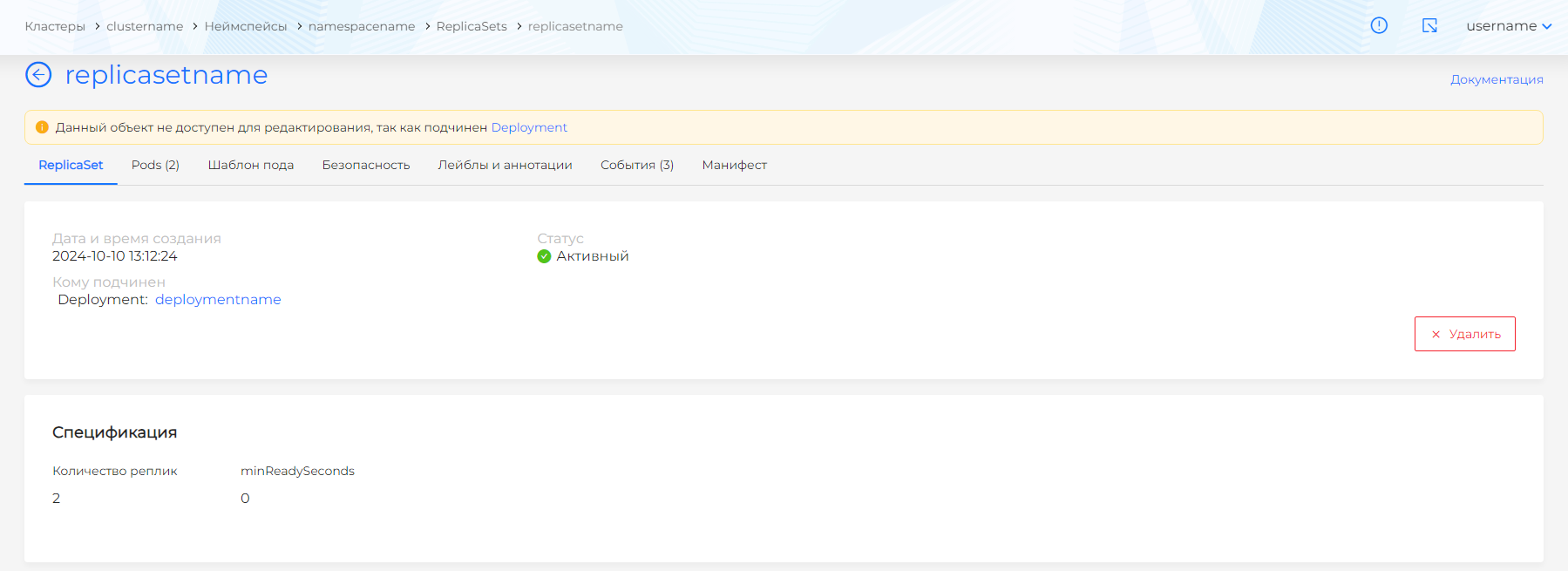
The page includes these tabs:
- ReplicaSet
- Pods (shows a count)
- Pod template (shows a count; includes container and init container data), Volumes (shows a count)
- Security
- Labels and annotations (list of ReplicaSet labels and annotations)
- Events (shows a count)
- Manifest
ReplicaSet tab
The ReplicaSet tab shows:
Screenshot
- creation date and time, status, and parent object details;
- replica count;
- minReadySeconds.
The Pod selector block shows matching expressions and matching pod labels. Note! Label selectors use logical AND. The selected object must have all specified labels.
The Metrics block shows total CPU Usage and Memory Usage for all ReplicaSet objects over the past hour.
Pods tab
Screenshot
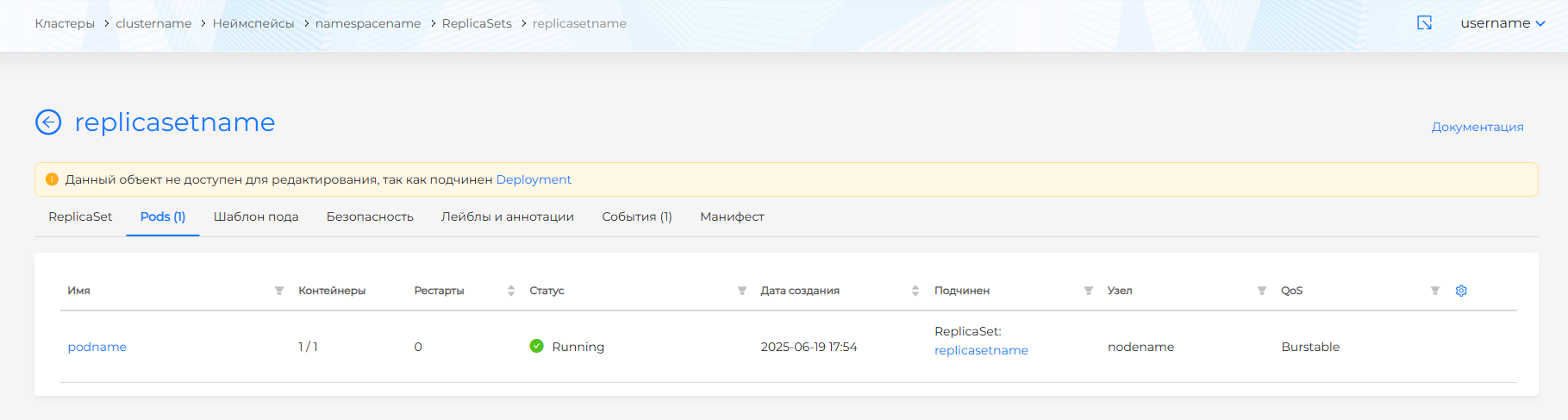
Lists pods owned by the ReplicaSet with details:
- Pod name (filterable).
- Ratio of running containers to total containers in the pod.
- Pod restart count (sortable).
- Creation date (sortable).
- Namespace (filterable). Clicking the namespace name opens the namespace dashboard. Enter a value to filter pods by namespace. To clear namespace filtering, click Cancel in the filter, then Apply.
- Status (filterable). Filter values: Running, Pending, Terminating, CrashLoopBackOff, Completed, Failed, Unknown.
- Parent object (filterable). When the pod belongs to a workload, clicking the workload name opens its view page.
- Node where the pod runs (filterable). Clicking the node opens the node view page if you have access.
- Pod QoS (Quality of Service) (filterable: Guaranteed, Burstable, BestEffort). For more about QoS, see Pods.
- Pod labels (the Labels column is hidden by default). To show pod labels, click the gear icon in the table corner and enable the Labels column.
Click a pod row to open the pod view page.
Pod template tab
Screenshot
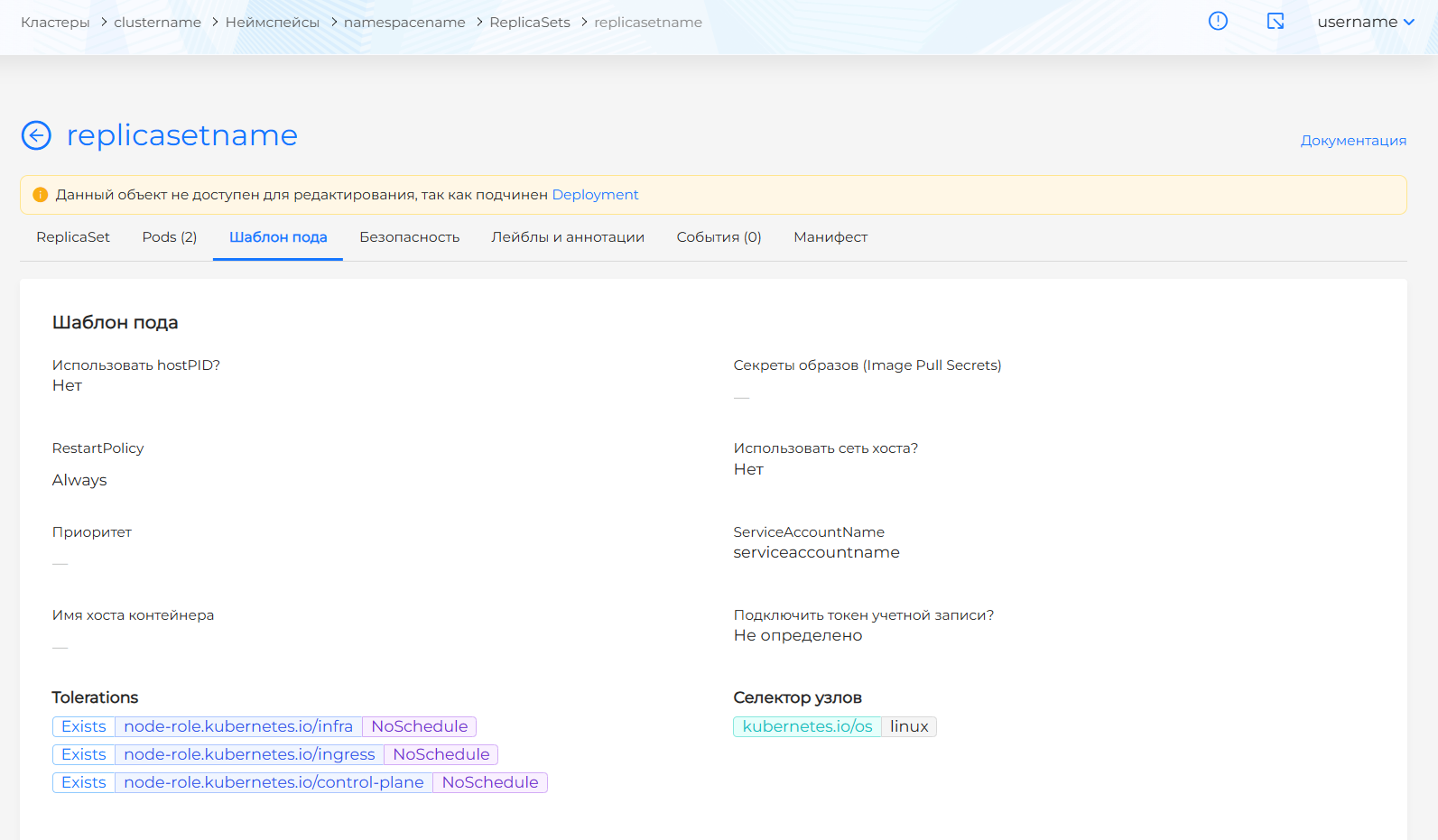
Shows the pod template, containers, init containers, and volumes for the ReplicaSet.
Security tab
Screenshot
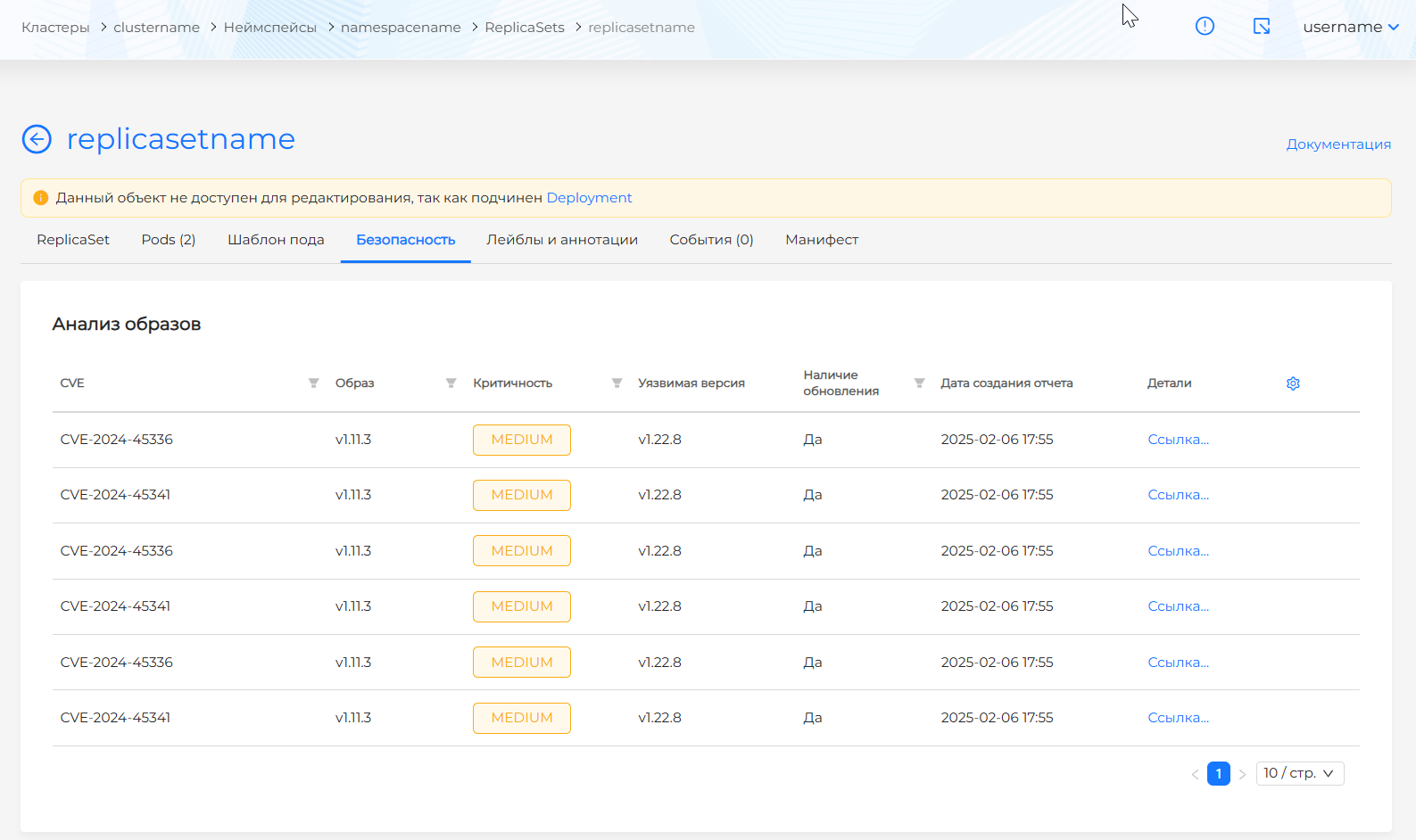
The Security tab shows:
- Image vulnerability scan results for objects in this ReplicaSet (shown only if the Container Image Scanning module is installed in the cluster);
- Security policy compliance analysis results for objects in this ReplicaSet (shown only if the Application Configuration Analysis module is installed in the cluster).
Events tab
Screenshot
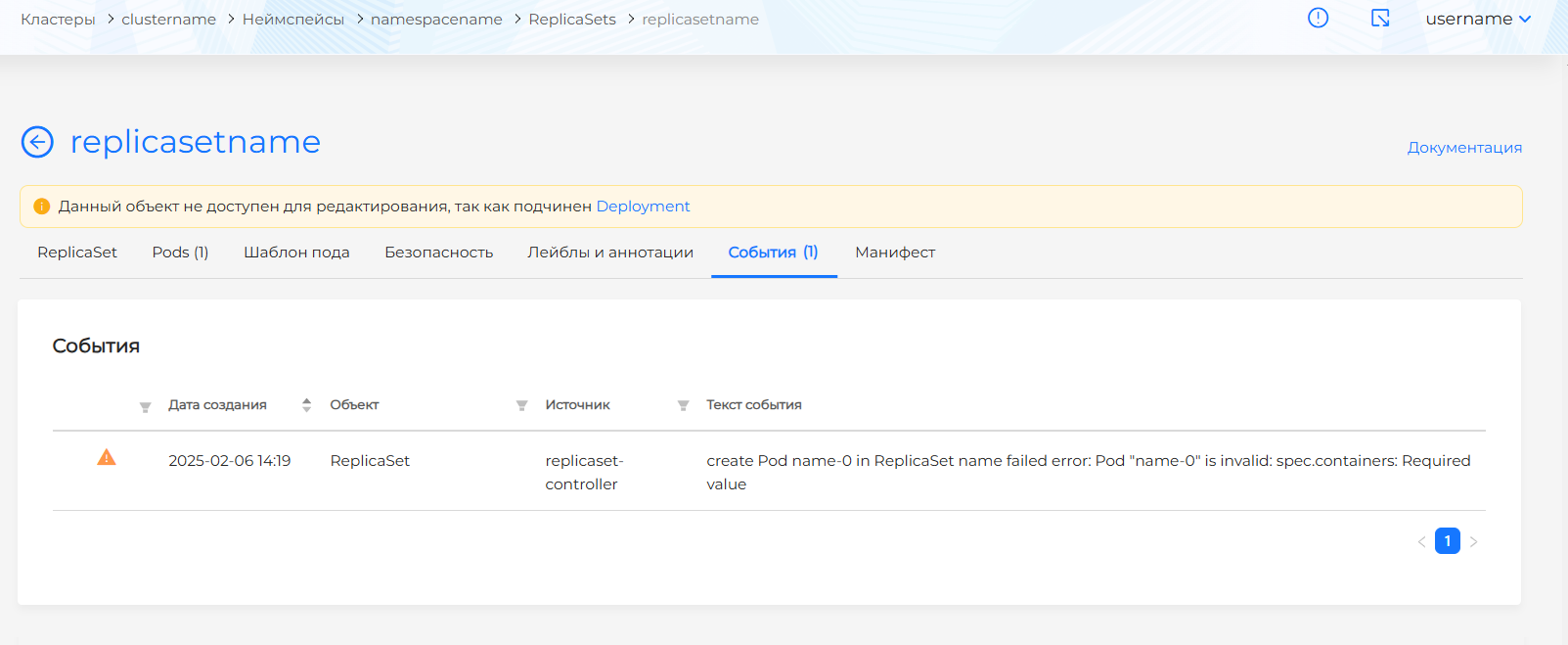
Shows ReplicaSet events:
- event type indicator;
- date and time;
- event source;
- event message text.
Manifest tab
Screenshot
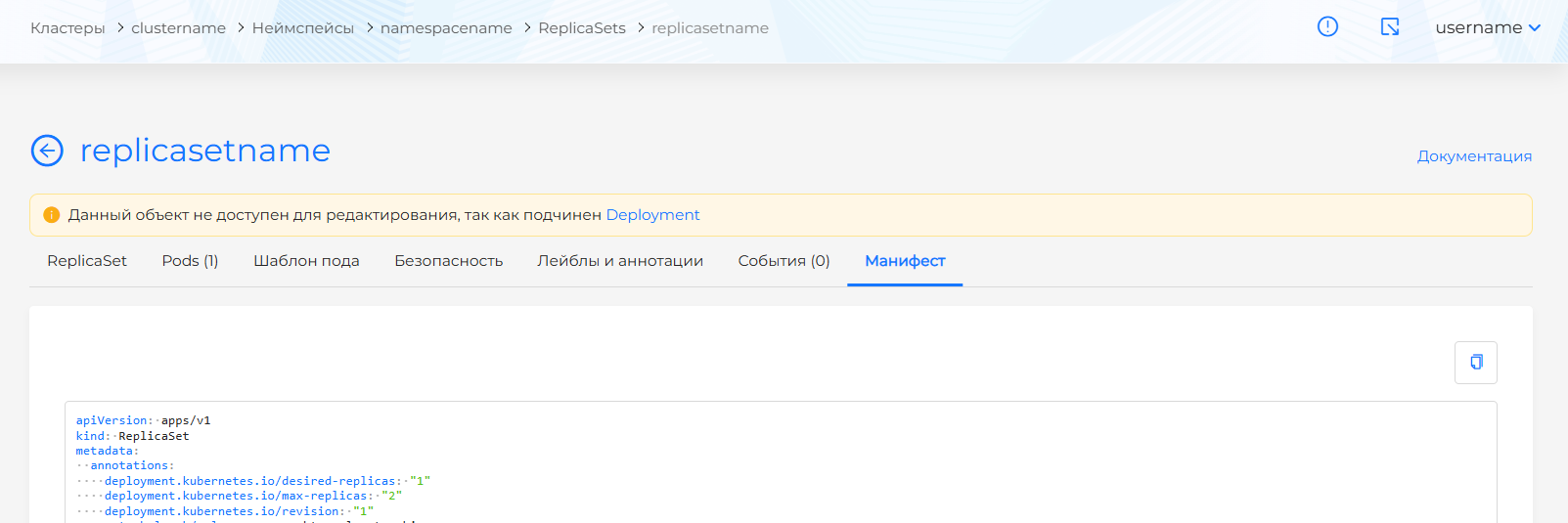
On the Manifest tab of the ReplicaSet page you can view and copy the YAML manifest.