Updating in a closed environment
In closed Shturval platform installations (closed and semi-closed environments), you can deliver updates using one of these methods:
Manually upload a bundle for the new version to the mirror. The prepared bundle is uploaded to a file sharing service and is available for download via a link.
Update the mirror through a pipeline without manually uploading a bundle. Instructions are in the Service Desk knowledge base.
The mirror must be initialized before updating. To load a bundle and update the mirror in a closed environment, follow these steps:
- Download the bundle from the link provided by the development team. On the VM where the mirror is installed, create an update directory, for example
newbundle, and place the update bundle there.
Example
# Create directory
mkdir newbundle
# Change to directory
cd newbundle
# Move bundle to newbundle directory
cp downloads/fgfgfg newbundle/fgfgfg
# Extract downloaded bundle
tar -zxvf fgfgfg
Replace downloads/fgfgfg with the path to the downloaded update bundle. Replace fgfgfg with the bundle name.
- After extracting the bundle, go to the directory with the current mirror and start the mirror update by running
stm bundle loadwith your parameter value.
Available parameter for loading bundle contents into the mirror
| Command | Description | Parameter | Parameter description |
|---|---|---|---|
| stm bundle load | Load bundle contents into the mirror (the mirror must be initialized) | –path | Path to the bundle directory. Default: shturval-bundle |
Command to load a new version from a bundle into a previously deployed mirror
# Exit and go to the directory with stm
cd ..
cd shturval-offline
# Load bundle
./stm bundle load --path=../newbundle/shturval-bundle
Replace ../newbundle/shturval-bundle with the path to the downloaded update bundle, and shturval-offline with the current mirror directory.
- After the mirror update completes, follow the steps in Restart the update custom resource for ShturvalUpdateChannel.
Restart the update custom resource
After updating the mirror, restart the ShturvalUpdateChannel custom resource named shturval-update so the new update version becomes available for the management cluster and client clusters. Without restarting shturval-update, reconciliation occurs within 6 hours.
Note
- Restart shturval-update in every cluster that will be updated.
- After restarting shturval-update, the cluster update option appears after a short delay (about 5–10 minutes).
You can update shturval-update from the graphical interface or the command-line interface.
From the command-line interface
Add an arbitrary label to the shturval-update resource in the shturval-update-system namespace. After a successful update, the resource reconciles and you can proceed to cluster update.
Example label command
kubectl label ShturvalUpdateChannel shturval-update --namespace shturval-update-system example=
Replace example with any label name.
Screenshot

From the graphical interface
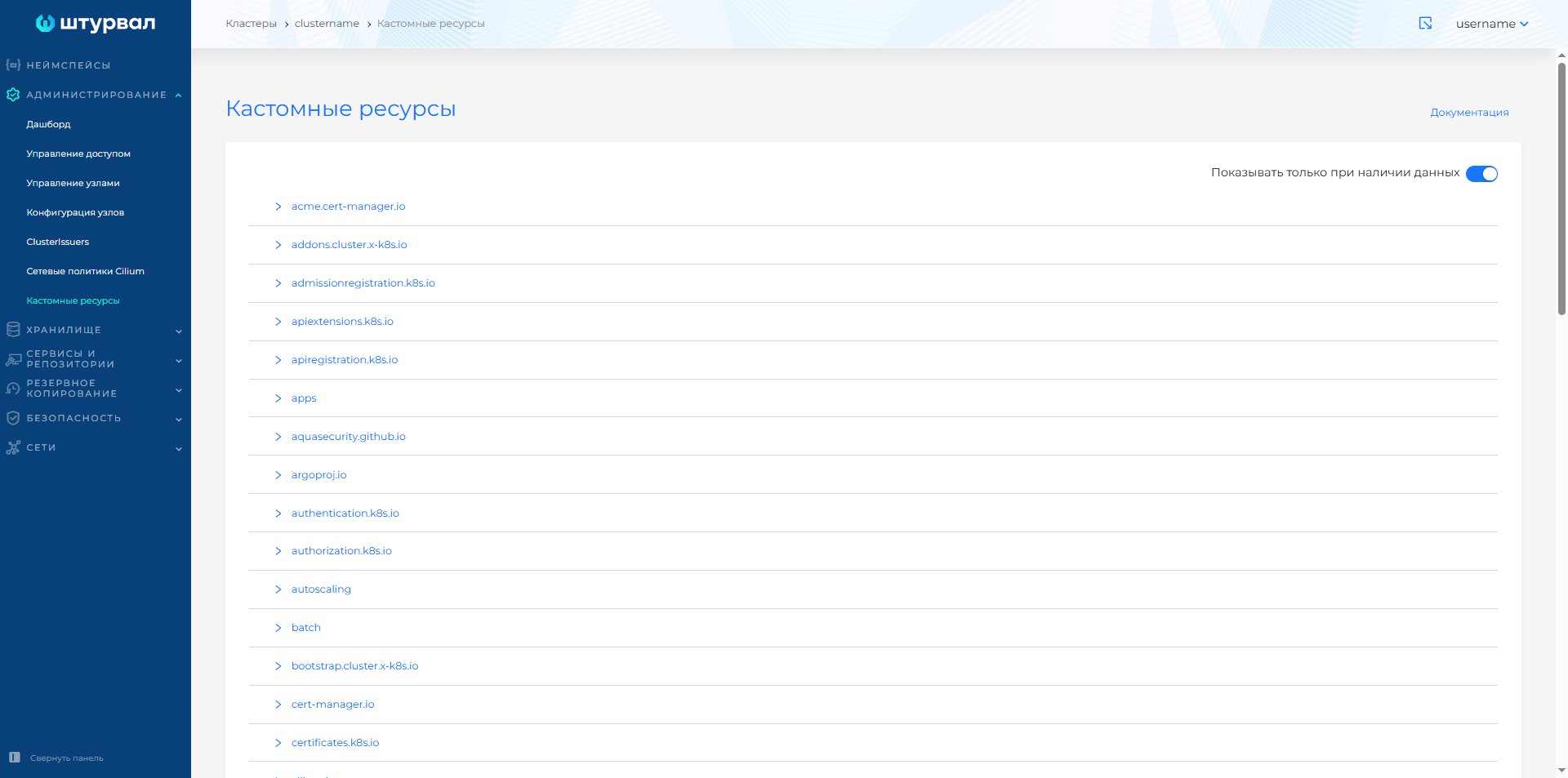
- Open the cluster graphical interface and go to the Custom resources page in the Administration section.
Screenshot
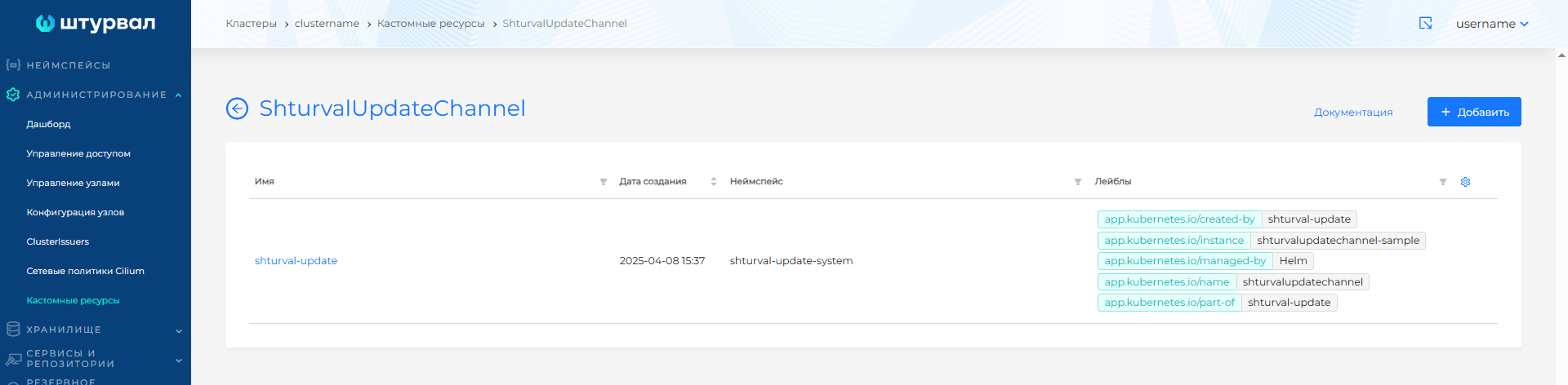
- Expand the
update.shturval.techAPI group and open ShturvalUpdateChannel. Open the shturval-update custom resource manifest, run validation without changes, then click Save.
Screenshot

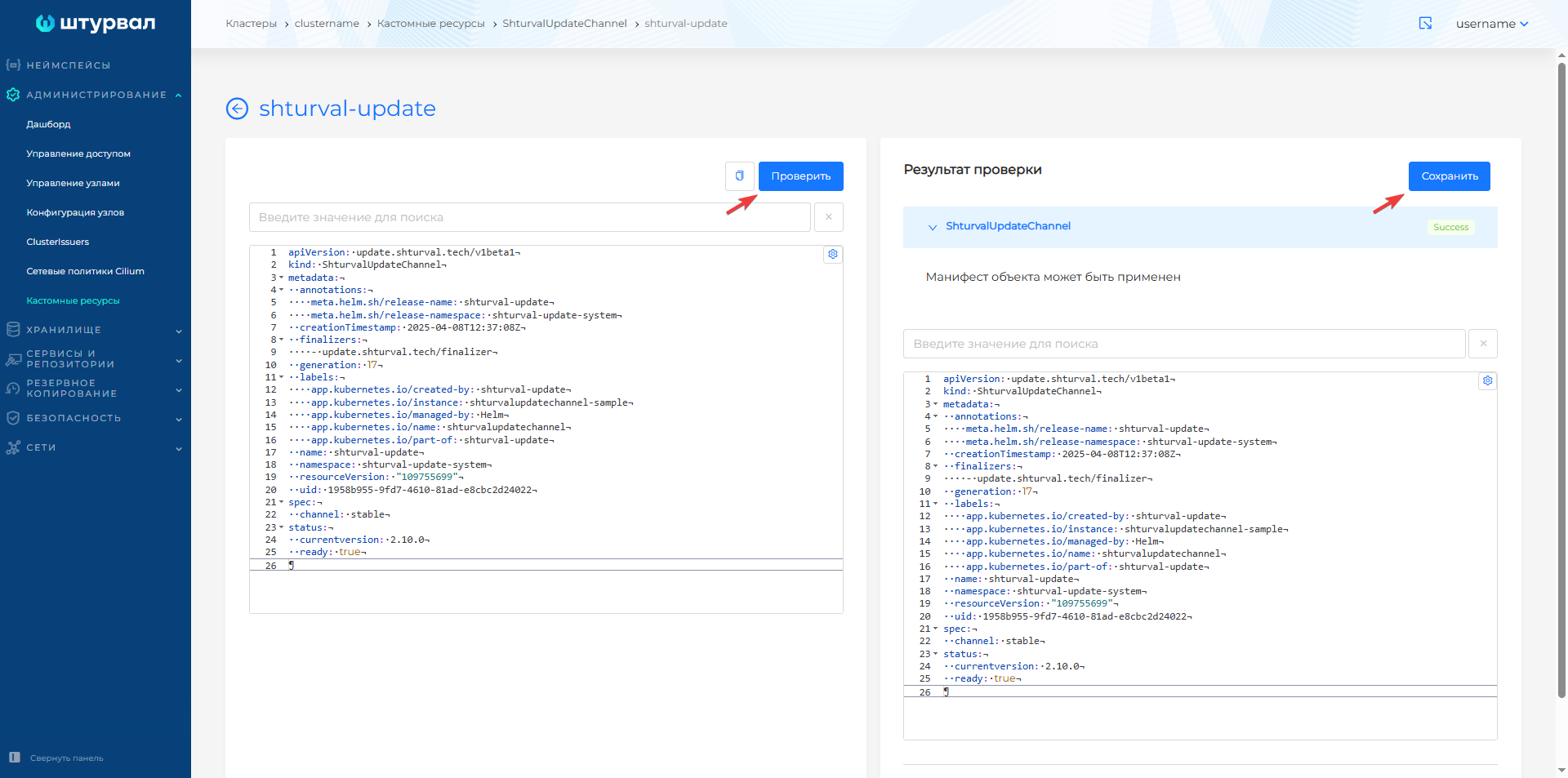
After restarting the custom resource, you can proceed to cluster update.