IP address pool
An IP address pool is a range of IP addresses. IP pools simplify assigning the cluster API server address and Ingress VIP when deploying clusters with vSphere, oVirt, and Shturval v2 providers. IP pools automate IP availability checks, so lists for the cluster API server and Ingress contain only free IP addresses.
Screenshot
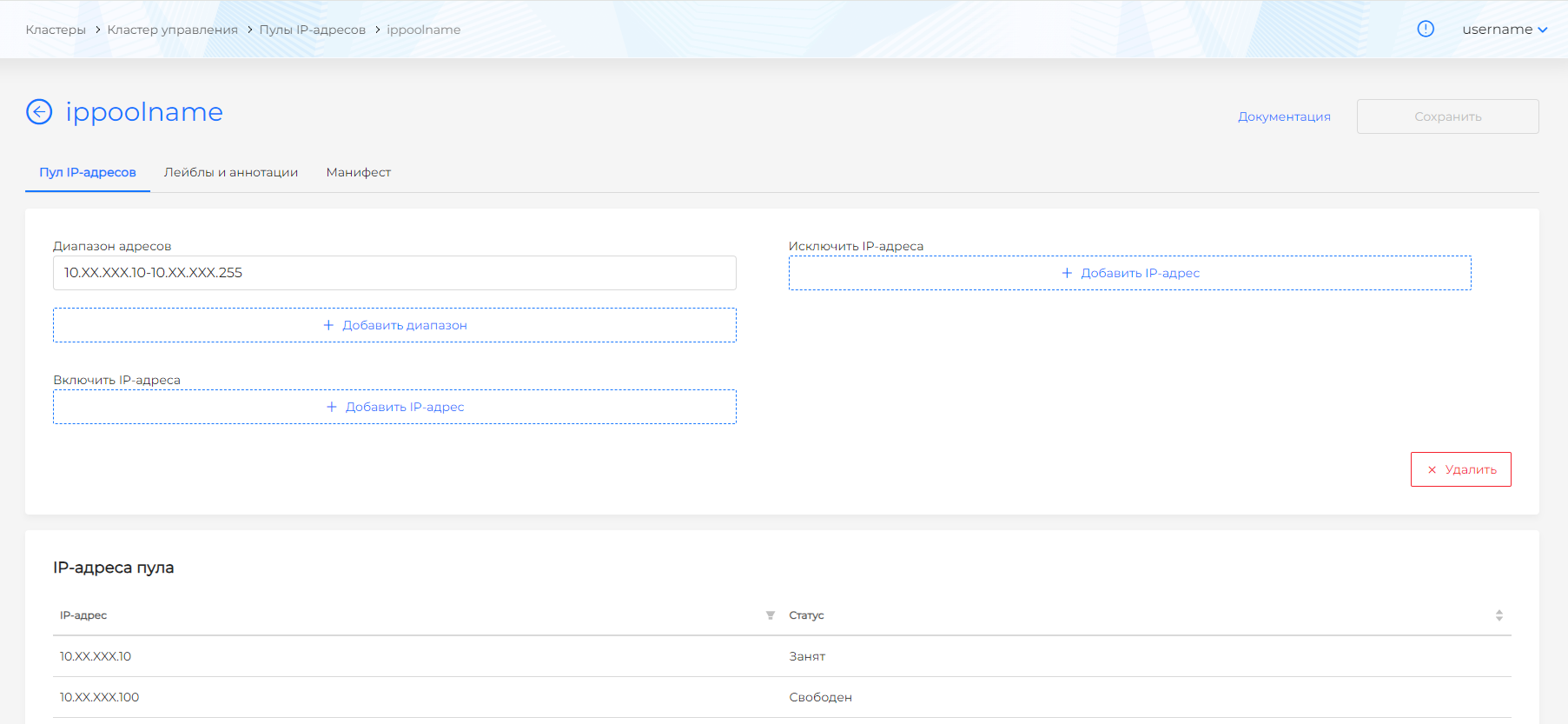
Note! There is no reservation mechanism. The pool shows status and provides IPs free at request time. An IP may be free during cluster configuration but occupied when cluster creation starts; in that case deployment fails. We recommend separate subnets for each management cluster and non-overlapping IP pools for different teams.
Creating an IP address pool
To configure an IP pool in the management cluster interface, go to Providers → IP address pools and click Add pool.
On the IP pool configuration page:
- Enter a pool name (required).
- Specify address ranges. Add as many IP ranges from your network as needed.
- Include additional IP addresses in the pool range if needed.
- Specify IP addresses that must not be available in the pool.
- Add labels and annotations if needed.
- Save the IP pool configuration by clicking Save.
After adding an IP pool, you can view pool information, change configuration, or delete the pool.
Managing an IP address pool
To select and assign IP addresses for the cluster API server and Ingress when configuring a cluster, bind the IP pool to a provider instance.
One IP pool can be bound to multiple providers. See provider pages for adding an IP pool to a provider template:
Assigning API server and Ingress VIP addresses is described on cluster creation pages for providers:
Editing an IP address pool
To edit an IP pool, open the pool page. You can view and edit pool configuration and see assignment status (free, in use) for each IP in the table.
To adjust the number of pool IP addresses, you can:
- add a new address range;
- change the current range;
- add additional IP addresses to the pool.
Exclude IP addresses regardless of assignment status if needed. Save changes by clicking Save.
You can change an IP pool with a YAML manifest. Go to the Manifest tab and edit. After editing, click Validate; the validation result appears on the right. Expand the result block to see the full manifest.
Screenshot
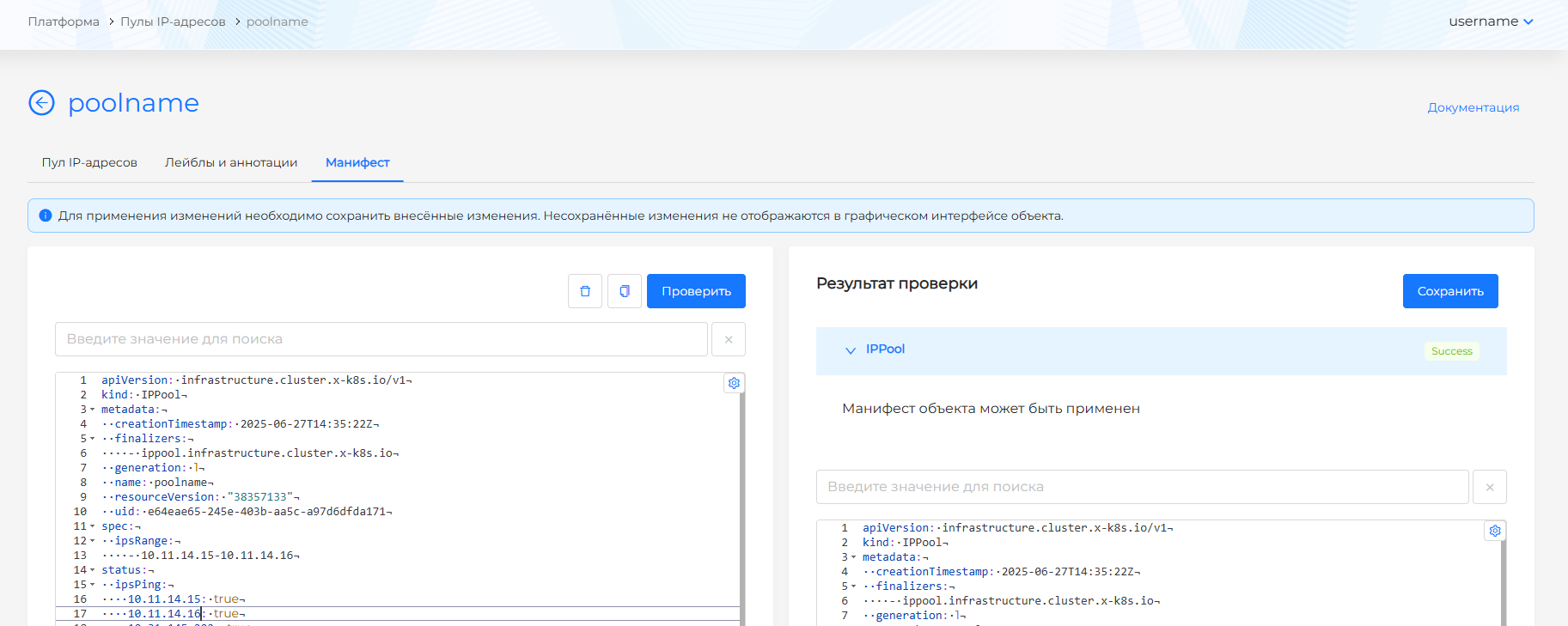
You can delete an IP pool from IP address pools, from the pool view on the IP address pool or Manifest tab. Deleting or reconfiguring a pool does not affect IPs already assigned from that pool. Removing assigned IPs from the pool does not change clusters where those IPs were assigned.