Hosts
To add host(s) to a Shturval v2 provider instance, in the Hosts block click +.
Screenshot
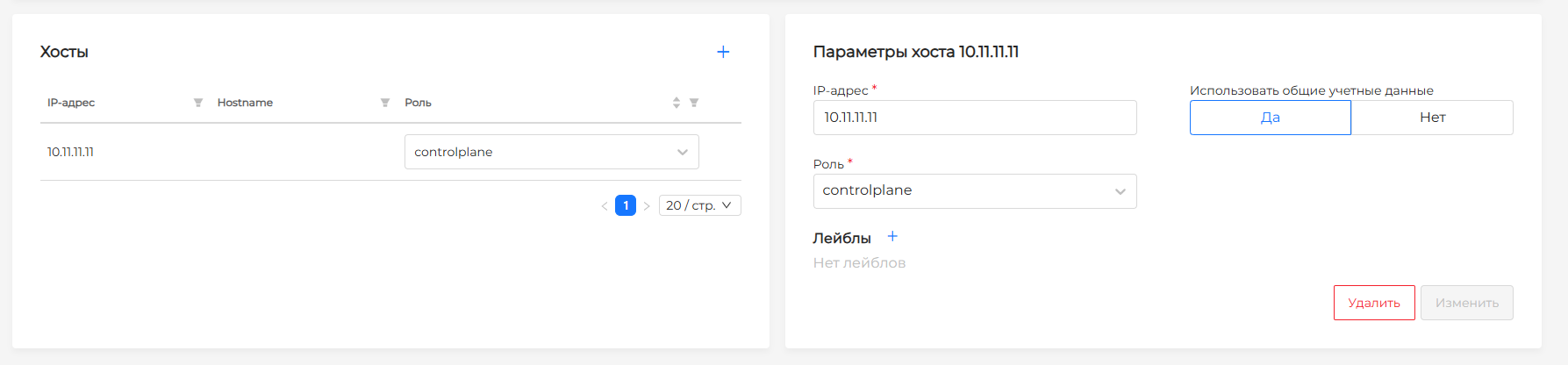
On the right side of the screen:
- enter the host IP address or FQDN;
- specify a role for hosts. The role is added as a host label; for example, role other becomes label role:other. You can choose a recommended host role (controlplane, workers, infra, ingress, other) or define a new one. Enter the role name in the field to assign it to the host. Note! Creating and assigning a host role via label in the GUI is not supported.
- you can set labels to select hosts when creating a cluster. Labels for network interface, host name, OS type and version, provider instance name, CPU, memory, and disk parameters are created automatically.
- you can configure SSH credentials separately for the host. Set Use shared credentials to No, specify the username, and provide the private key by uploading a file or pasting text.
Screenshot
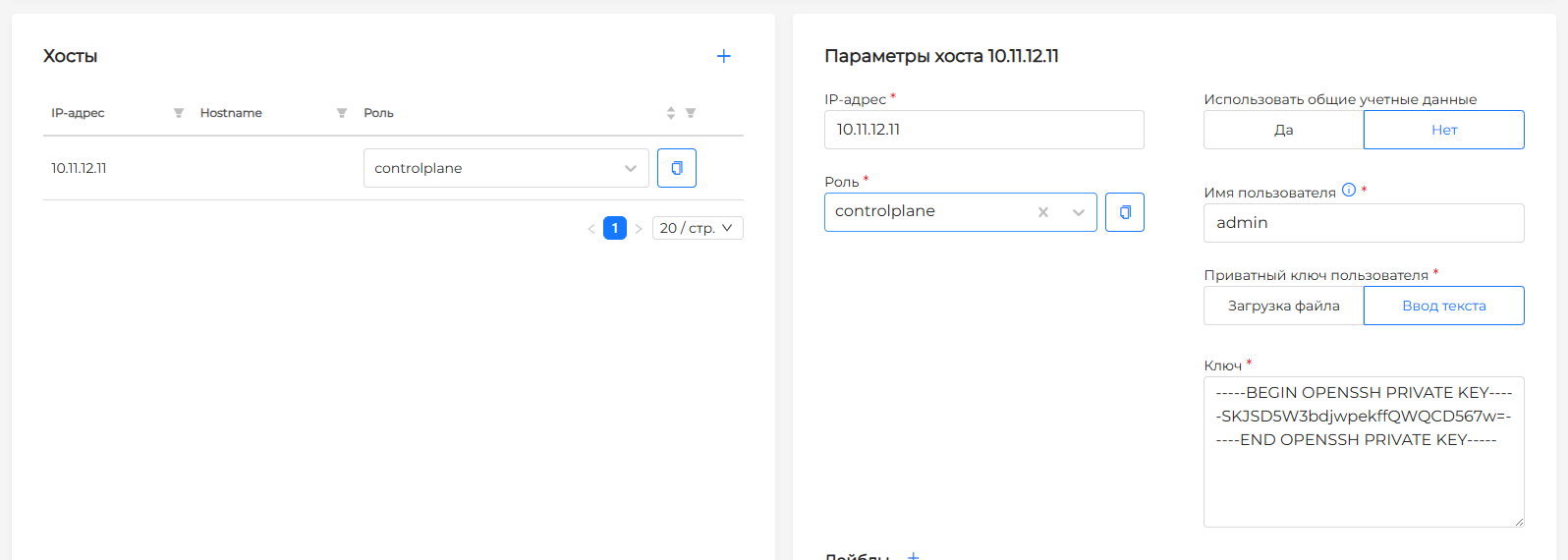
When creating a cluster or scaling a node group, host roles let you select host roles or specify roles in a selector. Note!
- If node groups have no host role or host label selector, any available hosts can join those groups.
- Label selectors use AND logic. The selected object must have all specified labels.
Added hosts appear in the host list in the lower left. Each host shows IP address, hostname, role, and status. You can change a host role if it is not yet attached to a cluster.
View
Depending on provider processing, a host can have these statuses:
- In use: host is attached to a cluster and cannot be attached or modified.
- Free: ready to join a cluster.
- Error:
- machine has invalid configuration and cannot join. For example, insufficient resources (CPU, memory). Client cluster system requirements are on Requirements.
Screenshot: invalid CPU configuration example
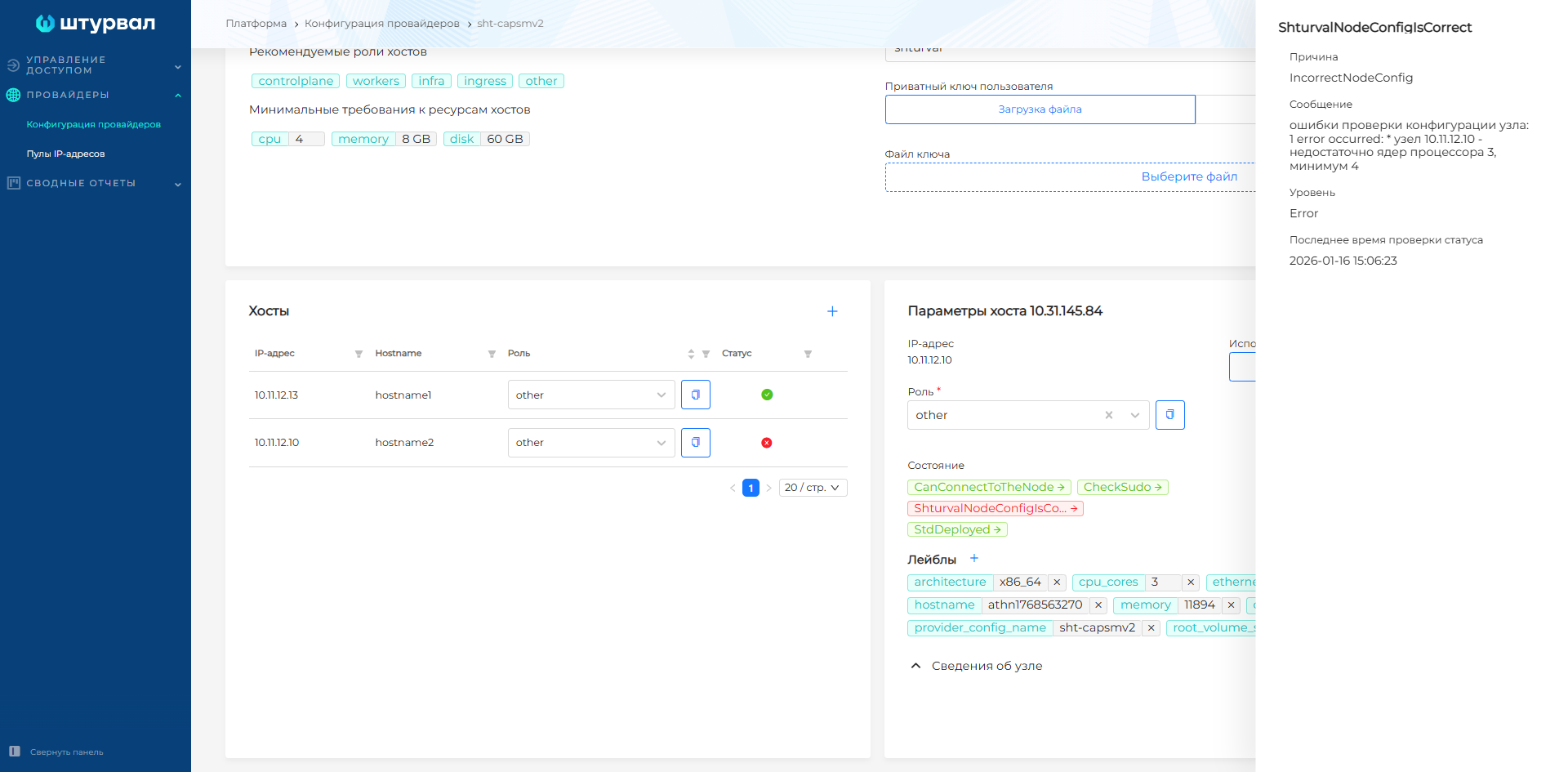
- provider cannot connect to the host with the specified user and private key. The host may still be attached to a cluster. Verify user credentials;
- the user in the provider configuration lacks sufficient SSH command permissions.
- Not created: provider received no response from the machine. Possible if the network with the host IP is unreachable or the address is invalid.
- Undefined: host reconciliation is not complete. After reconciliation, the status becomes one of the values above.
See host details for more information. Click the host row. If the host is not in use, you can delete it or edit:
- role;
- connection credentials;
- host labels.
When a host is in MachineAttached state (attached to a cluster), you can change only SSH connection credentials; other parameters cannot be edited.
After the provider creates a host, you can view:
- host IP address;
- State;
- Operating system information (OS type and image);
- Kernel version;
- Architecture;
- Network interface;
- Root volume size;
- Hostname;
- Port list;
- Available compute resource information.
The provider reads this data from the host directly; it cannot be changed in the interface. It is assigned to the host as labels for selector use when adding hosts to a cluster.
Note! To change the username in credentials, you must also provide the user’s private key. Otherwise changes are not applied.
Deletion
You can delete one host or multiple hosts at once.
For single deletion:
- from the list: hover the host row, check Select for deletion in the checkbox on the left, click in Hosts.
- while viewing/editing a host: select the host and in Host parameters click Delete.
For bulk deletion, check Select for deletion for each host, then click in Hosts.
Screenshot
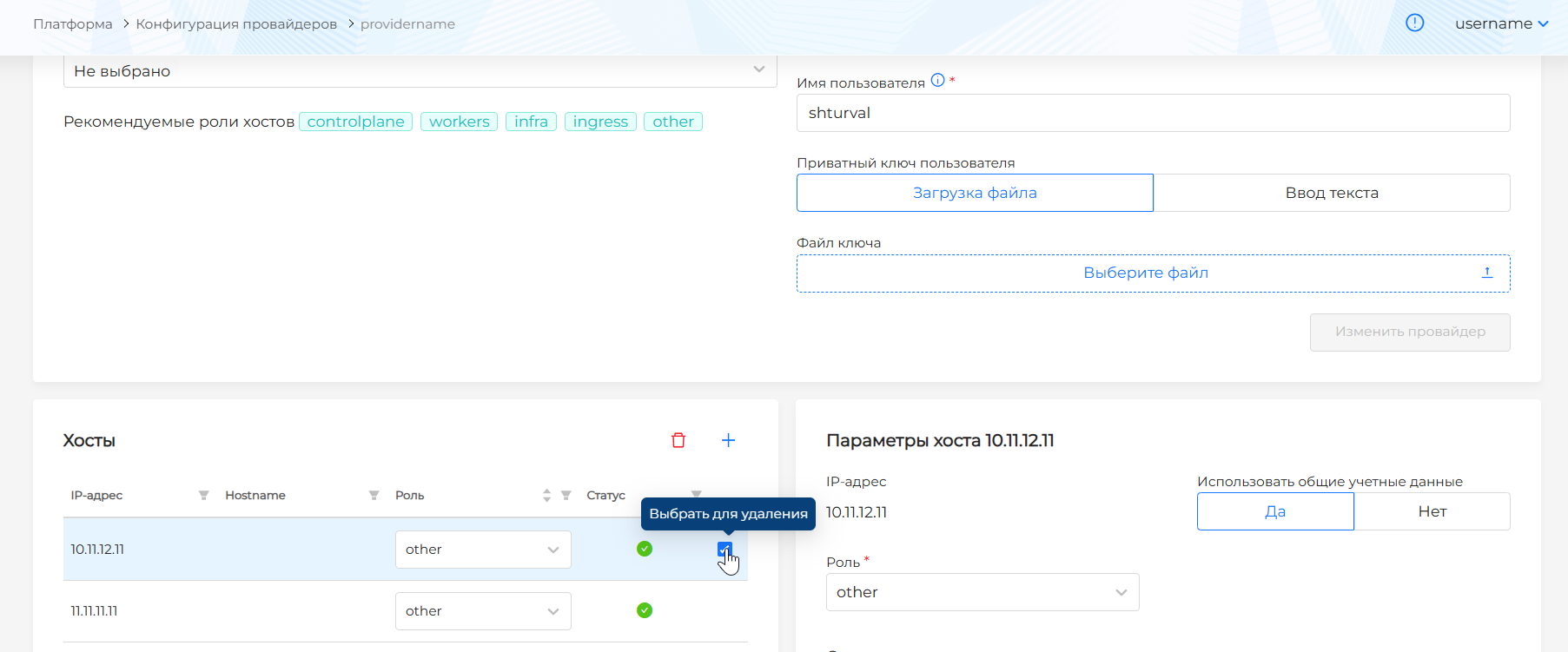
Note! You cannot delete hosts attached to a cluster.