Image analysis
In the cluster Security section, the Image Analysis page shows container image vulnerability scan results using Trivy. On this page, you can:
- download a CSV report for all namespaces, a single namespace, or according to filters configured in the table. PDF reports are available for a single namespace only.
- filter results by namespace. By default, scan results are shown for all cluster namespaces.
Screenshot
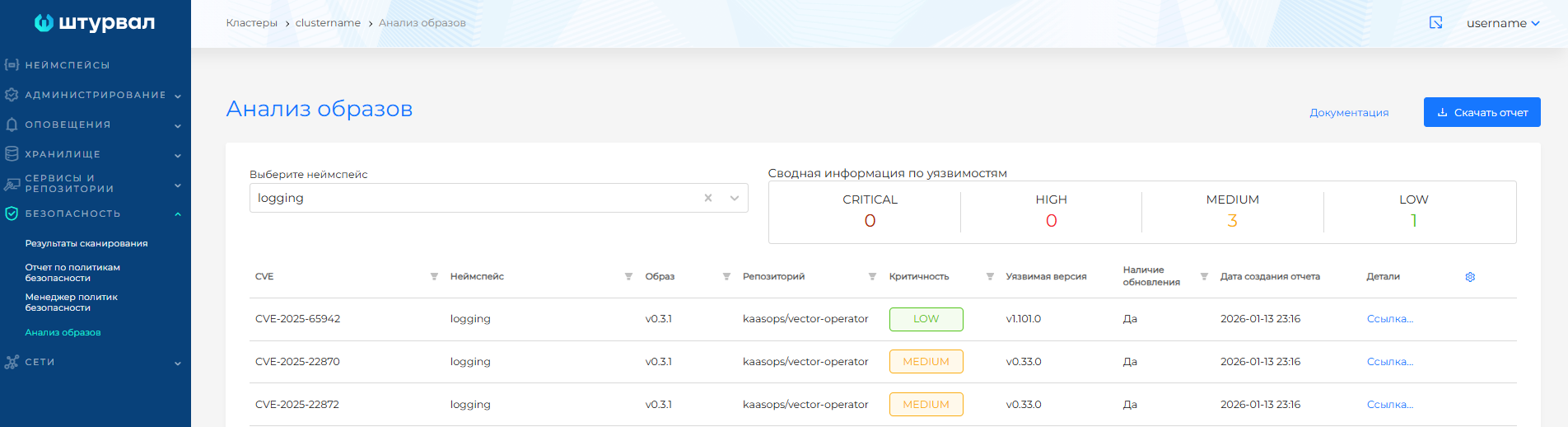
The graphical interface displays only one scan report. Each new report replaces the previous one. Summary information shows the number of vulnerabilities by severity for the selected namespace. When table filters are configured, summary counts are not updated.
Trivy vulnerability severity classification
0-2.9: Low severity. Vulnerabilities with this rating can be deferred indefinitely or mitigated by other methods such as firewalls, integrity controllers, and so on.3.0-6.9: Medium severity. Vulnerabilities with this rating may lead to a potential security breach and require additional protection.7.0-8.9: High severity. Vulnerabilities with this rating may degrade system performance and/or cause an unconditional security breach.9.0-10.0: Critical severity. Vulnerabilities with this rating may allow an attacker to gain full control of the system.
Reports may show High and Critical vulnerabilities that do not apply to Shturval platform component container images. To exclude such vulnerabilities from the report, follow the steps in the instructions.
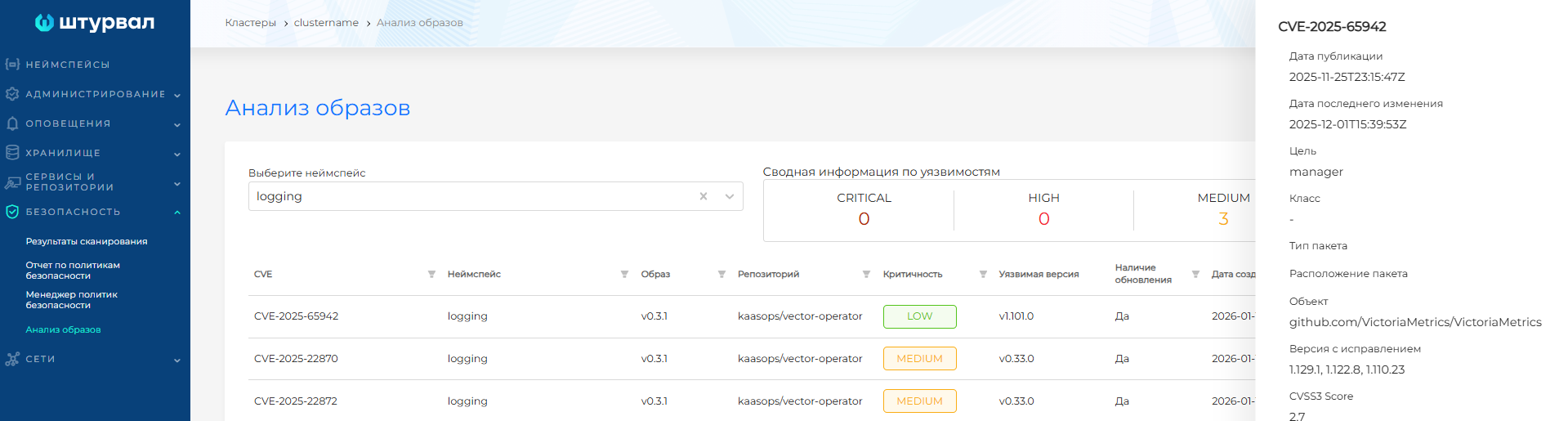
Clicking a vulnerability row opens a sidebar with additional information.
Screenshot
Remediation options
- Update vulnerable packages: Updating vulnerable packages to the latest versions can fix many vulnerabilities.
- Remove vulnerable packages: If a vulnerable package is no longer needed, remove it for additional security.
- Fix vulnerabilities in code: If a vulnerability is in application code, remediation may require code changes or new functionality.
- Temporarily disable the vulnerable component, apply a patch, or configure other protective measures.
CSV report
To open a CSV report in MS Excel:
- Download the report from the page by clicking Download report, then Download CSV. In the modal window, select the namespaces and severity levels to include in the report.
- Create a new MS Excel file and go to the Data section.
- On the left side of the control panel, select Get External Data, then From Text, select the downloaded report file, and click Import.
- In the Text Import Wizard window, select the Delimited data format and click Next.
- Select Comma as the delimiter and click Next.
- Select General as the column data format and click Finish.
Configuring the container image analysis interval
To set the container image vulnerability rescan interval and report retention period:
- Prepare a manifest for the ShturvalServicePatch (PatchSSC) object to apply to the Container image scanning module (
shturval-scanner) specification with the required parameters incustomvalues, as shown in the example below.
ShturvalServicePatch example
apiVersion: ops.shturval.tech/v1beta2
kind: ShturvalServicePatch
metadata:
  name: <resource name>
spec:
  shturvalServiceConfigName: shturval-scanner
  customvalues:
    operator:
      scanJobTTL: "<your parameter value>"
      scannerReportTTL: "<your parameter value>"
| Parameter | Description | Data type | Example |
|---|---|---|---|
metadata.name | Name of the PatchSSC resource being created | string | shturval-scanner-ttl |
scanJobTTL | Rescan interval. Default: 24 hours | string | 12h |
scannerReportTTL | Report retention period before deletion. Default: 24 hours | string | 12h |
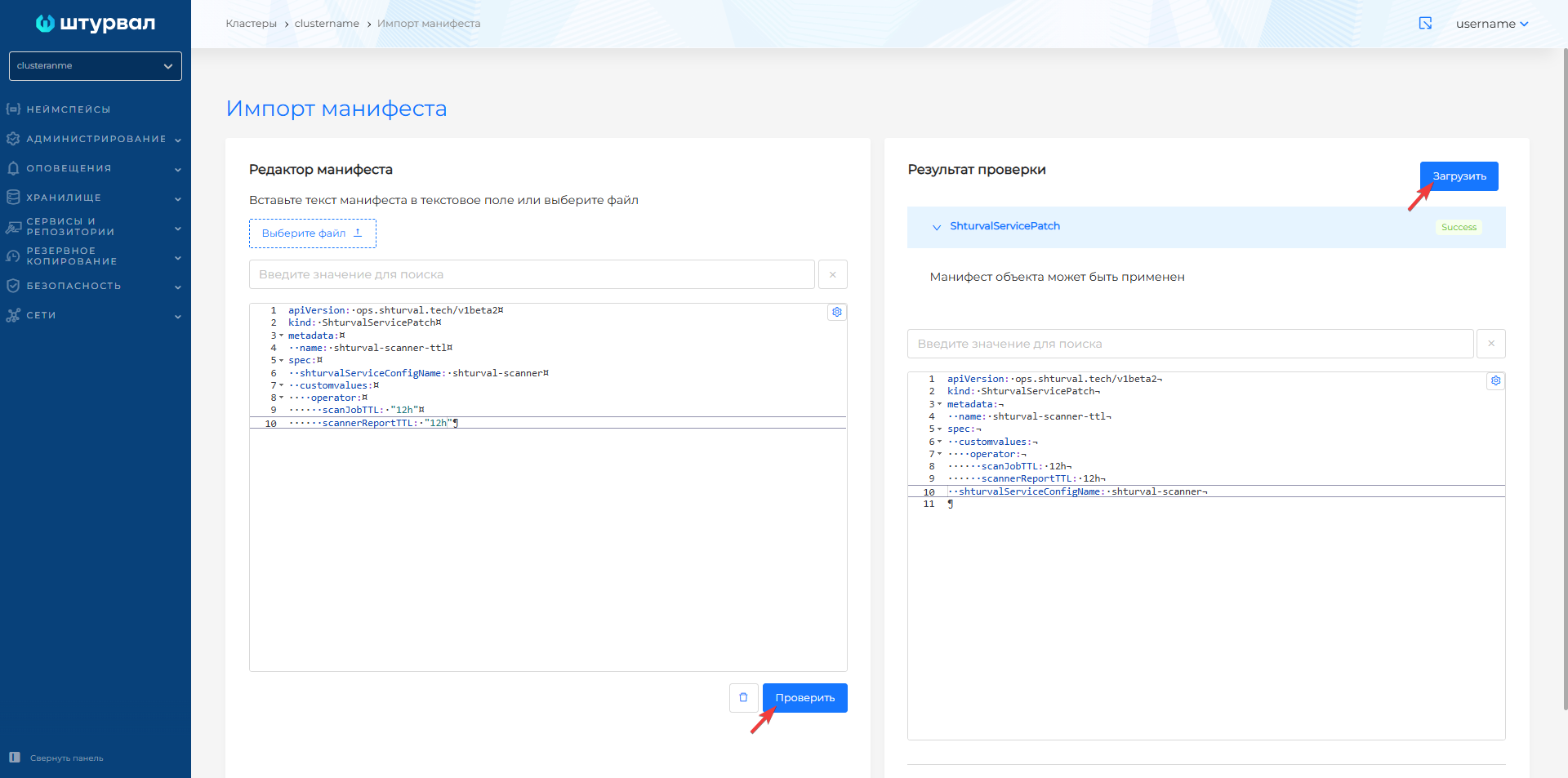
- In the graphical interface, use manifest import to load the ShturvalServicePatch into the cluster:
- Click the manifest import icon to the left of the user name. Upload the prepared ShturvalServicePatch file for
shturval-scanneror drag the manifest into the window. Verify the manifest and click Upload.
Screenshot

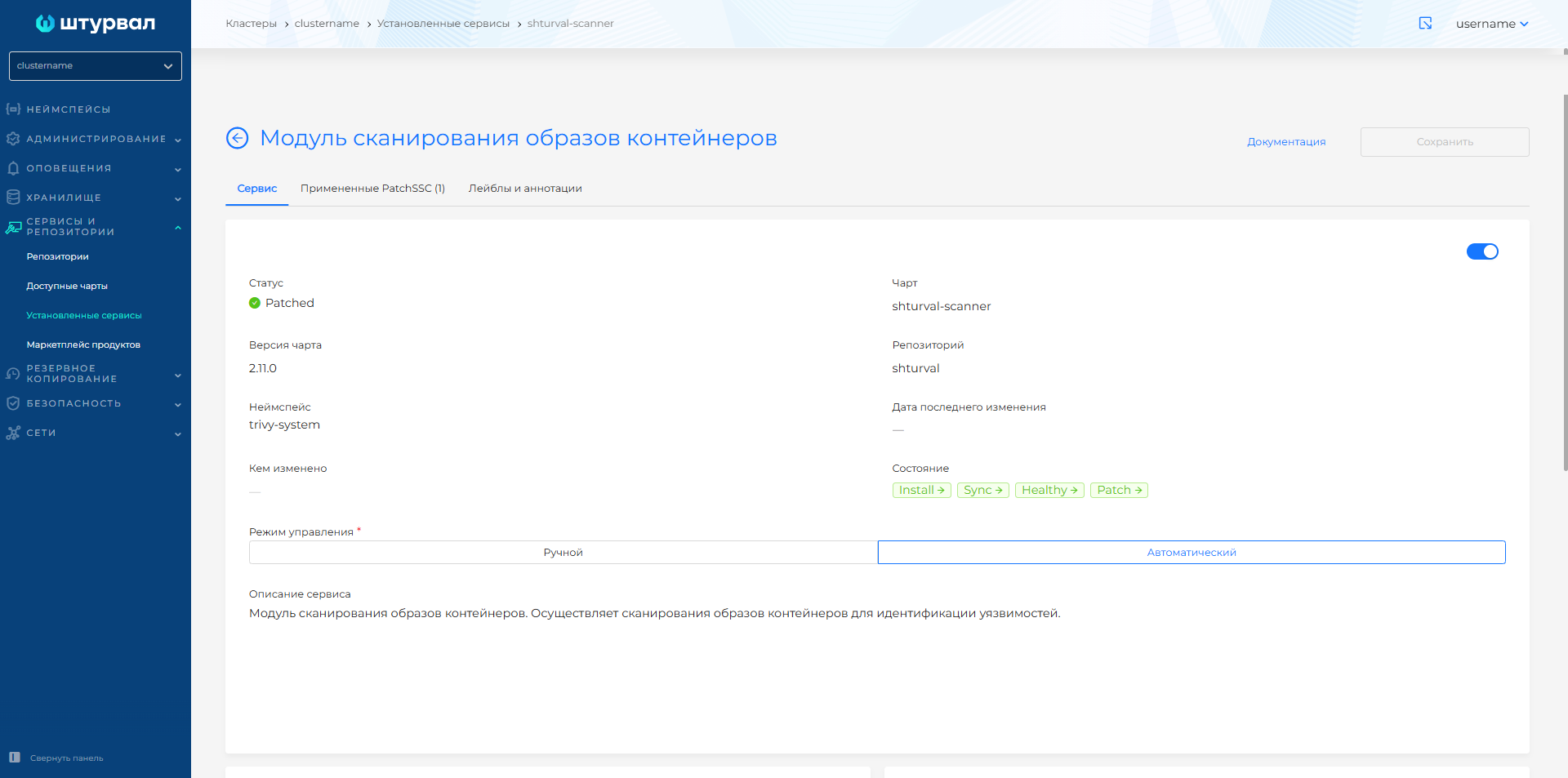
- In the cluster, go to Services and repositories → Installed services, find the Container image scanning module (
shturval-scanner), and open its management page. On the Applied PatchSSC tab, the uploaded ShturvalServicePatch is displayed. After the ShturvalServicePatch is applied, the Service tab shows the status Patched.
Screenshot