GUI
Sign in to the platform and navigate the interface.
Browser requirements
Recommended monitor resolution: 1498×906.
The GUI is supported in these browsers:
| Browser | Version |
|---|---|
| Chrome | 120–146 |
| Chrome for Android | 120–146 |
| Edge | 120–145 |
| Safari | 17–26 |
| Firefox | 122–148 |
| Opera | 107–126 |
Unsupported browsers: IE, Opera Mini, UC Browser for Android, QQ Browser, Baidu Browser, KaiOS Browser.
Access
Open the platform GUI at the management cluster URL (for example, https://shturval.<cluster-domain>). Sign in with credentials from the connected LDAP directory or external OIDC provider.
If the authentication form reappears after you enter correct credentials, see Restore GUI Login.
Platform main page
Navigation
Note: The interface adapts to your permissions: only sections and actions you can access are shown.
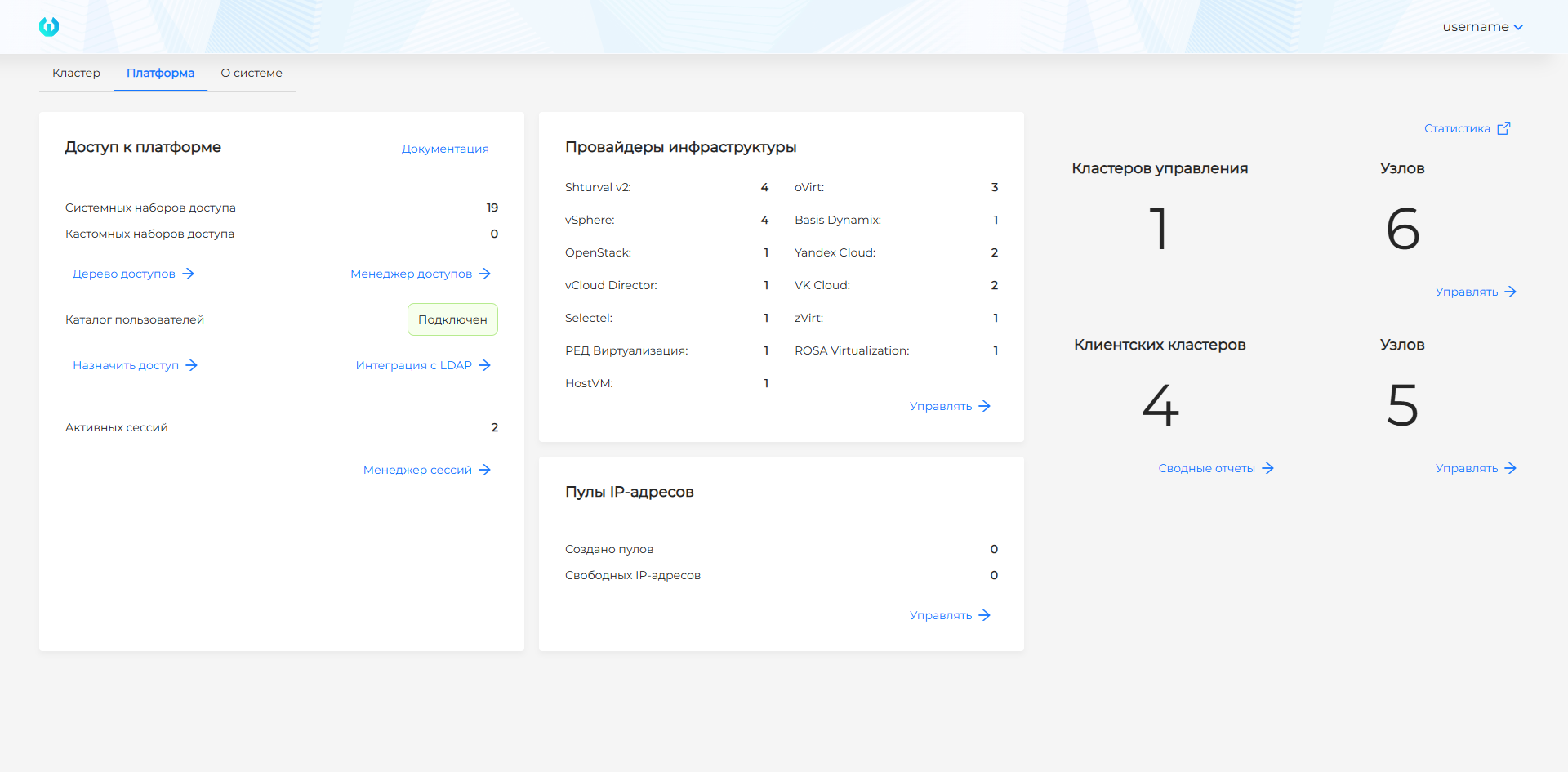
The main sections on the start page are:
- Cluster — management cluster, client clusters, and tenants;
- Platform — access rights and cluster infrastructure;
- About the system — license information, node count, platform version, open-source components used; links to Service Desk (Enterprise) or the Telegram channel (Community Edition); launch Swagger.
Platform
The Platform page shows:
- Access to the platform — number of system and custom access sets, LDAP and external authentication provider connections, active sessions; access assignment;
- Infrastructure providers — number of connected provider instances (VMware vSphere, oVirt, OpenStack, Shturval v2, Yandex Cloud, vCloud Director, Basis Dynamix);
- IP address pools — number of pools and free addresses;
- counters for management clusters, client clusters, and nodes;
- reports on cluster resources, image analysis, and security policies;
- link to Grafana (when shturval-dashboards and shturval-monitoring are enabled).
Inside the cluster
When you select a cluster, the sidebar switches to that cluster’s context. Namespaces is at the top; below it are collapsible navigation blocks. The items shown depend on your permissions and enabled modules.
On the Namespaces page, the default list separates system and non-system namespaces. The switch in the upper-right corner lets you show all namespaces on one tab. Your selection is saved.
| Block | Contents |
|---|---|
| Administration | Cluster dashboard, access control, node management and configuration, ClusterIssuers, Cilium network policies, custom resources |
| Alerts | Alert rules, silences, time intervals, routes, receivers, triggered alerts |
| Storage | PersistentVolumes, StorageClasses |
| Services and repositories | Repositories, available charts, installed services, product marketplace |
| Backup | Backup storage, backups, schedulers, restored copies |
| Security | Scan results, security policy report, security policy manager, image analysis |
| Networks | Ingress Controllers, Egress Gateway |
Blocks can be expanded and collapsed. You can also collapse the entire sidebar to maximize the work area.
If visual marking is configured for the cluster GUI, a color bar with text appears to the right of the side menu on all cluster pages. It helps distinguish production and test environments, for example. Configure it through cluster annotations on the cluster dashboard.
Inside the namespace
After you select a namespace, these namespace-scoped resources are available:
| Section | Resources |
|---|---|
| Loads | Deployments, Pods, DaemonSets, StatefulSets, Jobs, CronJobs, ReplicaSets |
| Storage | Secrets, ConfigMaps, PersistentVolumeClaims |
| Networks | Services, Ingress |
| Security | ServiceAccounts, Issuers |
| Administration | Custom namespace resources (CR), namespace access control, Kubeflow profile and Argo CD project |
Object status indication
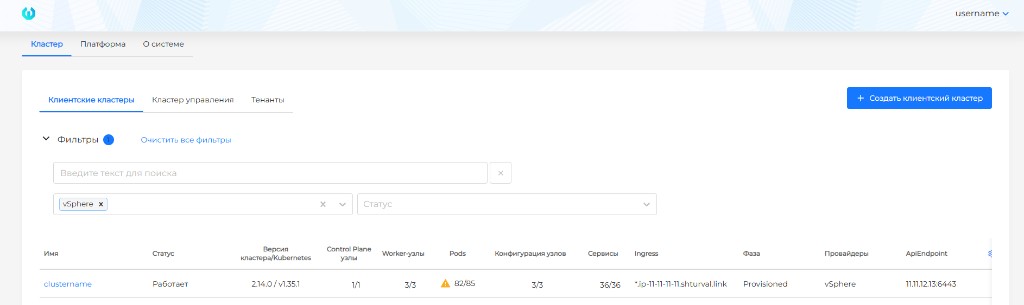
The GUI shows object status indicators. A warning icon ⚠ appears on object counters in tables and tabs. If any object is not in Ready state, the indicator appears next to the counter.
Screenshots: status indication in counters

Manifest tab
Most objects have a Manifest tab where you can view and edit the object manifest in YAML. The tab is available on the object detail page (Pod, Deployment, Secret, ConfigMap, custom resource, and so on). After making changes, run a dry-run and save the manifest.
Importing manifests
Manifest import lets you load YAML manifests for Kubernetes objects and custom platform resources (ShturvalServicePatch, VMRule, VMAlert, and so on) without using kubectl.
Where: the import icon to the left of your username on any cluster page.
Requirements: To see the import icon, you must have permission to create at least one object type in the cluster. You can only import manifests for resource types you are allowed to create.
How to use
- Click the import icon.
- Enter the manifest manually, select a file, or drag and drop it into the window.
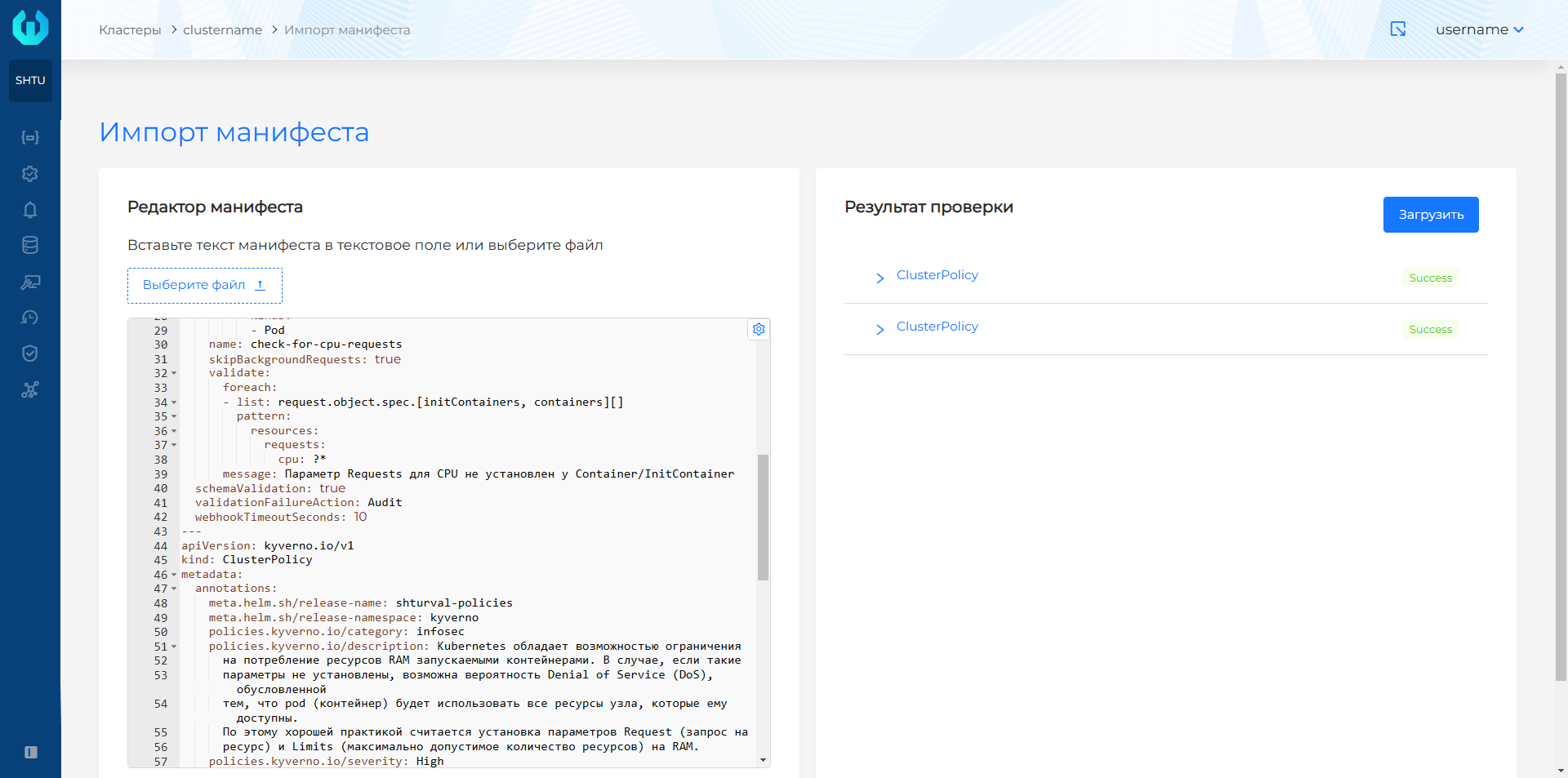
- For multiple manifests, put them in one file separated by
---. - Click Check — a server-side dry-run validates syntax and correctness.
- After successful validation, click Save to apply (equivalent to
kubectl apply).
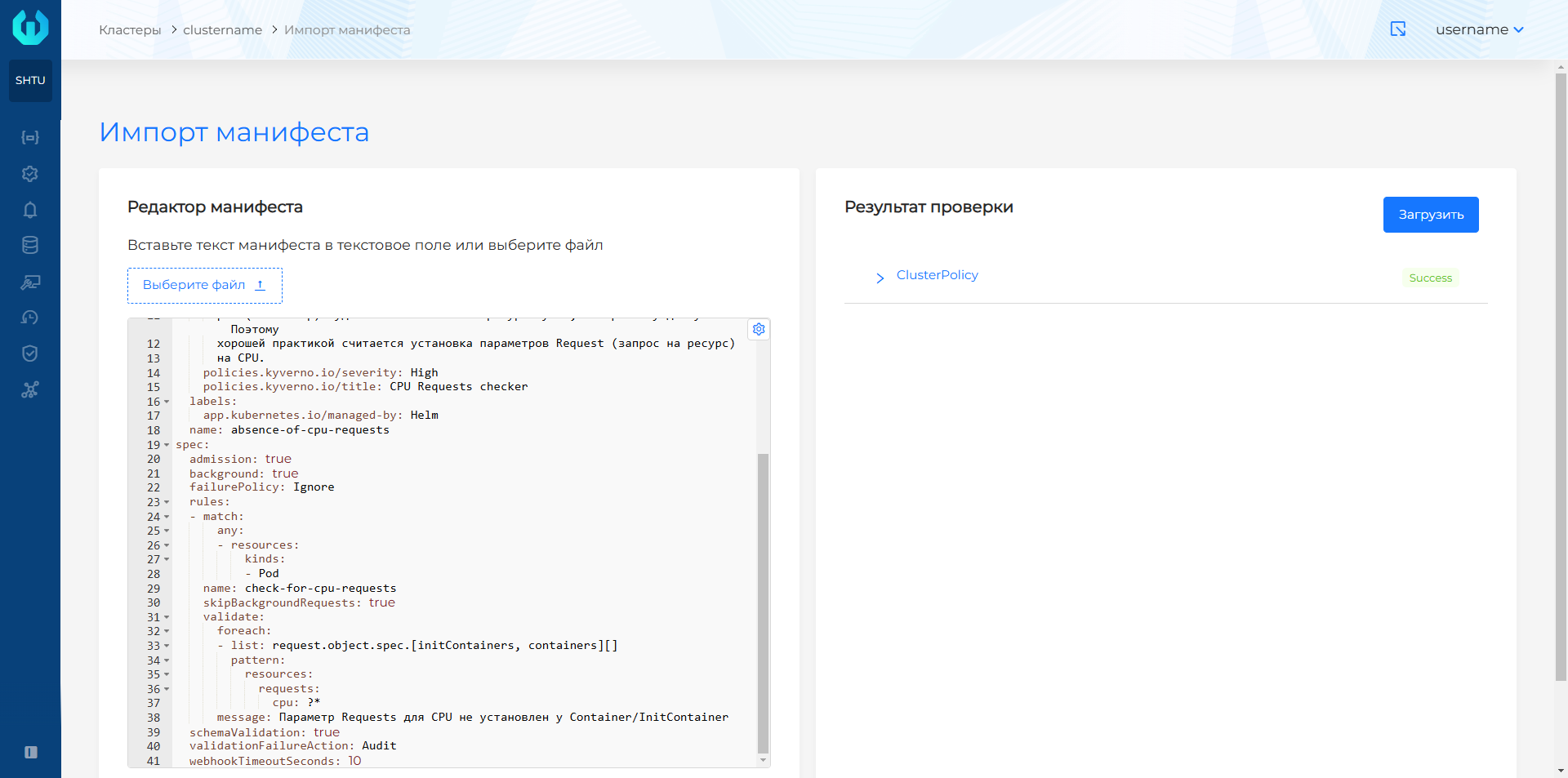
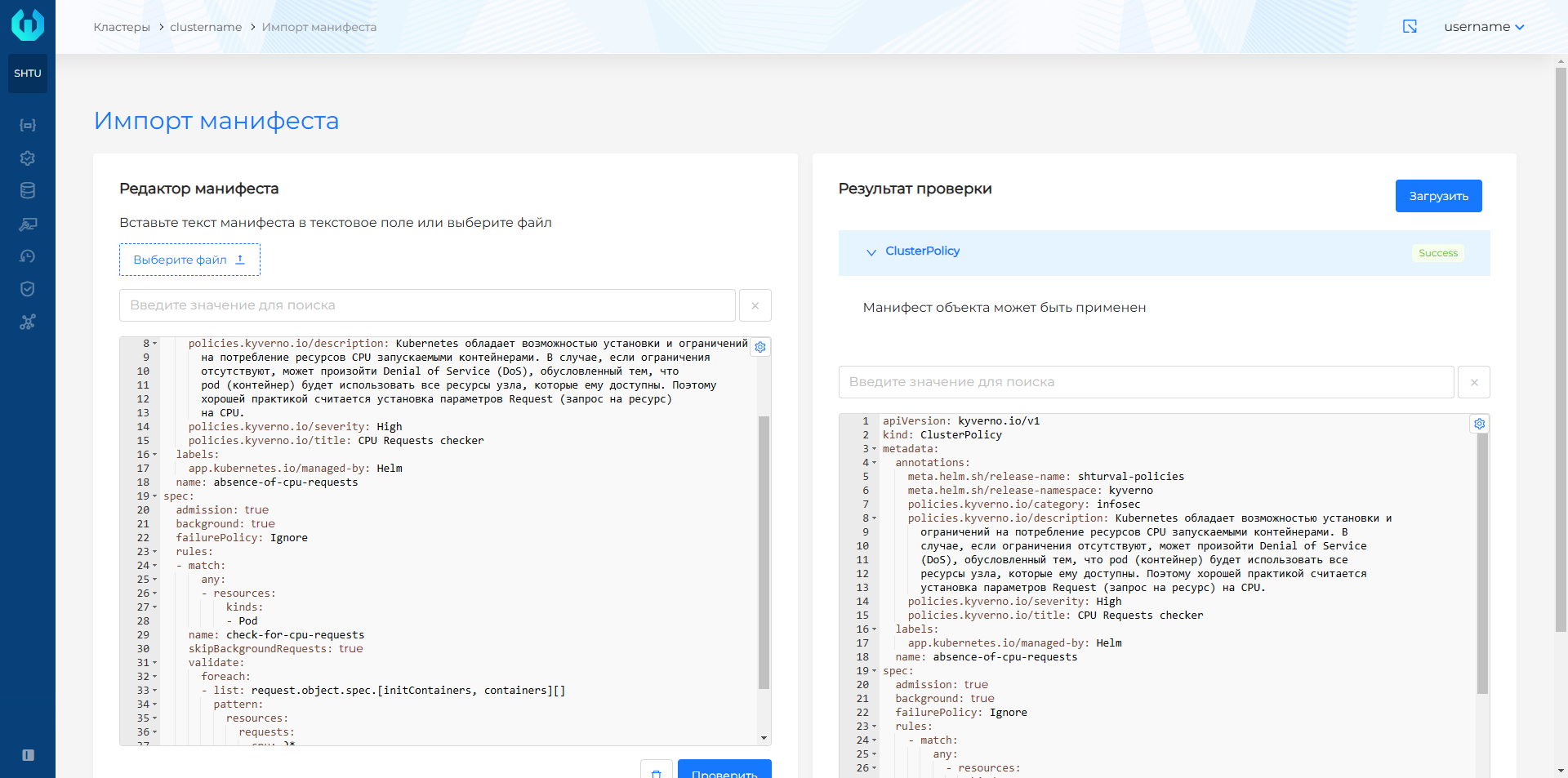
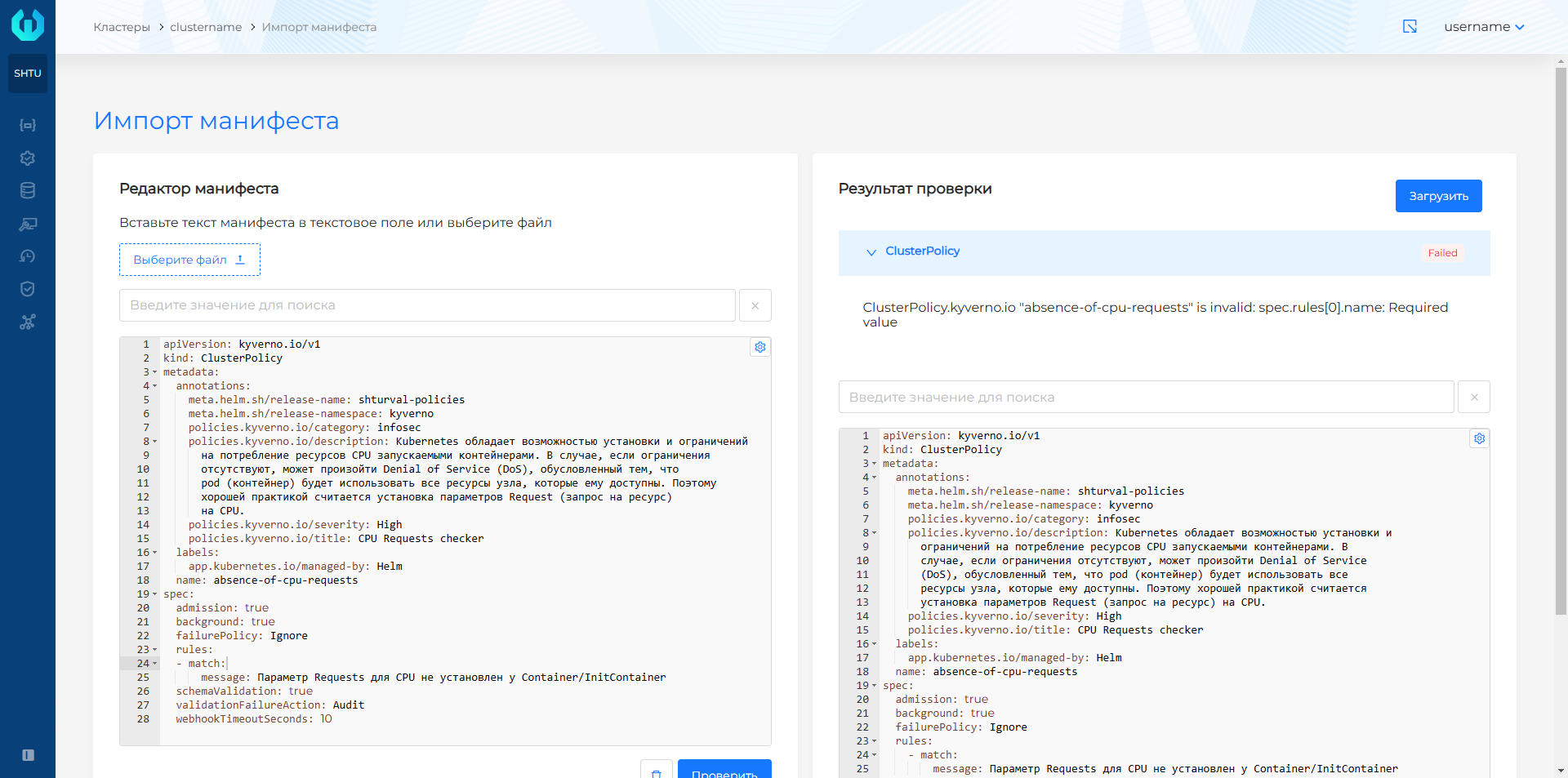
Manifests are validated automatically. The result appears on the right: success or an error description. The Save button is available only after successful validation.
Manifest import window

Uploading a file with one manifest
Uploading a file with multiple manifests
Successful validation result
Validation result with error
Tables
Table display settings
You can customize which columns appear in tables. A gear icon in the right corner of each table opens the list of available columns. Select the columns you need. Settings persist as you move between pages.
If some columns are hidden, an indicator in the format “visible columns / all available columns” appears next to the gear icon.
Screenshots: column configuration example

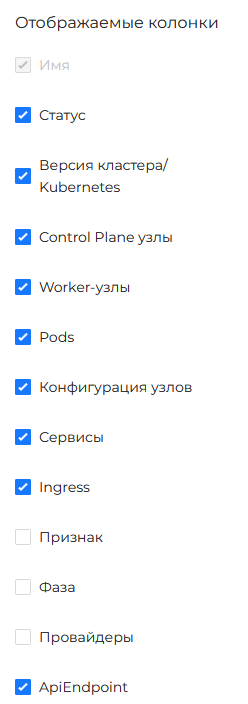
Table filters
GUI tables support filtering and sorting. Filters and sorting controls are in a Filters block above the table. By default, this block is collapsed. To change the default, update Table Filters on the User Settings page.
Each table supports text search. You can also sort in ascending or descending order, including alphabetically. Dropdown filters are available for common values such as status.
Filtering and column search apply only to visible columns. In the Filters block, you can filter objects by labels using label selectors and expressions. This filter is available only when the Labels column is visible.
By default, when you move between pages, your filter and sort settings, search text, and page size are preserved.
Screenshot: filter block example

Click Clear all filters when you finish working with filters.
User settings
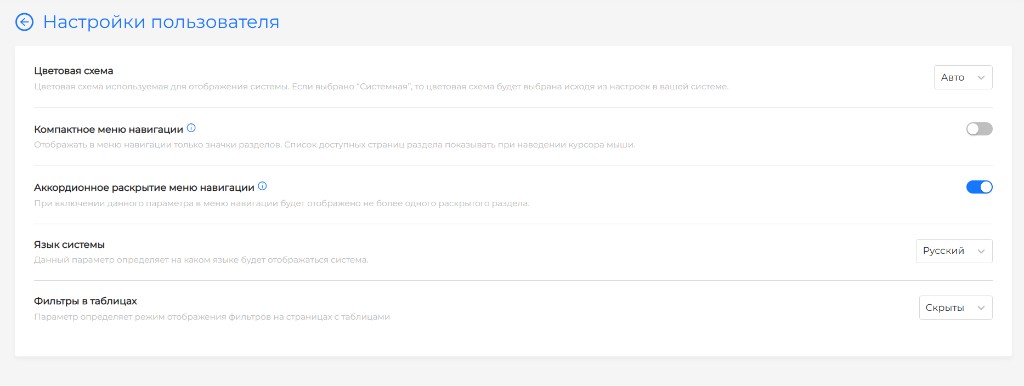
On the User Settings page, configure interface behavior and display. Open the dropdown next to your account name at the top of the screen and select User Settings.
Available settings:
- Color scheme — light or dark. Default: light.
- Compact navigation menu — when enabled, the side menu stays collapsed and section page lists expand on hover. When disabled, the menu stays expanded with section lists visible.
- Accordion expansion of the navigation menu — when enabled, only one menu section stays expanded at a time.
- Interface language — Russian, English, or Kazakh.
- Filters in tables — collapsed or expanded.
Screenshot: user settings
Error notifications
The GUI shows error pop-up notifications for 30 seconds. You can copy the error text and dismiss the notification by clicking it.