How to set up local alerting in a cluster
Non-centralized alerting in client and management clusters.
By default, the Shturval platform uses centralized alerting for client and management clusters: metrics and alert rules live in the management cluster. With centralized alerting, you can configure alert rules from the cluster GUI.
If the management cluster is unavailable, centralized alerting is disabled, or you do not need it, configure local alerting in the cluster.
In the client cluster
Step 1. Prepare ShturvalServicePatch
Prepare a ShturvalServicePatch for the monitoring module control component (shturval-metrics-collector SSC) that enables local vmsingle storage and the required components, as in the example below.
Example ShturvalServicePatch
apiVersion: ops.shturval.tech/v1beta2
kind: ShturvalServicePatch
metadata:
  name: <resource name>
spec:
  shturvalServiceConfigName: shturval-metrics-collector
  customvalues:
    alertmanager:
      enabled: true
    defaultRules:
      create: true
    vmagent:
      additionalRemoteWrites:
        - url: <your parameter value>
    vmalert:
      enabled: true
    vmsingle:
      enabled: true
| Parameter | Description | Data type | Example |
|---|---|---|---|
metadata.name | Name of the created ShturvalServicePatch | string | metrics-collector-vmsingle |
additionalRemoteWrites.url | VictoriaMetrics Insert URL as specified in the pre-change specification | string | https://vminsert.clustername.ip-10-11-12-13.shturval.link/insert/2452490585/prometheus/ |
The additionalRemoteWrites.url parameter must be specified so that metrics are sent not only to the local cluster database, but also centrally to the management cluster.
Step 2. Upload ShturvalServicePatch to the cluster
Import the prepared ShturvalServicePatch into the cluster with manifest import.
Screenshot
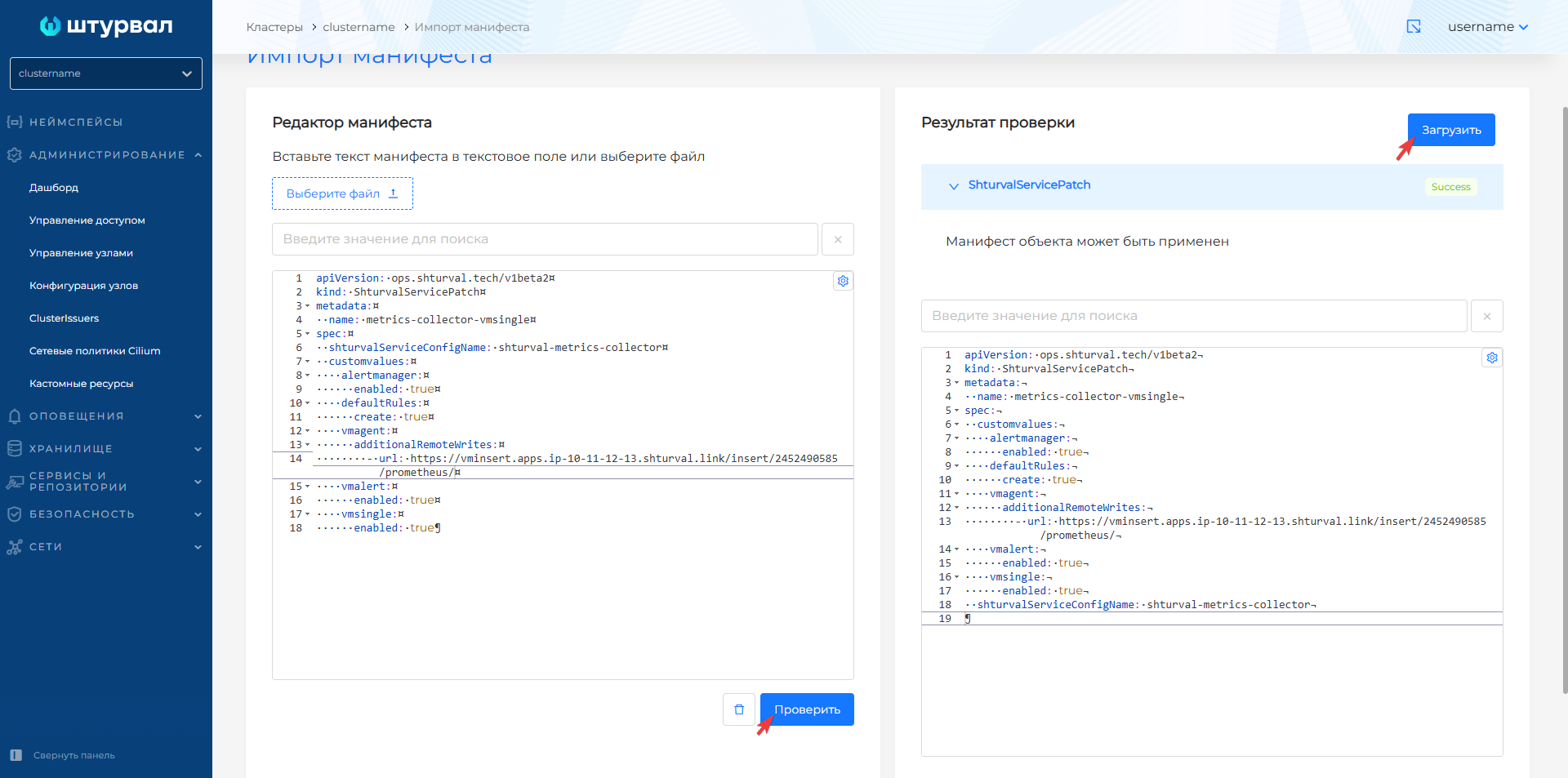
After import, allow time for changes to apply.
As a result:
- metrics are sent to the local VMSingle database and, when centralized storage is available, also to the management cluster;
- the client cluster gets custom resources in API group
operator.victoriametrics.com: VMAlertmanager, VMAlert, VMSingle, and system VMRule rules; - you can configure local alerting in the
shturval-metrics-collectorSSC.
Step 3. Example of how to configure routes and recipients
When local alerting is enabled, you cannot configure alert rules, routes, or recipients in the management cluster GUI. Configure Alertmanager via ShturvalServicePatch on the shturval-metrics-collector module in the management cluster.
Prepare a ShturvalServicePatch for the shturval-metrics-collector SSC with the required alertmanager configuration.
Example configuration in ShturvalServicePatch, where the recipient is a webhook
apiVersion: ops.shturval.tech/v1beta2
kind: ShturvalServicePatch
metadata:
  name: <resource name>
spec:
  shturvalServiceConfigName: shturval-metrics-collector
  customvalues:
    alertmanager:
      enabled: true
      config:
        receivers:
          - name: blackhole # Default recipient. Must be specified
          - name: <your parameter value>
            webhook_configs:
              - max_alerts: <your parameter value>
                send_resolved: false
                url: <your parameter value>
        route:
          routes:
            - matchers:
              - <your parameter value>
              receiver: <your parameter value>
| Parameter | Description | Data type | Example |
|---|---|---|---|
metadata.name | Name of the created ShturvalServicePatch | string | metrics-collector-config |
receivers.name | Alert Recipient Name | string | example-webhook |
receivers.webhook_configs.max_alerts | The maximum number of alerts included in a single webhook message. Alerts exceeding this value are cut off. Default 0 (unlimited number, all alerts will be included in the message) | int | 5 |
receivers.webhook_configs.url | URL endpoint for sending HTTP requests to the webhook | string | http://example-webhook.svc/webhook |
route.routes.matchers | List of recipient labels where alerts will be routed | string | app = “example-webhook” |
route.routes.receivers | Alert recipient name value | string | example-webhook |
Import the prepared ShturvalServicePatch into the cluster with manifest import.
Screenshot
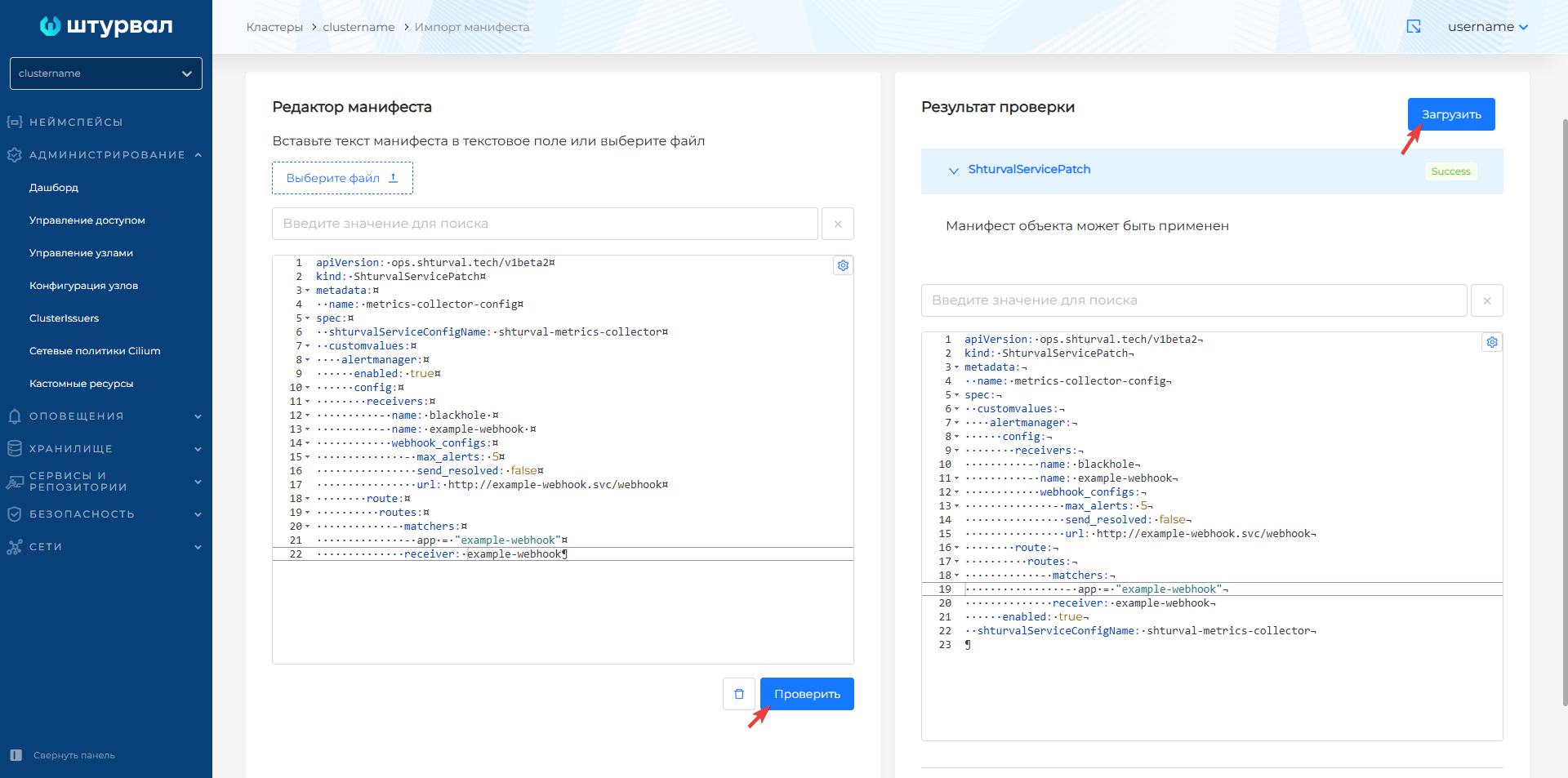
Step 4: Check the setup
Check your local alerting setup.
To check how local alerting is configured, you need to check the local storage states of the VM Single instance and VMAlertManager. To do this:
- in namespace
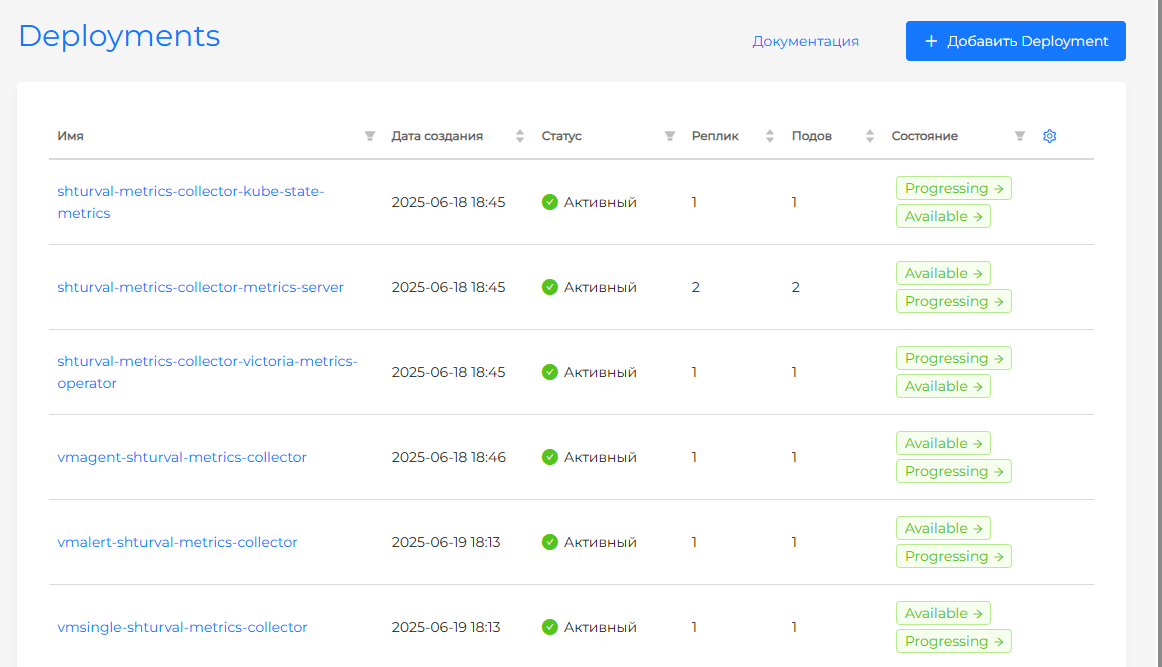
victoria-metricscheck the status of Statefulsetvmalertmanager-shturval-metrics-collector. If the status is inactive, look at the pod logs for this Statefulset. - in namespace
victoria-metrics, check the status of Deploymentvmalert-shturval-metrics-collector. If the status is inactive, look at the pod logs for this Deployment. - in namespace
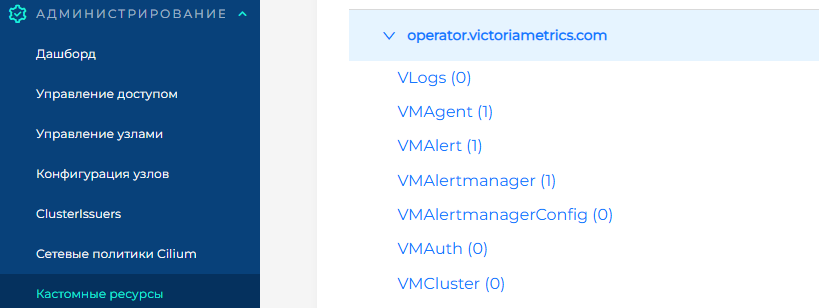
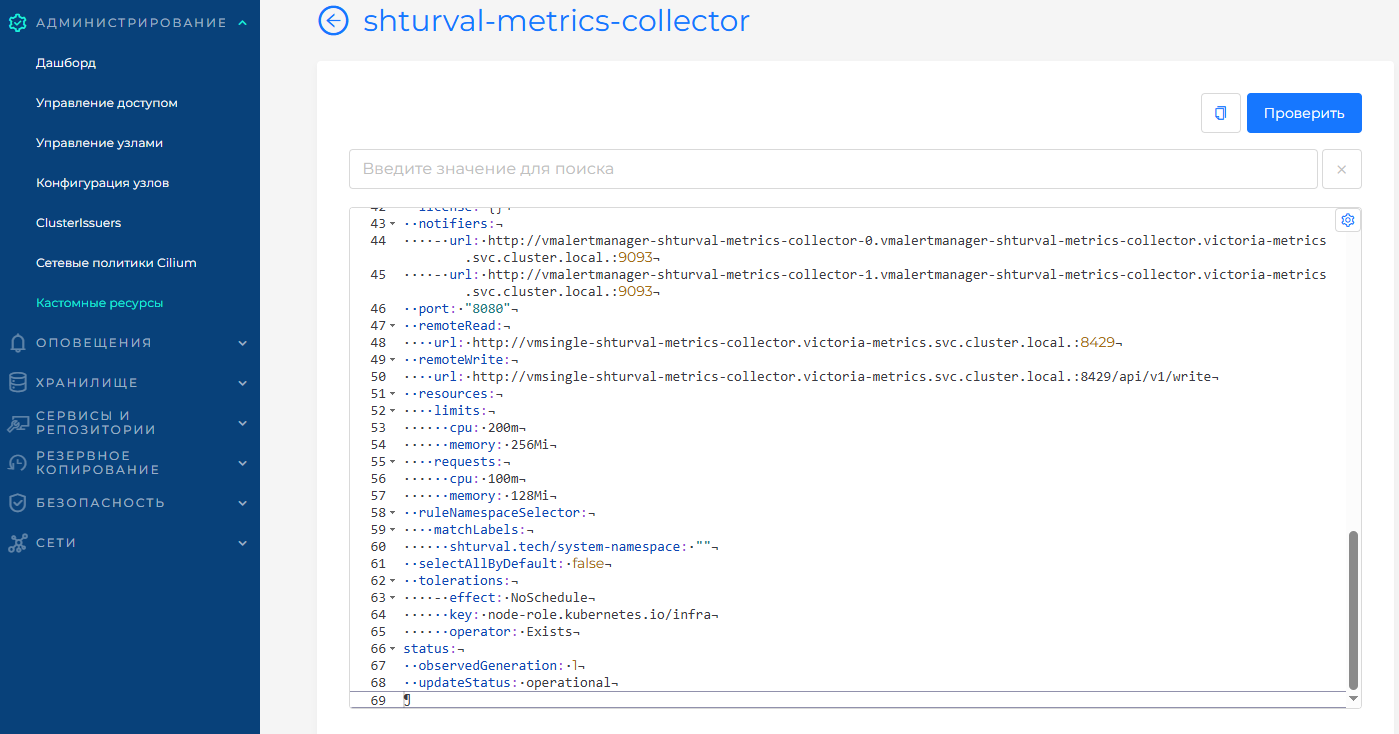
victoria-metricscheck the status of Deploymentvmsingle-shturval-metrics-collector. If the status is inactive, look at the pod logs for this Deployment. - In the cluster Administration → Custom Resources page, open API group
operator.victoriametrics.com, find VMAlertmanager, and confirmupdateStatus: operational. - On the same page, find VMAlert and confirm
updateStatus: operational.
Screenshot
In the management cluster
Configuring local alerting in the management cluster is possible using a custom VMRule resource and applying changes to the specification (ssc) monitoring module management component (VM Agent) (shturval-metrics-collector).
Step 1. Prepare ShturvalServicePatch
Prepare a ShturvalServicePatch to be applied to the Monitoring Module Control Component (shturval-metrics-collector) specification (ssc) where include the local metrics storage database vmsingle and required components as shown in the example.
Example ShturvalServicePatch
apiVersion: ops.shturval.tech/v1beta2
kind: ShturvalServicePatch
metadata:
  name: metrics-collector-vmsingle
spec:
  shturvalServiceConfigName: shturval-metrics-collector
  customvalues:
    defaultRules:
      create: true
    vmalert:
      enabled: true
    vmsingle:
      enabled: true
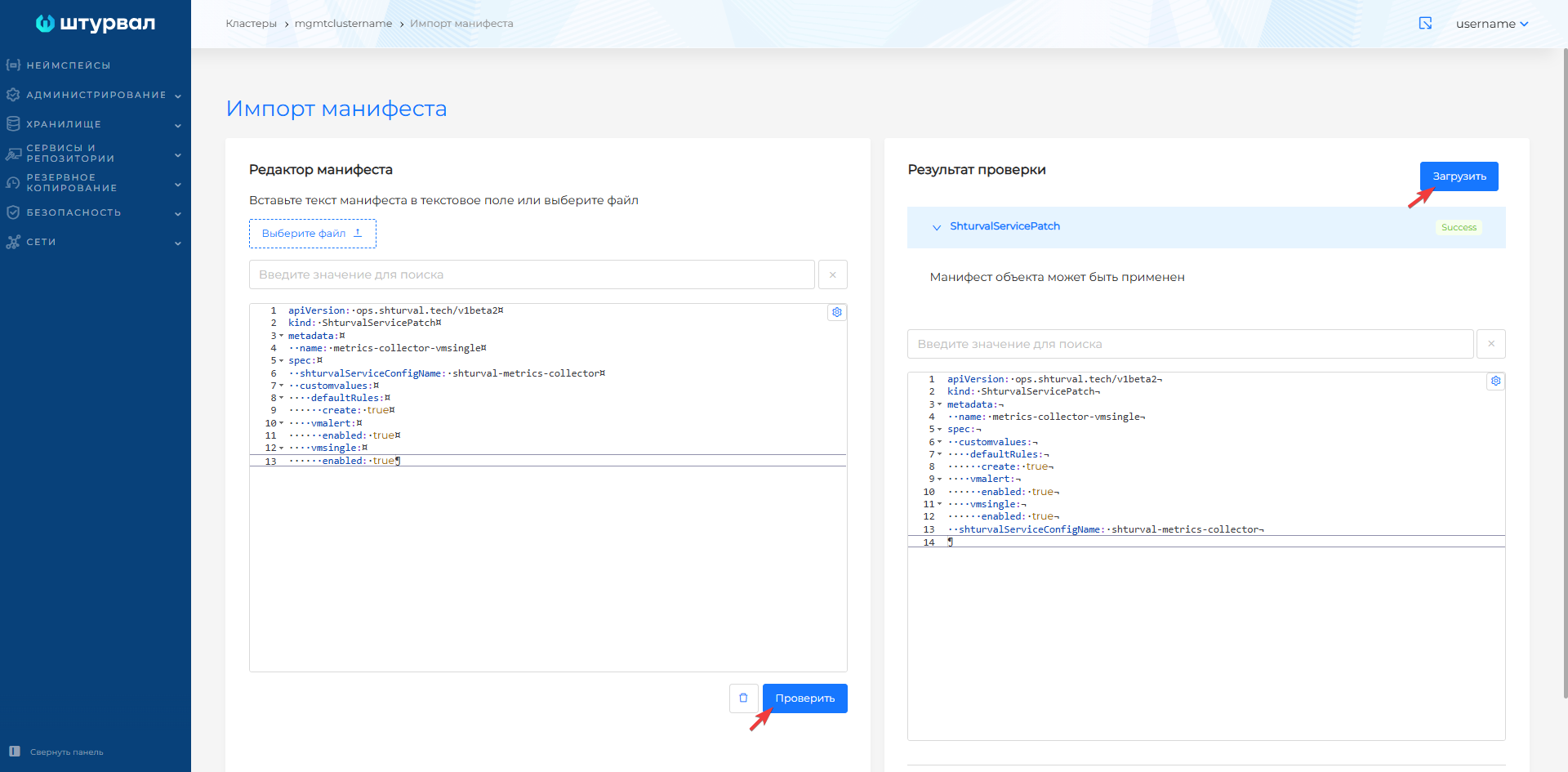
Step 2: Upload ShturvalServicePatch to the management cluster
Load the prepared ShturvalServicePatch into the management cluster using import manifests.
Screenshot
Step 3. Download VMRule
Upload the custom VMRule resource to the management cluster using manifest import.
VMRule Example
apiVersion: operator.victoriametrics.com/v1beta1
kind: VMRule
metadata:
  labels:
    cluster: clustername
    monitoringid: "0"
    role: user
  name: <your parameter value>
  namespace: victoria-metrics
spec:
  groups:
    - name: <your parameter value>
      rules:
        - alert: <your parameter value>
          annotations:
            message: <your parameter value>
          expr: <your parameter value>
          for: <your parameter value>
          labels:
            <your value>
| Parameter | Description | Data type | Example |
|---|---|---|---|
metadata.name | Rule name | string | shturval-backup |
groups.name | Rule group name | string | shturval-backup |
rules.alert | Alert name | string | VeleroBackupPartialFailures |
rules.annotations.message | Text of the message in the notification to the user | string | Velero backup {{ $labels.schedule }} has {{ $value |
rules.expr | Rule that will trigger an alert | string | velero_backup_partial_failure_total{schedule!=""} / velero_backup_attempt_total{schedule!=""} > 0.25 |
rules.for | Timeout period before sending an alert | string | 15m |
rules.labels | Labels rules | string | severity: warning |
Step 4. Set up route and recipient
Set up routes and recipients in the shturval-metrics-collector customvalues of the management cluster. The GUI does not support this for local alerting.
Once the rule is added to the management cluster (for local or centralized alerting), configure Alertmanager:
- Prepare a ShturvalServicePatch for the
shturval-metrics-collectorSSC with the requiredalertmanagerconfiguration.
Example configuration in ShturvalServicePatch, where the recipient is a webhook
apiVersion: ops.shturval.tech/v1beta2
kind: ShturvalServicePatch
metadata:
  name: <resource name>
spec:
  shturvalServiceConfigName: shturval-metrics-collector
  customvalues:
    alertmanager:
      enabled: true
      config:
        receivers:
          - name: blackhole # Default recipient. Must be specified
          - name: <your parameter value>
            webhook_configs:
              - max_alerts: <your parameter value>
                send_resolved: false
                url: <your parameter value>
        route:
          routes:
            - matchers:
              - <your parameter value>
              receiver: <your parameter value>
| Parameter | Description | Data type | Example |
|---|---|---|---|
metadata.name | Name of the created ShturvalServicePatch | string | metrics-collector-config |
receivers.name | Alert Recipient Name | string | example-webhook |
receivers.webhook_configs.max_alerts | The maximum number of alerts included in a single webhook message. Alerts exceeding this value are cut off. Default 0 (unlimited number, all alerts will be included in the message) | int | 5 |
receivers.webhook_configs.url | URL: endpoint for sending HTTP requests to webhook | string | http://example-webhook.svc/webhook |
route.routes.matchers | List of recipient labels where alerts will be routed | string | app = “example-webhook” |
receivers.matchers.name | Alert recipient name value | string | example-webhook |
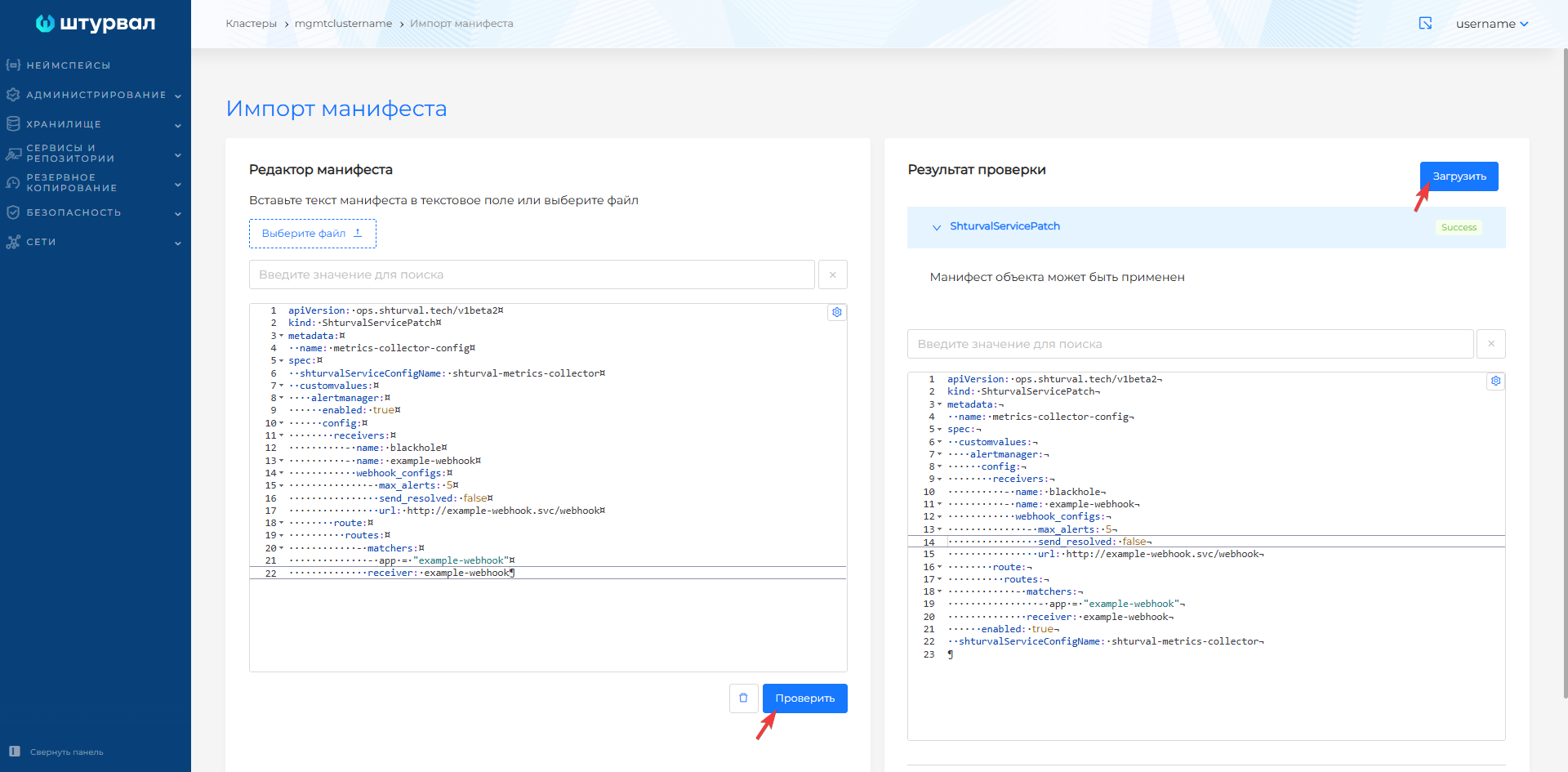
- Import the prepared ShturvalServicePatch into the management cluster with manifest import.
Screenshot
Changes may take time to apply.
Example of checking the operation of local alerting
You can check the operation of local alerting in a client cluster or management cluster, for example, using a webhook, which writes incoming messages to the container logs.
Step 1. Download demo-webhook
Load manifests of objects Deployment, Service into the cluster using manifest import.
Deployment
apiVersion: apps/v1
kind: Deployment
metadata:
  name: demo-webhook
  namespace: monitoring
  labels:
    app: demo-webhook
spec:
  replicas: 1
  selector:
    matchLabels:
      app: demo-webhook
  template:
    metadata:
      creationTimestamp: null
      labels:
        app: demo-webhook
    spec:
      terminationGracePeriodSeconds: 30
      automountServiceAccountToken: false
      containers:
      - name: demo-webhook
        image: quay.io/mgoerens/demo-webhook-receiver-alertmanager:0.0.1
        imagePullPolicy: IfNotPresent
        env:
        - name: PORT
          value: "8080"
        livenessProbe:
          httpGet:
            path: /healthz
            port: 8080
        readinessProbe:
          httpGet:
            path: /healthz
            port: 8080
        resources:
          limits:
            cpu: 10m
            memory: 30Mi
          requests:
            cpu: 10m
            memory: 30Mi
        securityContext:
          capabilities:
            drop:
              - ALL
          allowPrivilegeEscalation: false
Service — illustration
apiVersion: v1
kind: Service
metadata:
  name: demo-webhook
  namespace: monitoring
  labels:
    app: demo-webhook
spec:
  ports:
  - port: 80
    targetPort: 8080
    protocol: TCP
    name: http
  selector:
    app: demo-webhook
Step 2. Prepare ShturvalServicePatch
Prepare a ShturvalServicePatch to apply to the Monitoring Module Control Component (shturval-metrics-collector) specification (ssc), where set the required configuration to alertmanager.
ShturvalServicePatch
apiVersion: ops.shturval.tech/v1beta2
kind: ShturvalServicePatch
metadata:
  name: metrics-collector-alertmanager
spec:
  shturvalServiceConfigName: shturval-metrics-collector
  customvalues:
    alertmanager:
      enabled: true
      config:
        receivers:
          - name: blackhole
          - name: demo-webhook
            webhook_configs:
              - max_alerts: 5
                send_resolved: false
                url: http://demo-webhook.monitoring.svc/webhook
        route:
          routes:
            - matchers:
              - app = "demo-webhook"
              receiver: demo-webhook
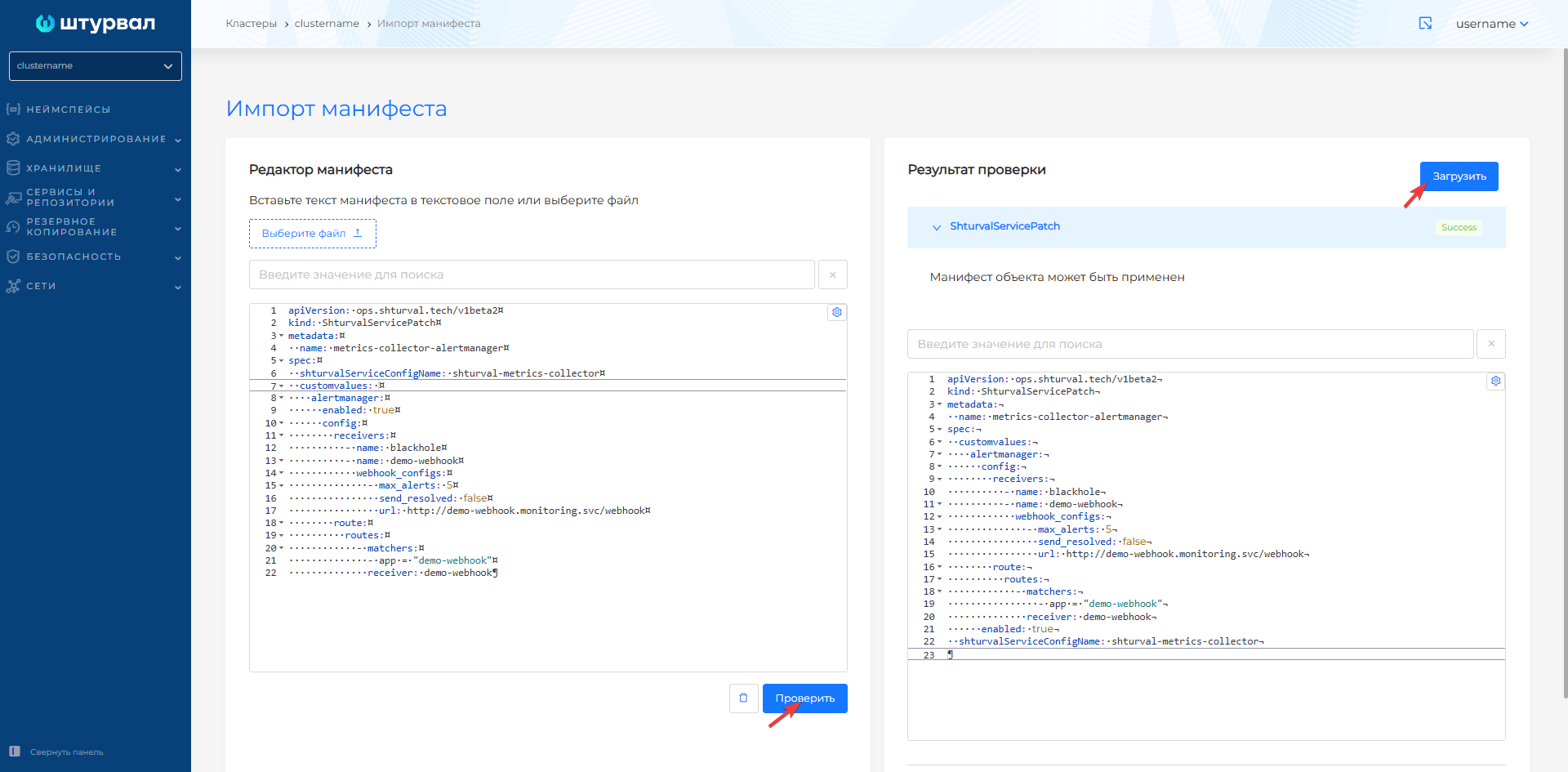
Step 3. Upload ShturvalServicePatch to the cluster
Import the prepared ShturvalServicePatch into the cluster with manifest import.
Screenshot
Step 4. Download VMRule
Load the manifest of the VMRule object into the cluster using manifest import.
VMRule for client cluster
apiVersion: operator.victoriametrics.com/v1beta1
kind: VMRule
metadata:
  labels:
    app: demo-webhook
    role: user
  name: example-alert
  namespace: victoria-metrics
spec:
  groups:
    - concurrency: 1
      interval: 1m
      labels:
        app: demo-webhook
        ruletype: alert
      name: example
      rules:
        - alert: ExampleAlert
          expr: vector(1)
      type: prometheus
VMRule of the management cluster
apiVersion: operator.victoriametrics.com/v1beta1
kind: VMRule
metadata:
  labels:
    cluster: clustername
    monitoringid: "0"
    app: demo-webhook
    role: user
  name: example-alert
  namespace: victoria-metrics
spec:
  groups:
    - concurrency: 1
      interval: 1m
      labels:
        app: demo-webhook
        ruletype: alert
      name: example
      rules:
        - alert: ExampleAlert
          expr: vector(1)
      type: prometheus
Step 5. Check webhook logs
- In namespace
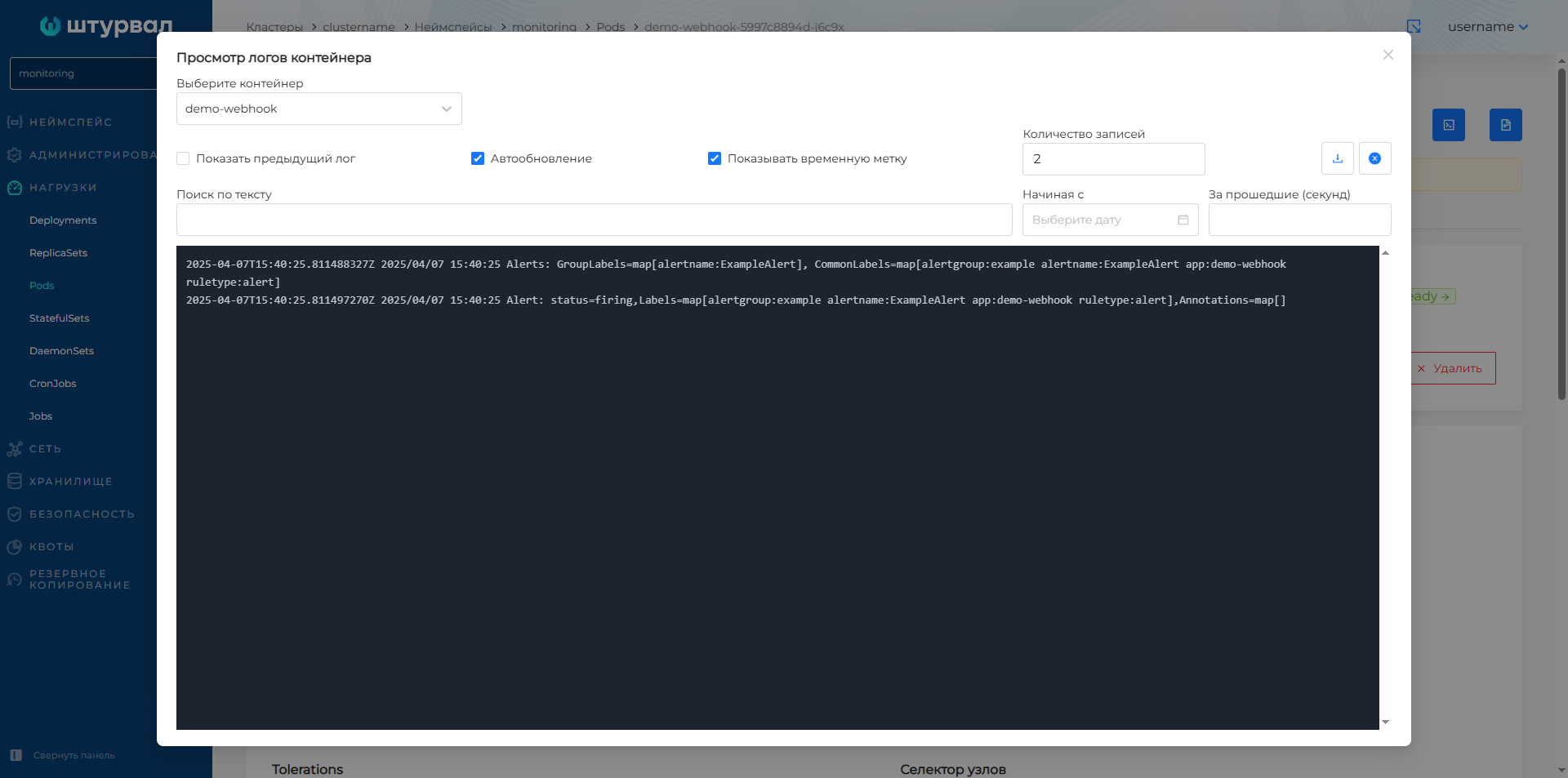
monitoring, open thedemo-webhookpod and check container logs for triggered alert messages.
Screenshot