Alerting setup
vmalert, Alertmanager, rule groups, notification channels.
Overview
Alerting (notifications) in the Shturval platform is implemented based on VictoriaMetrics AlertManager and AlertManagerConfig. The GUI has been improved to minimize the risk of configuration errors. Components used:
- vmalert (VM Alert) - evaluation of alerting rules based on metrics;
- Alertmanager - routing and delivery of notifications.
By default, alert rules are installed in clusters (see predefined rules). For custom alert or record rules, create a rule group.
By default, alerts are displayed in the platform GUI. To send to Email, Telegram, Webhook, etc., configure the following in the GUI:
- blocking notifications (inhibit);
- time intervals alerts;
- routes;
- recipients.
View triggered alerts on the Alerts → View Alerts page (see section below).
Operating conditions for alerting
Client cluster
client cluster alerting is available from the platform GUI if the services are enabled and running:
- in the management cluster Monitoring module (VictoriaMetrics)
shturval-monitoringand Monitoring module management component (VictoriaMetrics Agent)shturval-metrics-collector; - in the client cluster Control component of the monitoring module (VictoriaMetrics Agent)
shturval-metrics-collector.
Management Cluster
management cluster alerting can be configured if the services are enabled and running:
- in the management cluster Monitoring module (VictoriaMetrics)
shturval-monitoring; - in the management cluster Monitoring module management component (VictoriaMetrics Agent)
shturval-metrics-collector.
View alerts
Section Alerts → page View Alerts you can view alerts based on triggered rules.
Alerts interface
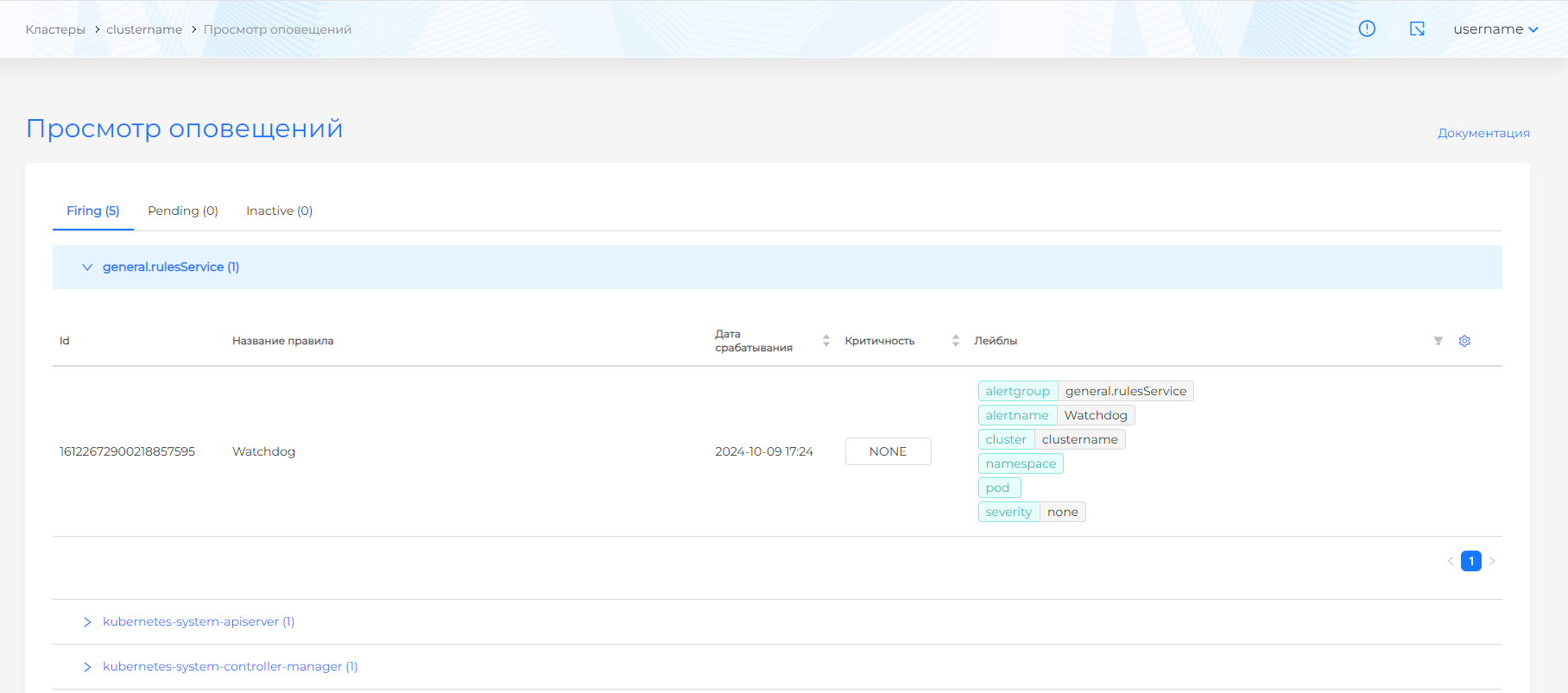
Alerts are divided into tabs:
| Status | Description |
|---|---|
| Firing | The alert is triggered—an actual violation of a condition or event. |
| Pending | The alert condition is met but the wait period (for) has not elapsed yet. |
| Inactive | The alert has not been triggered for a long time or has been disabled by the administrator. |
On each tab, alerts are divided into groups in accordance with a given expression. Each group contains an expression, a description, trigger conditions, the event counter in the group and the alerts themselves.
Alert contents:
- identifier;
- Name;
- date and time of operation;
- description;
- expressions;
- criticality.
Predefined rules
Alert rules are installed in clusters by default (VMRule with the postfix system). The list of rules is given:
- in the management cluster: Administration → Custom resources → API group
operator.victoriametrics.com→ VMRule resource with the postfixsystemin the namespace with the name of the cluster (client, management) in the management cluster; - in the documentation: full list of predefined rules.
Alert rule groups
For custom rules, a rule group is created.
- Alert Rules → + Add a group of rules.
Screenshots: notification rule groups
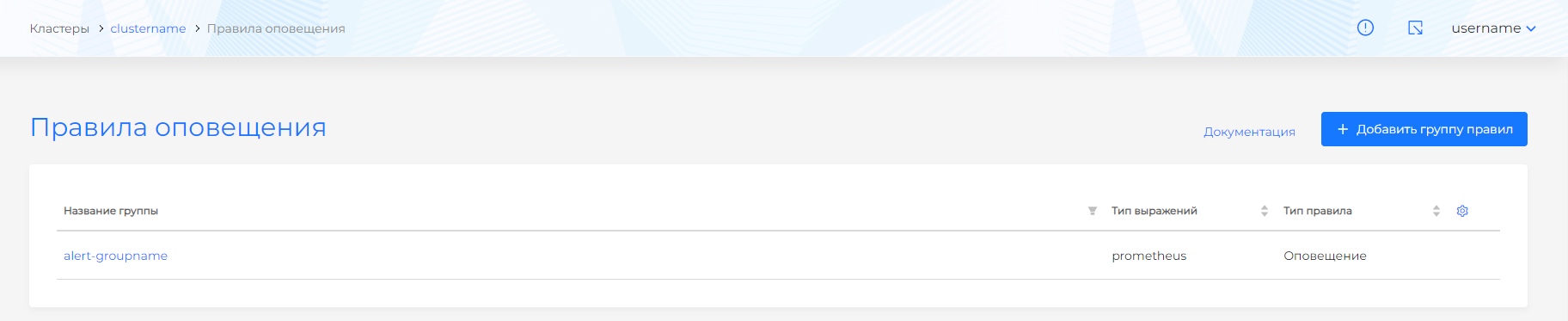
- Fill in:
- Group name (required);
- Expression type — Prometheus or Graphite (Prometheus by default);
- Rule type - alert or record;
- how often the rules are evaluated;
- how many rules are executed simultaneously in the group.
Screenshot: adding a rule group
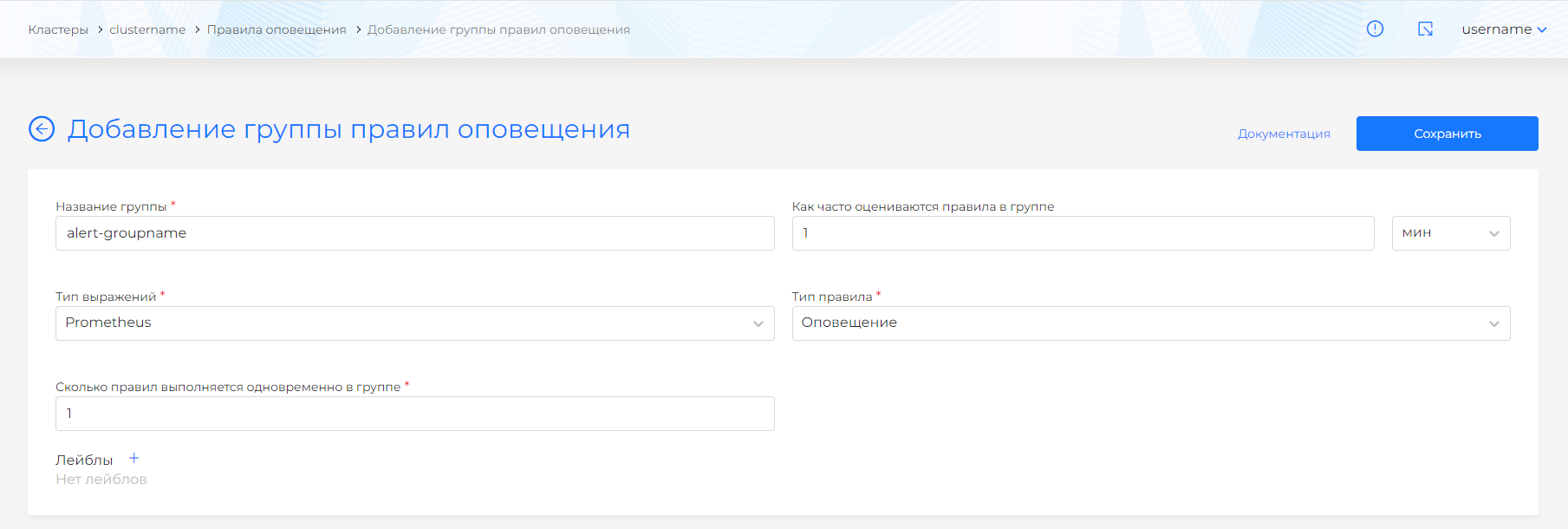
Once created, the group name, expression type, and rule type are immutable. Deleting a group results in a cascade deletion of rules.
How to manage rules in a group
Once an Alert Rule Group is created, you can manage the rules on the Group View page. At the bottom of the page on the left is a list of added rules. Create a rule by clicking + in the list; adding and viewing rules are displayed on the right.
Rules are of the notification (alert) or record type:
- Alert Rules - conditions based on Prometheus or Graphite expressions (depending on the type of group expressions) and notification when triggered.
- Recording rules - preliminary calculation of frequently used or resource-intensive expressions with saving the result as a new set of time series; querying the precomputed result is usually faster than re-executing the original expression. Especially useful for dashboards with repeating queries every time you update.
Alert rules
Screenshot: alert rule
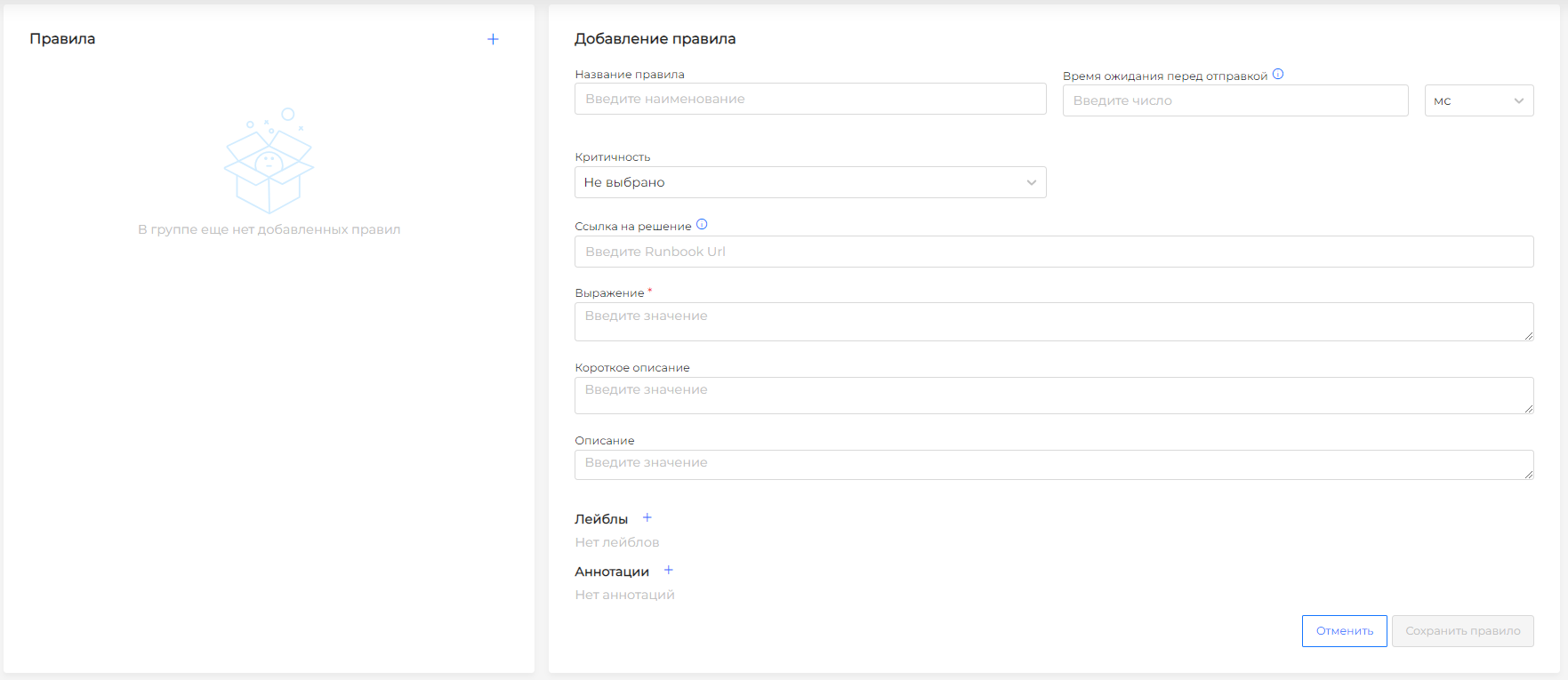
| Field | Description |
|---|---|
| Name | Mandatory. Does not change after creation. |
| Wait time | Lag before sending: the system waits to see if the state of the expression is saved; if yes, the notification is sent. |
| Criticality | Recorded in the label severity. If there is no suitable level, leave Not selected and set the criticality with a label (the field value does not overwrite the label). |
| Link to solution | Abstract runbook_url. |
| Short description | Abstract summary. |
| Description | Abstract description. |
| Expression | Mandatory. Prometheus (PromQL) or Graphite - by type of group expressions. |
| Labels, annotations | Additional metadata. |
Severity levels:
- Not selected (default; can be used in conjunction with the
severitymanually specified label) - Emergency (Emergency) - the system is not available for use
- Alert (Alert) - immediate response required
- Danger (Critical) - critical condition
- Error (Error) - error condition
- Warning (Warning) - the condition may cause a failure
- Notice (Notice) - within normal limits, but worth paying attention to
- Info (Info) - informational message
- Debug (Debug) - message for debugging
Note: If a rule has annotations with the keys description, summary or runbook_url, they are overwritten with the values from the form fields.
The Save and Delete Rule buttons are available on the created rule.
By default, alerts are routed to the VictoriaMetrics monitoring cluster in the management cluster. Triggered alerts are displayed in the cluster GUI in the Alerts → View Alerts section.
For additional routing, create recipients and routes. To set intervals when alerts do not arrive, configure time intervals and specify them in routes.
Example alert rule
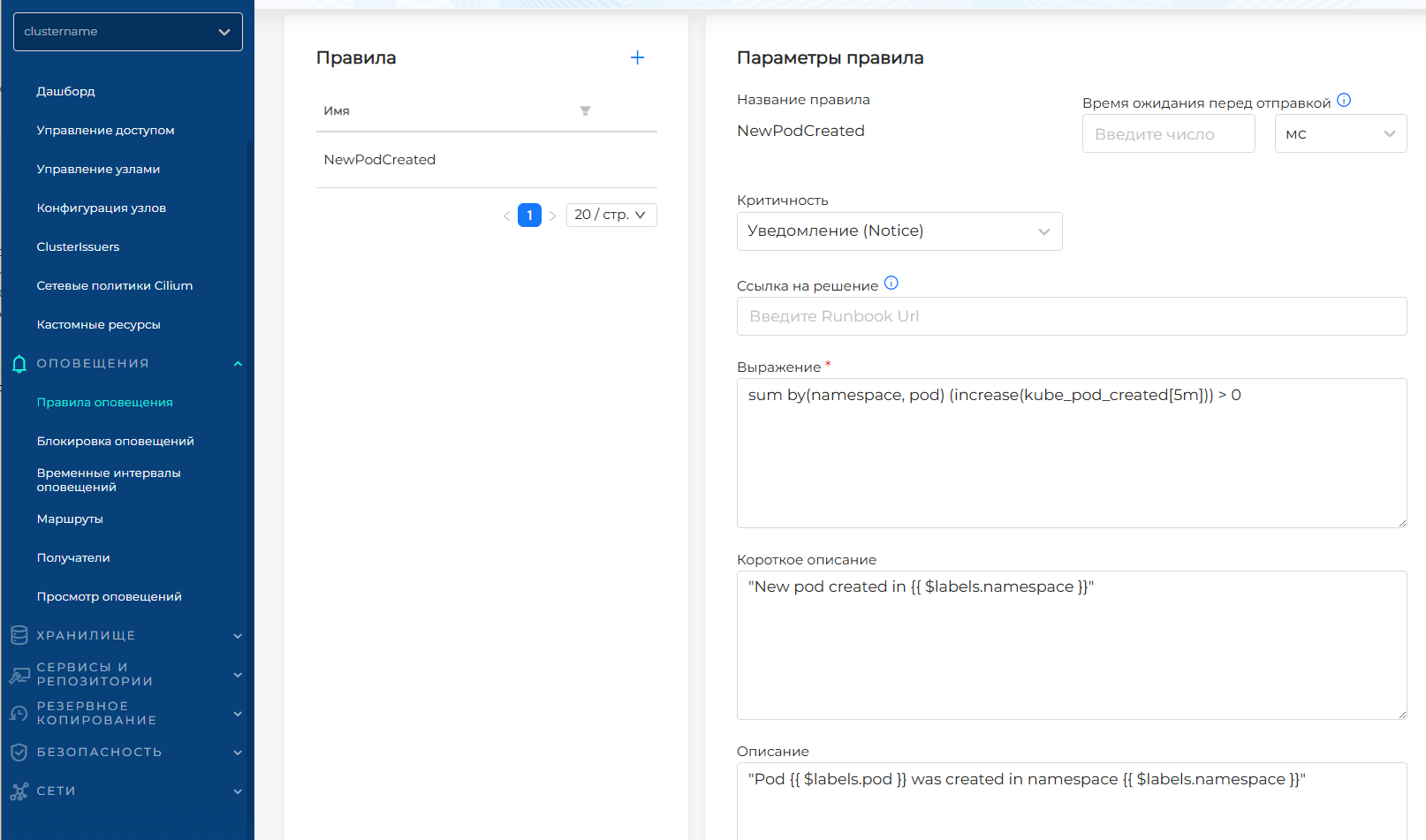
To test this, create a rule that is triggered when a new Pod is created in the Kubernetes cluster. In the Alert Rules section, create a group with the notification rule type (alert) and add the rule:
sum by(namespace, pod) (increase(kube_pod_created[5m])) > 0
How the expression works:
kube_pod_created— creation time of each Pod (Unix timestamp)increase(...[5m])— number of new values in the last 5 minutessum by(namespace, pod)— grouping by namespace and Pod name> 0— at least one new Pod was created
For convenience, add:
- short description:
"New pod created in {{ $labels.namespace }}"(see the screenshot below) - description:
"Pod {{ $labels.pod }} was created in namespace {{ $labels.namespace }}"(see the screenshot below)
The final form of the rule (see the screenshot below):
Example alert rule with PromQL expression and annotations
Record rules
Expressions are pre-calculated and the results are saved as time series - speeds up repeated queries, including on dashboards.
Screenshot: recording rule
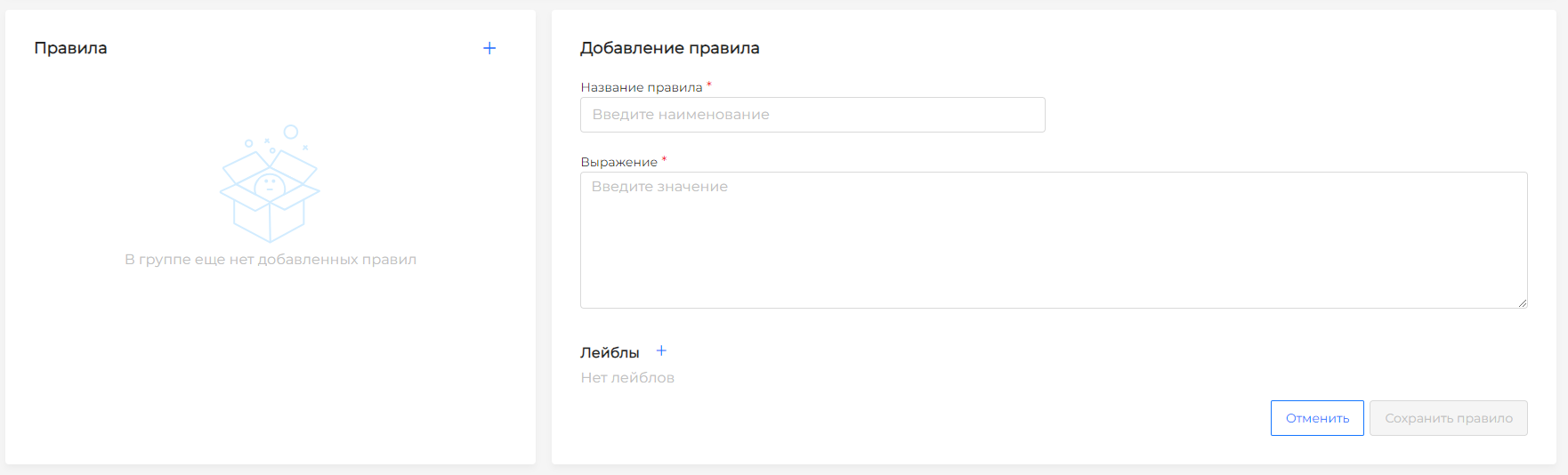
| Field | Description |
|---|---|
| Name | Mandatory. Does not change after creation. |
| Expression | Mandatory. Prometheus (PromQL) or Graphite - by type of group expressions. |
| Labels | Additional metadata. |
The Save and Delete Rule buttons are available on the created rule.
Receivers
By default, alerts are routed to the VictoriaMetrics monitoring cluster in the management cluster. Triggered alerts are displayed in the cluster GUI in the Alerts → View Alerts section.
For additional routing, create recipients and routes. If necessary, set time intervals during which notifications do not arrive and specify them in routes.
Notifications page → Recipients - table with fields:
- Recipient’s name (there is filtering by name);
- Type — selection from the list:
default,webhook,email,telegram.
On the page you can add a new recipient or delete a previously created one.
The recipient devnull (type default) is created by default and blocks the sending of notifications; it cannot be deleted or changed. When adding a new recipient, the default type is not available for selection.
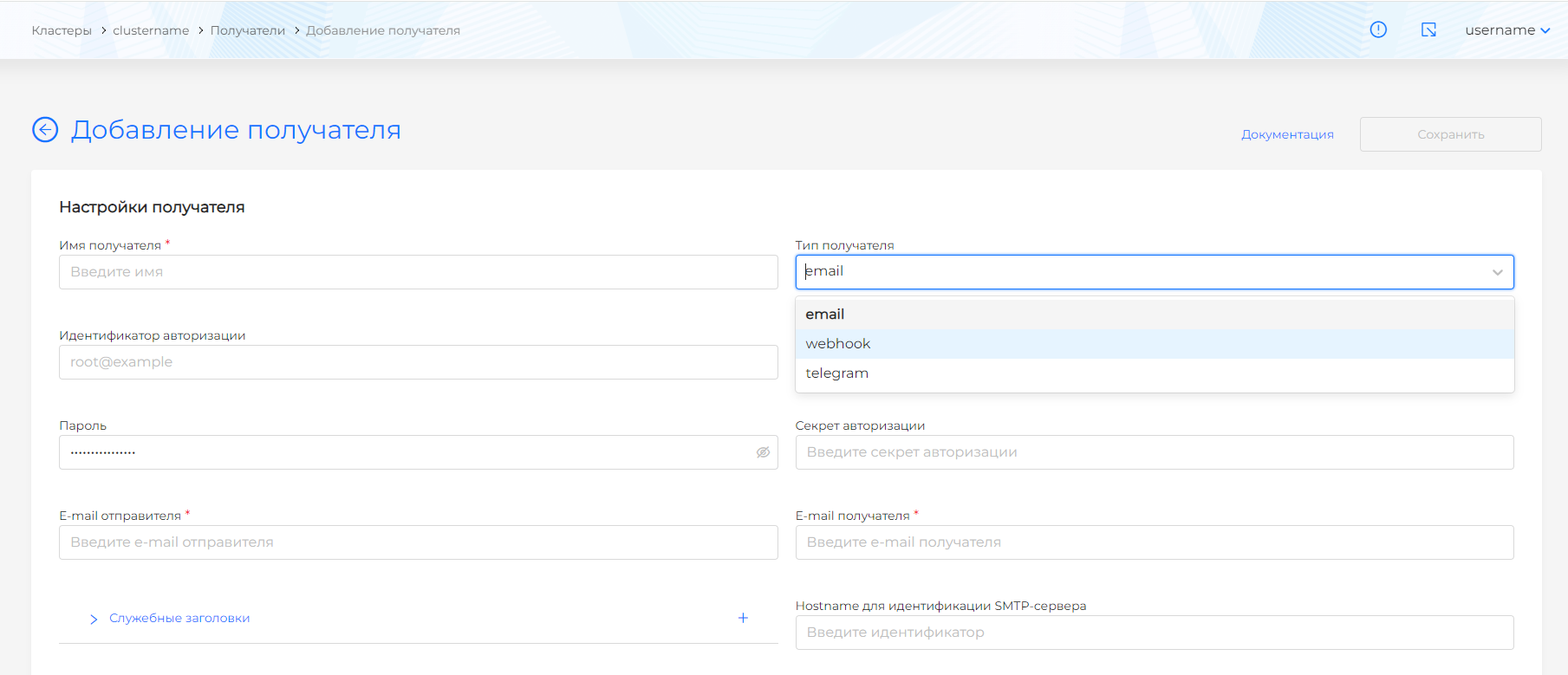
When creating a recipient, specify:
- Recipient’s name (required field);
- Receiver type:
webhook,emailortelegram.
Depending on the type, the set of configuration fields is different. More details by type:
Summary of fields by type (for quick setup in one place):
Notification recipients
| Type | Purpose |
|---|---|
| webhook | Sending to aggregation services, service-desk, task-manager. Required: URL. |
| SMTP. Required: SMTP server, recipient’s e-mail. Gmail requires authorization. | |
| telegram | Telegram bot. Bot token (from @BotFather), chat ID. |
Routes
All routes are generated in one configuration file. The root route is filled in first, then the sub-routes are configured.
Routes specify where and under what conditions alerts are sent.
Screenshot: routes
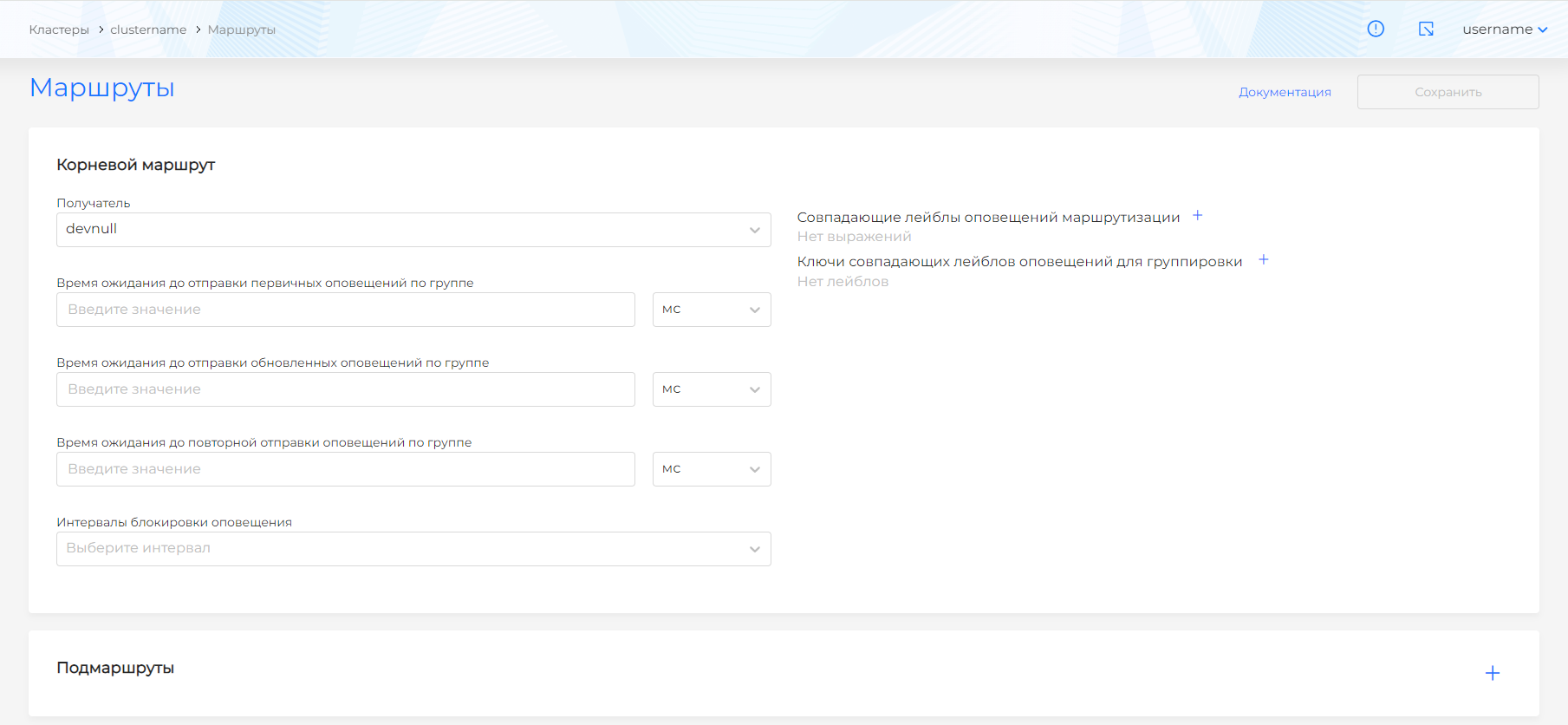
Route parameters:
| Parameter | Description |
|---|---|
| Recipient | Select from a list of recipients. By default, the default recipient is selected. |
| Waiting time before sending initial notifications for a group | Time lag before initial dispatch; can reject false positives. |
| Wait time before sending updated group alerts | Lag before sending changes based on a previously sent notification. |
| Wait time before group notifications are resent | Lag before resending previously sent alerts. |
| Matching Routing Alert Labels | Labels through which the alert reaches the route. |
| Matching Label Keys for Grouping | By what keys to group alerts among those selected in matching labels. |
| Alert blocking intervals | Previously created time intervals when to pause sending along a route. |
Sub-routes specify more detailed routing among the groups selected in the root route. In the subroute, specify whether you want to continue processing alerts from one group in other subroutes. The group is defined in the root route.
Time intervals (time_intervals)
On the Add time interval page, set the intervals of months, days of the month, days of the week, and hour ranges for silencing sending alerts. These intervals are used in route configuration.
Screenshot: time intervals
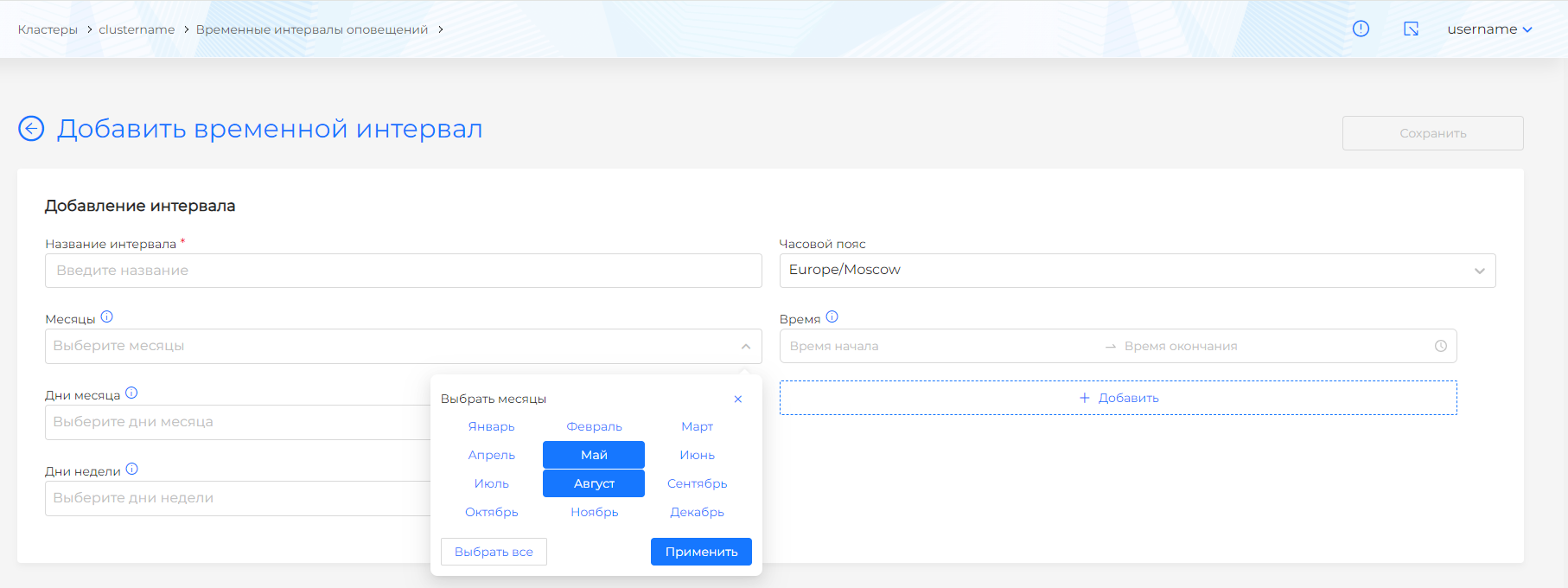
Intervals that span multiple contiguous time elements are combined into ranges. You can use Shift to select. The Select All button selects all elements; pressing again clears the selection.
If no values are specified in the generated configuration, this is equivalent to selecting all values. For example, if days of the week are specified but months are not selected, those days of the week apply to each month.
Blocking notifications (inhibit)
On the Blocking of notifications page, you configure the criteria by which notifications are blocked (not sent).
Screenshot
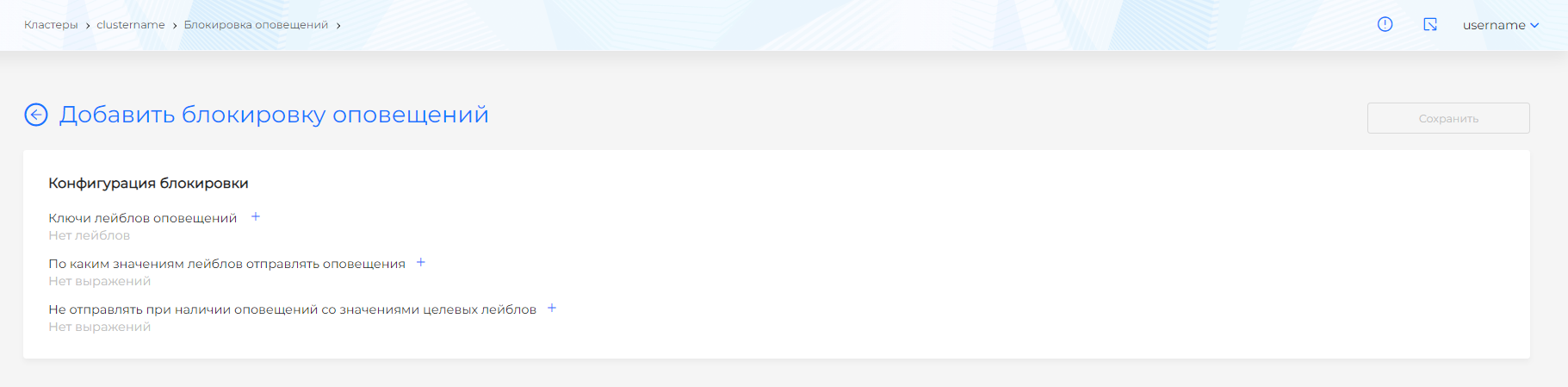
| Parameter | Description |
|---|---|
Label Keys to Match (equal) | A list of label keys whose values must match for the source and target alerts for the blocking to work. |
which label values to send alerts about (target_matchers) | Target alert labels, if their values match, alerts will be sent. |
If there are any alerts to block (source_matchers) | Labels of source alerts, the presence of which causes blocking of target ones. Targeted alerts are not sent while at least one source alert is active. |
Recommended setup order
- Make sure monitoring services are enabled and running in the target cluster (see Operating conditions for alerting).
- If necessary, create a rule group and add rules (alert or record).
- Create recipients (Email, Telegram, Webhook) if external delivery is required.
- If necessary, set time intervals and indicate them in routes.
- Set up routes - recipient, labels, intervals.
- If necessary, configure notification blocking (inhibit).
Additional
- Local alerting, log alerting, checking and troubleshooting - other pages of the “Alerts” section.
- More information about the architecture - Architecture of monitoring services.